Catalog
Cart Variations
Creating small fields where customers who add a product to their cart can enter their final preferences or notes about the product makes your e-commerce site more widely used, because your customers complete their transactions much more comfortably.
In This Tutorial
Catalog >> Definitions >> Cart Variations
Creating small fields where customers who add a product to their cart can enter their final preferences or notes about the product makes your e-commerce site more widely used, because your customers complete their transactions much more comfortably.
For example, by adding extras such as preference fields for Order Note and Gift Wrapping, you can make the shopping experience better.
In the Cart Variations panel, you will find the Cart Variations previously added to the system and the Add New button.

Creating a New Cart Variation
Let's create a Cart Variation for customers who want to add gift wrapping to the product they purchase.
Cart Variation Information
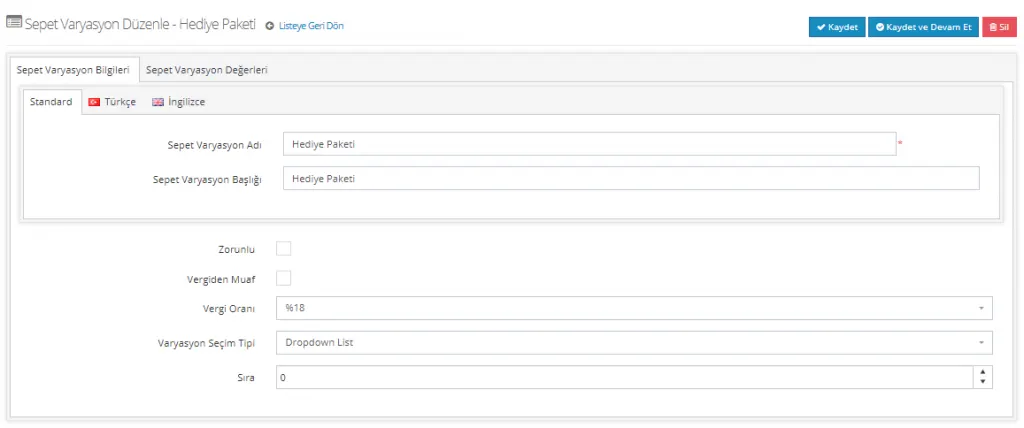
Let's set the Cart Variation Name and Title fields to Gift Wrapping.
If we check the Required field, customers must make a selection in this field to complete their orders. However, we do not want to create such a requirement. So we skip it without checking the field. If you add a Cart Variation for which a selection must be made, we recommend checking this field.
Let's check Tax Exempt. If no exemption applies, let's select the Tax Rate.
The Variation Selection Type must suit the cart variation you are creating. Since we are defining a cart variation with options, we marked it as Dropdown List.
If you want a cart variation to appear higher in the order, you can leave this field as 0 (zero) or give a negative value so that it is displayed higher. For items with the same value, the system shows the one added first higher.
Cart Variation Values
Cart Variation Values are the options of the variation you have defined. Let's add the gift wrapping options in this field.
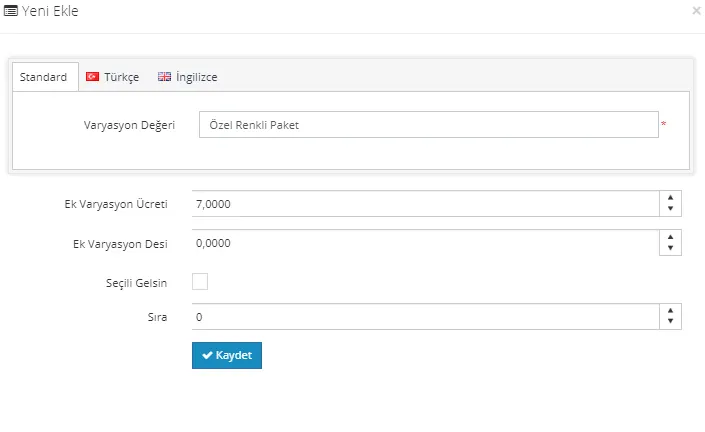
From this field we can set an additional variation and additional deci (volumetric weight) value for the product. In addition, if we check the selected-by-default field, this cart variation will be selected even if the customer makes no selection when placing the order.
After the edits, let's click the Save button and see how the defined variations appear in the cart.
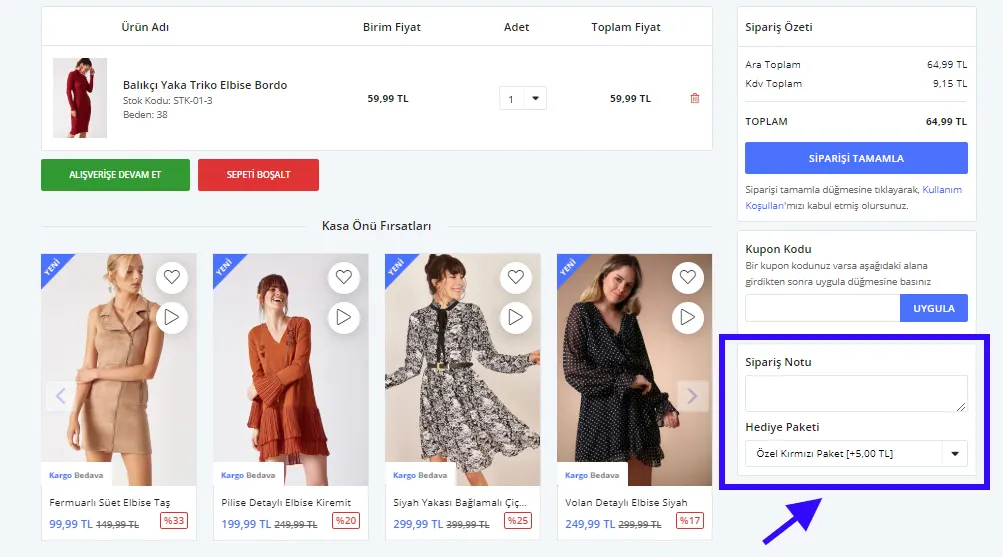
Cart Variations are shown in the cart, just before the order is completed. Your customers can choose as they wish in this area and add an order note. If you have defined an additional fee, this fee is also reflected in the customer's order after the selection.
Deleting a Cart Variation
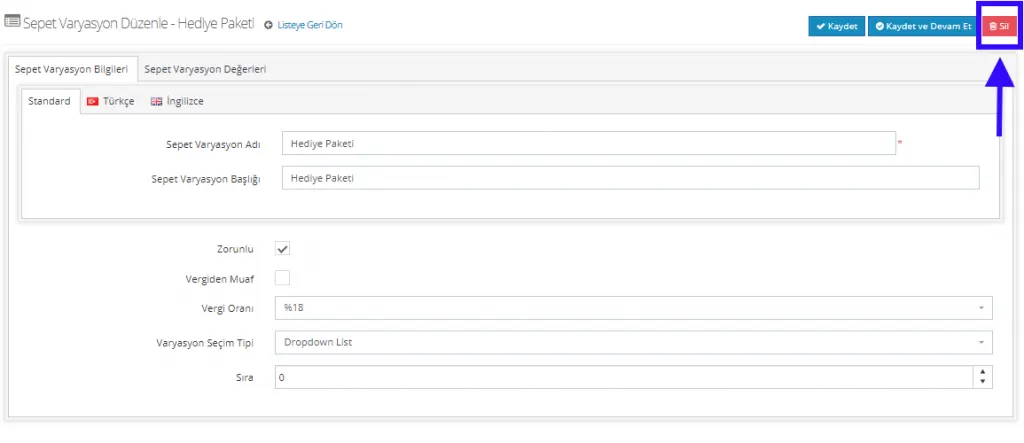
To delete the Cart Variation you created, simply click the Delete button on the edit page.