Catalog
Brand Management
Under the Brand Management heading, we will cover Brand Creation, Adding a Brand, Editing a Brand and Deleting a Brand. The product being sold may belong to your own brand or to different brand groups. Either way, brand information must be entered for products. However, to add brand information to a product, that brand must have been defined in the system.
In This Tutorial
Under the Brand Management heading, we will cover Brand Creation, Adding a Brand, Editing a Brand and Deleting a Brand.
The product being sold may belong to your own brand or to different brand groups. Either way, brand information must be entered for products. However, to add brand information to a product, that brand must have been defined in the system.
From the New Product >> Category / Brand >> Add New Record area, we can assign brands that have already been added to the system to the product.
To define a brand in the system from scratch, we need to work from the Brand Management area. In this content, we will give you information on both cases.
Now, if you like, let's take a closer look at the Brand Management panel.
We go to the Catalog >> Brand Management area.
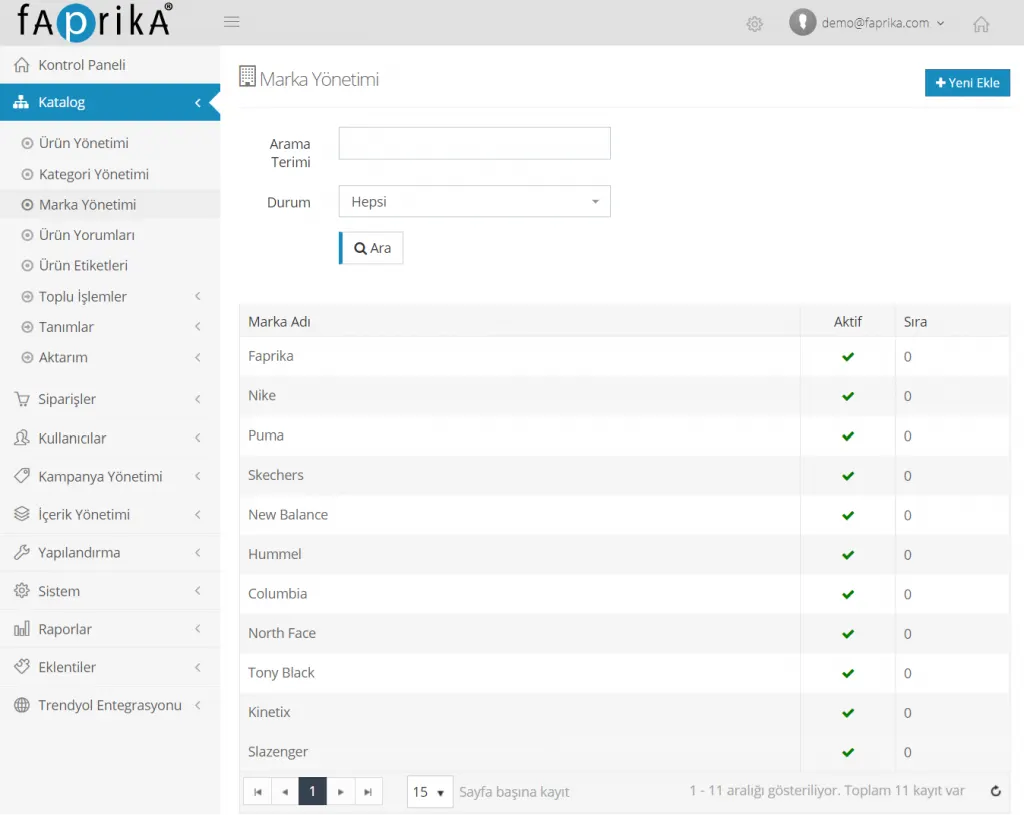
The area offers us a Search Panel and an Add New button, as we are used to from other areas. If you have already added the brand in question to the system, you can easily choose it from the list. If there is more than one page, you can easily find it by typing the word in the search field.
In this content, we will give examples using an e-commerce site that sells sports shoes. The list contains previously defined sports shoe models. Let's say the brand we want to search for is Columbia. Type 'Columbia' in the search term field and click the Search button. You will see the brand listed below.
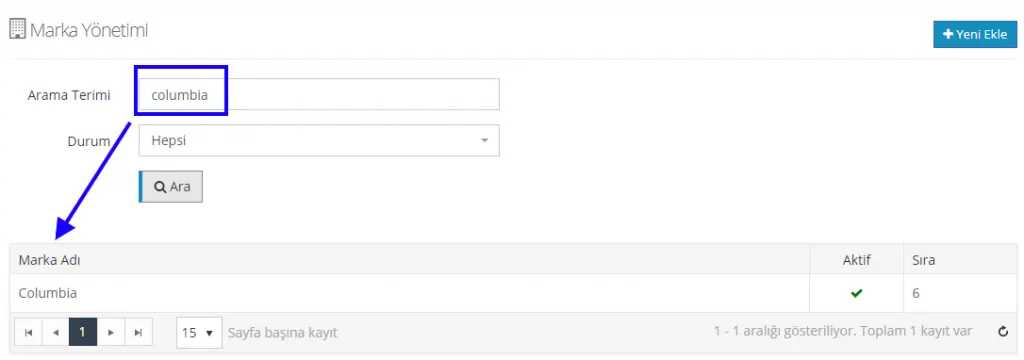
By clicking on the listed brand, we can go to the edit panel. We will cover editing later. First, let's look at the Status button in the Search panel.
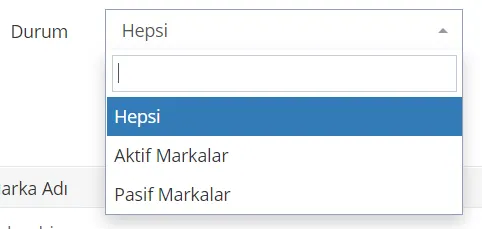
The brand you are looking for may be among the active or passive brands. You can make this selection from the Status field. If the All option is chosen, the search will be carried out for all active/passive brands.
Add New Brand
Let's add a new one to the sports shoe brands already in the panel.
You can reach this area from CONTROL PANEL > CATALOG > BRAND MANAGEMENT > ADD NEW.
We click the Add New (

) button in the top right corner.
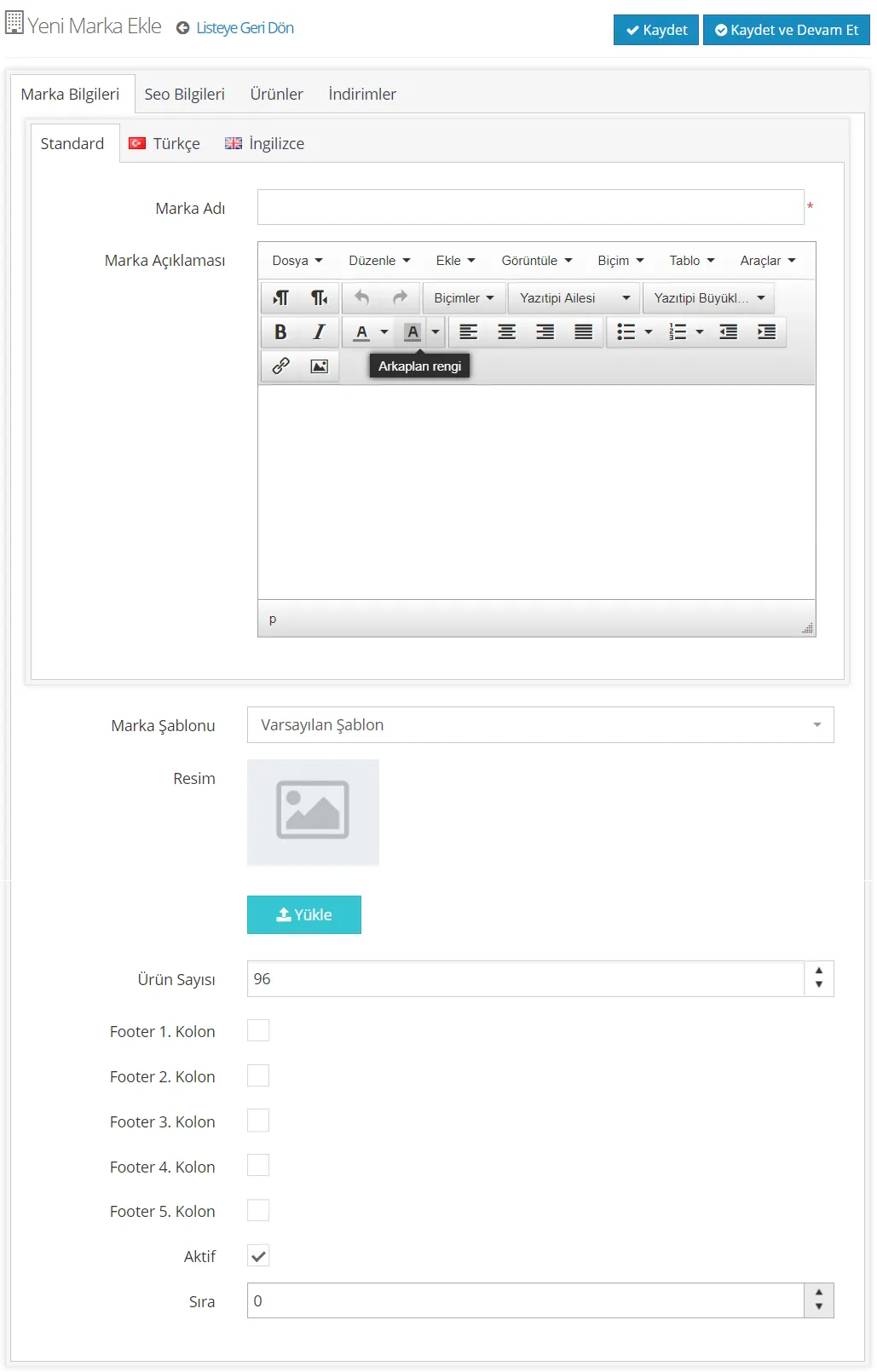
We are presented with a panel where we will add the brand information in detail. Let's examine the headings in this panel one by one.
The panel offers us Turkish and English language options. You should select the language in which you want to add the brand and continue with your operation.

The default selection is considered the Turkish language selection. You do not need to make an extra Turkish language selection. If your preference is the English language, you need to fill in the English field. For other language options, you can contact our support team.
Brand Name
Let's type the brand name we want to add in the brand name field.

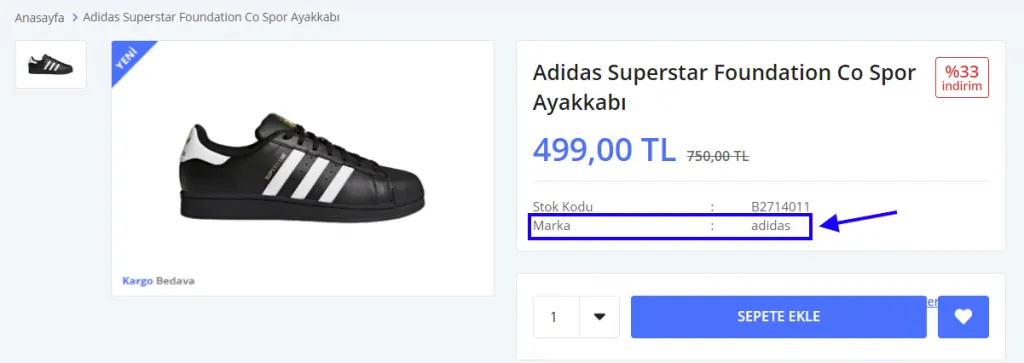
We have added the Adidas brand. Where on the page will the brand appear when a product is entered? Let's take a look together:
Brand Description
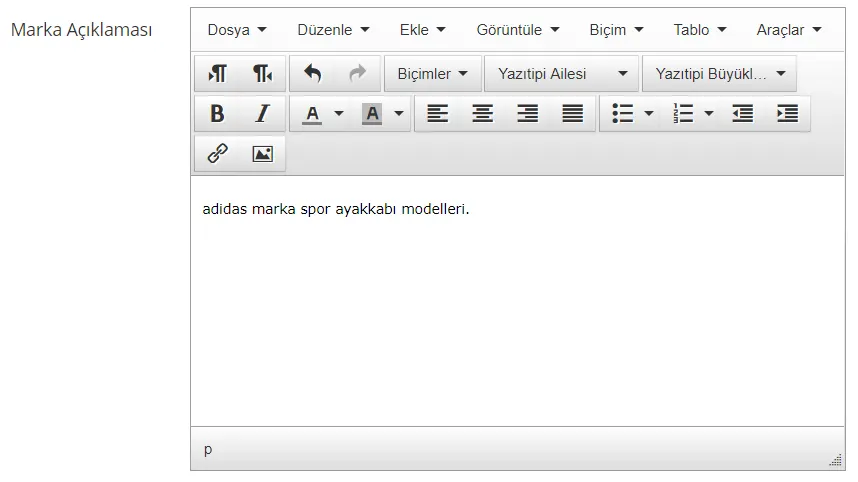
Let's also add the phrase that best describes the brand in the Brand Description section.
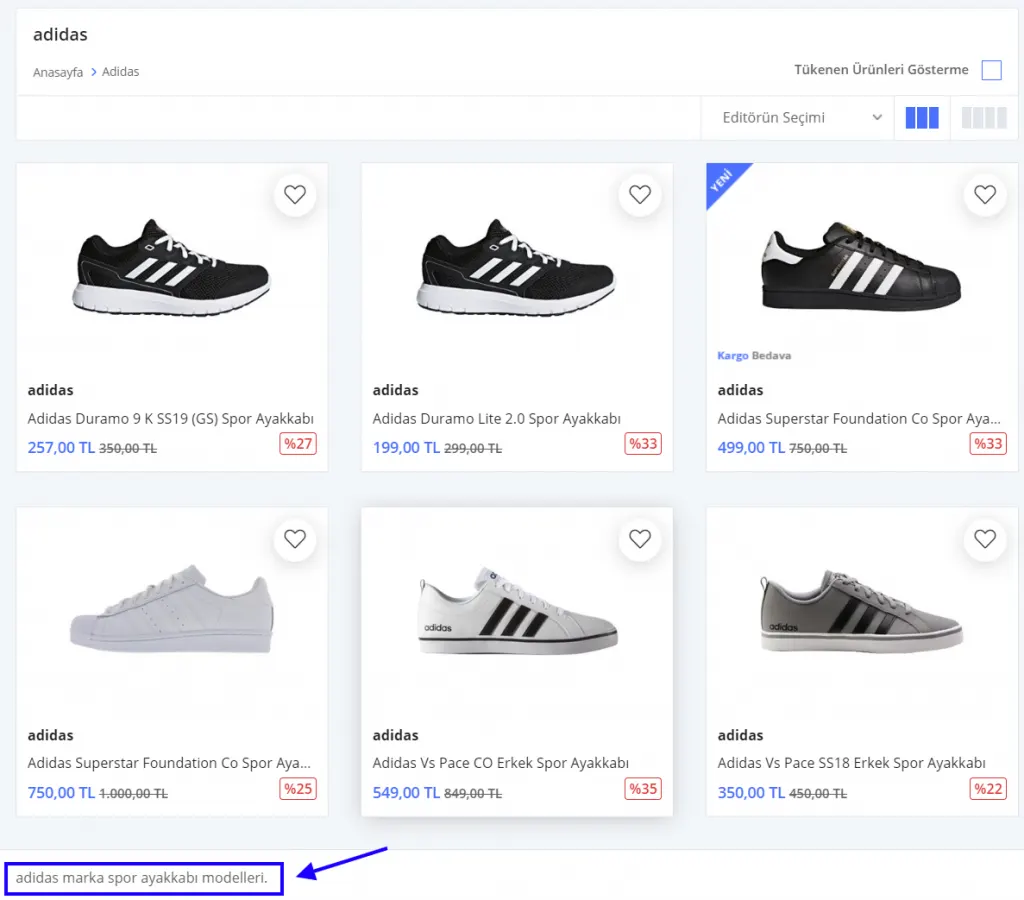
The descriptions you write in this field will appear at the very bottom of the page that opens when you click the category:
You can edit the description in the panel where you add it. For example, you can center the text, align it left or right, write in bold or italic, color it, and add links or images.
Brand Template and Image
Before looking at how the brand template works, let's add an image. That way we can see more clearly what kind of changes the template selection brings about.
The image added here can be the brand logo, a banner, or an image from one of the brand's campaigns. The default size for products is set to 12o0x1800. However, if you want to use a different size, you can adjust it in the Configuration>>Settings>> Media Settings panel.
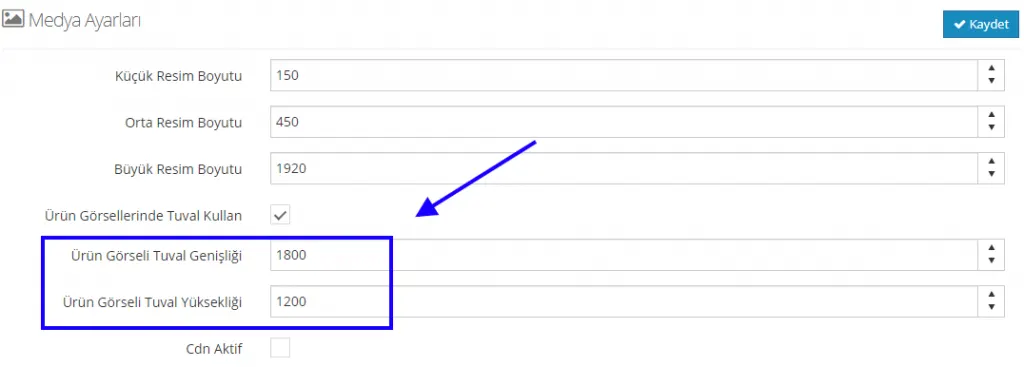
If the image you add is larger or smaller, the system adjusts its size automatically. However, placing a large image in a small image area, or vice versa, may cause distortion. Therefore, we recommend choosing images close to the defined sizes.
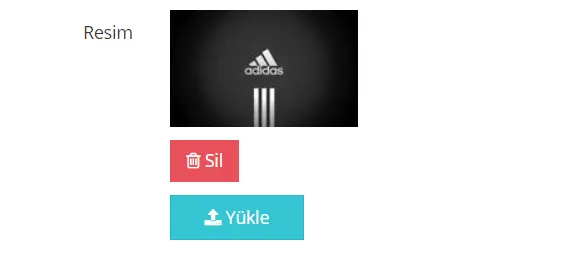
Let's select the brand logo image by clicking the Upload button, then upload it to the system. If we want to remove the image, simply click the Delete button. To check whether the image is faulty, after clicking the Save and Continue button we can stay on the page and use Preview.
We have added our image. Now let's start examining the templates. There are 3 template options.
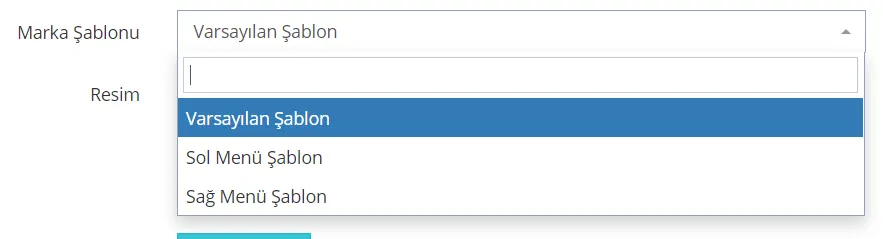
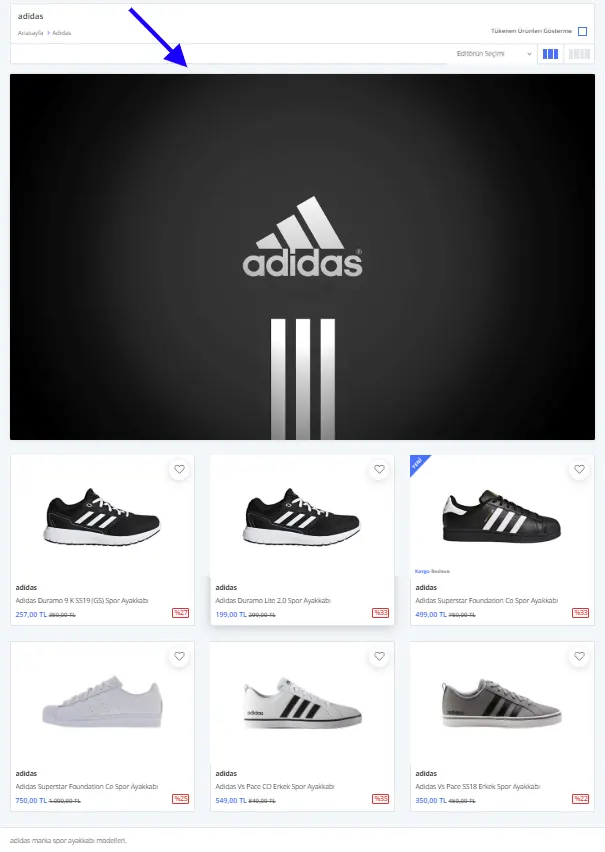
With the Default Template selected, you can see in the image below how the image you uploaded to the brand and the template will look:
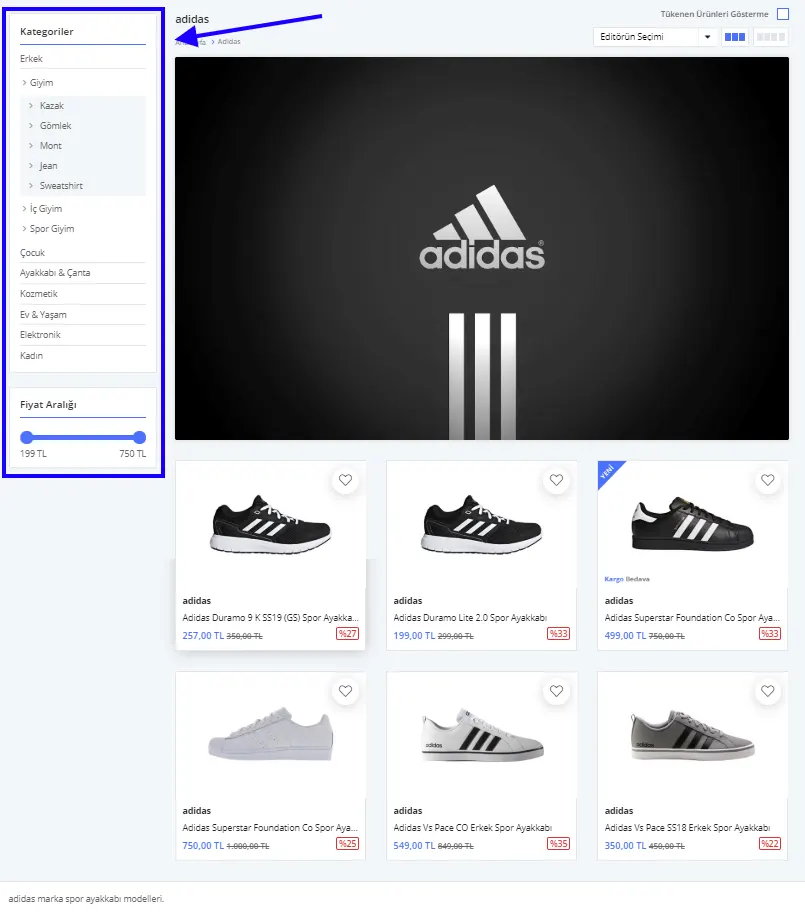
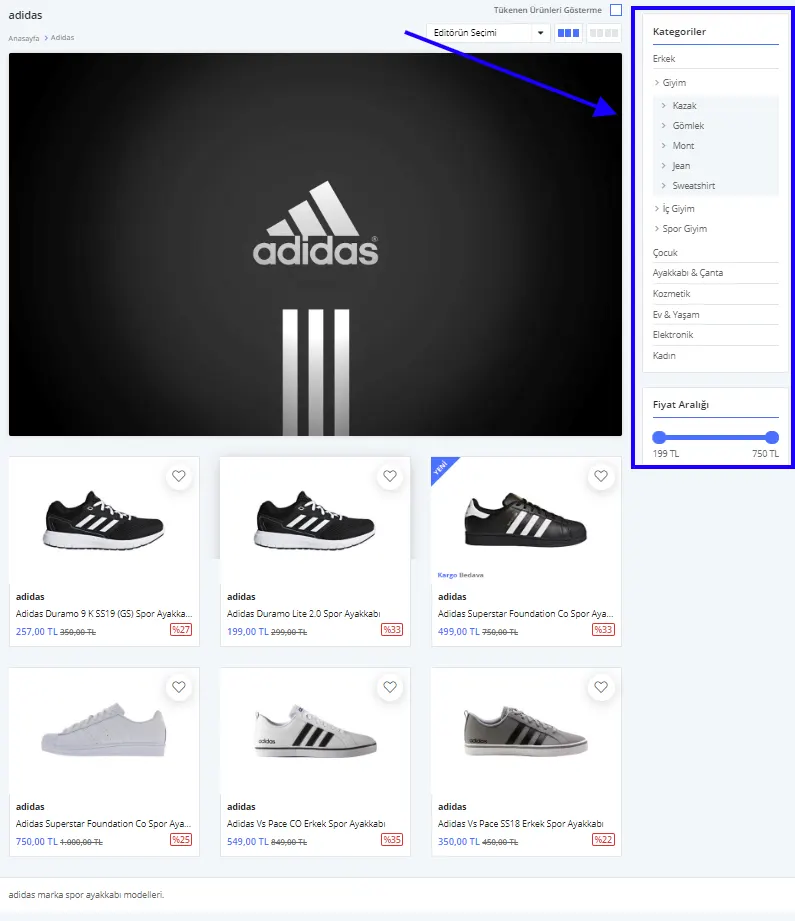
With the Left Menu Template selected, the category area is positioned in the left column:
With the Right Menu Template selected, the category area is in the right column.
Number of Products
Product count is a value that defines how many products listed on the brand page are shown before moving to a new page. For example, let's set the product count to 4.

After clicking the Save and Continue button, let's use Preview to see how the change is reflected on the brand page:
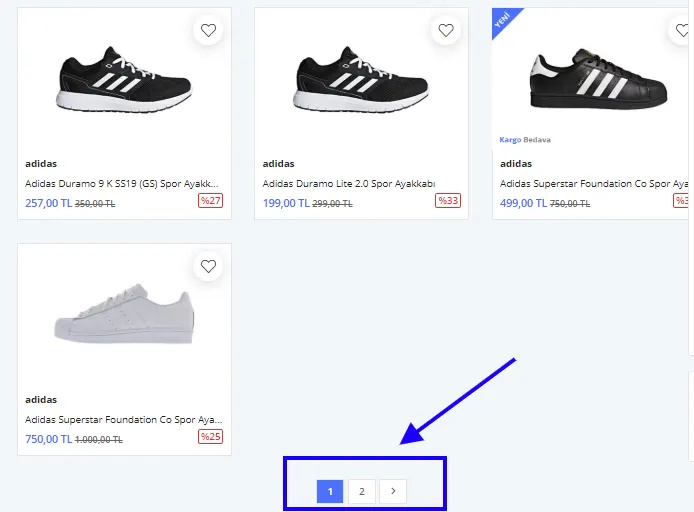
As you can see, because the product count was set to 4, the fifth product moved to the second page. You can increase or decrease this number according to your page layout.
Footer Area Selection
The Footer field refers to the column in which the brand will be displayed. If you want brands to be listed in the footer area, you can make your edits by selecting from this field.
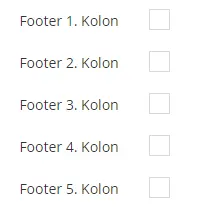
Depending on the column you select, the brand is shown in different areas.
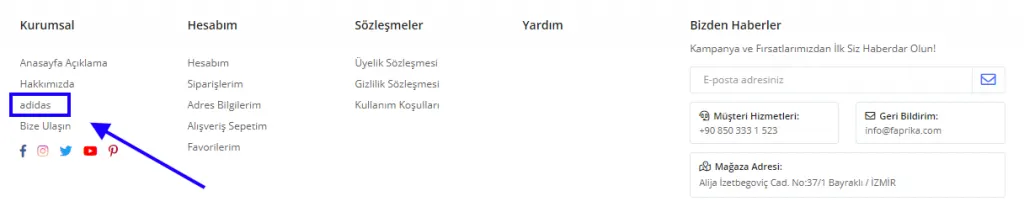
In the image, we assigned the brand to footer column 1. We could also gather all brands in a single column. To do this, let's assign the brands in our list to one footer. For example, let's add five brands to Footer Column 4, which is empty in the image.
We tick the Footer Column 4 option for the brands we selected and click the Save and Continue button.
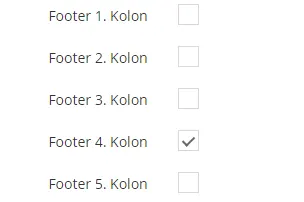
Next, let's look at how the footer area appears after these selections:
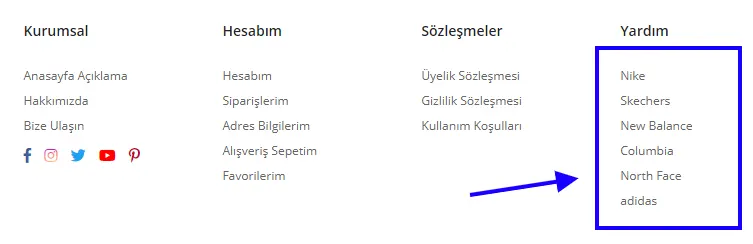
As you can see, we assigned the sneaker brands to footer column 4. This way, customers can reach the brands' products directly without having to browse categories. However, there is one more thing to edit: renaming the 'Help' heading assigned to the column to 'Brands'. Let's quickly see how to do it:
For this edit, go to Configuration>> Language >> Turkish >> Language Resources, then type 'Yardım' in the Search by Resource Value field. Then click the Search button. On the result that appears, click Edit and you can easily rename it from the panel that opens.
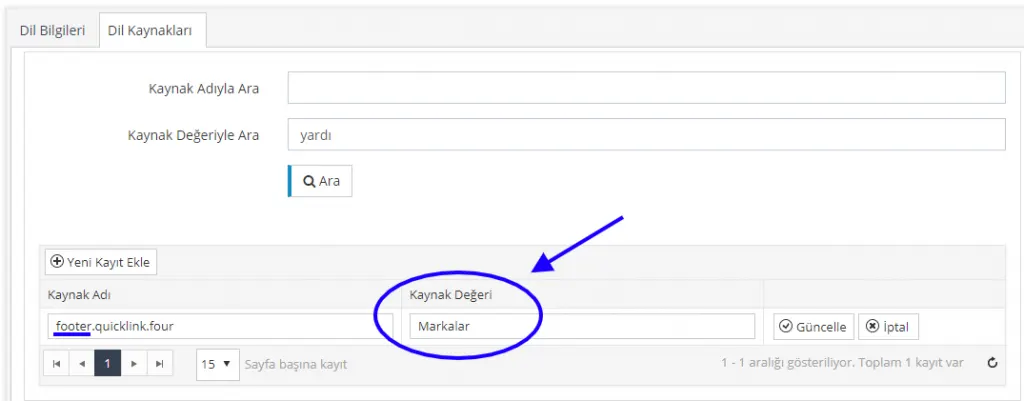
When you click the Update button, the process is complete. After saving by clicking the Save button, let's see how the brands appear in the footer area.
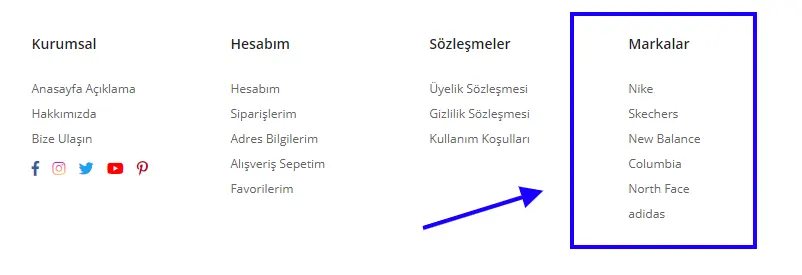
All done!
Activating
The Active option is important because it makes the brand visible. If you do not tick the box next to Active in the brand editing panel, the brand will be set to inactive and customers will not be able to see it.
Similarly, if you have decided to stop selling a brand, or do not want that brand's products to appear on your e-commerce site for a certain period, you can easily deactivate the brand by unticking the box next to the Active button. This way you do not need to delete the brand, and you can reactivate it later.
Order
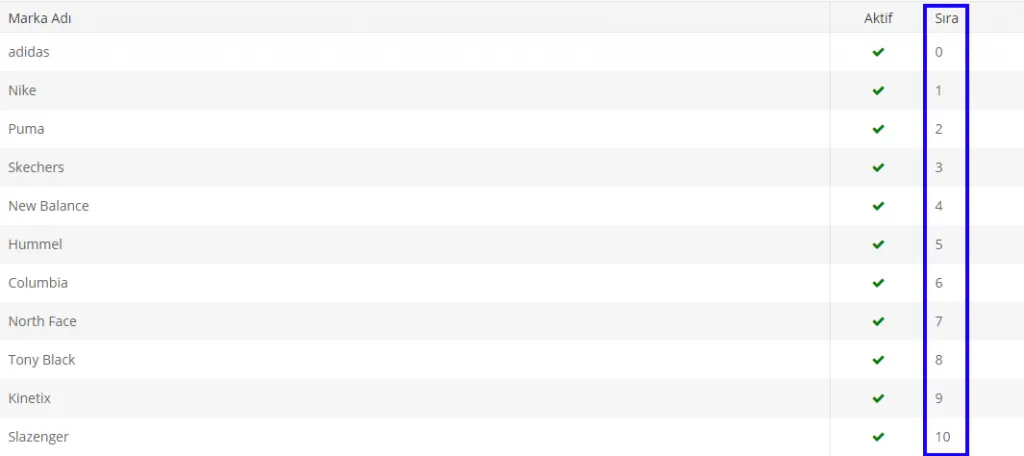
Order refers to the ranking among brands. Since 0 represents the very beginning in our system, the Adidas brand will be displayed first.
SEO Settings in Brand Management
We have completed the Brand Information section. Now let's move on to the SEO Information section.

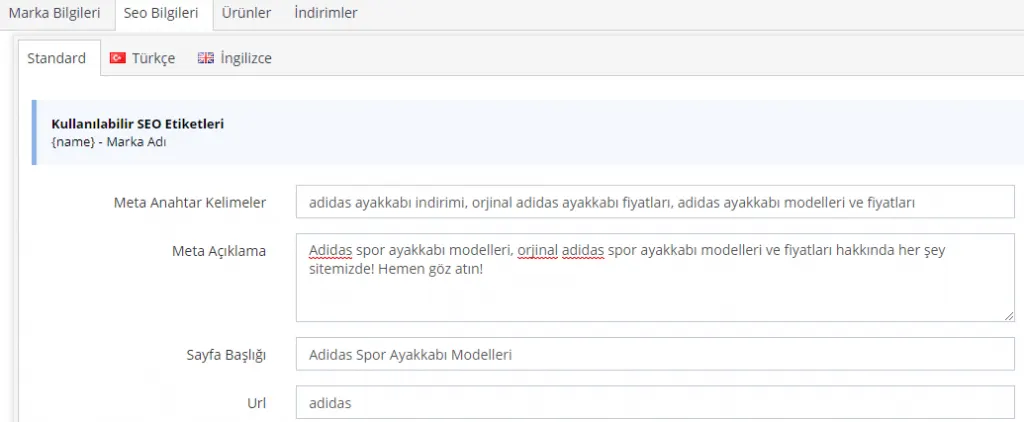
The SEO section includes the Meta Keywords, Meta Description and Page Title fields. Let's fill in these fields.
Meta Keywords:
A meaningful sentence containing the keyword should be written. To expand the content and make the product stand out in this field, you can write words describing the product's features, separated by commas. To highlight the product name, we recommend using the {name} content, which can be pulled from the code in the upper left corner.
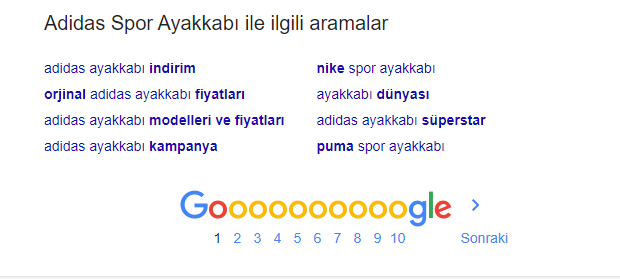
The most practical way to choose keywords is to type the product name into Google and take inspiration from the keyword groups listed at the very bottom of the results page. This is because Google lists frequent searches related to the topic there.
Meta Description:
You can write a sentence of 155 characters that best describes the product, or list the product features separated by commas.
Page Title:
A suitable page title of 65 characters needs to be set.
The URL field is assigned automatically by the system, so it does not need to be edited. With this in mind, let's continue with the settings.
After the SEO edits, let's move on to the Products section.
Products
You can view the products to which your brand is assigned in this section.

All products are listed in this panel, where you can edit or delete them.
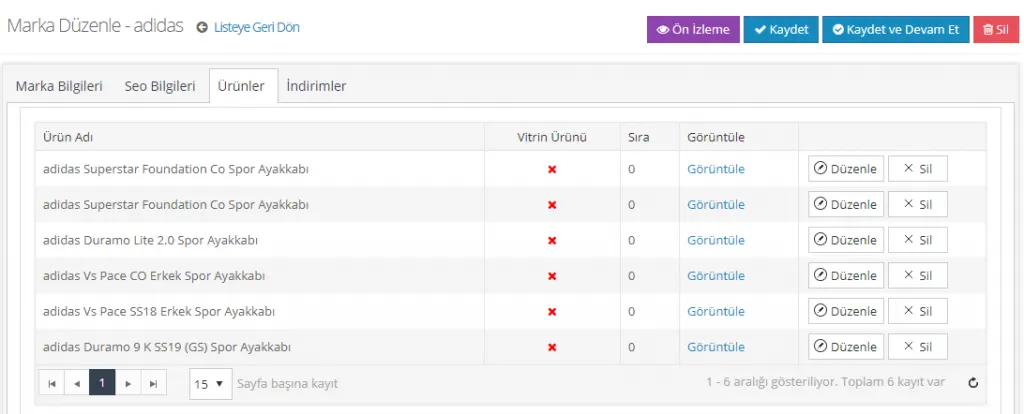
If you want to edit a product quickly, you can click the Edit button.
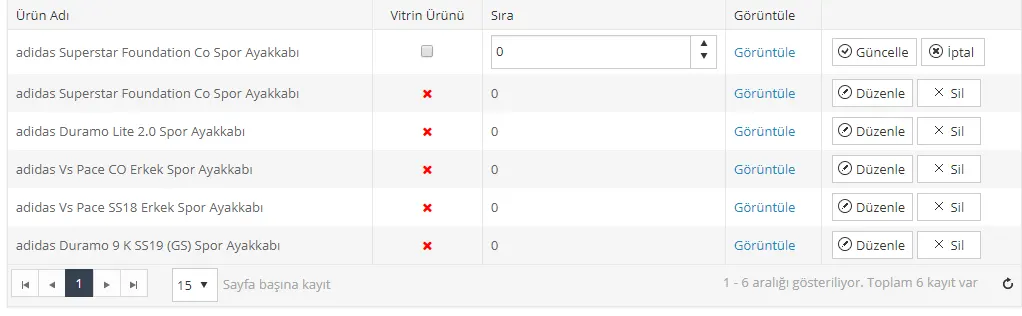
In this section, Featured Product and Sorting settings can be made easily.
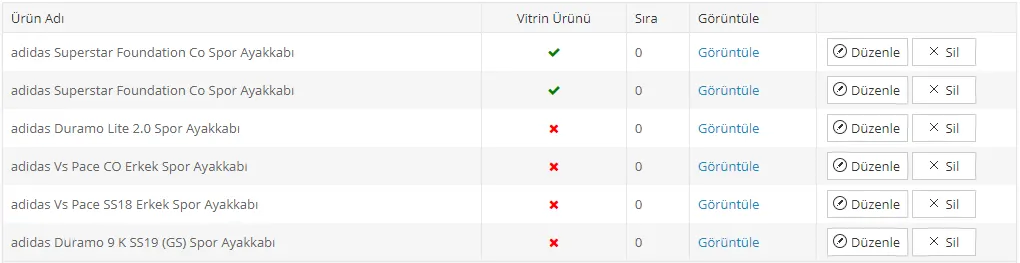
If one or more products are assigned as Featured Products, they are displayed on the brand page as follows:
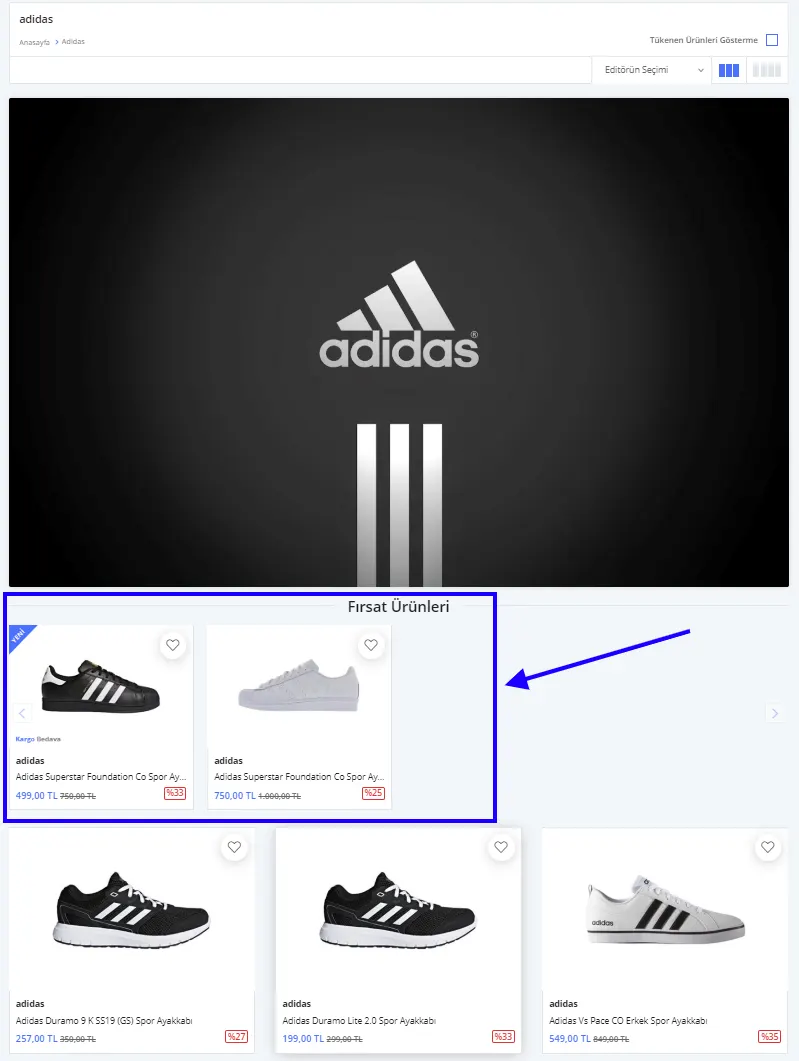
As you can see, when we assigned two products as Featured Products, they began to be listed on the brand page under the Deals heading.
Discounts
Now to the last section of the Brand Management panel. Discounts defined specifically for the brand are displayed in this panel.

It is possible to act on a discount defined through this section by unticking the box next to it. However, to define a discount for a brand, we need to create the operation under Campaign Management >> Discounts. (Click to learn about creating discounts)

After making all the edits, let's click the Save and Continue button. Then click Preview to see how the applied changes will look on the site. If there are no problems with the edits, we can press Save, return to the Brand list page and move on to creating a new brand!
Deleting a Brand
If you want to delete a brand added to the system, what you need to do is quite simple. Go to the Brand Management panel and search for the brand in the search field, or select it directly from the list below.
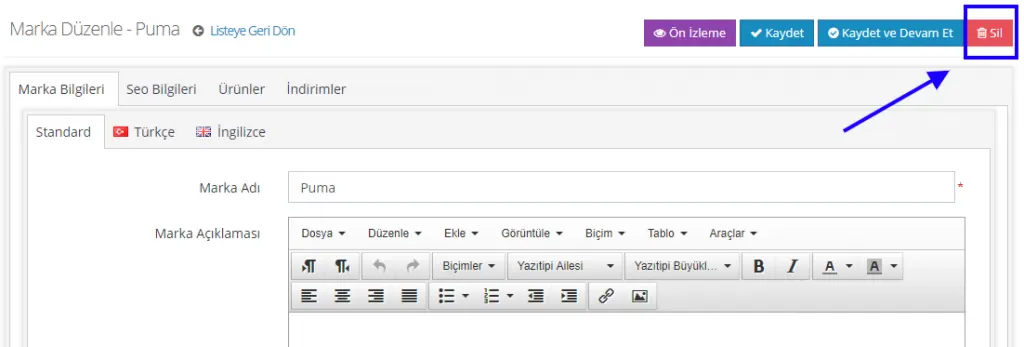
Click the name of the brand you want to delete. Once on the editing panel, click the Delete button in the top right corner of the panel to remove the opened brand from the system.
Deactivating/Activating a Brand
To deactivate a brand already added to the system, you again need to untick the box next to the Active option on the editing page. This sets the brand to inactive.
Assigning a Brand to a New Product
We have seen how to create a brand from scratch. Now, if you like, let's see how to assign a brand when creating a New Product.
First, let's select Catalog>>Product Management>>Add New Product, or click the name of an existing product in the product list and edit it on the page that opens.
On the product editing page, click the Category / Brand field. In the area that opens, you can edit both the category and the brand. You can find details about editing categories here.
To add a brand, do the following:
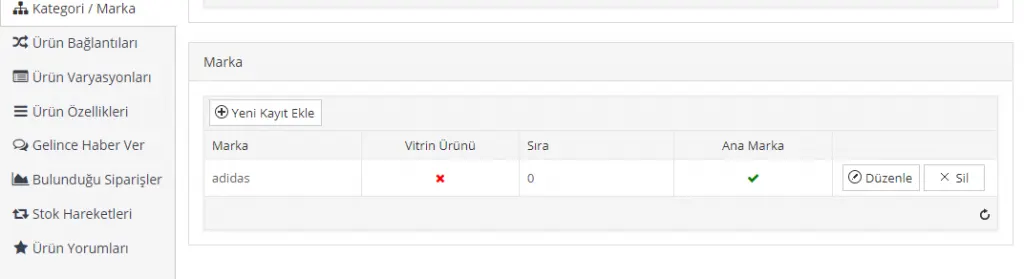
After clicking the Add New Record option, you can choose from the brands registered in the system. Featured Product and sorting settings can also be made from this field.
We have examined brand editing in detail, step by step. You can easily add brands to other products in the same way!