Contents 12 sections
- What Is Automatic SKU and Barcode Generation?
- Why Generate Stock Codes and Barcodes Automatically Instead of Entering Them by Hand?
- How Do You Generate SKUs and Barcodes Automatically in Faprika?
- How Do You Design a Good Code Pattern?
- How Do You Structure SKUs and Barcodes for Products with Variations?
- How Do You Manage Conflicts and Compatibility with Legacy Codes?
- What Should You Watch for to Stay Compatible with Marketplaces and ERP?
- The Most Common Mistakes When Generating SKUs and Barcodes Automatically
- Code Pattern Checklist
- When Is It Better to Enter the Code by Hand?
- Automatic SKU and Barcode Generation with Faprika
- Frequently Asked Questions
As a catalog grows, product codes become one of the quietest sources of problems. The person adding a new product types the stock code as it comes to mind, skips the barcode field or copies it from an old spreadsheet; three months later there are two products with the same code, a variation with no barcode at all and a code logic nobody can explain. In stock counts, marketplace matching and warehouse picking, these inconsistencies come back order after order.
This guide treats automatic SKU and barcode generation as a production routine: why you should generate automatically instead of typing by hand, how to use the buttons in Faprika, what to watch for if you are designing your own code pattern, how to structure codes for products with variations, how to avoid conflicts with legacy codes and which mistakes are the most common. There are also two small tools: a generator that produces a code plan for your catalog and an eight-point code pattern audit. We cover the concepts themselves in separate articles: what a SKU is and what a barcode is; here we assume you know the concepts and focus on production and workflow.
What Is Automatic SKU and Barcode Generation?
Automatic SKU and barcode generation means the system generates a product's stock code (SKU) and barcode number instead of you typing them by hand. In Faprika, this is done with one click using the “Generate SKU” and “Generate Barcode” buttons on the product edit screen.
The two codes have different jobs. The SKU (stock code) is the internal code your business uses to identify a product and its variation; stock tracking, order processing and reporting rely on it. The barcode is the machine-readable number that identifies the product quickly and accurately with a scanner; it is used at the point of sale, in the warehouse, in counting and in the shipping process. One is a code a person can read and understand, the other is read by a device, and both must be unique per product. The buttons in the Faprika panel can be used both when adding a new product and when editing an existing one.
| Code | Who is it for? | Where is it used? | What to expect from automatic generation |
|---|---|---|---|
| SKU (stock code) | Internal to the business, read by people | Stock, orders, reports, marketplace matching | Unique, readable, fixed pattern |
| Barcode | Read by a device | Warehouse, counting, point of sale, labels | Unique, compatible with scanners, present on every sellable unit |
Why Generate Stock Codes and Barcodes Automatically Instead of Entering Them by Hand?
Hand-entered codes repeat, stay empty and lose their pattern over time; automatic generation hands you a unique code ready on every new product. The difference is not felt in small catalogs; it becomes clear as the catalog grows and new people join the team.
In the tutorial's words, the feature provides time savings, fewer errors, efficiency, standardization, easy inventory management and a tidy appearance. Translated into daily work, they read like this:
- Time: thinking up a code, checking whether it was used before and typing it all disappear.
- Errors: human-caused problems such as typos, two similar-looking codes and the same number given to two products are reduced.
- Consistency: three different people do not write the code in three different ways; the list stays readable.
- Completeness: no product is left with an empty barcode field; warehouse and counting processes work on every product.
- Reporting: unique, orderly codes make stock counts and reports reliable.
| Topic | With hand entry | With automatic generation |
|---|---|---|
| Uniqueness | Needs checking every time | A code that has not been used before is generated |
| Speed | Thinking and typing for each product | The field fills in with one click |
| Pattern | Varies by person | Every product comes from the same generation logic |
| Empty field | The barcode is often forgotten | Filled with one click on both new and incomplete products |
| Meaningful code | You can build any logic you want | The code's logic lives in the system that generates it |
The last row shows an important balance: automatic codes give you speed and uniqueness, but if you are building a meaningful code pattern yourself, that pattern has to be entered by hand or with a bulk operation. That is why we cover below which route to choose.
How Do You Generate SKUs and Barcodes Automatically in Faprika?
In Faprika, you open the product from Product Management under Catalog and click the “Generate SKU” button next to the Stock Code field and the “Generate Barcode” button next to the Barcode field; the system generates the codes and writes them into the fields, and you save the product.
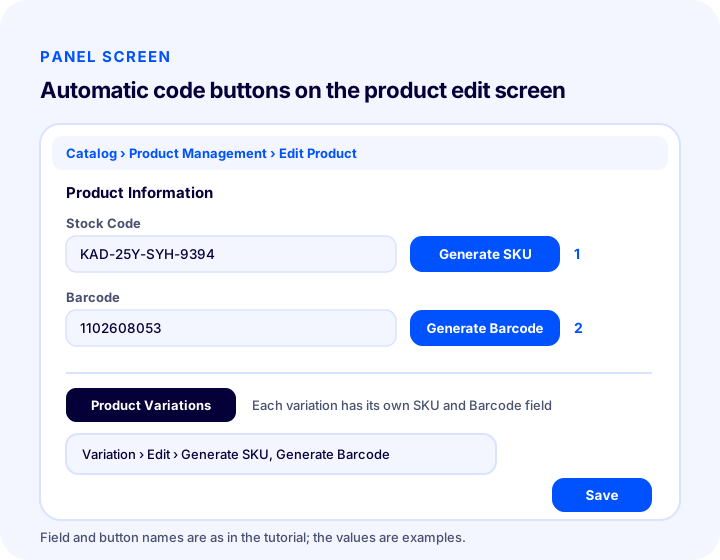
The steps follow the order in the tutorial. For a detailed screen walkthrough, see the Automatic SKU and Barcode Generation tutorial.
- Log in to the admin panel: select the Catalog tab from the left menu, then Product Management.
- Open the product: click the name of an existing product or click the Add New Product button at the top right. There is a tutorial on adding a new product from scratch.
- Click Generate SKU: when you click the button next to the Stock Code field under the Product Information heading, the system generates a unique code that has not been used before and writes it into the field.
- Click Generate Barcode: with the button next to the Barcode field, the system generates a unique, 10-digit barcode number and enters it into the field.
- Repeat for variations: on the Product Variations tab, click the Edit button of each variation and use the same two buttons; each variation has its own SKU and barcode field.
- Save: click the Save button at the bottom of the page. The code is not part of the product record until you save.
The SKU generated for the example product in the tutorial is a code made of hyphenated segments such as “KAD-25Y-SYH-9394”; the barcode example is a 10-digit number such as “1102608053”. These are only examples. The tutorial does not describe a setting that changes the rule the button uses to generate; the system determines the code's structure. So if you want a custom code logic, you manage it yourself by entering codes with the pattern described below.
We recommend readingWhat Is a Barcode? How Do You Get, Read and Use a Product Barcode in E-Commerce?How Do You Design a Good Code Pattern?
A good code pattern consists of codes that are readable, short, built in a fixed order and never reused. Constantly changing information (price, campaign, supplier name) is not put inside the code; the code is the product's identity, not its status.
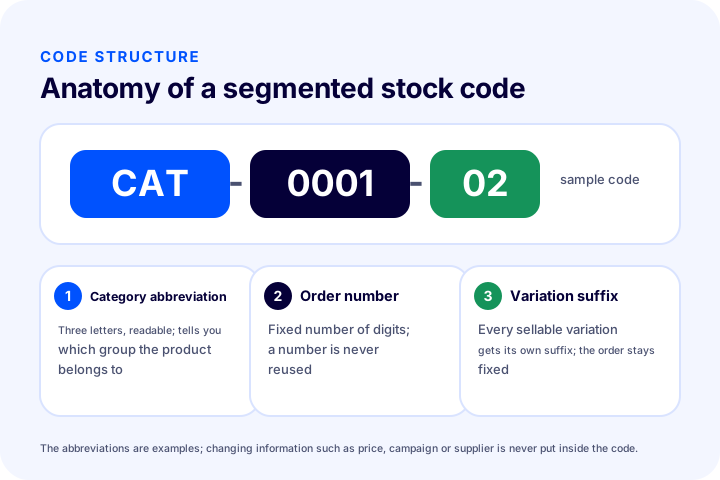
If you use the code the system generates as it is, this section is a short check; if you are building your own pattern, it is a guide. The graphic below summarizes the anatomy of a segmented code and why each segment is there; the abbreviations are examples.
1. Keep the code short and readable
For the person in the warehouse who reads the code aloud, writes it on a label by hand or reports it by phone, a short code lowers the margin for error. A very long code increases typos and does not fit on the label. Avoiding look-alike characters (zero and O, one and I) also keeps it readable.
2. Build the segments in a fixed order
In a segmented code, the order must never change: for example, category first, then sequence number, then variation suffix. The same product written in two different orders looks like two separate codes and splits across filters. Instead of changing the order later, get it right from the start.
3. Leave room in the sequence number
Plan the sequence number for the size your catalog will reach in the future, not its size today. Four digits allow up to 9,999 products; five digits allow ten times as many. The code plan generator below does this calculation for you.
4. Do not put changing information in the code
If you write information that changes over time, such as price, campaign name, supplier, or season, into the code, the code stays wrong once that information changes. Keep this kind of information as a product attribute, a tag, or a separate field; see the product attributes article for product attributes.
5. Never reuse a code
Even if a product is removed from sale, do not give its code to another product. Past orders, return records, and reports are tied to the old code; assigning the same code to another product muddles that history. Once a code has been used, it belongs to that product.
| Principle | Good example | Example to avoid |
|---|---|---|
| Short and readable | KAT-0001 | KATEGORI-ADI-TEDARIKCI-SEZON-RENK-BEDEN-ID |
| Fixed order | KAT-0001-02 | KAT-0001-02 and 02-KAT-0001 at the same time |
| Digit headroom | Four- or five-digit sequence | Just enough digits for today's product count |
| Information that does not change | Category + sequence | Writing price or campaign into the code |
| Single use | A removed product's code is retired | Giving an old code to a new product |
Code plan generator
The tool below lets you try out the code layout you have in mind for a category and shows the first sample codes, the total number of codes, and whether the number of digits is enough. It generates sequential codes up to the third sample; Turkish characters in the category abbreviation are converted to plain letters. The result is based on the assumptions you enter and does not show the format of the code produced by the button in Faprika; it is meant to help you plan your own layout.
Keep two points in mind when reading the tool. First, the total number of codes is the product count multiplied by the variation count; in categories with many variations, the number of codes grows quickly. Second, the capacity calculation only shows whether the sequence number will run out; whether the code is meaningful is a separate matter, and a code layout only works if the people using it can understand it.
How Do You Set Up SKUs and Barcodes for Products with Variations?
In a product with variations, each sellable variation carries its own SKU and barcode; the main product code stays shared and the variation suffix changes. In Faprika, variations have their own SKU and Barcode fields, and the automatic generation buttons also work per variation.
This takes as many codes as there are combinations of options such as size and color. A product with three colors and four sizes has twelve sellable combinations; if each is to be tracked with its own stock, twelve separate SKUs and twelve separate barcodes are needed. For what a variation is and how it is defined, see the what is a product variant article, and for the panel steps, see the product variations tutorial.
- Save the main product first: enter the product information and set the main product's Stock Code and Barcode fields.
- Define the variations: enter the options in the Product Variations tab; decide in advance which combinations will actually be sold.
- Open each variation: use the Edit button to enter the variation and click the Generate SKU and Generate Barcode buttons.
- Check the relationship with the main code: if the system assigns the code automatically, see whether the variation codes have a readable relationship with the main product; if not, there must be another field (category, attribute) to total up per product in reports.
- Save and verify: add a variation to the cart and check that the correct code appears in the order flow.
| Situation | Recommended code logic | Point to watch |
|---|---|---|
| Size and color | Each combination gets its own SKU and barcode | Do not create codes for combinations that will not be sold |
| Single-option product | The main product code is enough; no variation suffix is needed | If options are added later, do not break the layout |
| Bundle and set | Gets its own SKU and barcode | Give it a code independent of its components; see the product types article for product types |
| Multi-package | Single and multi-pack get separate codes | The same barcode is not used because contents and price differ |
How Do You Manage Conflicts and Compatibility with Old Codes?
If the catalog was previously coded by hand, the safest approach is to start automatic generation on new products without touching existing codes. Changing old codes in bulk can break the link to order history, ERP records, and marketplace matches.
There are three separate situations, and each calls for a different decision. For new products, starting automatic generation is easy. For old products with an empty code, it is enough to run generation on those products and complete the records. For old products whose code is filled in but inconsistent, changing the code is a decision in itself: if a marketplace match, ERP, or accounting integration depends on the old code, changing it can make the product look like a new one. In that case, keeping the old code and applying the new layout only to new products is less risky.
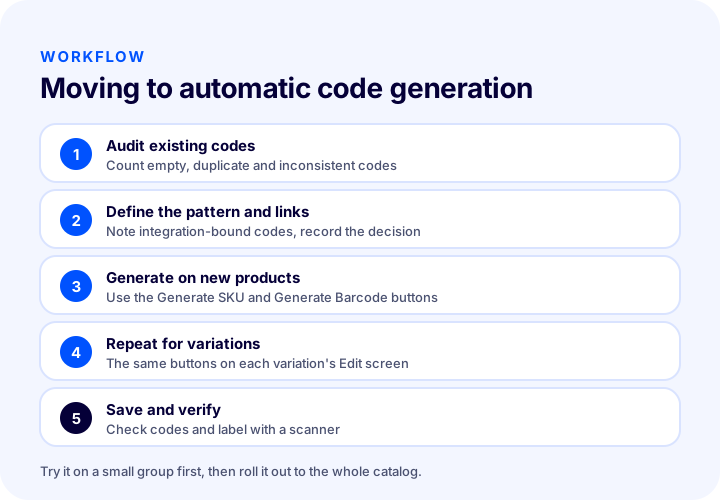
- Take stock of the current situation: export the product list and count the empty, duplicate, and inconsistent codes. Empty codes are completed right away; duplicates are resolved first.
- Identify integration dependencies: note which codes depend on matching on the marketplace, accounting, or ERP side. Before touching these codes, find out the impact on the other side.
- Decide: put in writing whether automatic generation will apply only to new products, to empty ones as well, or to all of them.
- Test with a small group: apply it to one category or a few products and make sure the order, stock, and integration flows are not disrupted.
- Roll out and document: turn the decision and layout into a team rule so that everyone adding a new product follows the same steps.
If you need bulk operations for a large number of products, the bulk product update article and the bulk product update tutorial will guide you; before making code changes in bulk, keep an exported backup.
What Should You Watch for to Stay Compatible with Marketplaces and ERP?
Marketplace, ERP, and accounting integrations mostly match products by stock code or barcode. That is why it is a basic condition of integration that both codes are unique, stable, and filled in on every sellable unit.
Three points are especially important. First, once a code has been matched, it should not change; if the match relies on the code, changing it makes the product look like a separate record. Second, if your ERP and accounting software has code length or character restrictions, the code must fit those limits; find out the limits before the integration is set up. Third, the type of barcode: an internal number generated by the system works in the warehouse and in the store, but a registered product barcode (GTIN) may be needed to list the product with a marketplace or external catalogs. For your own brand or marketplace sales, a registered number is used; for another brand's product, the manufacturer's barcode is used. For details, see the “Can I generate barcodes for my own warehouse?” section of the what is a barcode article.
| Situation | Which code? | Note |
|---|---|---|
| Shelving, counting, and picking in the warehouse | The internal barcode generated by the system is enough | Specific to your business, does not travel outside |
| Listing products on a marketplace | A registered product barcode if needed | Check the marketplace's rule |
| Another brand's product | The manufacturer's barcode | No new number is generated |
| ERP and accounting matching | Unique and stable SKU | Find out the code length and character limit |
For syncing stock with marketplaces and the role of codes in this flow, there is the marketplace stock synchronization article, and for the journey of product data between systems, the product data flow article. The importance of the stock code on the marketplace side is also covered in the stok kodunun önemi article.
We recommend readingHow to Do Marketplace Stock SynchronizationMost Common Mistakes When Generating SKUs and Barcodes Automatically
Most mistakes come not from the generate button but from a layout left undecided: mixed code formats, variations without barcodes, overwritten old codes, and bulk operations that were never verified top this list.
- Using mixed formats: coding some products by hand and some automatically and mixing the two in the same category. The list becomes unreadable.
- Skipping variations: giving the main product a code and leaving variations empty; orders and counts work at the variation level.
- Changing filled codes in bulk: overwriting old codes without checking integration dependencies.
- Forgetting to save: not realizing that a code generated with the button is not permanent until the product is saved.
- Assuming an internal barcode is valid everywhere: assuming a number that works in the warehouse is enough to list the product on a marketplace.
- Embedding changing information in the code: writing the price, season, or campaign name into the code.
- Reusing a code: giving a removed product's code to a new product.
- Not testing the label: sticking the label on the box after printing the barcode number without trying it with a scanner.
Code Layout Checklist
The eight items below are an audit to check before starting automatic generation and at regular intervals. The safest approach is not to run bulk operations until every item is ticked.
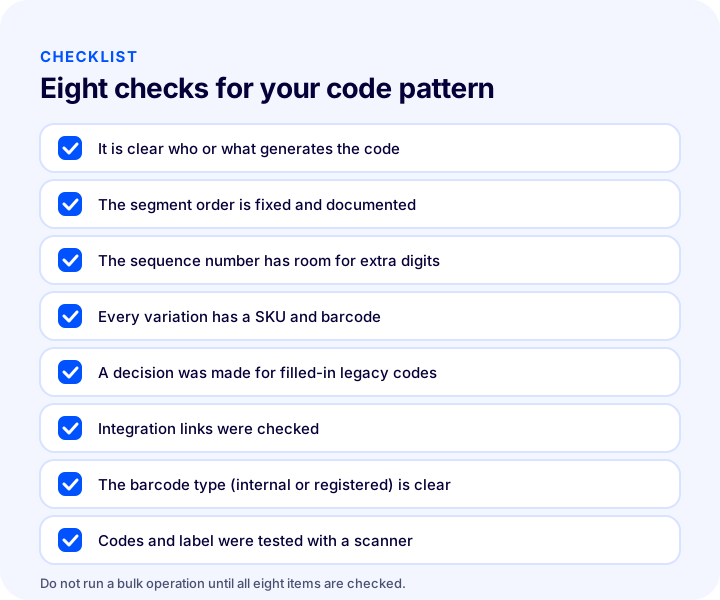
| Field | Check | Done? |
|---|---|---|
| The manufacturer | Who or what generates the code is documented | Yes / No |
| Order | Segment order is fixed and documented | Yes / No |
| Digits | Enough digit headroom for growth | Yes / No |
| Variation | Every sellable variation has a SKU and barcode | Yes / No |
| Old codes | Decision made for filled-in codes | Yes / No |
| Integrations | Marketplace, accounting, and ERP dependencies checked | Yes / No |
| Barcode type | Internal use or registered product barcode is clear | Yes / No |
| Verification | Codes and label were tested with a scanner | Yes / No |
When Is It Better to Enter the Code by Hand?
Entering the code by hand is better when it follows a meaningful layout or when a number from outside is mandatory; if the goal is simply to find a unique, filled-in code, automatic generation is enough.
For a product that carries a barcode assigned by its manufacturer, the system does not need to generate a new number; the existing barcode is entered. If your accounting or ERP software requires its own coding layout, the code must be entered according to that layout. For a product that already has a registered product barcode, do not replace its barcode with automatic generation. Beyond these cases, especially when adding many new products, the buttons save time and errors. If you like, use both approaches together: enter the existing code for products from outside sources and generate with the button for your own products; keep in writing which group follows which path.
Automatic SKU and Barcode Generation with Faprika
In Faprika, under Catalog in Product Management, the Generate SKU and Generate Barcode buttons on the product edit screen work on new and existing products, and also on each variation's own edit screen.
The practical advantage is that the code is generated in the same place as the product information, on the same screen: you do not need to switch to a separate tool or spreadsheet while adding or editing the product. According to the tutorial, the system generates a SKU that has not been used before and a unique 10-digit barcode, so the uniqueness check is taken off your hands. For the panel usage steps, see the Automatic SKU and Barcode Generation tutorial; for adding products, the adding a new product tutorial; and for the feature's availability by plan, the e-commerce plans page. If you would like to talk through how to apply it to your own catalog, you can contact our team.
Frequently Asked Questions
What is automatic SKU and barcode generation?
It means the system generates a product's stock code and barcode number instead of you typing them by hand. In Faprika, you click the Generate SKU and Generate Barcode buttons on the product edit screen; the system fills the fields with unique codes.
How do you generate a SKU automatically in Faprika?
Open the product from Product Management under Catalog, click the Generate SKU button next to the Stock Code field under Product Information, and save the product. The system generates a unique code that has not been used before.
How many digits does an automatically generated barcode have?
According to the tutorial, the Generate Barcode button produces a unique, 10-digit barcode number. If you need a registered product barcode for marketplaces or external catalogs, remember that this is a separate matter.
How do you generate SKUs and barcodes for products with variations?
On the Product Variations tab, open each variation's Edit button and use the Generate SKU and Generate Barcode buttons. Because each variation has its own SKU and Barcode field, codes are generated per variation.
Should the codes of existing products be changed?
Generally no; if codes are tied to marketplace, accounting or ERP matching, changing them can make the product look like a new one. Use automatic generation on new products and empty codes, and change filled-in codes only once you know the impact.
Is an automatically generated barcode valid on marketplaces?
Not always. The internal number the system generates works in the warehouse and in the store; marketplaces may have different barcode rules and may ask for a registered product barcode. You need to check the rules of the marketplace you will sell on and, if necessary, enter the product's existing barcode.