
Contents 12 sections
- What Is E-Commerce Content Management?
- Why Is E-Commerce Content Management Important?
- Where Does Store Content Live?
- How Does Content Management Work in the Faprika Panel?
- What Do the Ten Content Areas Do and When Should You Use Them?
- In What Order Should Content Be Set Up?
- How Do You Set Up a Content Routine?
- How Do You Manage Content in a Multilingual Store?
- What Are Common Mistakes in Content Management?
- E-Commerce Content Management Checklist
- E-Commerce Content Management with Faprika
- Frequently Asked Questions
An e-commerce site is more than a product list. A visitor looks at a campaign visual on the homepage, moves to a category from the menu, searches for delivery information on a product page, and reads the email that arrives after ordering. Behind every one of these moments is content that someone wrote, placed and keeps up to date. When content is scattered, the result shows immediately: an expired campaign visual still sits on the homepage, menu headings grow out of proportion and get lost, and return terms are written three different ways in three different places.
In this guide we cover e-commerce content management as a whole: where store content lives, which content should be edited when and by whom, how to set up a content routine, and the ten areas of the Content Management menu in the Faprika panel (pages, frequently asked questions, menu, slider, showcase, script, message templates, print templates, announcements and blog). Each area has its own detailed guide; the goal here is to give you the full picture so you can decide what to do and when.
What Is E-Commerce Content Management?
E-commerce content management is the planned creation, publishing and upkeep of all text, visuals, menus, announcements and automatic messages in a store other than products. The goal is for visitors to find what they need quickly, trust the store, and for search engines to understand the site correctly.
The product catalog (product names, prices, stock) is a separate management area; content management covers everything around it. In Faprika this area is grouped under Content Management in the panel, and the tutorial page describes it as "easily managing pages, menus, showcases and many more features." Having management in one menu matters: you don't have to enter different tools for different jobs, and the content layout is visible at a glance.
We recommend readingContent Management TutorialWhy Is E-Commerce Content Management Important?
Content management directly affects trust, search visibility and conversion. If visitors can't find information in a store, or see inconsistent information, they abandon the cart; search engines also understand current, well-organized and internally linked sites better.
- Trust. Pages such as About Us, delivery and returns, and privacy show that a real business stands behind the site. The Faprika tutorial also stresses that these pages strengthen trust in the site.
- Search visibility. The page title, meta description, a well-organized menu and blog posts determine how you appear in search results. Most of these areas are edited in the content management screens.
- Conversion. A well-placed showcase and a clickable slider lead visitors to the product; an FAQ with ready answers speeds up the decision.
- Consistency. When the same information is written in one place, the store's voice stays the same even when the team changes.
Where Does Store Content Live?
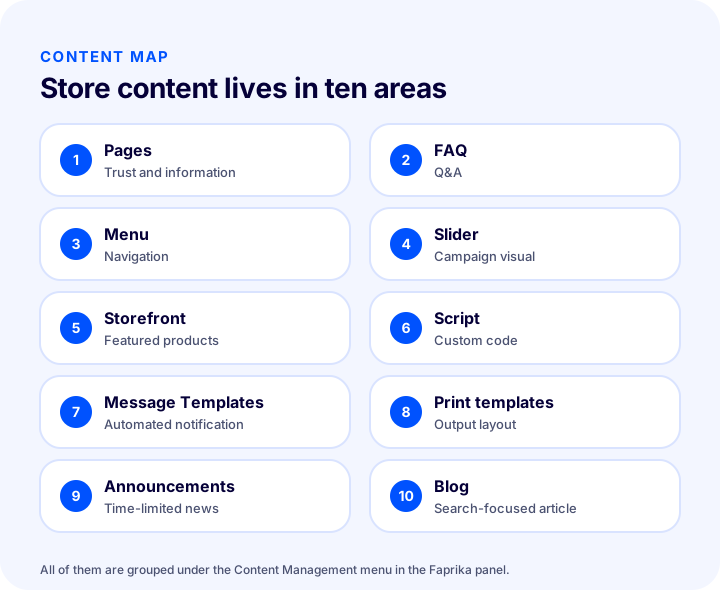
Store content lives in ten areas, and each area has a purpose, an audience and its own update frequency. The table below puts these areas side by side; the frequency column is a recommendation, as every store moves at its own pace.
| Field | What is it used for? | Who sees it? | Recommended update frequency |
|---|---|---|---|
| Pages | Information pages such as About Us, delivery, returns and privacy | All visitors | When a policy changes; review at least once a year |
| Frequently Asked Questions | Answers to pre-sale and after-sale questions | All visitors | As new questions come in; review once a month |
| Menu | Category, page and brand navigation | All visitors | When a new category is added or the season changes |
| Slider | Campaign and featured announcement visuals | Homepage visitors | With every campaign, at least once a month |
| Storefront | Selected product groups on the homepage and category pages | Homepage and category visitors | Weekly |
| Script | Custom code snippets added to pages | Everyone, indirectly | Only when needed, and with care |
| Message Templates | Order, membership and shipping notifications | Customers and administrators | When the store language or a process changes |
| Print Templates | Order, invoice, product and warehouse outputs | Team and customers (as printed output) | When the document layout changes |
| Announcements | Time-limited campaign and news notice | Customers entering the site | When a campaign starts, with an end date |
| Blog | Informative and search-focused articles | Visitors arriving through search | According to the publishing calendar you set |
How Does Content Management Work in the Faprika Panel?
In the Faprika panel, store content is grouped under the Content Management menu: Pages, Frequently Asked Questions, Menu Management, Slider Management, Showcase Management, Script Management, Message Templates, Print Templates, Announcements and Blog. Most areas work the same way: a list and search field, an Add New button, language selection, an active checkbox and save.
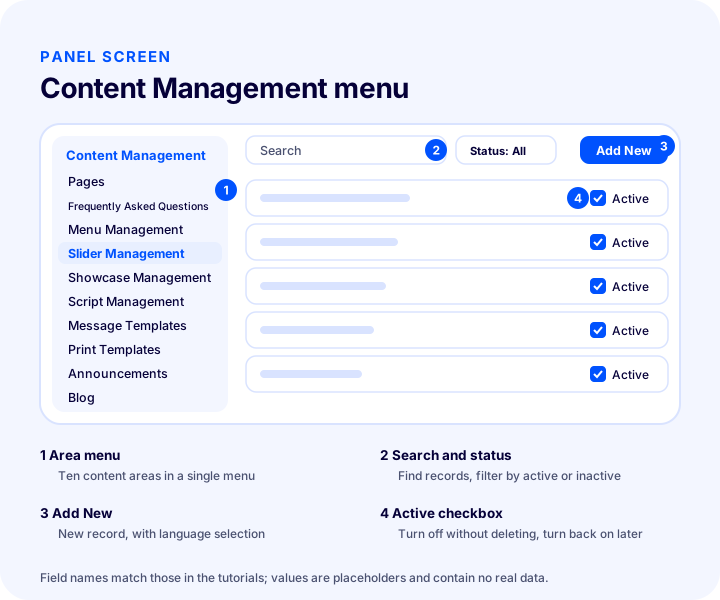
Once you know the three components of the shared layout, moving to a new area gets easier:
- List and search. Previously added records are listed and can be opened and edited one by one. Areas such as pages and menus include a search field and active or inactive filtering.
- Language selection. In areas such as pages, FAQ, menu, showcase, announcements and blog, you choose a language for the content. If the store language is Turkish, the Standard and Turkish options do the same job. To add another language, contact the support team.
- Active checkbox. In many areas, content can be deactivated without deleting it. This is the safest method for time-limited content: you don't delete, you only turn it off.
What Do the Ten Content Areas Do, and When Should You Use Them?
The ten headings below introduce, in order, the areas in the panel's Content Management menu. For each one you will find a short definition, when to use it, and the related detailed guide. The screen fields are taken from Faprika training materials; the values will differ in every store.
1. Pages
Pages is the area where you manage fixed informational pages such as About Us, Contact Us, Terms of Use, and Privacy Policy. Before buying, customers look here for the answer to "Can I trust this store?"
When adding a new page, you will see two sections: page information and SEO information. The page name and description fields are edited with an editor: you can add bold text, underlined text, links, and images. When the Active checkbox is ticked, the page becomes visible in the footer. The Show in navigation menu option moves the page into the navigation menu. By choosing one of Footer columns 1 to 5, you set the page's place in the footer, and the order field arranges its position within the column; to place it at the very top, enter zero or a negative number. The Product detail tab option shows the page as a tab on product pages; it suits information that applies to every product, such as delivery and returns.
When to use it: when setting up the store, when your return or delivery policy changes, and during the annual review. For how to write the pages, see the About Us page and legal pages guides.
We recommend readingPages Training2. Frequently Asked Questions
The Frequently Asked Questions area lets you collect and answer the questions customers ask most in a single panel. You can design several separate headings, for example splitting them into pre-sales and after-sales questions.
The Title field determines the name under which it appears in the footer. For the page to be visible, the Active option is ticked; the Footer column and order fields arrange the page's place in the footer. In the SEO information section, you enter meta keywords, the meta description, and the page title. Questions are added one by one in a separate step: language, question, answer, and order.
When to use it: when the support team gets the same question for the third time. That question is ready to go into the FAQ. For details, see the how to prepare an FAQ page guide.
3. Menu Management
Menu Management is the area that defines the navigation structure of the site. Menu headings can be linked to a category, brand, supplier, product, page, or the frequently asked questions.
The Parent menu selection tells which menu the new heading belongs to; if Main Menu is selected, the heading appears in the home page's menu area. The Menu type determines the kind of link, and the ID field matches the record of that type: if category is selected, saved categories are listed; if brand is selected, saved brands are listed. The Menu template determines how sub-headings appear; the options are Classic Menu, 2nd Level Half Menu, 2nd Level Full Menu, 3rd Level Half Menu, and 3rd Level Full Menu. After saving your change, the safest way is to preview the home page and check the appearance.
When to use it: when a new category is opened, when the season changes, or when you notice visitors struggling to find what they are looking for. There is a guide on how to build the menu: e-commerce menu structure.
We recommend readingWhat Should an E-Commerce Menu Structure Look Like?4. Slider Management
The slider is the animated showcase used to catch the visitor's attention and highlight campaigns or important announcements. It can be displayed full screen or centered in the middle of the page.
Slider images are uploaded by drag and drop. The Slider URL is mandatory, because if there is no defined page, a customer who clicks the slider lands on a 404 error page. The site's category or product pages can be given as the address, and you write only the part after the slash instead of the full link. A separate image can be defined for each device: the sizes recommended in the training are 1920x400 for full-screen desktop, 1200x400 for tablet, 768x500 for mobile, and 1100x550 pixels for the centered slider. A device-specific image speeds up the page by preventing mobile visitors from downloading needlessly large files. The slider's overall size, automatic transition, wait and transition times, and transition effect are edited under Configuration, Settings, Slider Settings.
When to use it: at the start and end of every campaign. For details, see the e-commerce slider preparation guide.
5. Showcase Management
Showcase Management is the area where you display, in groups, the products and campaign images you want to highlight on the home page and category pages. For example, if you are running a campaign for a specific product group, a showcase lets visitors reach that group in a single step from the home page.
The add-showcase screen has the fields language, showcase name, showcase description, showcase template, order, products as slides, active, and show on home page. There are three showcase templates: Basic Showcase (made up entirely of images or products), Left Slider and Right Image, and Left Image and Right Slider. In templates with images, the fixed image can direct visitors to a specific category. Thanks to the language selection, different images and products can be shown for each language.
When to use it: during the weekly showcase review, at the start of a new season, and when stock or campaign status changes. For details, see the home page showcase management guide.
We recommend readingE-Commerce Home Page Showcase Management6. Script Management
Script Management is the area where you place HTML, CSS, and script code to add dynamic and interactive elements to the site's pages. For example, adding a messaging button or a live support window to the home page is done from this area.
This area requires sufficient coding knowledge; the training clearly warns that without enough knowledge, the design may break. Code is pasted into the Script code field (for CSS, style tags are opened; for scripts, script tags are opened; HTML is placed without tags). The Language field determines whether the code runs in a single language or in all languages, and the page position determines whether the code is placed in the head (header) or at the end of the body (footer). The script name must be unique. If the code uses parameters, the Parameters Active switch is turned on, and a parameter can be used only on the page type where it is valid. The User group field can restrict the code to certain groups. If you see any problem, you can deactivate or delete the script.
When to use it: only when truly needed and with someone who knows code. If you are trying it for the first time, start with a simple piece of code. For a conceptual introduction, see the what is script management article.
7. Message Templates
Message templates are the area where you manage the text of automatic notifications sent to customers and administrators. Here you decide which message goes out when a customer signs up, places an order, or has an order shipped, or when a low-stock notification goes to the administrator.
While editing a template, when you select one of the parameters in the Icons section, it is copied automatically and pasted into the content; this personalizes the message with store, user, or order information. The Active or Passive status turns the template on or off. The SMS Active and Push Active options let the same message also go out through other channels; for SMS, SMS integration settings must have been configured beforehand. The Send Now and Send Later options determine the timing. The user group restriction prevents the message from going to the added group. The Bcc field forwards a hidden copy of the email to another address; it can be used to stay informed about order notifications. The Subject, Content, SMS content, and Push content fields edit the text of each channel separately.
When to use it: when the store's tone of voice changes, when a new channel is opened, and when a process (for example, returns) changes. For details, see the what is a message template article.
We recommend readingMessage Templates Management Training8. Print Templates
Print templates are the area where you design the look of order, invoice, product, and warehouse printouts to suit your needs. You decide which information goes on the printout and how it is laid out.
You give the template a name and select the template type: Order/Invoice, Product, Variation, Order/Invoice Product, Return/Expense Note, and Warehouse/Shelf. Width and height are entered in millimeters, the number of copies and orientation (side by side or one below the other) are set, and the product limit per page is defined. The background image is used for correct positioning on pre-printed forms. In the Design Template section, order, user, and store information is placed by drag and drop; with Copy Template, a new template is prepared from an existing one. To print, select the orders in the Orders menu, then follow the steps Actions, Select Print Template, Print Selected.
When to use it: when a new paper size, a new document type, or a new brand layout comes in. For details, see the what is a print template article.
9. Announcements
Announcements are the area where you show, as notifications, the campaigns and news you want customers visiting the site to see. In the Faprika theme, the number of announcements appears on the bell icon at the top right of the home page.
When creating an announcement, the fields language, announcement title, URL, description, start date, end date, and active are filled in. The title appears in bold by default; the URL sends visitors to a specific page when the title is clicked. When an end date is set, the announcement is taken down automatically without needing to re-enter the panel. If there is no end date, the announcement can be turned off and on with the Active checkbox without being deleted.
When to use it: for time-limited campaigns and short-term notices. Writing the end date before the campaign goes live prevents announcements from being forgotten later. For details, see the what is announcement management article.
10. Blog
The blog is an informational content area that goes beyond promoting your products and services and is also used for search visibility. For blog posts to appear on the site, first tick the Active checkbox under Configuration, Settings, Blog Settings; then the posts are published at yourstore.com/blog.
Posts are added and edited from the Content Management, Blog, Blog tab. With the language selection, a separate post can be prepared for each language. The fields are blog title, short description (shown in the blog list), description and details (the main content written with the text editor), image, allow comments, tags, and category. Tags and categories help the content be found in search engines and within the site.
When to use it: according to the publishing calendar you set. We explained how to set up the blog in the article how to add a blog to an e-commerce site.
We recommend readingHow to Add a Blog to an E-Commerce SiteIn What Order Should Content Be Set Up?
In a new store, content is ordered so that trust and navigation are built first: first pages and the FAQ, then the menu, then the slider and showcase, and finally message templates, print templates, and the blog. Scripts are added last, only when a real need arises.
- Pages and FAQ. About us, contact, delivery, returns, and privacy are written. Questions that influence the purchase decision go into the FAQ. Without this content, the store is open but untrustworthy.
- Menu. Categories and pages are linked to the menu. The menu template is chosen based on the number of your subcategories.
- Slider and showcase. The first impression of the home page is created. The slider carries the campaign, and the showcase carries the product groups.
- Message templates. The text of order, membership, and shipping notifications is adapted to the store's voice.
- Print templates. Warehouse and accounting printouts are adjusted to the team's needs.
- Announcements and blog. Time-limited campaigns and informative posts enter a regular flow.
- Script. Added only if a function is still missing and someone is there to manage it.
How Do You Set Up a Content Routine?
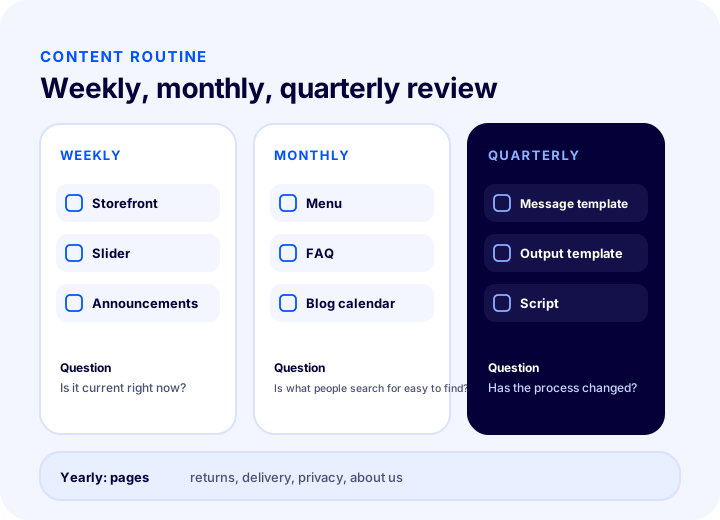
A content routine means dividing the areas into weekly, monthly, and quarterly tasks according to how often they are updated. When each round has a check question, the work does not exceed half an hour and no area gets overlooked.
| Frequency | Areas to check | Question to ask |
|---|---|---|
| Weekly | Showcase, slider, announcements | Is everything we are showing still valid right now? |
| Monthly | Menu, FAQ, blog calendar | Do visitors find what they are looking for easily, and are there new questions? |
| Quarterly | Message templates, print templates, script | Have our processes changed, is any old code or text left? |
| Annual | Pages (returns, delivery, privacy, about us) | Are our policies and information still accurate? |
How Do You Manage Content in a Multilingual Store?
In a multilingual store, a language is selected for each content area and the content for each language is prepared separately. In Faprika training materials, pages, FAQ, menu, showcase, announcements, and blog have a language selection; the slider and showcase can show different images and products depending on the language.
The practical rule is this: when you enable a language, prepare all the content that language's visitor will encounter in that language. A store with a Turkish menu and English pages looks half-finished. Since the Standard and Turkish options serve the same function, using either one is enough for Turkish content; for an additional language preference, contact the support team. The translation of fixed texts in the store interface is a separate topic and is explained in the what are language resources article.
What Are Common Mistakes in Content Management?
The most common mistakes are leaving expired content live, publishing sliders without links, writing the same information differently in several places, and adding scripts without coding knowledge. A simple check prevents all of them.
- Leaving an expired campaign live. If the slider image and announcement of a finished campaign stay live, customers look for an offer they cannot find. Add an end date to announcements and clear the sliders and showcase in your weekly review.
- Leaving the slider link empty. A slider with no link defined takes visitors to a 404 page.
- Growing the menu without checking it. Every new category added to the menu makes the headings more crowded. Consider the menu template and the number of headings together.
- Writing the same information differently in different places. When the return policy is written one way on the page, another in the FAQ and a third in the message template, customers lose trust. Write the information once and point to it from the other places.
- Adding scripts without coding knowledge. As the training also warns, this leads to design glitches. If something breaks, deactivate the script.
E-Commerce Content Management Checklist
The eight items below quickly show whether your content setup is healthy. If you can answer “yes” to every item, your store's content is in good shape.
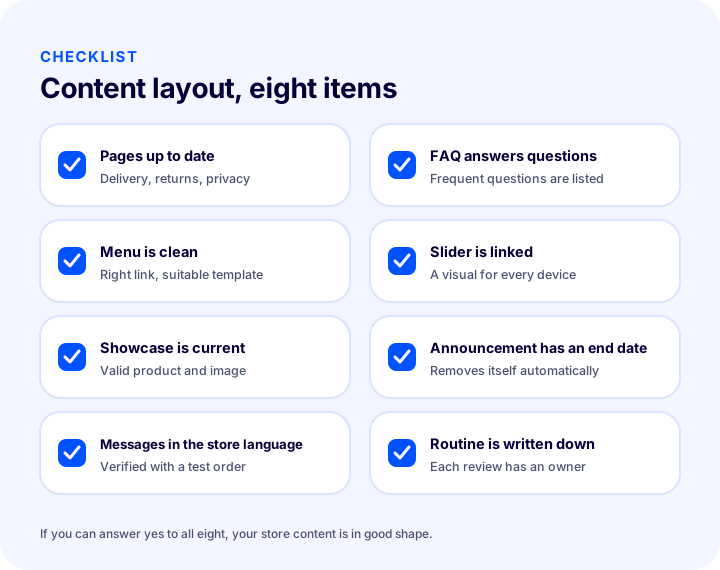
- Are the pages up to date? The About, delivery, returns and privacy pages are active and accurate.
- Does the FAQ answer the most common questions? The questions your support team keeps getting are on the list.
- Is the menu clean? Headings are linked to the right category and the template suits the subheadings.
- Is the slider linked and device-appropriate? Every image has a destination, with separate images defined for desktop, tablet and mobile.
- Is the showcase current? The products and images shown on the home page are valid right now.
- Do announcements have an end date? Time-limited campaigns come down automatically.
- Are message templates in the store's language? Read through and corrected with a test order.
- Are the routine and owners written down? The owners of the weekly, monthly and quarterly reviews are clear.
E-Commerce Content Management with Faprika
Faprika brings all of your store content together in the Content Management menu: pages, frequently asked questions, menu, slider, showcase, scripts, message templates, print templates, announcements and the blog all live in one panel. Without learning a new tool, you use the same screen layout and the same Add New, Active and Save logic in every area.
Many areas offer a language selector; the slider and showcase can display different content by device and language. SEO information sits on the same screen for areas such as pages and FAQs, so you also manage search visibility while writing the content. The training pages have a detailed guide for each area; for plan scopes see the e-commerce plans page, and for additional functions see the add-ons page. If you would like to set up your own content structure together, you can request a demo.
Frequently Asked Questions
What is e-commerce content management?
E-commerce content management is the planned creation and upkeep of everything in a store other than products: pages, menus, sliders, showcases, announcements, the blog and automated messages. In Faprika, all of these areas are brought together in the panel under the Content Management menu.
Which content is managed in Faprika's Content Management menu?
Pages, Frequently Asked Questions, Menu Management, Slider Management, Showcase Management, Script Management, Message Templates, Print Templates, Announcements and Blog. Each area has its own detailed tutorial page.
How often should store content be updated?
It depends on the area. A reasonable starting point is a weekly review for the showcase, slider and announcements, monthly for the menu, FAQ and blog, quarterly for message and print templates, and yearly for pages. This is a recommendation; update whenever campaigns or policies change.
Should I delete campaign content once it has ended?
Deactivating is safer than deleting. In many Faprika areas, unchecking the active box takes the content offline without deleting it, and you can turn it back on later. For announcements you can also set an end date so the content removes itself automatically.
How do you manage content in a multilingual store?
In areas such as pages, FAQ, menu, showcase, announcements and blog, you choose a language for the content and prepare separate content for each language. The slider and showcase can show different visuals and products by language. To add another language, contact the Faprika support team.
Can anyone use Script Management?
Script Management requires HTML, CSS and script code; the Faprika tutorial warns that changes made without enough coding knowledge can break the design. The safe approach is to work with someone who knows code and to deactivate the script if something breaks.