
Contents 11 sections
- Why Isn’t My Page Indexed?
- How Can You Tell Your Page Isn’t Indexed?
- What Are the Eight Common Causes of an Unindexed Page?
- How Do You Diagnose an Unindexed Page?
- What Are the Specific Causes of Non-Indexing on E-Commerce Sites?
- How Long Should You Wait After Fixing the Problem?
- How Can New Product Pages Be Discovered Faster?
- What Are Common Mistakes in Indexing Problems?
- Indexing Checklist
- Managing Indexing Problems with Faprika
- Frequently Asked Questions
You’ve published a new product page, taken the photos, written the description with care. Days go by, but the page is still not in search results. When you type its address or title into the search box, only your own site’s home page appears. This silence is a common and frustrating situation in e-commerce: the product exists, the stock exists, an ad budget is set aside, but the search engine hasn’t added the page to its list.
In this guide we answer why isn’t my page indexed step by step. First we set out the difference between crawling, indexing and ranking; then we cover eight common causes of non-indexing (the noindex tag, a robots.txt block, a canonical tag pointing to another page, redirects and 404s, thin or duplicate content, an orphan page with no internal links, absence from the sitemap, and a new site with quality evaluation). After that you’ll find a diagnosis table that lets you find the cause step by step, the logic of waiting after a fix, what to do so new product pages are discovered quickly, a checklist, notes about Faprika and a six-question FAQ.
Why Isn’t My Page Indexed?
A page may not be indexed because the search engine cannot find it, is not allowed to crawl it, sees a signal telling it not to list the page, or does not consider it original and valuable enough to include. Working out which of these four situations you are in is the first step to choosing the right fix.
To frame the topic correctly, you need to separate three concepts, because most confusion comes from mixing them up. Crawling is the search engine finding a page and reading its content. Indexing is adding the page it has read to the search engine’s large database (its index). Ranking is the position at which an indexed page is shown for a given search query. A page cannot rank without being crawled and indexed; but a crawled page is not guaranteed to be indexed either.
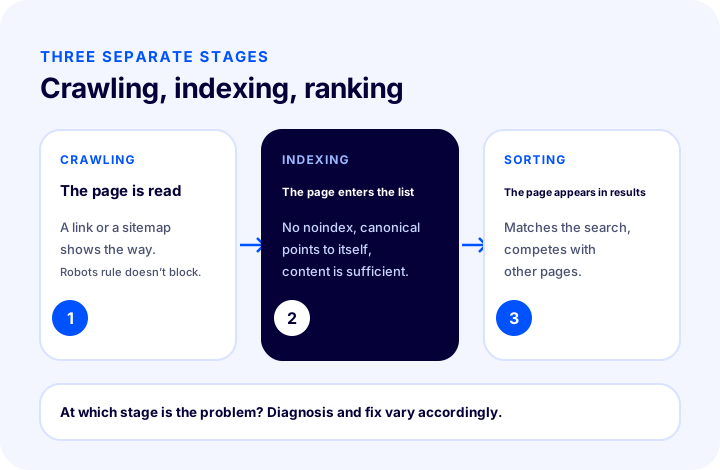
| Stage | What happens? | Symptom if there is a problem |
|---|---|---|
| Crawling | The search engine finds and reads the page | The page is never visited or returns an error |
| Indexing | The page is added to the index | The page has been read but is not in the index |
| Sorting | The page takes a position for a query | The page is in the index but far down the results |
This guide focuses on the first two stages. If your page is indexed but ranks poorly, the problem lies elsewhere: whether the content meets search intent, the strength of the title and description, page speed and link structure come into play. For these, see our guides on e-ticarette anahtar kelime analizi and how to write a title tag .
How Do You Know Your Page Is Not Indexed?
The most reliable way to see whether a page is indexed is to use the URL inspection in the search engine’s webmaster tool. The tool tells you whether the address you enter is in the index, when it was last crawled and, if applicable, why it was not included.
If you cannot use this tool or want a quick first look, there are a few simple ways: typing the page’s full title in quotation marks into the search box, searching the product name together with your store’s name, or searching the page’s address directly. These are not conclusive; the page may be indexed but simply not stand out for the query. That is why the webmaster tool remains essential for a real diagnosis.
The statuses you encounter in the tool give the first clue. Their general meanings are as follows:
| Status in the tool (general meaning) | What does it mean? | First place to look |
|---|---|---|
| Discovered, not yet crawled | The search engine knows the address but has not read the page | Internal links, sitemap, overall site standing |
| Crawled, not yet indexed | The page was read but not judged worth including | Originality and sufficiency of content, duplicate similarity |
| Excluded by noindex tag | The page itself asks not to be listed | Page code and response header |
| Blocked by robots.txt | The crawler does not enter the page | robots.txt rules |
| Another page chosen as canonical | Another address takes precedence because of canonical or similarity | Canonical tag |
| Redirect or not found error | The address goes elsewhere or does not open | The address’s response code |
The tool’s exact wording may change over time; what matters is understanding which family a status falls into. The sections below address each of these families.
What Are the Eight Common Reasons a Page Is Not Indexed?
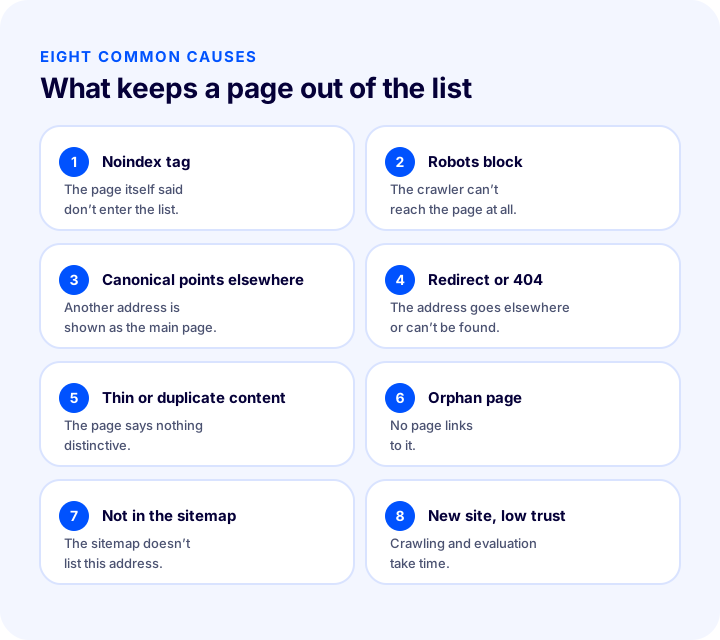
Most pages that are not indexed in e-commerce come down to one of eight causes: a noindex tag, a robots.txt block, a canonical pointing to another page, a redirect or 404, thin or duplicate content, an orphan page, absence from the sitemap, and a new site or low trust. Each calls for a different fix.
1. The noindex tag
Noindex is a signal saying you do not want the page to appear in search results. It can be present as a meta tag in the page code or in the server’s response header. It is useful when used deliberately (for cart, checkout and account pages); but if it lands by mistake on a product or category page, that page never enters the index.
In e-commerce, the most common source is a site-wide noindex setting applied during the preparation phase and not removed at launch. There is also the template error: a noindex placed on one page type applies to every page of that type. Look in the page code for a line like this:
<meta name="robots" content="noindex, nofollow">The same effect can be achieved with a response header sent by the server; in that case nothing shows up in the page code. That is why you need to check both the code and the response header. If the page does not need to carry noindex, remove the tag and wait for the page to be crawled again.
2. The robots.txt block
Robots.txt is a simple text file that tells search engine crawlers which paths they may enter. If a page’s path is blocked in this file, the crawler does not enter the page; so it cannot see its content, nor any noindex or canonical signal on the page.
There is a subtle point here: robots.txt blocks crawling; it does not directly manage indexing. A blocked address can appear in the index without its content being read, because of links it receives from elsewhere. So if you do not want a page to appear in the index, using noindex is more correct than robots.txt; conversely, if you have blocked a page you want indexed with robots.txt, you need to remove the block. An example block line:
User-agent: *
Disallow: /urunler/
Such a rule closes every page under “urunler”. The scope of a rule is usually broader than you think; when many pages are not indexed at once, this is one of the first places to look. For details, see our what is robots.txt guide.
We recommend readingWhat Is Robots.txt? How to Set It Up on an E-Commerce Site3. The canonical tag points to another page
The canonical tag indicates the “main” page among similar pages. If your page’s canonical points to another address rather than itself, the search engine treats your page as a duplicate and indexes the other address. If your page is not indexed but another address is listed in its place, this is most likely the cause.
Typical causes in e-commerce are: all variant products pointing to the main product (correct if intentional), a template error making every page point to the home page or a category, and inconsistency between address versions (with and without www, http and https). It is easy to check: look at the canonical line in the page code and see whether the address it points to is the page’s own address.
<link rel="canonical" href="https://magazaadresiniz/urun/ornek-urun">If a page is to be the main page, its canonical tag must point to itself. For detailed rules, see the what is a canonical tag article; for the sources of duplicate pages, see the what is duplicate content guide.
4. Redirect or 404
If a search engine arrives at an address and is redirected to another one instead of the page, it lists the target address. If the address does not open at all (a 404 or server error), there is nothing to list. Open your page’s address in a browser: does the product open, does the path in the address bar change, does an error screen appear?
In e-commerce, this mostly shows up as follows: when a product name or category is edited, the address changes and the old address is redirected to the new one (correct), but after a while the new address changes too and a redirect chain forms; or the address of a deleted product returns a 404 and still remains in the sitemap. You need to choose the right response code: 301 for permanent moves, a redirect to a relevant page for permanently removed pages or, where appropriate, 410. We look at the topic in depth in the what is a 301 redirect and what is a 404 page articles.
| The address’s response | What does the search engine do? | What to do? |
|---|---|---|
| 200 (page opens) | Reads and evaluates the page | The problem is elsewhere; continue the diagnosis |
| 301 (permanent redirect) | Tries to index the target address | Make sure the target itself returns 200, with no chain |
| 302 (temporary redirect) | May try to keep the original address | Use 301 for a permanent move |
| 404 or 410 | Removes the page from the index | If it should stay, restore the page |
| 5xx (server error) | Cannot read the page, tries again later | Fix the cause of the error on the server side |
5. Thin or duplicate content
After reading a page, the search engine also asks “is this worth including?” If the page has nothing distinctive (a few words of description, the manufacturer’s boilerplate text shared with other sites, dozens of variant pages that are nearly identical), the page is crawled but does not enter the index. A significant share of the cases that appear in the tool as “crawled but not indexed” fall here.
Common examples in e-commerce: products with an empty or one-sentence description, pages that use the manufacturer’s text verbatim, variant pages that differ in nothing but colour or size, and category pages with no listed products and no content. The fix is to genuinely add something to the page: a description based on customer questions, size and care information, a usage scenario, original images. For what a product page should contain, see how should an e-commerce product page be; for category pages, see the category page SEO articles.
6. Orphan page: no links from anywhere
An orphan page is a page that receives a link from no other page on your site. Search engines usually discover new pages by following links on existing pages; without links, the page can be found only through the sitemap or an external link. Even if found, an unlinked page gives the impression of being “unimportant to your site”.
In e-commerce, an orphan page usually arises like this: the product has not been assigned to a category, pagination has pushed the product onto a very deep page of the category, a campaign page is not in the menu, or a blog post is not linked from anywhere. The fix is to link the page to the relevant category, add a link in the menu or in related content and, if possible, open a short path from the home page or a hub page. For link structure, the what is an internal link and how should an e-commerce menu structure be articles will guide you.
We recommend readingWhat Is an Internal Link? How to Build Them on an E-Commerce Site7. Not in the sitemap
The sitemap is the file that presents the search engine with a list of the pages you want indexed. Not being in it is not by itself a reason for non-indexing; a page can also be found through links. But especially for new, deep or poorly linked pages, the sitemap is an important aid that speeds up discovery.
Sitemap problems run in two directions. Sometimes a page never made it into the sitemap (the sitemap is outdated or does not cover certain page types). Sometimes, conversely, the sitemap contains addresses that carry noindex, redirect or return 404, which damages the sitemap’s credibility. The sitemap should contain only addresses that you really want indexed, that return 200 and whose canonical points to themselves. For details, see the what is a sitemap article.
8. A new site and low trust
For a new site that is not yet known, the search engine behaves more cautiously: it visits pages less often and is more selective in deciding what to include. This is not a penalty but a getting-to-know-you process. What shortens this period is, again, the same things: a clean technical structure, original and useful content, a good internal link network and, over time, links from outside.
Site speed and usability quality are also among the trust signals; a slow site or one that frequently errors gets crawled less. That is why e-commerce site speed and Core Web Vitals, although not directly tied to the indexing problem, affect overall health. With a new site you have to be patient; but before reaching for the “patience” excuse, it is essential to rule out the seven causes above.
How Do You Diagnose a Page That Is Not Indexed?
To diagnose a page that is not indexed, you need to rule out causes in order: first that the address opens, then that nothing blocks the crawler, then the noindex and canonical signals, and finally content quality, links and the sitemap. The order matters, because a blocker at an early step makes the later steps meaningless.
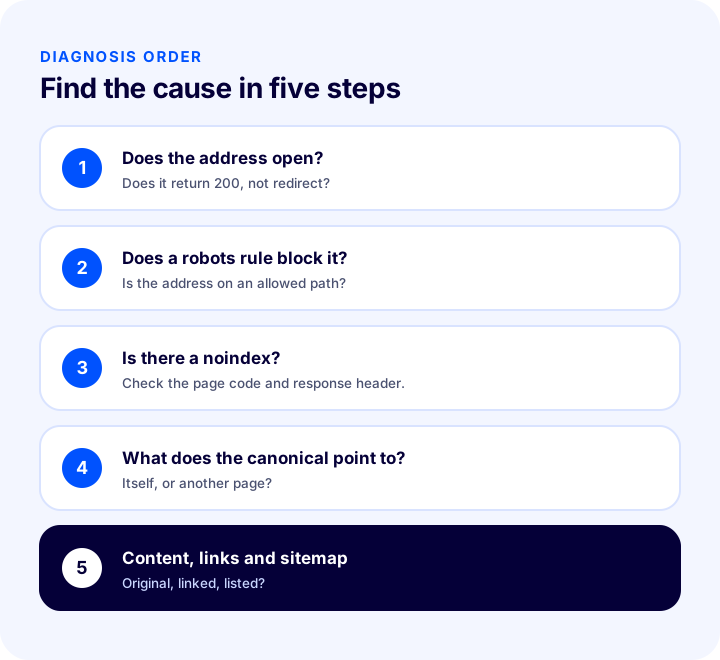
| Order | Check | How to check | If a problem turns up |
|---|---|---|---|
| 1 | Does the address open? | Open it in a browser; does it redirect or error? | Fix the redirect or the 404/5xx |
| 2 | Does a robots rule block it? | Is there a rule in robots.txt that matches the address’s path? | Narrow or remove the rule |
| 3 | Is there a noindex? | Look for noindex in the page code and the response header | Remove the tag |
| 4 | What does the canonical point to? | Is the address on the canonical line the page’s own address? | Fix it so it points to itself |
| 5 | Is the content original and sufficient? | Compare the page with competing pages | Add original value |
| 6 | Is the page linked to? | Look for links in the category, menu and related content | Add internal links |
| 7 | Is it in the sitemap? | Search the sitemap file for the address | Update the sitemap |
In practice, the first four steps take minutes and find most problems. The fifth and beyond require more editorial effort. Note what you find at each step; also list other pages that carry the same problem, because technical causes usually affect an entire page type.
What Are the Specific Reasons E-Commerce Sites Go Unindexed?
Beyond the general causes, there are a few situations specific to e-commerce: out-of-stock products, filter and sorting addresses, settings left over from the staging environment, removed campaign pages, and crawl load caused by the sheer number of pages in large catalogues. Each needs to be assessed separately.
Out-of-stock and discontinued products
Keeping the page of a temporarily out-of-stock product live is usually a good idea to preserve its ranking when the item returns; state the situation clearly on the page and link to similar products. For a permanently removed product, a 301 redirect to a related product or category is preferable. Leaving an empty, unexplained “product not found” page live with a 200 response sends a weak-page signal to the search engine.
Filter, sorting and parameter URLs
If the URL changes when a color, size or price filter is selected on category pages, a large number of similar pages is created. Some of these may be intentionally left unindexed; the problem arises when a filter page you actually want (for example a sought-after color-product combination) is treated as a duplicate and filtered out. Decide which filter pages should be standalone pages and mark the rest with a canonical pointing to the main category. For the filtering experience, the product filtering and search bar optimization guide will be useful.
Settings left over from the staging environment
A noindex placed on all pages while the site was being built, a blanket block in robots.txt or password-protected access can be forgotten at launch. This is the easiest-to-fix yet most costly cause of the complaint “hundreds of pages are not indexed at all.” Make sure your launch checklist includes robots.txt, the meta robots tag of the main template and the response headers.
Very large catalogs
On sites with thousands of products, the search engine does not visit every page with the same frequency; link structure, the sitemap and a clean URL layout become important so that key pages stand out. Reducing duplicate and low-value URLs helps crawl time go to the pages that matter. For URL structure, see the how should URL structure be article.
| Situation | Common mistake | The right approach |
|---|---|---|
| Temporarily out-of-stock product | Deleting the page or returning a 404 | Keeping the page live and stating the status |
| Permanently discontinued product | Leaving an empty page live with a 200 | Sending a 301 to the related page |
| Filter URLs | Opening all to indexing or blocking all | Making a few sought-after ones standalone pages and marking the rest with a canonical |
| Going live | Forgetting to remove the staging noindex | Using a launch checklist |
| New campaign page | Not linking it from anywhere | Linking it from the menu and home page |
How Long Should You Wait After Fixing the Problem?
After a fix, it is not possible to give a set time for the page to be recrawled and indexed; the time varies with the size of the site, the page’s link status and the attention the search engine devotes to that site. Some pages are reevaluated quickly, others much later.
Because of this uncertainty, two mistakes are made: either you wait forever doing nothing, or you resubmit a request for the same page every day. The right approach lies between the two:
- Verify that the fix has actually been applied. Reopen the page and check the code and the response header; an old version may be coming from the cache.
- Request that the page be recrawled. You can submit an indexing request from the URL inspection in the site owner tool; this is an effort to speed things up, not a guarantee. Sending requests repeatedly for the same page does not help.
- Strengthen discovery. Keep the page up to date in the sitemap and add internal links; let the search engine see other ways to reach the page as well.
- Wait a while and check again. Follow the tool’s status report at regular intervals; see whether the status moves from “not crawled” to “crawled” and from there to “listed.”
- If it still does not change, go back to diagnosis. Most likely either the fix is incomplete or the real cause has to do with the value of the content.
If a serious problem has been resolved (for example a noindex affecting the whole site), recovery can take longer than for a few pages, because the search engine has to recrawl most of the site. During this period, do not keep changing pages and the sitemap; every change can restart the evaluation.
How Can New Product Pages Be Discovered Faster?
Three things work together for fast discovery of new product pages: linking the page to its category and related products with internal links, the new page entering the sitemap automatically, and the page being published as indexable from the start (no noindex, correct canonical, 200 response). If one is missing, discovery is delayed.
- Run a technical check before publishing. Is the URL clean, is there no noindex, does the canonical point to itself, does the page open without problems on mobile?
- Assign it to the right category. The category page is the strongest way for a new product to be found; if the product appears in the category and sits on the first pages, the search engine reaches it easily.
- Link it from the home page and related pages. A “New arrivals” section, related products and natural links in blog posts bring the page closer to the heart of the site.
- Make sure the sitemap is up to date. If there is a wait before the new product enters the sitemap, include it in your plan.
- Start with rich and original content. A page published with an empty description and “I’ll fill it in later” may be treated as thin content on first crawl. Publish the page when it is ready.
- Send a crawl request if necessary. For an important product or campaign, requests can be sent one by one from the site owner tool; use this selectively.
- Don’t forget sharing and external links. Social shares and newsletters do not directly improve ranking, but they bring real visitors and sometimes links to the page.
It is also important that the page looks right when shared; for that, take a look at the what is an Open Graph tag guide. On multilingual sites, the hreflang tag must be set up correctly for the link between language versions, otherwise the versions may be treated as copies of each other.
We recommend readingWhat Is a Sitemap? How to Prepare One for an E-Commerce SiteWhat Are Common Mistakes in Indexing Problems?
The most common mistakes are sending the same request again and again without diagnosing the cause, confusing robots.txt with noindex, leaving staging settings in production, stuffing every URL into the sitemap, and increasing the page count instead of enriching content. What they share is dealing with the symptom instead of looking at the cause.
- Constantly resubmitting requests for the same page. Until the problem is fixed, requests do not help; find the cause first.
- Blocking a page you don’t want indexed with robots.txt and thinking the job is done. This prevents crawling; if the page receives external links, it can still appear in the listing. noindex is more correct for keeping it out of the listing.
- Putting pages that carry noindex into the sitemap. The sitemap and the page say opposite things, which undermines trust.
- Trying to grow by page count. Hundreds of low-value pages create more problems than ten valuable ones. First improve the pages you already have.
- Leaving the canonical on automatic and never checking it. Template errors affect all pages at once.
- Building redirect chains. With every move, redirect the old URL directly to the final destination.
- Expecting immediate results from a new site. The process takes time; but this is no excuse for skipping technical checks.
- Leaving multilingual pages as copies of one another. Language versions must be translated and correctly marked.
Indexing Checklist
A page ready for indexing is one whose URL opens, that carries no obstacle for the crawler or the listing, whose canonical points to itself, that has original and sufficient content, that is linked from within the site and that is included in the sitemap. Use the list below when publishing a new page or examining a page that is not being indexed.
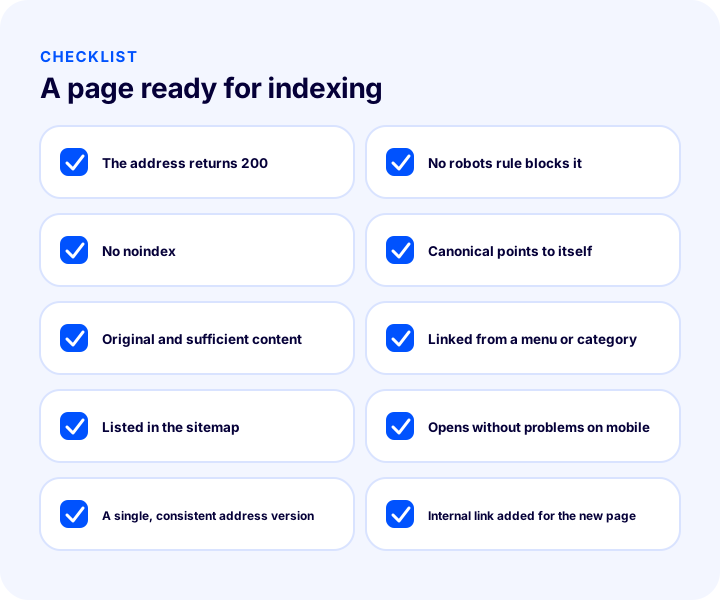
- The URL returns a 200 response, with no redirect or error.
- No robots rule blocks the page’s path.
- There is no noindex in the page code or the response header.
- The canonical tag points to the page’s own URL.
- The content is original and sufficient: description, images, size and care information, customer questions.
- The page is linked from the menu, a category or related content.
- The page is listed in the current sitemap.
- The page opens without problems and quickly on mobile.
- The URL version (www, http/https, trailing slash) is single and consistent.
- Internal links for the new page were added at the time of publication.
| When? | What to do |
|---|---|
| Before publishing | Check the URL, noindex, canonical, content and category assignment |
| At publication | Add internal links, make sure the sitemap is up to date |
| After publishing | Monitor the page’s status in the site owner tool |
| If there is a problem | Follow the order in the diagnosis table, verify the fix, wait |
| Regularly | Review robots.txt, template meta tags and redirects |
Managing Indexing Problems with Faprika
The SEO settings in the Faprika control panel bring together several headings that matter for indexability. According to the SEO settings tutorial in the Help Center, the “Canonical Url Aktif” option is found in the SEO section under Configuration, Settings, General Settings; this setting helps specify unique and original page URLs. The same section also covers consistent access to the www and non-www URL versions through “Alan Adı Kontrolü” (Domain Check). These two settings are starting points for reducing the canonical and URL-version problems described above.
The plan feature comparison includes rows such as “Canonical / H Etiket Yönetimi / Robots / Sitemap” (Canonical / Heading Tag Management / Robots / Sitemap), “301 / 302 / 410 Paneli / URL Kayıtlarını Yönetme” (301 / 302 / 410 Panel / Managing URL Records), “Toplu Otomatik SEO/Meta Bilgi Güncelleme” (Bulk Automatic SEO/Meta Information Update) and “SEO Raporları” (SEO Reports). These rows cover robots.txt and sitemap management, redirect records, bulk updating of product titles and descriptions, and SEO reports; which plan includes which may vary by plan, and for the current scope you can see the e-commerce plans page.
The SEO information of product pages is edited per product in the Catalog, Product Management section. The same tutorial describes creating SEO information with tags such as product name, stock code and price, and the option to generate product meta descriptions automatically. These tools save time; however, applying the same template to every product can produce similar titles and descriptions. Writing the title and description by hand for your most important products gives more original results. For writing meta descriptions, the how to write a meta description guide will help, and for setting up store-wide settings together, the e-commerce SEO settings: how to do them article. Also take a look at the what is structured data article to describe your pages to the search engine in a structured way.
Frequently Asked Questions
Why isn’t a page indexed?
A page may not be indexed because the search engine can’t reach it (robots block, error, redirect), because it carries a signal not to enter the list (noindex, a canonical pointing to another page), or because it isn’t considered original and valuable enough to be listed (thin or duplicate content, an unlinked page, a new site). The cause should be ruled out in the order given in the diagnosis table.
What is the difference between crawling and indexing?
Crawling is the search engine finding and reading a page. Indexing is adding the page that was read to the search engine’s list. A page may be crawled yet not enter the list; ranking, in turn, is the order in which a page in the list is shown for a query.
What is the difference between noindex and a robots.txt block?
Robots.txt prevents the crawler from entering the page; noindex tells the engine not to add the page to the list after reading it. If you want a page to stay out of the list, noindex is the right tool. Because a page blocked with robots.txt isn’t crawled, the noindex tag isn’t read either.
How long does it take for a page to be indexed after I fix it?
It isn’t possible to give an exact time; it varies with the site’s size, the page’s link situation and the search engine’s interest. Verify the fix, submit a recrawl request, strengthen discovery with internal links and the sitemap, and monitor the status after a while.
How can my new product pages be indexed faster?
Assign the product to the right category, link it from the home page and related pages, make sure the sitemap is up to date, publish the page without noindex and with a self-pointing canonical, and write the description originally from the start. For important products, you can also submit a crawl request from the site owner’s tool.
What does a page that is crawled but not indexed mean?
It means the search engine read the page but didn’t find it worth listing. This is most often because the content is thin, very similar to other pages or lacks distinguishing value. The fix is to add original, useful content to the page and link it better from within the site.