Catalog
Product Tags Management
To make products more eye-catching, it is necessary to run various campaigns from time to time. This is where the Tag Management area comes in. For example, call-to-action phrases you add to your products, such as New Product, Free Shipping, and Limited Stock, are good examples of Product Tags.
In This Tutorial
To make products more eye-catching, it is necessary to run various campaigns from time to time. This is where the Tag Management area comes in. For example, call-to-action phrases you add to your products, such as New Product, Free Shipping, and Limited Stock, are good examples of Product Tags.
Product tags are entered in this field. It is not a required field, but entering one is recommended. With a tag, you can design a product’s standout feature as text or an icon and add it from this field. You can place it anywhere on the product image and boost your sales by highlighting your product with phrases such as 100% Cotton or Free Shipping.
Multiple tags can be assigned to a product, and a single tag can be used on many products.
Now let’s go to the Product Tags panel.
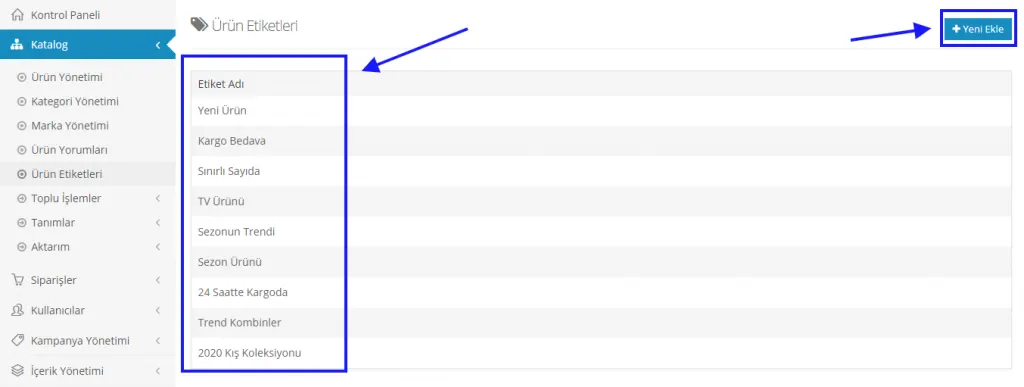
The Product Tags Management panel lists the tags previously added to the system. You can click a tag’s name to open the edit panel and change the fields we want to modify. To add a new tag, you need to click the Add New button.
Creating a New Tag
Tag Information
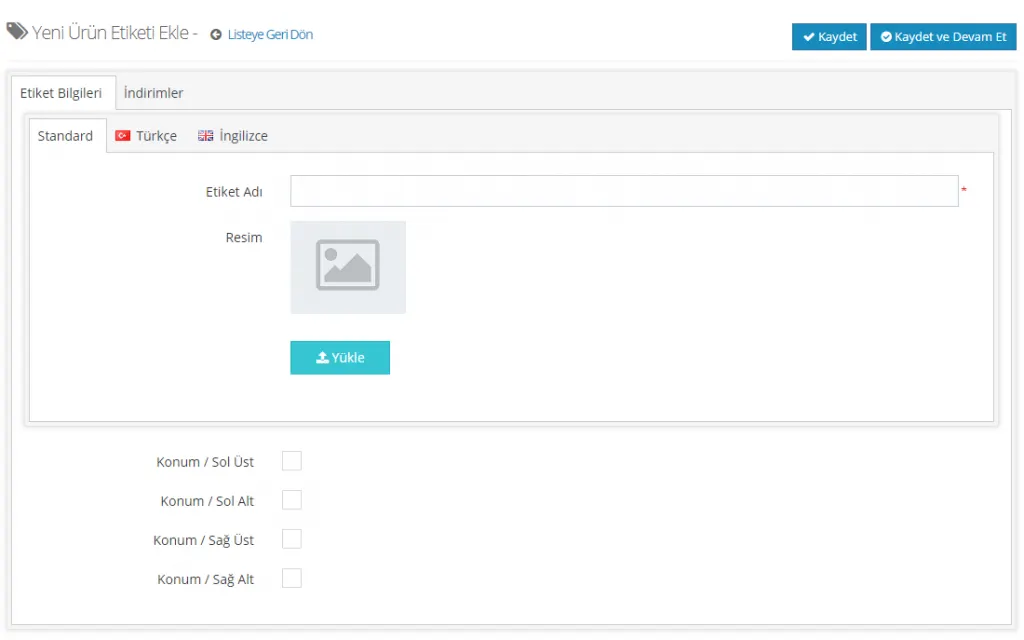
In the window that opens, we see English and Turkish language options. Standard is the same as selecting Turkish. For the use of an additional language, you can contact our support team.
There is a Tag Name field for entering the name of the tag you want to create, and an Image field if you want to add a visual for the tag.
So in which area of the product image do we want the tag to be placed? The panel leaves that decision to us as well. For the position, we can choose one of the options: top left, bottom left, top right, or bottom right.
Now let’s create a tag together.
Let’s name the tag we are going to create ‘Black Friday’. After setting the tag’s image and the position where it will be displayed, let’s add it to the system.
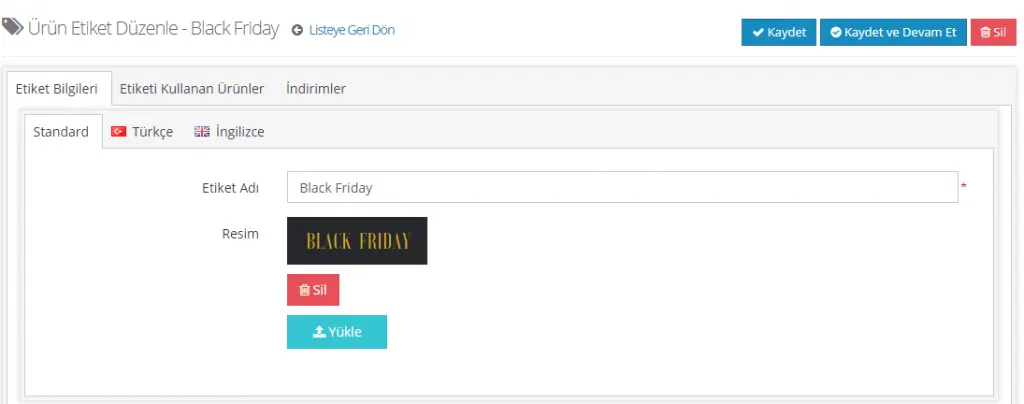
You also need to specify in which corner of the product image the tag will be displayed. Otherwise, even if you upload the tag’s image, it will not be displayed.
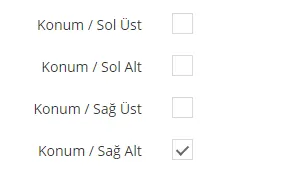
With the selection you make in this field, you can choose whether the image appears at the top left, bottom left, top right, or bottom right.
In this example, we chose to place the image at the bottom right. Now let’s see how it appears on the product page:
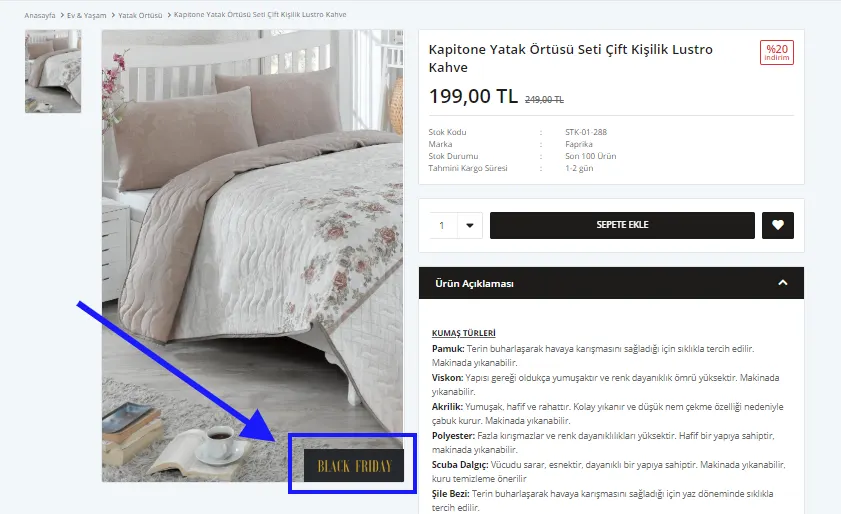
As you can see, we can position the tag according to our preference and design it to be smaller or larger.
Products Using the Tag
The second heading in the Product Tag Editing panel is ‘Products Using the Tag’. In this list, we can see the products that use the tag saved in the system.
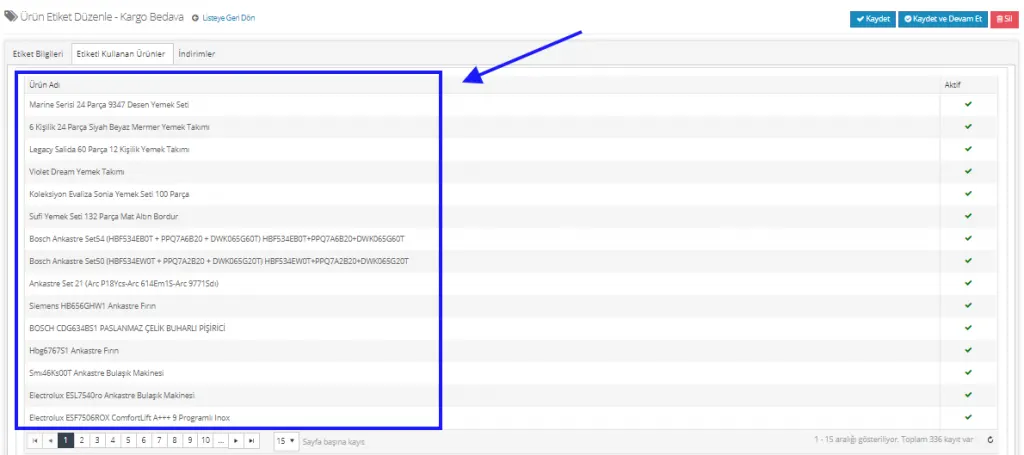
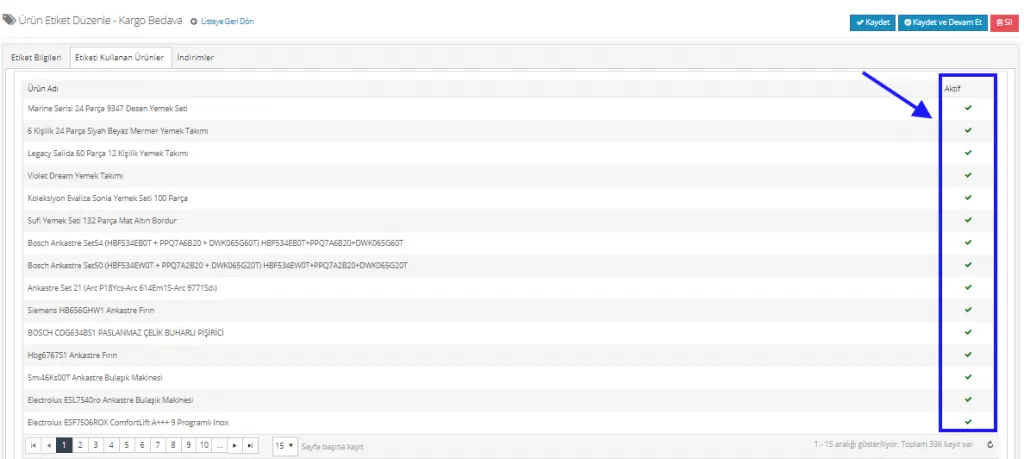
The products in the list may belong to different categories, but all of them use the same tag. In the example above, the products for which we used the ‘Free Shipping’ tag are listed. If you want to remove a product from this list, it is enough to remove the link of the relevant product under the Active option on the right side of the panel.
Discounts
Discounts, on the other hand, is the area that lists the discounts defined for the tag. If no discount has been assigned to the tag, this page of the panel is displayed empty.

If a discount is defined for the tag in question, it will be listed in this area:

To define a discount for a tag, see: How to define a discount for a tag? (link to be added)
Adding a Tag to a New Product
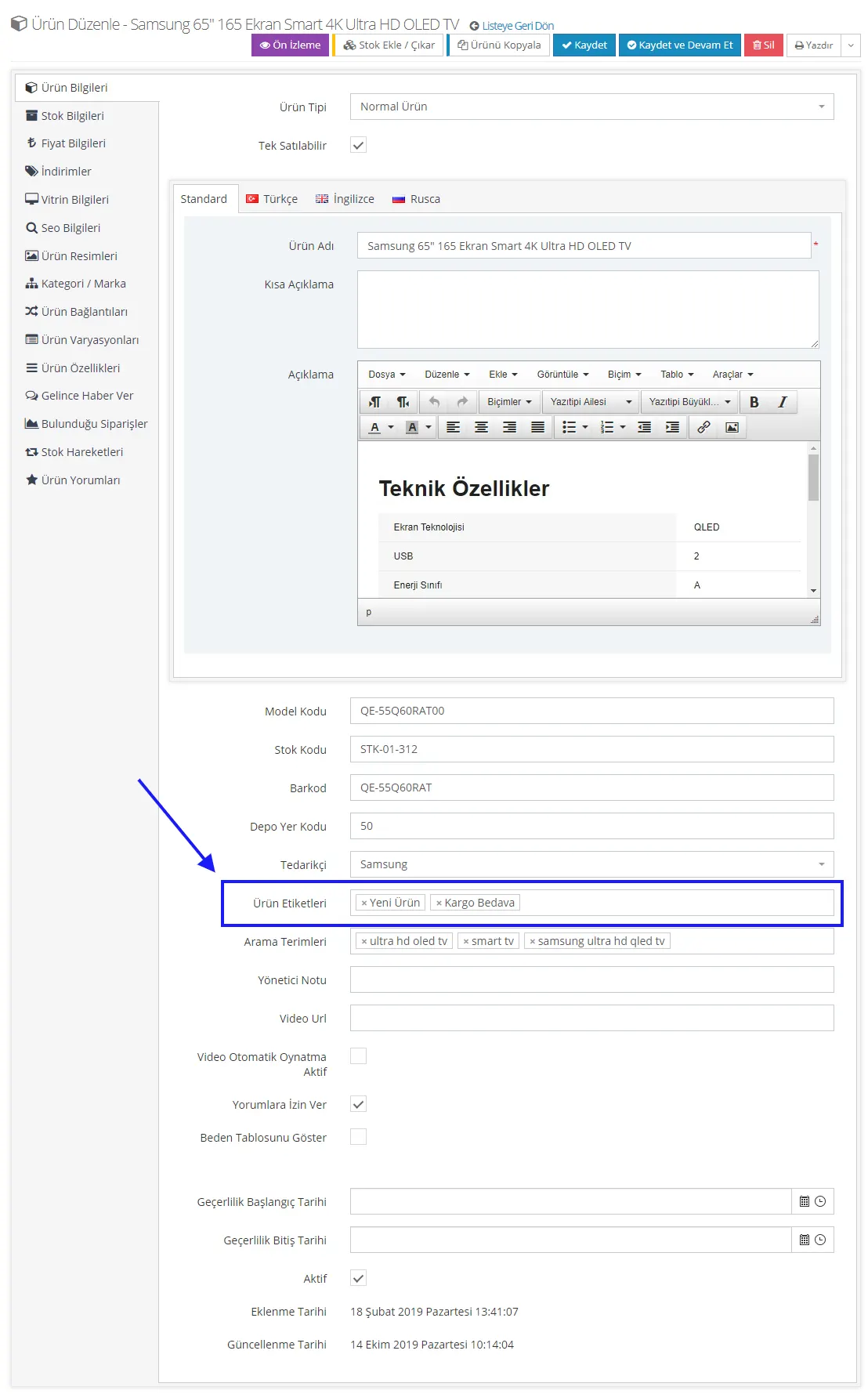
When adding a new product, you can easily select one of the saved tags from the panel.
After selecting Catalog >> Product Management >> Add New Product, you can also add the tag information in the panel that opens while entering the product’s general information.
Bulk Tag Update
If you uploaded your products to the system without defining tags, you can go to BULK OPERATIONS >> BULK PRODUCT UPDATE, select the category you want affected, and assign a TAG to all products in bulk.
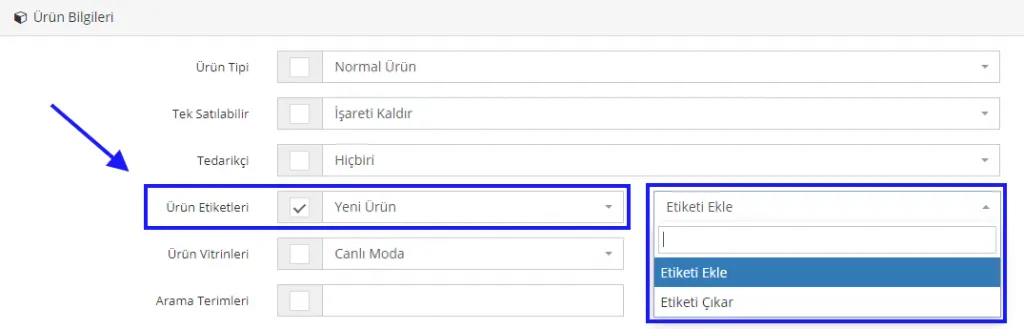
For bulk updates, after listing the products in the search area, you can easily select a tag from the field shown in the image above and add or remove tags. However, what needs attention here is that these operations cannot be undone. For this reason, we recommend checking the changes once more before saving. For more information about the Bulk Product Update process, see here.