Catalog
Product Reviews Management
In the Product Review Management panel, we will look at which actions we can take on the reviews left on products in the e-commerce site. Your customers want to comment on products they have bought or liked. It is possible to manage these reviews from a single panel. The Catalog >> Product Reviews area lists all products that have received reviews and lets us act on them.
In This Tutorial
From the Product Review Management panel, we will look at which actions we can take on the reviews left on products in the e-commerce site.
Your customers want to comment on products they have bought or liked. It is possible to manage these reviews from a single panel.
The Catalog >> Product Reviews area lists all products that have received reviews and lets us act on them.
Let's take a look at the panel right away.
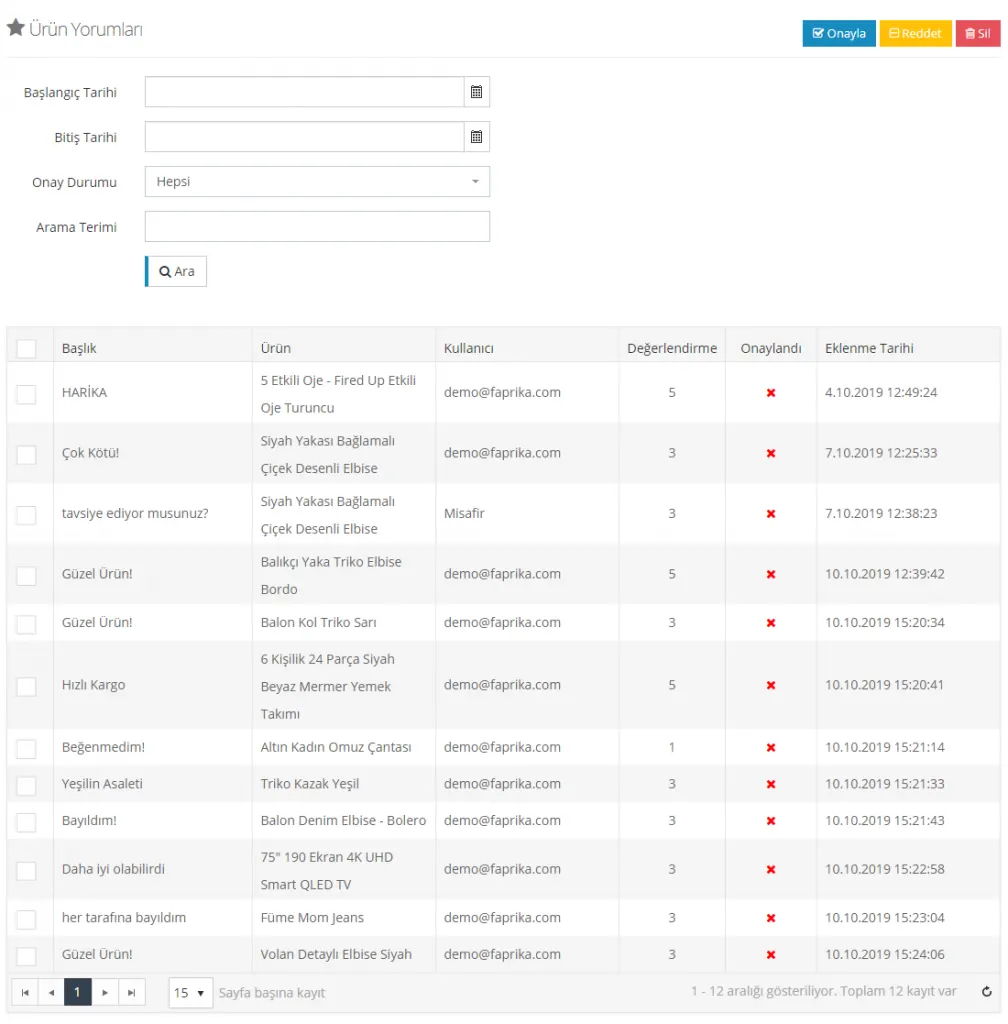
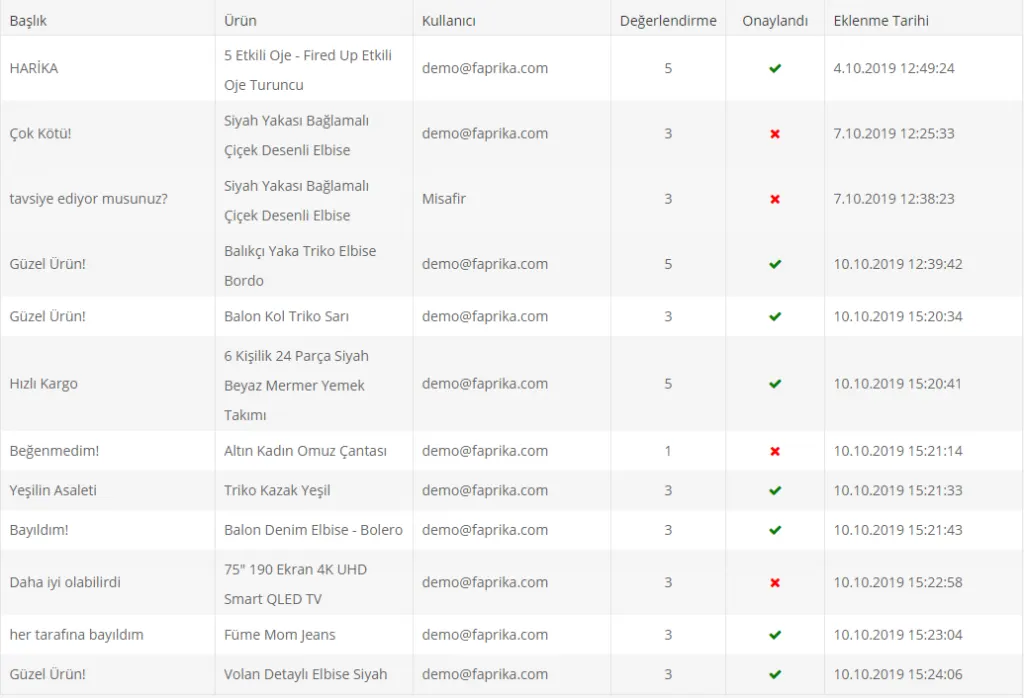
As usual, the panel includes a search field and a list of all reviews. From this list you can select reviews in bulk or one by one, and use the buttons at the top right to Approve, Reject or Delete them.
The list shows all reviews left on your products in order. The newest reviews appear at the bottom. From this list you can see the reviews, the reviewed products, the email address of the reviewer, the rating given, the approval status of the review and the date it was added.
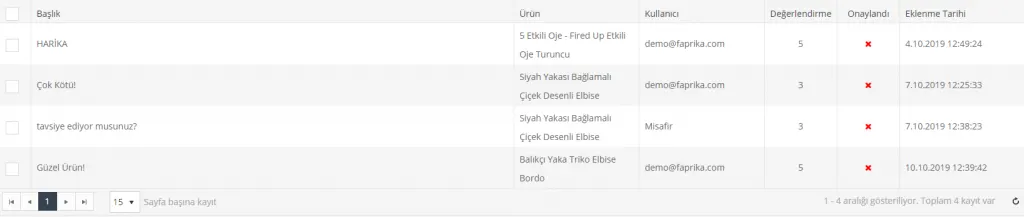
When you click a product name, the system takes you to the product edit page; when you click a user name, it takes you to the Edit User page.
Searching Product Reviews
If you want to search product reviews, you can enter a start and end date to access the reviews made within a specific period.
For example, let's list only the reviews made on October 7. The panel lets you choose between approved or rejected reviews. If you select the All option, all approved/rejected reviews are listed.
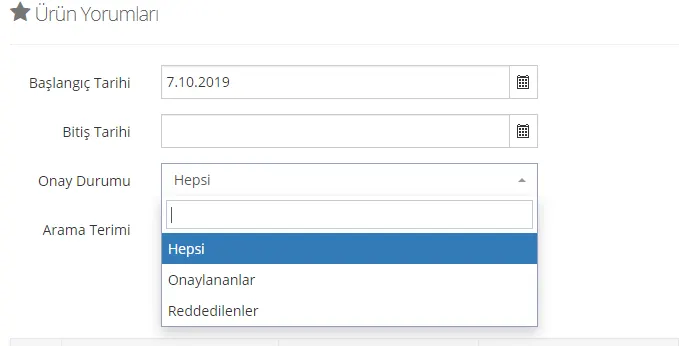
Since we did not add an end date to the search criteria, the system will list all reviews made after October 7, 2019. We can narrow this down by setting an end date. We can also search by a search term.
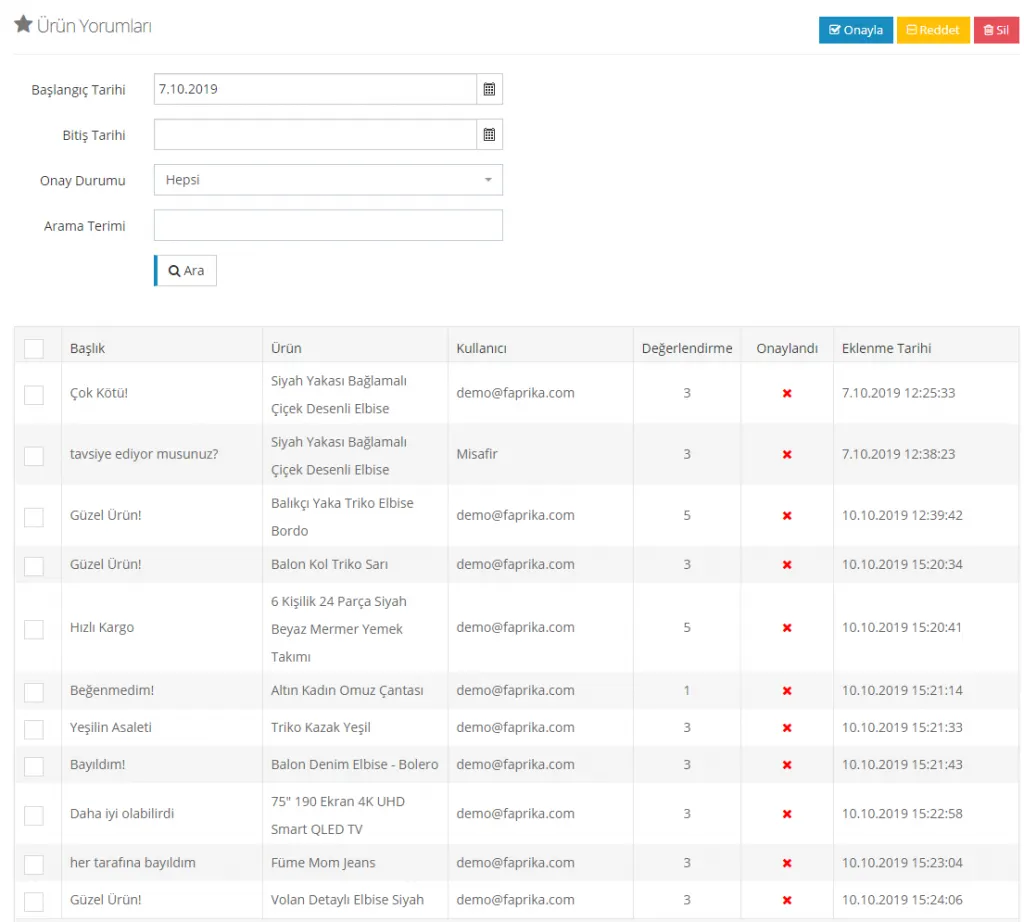
As you can see, all reviews matching the date restriction have been listed. You can click the titles to examine the reviews.
Let's examine the fields in the panel that opens.
Product gives the link to the reviewed product page. When you click it, you can go to the Catalog >> Product Management >> Edit Product page.

User shows the email address of the visitor who wrote the review if they are a member, or guest information if they are not.

Title and Review Text are the message fields written by the user. The system allows you to edit these fields.

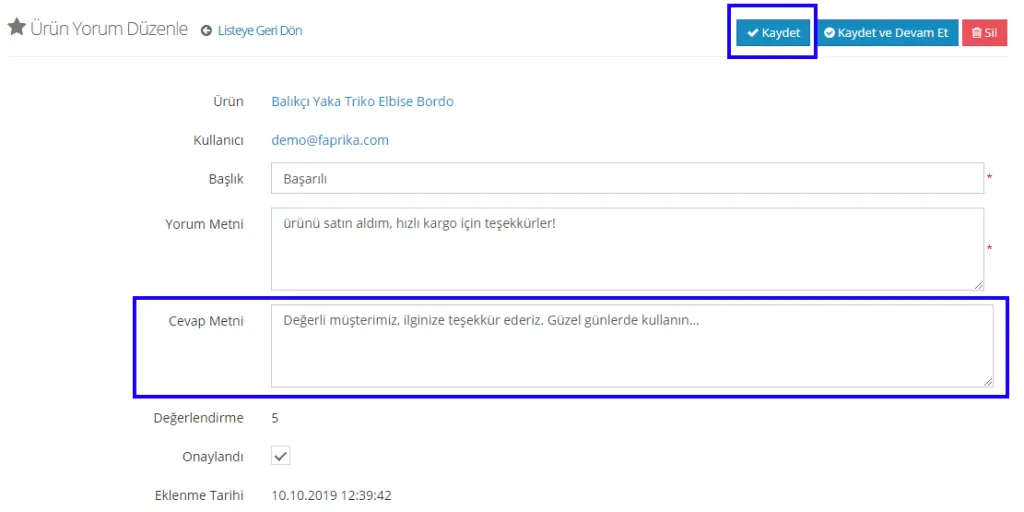
Reply Text is the field where you edit your response to the customer's review. When you click the Save button, your reply is displayed on the product page.

Let's also see how the reply appears on the product page.
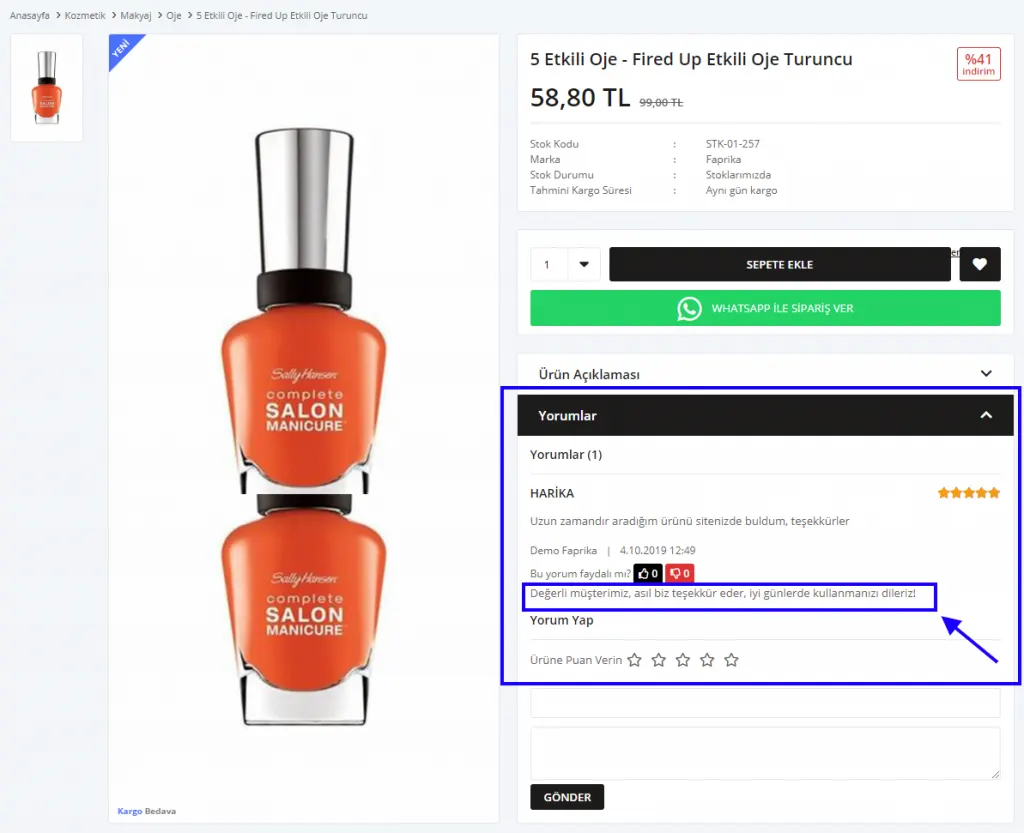
As you can see, both the reviews and the replies to them are displayed on the product page as shown in the image.
Rating refers to the scores given by the customers/guests who wrote the review.

When you click the Approved button, the review becomes visible. Reviews that are not approved are not displayed.

Date added is the date on which the review was made. This information can also be viewed from the panel.

Approving Product Reviews
There are two methods for approving reviews from your customers or from guests visiting the site.
The first is approving them one by one; the second is approving them in bulk.
Approving a Product Review Manually
Let's click the title of the review we want to approve. The panel that opens offers many fields for editing. In this section we will see the approval process.
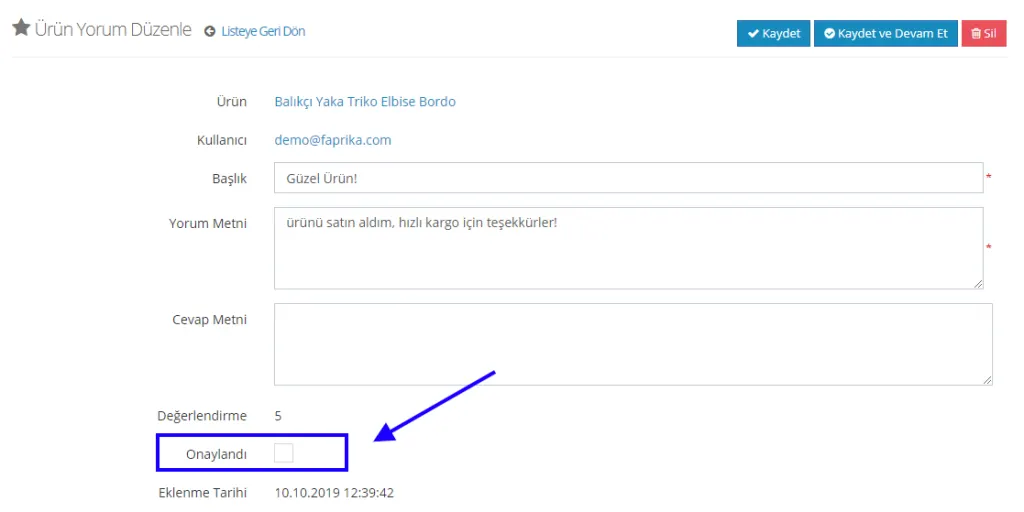
In the panel that opens, we can have the review approved by ticking the box next to the Approved button and then clicking the Save button.

Bulk Review Approval
If you want to approve the reviews in the review list in bulk, it is very simple. You can select all reviews by ticking the box next to Title in the top left corner of the list, or tick the boxes next to a few reviews, and then click the Approve button to save them in bulk.
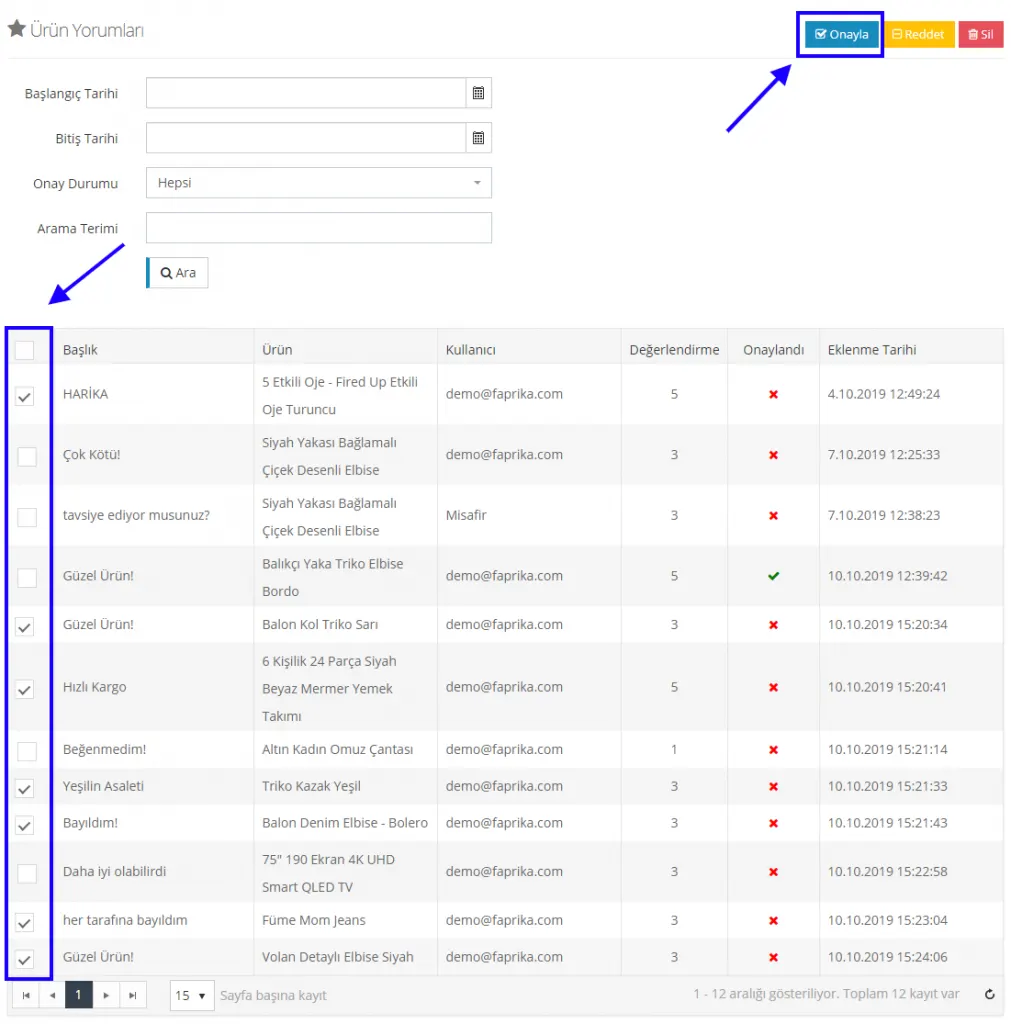
After making the selection, when we click the Approve button, all selected reviews will be approved in bulk.
Rejecting Reviews
Rejecting reviews can also be done one by one or in bulk. Rejected reviews are not displayed in the reviews area of the products.
Rejecting a Review Manually
To reject a review manually, we again click the title of the review we want to reject. Here too, we complete the rejection by removing the tick next to the review's Approved button.
NOTE: For a product review to be rejected, it must first have been approved!
Bulk Review Rejection
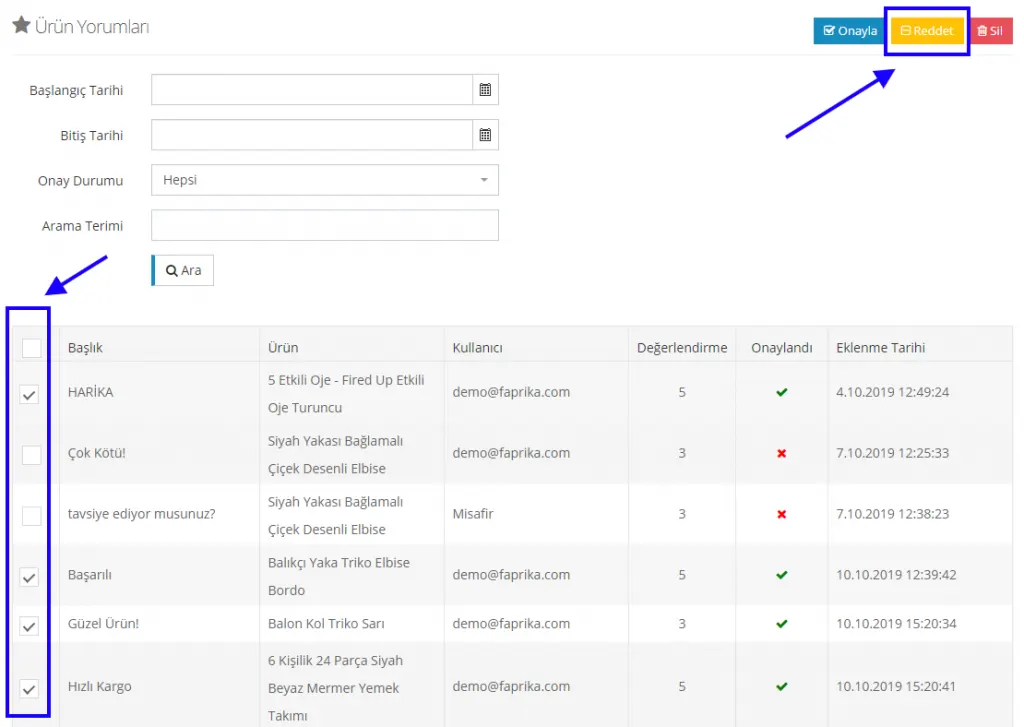
To reject reviews in bulk, again select from the list and click the Reject button at the top right.
Deleting Reviews
Deleting reviews can also be done manually or in bulk. You can delete reviews with problematic content, and you can also easily delete a review when there are several saved copies of it in the system.
Deleting a Review Manually
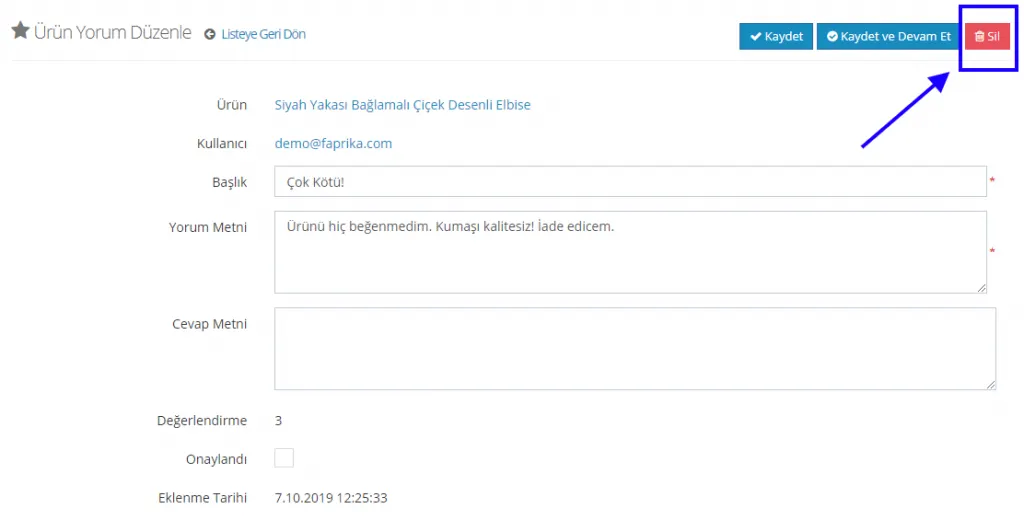
After clicking the title of the review we want to delete in the list and going to the edit panel, we can delete the review by clicking the Delete button at the top right.
Bulk Review Deletion
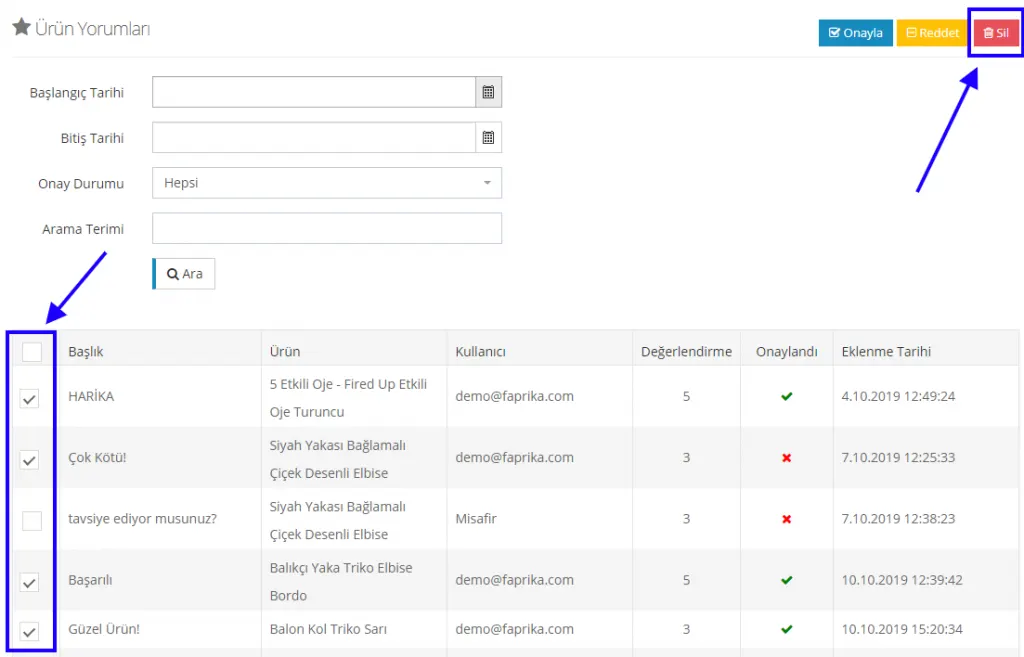
After ticking the reviews we want to delete in the list area, we can delete them by clicking the Delete button at the top right.
Replying to Product Reviews
You can reply to the reviews sent by customers from the panel. Add your reply to the Reply text field and click the Save button to complete the process.
Editing Product Reviews
If a review contains spelling mistakes or incorrect information that needs to be corrected, we can do so by making the edits in the Review Panel and then clicking the Save button.
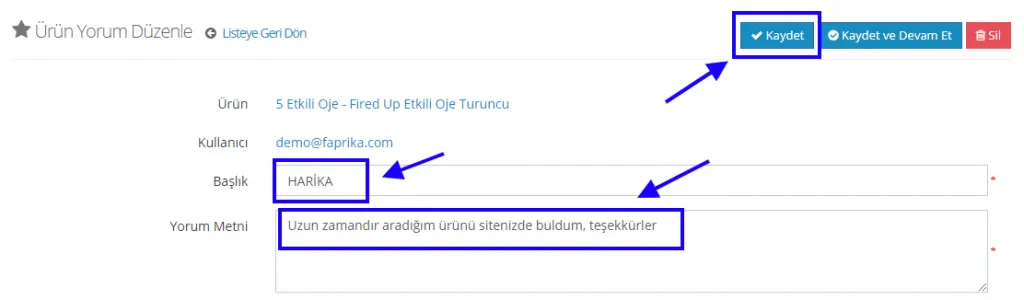
After editing the title and review text, we can complete the process by clicking the Save button.