Catalog
Product Management
What is Product Management and how is it used are among the first questions of users who start exploring the panel. Faprika offers an easy-to-use, practical panel and lets you add all your products to the system in the finest detail.
What is Product Management and how is it used are among the first questions of users who start exploring the panel. Faprika offers an easy-to-use, practical panel and lets you add all your products to the system in the finest detail.
Every e-commerce site has its own product range. From time to time, however, these products need to be sorted, listed, easily added to the system or reported on. Product management lets you add products to the system one by one or in bulk using Excel. You can also add products using XML or accounting integration.
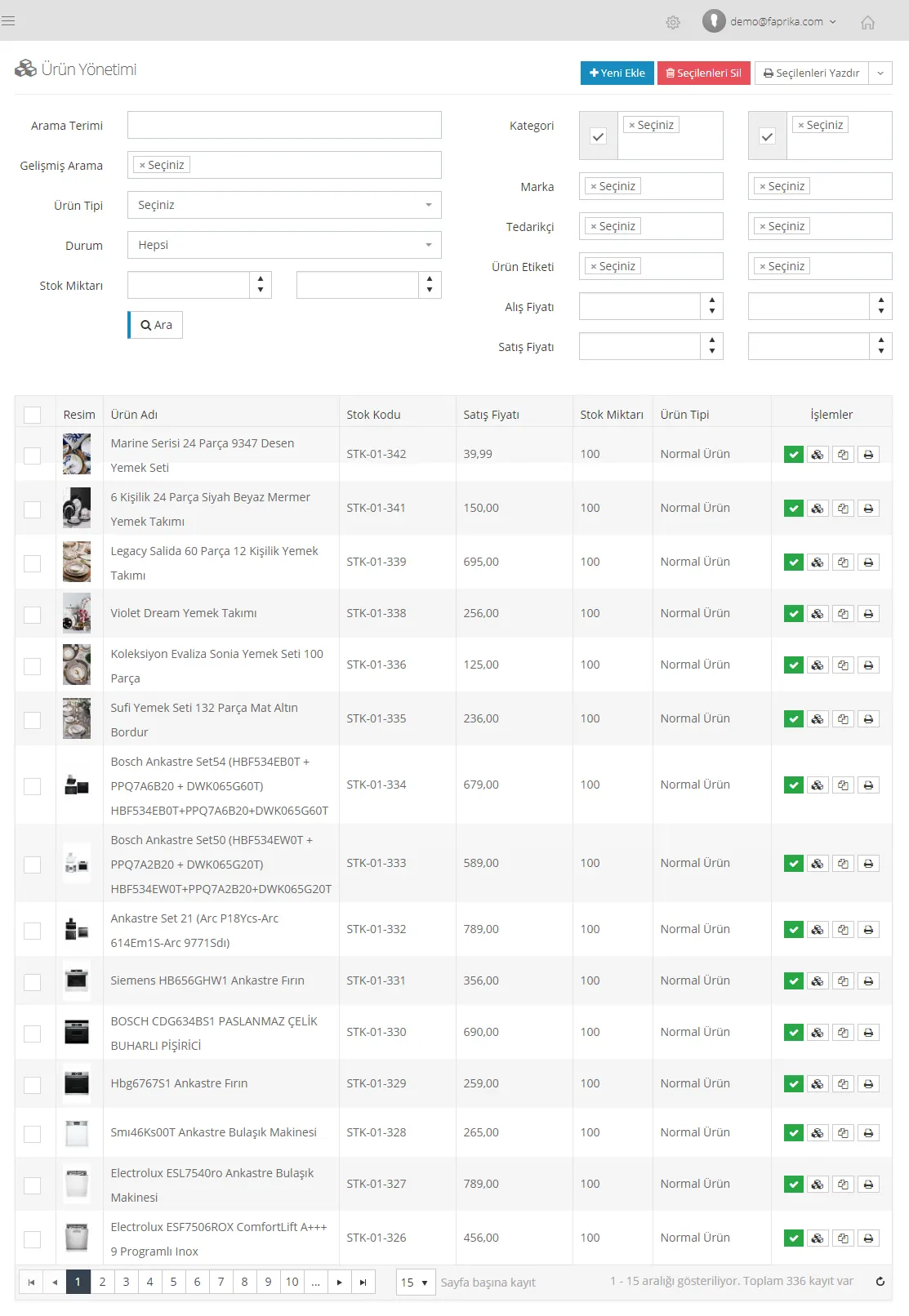
If you have similar products or want to add a new one, you can copy products with Faprika's easy software. This way you can add your products without repeating the same steps again and again. You can also update any information you like after copying. The product management panel lets you perform all of these operations.
You can add a product with the Add New option,

With the Delete Selected button, after selecting among the products listed at the bottom of the page, you can delete them in bulk or one by one.
With the Print Selected option, you can also easily print the products that appear in your search results.

When you want to search for a product or a product group, you can use the Search Panel.
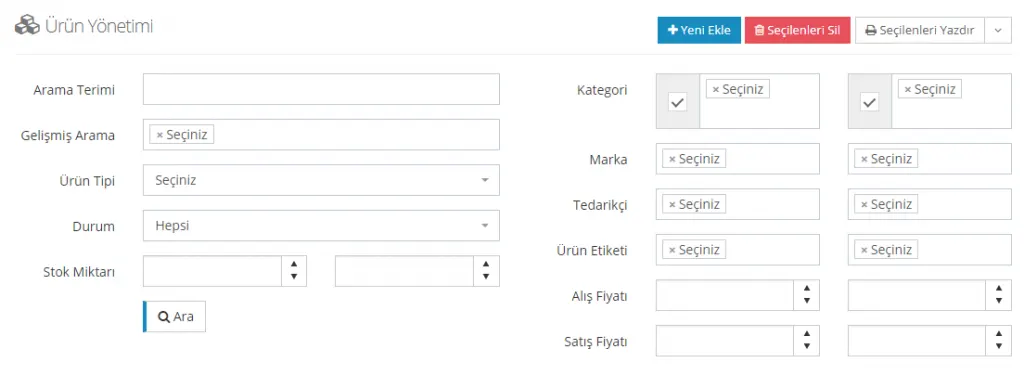
Type the word that best describes the product in the 'Search Term' field. You can of course make your search easier by using the advanced search options.
What can you do with advanced search?
- You can search for your product by keyword . For example: Blue sweater
- You can search for your product by category. For example: Women's Clothing
- You can search for your product by product type. For example: Grouped products
- You can list your products that are inactive.
- You can search by stock quantity. For example, products with a stock quantity of at least 100.
- You can search for your product by brand. For example, all sports shoes of brand X
- In some cases you may need to search by supplier. You can easily use the Advanced Search feature for this too.
- You can search by product tags. For example: New Product
- You can also list products by purchase and sale price.
How many products have stock between 1 and 10? Which products belong to supplier X? How many products do you have from the brand you are looking for? Or which of your products are in the Women's Clothing category? How many products are priced at 100 Lira? How many products are inactive on your site? Conversely, how many products are ready for sale, active and sufficiently in stock?
You can get answers to all these questions within seconds and take action on the products listed at the bottom of the page according to your searches. If you search, the list below shows products matching your selections. If you do not search, products are sorted with the most recently added at the top.
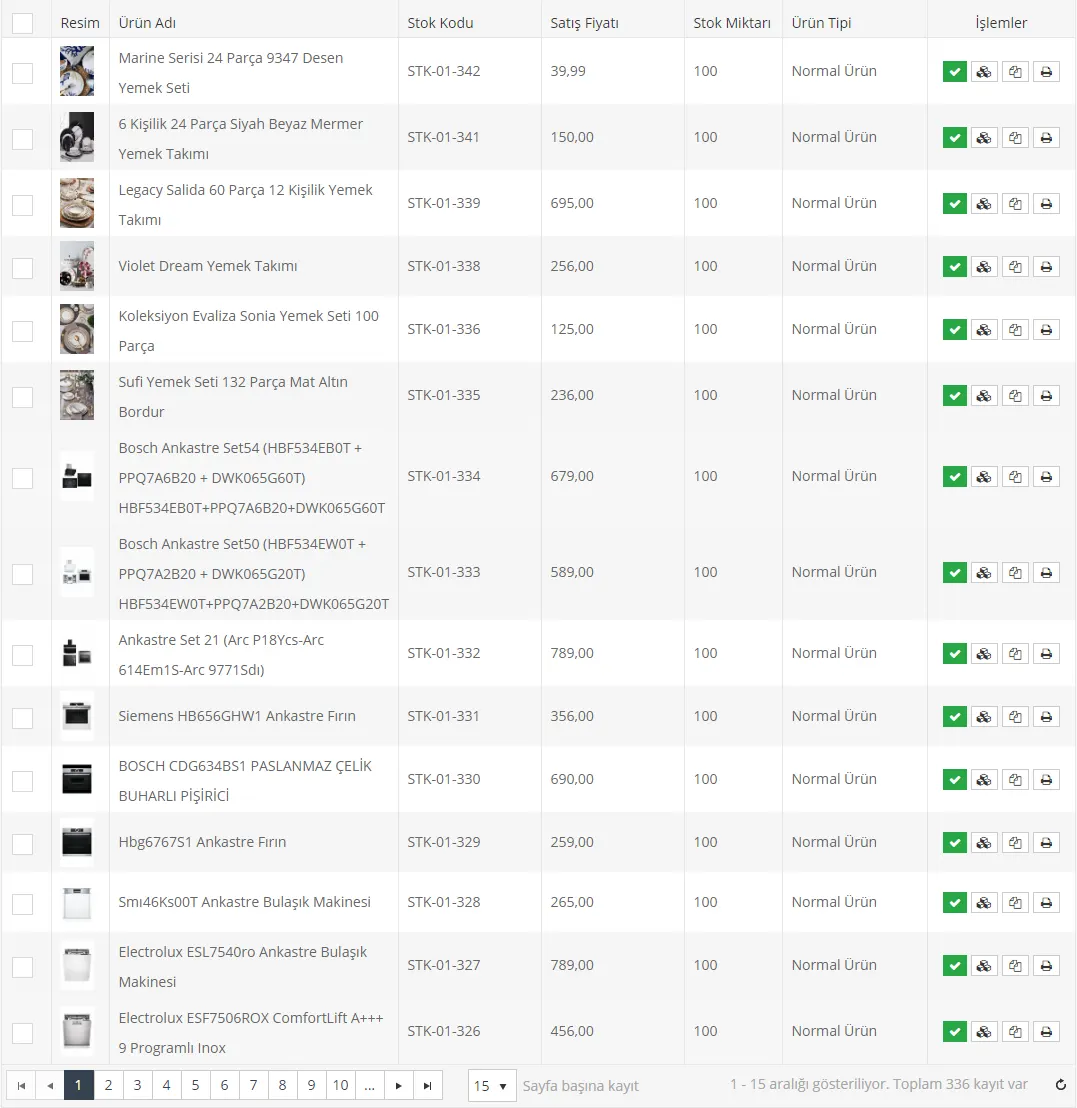
You can select the listed products by checking the boxes on the left one by one. You can also check the box at the very top to select all products on that page at once. However, you need to repeat this on each page. If more than 15 products are listed, the others continue on the second, third pages and so on.
So what do the headings above the listed products mean?

- Selection Box: Lets you select products one by one or in bulk.
- Image: A small version of the product's uploaded image.
- Product Name: The name you gave the product.
- Stock Code: The stock code information added to the system for the product.
- Sale Price: The sale price set for the product.
- Stock Quantity: The stock quantity information added to the system for the product.
- Product Type:
- Normal Product: A single product you add to the system.
- Grouped Product: Refers to selling compatible products that can be purchased together as a group. For example, products sold as a combo, such as a trousers, T-shirt and shoes outfit.
- Size-Run Product: A product whose sizes are all offered in a single package. For example, a sweater offered with one piece each of sizes 34, 36, 38, 40, 42 and 44 is a size-run product.
- Operations:
- Deactivate Product: When you do not want customers to see a product, you can easily deactivate it by clicking this option. For example, if you have not set the product to be deactivated automatically when stock runs out, you can also deactivate it manually with this button.
- Add/Remove Stock: Updating your product's stock information is very easy. All you need to do is click the add/remove stock button. If you have not defined a variation for the product, you can increase or decrease stock on the Change Quantity screen that opens. You can also see the current stock from this panel. The change quantity here means how much extra stock you will add or remove. For example, current stock is 100 but 10 more units arrived and stock needs to be updated to 110. Then entering 10 as the change quantity updates the stock to 110. Or if 94 units are left in stock, we can update by entering -6 in the change quantity field.
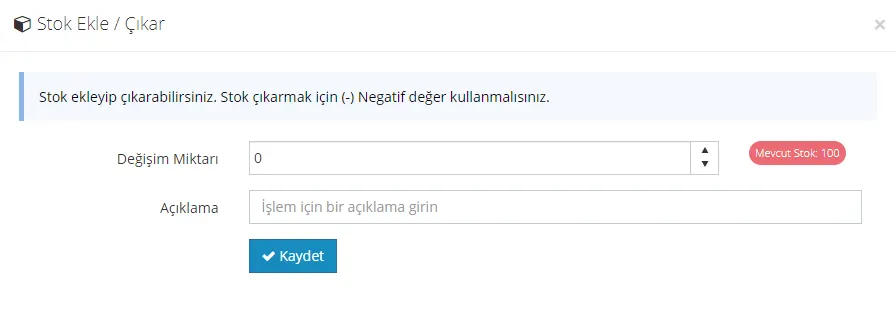
- Some products come in a single type, so no variation needs to be created. However, if they have variations such as color, size or number, it is better to define these variations before stock. (For creating variations, see)
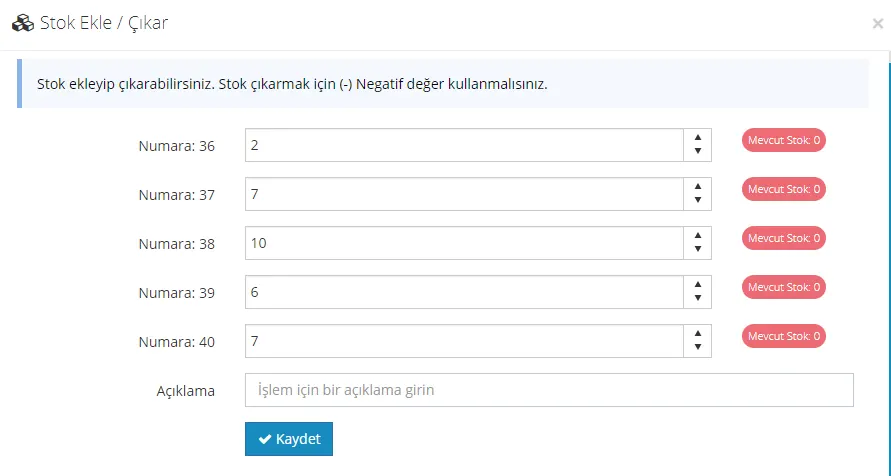
- For example, if a product comes in red, blue and green, instead of entering a total stock figure, you can define a stock of 10 for blue, 20 for green and 4 for red. This gives you more realistic data about the product when a color runs out. If you have defined a variation, you can add/remove stock according to the created variation information on the screen that opens.
- Copy Product: To avoid going through the same upload process again and again for similar product groups, you can use the Copy Product button. This copies the product. Editing the copied product is also quite easy. After making the necessary edits in the window that opens by clicking the product link, you can easily publish it.

For example, say you have an online store selling cosmetics. Instead of creating the details of the same brand of lipstick again and again, you can copy it, edit the title and images, and publish it easily. The product's stock information states that it is a copy. You can edit this field too if you like.- Print:
You can use this button to easily print the selected product or products.
We have discussed that you can make edits in the Product Management panel and perform actions such as searching and deleting products. However, one of the important topics of the category is Adding a New Product. You can find the details about adding a new product via this link.