Campaign Management
Push Notifications
Faprika's Firebase Push Notifications Guide: Notify Order Statuses Instantly! Manage customer orders quickly and easily using the Firebase-based Push Notifications feature.
Enabling push notifications with Google Firebase is a free and powerful tool that lets your customers follow their orders step by step. Since the Firebase panel is in English, you can use this guide carefully to follow this training content step by step.
In this training, we will explain step by step how to set up push notifications via Firebase. Order status notifications help your customers learn where their orders are and when they will be delivered, and you can offer this service for free. Here is what you need to do to get started:
Firebase Setup :
To start using Google Firebase, you can follow the steps below:
- Log in with Your Firebase Account: As a first step, you need to log in to the Firebase Console here using your Google account.
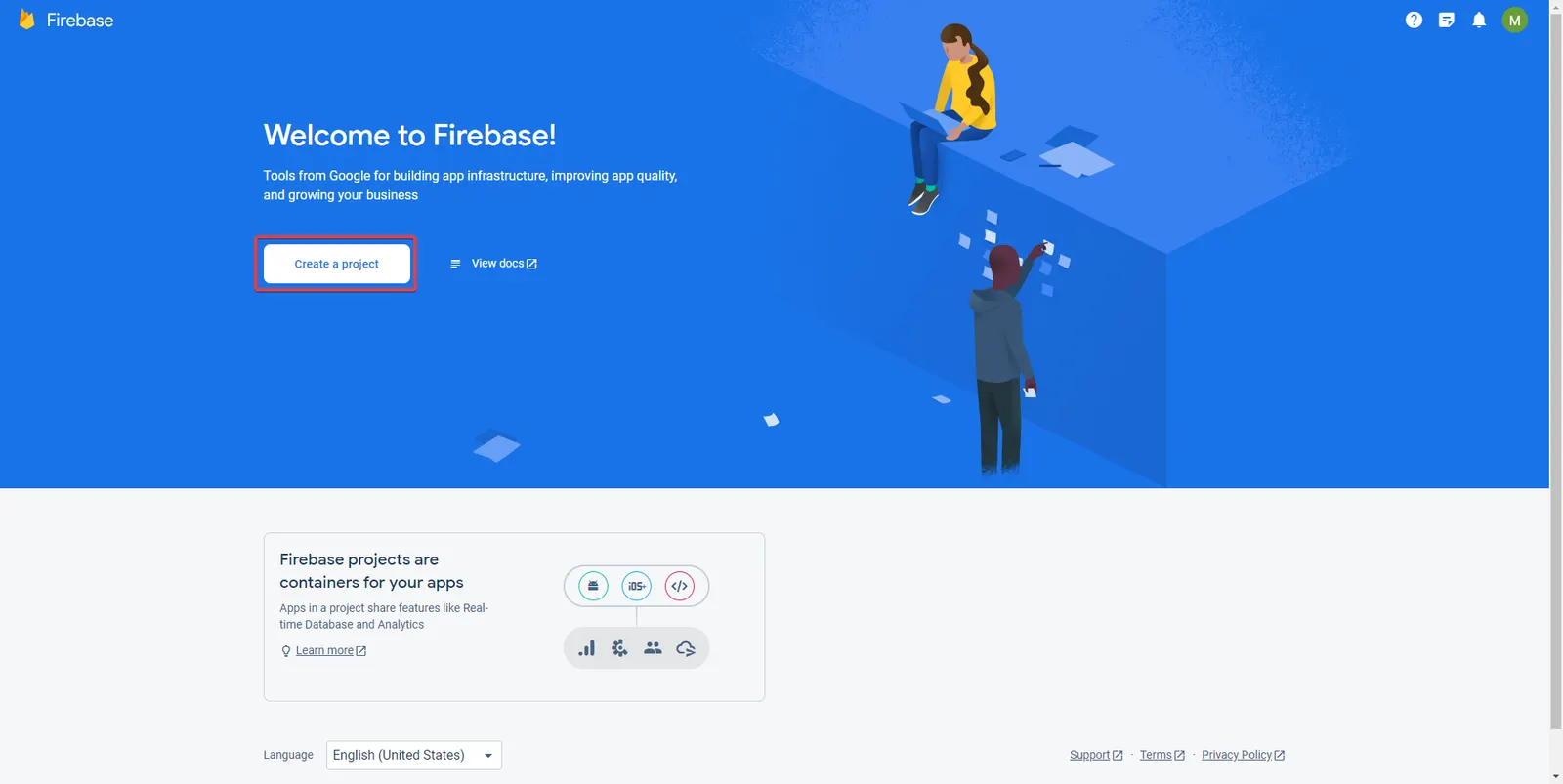
- Creating a Project: After logging in to the Firebase Console, you will see a "Create a project" button or something similar on the home page. You can start creating a new project by clicking this button.
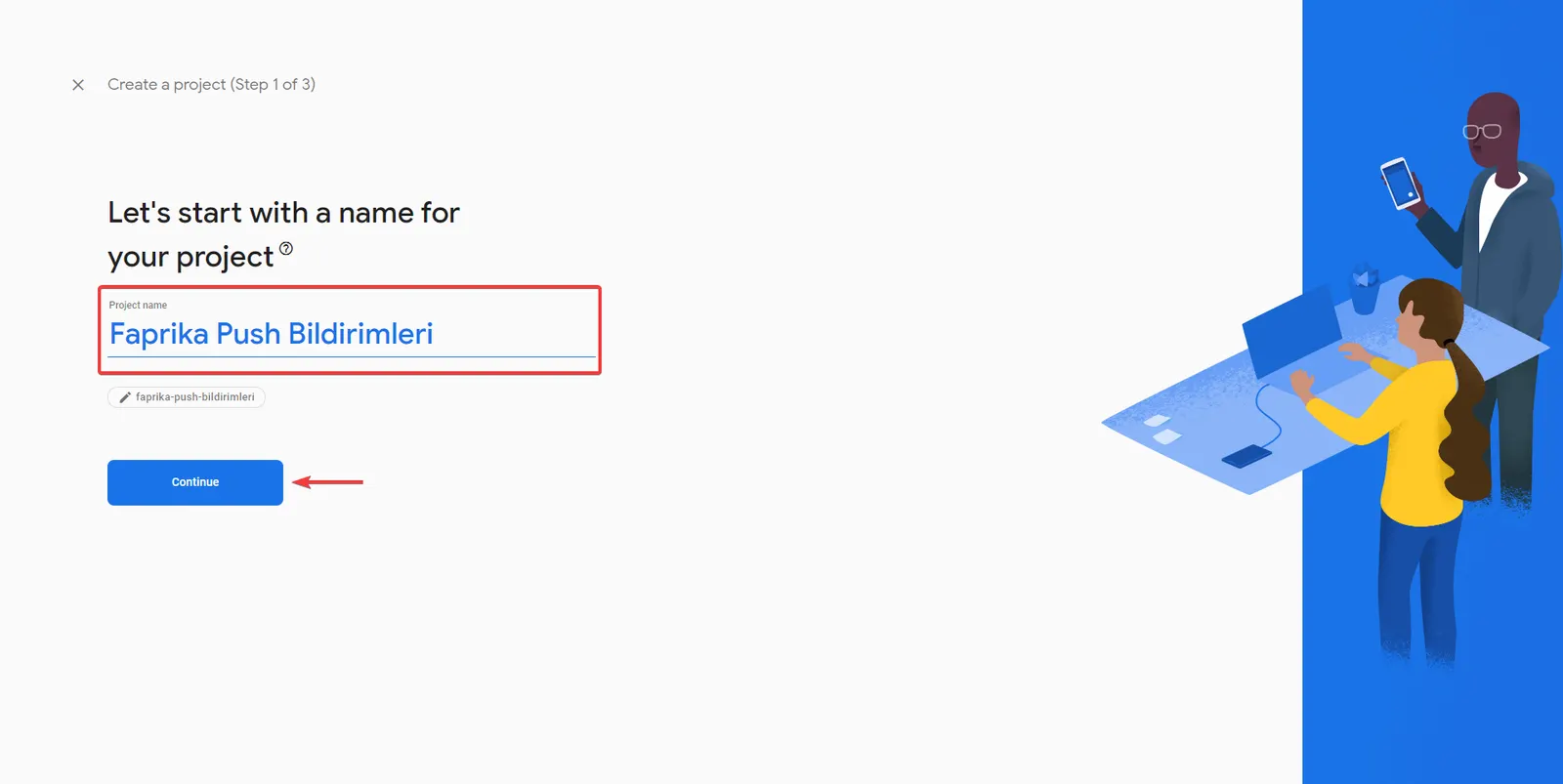
Project Name :
On the page that opens for naming your project, enter your project name. Then click the "Continue" or "Devam Et" button to move on to the next step.
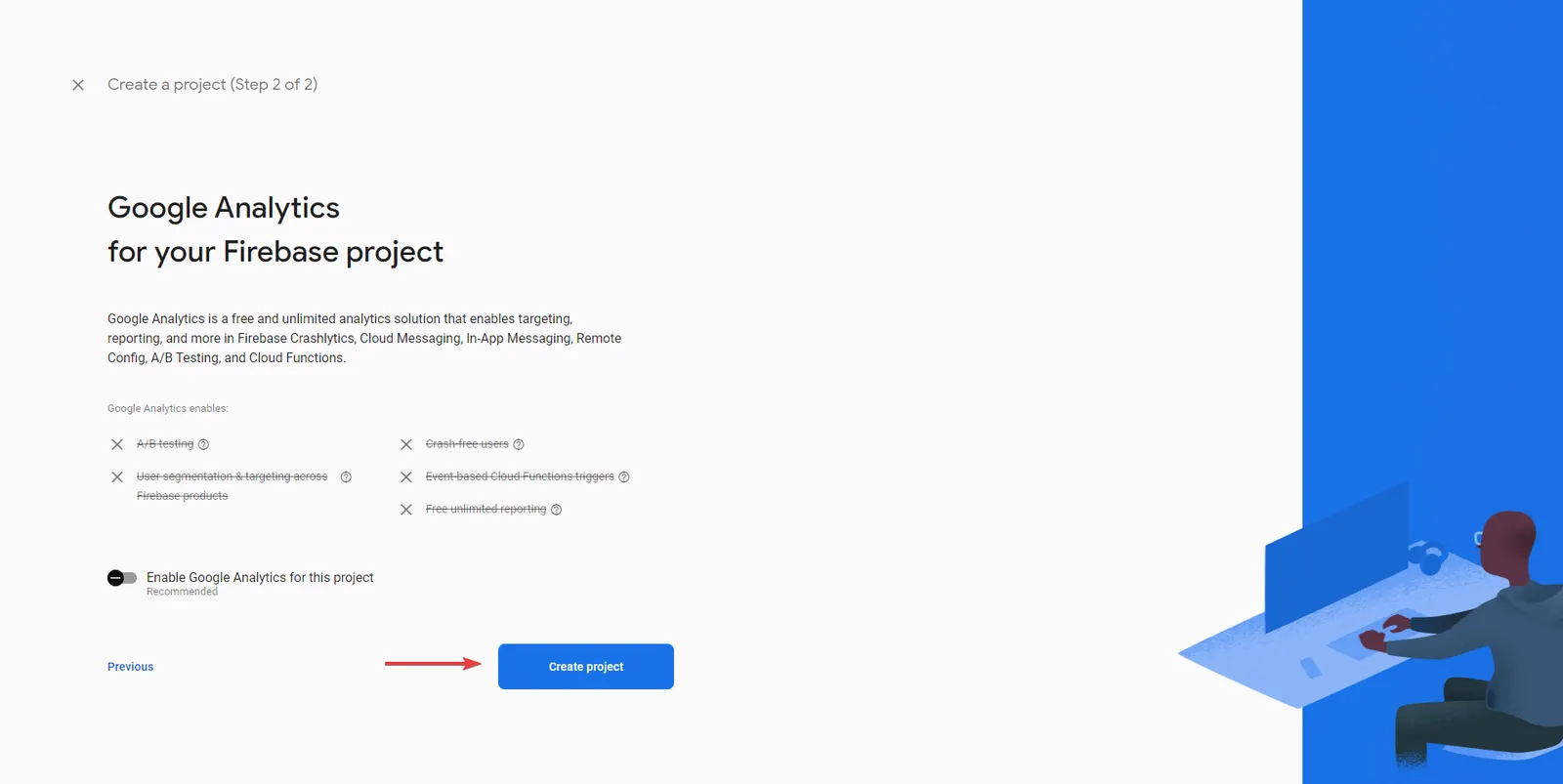
Enabling Google Analytics:
If you do not want to enable Google Analytics for this project, you can turn off the "Enable Google Analytics for this project" option. Then click the "Create project" or "Proje Oluştur" button to create your project.
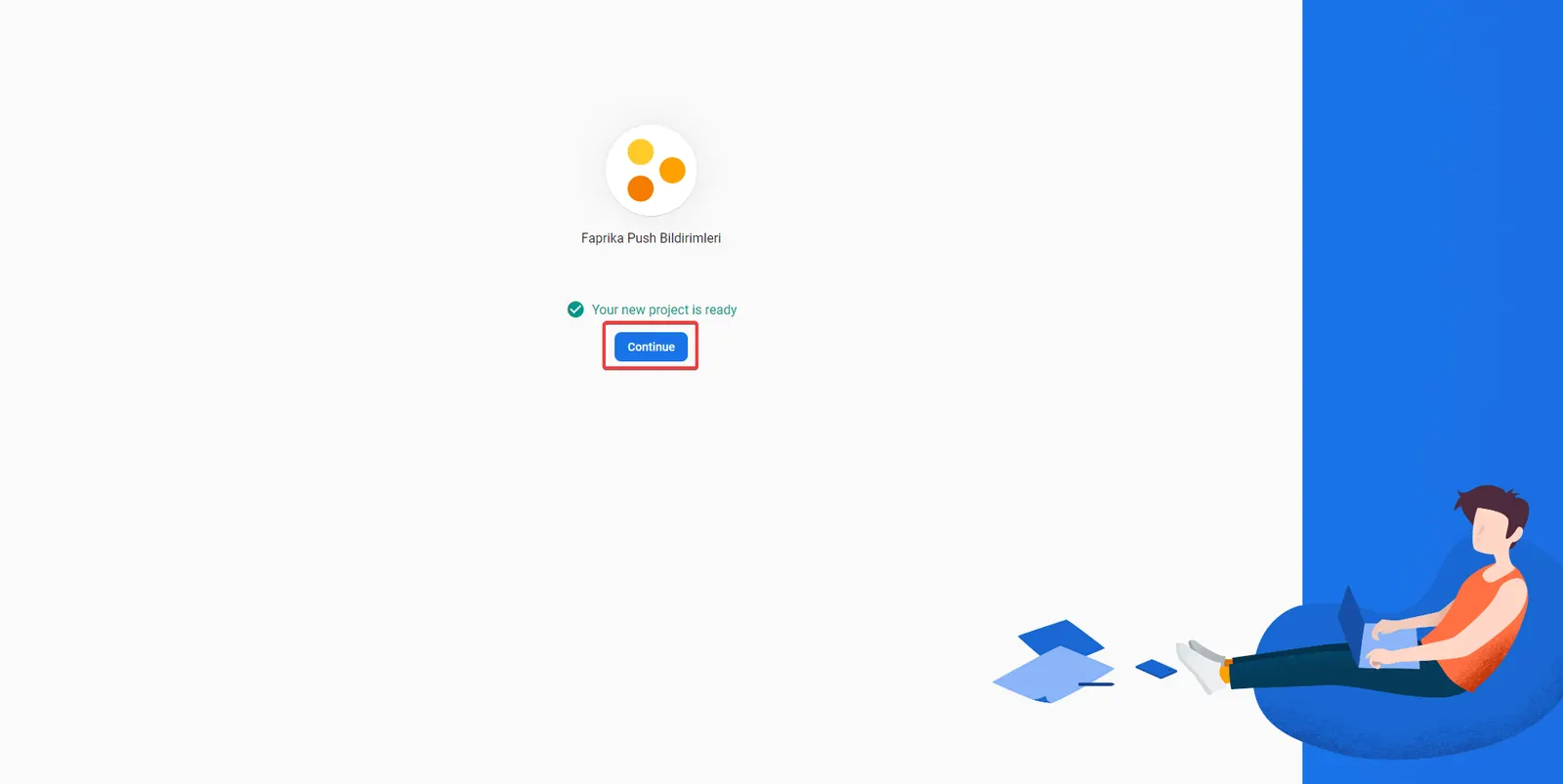
We have created our project successfully. Now, let's click the "Continue" or "Devam Et" button to move on to our project's configuration settings.
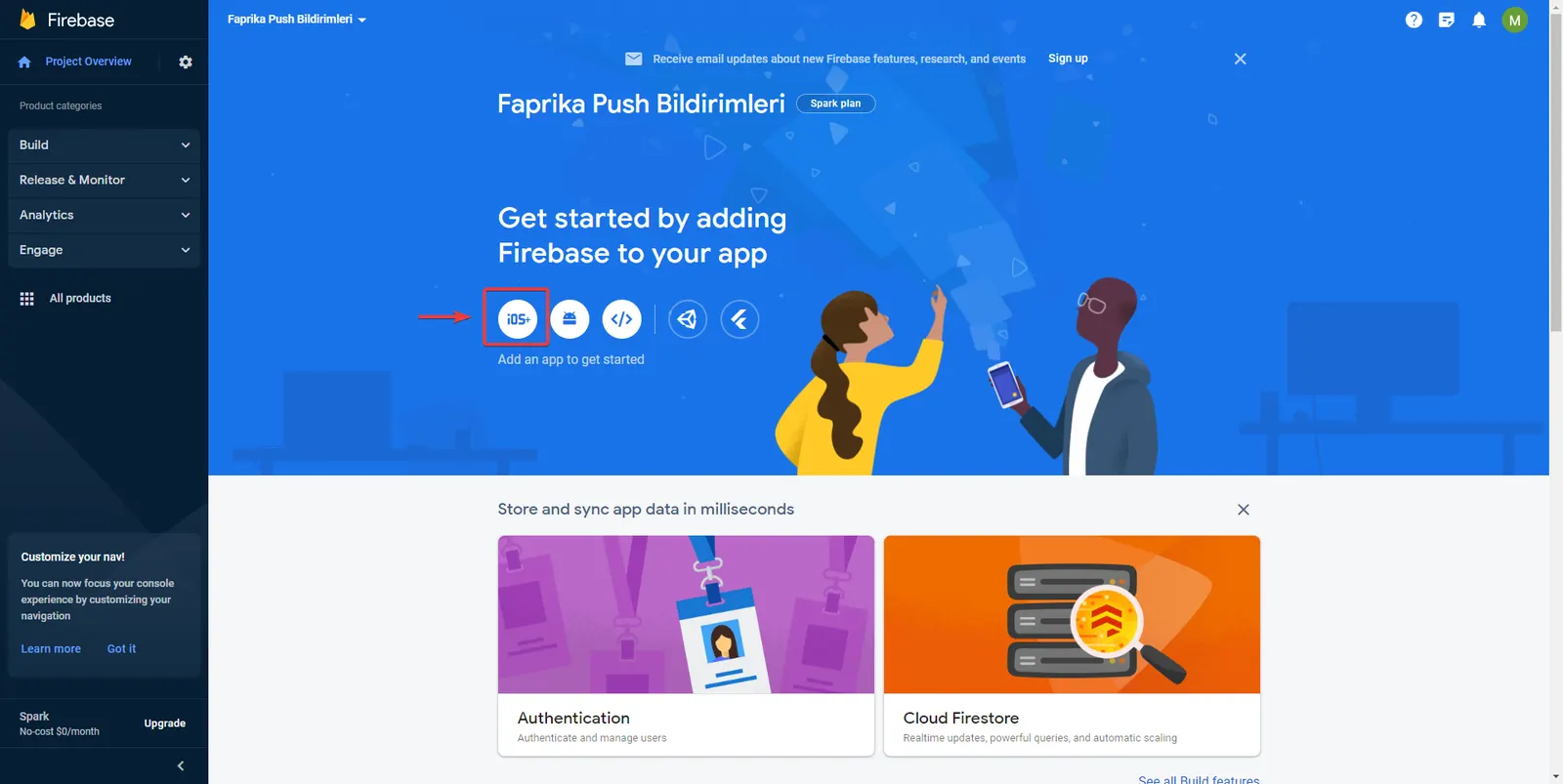
On the Firebase management screen, let's click the "iOS+" button to start creating a new app.
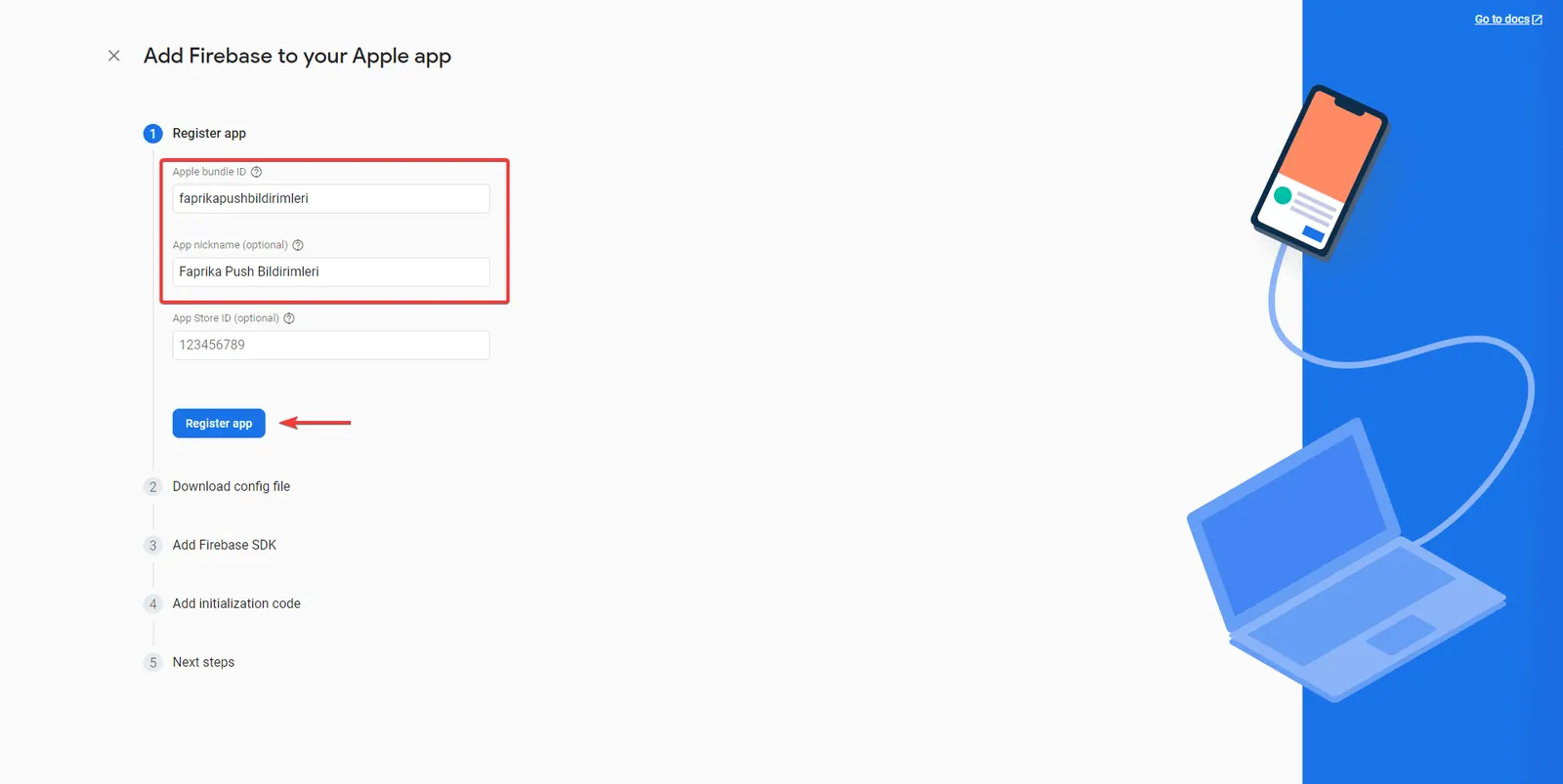
In the "Register app" menu, enter the Apple bundle ID and App nickname values you want, then click the "Register app" button to continue.
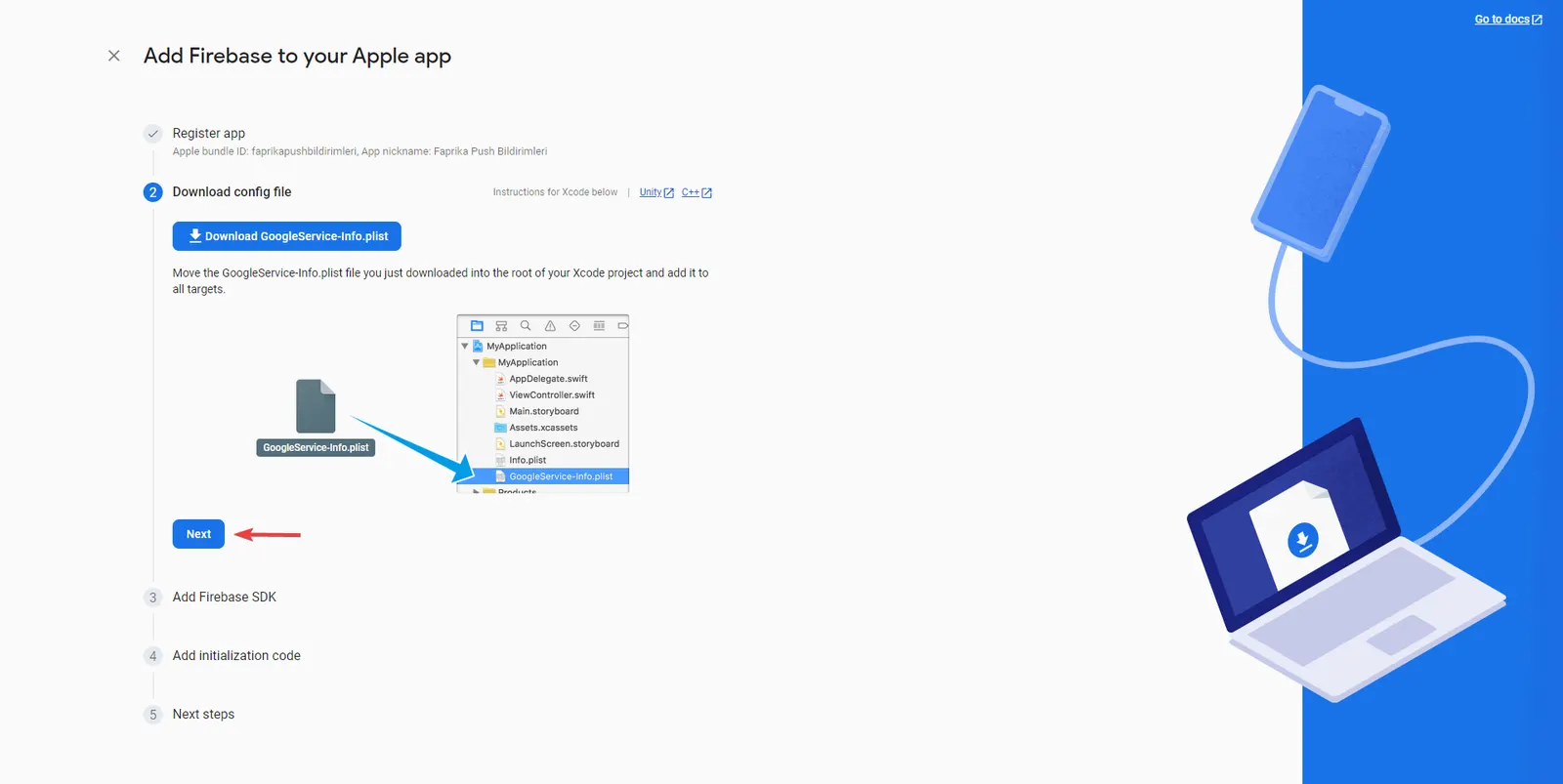
Let's continue by clicking the "Next" button in the "Download config file" section.
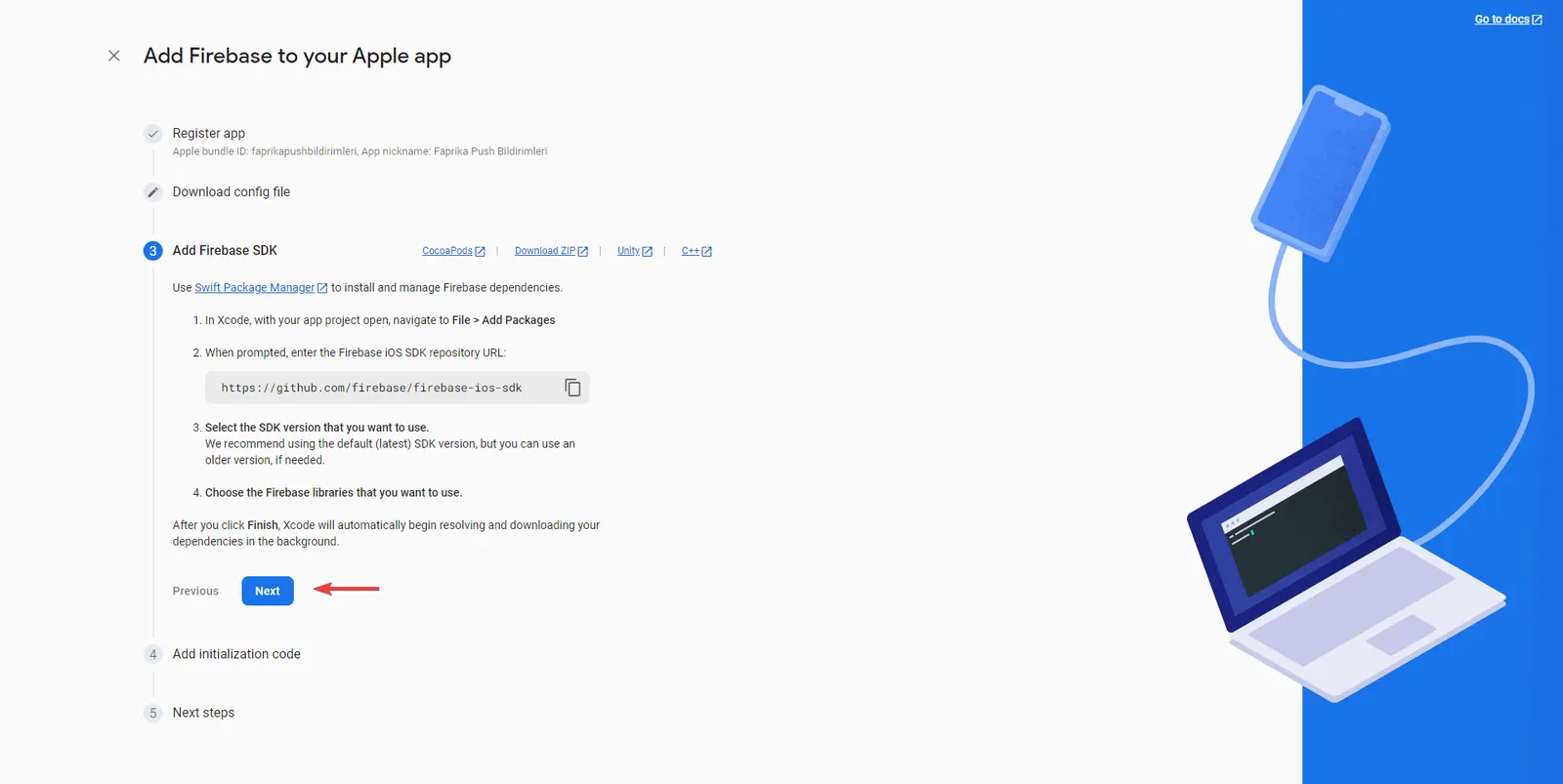
Let's continue by clicking the "Next" button on the "Add Firebase SDK" screen.
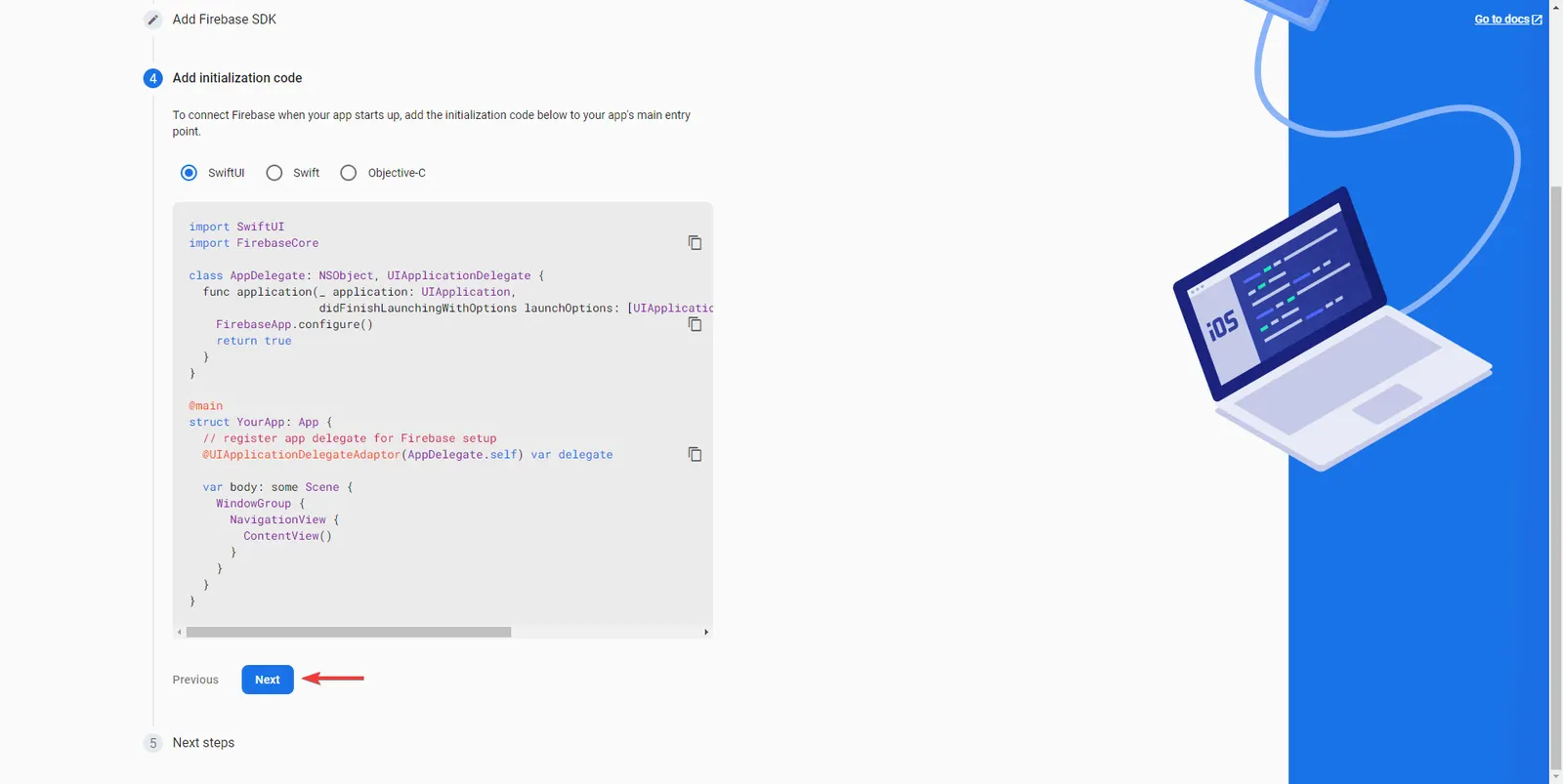
Let's continue by clicking the "Next" button on the "Add initialization code" screen.
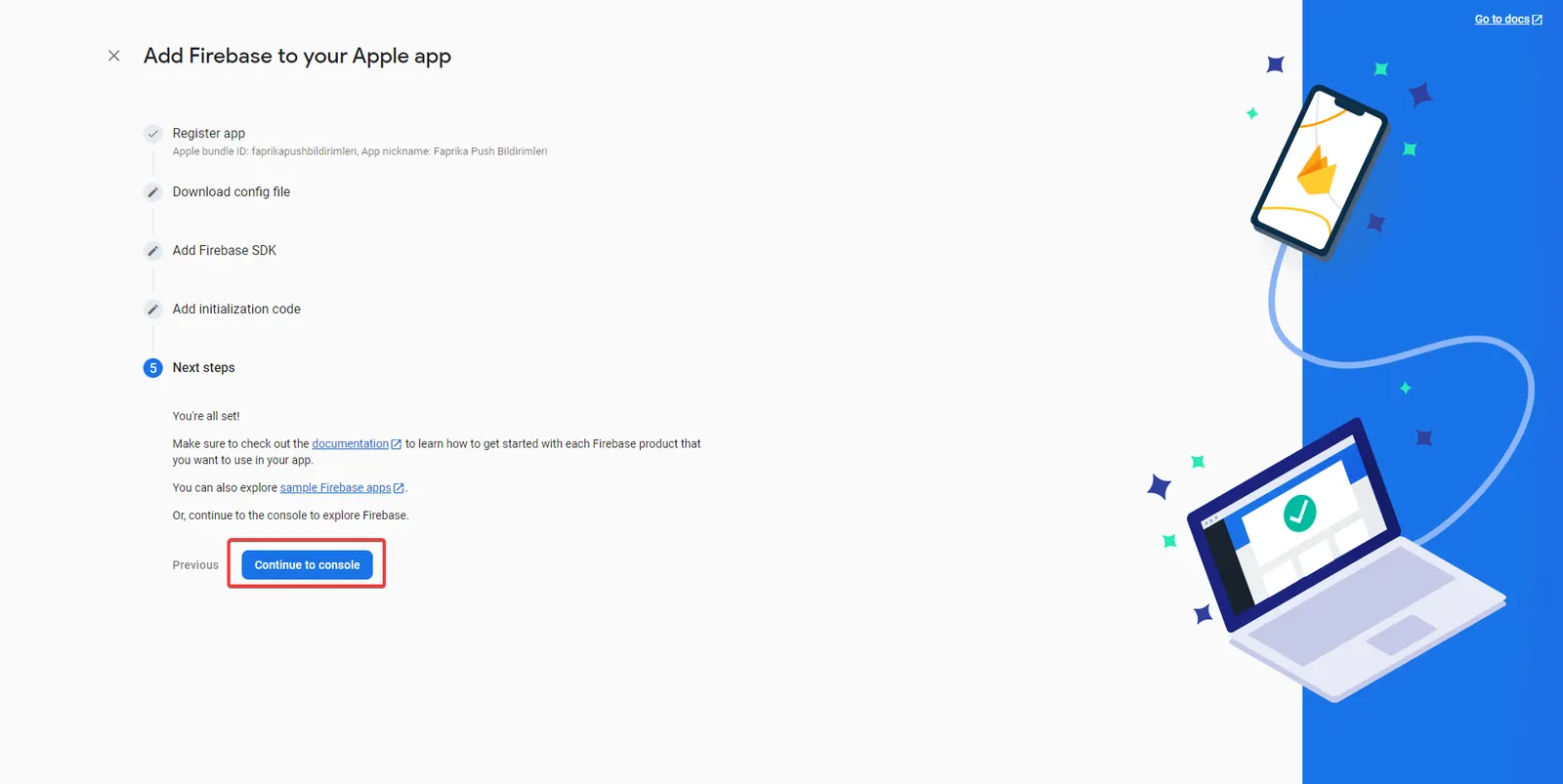
To complete the "Next steps" section, let's continue by clicking the "Continue to console" button.
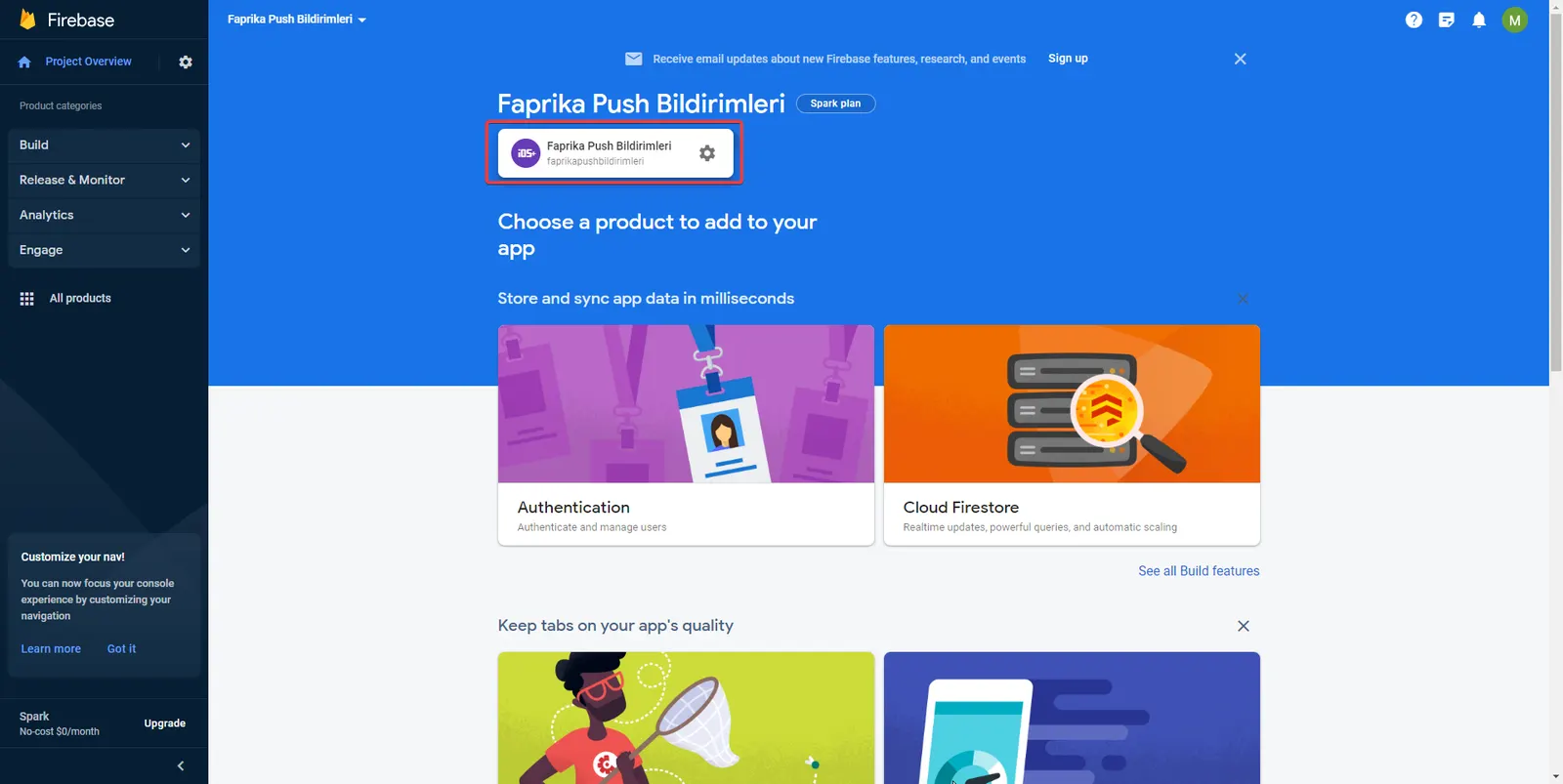
On the screen that appears, let's click the Settings button next to the "YOUR PROJECT NAME" text.
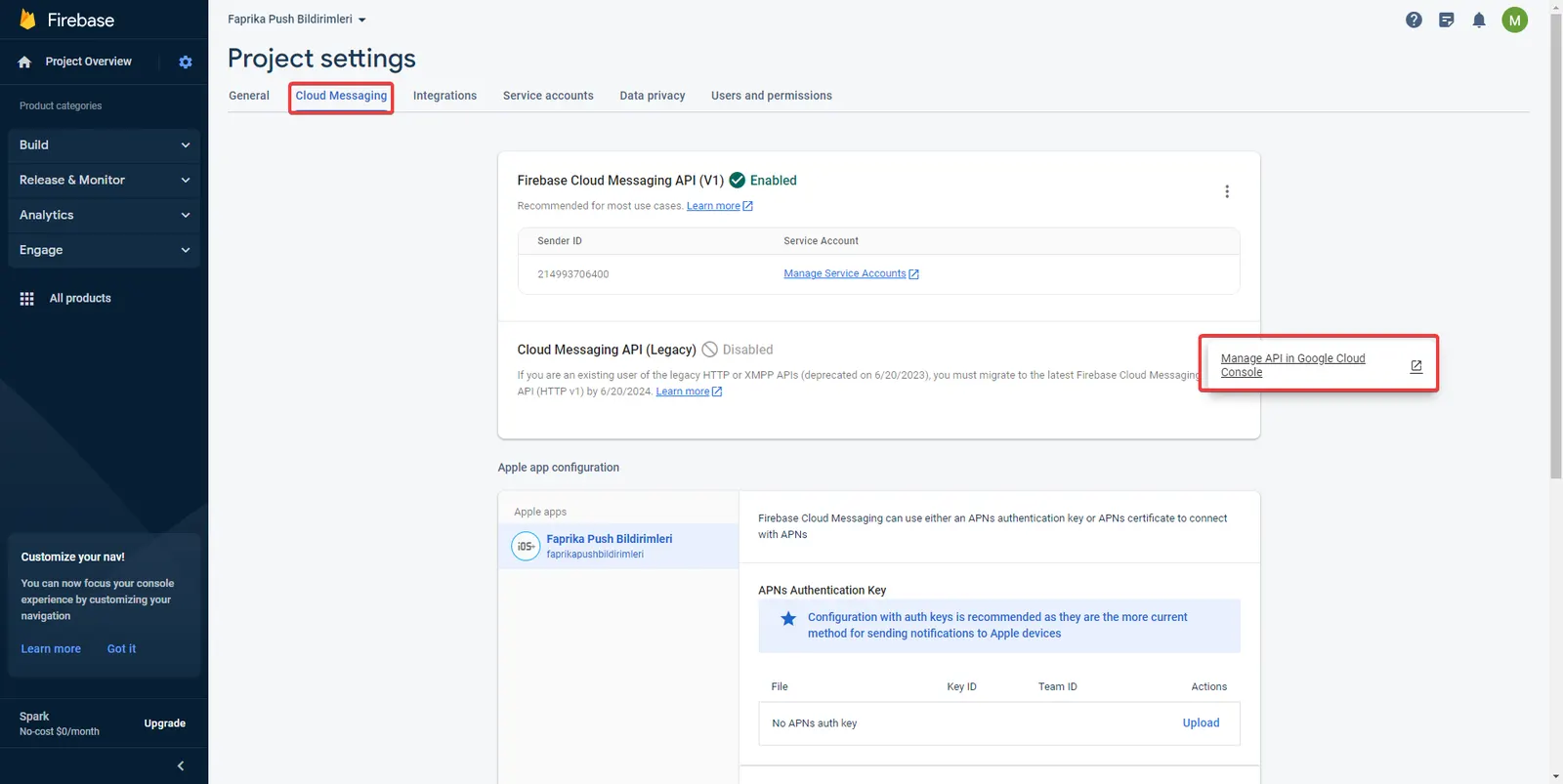
In the Cloud Messaging section of our project settings, let's click the 'Manage API in Google Cloud Console' button.
On the page you are directed to for Cloud Messaging, activate it with the 'Enable' button. Once it is active, return to the Firebase console.
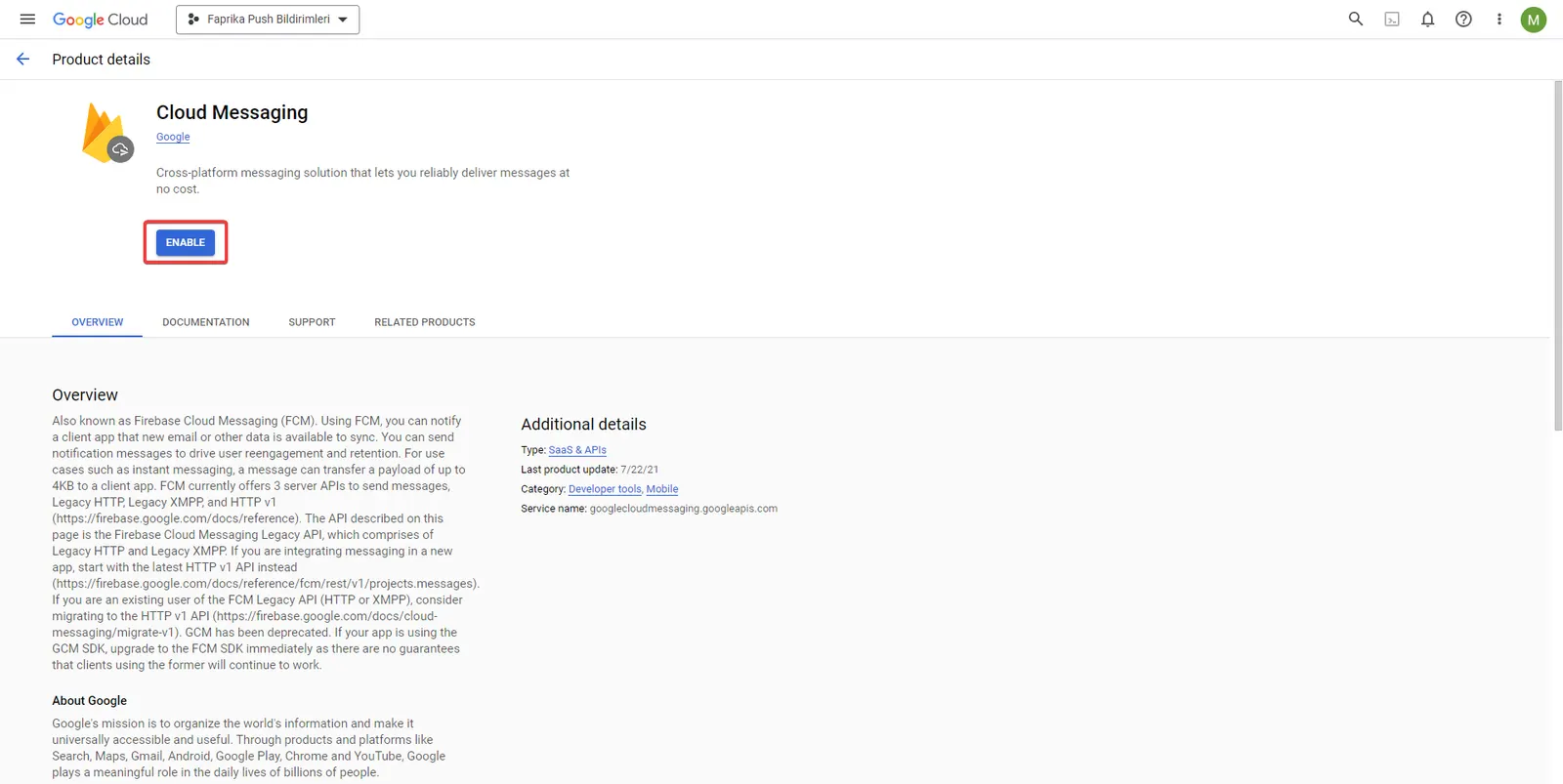
The Server Key information for Cloud Messaging has now been created.
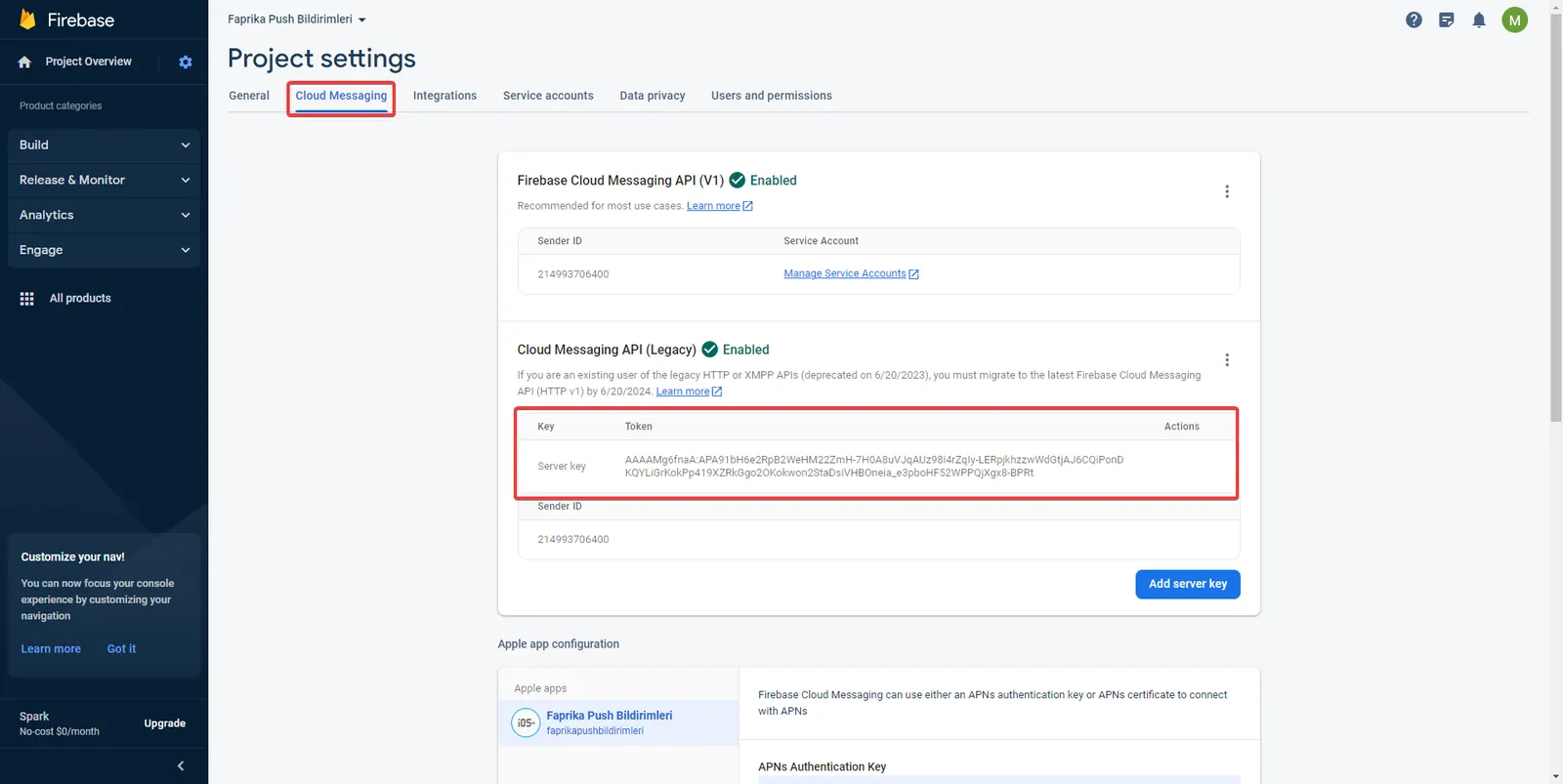
In the Cloud Messaging settings of the Firebase console, go to the Web Push certificates section at the bottom and click the 'Generate key pair' button.
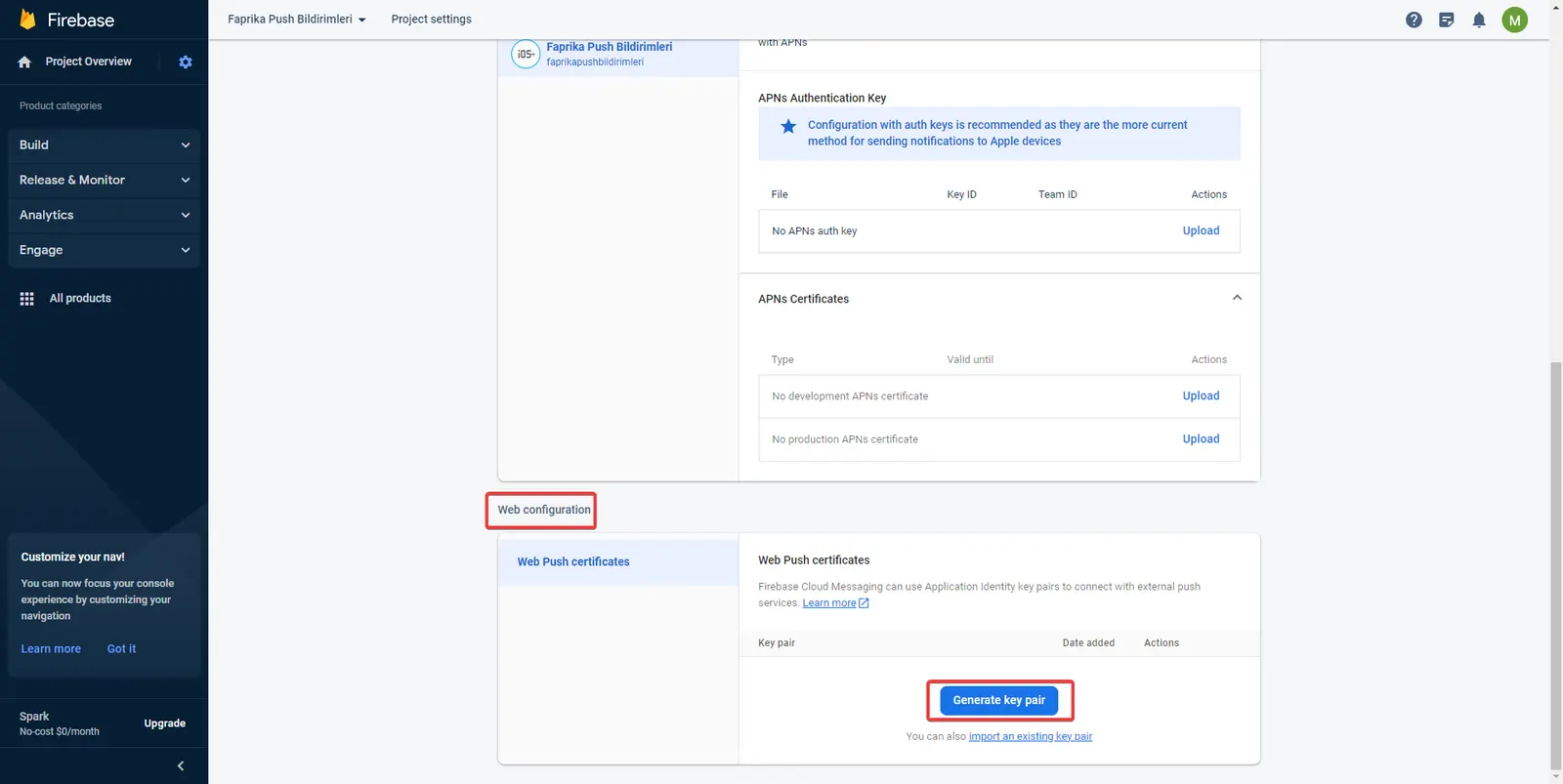
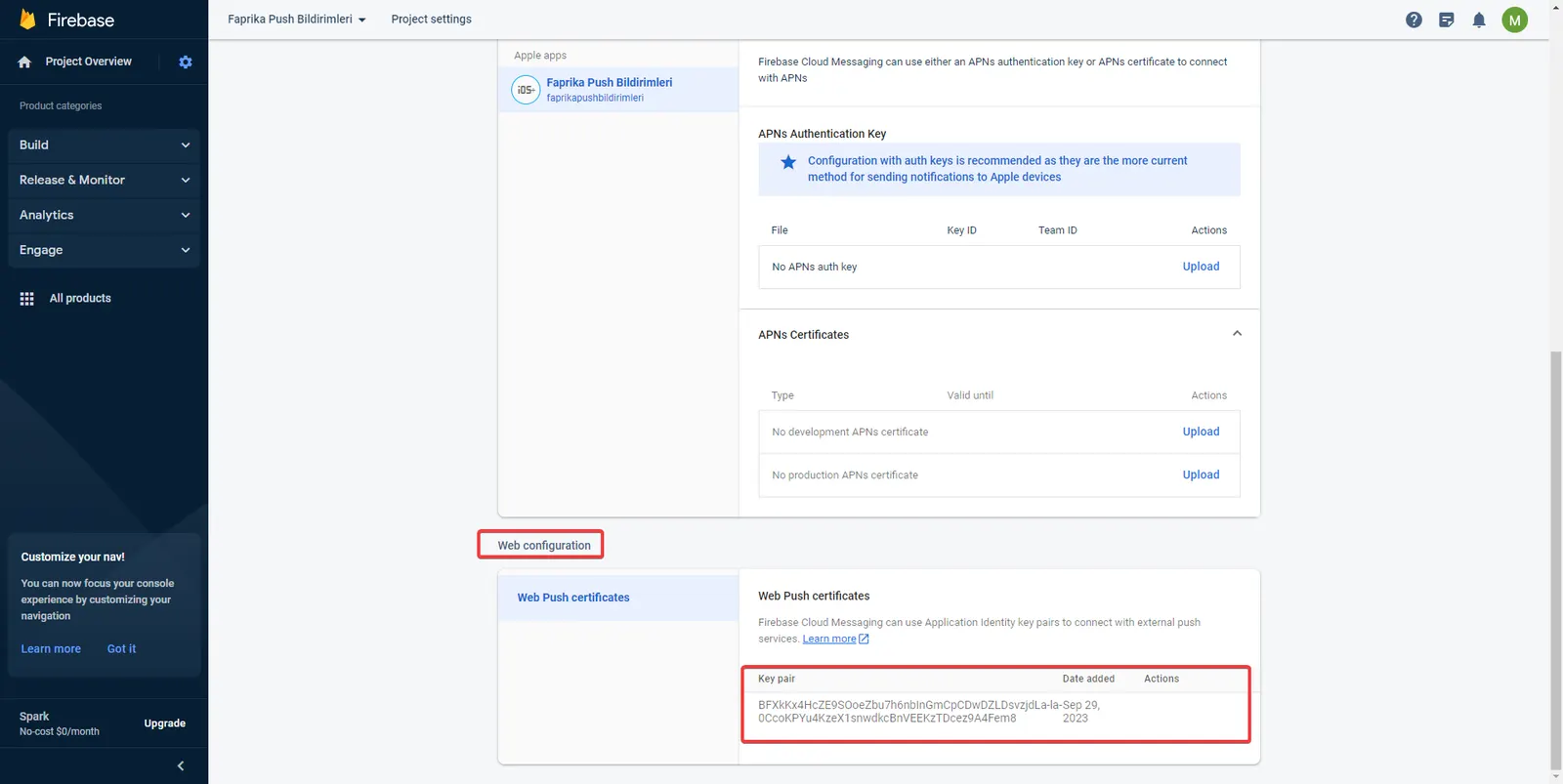
The key information required for the Web Push certificate has been created successfully.
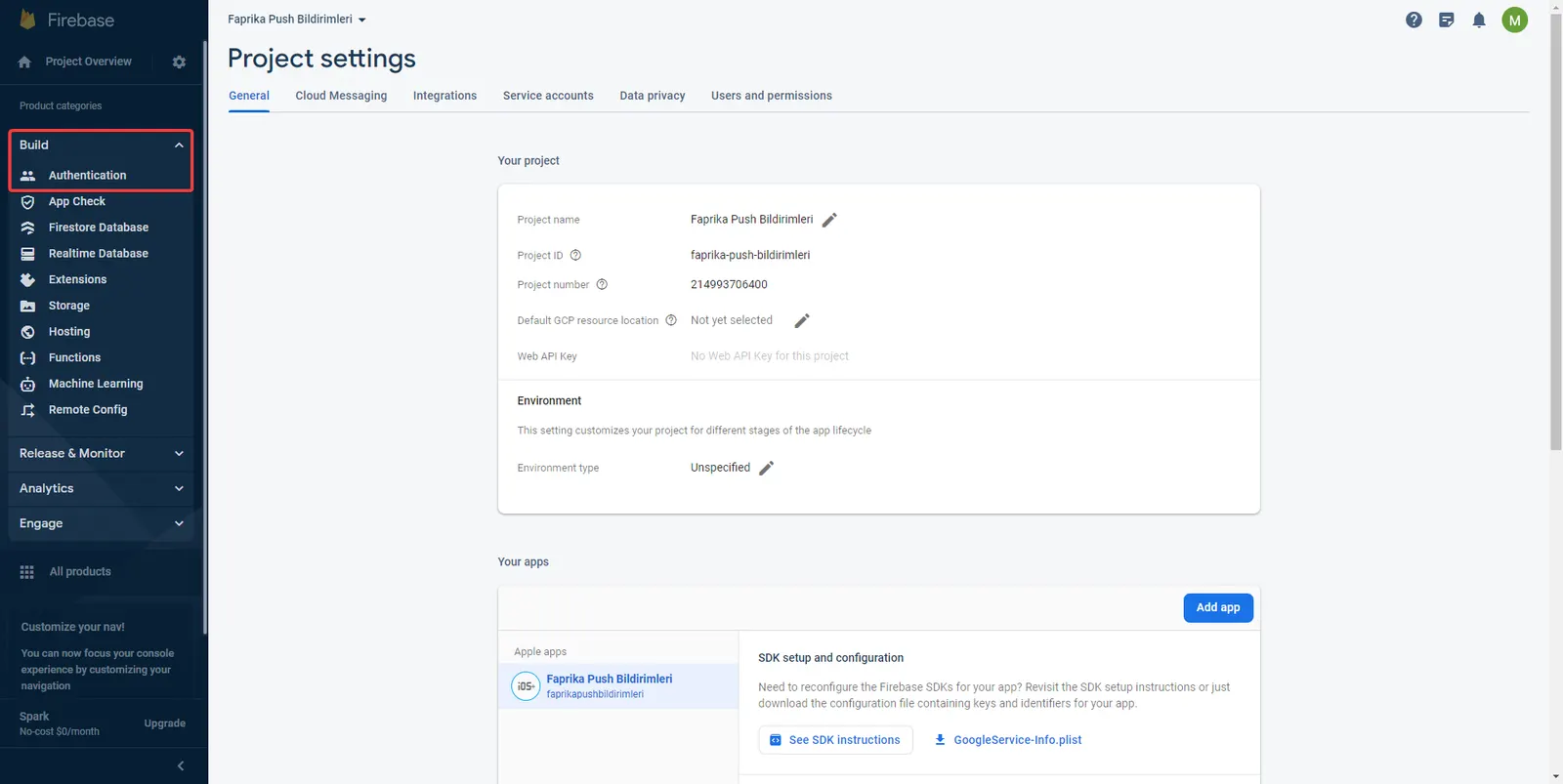
To get the Web API Key, click the 'Authentication' button under the Build menu on the left side of the Firebase console.
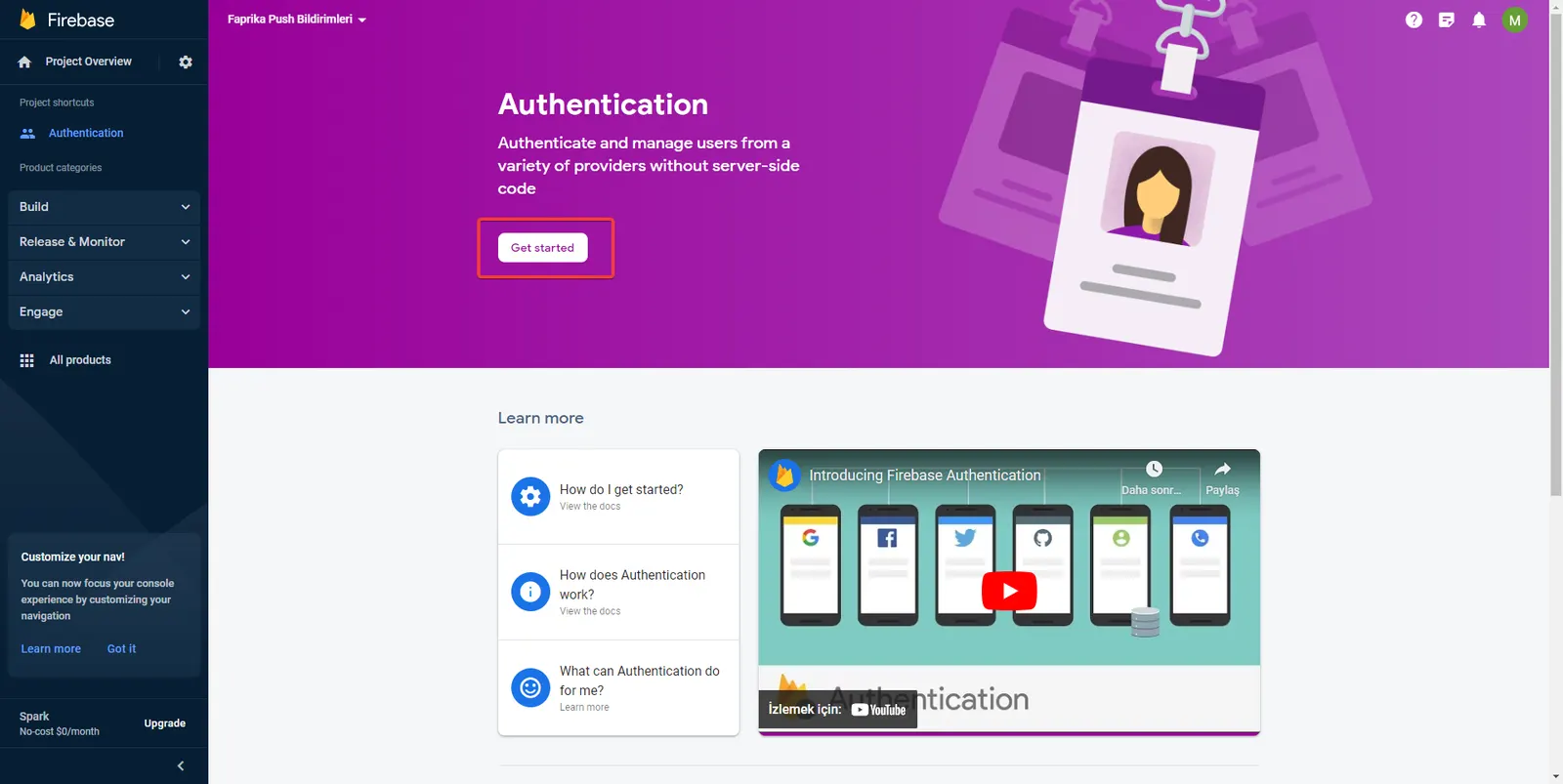
On the screen that opens, complete the step by clicking the 'Get started' button.
We have completed the Firebase settings. Now we need to integrate them into our e-commerce site. Go to the control panel and click the Configuration >> Settings >> Push Notification Settings tab.
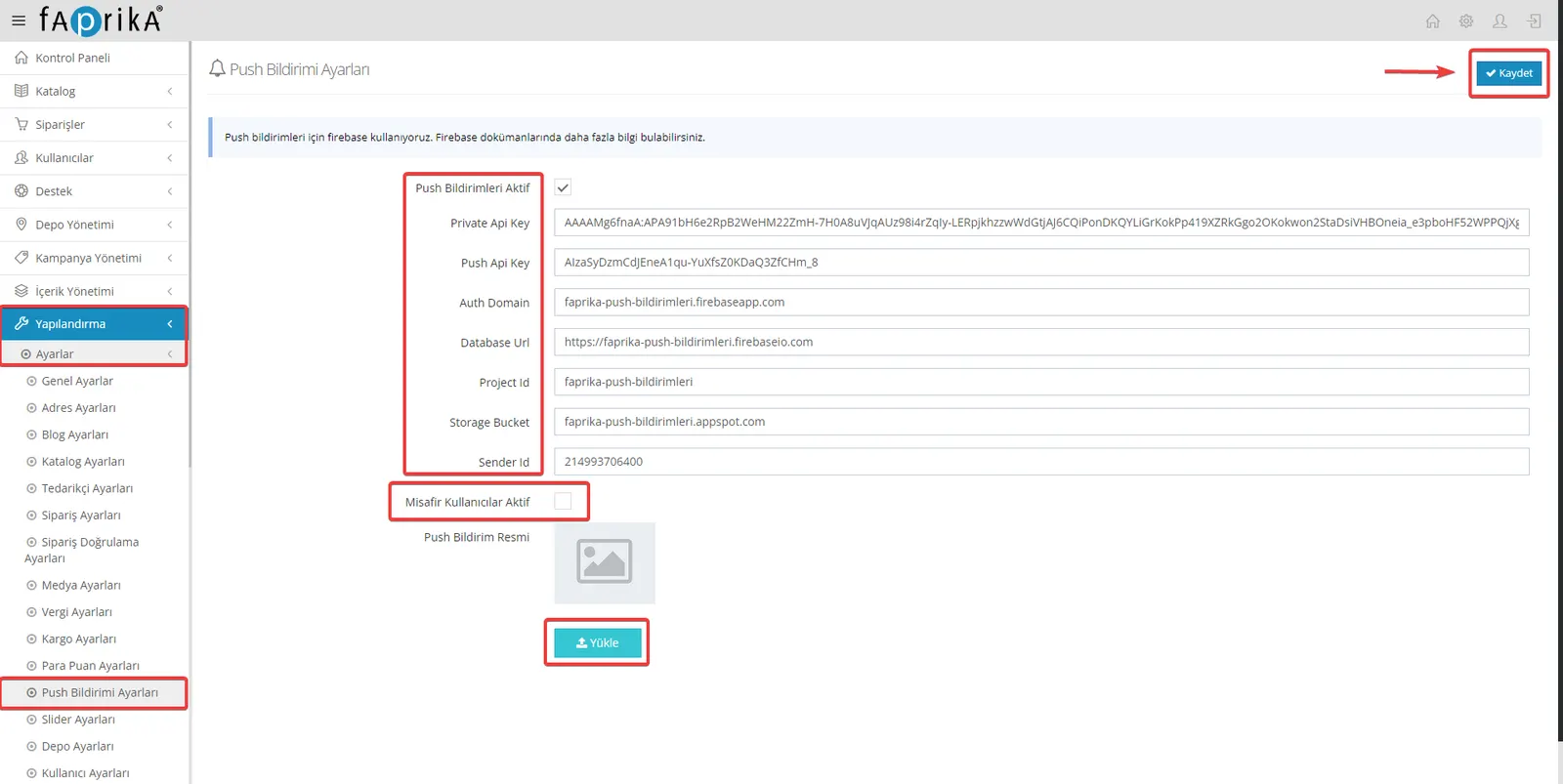
In the Private API Key field, enter the 'Server key' information from the Cloud Messaging >> Cloud Messaging API (Legacy) section of the Firebase Console.
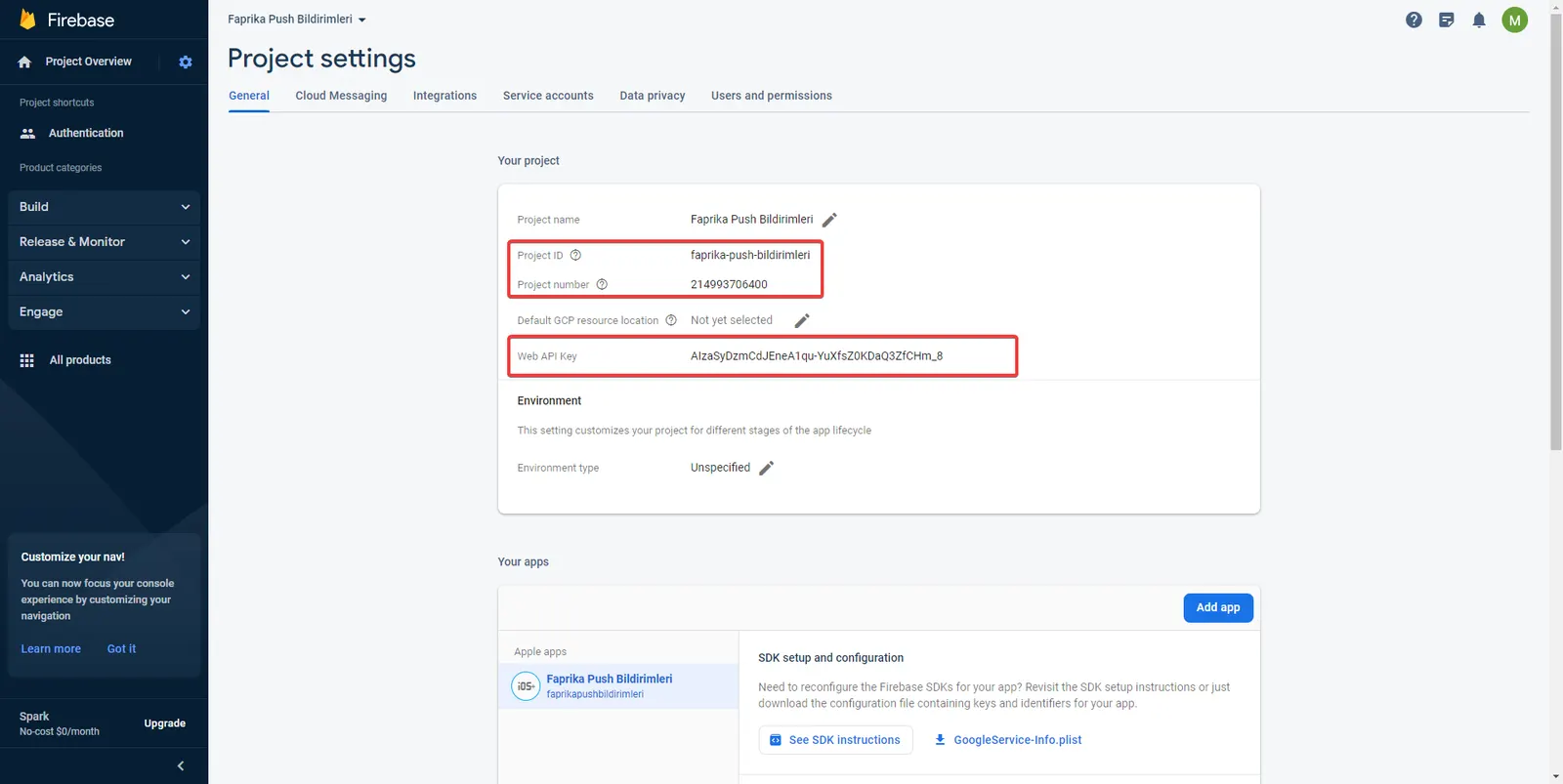
In the Push API Key field, enter the 'Web API Key' from Project Settings in the Firebase Console.
In the Project ID field, enter the 'Project ID' value from Project Settings in the Firebase Console.
In the Sender ID field, enter the 'Project number' value from Project Settings in the Firebase Console.
In the Auth Domain field, enter the 'Project ID' value from Project Settings in the Firebase Console, followed by firebaseapp.com.
Example: faprika-push-bildirimleri.firebaseapp.com
Database URL: In the relevant field, enter your Project ID value from the Firebase Console followed by firebaseio.com.
Example: https://faprika-push-bildirimleri.firebaseio.com
Storage Bucket: In the relevant field, enter your Project ID value from the Firebase Console followed by appspot.com.
Example: faprika-push-bildirimleri.appspot.com
Guest Users Enabled: If you check this option, notifications are also sent to guest visitors.
Push Notification Image: You can add the image you want users to see when a notification is sent by using the 'Upload' button.
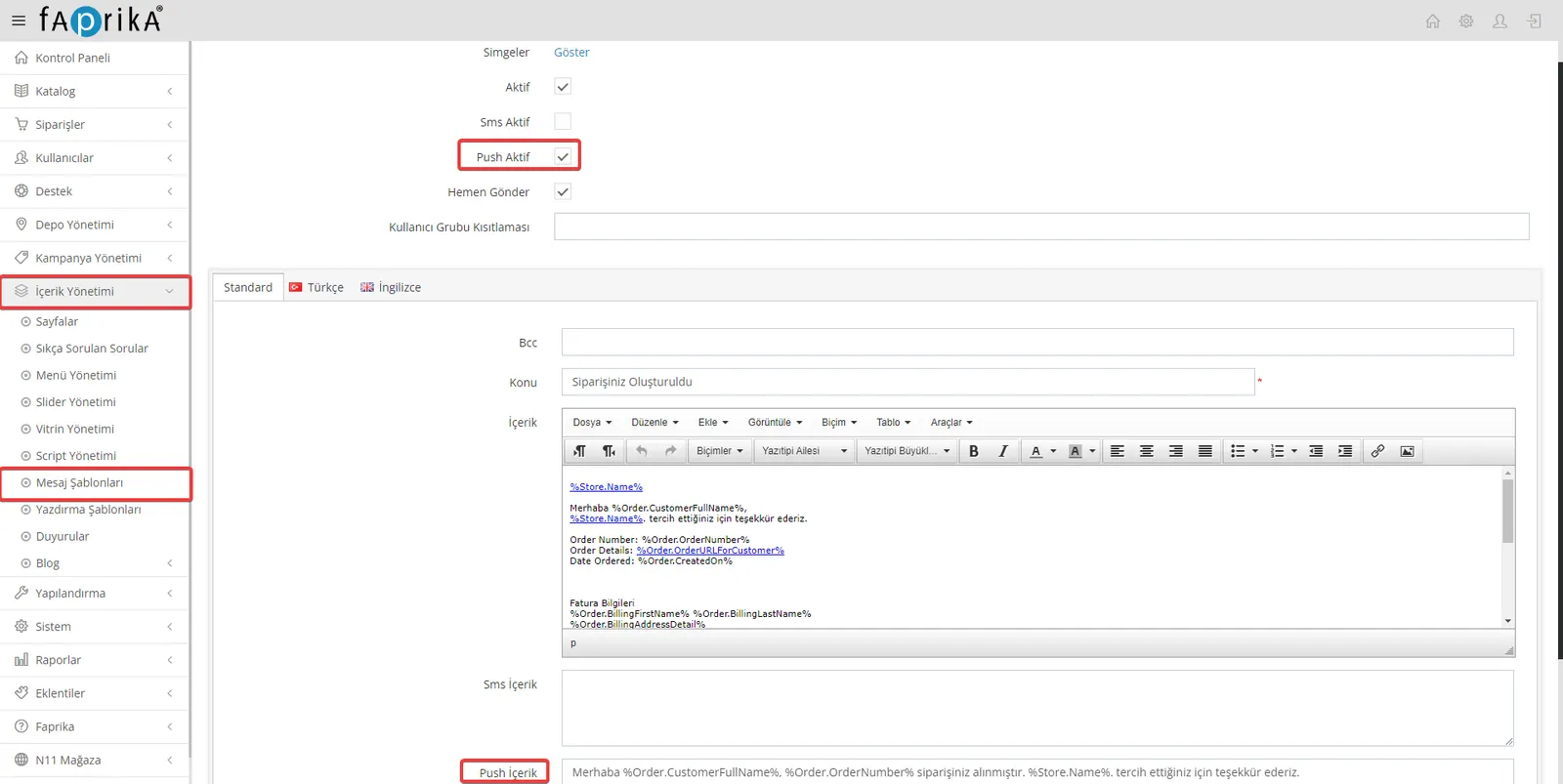
We have now completed all the settings needed to send push notifications. Push notifications are located in your e-commerce site's control panel under 'Content Management >> Message Templates'. For example, when a customer places an order, the 'Your Order Has Been Created' message template is sent automatically as a notification. To send notifications, simply check the 'Push Active' box on the edit screen of the relevant message template and fill in the 'Push Content' field.
Sending Push Notifications
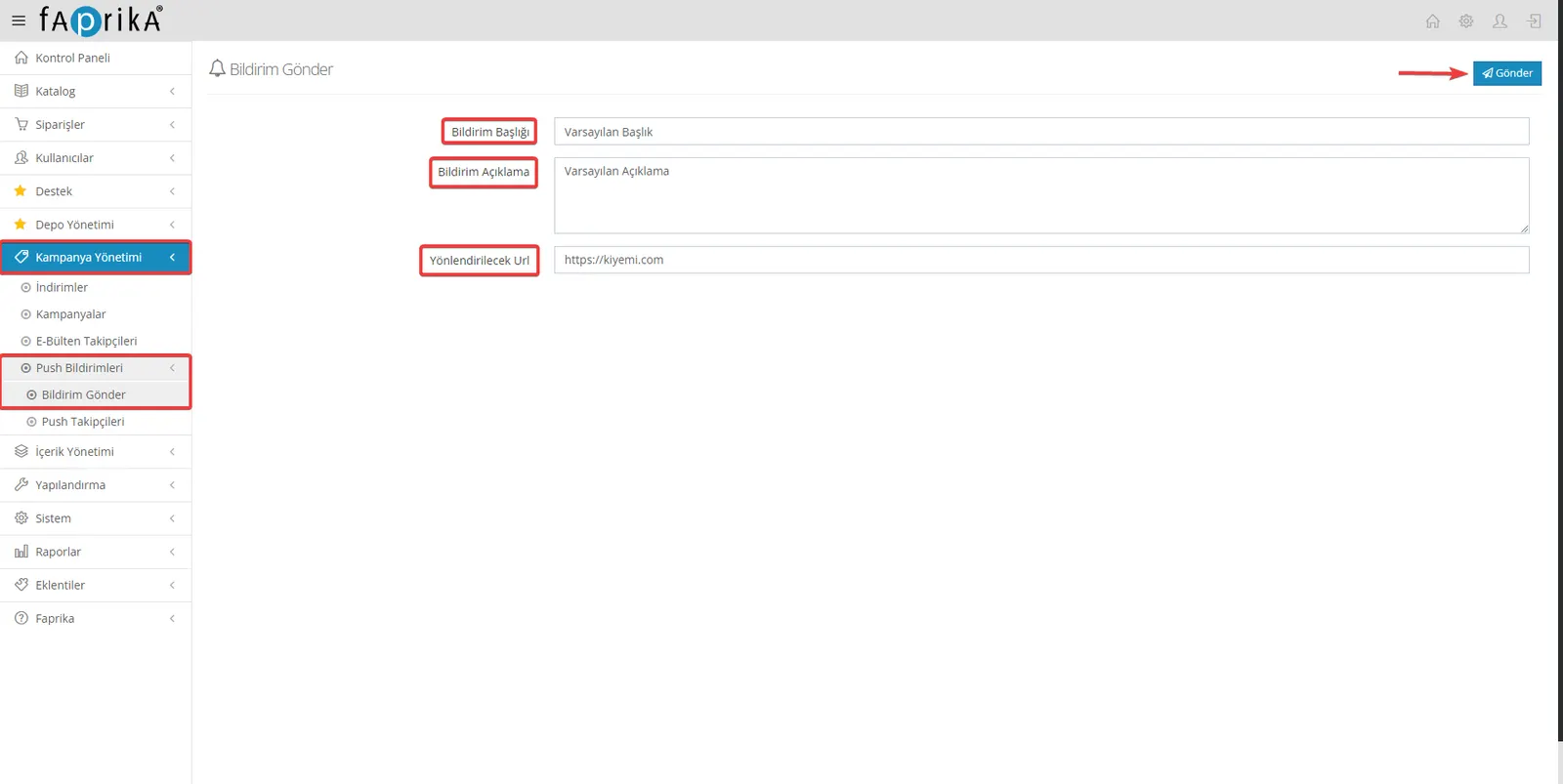
From your control panel, you can send special notifications to users who visit your site and have opted in to receive notifications.
Steps to Create a Notification:
- Notification Title: Enter a title here that will grab users' attention.
- Notification Description: Enter a short text that describes the content of the notification.
- Redirect URL: Add the address of the web page users will be taken to when they click the notification.
You can easily fill in this information by going to the 'Send Notification' tab in the 'Push Notifications' section under 'Campaign Management'.
Tracking Push Subscribers
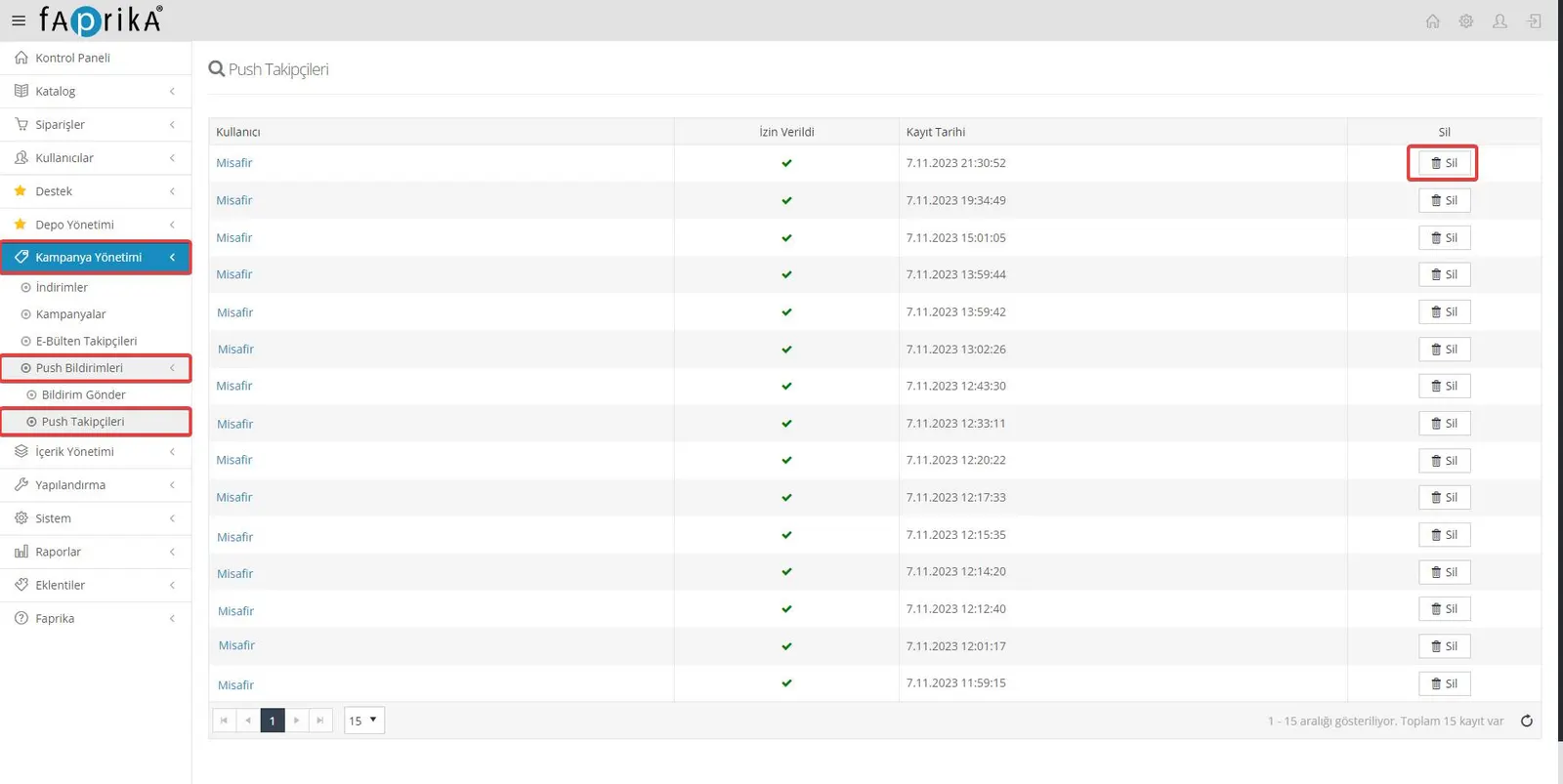
Through your control panel, go to the 'Campaign Management' tab and select 'Push Subscribers' to review the users who have enabled push notification permissions on your site.
In this area, you can access the list of users who have visited your site and allowed notifications. This data is a valuable resource for evaluating user interest levels and the reach of your campaigns.
Faprika's Firebase-based Push Notifications feature is a powerful tool for tracking your business's orders step by step and giving customers instant updates. In this guide, you learned how to enable this feature using Firebase. You can now start using this handy tool to notify your customers of their order status instantly. This feature will help you increase customer satisfaction and manage your business more effectively, contributing to your business's growth. Don't forget to visit the Faprika Training Center for more Firebase training content and tips to strengthen your business's digital presence.