Catalog
Adding Size-Run Products
In This Tutorial
Let's make the selections Catalog >> Add New Product .
When you want to add a Size-Run Product to your site, the process is not very different from a Regular Product. If you like, let's go through an example and cover the details of Adding Size-Run Products. But first, be sure to take a look to understand what the headings in the panel mean: Adding a New Product
Product Information
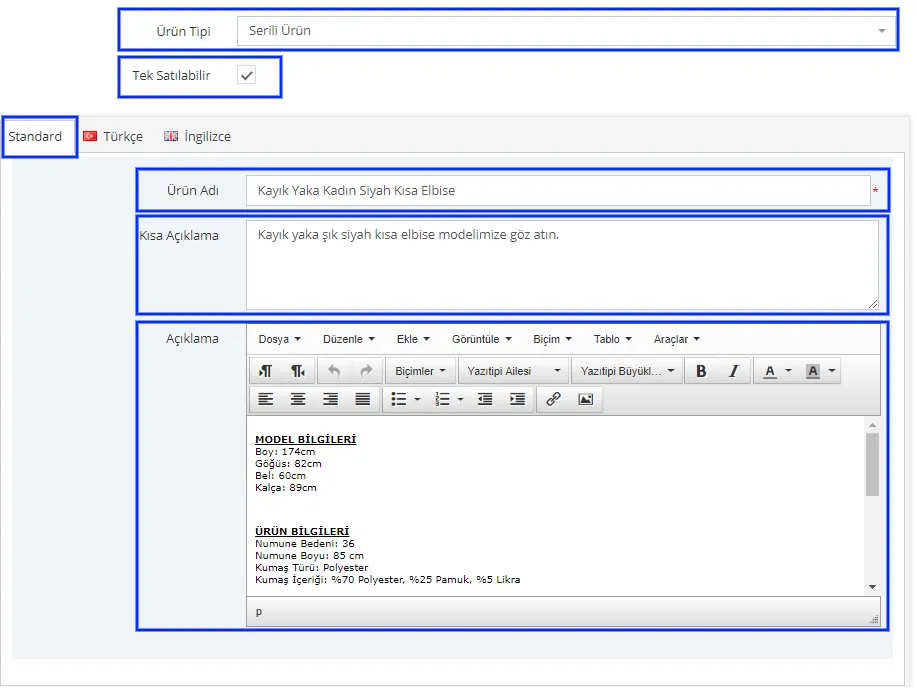
Let's choose Size-Run Product as the Product Type. Let's check the Sold Individually field. What is meant here is that in size-run products, one series is treated as a single product. That is, when you check this field, you do not buy a single item from the series; you buy the complete series as one product.
Since we will enter the data in Turkish, we set the language selection to Standard.
In this example we will examine the Boat Neck Women's Black Short Dress product. Let's fill in the Product Name, Short Description and Description fields with wording that describes the product best.
After editing the description fields, let's fill in the Stock Code, Model Code, Barcode and Warehouse Location Code fields. Filling in the Stock Code, Model Code and Barcode fields is extremely important. If you sell on marketplaces in particular, these fields must be added. This prevents problems that could arise on marketplaces.
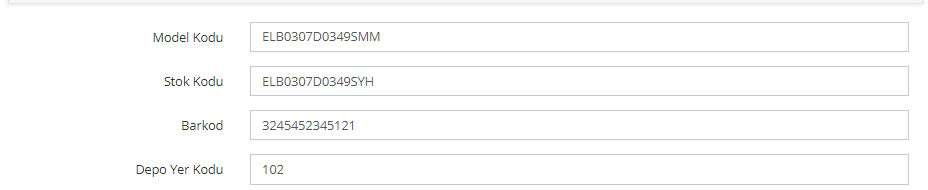
If you have a warehouse, entering the warehouse code will also make your work considerably easier. Therefore, although filling in these fields is not mandatory, it is quite important.
In the Supplier field, we selected the Supplier X we created for this example.
In the Product Tags field, we defined a few tags that had previously been saved in the system.
In the Search Terms field, we added the terms that best describe the product.
The Admin Note field is a note field that only you can see. You can add any explanations you consider necessary to this field.

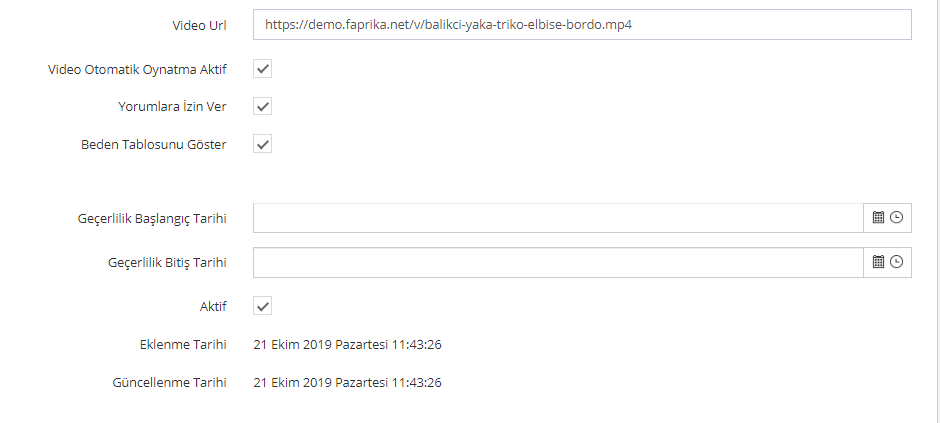
If a video is available for the product, you can easily add it from the Video URL field. When you check the Video Autoplay Enabled option, the product video will play automatically.
From this area you can also enable the Allow Reviews and Show Size Chart options.
You can define a validity period for the product. However, if you do not want to define such a period, you can leave this field blank.
Stock Information
The edits we make in the Stock Information area are important because they let us track the product's stock more easily. Let's make our selections and continue.
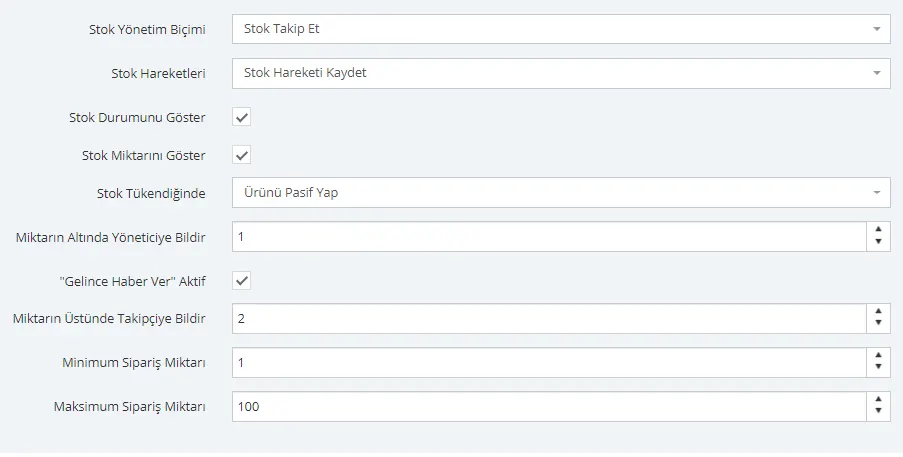
In this area, the Stock Management Method was set to Track Stock. This way the system will track stock automatically. We made our selections regarding Stock Status and preferences. The selections in this area depend entirely on your preferences. For more information about what the selections mean, click here. Let's continue by clicking the Save and Continue button.
Price Information
Let's make the product's price edits in the Price Information area. Let's edit the Purchase Price, List Price and Sale Price fields for the product. If we sell on marketplaces, let's also edit the Price Type fields. Is the product tax exempt? If not, what is the tax rate? All price information is defined in this area.
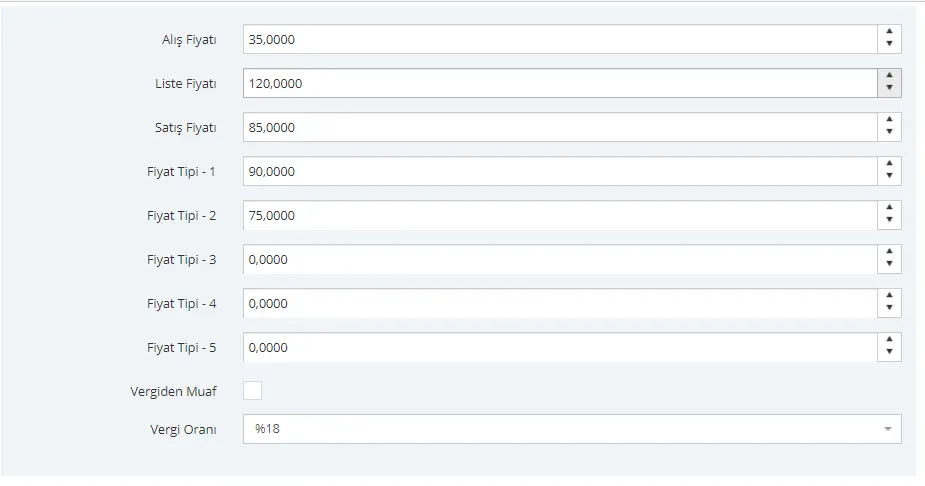
We have completed the price edits. The Purchase Price is price information that only you can see, for your profit/loss calculations. The List price is the price displayed on the product page with a strikethrough. The Sale price is the price of the product. Assuming we are creating two different pricing policies on two different marketplaces, we added price information to Price Type 1 and 2. The Tax Rate was set to 18%.
We can also set a Tiered Price for the product. This way, by applying a discounted price for purchases of the quantity X that we determine, we can encourage customers to buy more. This setting is also made in the Price Information area. Let's click the Add New button. On the page that opens, let's make the necessary edits and determine the user group we want to benefit from the discount and the period.
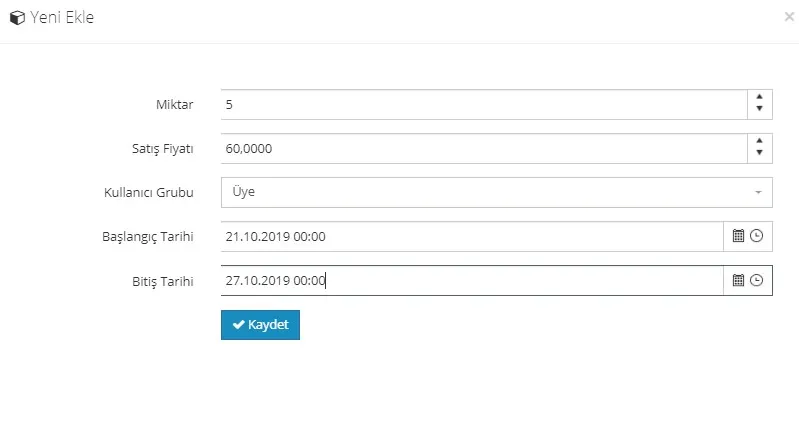
When we click the Save button, the Tiered Price will be defined for the product.
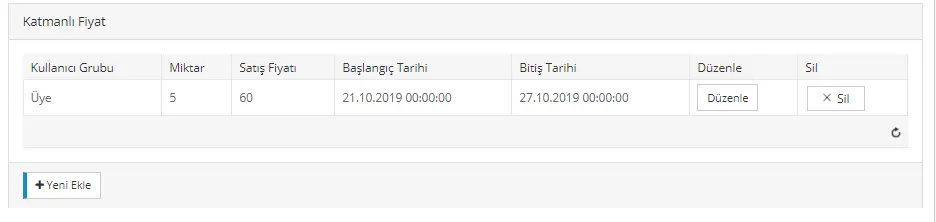
After completing the edits in the Price Information area, let's continue adding product details by clicking the Save and Continue button.
Discounts
The discounts defined for the product are shown in this area. If you want to use one, you need to check the box next to the discount.
You can also define a discount for the product later from the Campaign Management >> Discounts area. For details, see: Discounts.
Showcase Information
If you want the product to appear in one of the showcase areas on the home page, you can make a selection in this area. If you prefer that the product not appear on the home page, you can leave this area blank. Since our example is a size-run product, we continue without selecting a showcase area.

SEO Information
Let's make the SEO information edits for the product:
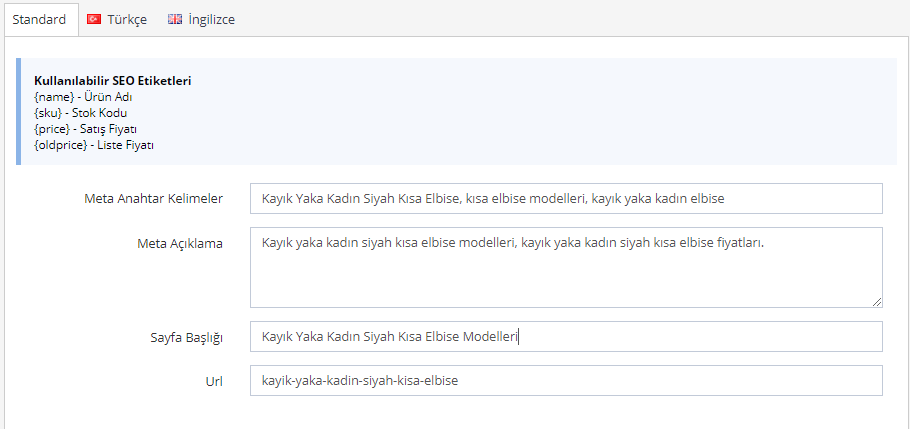
Let's continue the edits by clicking the Save and Continue button.
Product Images
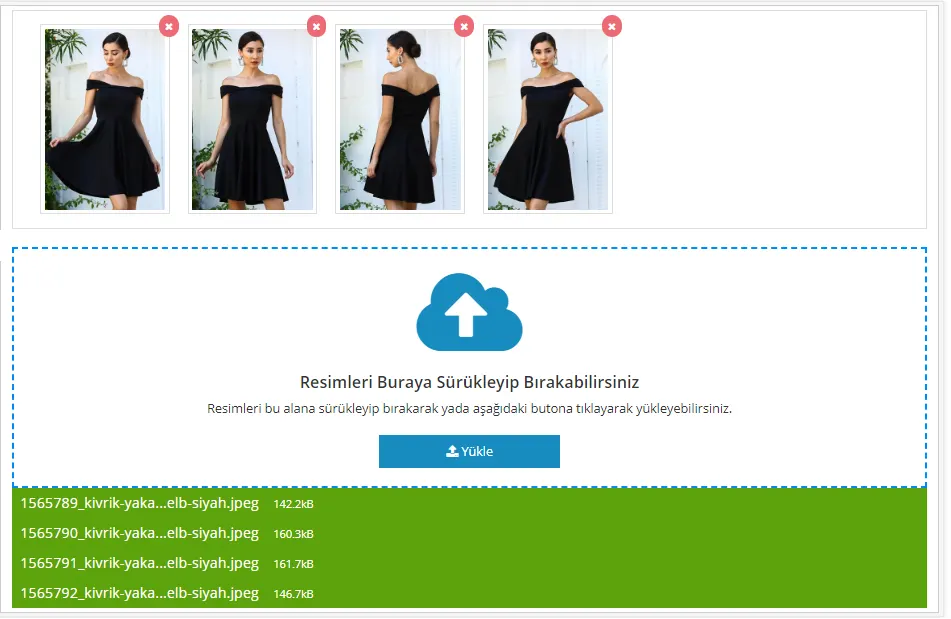
In the product images area, we can easily proceed with the Drag and Drop method or by clicking the Upload button.
Category / Brand
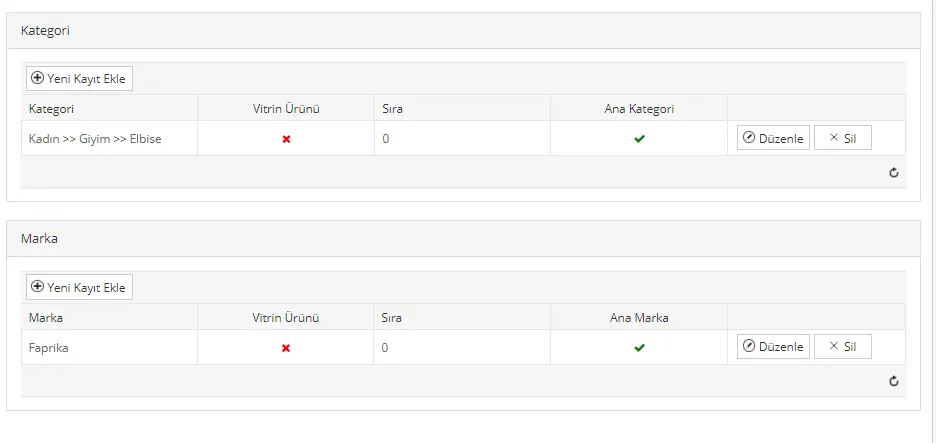
Let's add a Category and Brand to the product in our example.
Product Links
From this area we can link the product's colors to the product, and also add similar and complementary products.
Linked Products
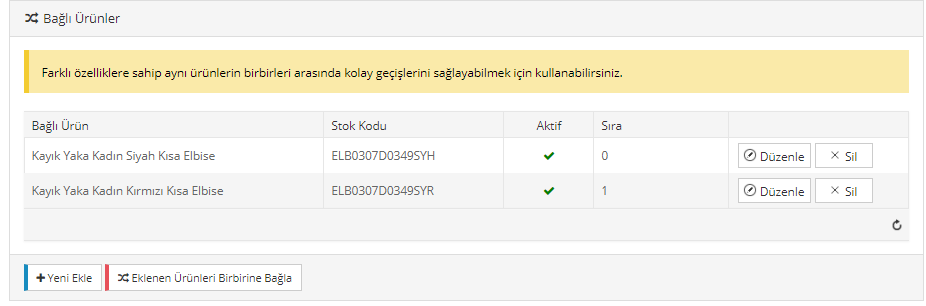
Let's assume our product also comes in red. In the Linked Products area, click Add New and select the red dress we previously added to the system. When we click the Link Added Products button, the product match will be complete.
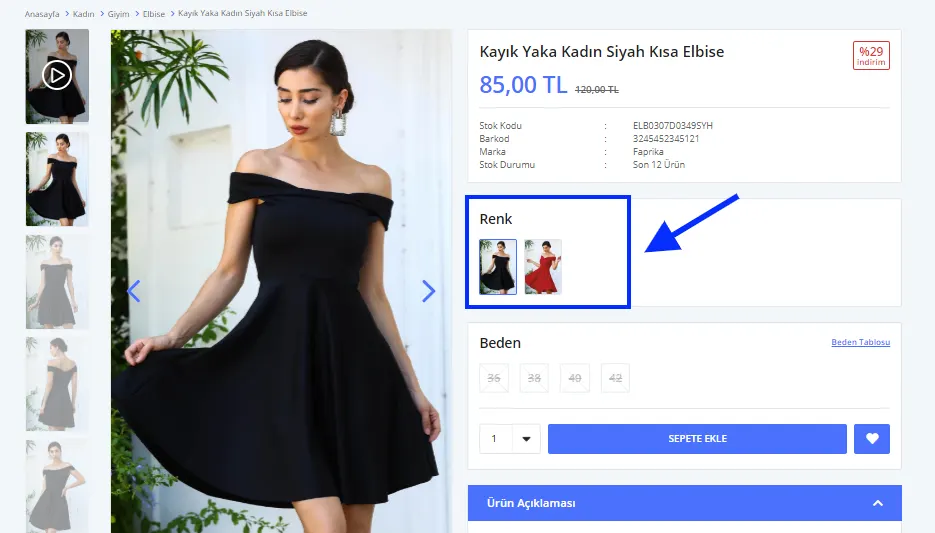
Let's see how the linked product appears on the product page:
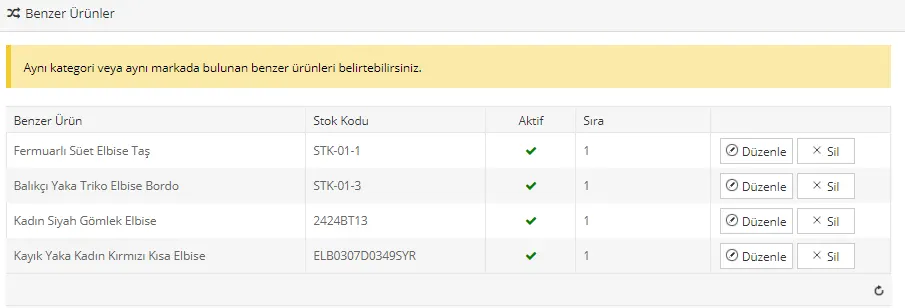
Similar Products
Let's also define other products in the same category as this product in the Similar Products area.
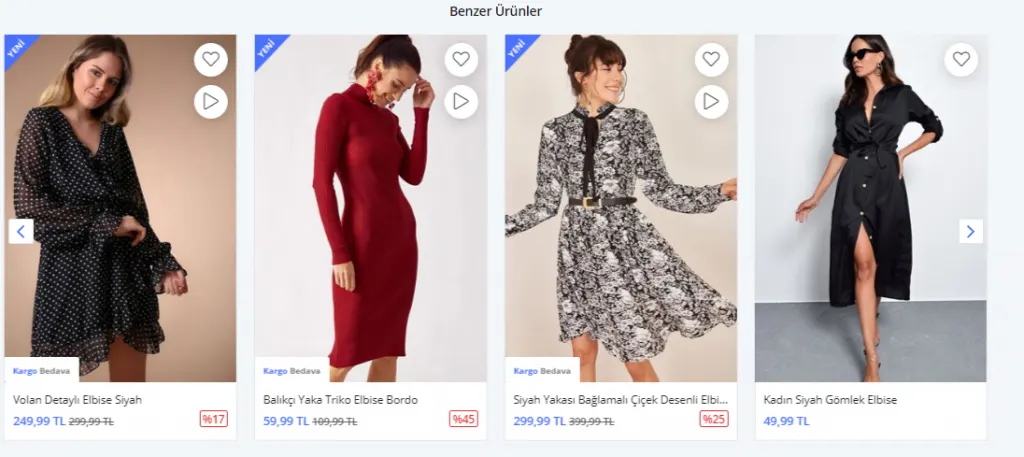
Let's see how the similar products setting is displayed:
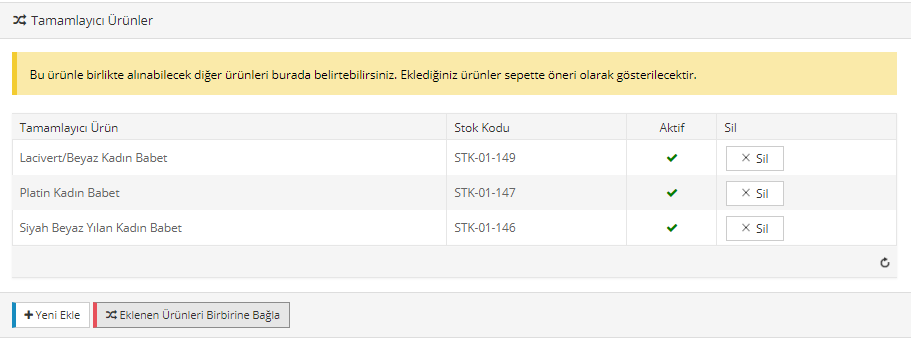
Complementary Products
In this area, let's also add a few products that we think will complement the product.
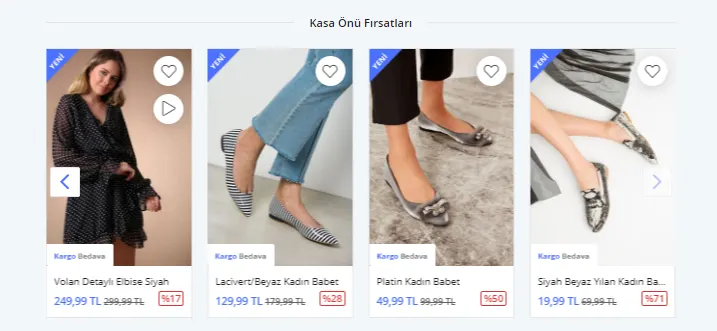
Products added to the complementary products list are offered as Checkout Offers:
After completing all the changes, let's continue by clicking the Save and Continue button.
Product Variations
As you have seen, adding a Series Product is not very different from adding a Normal Product. The differences come into play in a few areas. In particular, you must define a variation for Series Products.
Let's add a size variation to the product, then click Create All Combinations. In this area, we could also have added sizes one by one by clicking Add New Combination. However, since a series product includes all sizes, we directly clicked Create All Combinations.
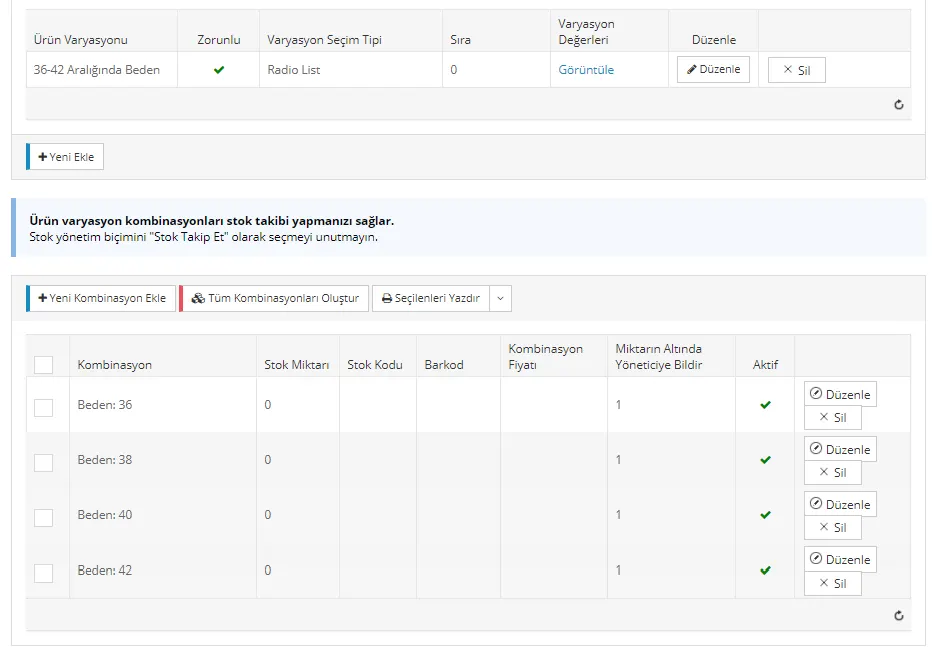
After making the necessary changes, let's continue by clicking the Save and Continue button.
Product Features
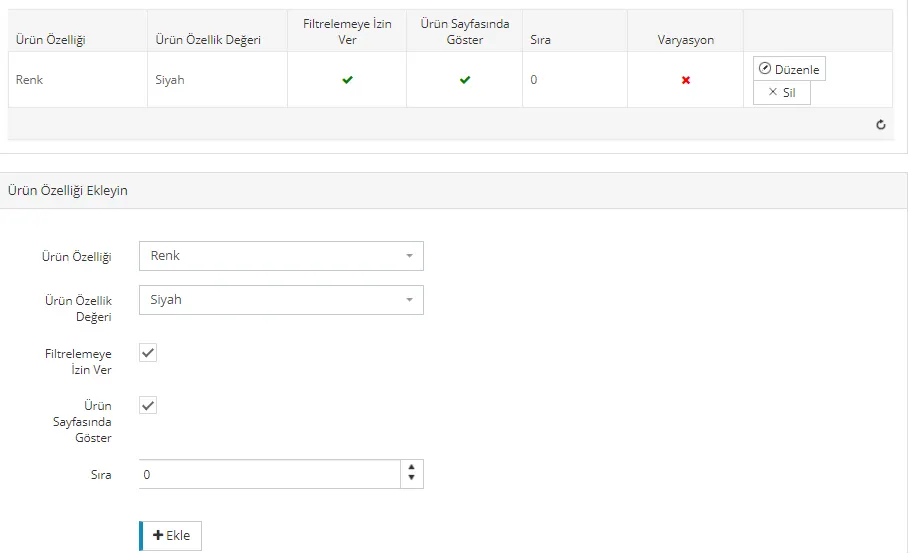
If we want to define attributes for our product, we can do so in the Product Attributes area. Let's continue by adding a color attribute to our product.
We can see all the changes on the product page. The videos and images we added, color variation, stock information and price information are listed in this area. For series products there is a Size area, but customers are not allowed to select sizes individually. When the customer adds the product to the cart, one piece of every size is added.
Let's add the product to the cart:
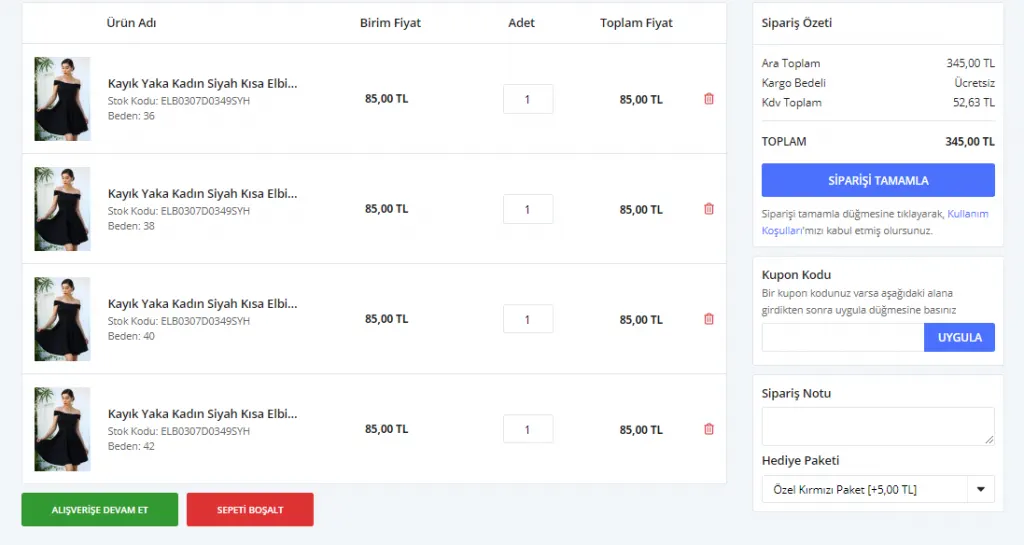
As you can see, when we added the product to the cart, all the size variations were added. We have no way of breaking this series. The customer must buy the whole series. If you delete one of the size variations, all the products are deleted.
After saving the changes by clicking the Save and Continue button, let's take a look at the product page and see how the changes are displayed:
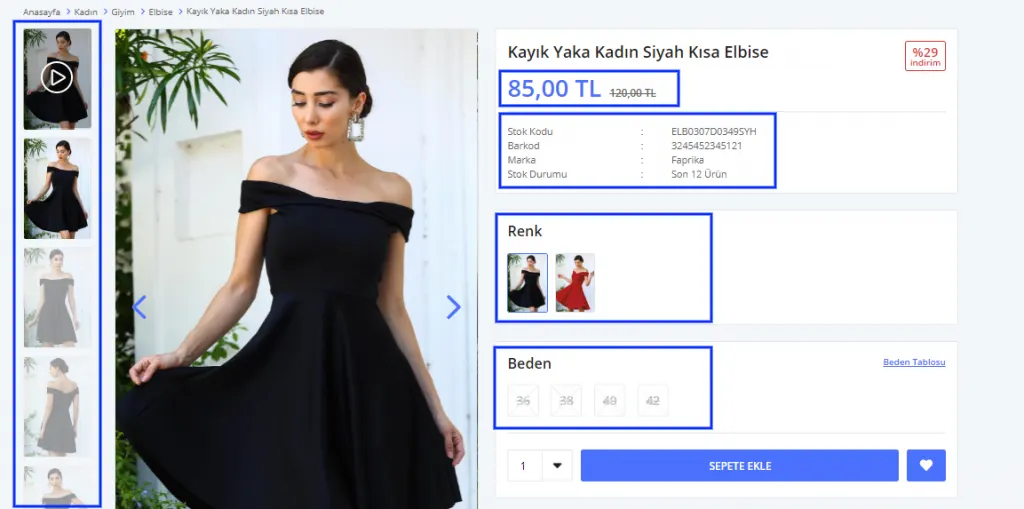
As you can see, the product's videos and images have been added to the system. The price, stock, brand and color information also appear in this area. The size variations of the product are crossed out. In series products, size variations are displayed crossed out. When the customer adds one of the product to the cart, all size variations are added as well.
Add / Remove Stock
We have added the product information. Now let's add stock to the product and publish it.
Add / Remove Stock
We have added the product information. Now let's add stock to the product and publish it.
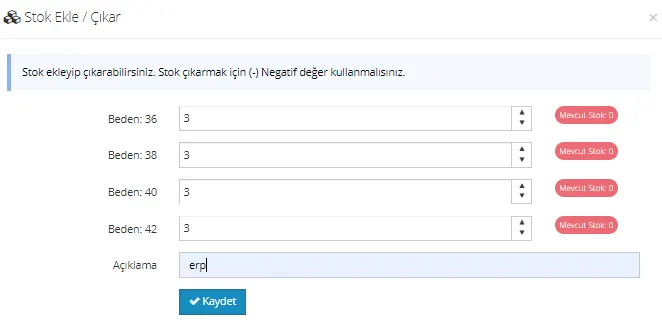
We have set the stock quantity for all size variations of our product. Let's complete the process by clicking the Save button.
As you can see, we added the Series Product together. You can add series products to your online store in the same way.
For details on adding a Normal Product: see here.
For details on adding a Grouped (Combo) Product: see here.