Add-ons/Integrations
N11 Integration
The Faprika-N11 integration module guide brings ease and efficiency to your e-commerce operations. It guides you at every step, from category matching to product management, from order processing to shipping. Speed up all your operations with a central management panel and multiply your success in e-commerce.
N11 Marketplace Integration
The N11 marketplace is one of Turkey's largest e-commerce platforms and lets you reach hundreds of thousands of consumers. However, for many sellers, establishing an effective presence on this platform can be complicated, especially if you manage multiple sales channels. At Faprika, we aim to make the integration process with the N11 marketplace as easy as possible. In this guide, we will cover many important details, from N11 Store Settings to product management, from shipping processes to stock and price updates. You will now be able to perform all these operations easily through Faprika's user-friendly interface.
N11 Store >> Store Settings
Go to the N11 Store tab and then click Store Settings. Complete the first steps required in this section of your control panel.
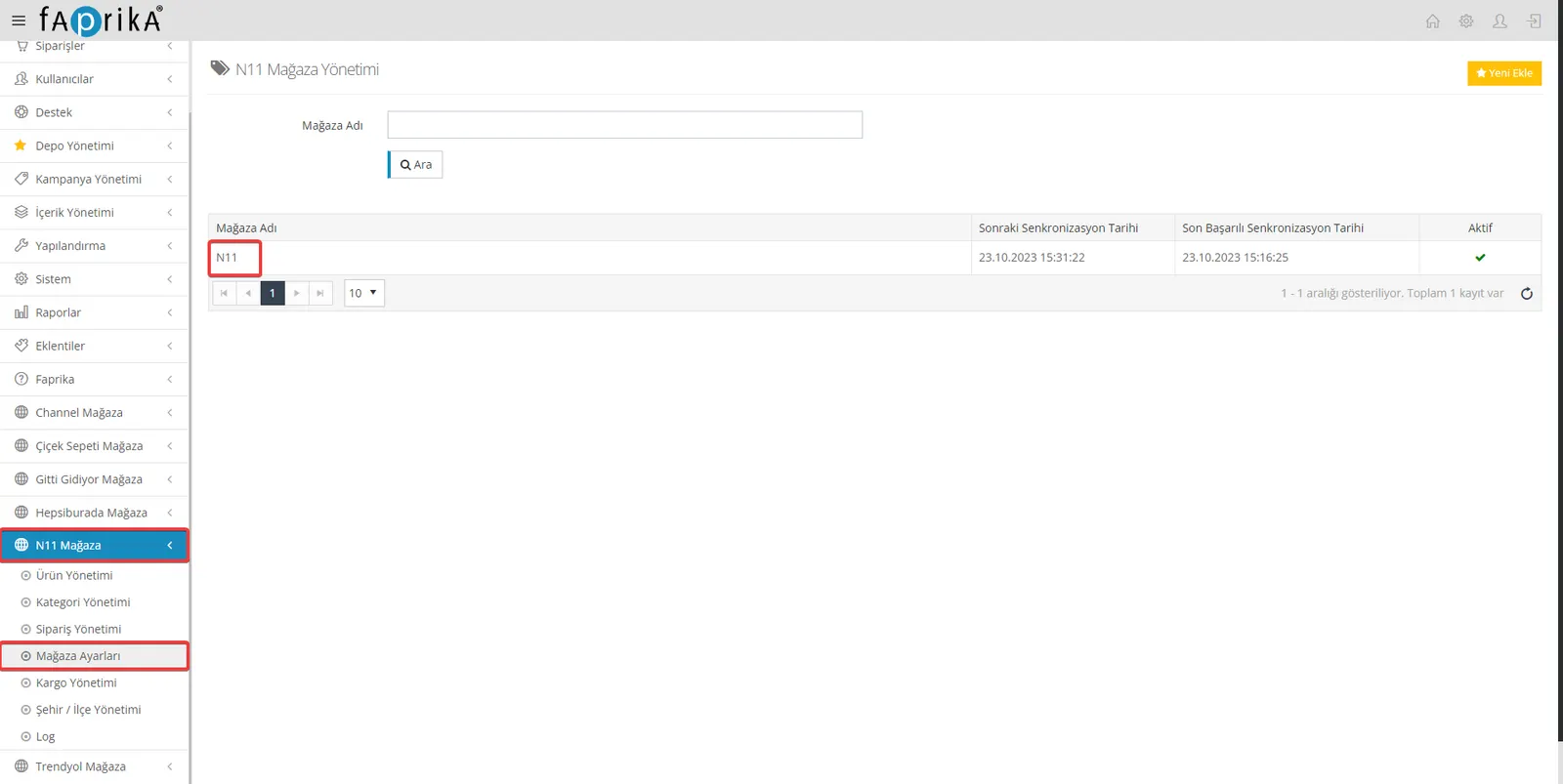
API Username: You can get this information from the N11 marketplace's own platform. You must enter this username in the relevant field completely and correctly.
API User Password: Again, you can obtain this information from N11's own platform. You must enter your password in the relevant field correctly and completely.
Feed with Marketplace Code: This option determines whether you want to use a special code when sending your products to the marketplace. If you enable this option, you will need to fill in the 'N11 Code' field for each product. If you do not check this option, you can send your products using the value you entered in 'Stock Code'.
Finally, after filling in all this information and making sure it is correct, do not forget to save all settings by checking the 'Active' button at the bottom or top of the page.
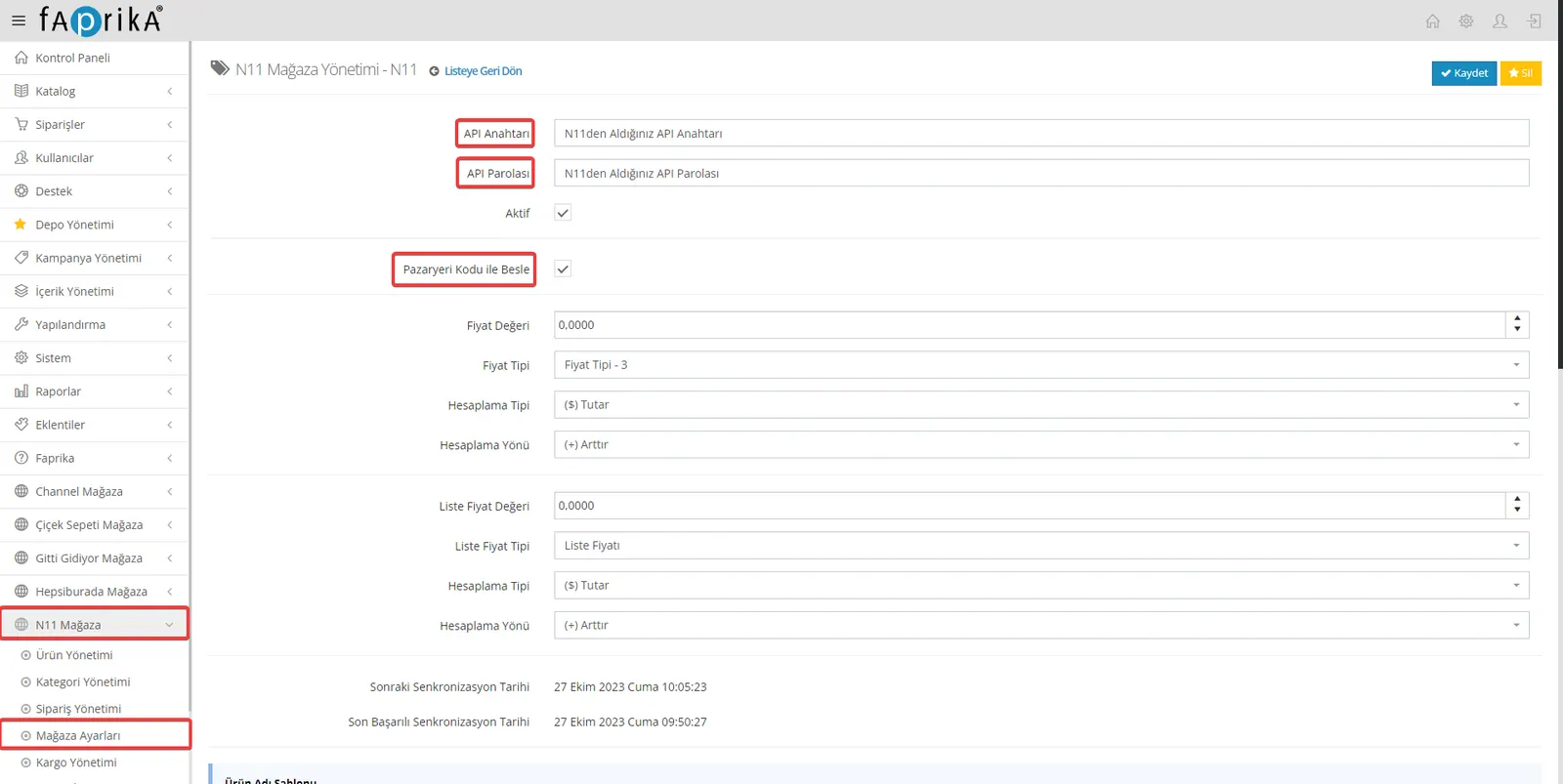
After you click the Save button, the page will update automatically and the fields required for new settings will appear.
Price Value: With this option, you can set a different price type value when uploading your products to the marketplace. For example, if you enter 10 in this field, depending on the calculation direction and type you set, product prices will increase or decrease by 10 units, in percentage or amount terms.
Price Type: In this field, you can choose how to transfer the product prices listed on your website to the marketplace. If you created a marketplace-specific category such as 'Price Type – 1' for your products and entered prices, you should select that category here. If you want to list your products at the 'Sale Price', you can check the 'Sale Price' option.
Calculation Type: In this field, you can determine how product pricing is calculated by choosing either 'Amount' or 'Percentage'. If you enter a value in the 'Price Value' field, the price calculation is performed automatically. If you leave this field as 0, the product's current sale price is transferred to the marketplace without any change.
Calculation Direction: With this option, you can determine whether the price will be calculated as 'Increase' or 'Decrease'. The value you enter in the 'Price Value' field will follow the direction you select here. If you leave the 'Price Value' field as 0, the product price will be sent directly to the marketplace without any change.
List Price Value: All the settings mentioned above also apply to the list price. That is, the same calculations will be applied to the list price as well.
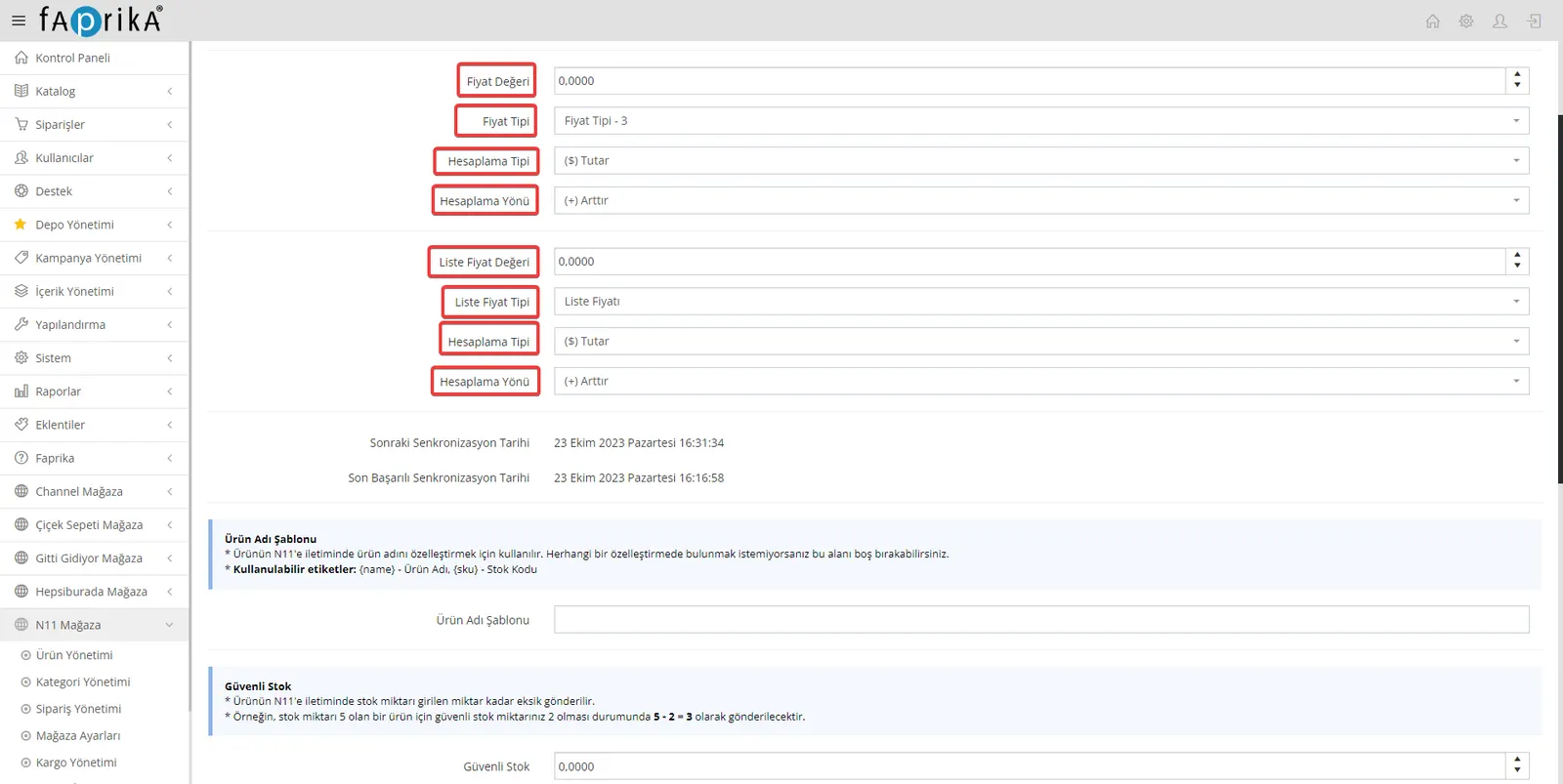
Product Name Template: This feature lets you determine how you want the product name to appear when transferring your products to the N11 marketplace. If you do not want to customize the product name, you can leave this field blank.
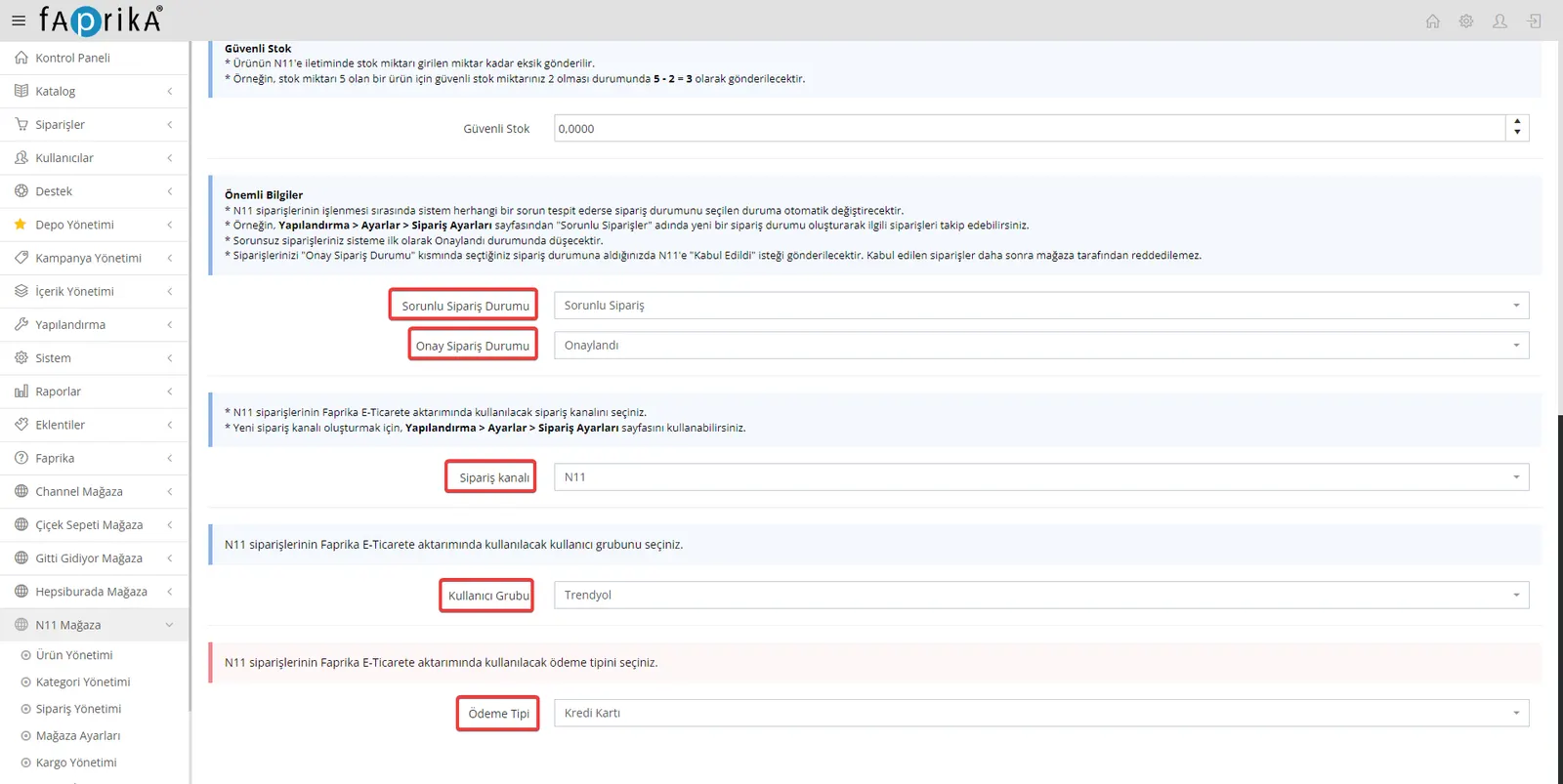
Safety Stock: This field helps you create a safety margin when transferring your product stock quantity to the N11 marketplace. For example, if a product's stock quantity is 5 and you enter 2 here, the actual stock quantity transferred to N11 will be (5-2), that is, 3. This way, you prevent stock problems that may occur with sudden sales.
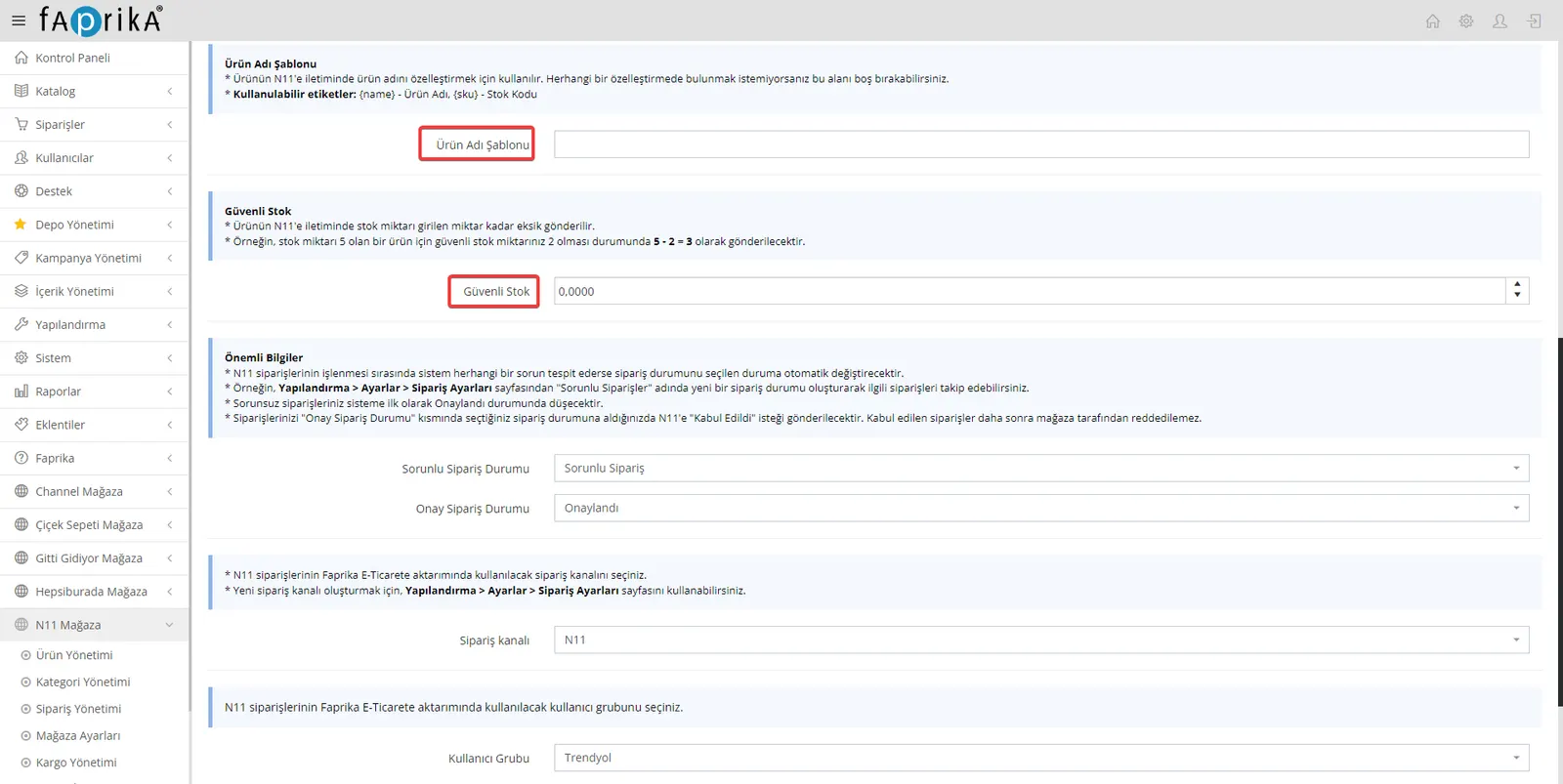
Problematic Order Status: This is a status option with which you can automatically identify problems Faprika encounters while processing N11 orders. For example, you can create a new order status named "Problematic Orders" and easily track orders in this status. Orders without problems enter the system with the "Approved" status. When you update the status to "Shipped" for shipping, this is automatically reported to N11.
Approved Order Status: You can select a status for your orders that go through without problems in this field. Orders that appear in the system as "Approved" are reported to N11 as "Accepted", and these orders cannot be cancelled afterwards.
Order Channel: Select an order channel in this field to determine how orders coming from N11 will be transferred to your Faprika system. If you want to create a new channel, you can use the Configuration menu for the relevant settings.
User Group: You can select the user group to be used when transferring N11 orders to Faprika in this field. To create a new group, you can create one from the Configuration >> Users menu.
Payment Type: Select a payment type in this field to determine the payment method of your orders. When making your selection, remember to take the integration between N11 and Faprika into account.
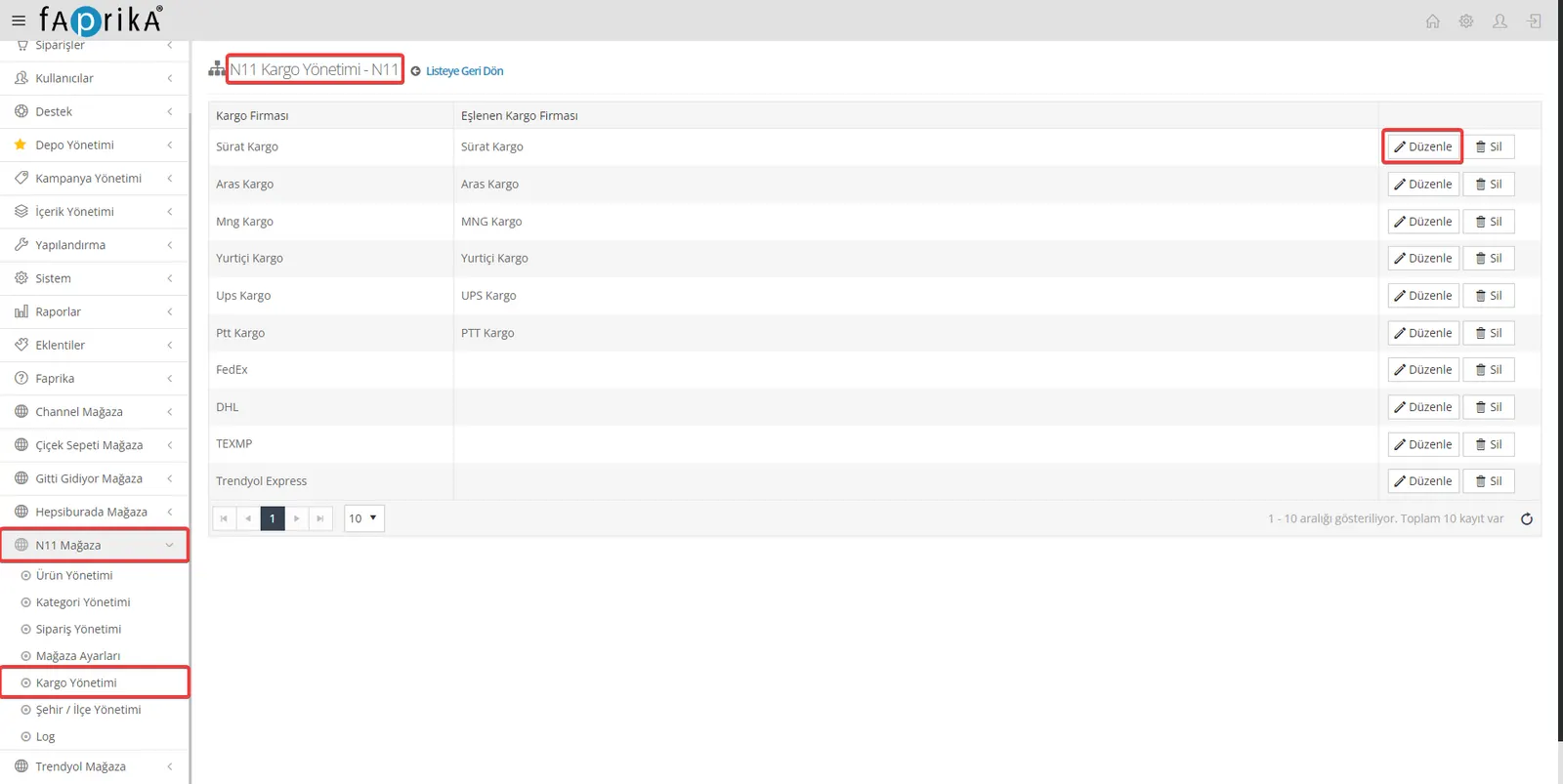
N11 Store >> Shipping Management
In this section, you can match the carriers of the delivery templates you created on the N11 marketplace with the carriers you actively use on your own website. To start matching, click the “Edit” button.
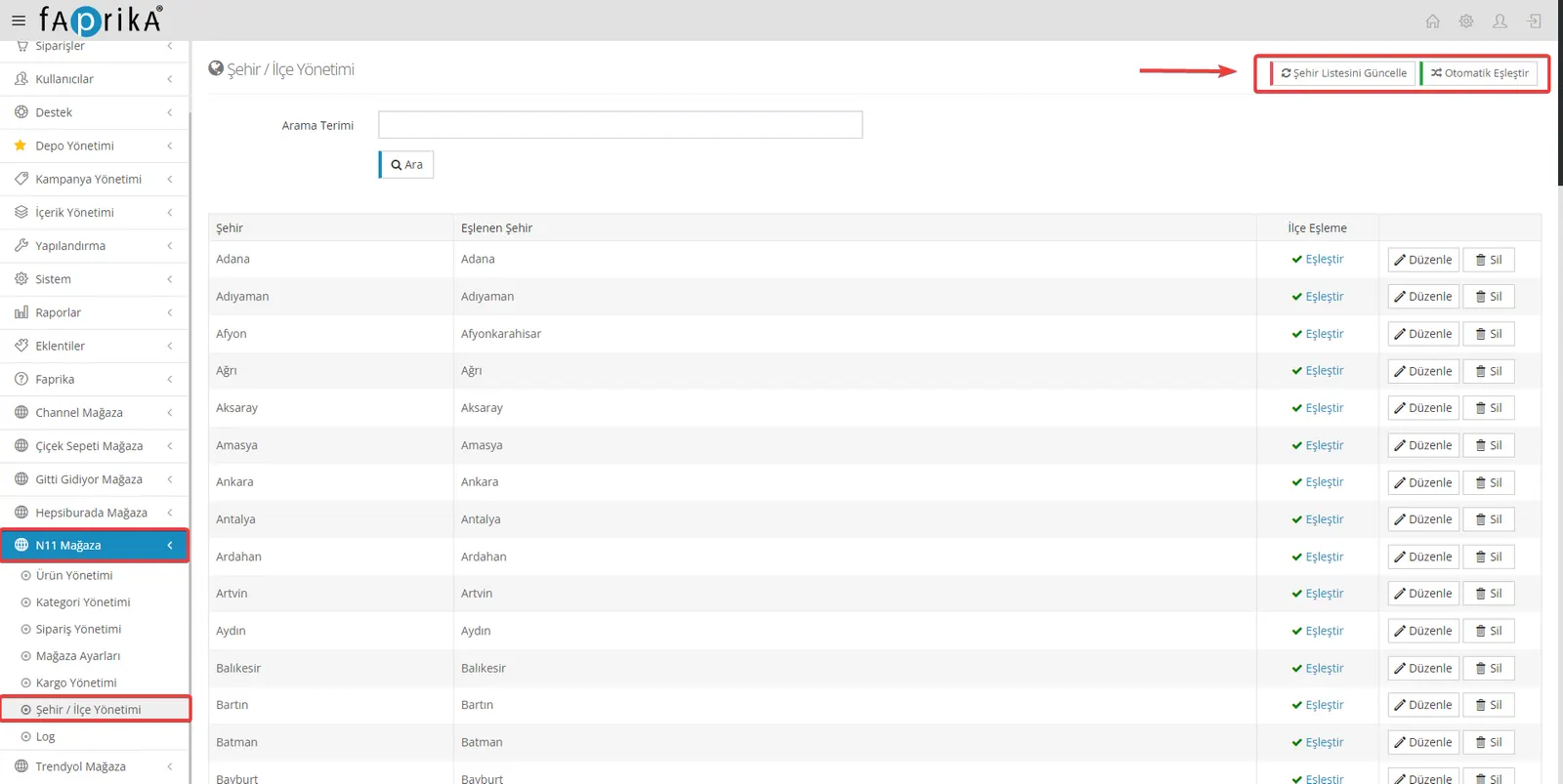
N11 Store >> City / District Management
In this area, the cities and districts listed on the N11 marketplace are automatically matched with the corresponding fields on your own website, so you do not need to do anything manually. The matching is done automatically when the system is first set up.
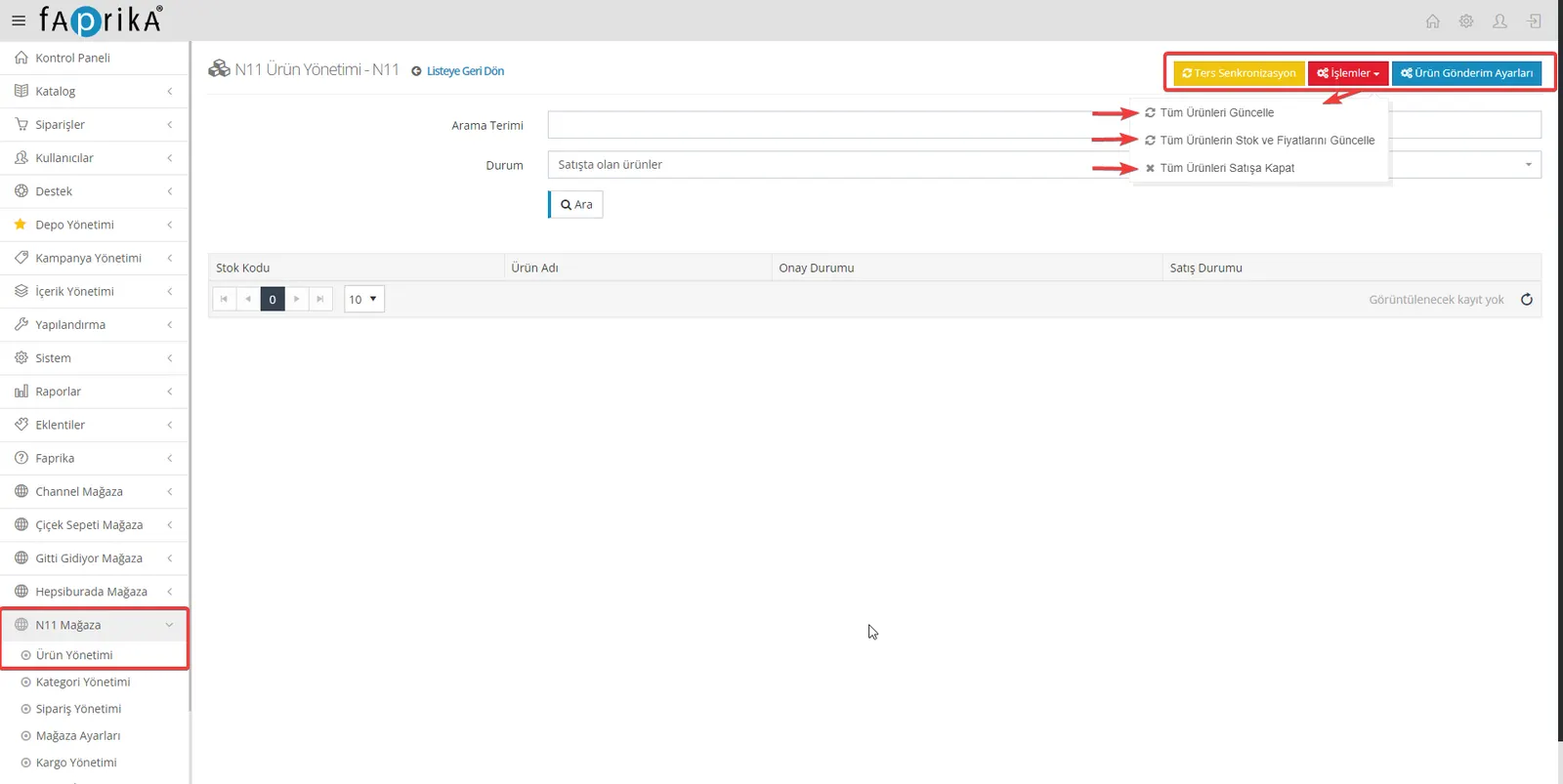
N11 Store >> Product Management
This section simplifies product management for your N11 store. In the relevant tab, you will find pages such as “Actions,” “Reverse Synchronization,” and “Product Submission Settings.”
Reverse Synchronization
With this feature, you can pull the products listed on N11 directly into Faprika’s “N11 Store >> Product Management” page. This makes it easy to bring changes you have made on N11 into the Faprika system.
Actions
In this section, you can add products to your N11 store or update them for all products in the panel. When you click the “Actions” button, you can request an update or creation for items such as product information, stock, and price.
These two features make product management very practical and make it easier to keep the two platforms in sync. By performing these actions as needed, you can manage your products in a synchronized way between N11 and Faprika.
Filters for Sending Products to Marketplaces
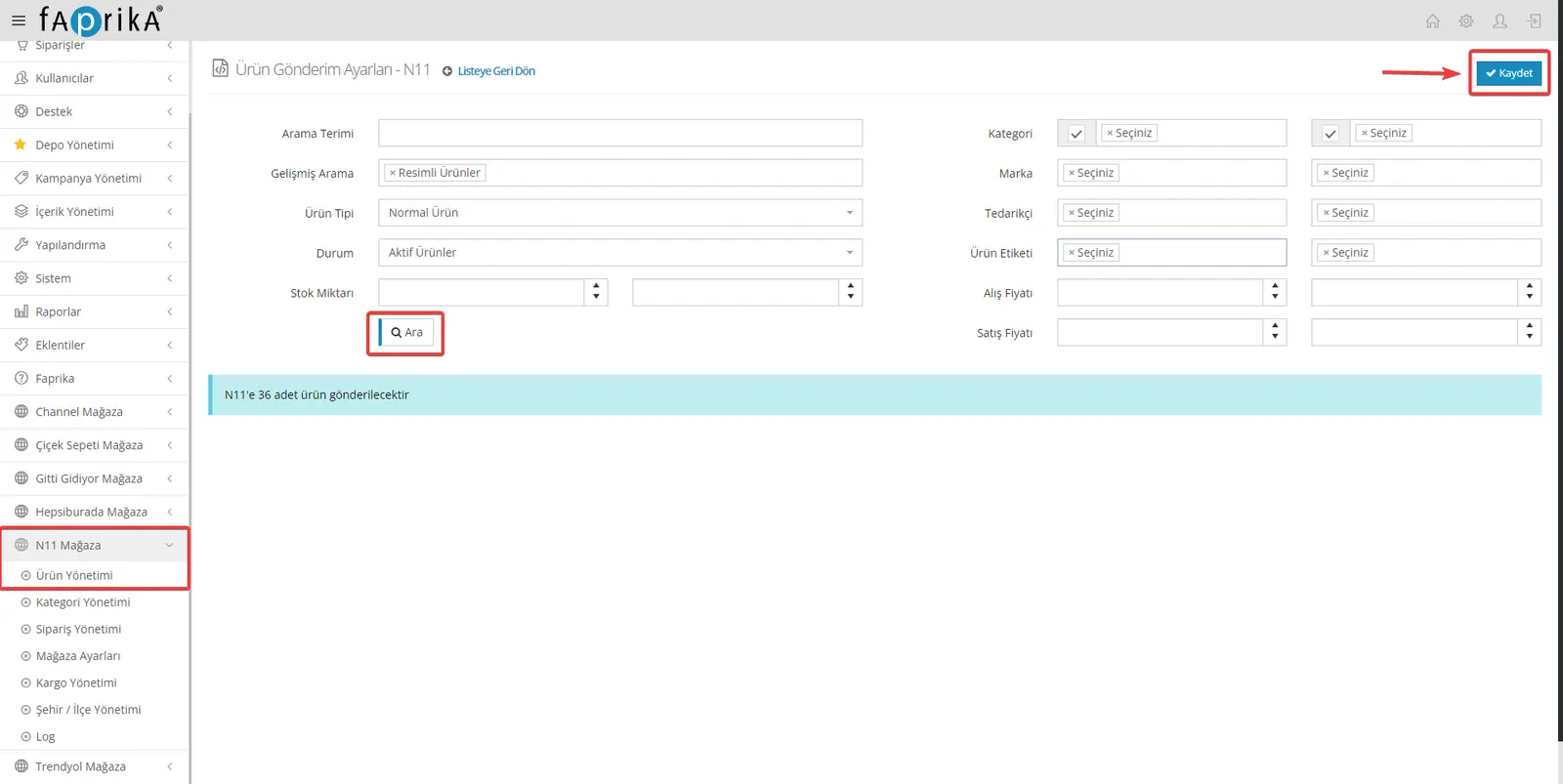
When sending products to a marketplace (for example N11, Trendyol, Amazon, etc.), you can use certain filters for more effective management and targeting. Faprika’s e-commerce infrastructure lets you apply such filters easily. Here are some important filtering suggestions:
Advanced Search: Products with Images
Product Type: Normal Products
Status: Active Products
These filters make the product submission process more efficient and reduce the likelihood of errors. For stores with a large product range in particular, such filtering saves time and resources.
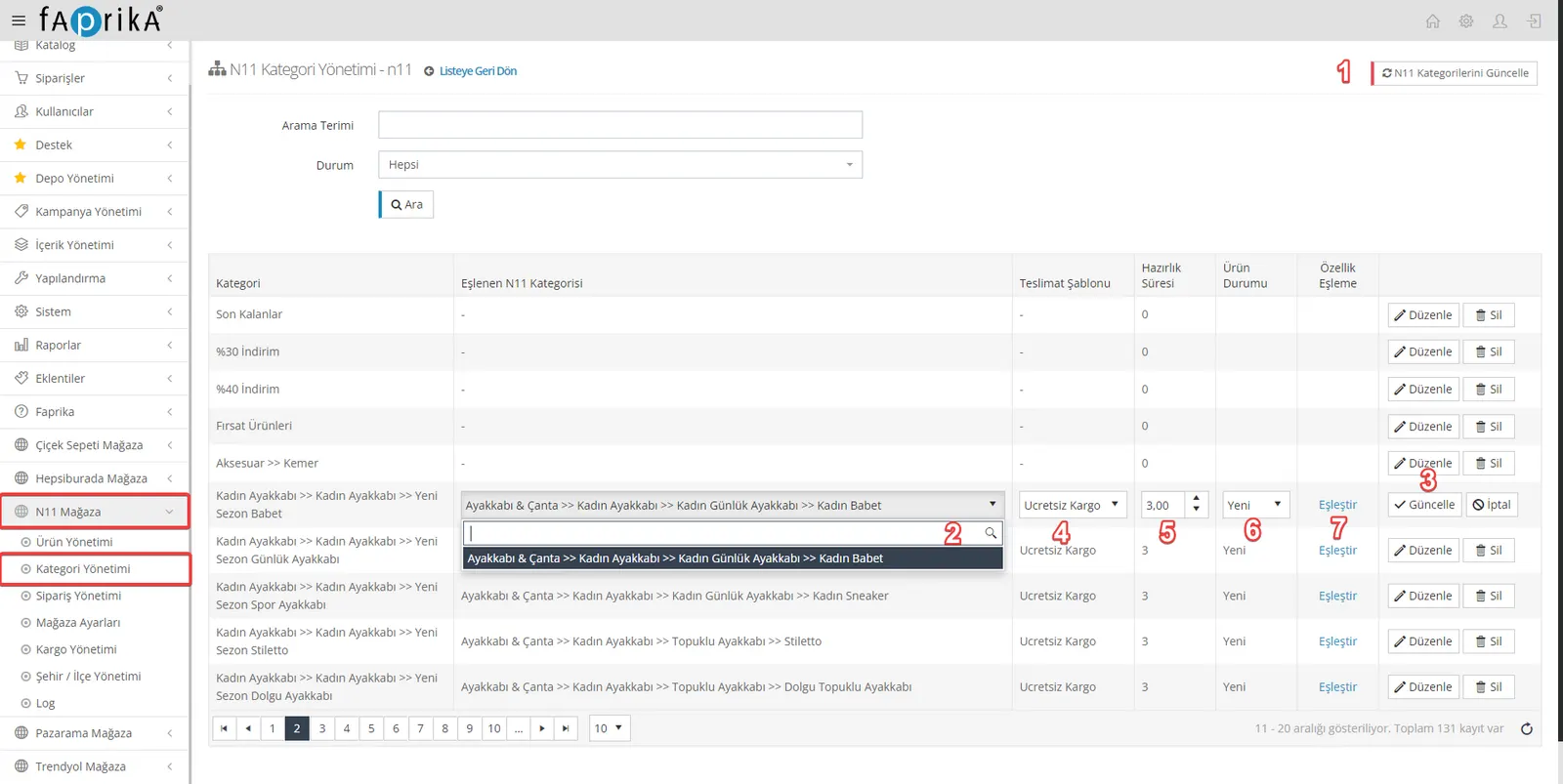
Category and attribute matching is very important when transferring products from an e-commerce platform to a marketplace. On large marketplaces such as N11, correct category and attribute matching makes your products easier to find, which has a positive effect on your sales.
Update N11 Categories: This button is used to update the categories on your platform with N11’s categories. Since N11’s categories are constantly updated and new categories are added, this update should be performed frequently.
Edit Button and Category Matching: The Edit button lets you match your existing categories with N11 categories. Matching is important so that your products are shown in the correct category.
Delivery Template: You must select the delivery template you created on N11 to determine how the delivery process will work.
Preparation Time: This indicates within how many days orders will be ready. For new stores, “3” days can be selected by default.
Product Condition: Whether products are new or second-hand is specified here. This can influence product searches and customer decisions.
Attribute Matching: On the N11 platform, there are various attributes under categories (e.g. color, size, brand). Matching these attributes makes your product pages more informative and helps them appear more accurately in search results.
These steps are critical for your products to be listed effectively on the N11 platform.
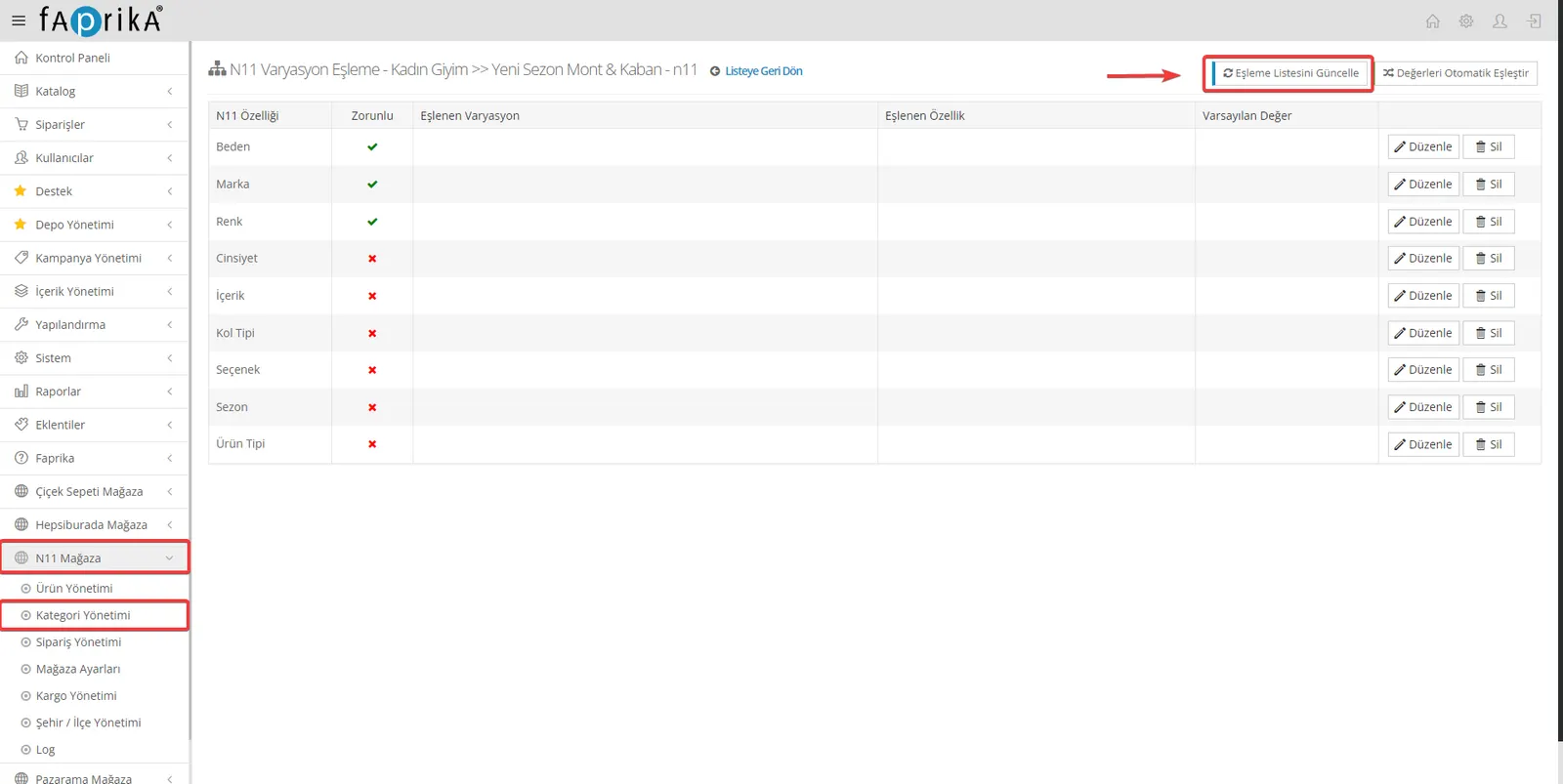
The “Update Matching List” button is very useful for synchronizing the product attributes on your platform with N11’s current attribute list. Especially on dynamic, constantly updated marketplaces like N11, attribute lists can change over time or new attributes can be added. With this button, the attribute matchings you make on your platform will always remain up to date and accurate.
After completing this step, there is usually a “Match” button next to the attributes you want to match. By clicking this button, you can match the attributes on your platform with those on N11. Attribute matching helps your products appear more accurately in search results and be found more easily by potential customers.
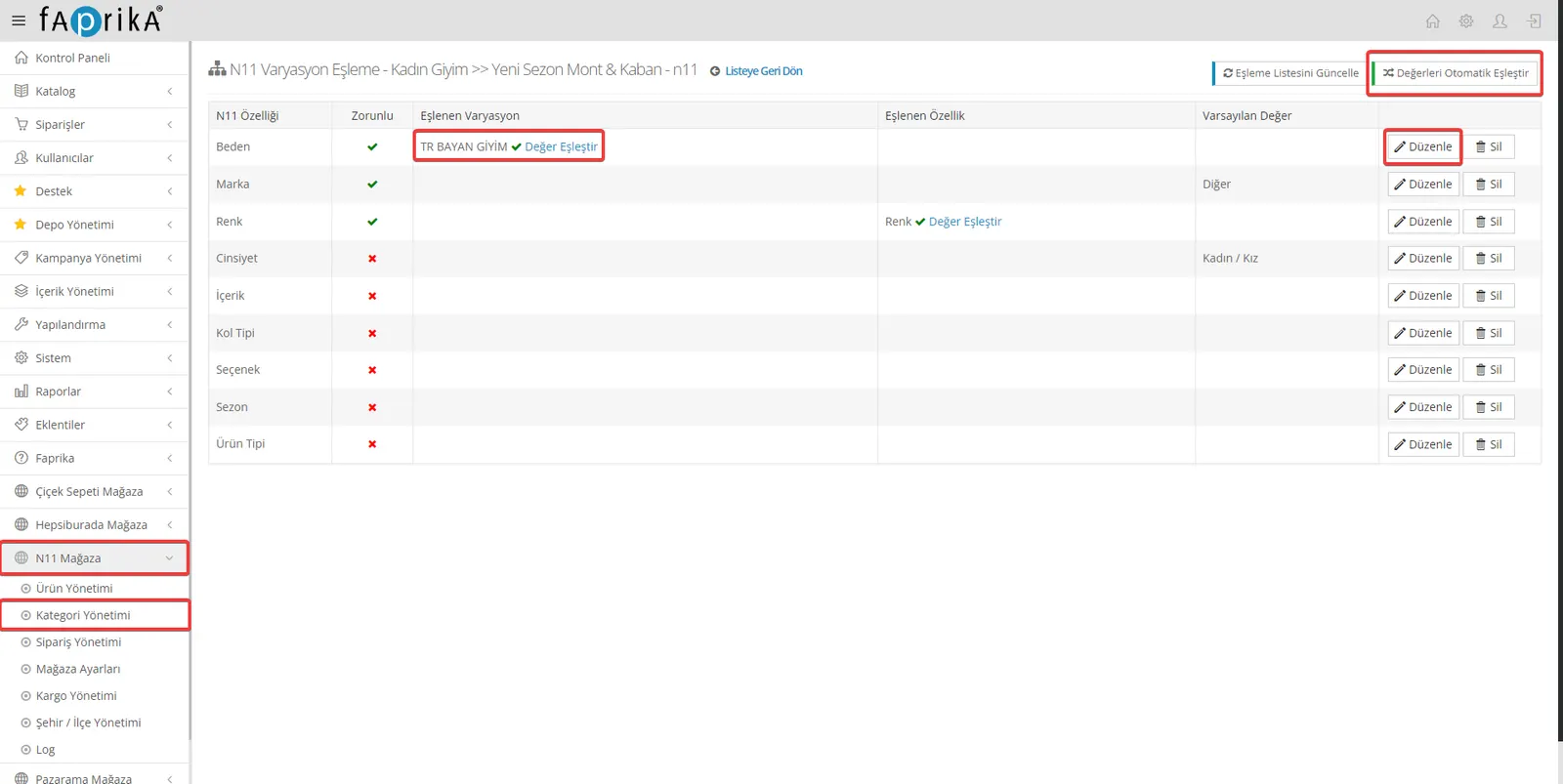
Required attributes are the information you must provide when listing your products on marketplaces such as N11. These required attributes generally define the main characteristics of the product, such as Size, Brand, and Color for a garment. It is important to remember that if you leave these values blank, your products may not be uploaded to the platform successfully.
Optional attributes allow you to describe your product in more detail, but this information is not essential. However, providing it can help potential customers understand the product better and find it more easily in searches.
The “Auto-Match Values” button can be very useful, especially when you want to upload many products at once. This function lets you quickly and easily match the attribute values predefined on your platform with N11. However, before auto-matching, it is important to make sure your attribute values are correct and up to date. An incorrect or incomplete match may cause your products to be listed with misleading or missing information.
Manual matching is very useful when you want more control than automatic matching provides. Especially when different platforms use different terminology or standards, manual matching helps you achieve more accurate and consistent results.
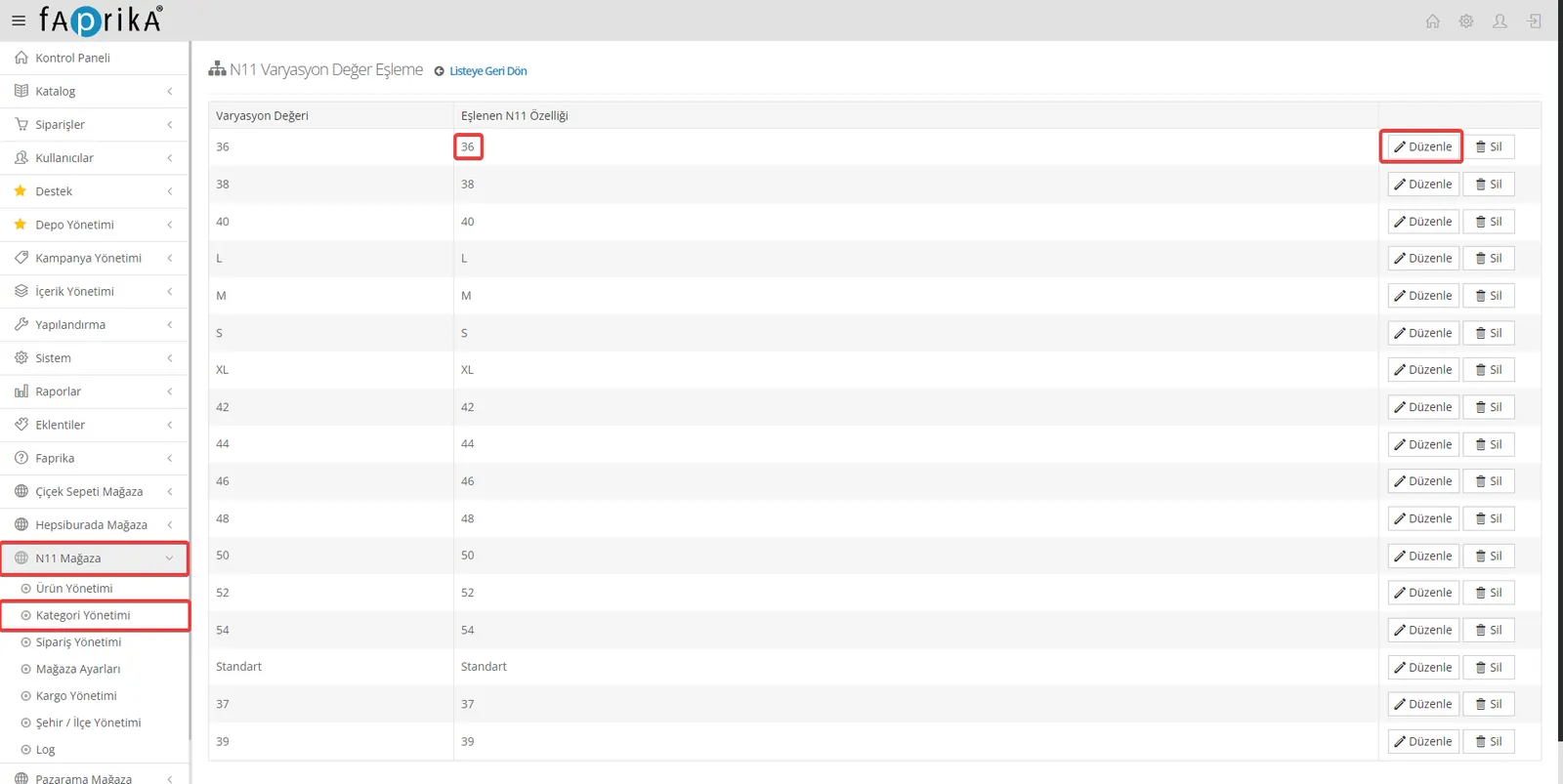
Let’s take size as an example: a size value you specify as “36” on your website may also be listed as “36 Size” on the N11 platform. However, to ensure an exact match, you should match these two values manually. This way, when customers view the product on N11, they will see the correct size information.
The “Edit” button is generally used to make such manual matches. When you click it, a pop-up window or a new page will usually open. There, you can match the value used on your website with the corresponding value on the N11 platform and save the match. By repeating this process for each attribute and variation, you ensure that your products are listed correctly.
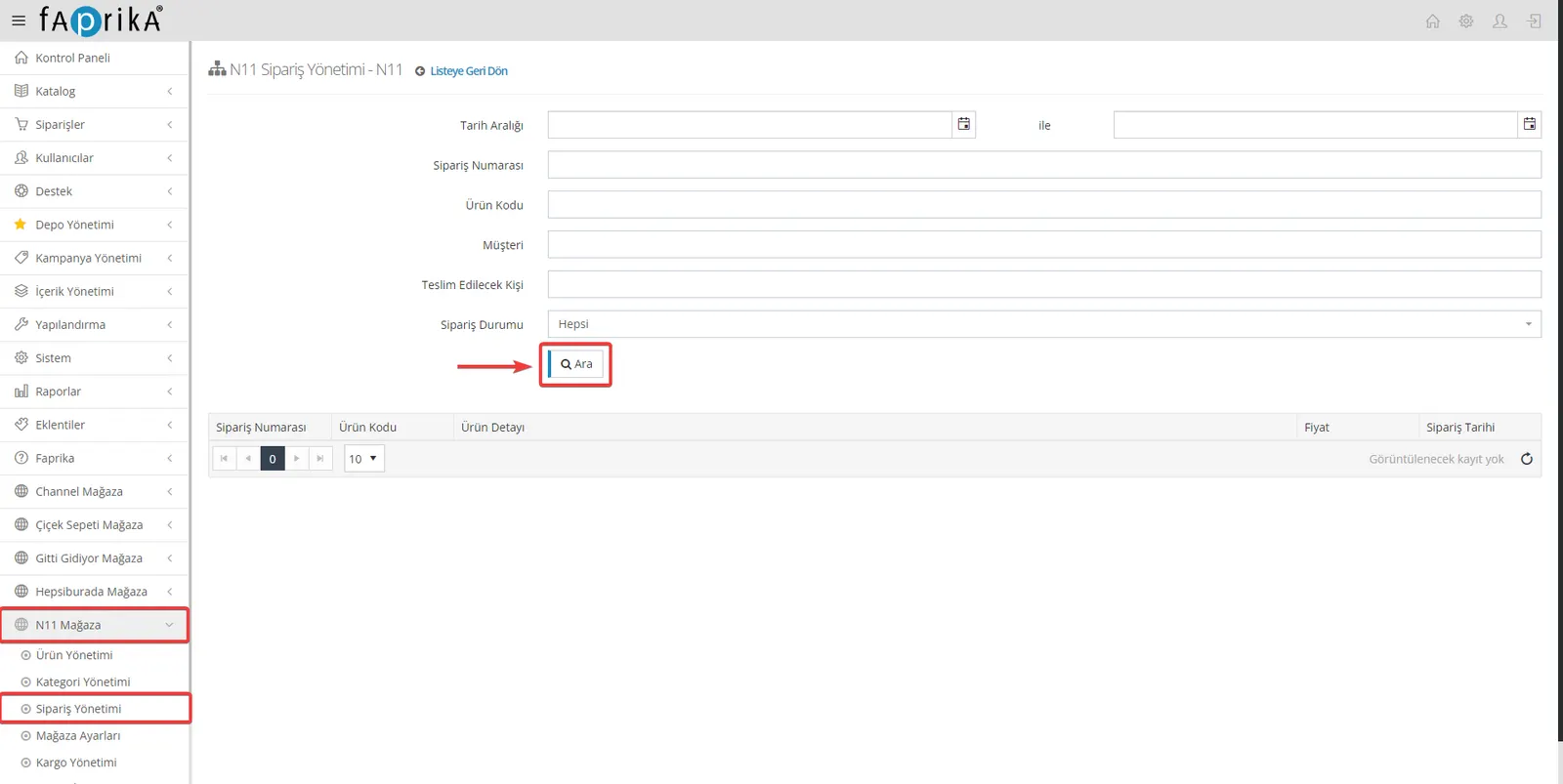
After you have successfully transferred your products to the N11 marketplace, the “N11 Store >> Order Management” section plays an important role in managing sales and orders. In this section, all orders coming from N11 are listed, and you can review them in detail using different filtering options.
With the filtering options, you can sort your orders by various criteria such as date, status, and payment type. This saves time, especially for stores with a high order volume, and makes your workflows more efficient.
As orders are approved, you can generally manage shipping and delivery processes from this panel as well. Although the N11 platform offers many automated features for sellers, order management is usually open to manual intervention too. This lets you step in quickly if there is any problem or special situation.
In short, the “N11 Store >> Order Management” section is a tool that makes your work easier when selling on the N11 marketplace, speeds up the order process, and increases customer satisfaction.
This guide explains the steps that will help you integrate the N11 marketplace easily with Faprika’s advanced e-commerce infrastructure. By offering an end-to-end service, from category matching to order management, from payment options to shipping processes, it helps you seize the opportunity to grow your business. Thanks to this integration, you will be able to manage your operations on both platforms easily from a central point, save time, and increase your operational efficiency. Use the synergy between Faprika and N11 to get ahead in e-commerce. For more information, explore the N11 Integration Module.