Campaign Management
Discounts
In This Tutorial
Campaign Management >> Discounts
Discounts are managed through this panel. It is a very detailed panel. On the entry page there is a panel that lets you search existing discounts.
You can search for discounts previously saved in the system by selecting Discount Name, Coupon Code, Discount Type.
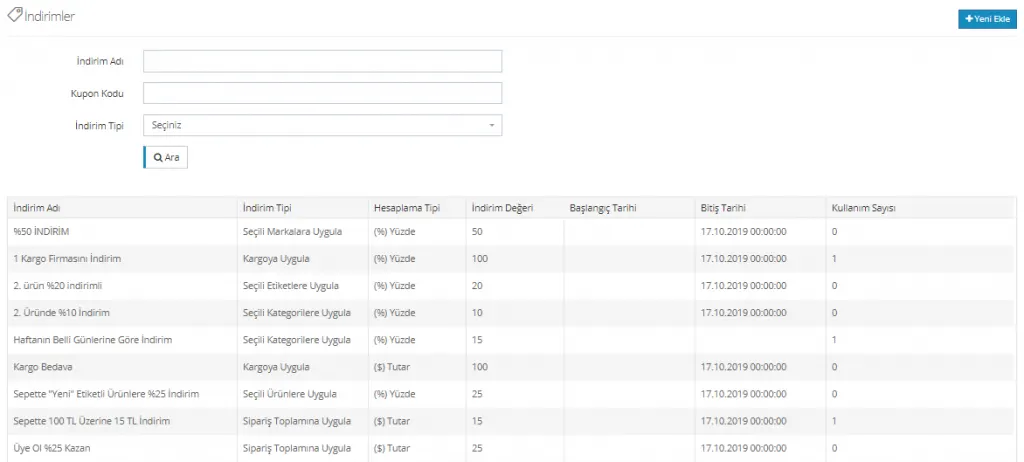
At the bottom of the panel, the saved Discount Name, Discount Type, Calculation Type, Discount Value, Start Date, End Date and Usage Count information is shown.
Let's look at the discount creation panel by clicking the Add New button.

In the Discount Name field, you need to enter the phrase that best describes the discount you are creating.
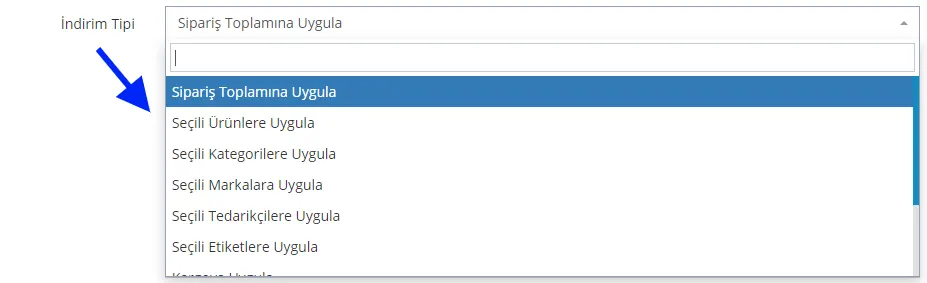
From the Discount Type field, you can easily choose according to the discount you will create. What should the discount be applied to?
- Apply to Order Total: The discount is applied to the order total.
- Apply to Selected Products: The discount is applied to the selected products you specify.
- Apply to Selected Categories: The discount is applied to the categories you select.
- Apply to Selected Brands: The discount is applied to the brands registered in the system that you select.
- Apply to Selected Suppliers: The discount is applied to the suppliers registered in the system that you select.
- Apply to Selected Tags: The discount is applied to the tags registered in the system that you select.
- Apply to Shipping: The discount is applied to shipping.
- Apply to Payment Type: The discount is applied to the payment type.
- Apply to Order Subtotal: The discount is applied to the order subtotal.
- Apply to All Products: The discount is applied to all products.

From the Calculation Type field, you can choose the calculation method the operation will use. One of the options ($) Amount, (%) Percentage, (=) Equalize can be selected.
- ($) Amount: Lets you give a discount such as 10 TL or 10 $, according to the currency of the country you select.
- (%) Percentage: Lets you give discounts on your products at rates such as 10%, 5%, 6%.
- (=) Equalize: In this field, the number you enter in the DISCOUNT VALUE field is reflected on the product, category, shipping, tag and similar items you select, and they are set equal to that amount.

The discount value you define is added to this field.

When the Coupon Code Required field is checked, a coupon code is required for the discount to be applied. The specified coupon code is added to the system at this stage.

By adding a Start / End Date, you can define a duration for discounts.

When the Can Be Combined with Other Discounts option is checked, more than one discount is allowed on an order. For example, a product purchased with a 50% discount can also benefit from a shipping discount. If this option is not checked, a customer who benefits from one discount cannot benefit from another.

Discount Limit determines how much your customers can benefit from the discount. One of the options Unlimited, Only X Units or X Units per User is selected.
- With the Unlimited option, customers benefit from the discount without limit.
- With the Only X Units option, the discount can be used up to a number you specify.
- With the X Units per User option, purchases can again be made up to the specified number.
The Requirements field lets you customize your discounts. In the Select Requirement Type tab in this field, you can easily define the limits and scope of your discount campaign.
The options in this field are as follows:
The Requirements field lets you add a group for the requirement.
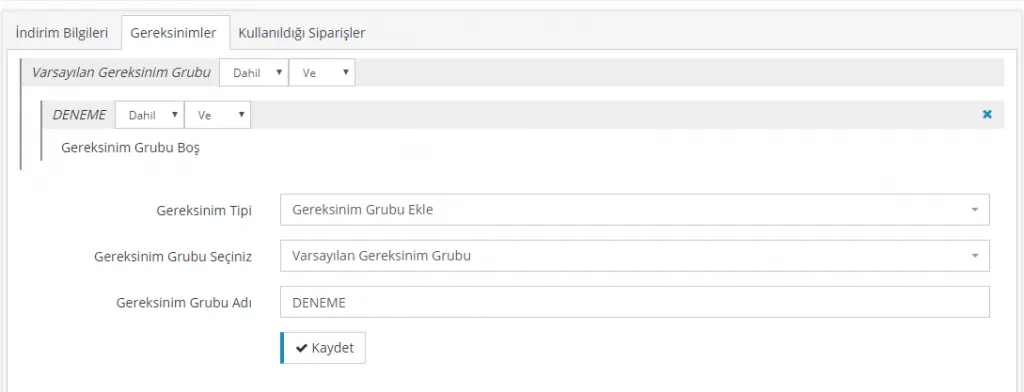
When we add a requirement group, we need to enter a name in the Requirement Group Name field that opens. With the requirement group created, new limits and scopes can be built for the discount. For this, the system's include/exclude and and/or options are used. When there are definitions we want to include in the discount, we use the include and and/or patterns; for limitations we want to exclude, we use the exclude and and/or patterns.
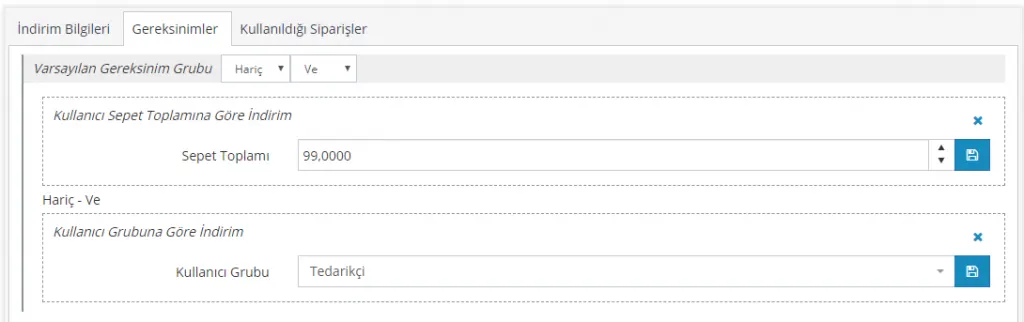
For example, let's apply a discount for those who order products over 100 TL, but let this discount be valid only for the Women's Clothing category. In this example we included a condition. Let's apply a 100 TL discount, but Suppliers should not benefit from this discount. This way we excluded the Supplier user group from the campaign. We will examine this distinction in more detail with examples.
Now let's apply the most commonly used discounts together:
Free Shipping
Free Shipping is among the most frequently applied discounts. You can also apply this discount on a per-selected-product basis by checking the Free Shipping option in PRODUCT MANAGEMENT >> ADD NEW PRODUCT >> STOCK INFORMATION. But as we mentioned, this discount will be valid only for that product. To define a bulk discount, follow the steps below:
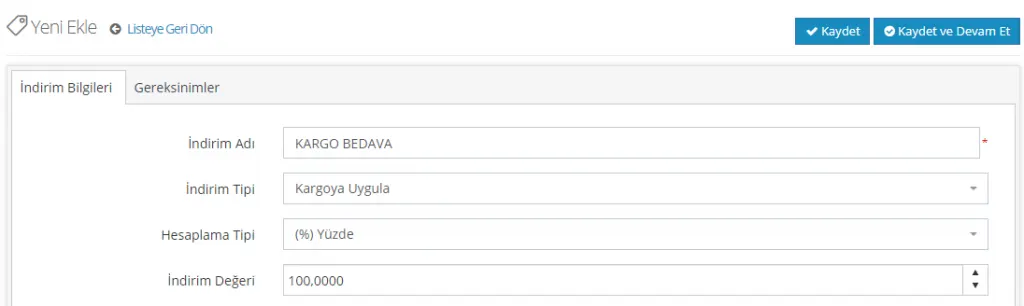
DISCOUNT TYPE: Apply to Shipping
CALCULATION TYPE: Percentage
DISCOUNT VALUE: 100 (With this definition, we will apply a 100 percent discount to shipping)
Now let's see how the discount is applied in the cart.
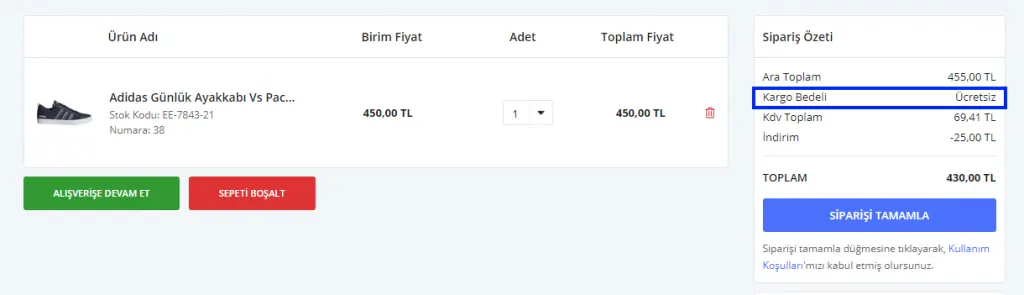
After applying the discount, be sure to test it by logging in through the customer panel. This way you can prevent discount-related errors.
50% Discount on Selected Brands
Follow the steps below to define a discount for selected brands.
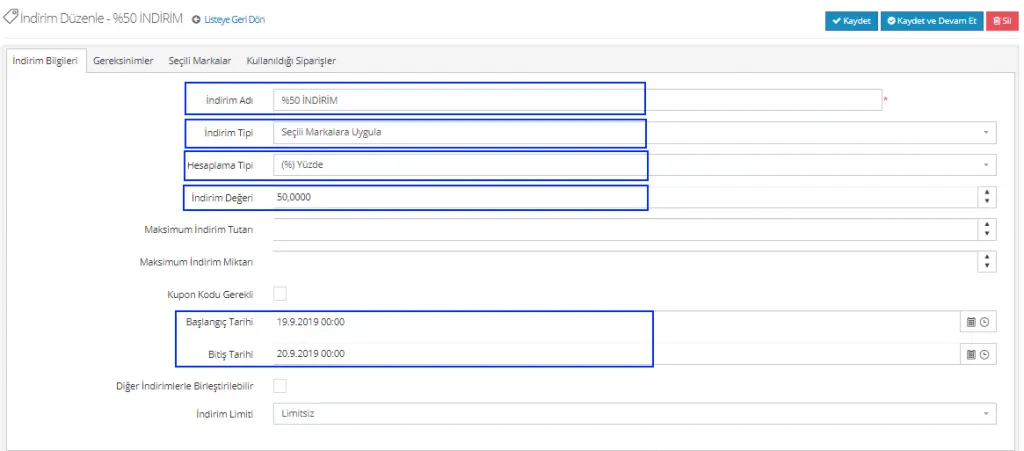
To create the discount
Discount Type: Apply to Selected Brands
Calculation Type: (%) Percentage
Discount Value: set to 50.
With this, we have told the system that the discount applies only to the selected brands and that the discount value is 50%. If you wish, you can also set a start and end date for the discount.
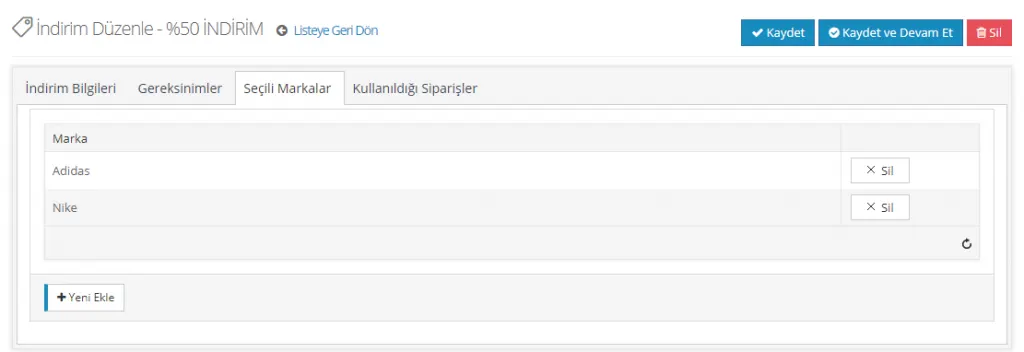
Now let’s add one of these brands to the cart and see how the discount is applied.
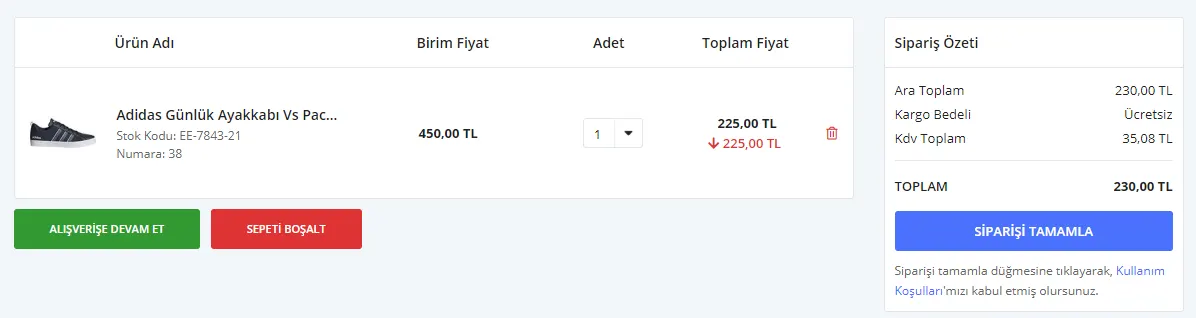
As you can see, the discount was applied to the Adidas product.
Free Shipping Over 100 TL
Let’s look at how to define the frequently used Free Shipping Over 100 TL discount in the system.
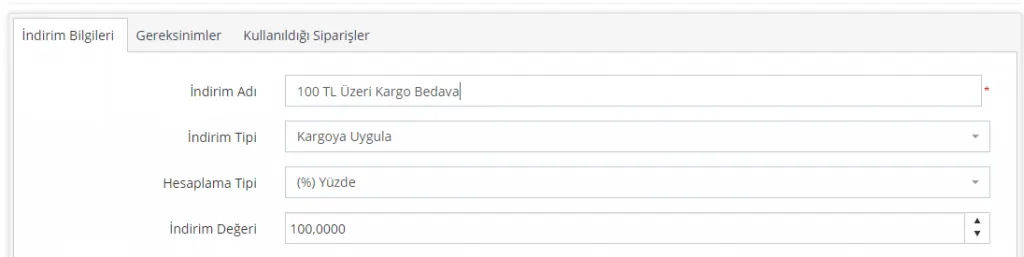
Select Apply to Shipping as the discount type.
Calculation Type: %
Discount Value: set to 100.
With these selections, we have defined a discount that applies to 100% of the shipping cost. We made no changes to the other fields, so the shipping discount has no restrictions on time, product quantity or coupon code.
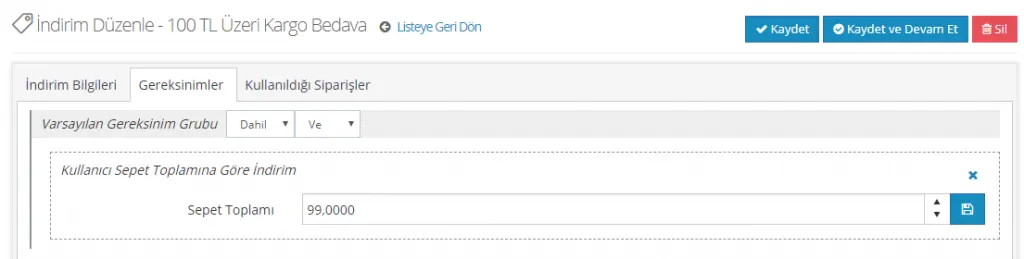
Let’s move on to the Requirements section. Here we select the discount requirement based on cart total and set the cart total to 99 lira. This way, the discount applies when the customer shops for 100 lira or more. To save the requirement, click the blue button right next to it. Then click Save to see the discount in action.
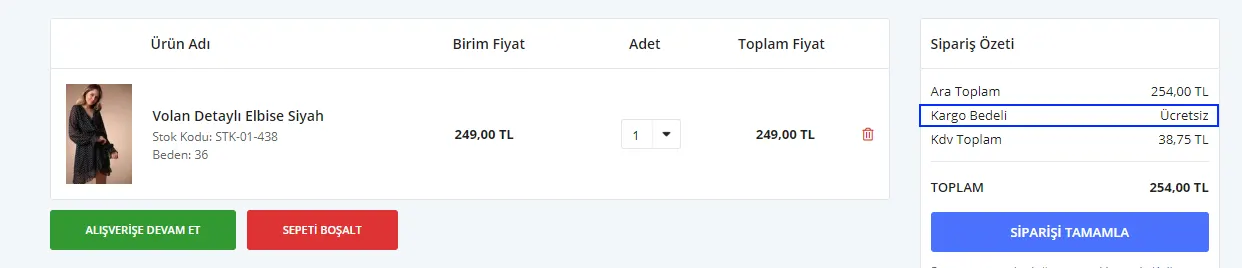
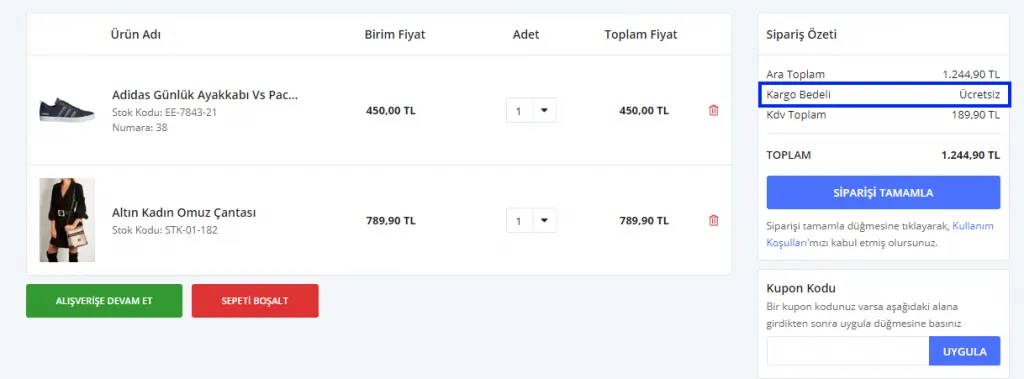
As you can see, because the product is over 100 TL, the Free Shipping discount was applied.
We could also have added some restrictions to this example. Let’s look at them too:
If you want to define a coupon code for this discount, check the field and enter a coupon code.

Again, from the panel you can define a start and end date for this discount.

This way, we set the discount to be valid for a limited period. We can combine the discount with other discounts, and by turning this option off we can prevent customers who use this discount from benefiting from other discounts. We can also set a discount limit.
In the example below, we defined that the discount applies to a maximum of 3 products:

Or we can limit the discount to X uses per customer. For example, let’s say each customer can benefit from the discount only once:

We can make similar additions in the Requirements section too. For example, let’s set this discount to target only the Supplier user group.
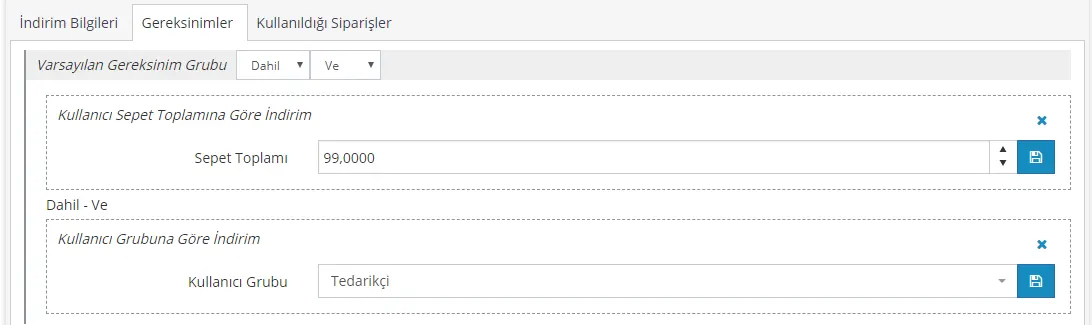
Only the Supplier user group will benefit from this discount, because we activated the Include option. So what would we need to change if we wanted to keep Suppliers out of this discount?
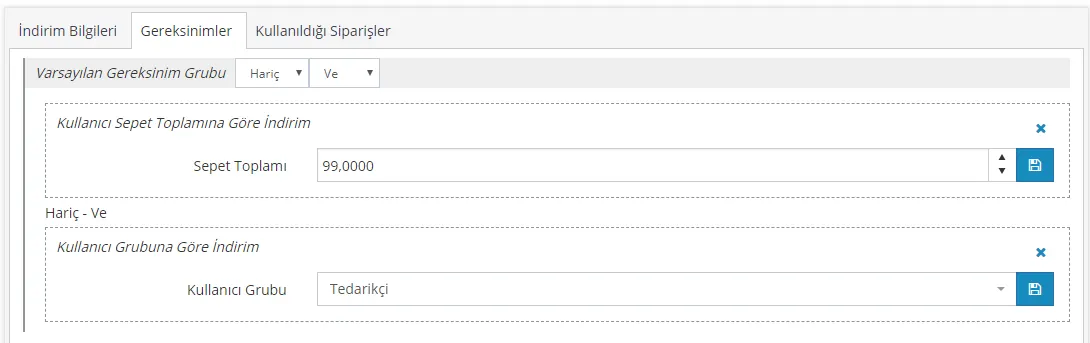
By changing the Include option to Exclude, we left the Supplier group out of this discount.
Let’s move on to another commonly used discount definition…
20% Off the 2nd Product
The 20% discount on the second product is automatically deducted from the cheaper product in the cart.
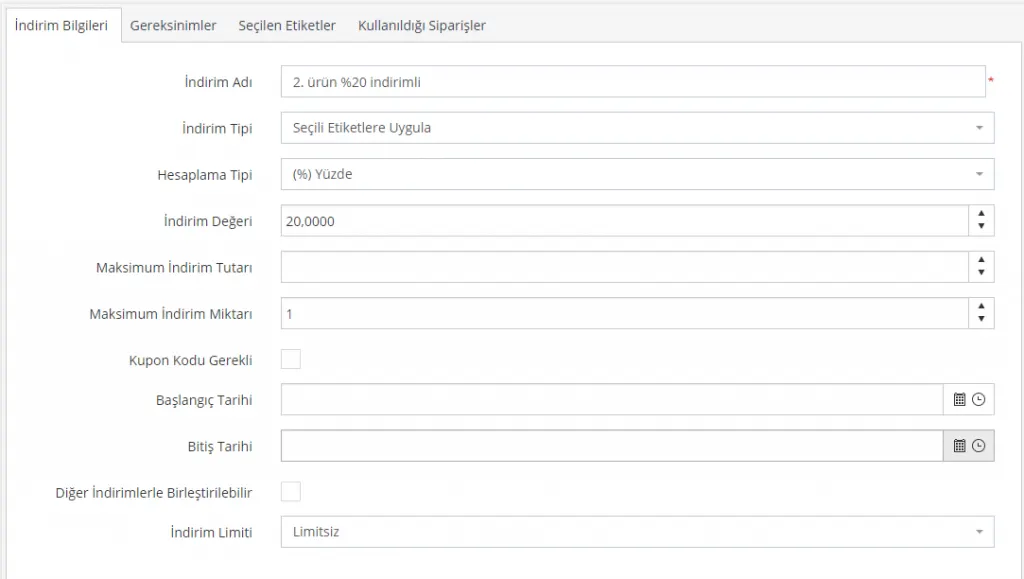
From the CATALOG > PRODUCT TAGS area, click ADD NEW to add a TAG. For all details about Tag Management, see: Tag Management
IMPORTANT: The most important point in this discount is the Maximum Discount Amount. Since all products with the tag are affected by the discount, it is important to enter 1. Otherwise, a separate 20% discount will be applied to every product with the tag.
DISCOUNT TYPE: Apply to Selected Tags
START / END DATE: If you want to define a time-limited discount, you can select dates in this field; if you prefer an open-ended discount, you can leave these fields empty.
In our example we set the calculation type to 20%; you can specify the discount value and calculation type you want and change them. After entering the selections we want in this area, we click SAVE and CONTINUE.
REQUIREMENTS: After selecting When a Product with Selected Tags Is Added to the Cart, we set the Max – Min quantity, find the relevant TAG selection, and click SAVE and CONTINUE.
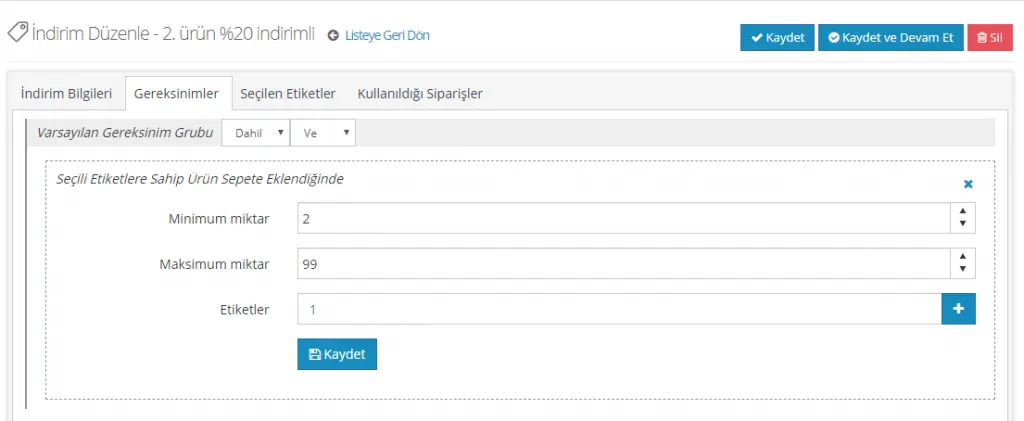
SELECTED TAGS: We need to find the tag we added to the system earlier by clicking ADD NEW, and then click SAVE. Finally, we need to click the SAVE tab in the upper right corner. We can now test the discount by switching to the Customer Interface.
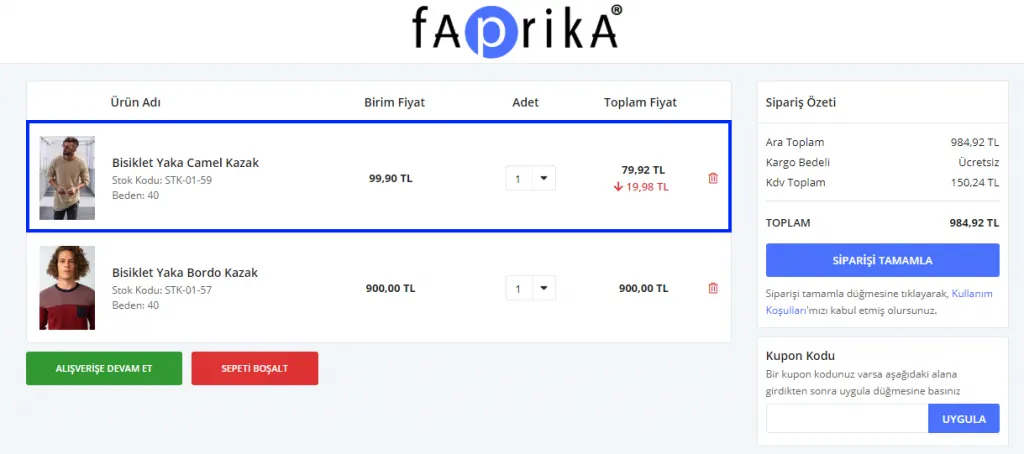
2nd Product for 1 TL
Let’s create the 2nd Product for 1 TL discount.
DISCOUNT TYPE: Apply to All Products
DISCOUNT TYPE: Set Equal To
DISCOUNT VALUE: 1 (With these selections, we set the discounted amount equal to 1 TL)
MAXIMUM DISCOUNT AMOUNT: 2 (you can fill in this field if you want to limit the discount to a certain number of products)
Let’s click the Save and Continue button.
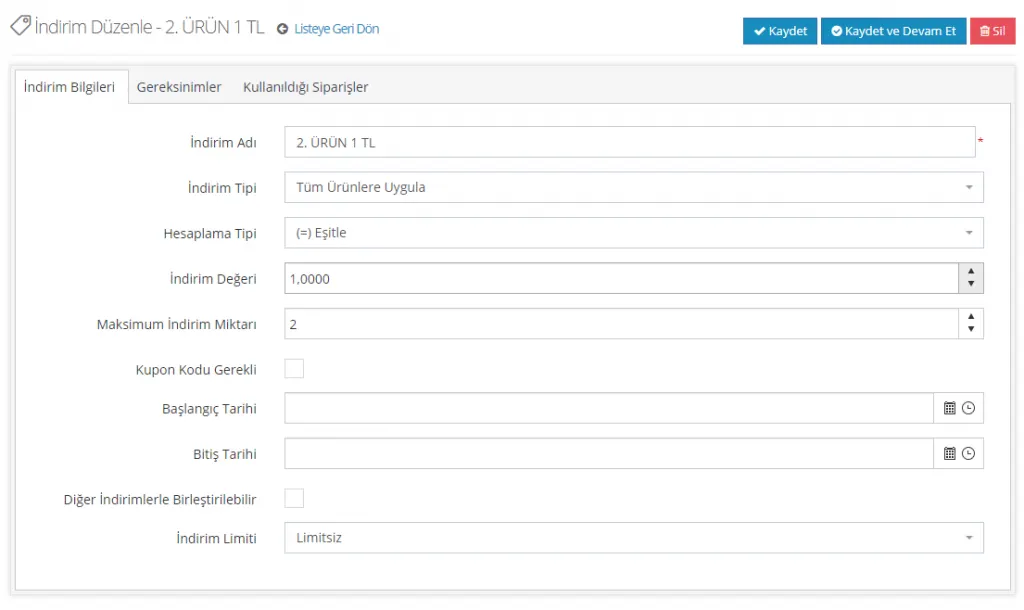
We did not set any extra requirement for this discount. Because we chose Apply to All Products, the discount will be valid for all products, but since we selected 2 products in the maximum discount amount field, a maximum of two products can be purchased for 1 TL.
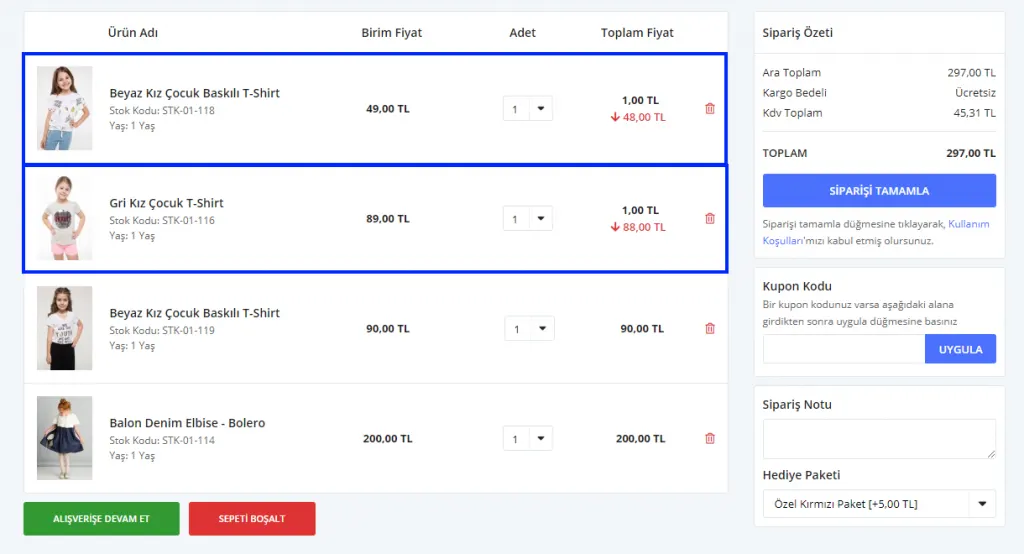
We recommend always testing such discounts on the customer page before publishing them. Otherwise, you may end up with an unintended extra discount.
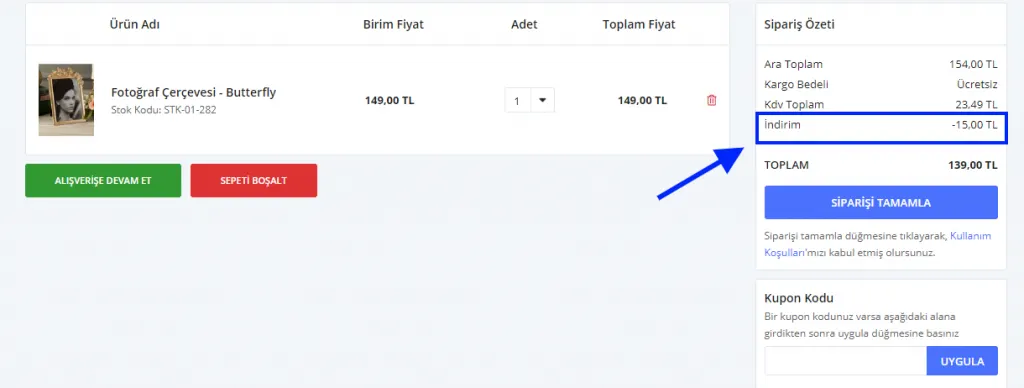
15 TL Off When the Cart Is Over 100 TL
It is one of the most preferred discounts. It gives your customers a partial discount above a certain amount.
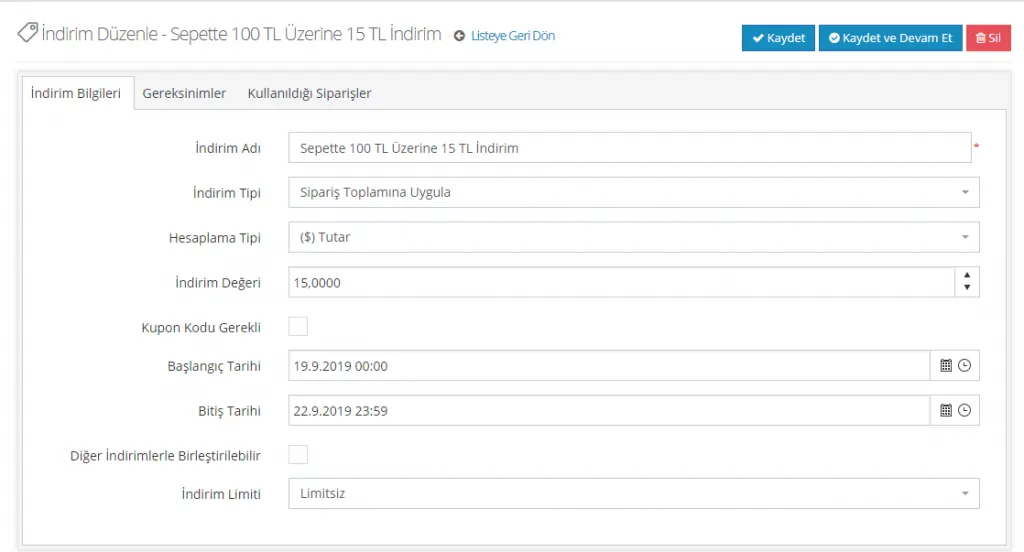
DISCOUNT TYPE: Apply to Order Total
CALCULATION TYPE: In the example, AMOUNT was selected. You can also change it to % or Set Equal To.
DISCOUNT VALUE: The value you enter in this field is important because it determines the discount amount. Write it thinking of the discount you want to give, such as 15 TL or a 15% discount. We can finish our work by clicking the SAVE tab. Our customers will get a 15 TL discount when the Order Total is over 100 TL while shopping on our site.
START / END DATE: If you want to define a time-limited discount, you can select dates in this field; if you prefer an open-ended discount, you can leave these fields empty.
Buy 1 Get 1 Free
It is worth noting that this is an eye-catching discount for your customers. It is one of the preferred discounts. To make it stand out even more, it can be extended to 2nd Product for 1 TL. You can also look at the 2nd Product for 1 TL discount on the discounts page.
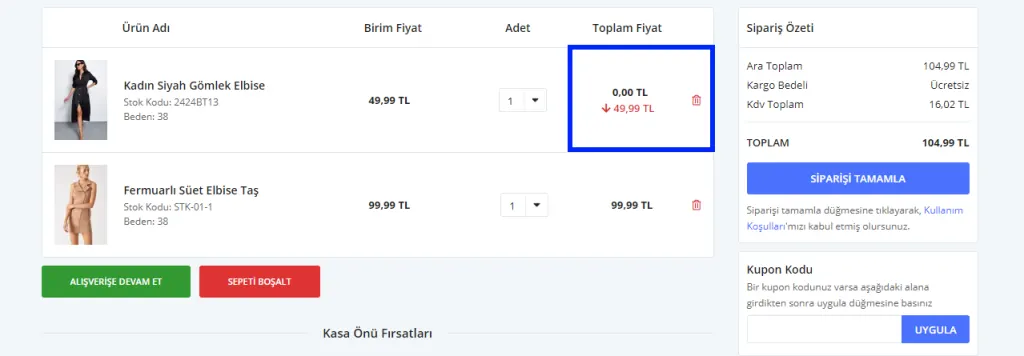
INFO: For example, your customer added 2 products to the cart: Red Stiletto 99.90 TL, Black Dress 169.90 TL. The system will always apply the discount to the lower-priced product. In this case, my Red Stiletto will be 0 TL and the Black Dress 169.90 TL. When I complete the order, the payment I make is only 169.90 TL.
You can view the first page of the example discount below.
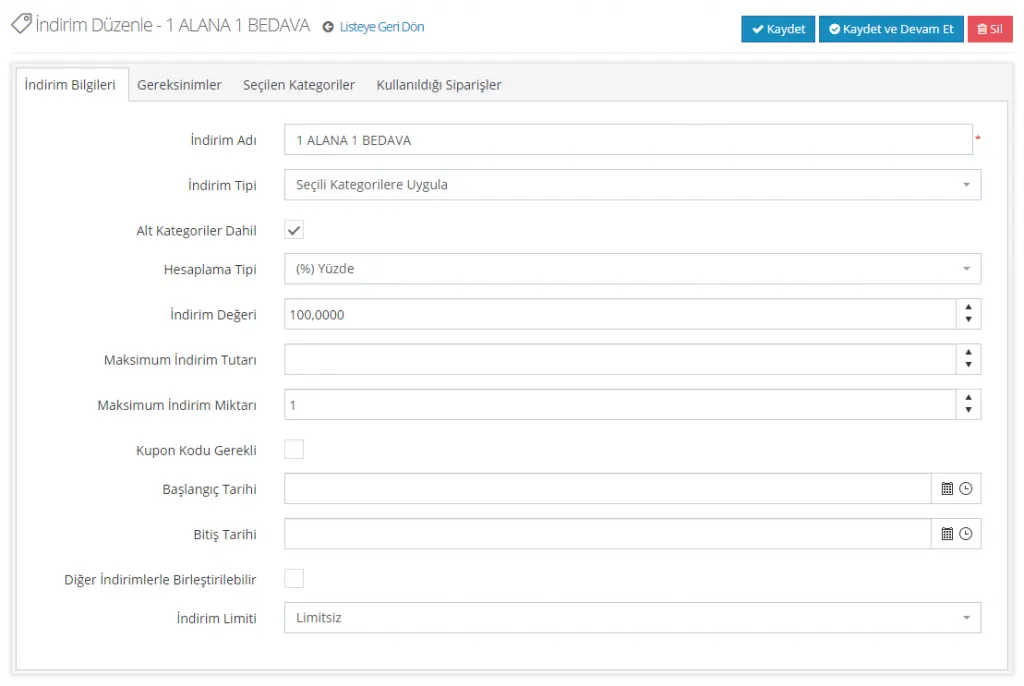
Points to pay attention to on this page:
DISCOUNT TYPE: In our example, the action is based on the SELECTED CATEGORIES selection. However, you can change this field. Selected Products, Brand, Tag, etc. can be used instead.
CALCULATION TYPE: As in our example, if no charge is to be made for the 2nd product, you must select %.
DISCOUNT VALUE: As in our example. If no charge is to be made for the 2nd product, we must enter 100.
MAXIMUM DISCOUNT AMOUNT: To make sure only one product is affected by this discount and the other products are not, we must enter 1.
Let’s move on to the Requirements section:
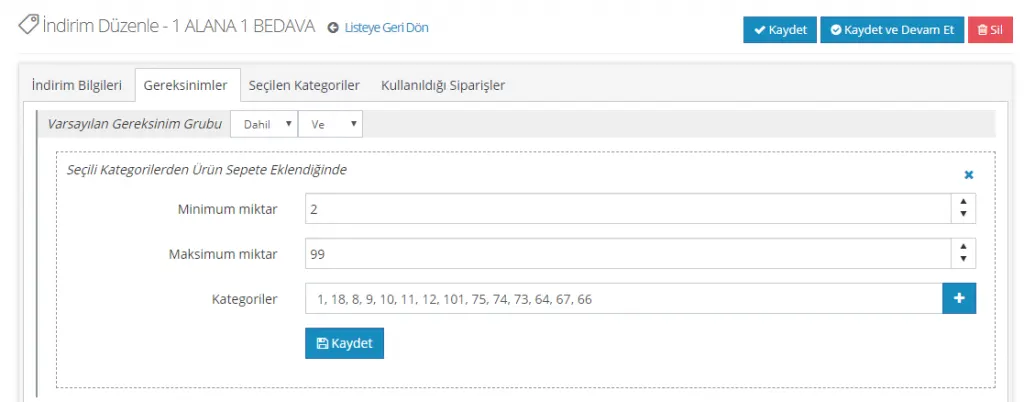
MINIMUM QUANTITY: 2
MAXIMUM QUANTITY: 99
CATEGORIES: In this field, select the categories to which you want the discount applied and click the tab.
As in the image above, after adding the relevant categories we want to discount from this field, we click the SAVE tab.
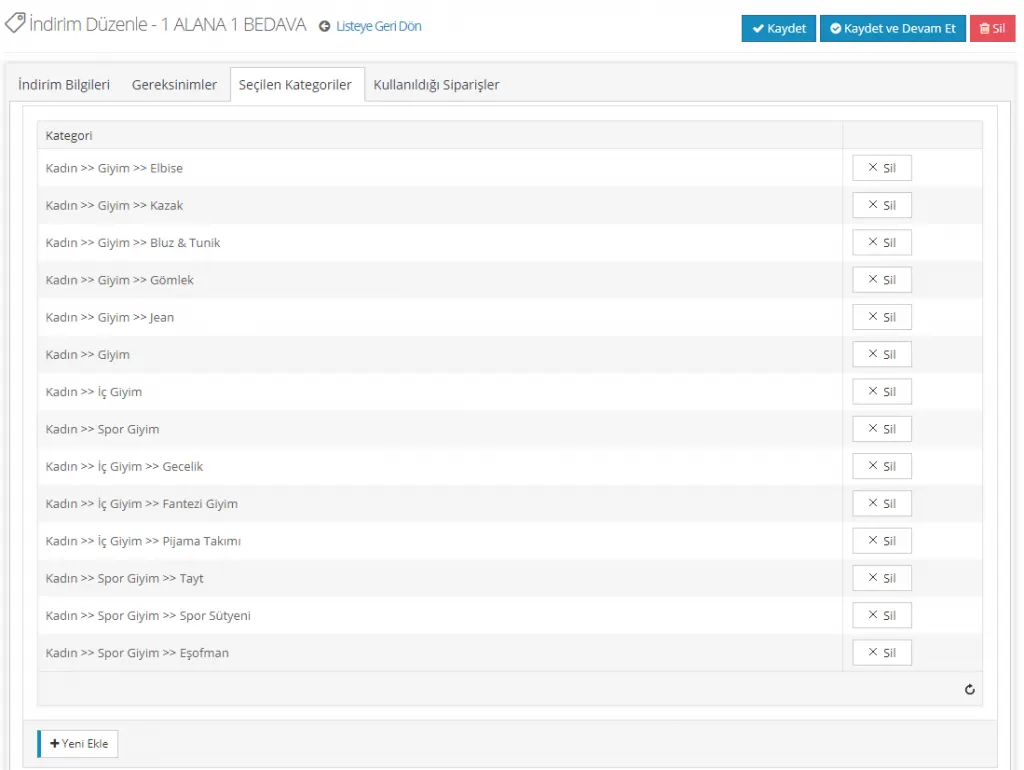
After creating each discount, we recommend adding a product to your cart to check it.
Buy 3 Pay for 2
Now let’s create the Buy 3 Pay for 2 discount.
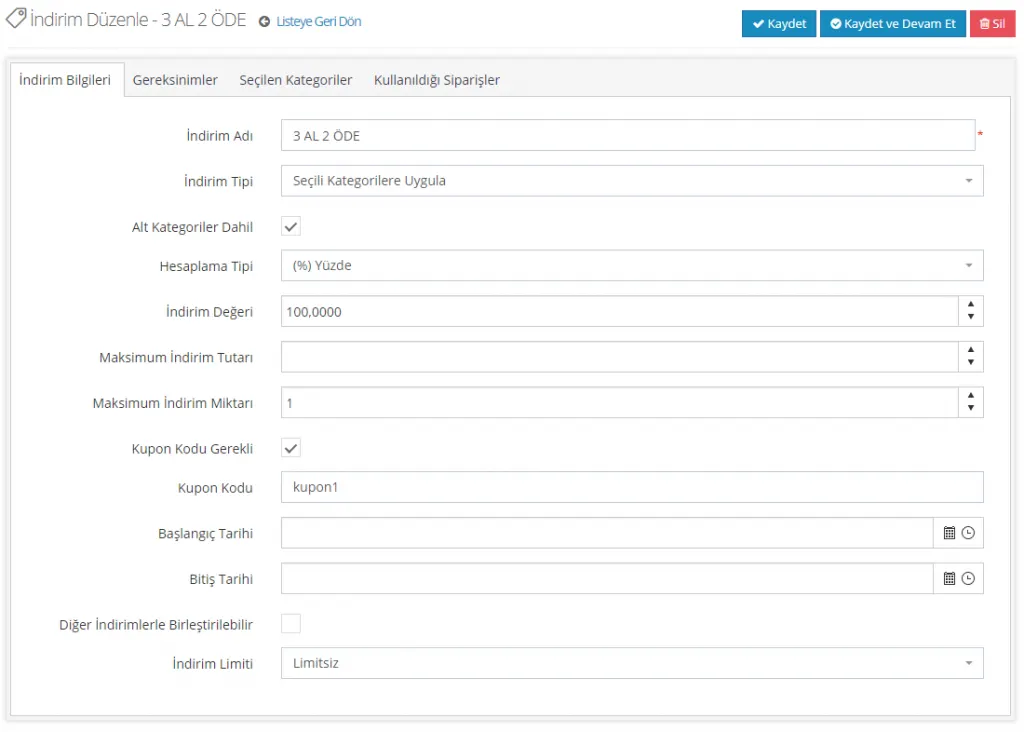
Let’s plan a discount that applies only to the categories we select. This choice is entirely up to you. If you wish, you can design an unrestricted discount for all products, or you can limit the discount to specific categories.
CALCULATION TYPE: (%) Percentage
DISCOUNT VALUE: 100
MAXIMUM DISCOUNT AMOUNT: 1
With these settings, we will provide a 100% discount on the price. However, this discount can be used only once. We want customers to enter a discount code for the discount. We defined this requirement and the discount code in the system. If we do not want a discount code, let’s leave this field empty. We checked the option that allows combining with other discounts. This way, while benefiting from this discount, the customer can also benefit from a valid shipping discount, if there is one. We may also leave this field unchecked.
Let’s move on to the Requirements section:
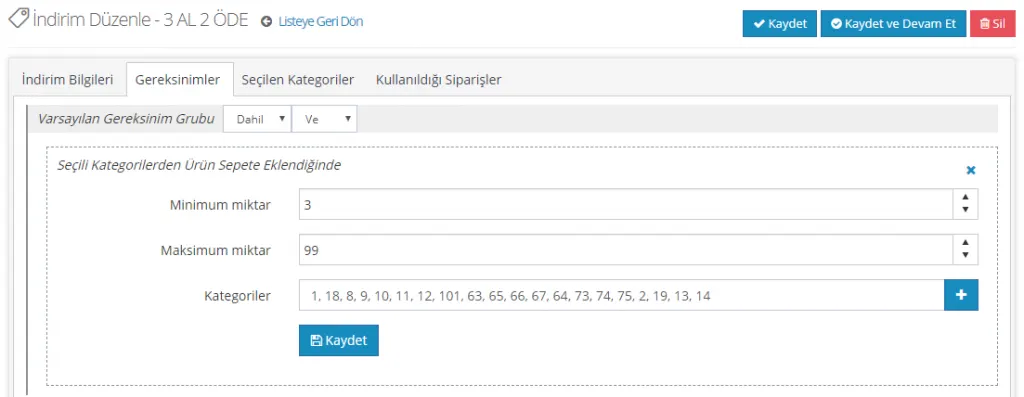
Since the discount will apply to categories, we set the Requirement as When a Product from Selected Categories Is Added to the Cart. Since it will be a Buy 3 Pay for 2 campaign, we set the condition that at least 3 products must be added to the cart. The maximum quantity here is symbolic. Select the categories to which the discount will apply and click the Save button below.
Now let’s look at how the setup works from the customer panel:
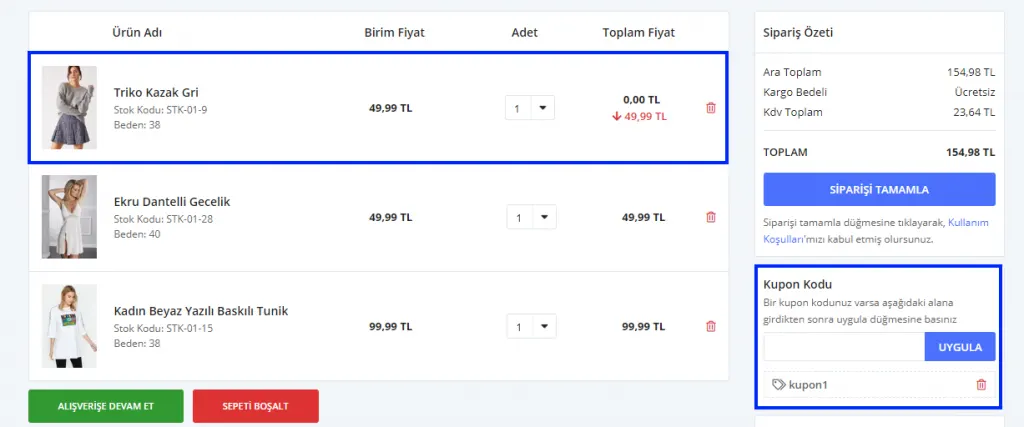
When products are added to the cart, the discount is applied to one of the cheapest products. We enter the code we defined for the discount in the Coupon Code field. This way, the discount will be in effect. Don’t forget to test it before publishing the discount!
Discount by Day of the Week
It lets you create a DISCOUNT based on the days of the week.
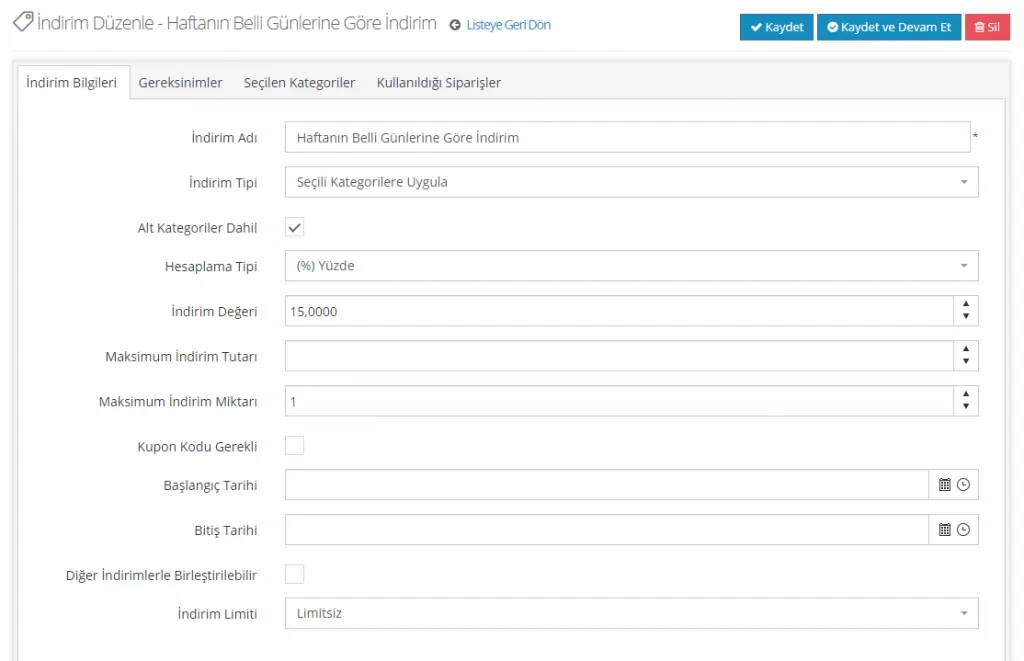
DISCOUNT TYPE: Apply to Selected Category (You do not have to discount a category in this field; you can use the other options too)
CALCULATION TYPE: Percentage (You can also choose Amount or Set Equal To; selecting Percentage is not mandatory)
DISCOUNT VALUE: Depending on the discount option you choose, you must enter an amount. The value you set in this field represents the discount amount.
MAXIMUM DISCOUNT AMOUNT: This is a required field. Since it indicates the number of products the discount will be applied to, make sure you enter the correct number.
By clicking the Save and Continue tab, you can continue filling in the other detail tabs of the discount.
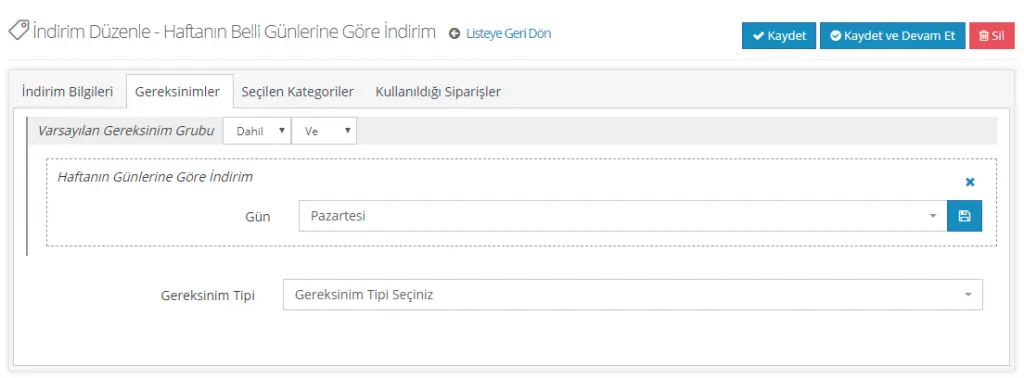
Let’s move on to the Requirements section.
REQUIREMENT TYPE: Discount on Specific Days of the Week can be selected. In this example, we defined the discount for Monday only.
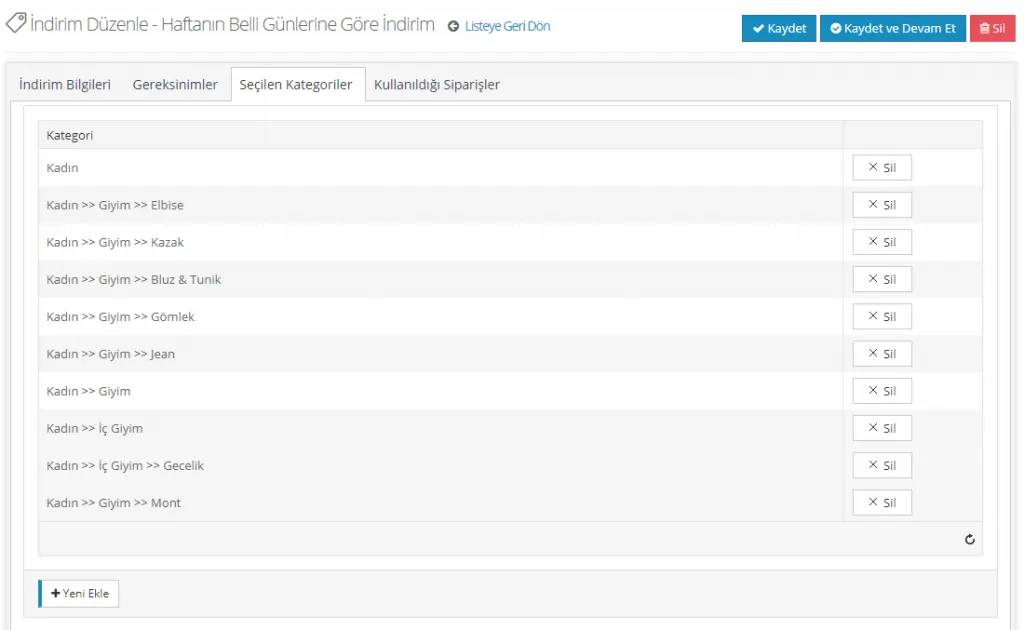
From the SELECTED CATEGORIES field, let’s select the categories we want to apply the discount to. This field opened because we selected categories as the DISCOUNT TYPE. If we had chosen to apply the discount to brands, we would have needed to select brands from this field.
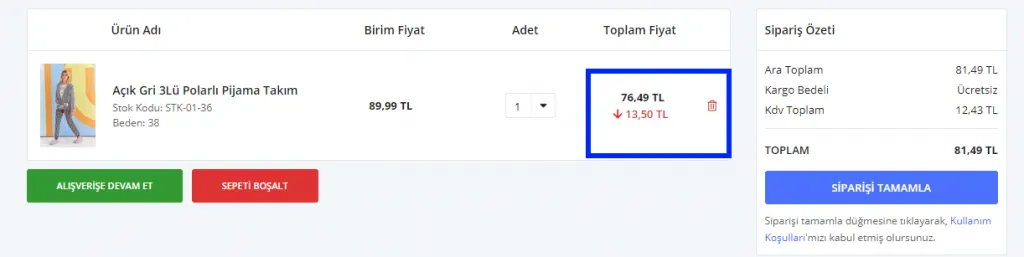
We can create the discount by clicking the SAVE AND CONTINUE button. Checking the discount you created from the Customer Interface will help you avoid mistakes.
Discount by Customer Cart Total
It provides a discount based on the customer’s cart total.
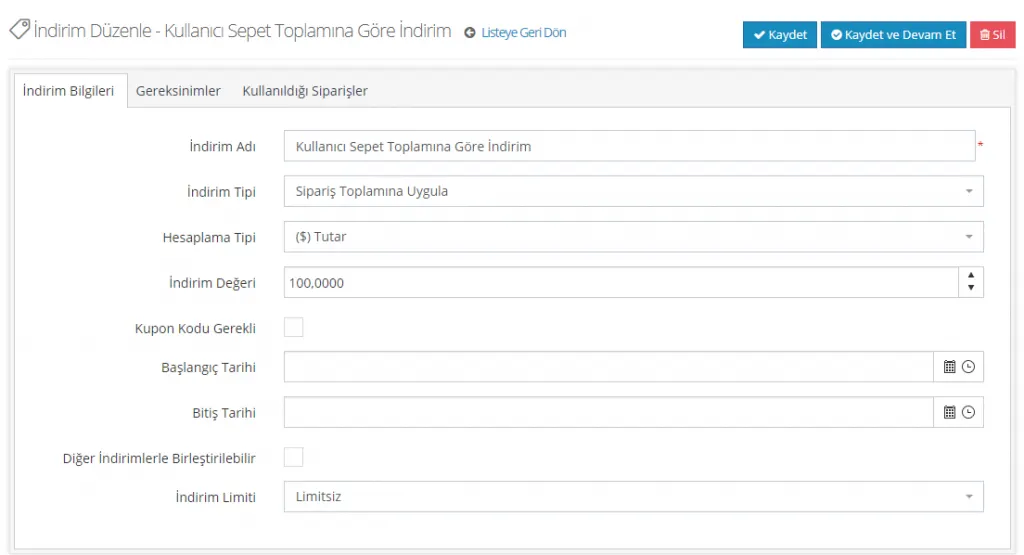
By promising a discount in return for a certain shopping amount, you can encourage your customers to shop more. Let’s look at the example:
DISCOUNT TYPE: Apply to Order Total
CALCULATION TYPE: Amount (A percentage discount could also have been used. It does not have to be Amount)
DISCOUNT VALUE: 100 TL (A different value could also be defined)
From this field, you can also set a start / end date for the discount.
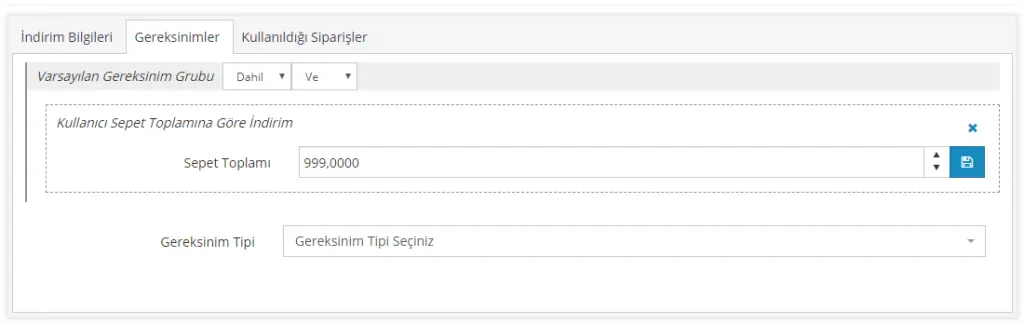
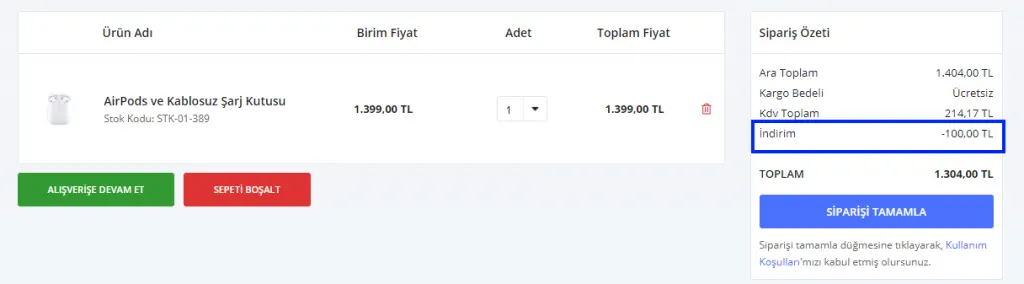
With this discount, we defined a 100 TL discount for customers whose cart product total is 1000 TL or more. Now let’s add products to our cart and test the discount.
Discount by Customer Total Purchases
It provides a discount based on the total of the customer’s purchases. It is a discount applied by looking at the total amount a customer has spent on your site. It is the discount that e-commerce sites apply to their VIP members when they shop above a certain amount.
Now let’s define a free shipping discount for VIP customers.
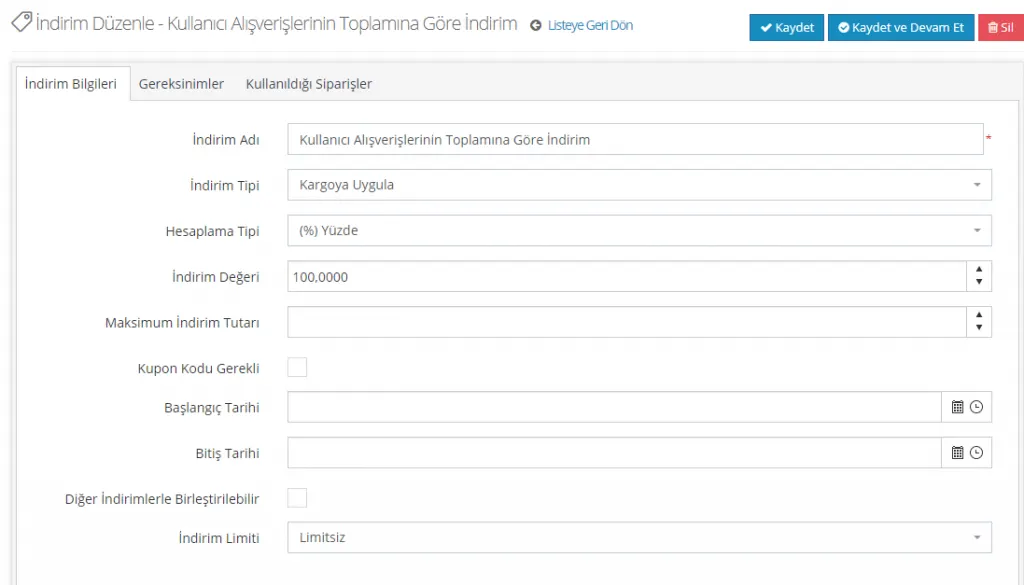
DISCOUNT TYPE: Apply to Shipping (We could have applied this discount to the cart total or made another selection. Applying it to shipping is not mandatory)
CALCULATION TYPE: Percentage
DISCOUNT VALUE: 100 (we filled in the fields this way to select a 100% shipping discount, that is, free shipping)
You can also add a start / end period to the discount, or leave the field empty.
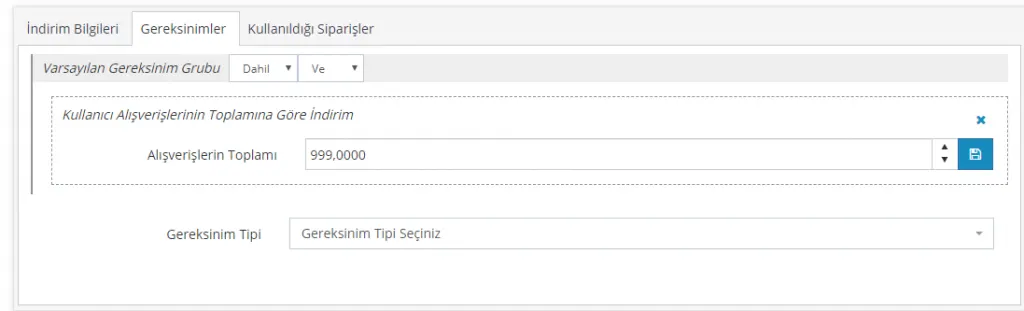
In the Requirements section, we defined that customers’ shopping totals must be 1000 TL or more. Let’s save the changes by clicking the Save button. Now let’s test the discount we created by adding products to the cart from the customer panel.
X Tagged Y Products for 100 TL
Another discount campaign you can choose is the X Tagged Y Products for 100 TL type of campaign. If you wish, let’s start right away to create the ‘Buy 2 Pay 100 TL on Tagged Products’ campaign.
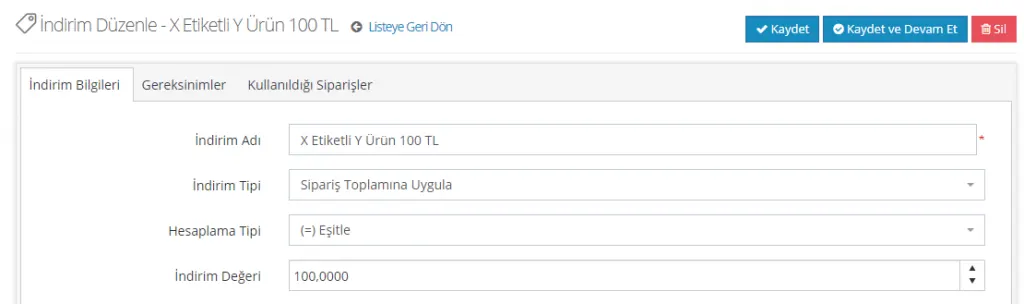
When customers buy two products, the price will be 100 TL. So this discount needs to be applied to the Order Total.
DISCOUNT TYPE: Apply to Order Total
CALCULATION TYPE: (=) Set Equal To
DISCOUNT VALUE: 100
This way, we set the order total equal to 100 TL. However, we need to define some conditions for the discount to apply.
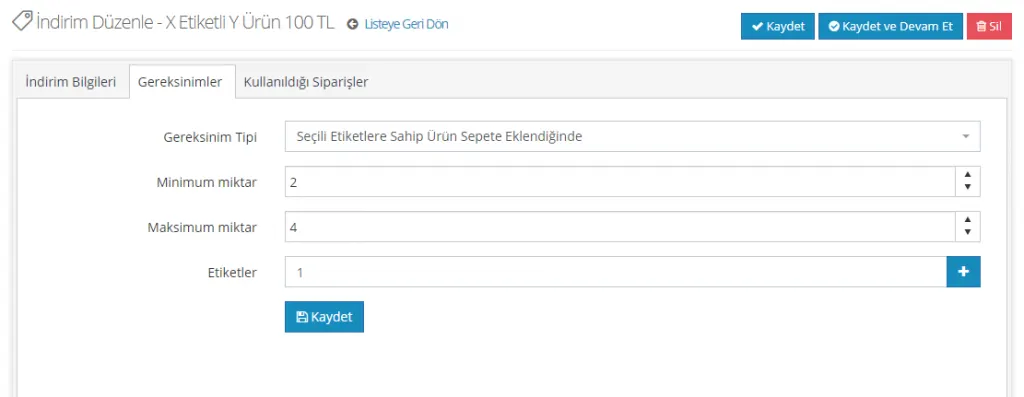
The application will be valid for products tagged ‘New Product’. For it to take effect, we define the ‘When a Product with Selected Tags Is Added to the Cart’ requirement. At least two products must be purchased. In addition, we limit the discount to 4 products, but you may choose not to set a limit. We can add by clicking the plus icon in the Tags field. After making the edits, let’s click the Save button below.
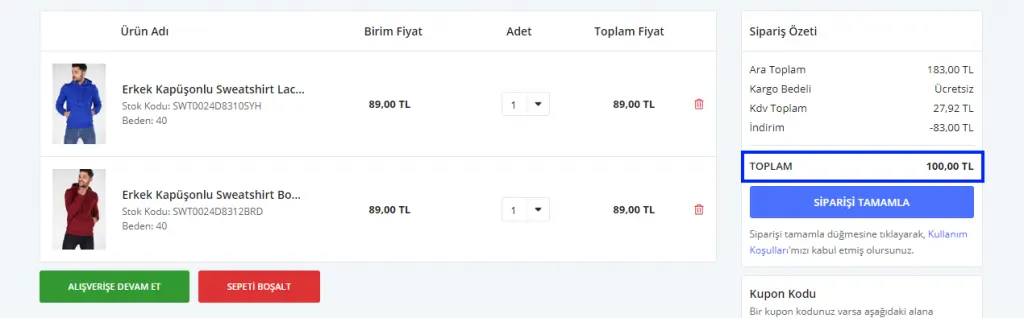
We have defined the Buy 2 Pay 100 TL on Tagged Products campaign. If you wish, let’s also see what result it produces in the shopping cart:
Member-Exclusive Y Discount on X Products
Another campaign comes in the form of Y Discount on X Products, defined specifically for user groups. Let’s define a Member-Exclusive 25% Off on 3 Products campaign.
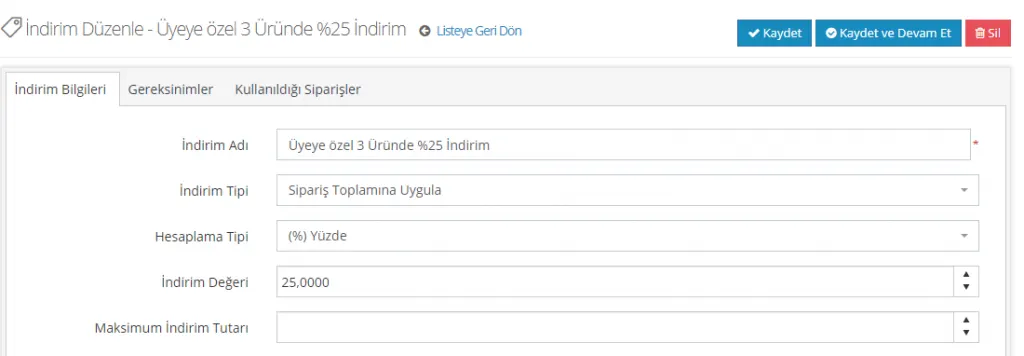
Let’s define the 25% discount that will be applied to the order total.
DISCOUNT TYPE: Apply to Order Total
CALCULATION TYPE: (%) Percentage
DISCOUNT VALUE: 25
Now, let’s define the requirements for this discount.
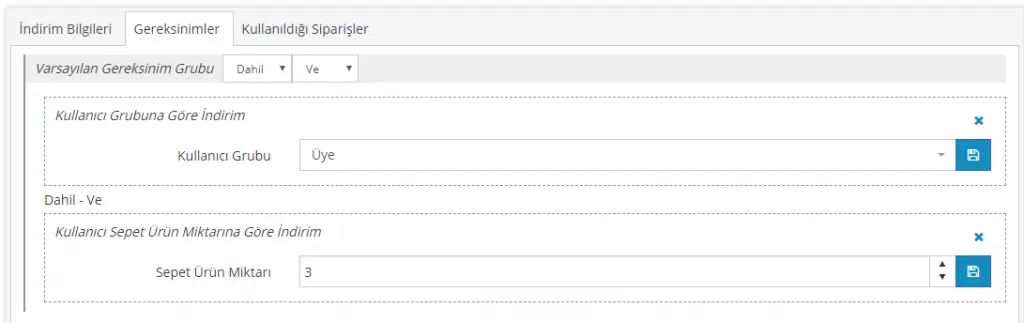
We want this discount to be valid only for Members.
REQUIREMENT: Discount by User Group
USER GROUP: Member
The discount will be valid for Members, but there is also a requirement to purchase 3 products. So let’s add that too.
While the Include/and option is active;
REQUIREMENT: Discount by Customer Cart Product Quantity
CART PRODUCT QUANTITY: 3
We have defined the discount. Let’s verify it right away:
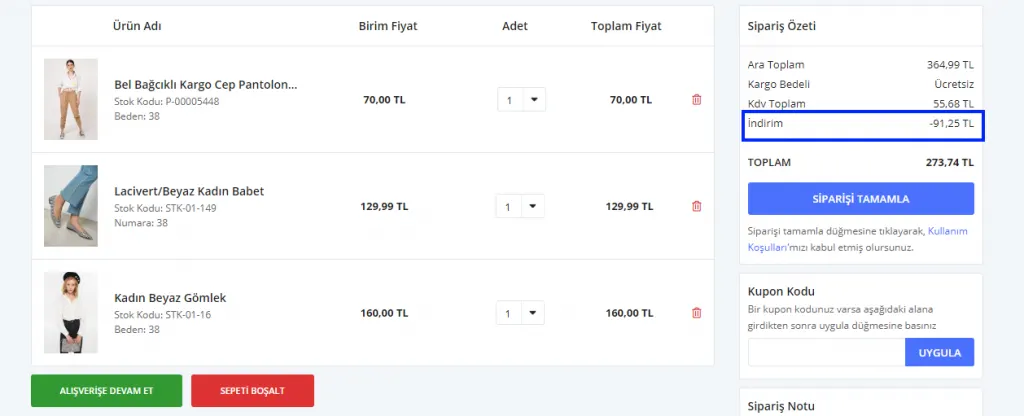
As you can see, a 25% discount was applied to the five products and 91.25 TL was deducted from the total price. So what do we do if we want to set a limit on this discount amount? For example, let's say the discount should apply but not exceed 50 TL.
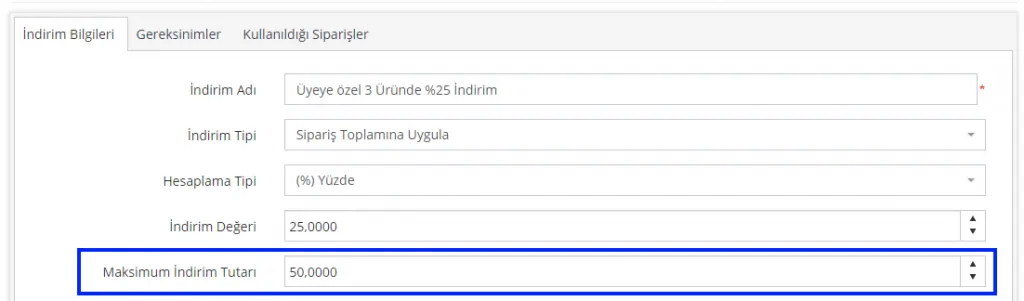
Now let's look at the price change in the cart:
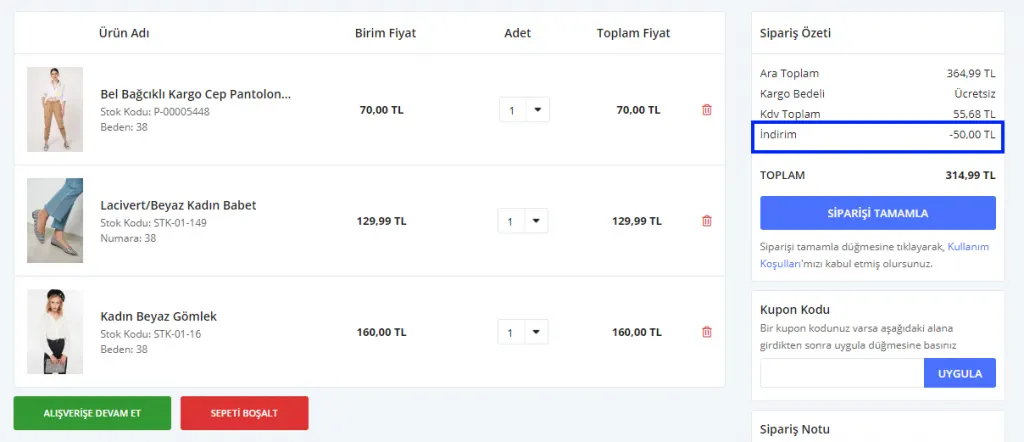
As you can see, even though there was no change in the campaign or the purchased products, the discount value was capped at 50 TL.
Discount campaigns are of course not limited to these. Through our panel you can define hundreds of different discounts. By using and/or and include/exclude combinations, you can build different setups.
Important reminder: Don't forget to test the discounts you create before offering them to your customers. This way you can avoid incorrectly applied discounts.