Content Management
Announcement Management
What Is Announcement Management?
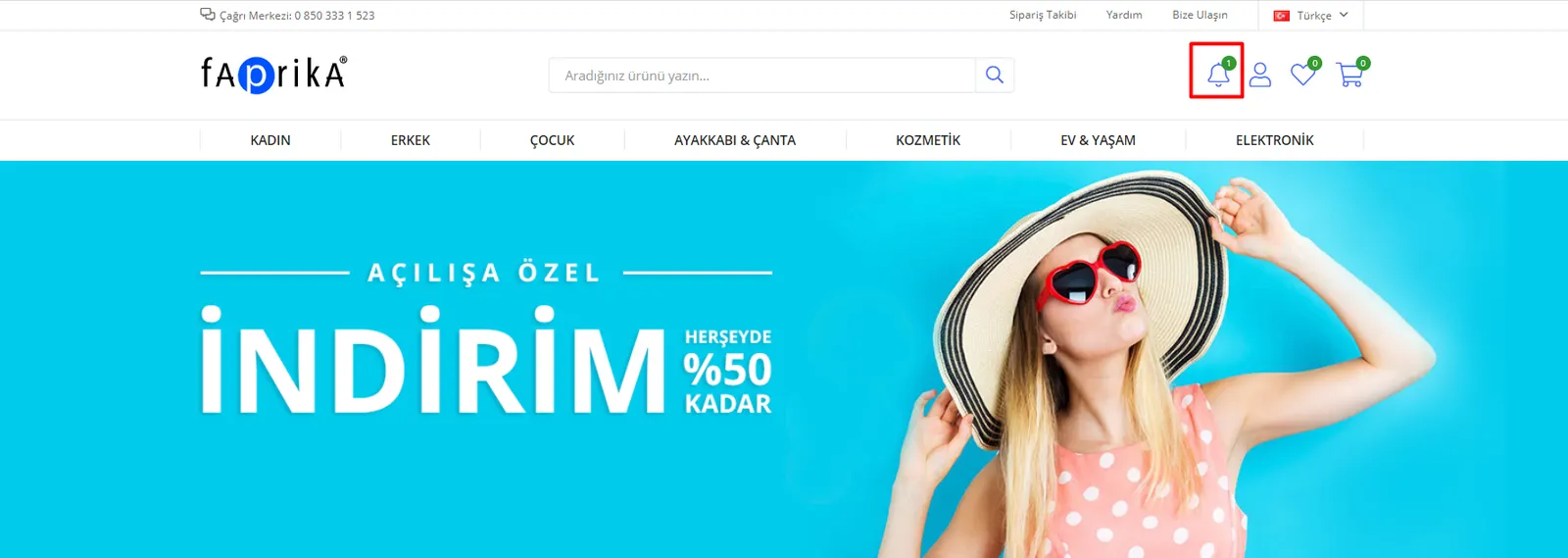
Announcement Management is the area that lets you announce campaigns, news and similar matters that you want customers logging in to your site to see. In the Faprika theme, it is located at the top right of the Home Page. Above the bell icon, you can see how many announcements you have already defined.
As you can see in the image, there is currently 1 announcement on our site.
How Do I Create an Announcement?
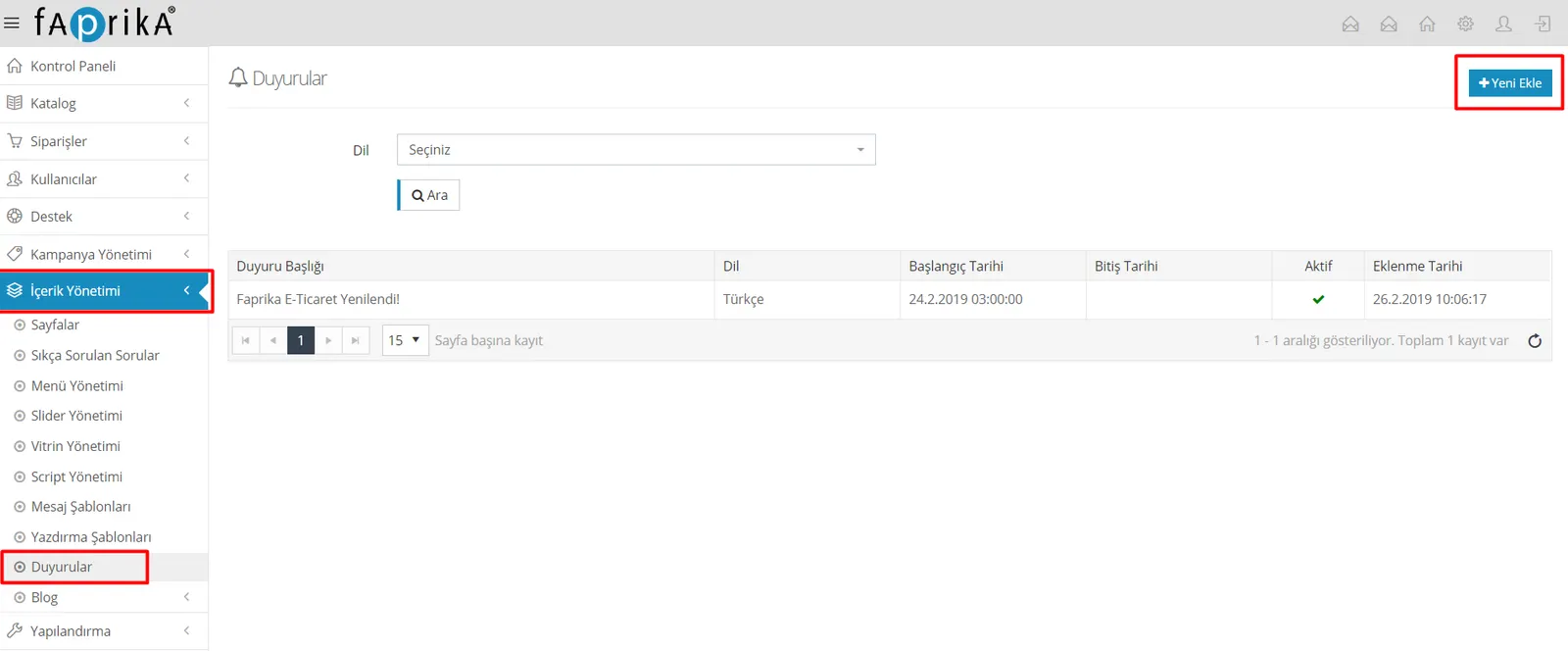
Let’s create an announcement together. Suppose we want to announce a discount we have made in the “Women / Sweaters” category on our site. After following the “Content Management >> Announcements” steps in the panel, let’s click “Add New”.
The screen below will greet us. Let’s look at what we can do on this screen.
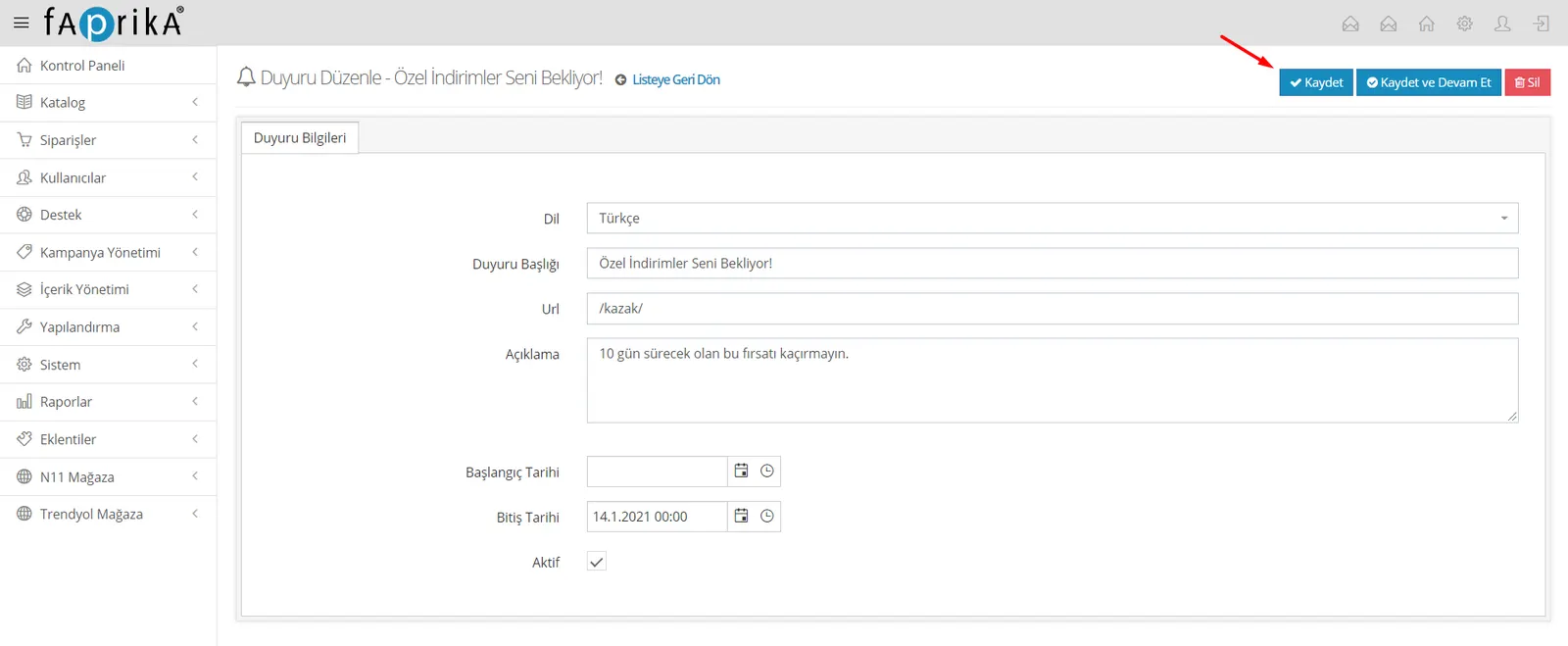
Language : In this field you can specify the languages in which the notification should appear. Your store language is selected by default.
Announcement Title : The title of our announcement; it will appear in bold by default.
Url : If we want to redirect to a page within the site when the announcement title is clicked, we can specify the page URL in this field.
Description : The description that will appear under the announcement title.
Start Date : The start date of the announcement we create. Even if we leave this field empty, this date will appear in the announcement notification.
End Date : The field where we can determine until which date the announcement stays live. It removes the announcement on the date we set, without us needing to enter this panel again.
Active : If we have not set an end date and want to publish the announcement again later, this field lets us easily switch it to inactive/active without deleting the announcement.
After making the necessary adjustments, let’s not forget to click “Save”.
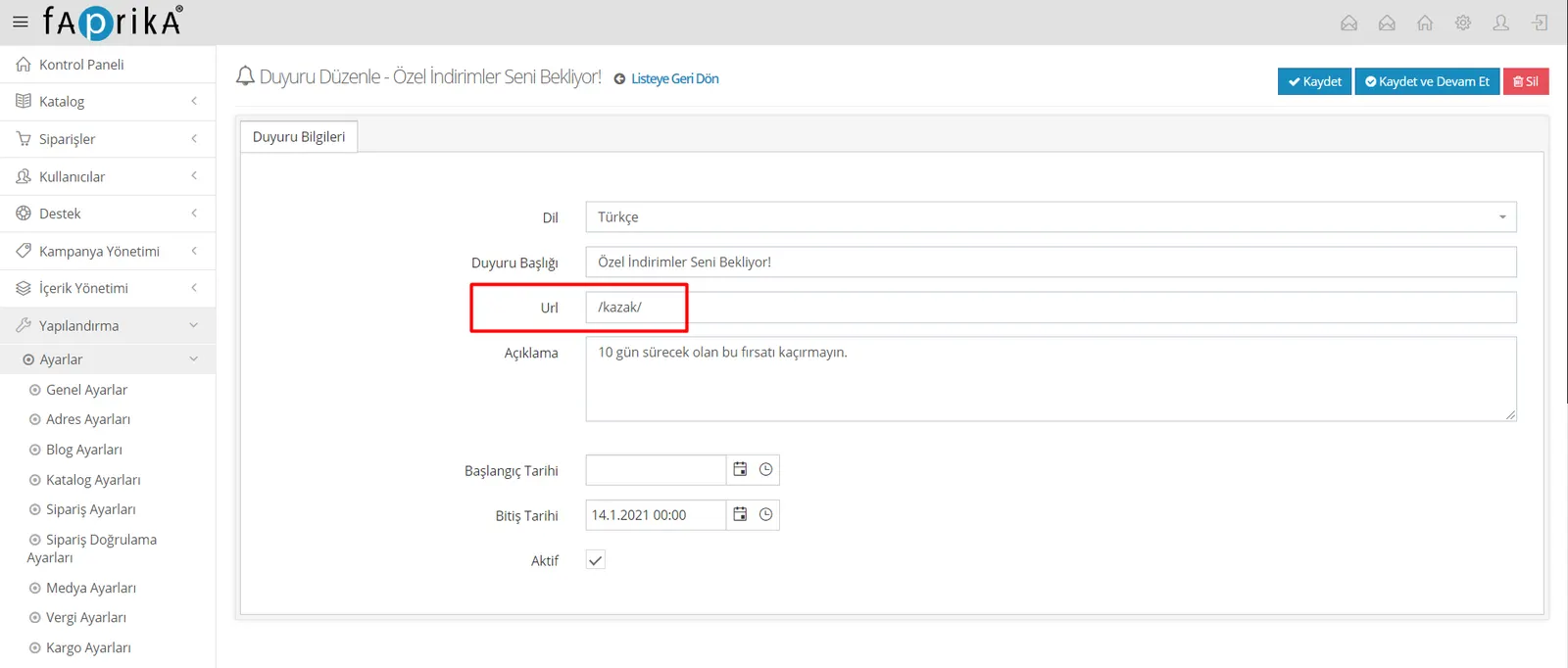
In our example, we said we would apply a special discount to the sweater category. Now let’s see how to set up the “Url” redirect. That is, suppose we want the Women / Sweaters page to open when the announcement title is clicked.
To do this, open the relevant category (page) on your site and copy the part of the address bar that remains after your domain name (your site address);

and paste it into the “Url” field on the announcement screen.
Now let’s see how the announcement we created looks. Let’s click the Announcement Title, that is, the text “SPECIAL DISCOUNTS ARE WAITING FOR YOU!” in our example.
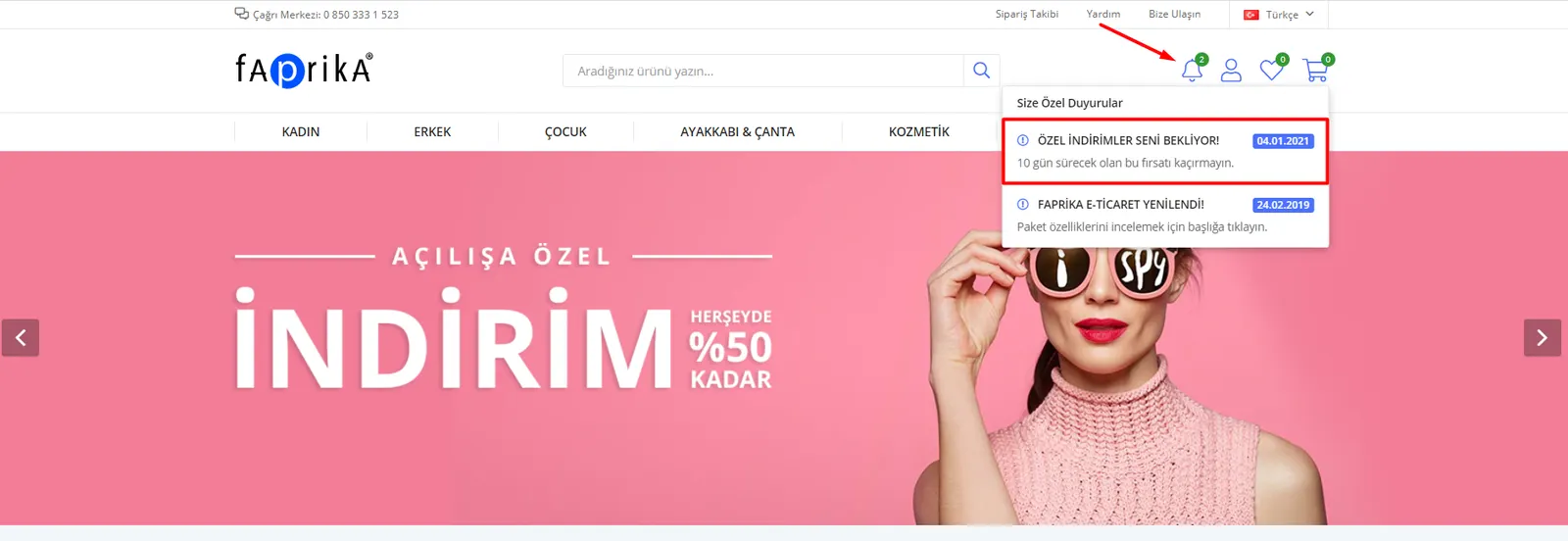
When the link shown in the image is clicked, it will automatically redirect us to the ‘Women / Sweaters’ category that we specified.
Thanks to this tutorial, you can now create your own announcements in a matter of seconds.