Content Management
Menu Management
Content Management >> Menu Management The panel that lets you edit the menu area of your site is the Menu Management panel.
In This Tutorial
- MENU INFORMATION
- Parent Menu
- Menu Type
- ID
- Menu Language Selection
- Menu Title
- Menu Template
- Classic Menu
- 2-Level Half Menu
- 2-Level Full Menu
- 3-Level Half Menu
- 3-Level Full Menu
- Menu Direction
- Number of Columns
- Order
- Open in New Window
- Bold Font
- Italic Font Style
- Active
- Date Added / Updated
- ADDING A MENU IMAGE
- DEACTIVATING A MENU
- DELETING A MENU
Content Management >> Menu Management
The panel that lets you edit the menu area of your site is the Menu Management panel.

Changes made to the menu are displayed in this area. For this reason, optimizing it is extremely important.
In the Menu Management area, you are greeted by this page:
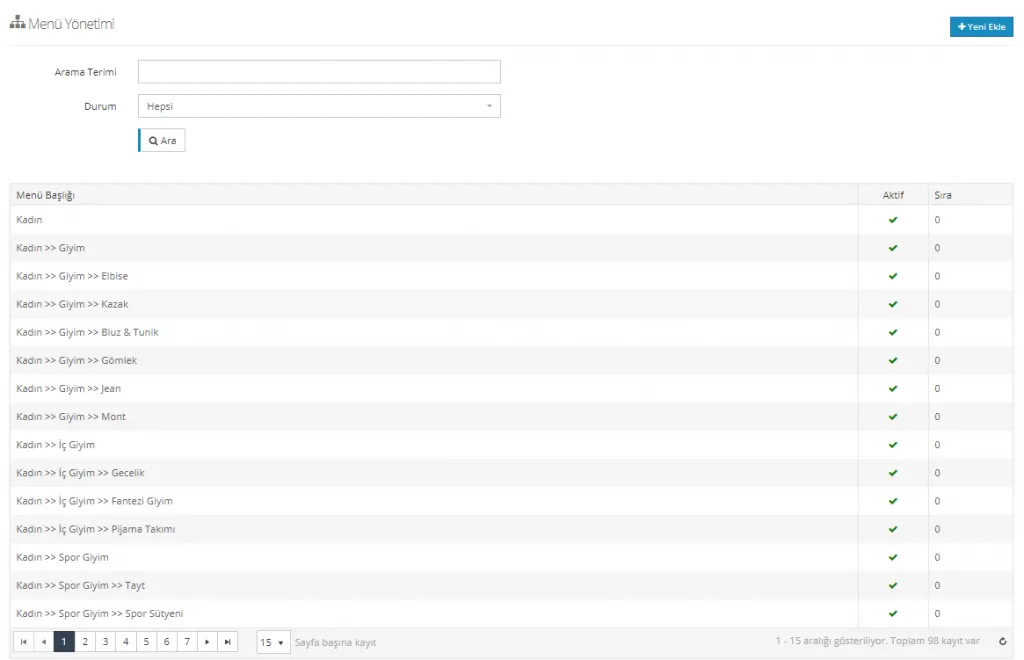
This panel contains a main and search panel listing the menu titles that have been added before. You can edit these menu titles by clicking on them one by one. Here, you can search for menu titles added to the system, list active and inactive titles, and perform sorting and editing operations. When you want to add a new title, you need to click the Add New button at the top right.
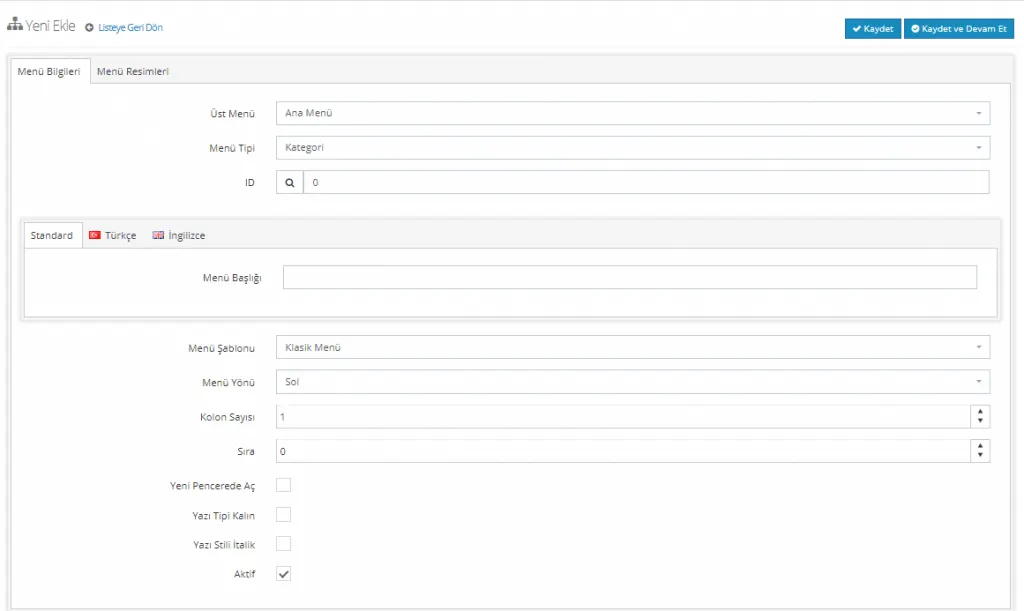
MENU INFORMATION
The menu information area contains fields that let you set the Parent Menu and select the Menu Type.
Parent Menu
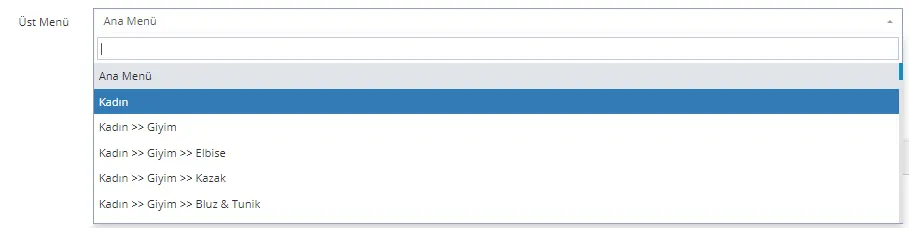
Parent Menu indicates which parent menu the new menu to be added is attached to. If 'Main Menu' is chosen as the Parent Menu, the changes made are displayed in the menu area of the Home Page.
Let's continue with an example. Let's move the Mother & Baby category to the menu.
Let's select Main Menu so that the category is displayed on the home page. By selecting this field, we can also assign subcategories.
Menu Type
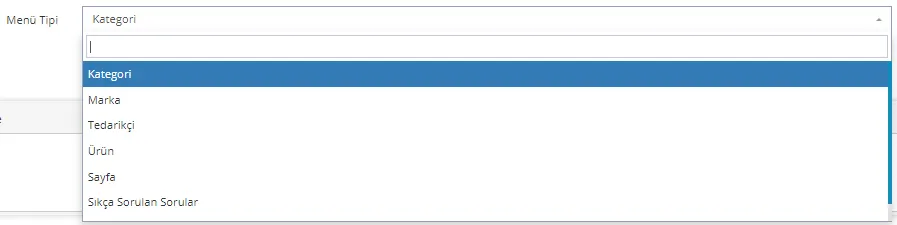
Menu Type selection is where you specify whether the title you create is a Category, Brand, Supplier, Product, or a Page or Frequently Asked Questions. Since our example is Mother & Baby, we need to select Category here.
ID
The ID field lets us match the menu we are about to open to the selected menu type. For example, if Category was selected as the Menu Type, clicking the magnifier in the ID field lists all categories registered in the system. If you selected a brand, the registered brands will be displayed in this field. The same rule applies to suppliers, products, pages, and frequently asked questions. This field links the title you want to carry to your menu with the appropriate category/page/brand/product/supplier/frequently asked questions.
Since we are working with the Mother & Baby category in this example, we will get the full category list in this field too. Let's find the Mother & Baby category in the ID field and match it with the menu title.
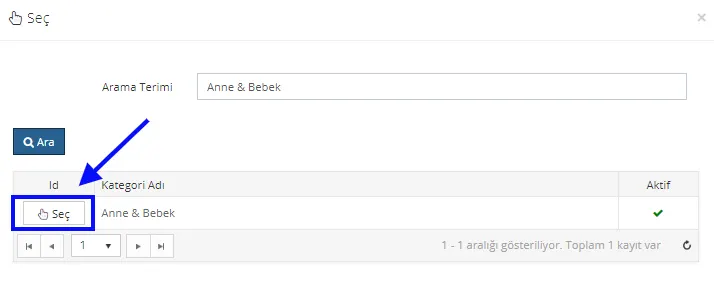
By clicking the Select button, let's match the Mother & Baby menu title we will create with the Mother & Baby category.

When we press the Select button, the system automatically adds the category's ID code to the panel. Let's continue our process by making the other edits.
Menu Language Selection
You can choose a language for the menu title. The options are Standard, Turkish and English. Standard and Turkish work the same way, so choosing one of them is enough. If you would like an additional language, you can easily set it up by contacting our support team.
Menu Title
In the Menu Title field, we enter the name we want to create. Let’s continue with our example and type Mother & Baby in this field.

Menu Template
If you will use sub-headings in the menu you create, the choice of menu template matters. The template options are Classic Menu, 2nd Level Half Menu, 2nd Level Full Menu, 3rd Level Half Menu and 3rd Level Full Menu.
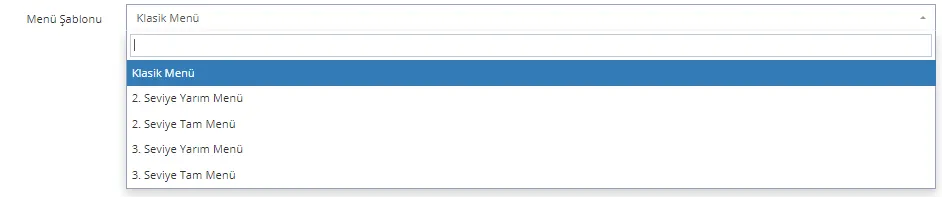
So what changes happen when we make these choices? Let’s take a look together.
Classic Menu
In the menu template field, we select Classic Menu and click the Save and Continue button. Then we can preview how the change appears on the Home Page.
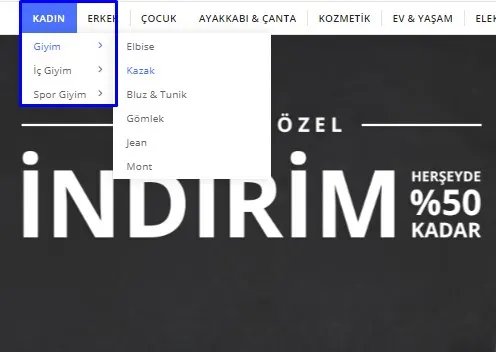
With the classic template, categories are displayed one below the other. Subcategories become visible when you click the arrow icons.
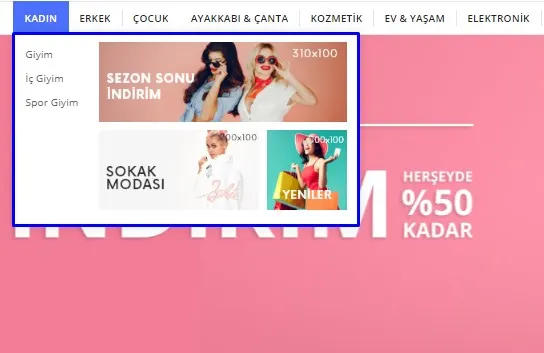
2nd Level Half Menu
When the 2nd Level Half Menu template is selected, subcategories are listed one below the other while banners are shown in the area on the right.
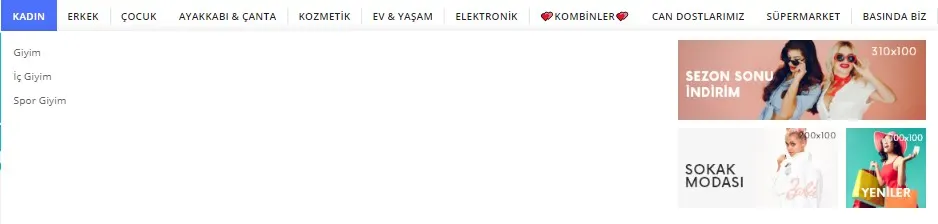
2nd Level Full Menu
If the menu template is set to the second level full menu, the template area covers the entire menu area.
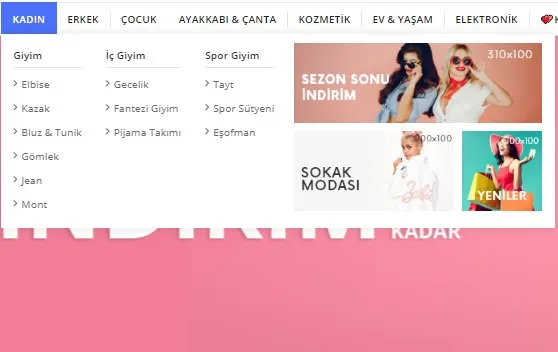
3rd Level Half Menu
If the 3rd Level Half Menu is selected as the menu template, subcategories are also displayed in the template area.
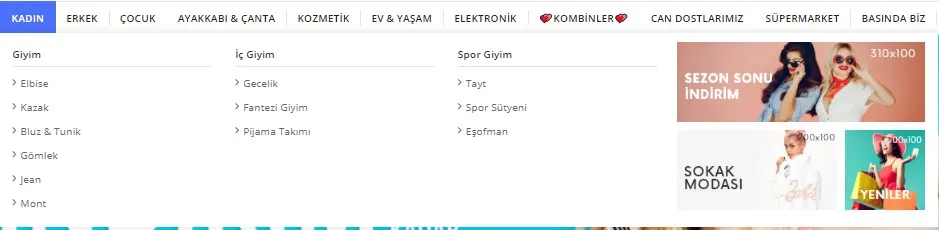
3rd Level Full Menu
If the 3rd Level Full Menu is selected as the menu template, the template area covers the entire menu area.
After choosing the menu template, we continue from where we left off by clicking the Save and Continue button.
Menu Direction
The Menu Direction setting determines which way the menu opens. The options are Left or Right. When Right is selected, the menu opens to the right; when Left is selected, it opens to the left.

Number of Columns
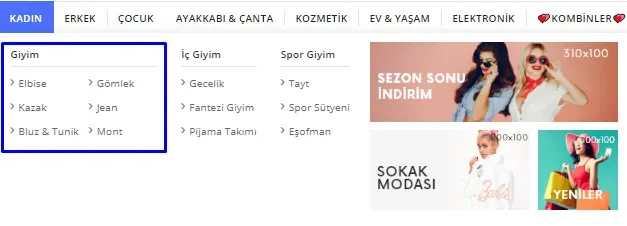
With the number of columns setting, you can decide how many columns the subcategories will be arranged in.

For example, let’s select 2 columns for the Women >> Clothing subcategory.
Order
So how do we order the categories? It’s very simple. All we need to do is type the number we want in the order field.

For example, let’s set an order for the subcategories and type 3 in the order field to move the Clothing category, which appeared first in the earlier examples, to 3rd position.
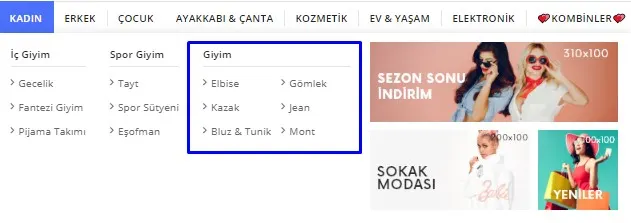
As you can see, the Clothing subcategory moved to third position after this ordering. Can we apply the same process to main categories? Using the same method, let’s move the Women main category to the last position.
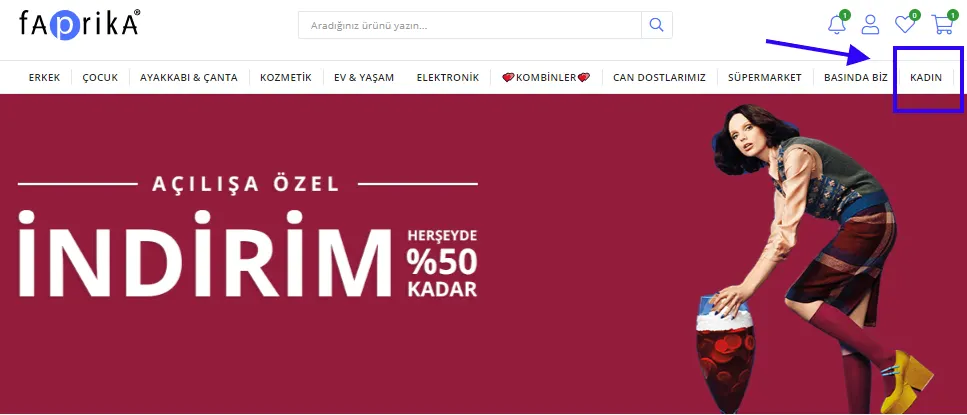
As you can see, using the Order field we can reposition both main categories and subcategories.
Open in New Window
If you check this field, the selected menu is shown in a new tab.

Bold Font
When this option is checked, the menu title appears in a bold font.

Italic Font Style
When this option is checked, the menu title appears in an italic font.

Active
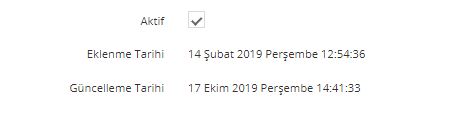
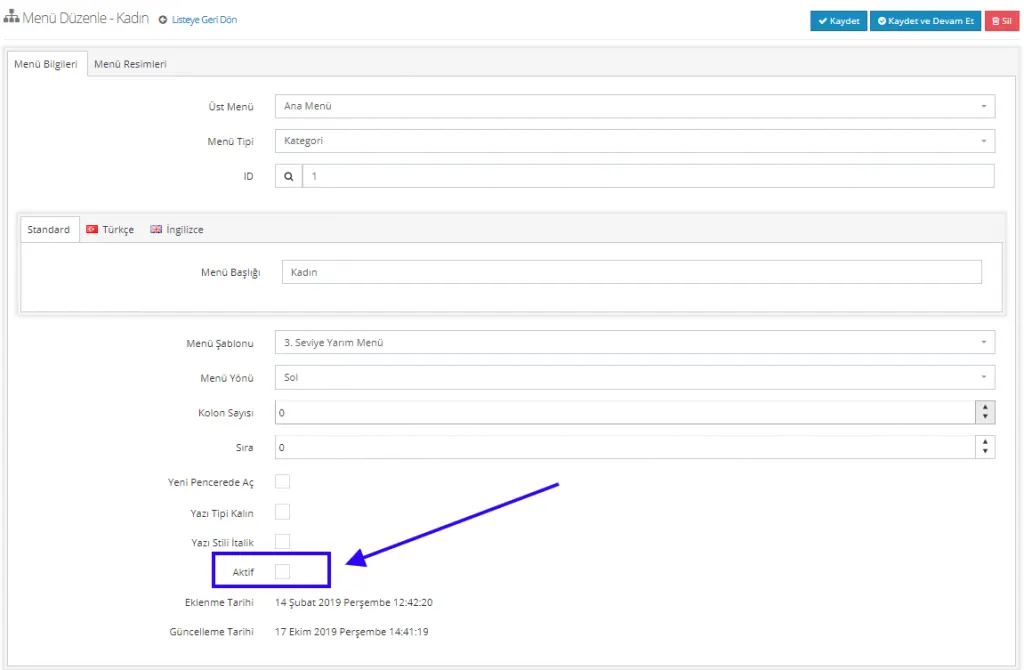
With the Active option, the menu becomes visible. If you uncheck it, the menu title becomes inactive.
Date Added / Updated
This field shows when the menu title was added and when it was last updated.
We can complete the editing by clicking the Save and Continue button.
ADDING MENU IMAGES
If the menu title in question is a main menu, the Menu Images field will also be enabled. In this field we can add the banners we saw on the left side of the menu screen.
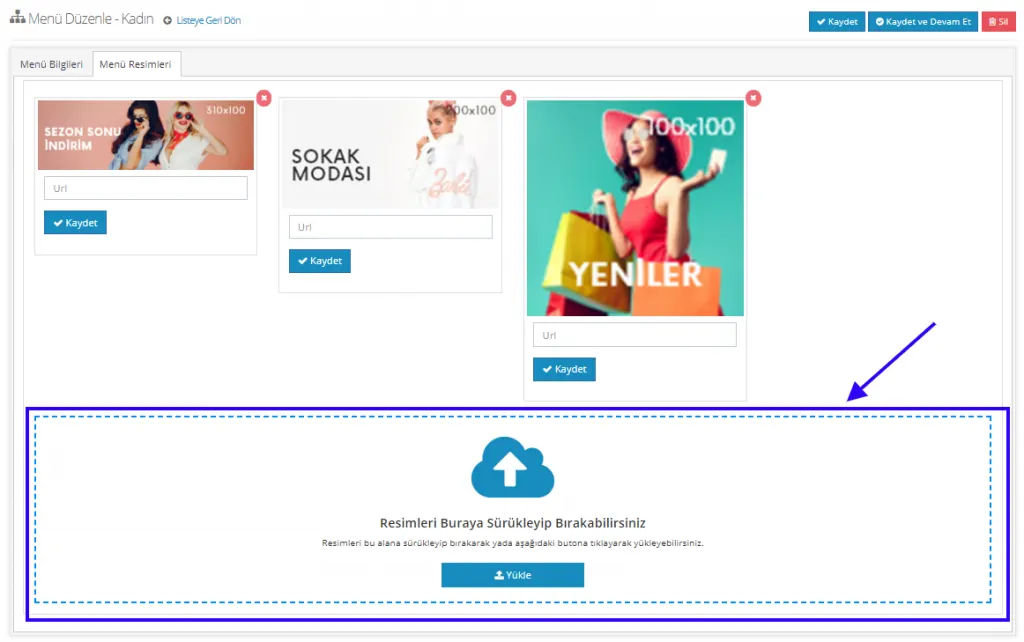
You can add the menu images you want from the Menu Images field by drag and drop or by clicking the Upload button. From this panel, you can add the URL of certain pages of your site to the images (in particular, if a banner announces a campaign, the page where that campaign applies), so that customers who click are taken directly to the relevant page.
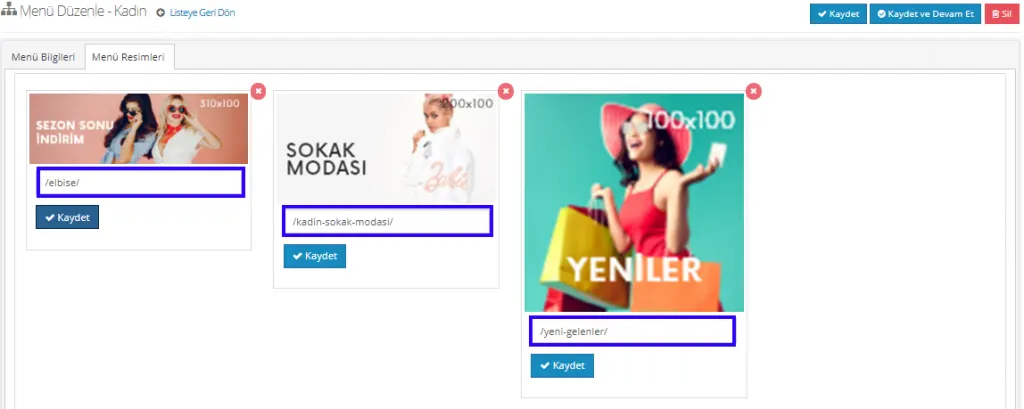
We added the URLs of the relevant pages of the site to the images and clicked the Save button. This way, your customers will be directed to the relevant pages when they click the images.
NOTE: Let’s underline an important SEO detail here. We should add not the full page link but only the part after the (/) sign. For example, instead of https://demo.faprika.net/elbise/, only /elbise/ should be entered.
After making all the edits, we can return to the list area by clicking the Save button.
DEACTIVATING A MENU
In some cases, menu titles may need to be deactivated temporarily. At this point, we need to find the menu title in the menu list, go to its edit page, and remove the check mark next to the Active option.
DELETING A MENU
To delete the menu, it is enough to click the Delete button in the upper right corner of the edit page.