Catalog
Bulk Brand Update
From the Bulk Brand Update area, you can make various edits to the brands registered in your system.
In This Tutorial
From the Bulk Brand Update area, you can make various edits to the brands registered in your system.
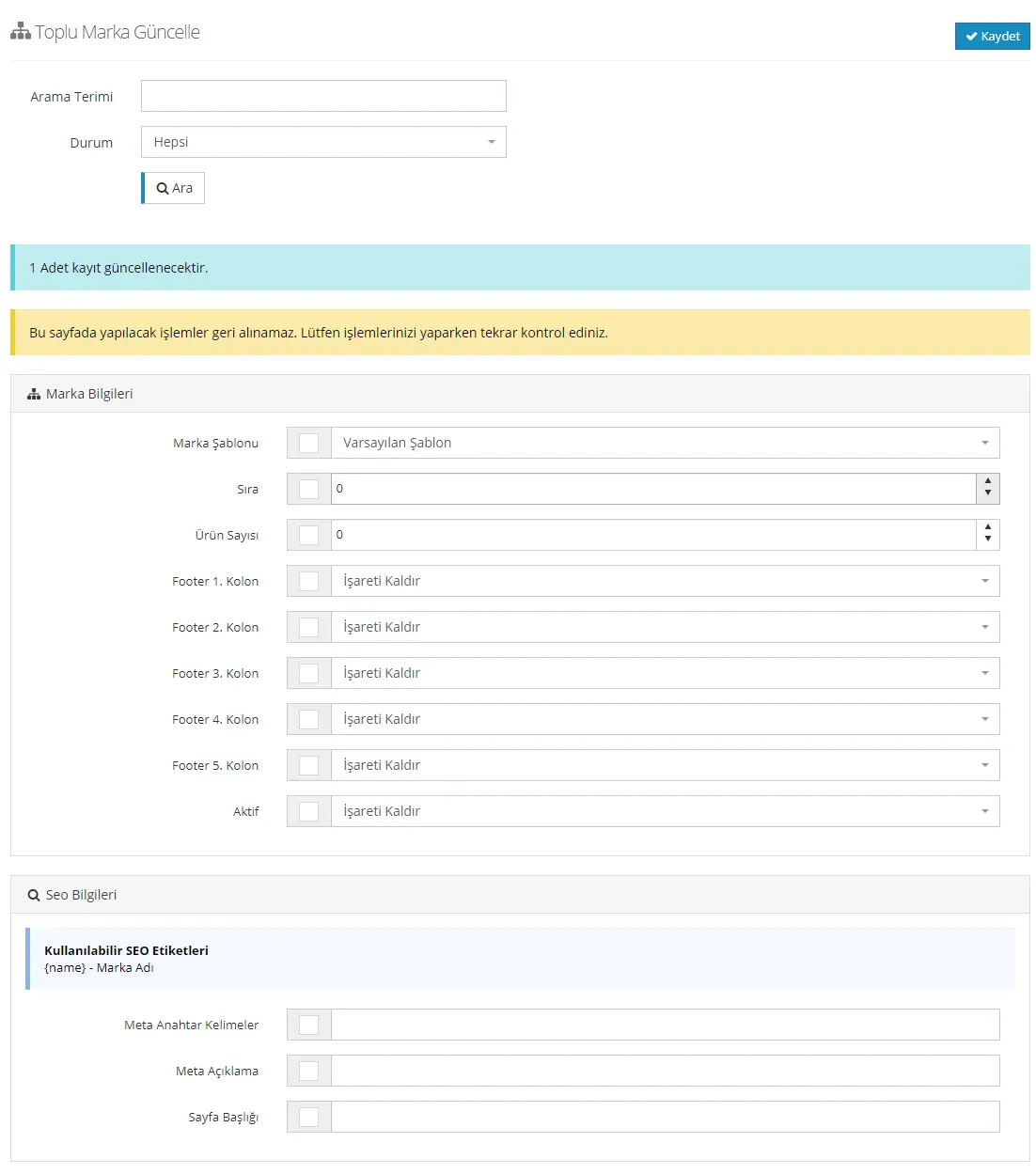
For the edits to take effect, a tick must be added to the checkbox next to the edited heading and then the SAVE button must be clicked. Edits made in this area cannot be undone in bulk; to correct them, you need to act one by one. We therefore remind you that you must always check after your edits.
You can search for the brand you want to find using this Search Panel, among passive, active or all brands.
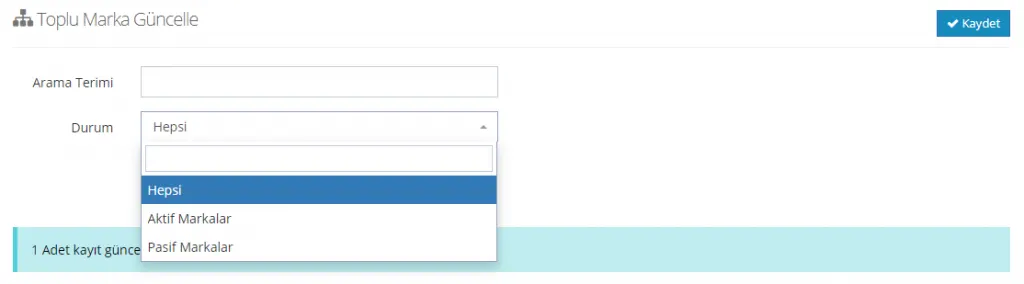
After the search, the system shows in this area how many brands were listed:

1. Brand Information
We use this area to make edits related to brand information. Edits made in this area apply to all selected brands.
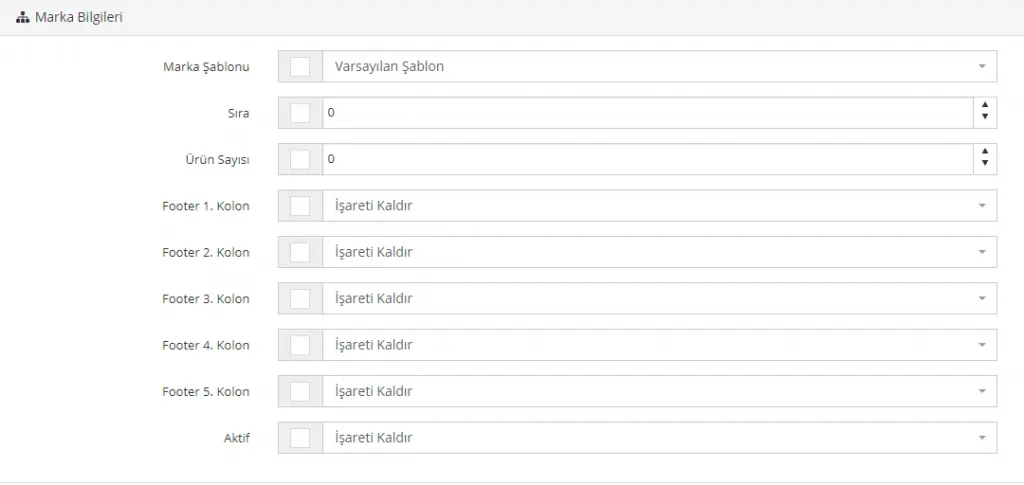
Brand Template
This is the area that lets us edit the brand template for all selected brands. You can choose Default Template, Left Menu Template or Right Menu Template. For more information about template selection, click here.

Order
It is used to bring the selected brands forward in the ordering. Since negative values and 0 are shown first, you can enter 0 or – values in this field for the brands you want to feature.

Number of Products
This area determines how many products under the selected brands will be displayed on a page. For example, if you enter 5 here, the list moves to the second page at the 6th product. If you enter 100, it moves to the second page at the 101st product.

For example, let's enter 3 and look at the product layout of the selected brands:
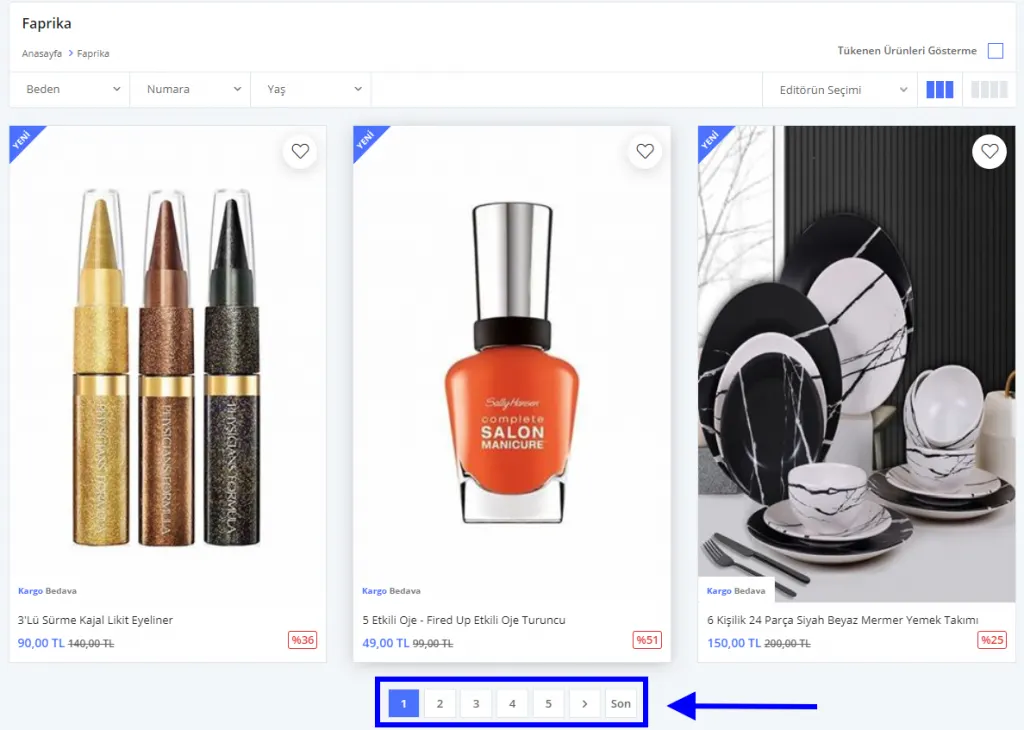
As you can see, the list moved to the second page at the 4th product. From this area you can edit the number of products on brand pages.
Footer Columns 1, 2, 3, 4, 5
From this area you can choose the footer area for the selected brands. This way, those brands are displayed in the selected footer area.
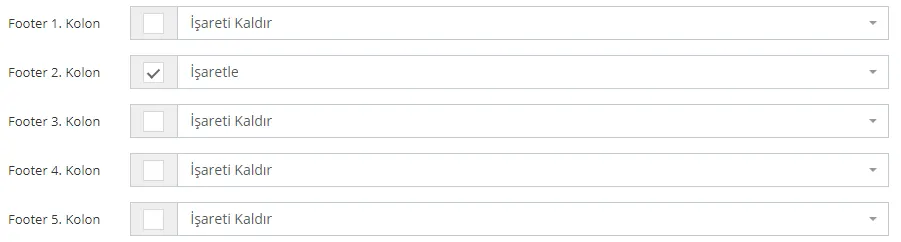
Active
We use this area to deactivate the selected brands in bulk or to reactivate deactivated brands in bulk. With the check selection brands are activated, and with the uncheck selection brands are deactivated.

2. SEO INFORMATION
We can use this area to perform the SEO edits of the selected brands in bulk.
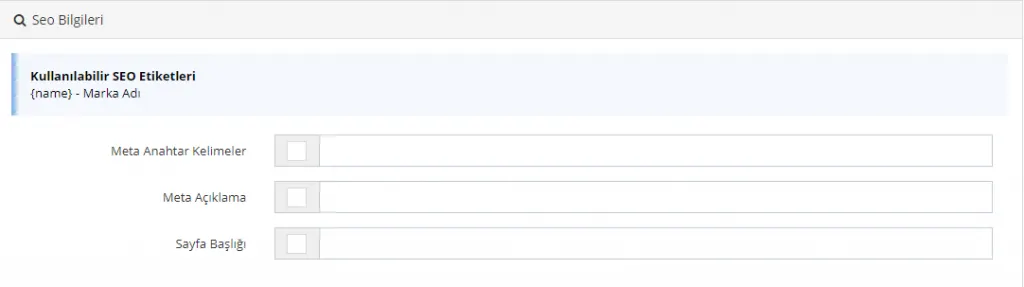
Meta Keywords
Bulk meta keyword entry is provided for the selected brands.

Meta Description
Bulk meta description entry is provided for the selected brands. You can write the most suitable meta description of 155 characters for your selected brands in bulk.

Page Title
Bulk page title entry is provided for the selected brands. You can write the most suitable page title of 65 characters for the selected brands.

After all edits, remember to tick the checkbox next to the selected heading(s) and click the SAVE button after editing.