Content Management
Custom Page Management
Your online store has some informational pages. There are pages we encounter on almost every e-commerce site, such as About Us, Contact Us, Terms of Use, and Privacy Policy. These pages that customers can review strengthen trust in your site.
In This Tutorial
Your online store has some informational pages. There are pages we encounter on almost every e-commerce site, such as About Us, Contact Us, Terms of Use, and Privacy Policy. These pages that customers can review strengthen trust in your site.
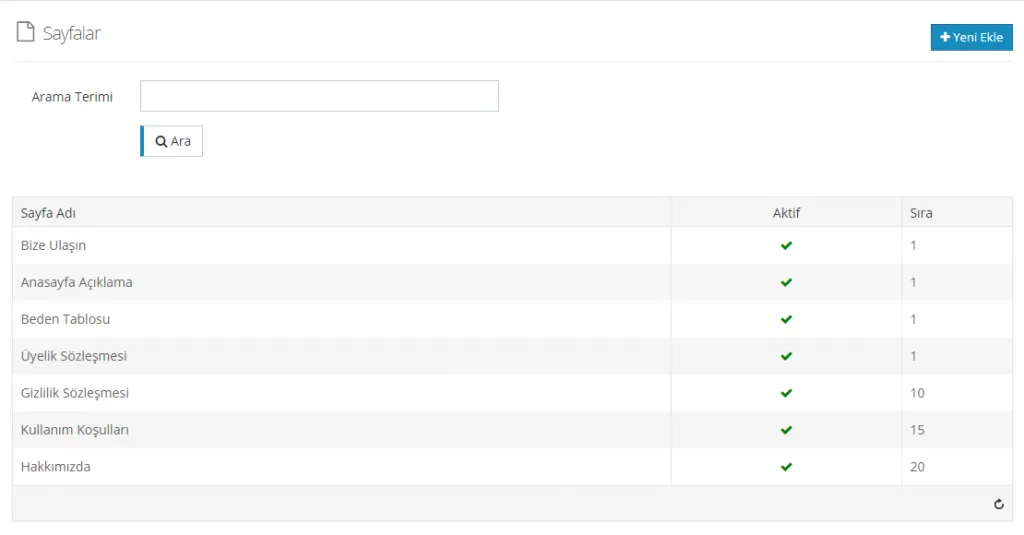
In the panel, we are greeted by a search field and a section listing the page names added previously. By clicking on these pages, we can easily move to the editing area.
Adding a New Page
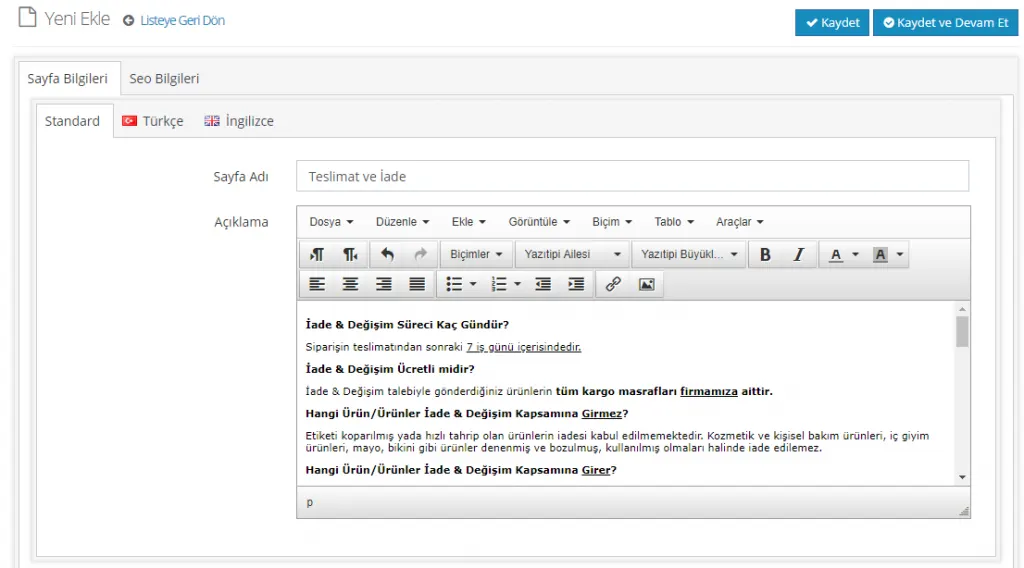
When we want to add a new page, you can easily start the creation process by clicking the Add New button. When adding a new page, we encounter the familiar editing panel. In this area there are Page Information and SEO Information sections. Let's examine these areas one by one with an example.
Language Selection
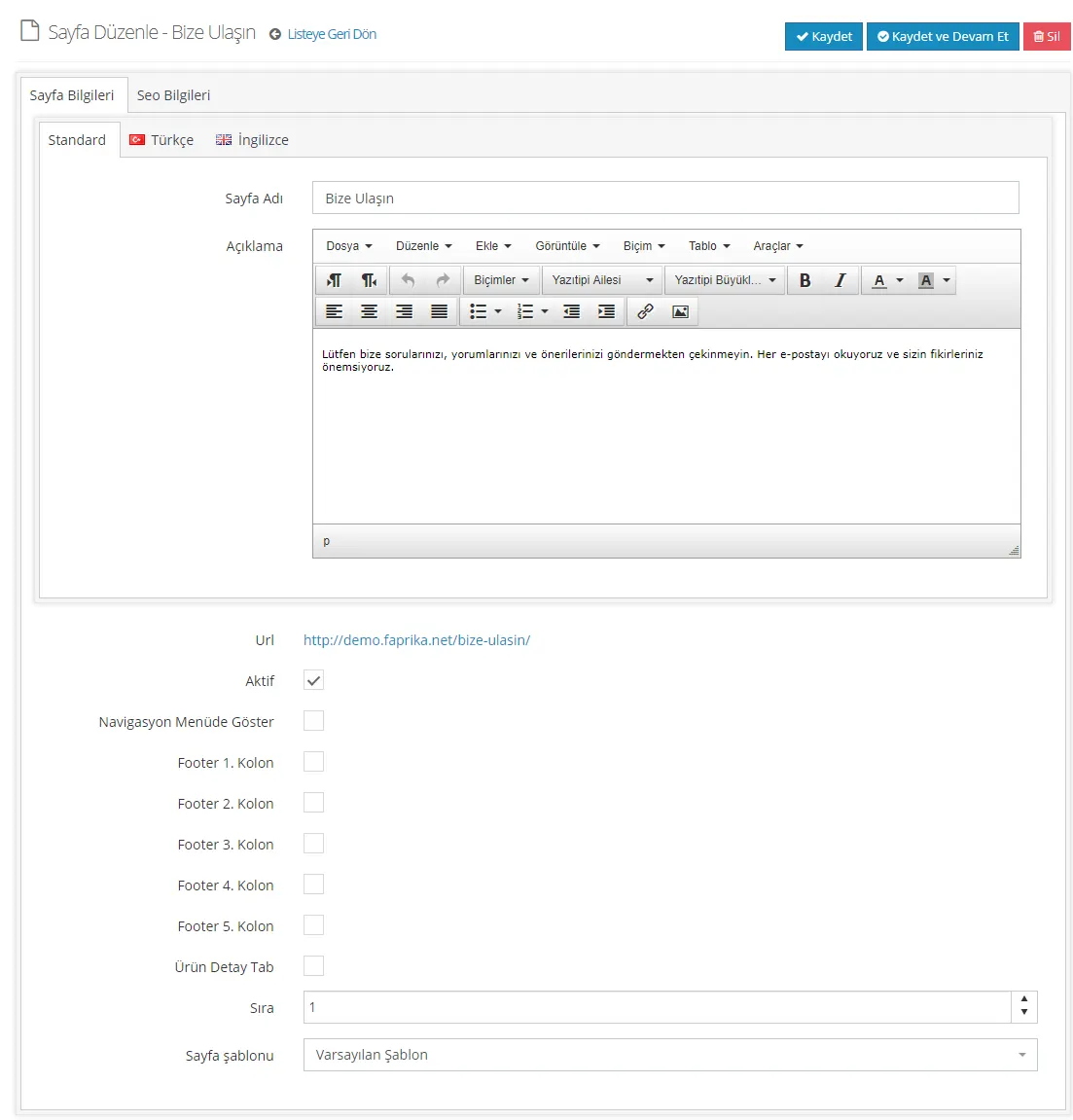
If the page you open will be in Turkish, you can select Standard or Turkish. Both serve the same function. In the English field, you can add English content. Of course, the language options are not limited to these. You can contact our support team to add alternative language options to your site.
Page Name
Page Name Let's open a page named ‘Delivery and Returns’.
Description
In the Description field, let's add the content we want to appear on the page. We can edit this content easily from the same panel. You can make some words bold, underline them, add links and images, and choose the font.
Active
When the Active option is checked, this page can be displayed in the footer area. If the Active option is unchecked, the page will not be displayed.

Show in Navigation Menu
If you want the page to appear in the navigation menu, which prevents visitors from getting lost on your website and works as a kind of sitemap, check the box next to it.

Footer Columns 1, 2, 3, 4, 5
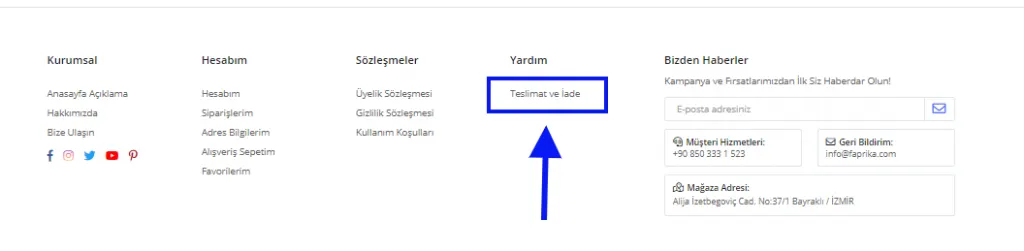
You need to select the footer column in which you want the page you created to appear. For example, let's choose to display the page in column 4.

Let's see how it appears in the footer area of the home page.
Product Detail Tab
Product detail tabs are areas on product detail pages that let customers find more details about the products they are viewing. We recommend using them, because customers browsing a product page can learn more by checking the product detail tabs. A product detail page with richer content will also have a positive effect on your sales.

When you check this field, the page you created takes its place among the product detail tabs. There is one important point to note: a page that does not suit the product detail page will not look good here. The “Delivery and Returns” page we created in our example is an informative page that can appear on the product page. So by checking the option, we can make the page appear among the product detail tabs.
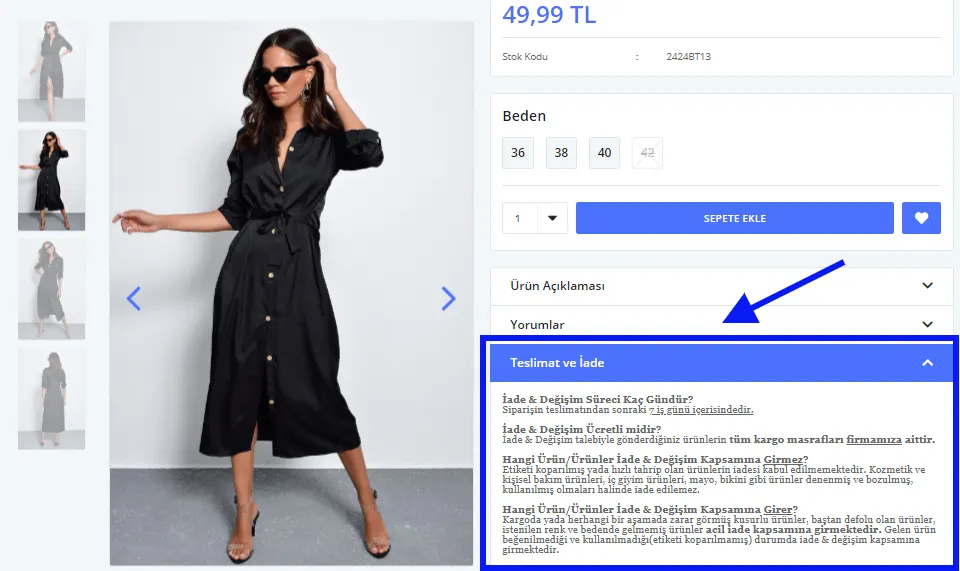
As you can see, we have added the “Delivery and Returns” page to the product detail page.
Order
We have set the footer column. So in what order will the page appear? If you want it to appear at the very top, you need to give it a smaller number than the other pages. You can use 0 or negative (-) numbers to make the page you created appear at the top.

For example, let's move the page we just created to the 1st position of the 3rd footer area.
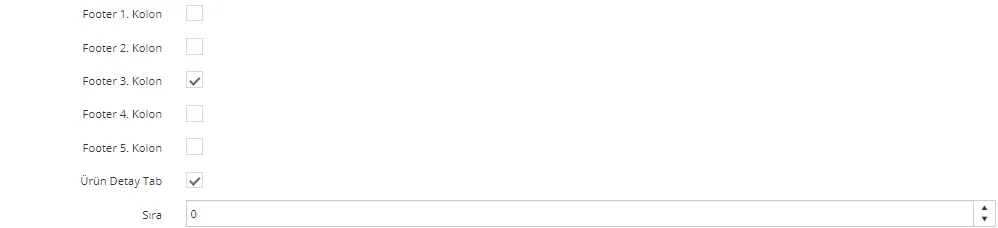
Let's see how this change is reflected in the footer area.
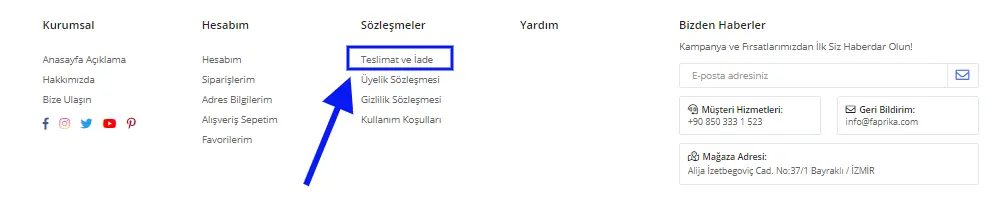
As you can see, the page that was in the Help area, the 4th footer column, in the previous example has moved to the 3rd footer area and to the first position with this edit. With settings suited to your site, you can easily determine the positions of your pages.
Page Template
In the Page Template field, you can choose either Default Template or Page with Navigation. Let's look together at how each choice is displayed.
Let's select Default Template:
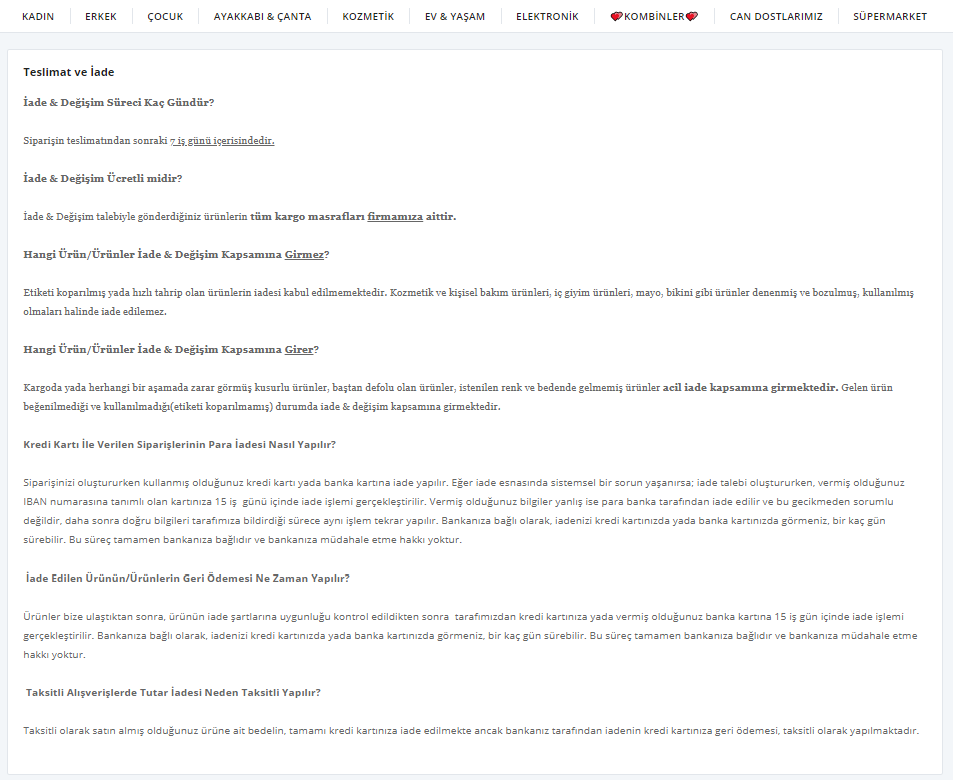
With the Page with Navigation selection, the page will look like this:
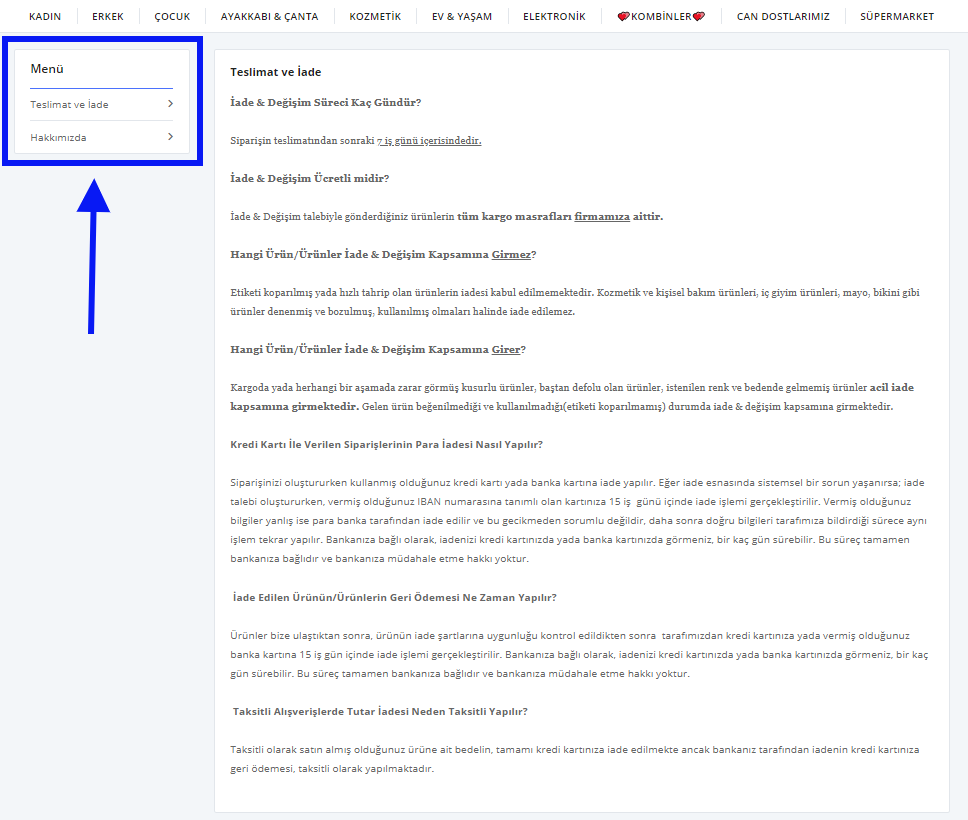
As you can see, a menu was added to the left side of the page when Page with Navigation is selected.
SEO Information
After completing the page settings, another area that needs editing is the SEO area.
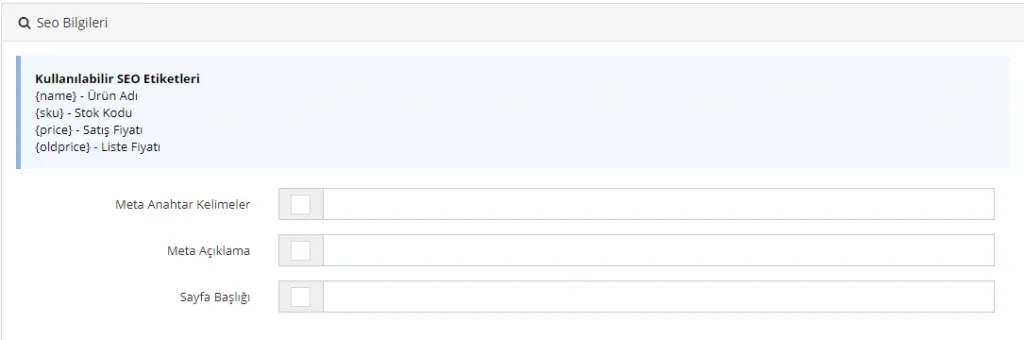
Meta Keywords
Allows bulk entry of meta keywords for the selected products.

Meta Description
Allows bulk entry of a meta description for the selected products. You can write the most suitable meta description for the products you selected in bulk, using 155 characters.

Page Title
Allows bulk entry of a page title for the selected products. You can write the most suitable page title for the products you selected, using 65 characters.

After making your edits, you can click the Save and Continue button to stay on the same page. If you want to return to the list, you can click the Save button to complete the process successfully.
Deactivating a Page
To deactivate a page registered in the system, simply uncheck the box next to the Active option in the edit area and click the Save button.

Deleting a Page
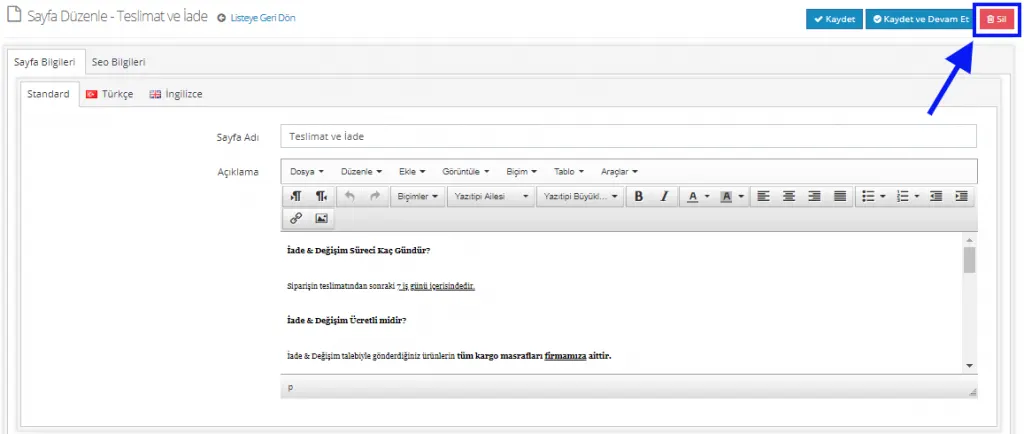
Simply go to the edit area of the page you want to delete, then complete the deletion by clicking the Delete button at the top right.