Tools/Equipment
Automatic SKU and Barcode Generation
With the new automatic SKU and barcode generation feature in the Faprika E-Commerce infrastructure, define your products with a single click. Discover step by step this new feature that saves time, reduces errors and makes inventory management easy.
The Faprika E-Commerce infrastructure keeps offering new features to make life easier for online store owners and increase efficiency. In this tutorial, we will look in detail at the automatic SKU (Stock Code) and Barcode generation buttons recently added to the Catalog >> Product Management area, on the product edit screen. Thanks to this feature, you will be free of the hassle of defining SKUs and barcodes for your products manually, save time and prevent possible errors
Why Is Automatic SKU and Barcode Generation Important?
SKU (Stock Code): An internal code, usually made up of letters and numbers, that uniquely identifies each of your products, variants or services. SKUs are vital for effective inventory management, stock tracking, order processing and reporting. Entering SKUs manually is a time-consuming and error-prone process, especially for businesses with many products.
Barcode: A machine-readable symbolic representation that lets optical readers (barcode scanners) identify your products quickly and accurately. Barcodes are indispensable in point-of-sale systems, warehouse management, inventory counting and shipping processes. Automatic barcode generation is the easiest way to provide unique, standards-compliant barcodes for every product.
This new Faprika feature generates these two critical identifiers with a single click, speeding up your workflow and increasing your operational efficiency.
Automatic SKU and Barcode Generation, Step by Step
Now let's look in detail at the steps for using this new and handy feature:
Step 1: Log In to the Admin Panel and Open Product Management
First, log in as an administrator to the control panel of your website hosted on the Faprika E-Commerce infrastructure.
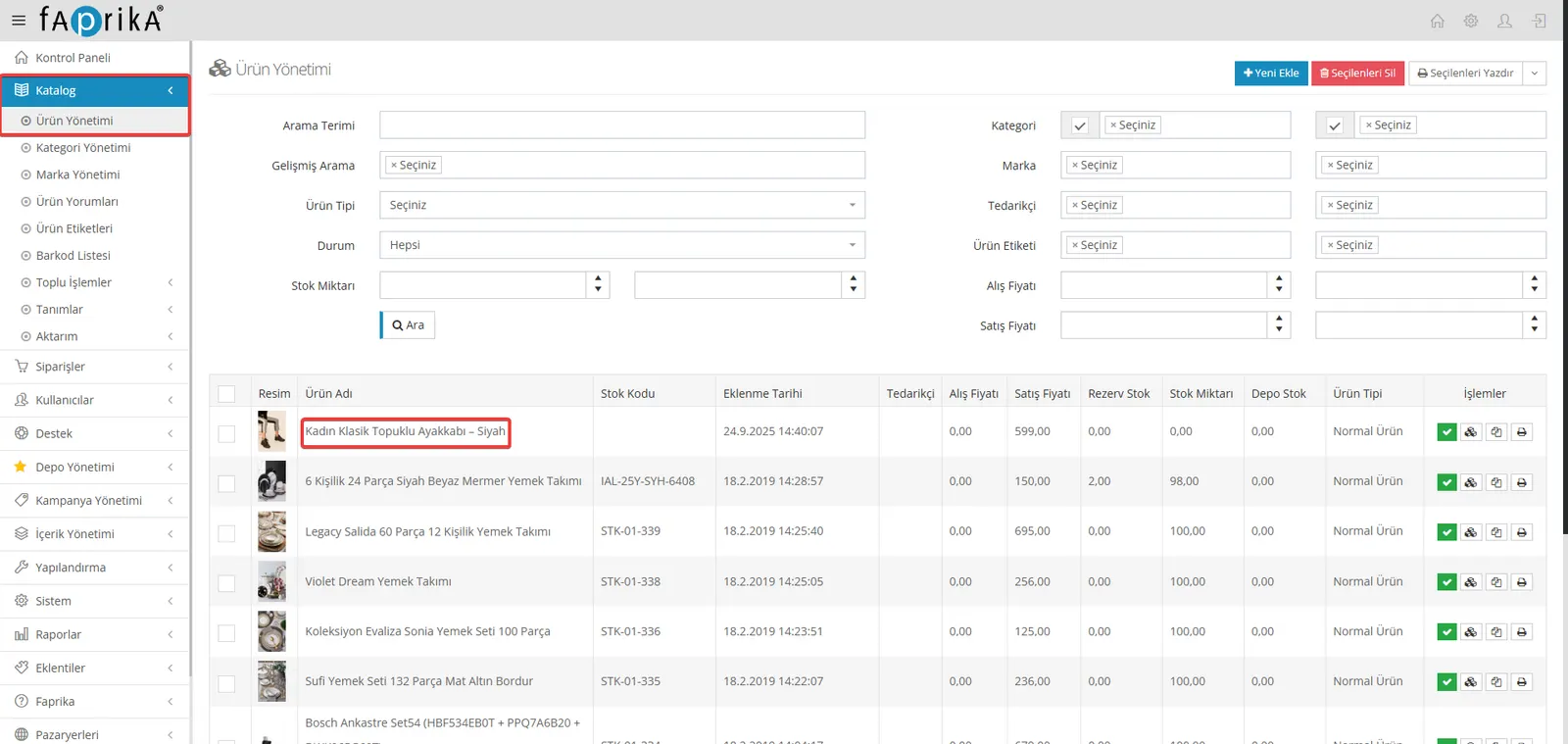
In the control panel, click the Catalog tab in the left menu. From the submenu that opens, select Product Management. In this area you can list all your existing products, add new products or edit your existing ones.
Step 2: Edit an Existing Product or Add a New One
The automatic SKU and Barcode generation feature can be used both when adding a new product and when editing an existing one.
- To Edit an Existing Product: Click the name of the product you want to edit in your product list.
- To Add a New Product: Click the Add New Product button in the top right corner.
Step 3: Use the Automatic SKU Generation Button
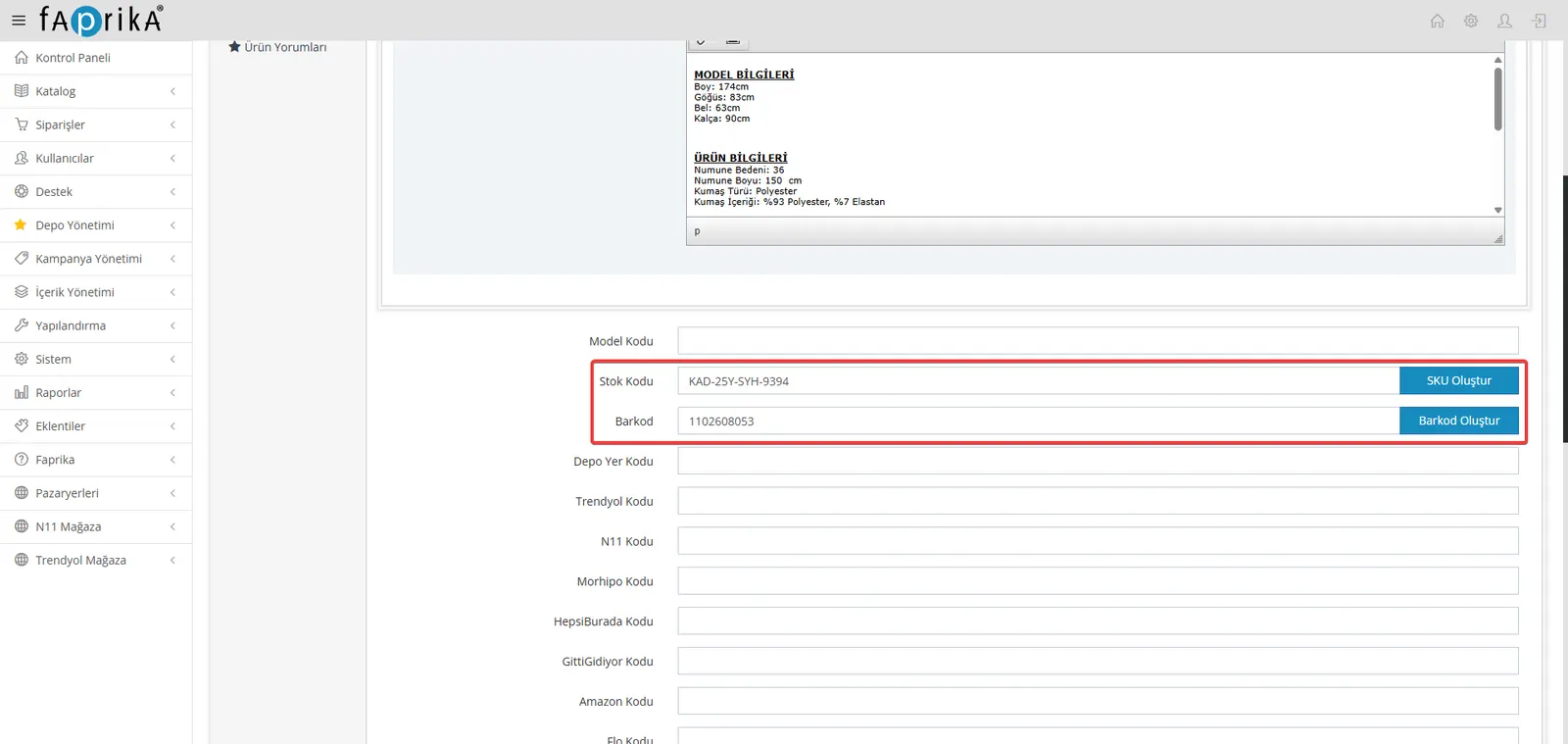
On the product edit page, under the "Product Information" heading, there is a Stock Code field. Next to this field you will now see a new button called "Generate SKU".
When you click this button, the Faprika system automatically generates a unique SKU code that has not been used before and fills it into the SKU field.
Example Scenario:
- For example, you are adding a product titled "Women's Classic Heels – Black".
- When you press the "Generate SKU" button, the system will produce a code such as "KAD-25Y-SYH-9394".
This way, you don't have to come up with a code manually and check whether you have used it before.
Step 4: Use the Automatic Barcode Generation Button
Right below or near the SKU field, there is a Barcode field and, next to it, a new button called "Generate Barcode".
When you click this button, the Faprika system again automatically generates a standards-compliant, unique 10-digit barcode number and enters it into the barcode field.
Example Scenario:
- For the shoe product you created.
- When you press the "Generate Barcode" button, the system will produce a 10-digit barcode number such as "1102608053".
By saving this automatically generated barcode number, you can use it on labels printed for your products or integrate it directly into your sales and warehouse processes.
Step 5: Generate SKUs and Barcodes for Variants
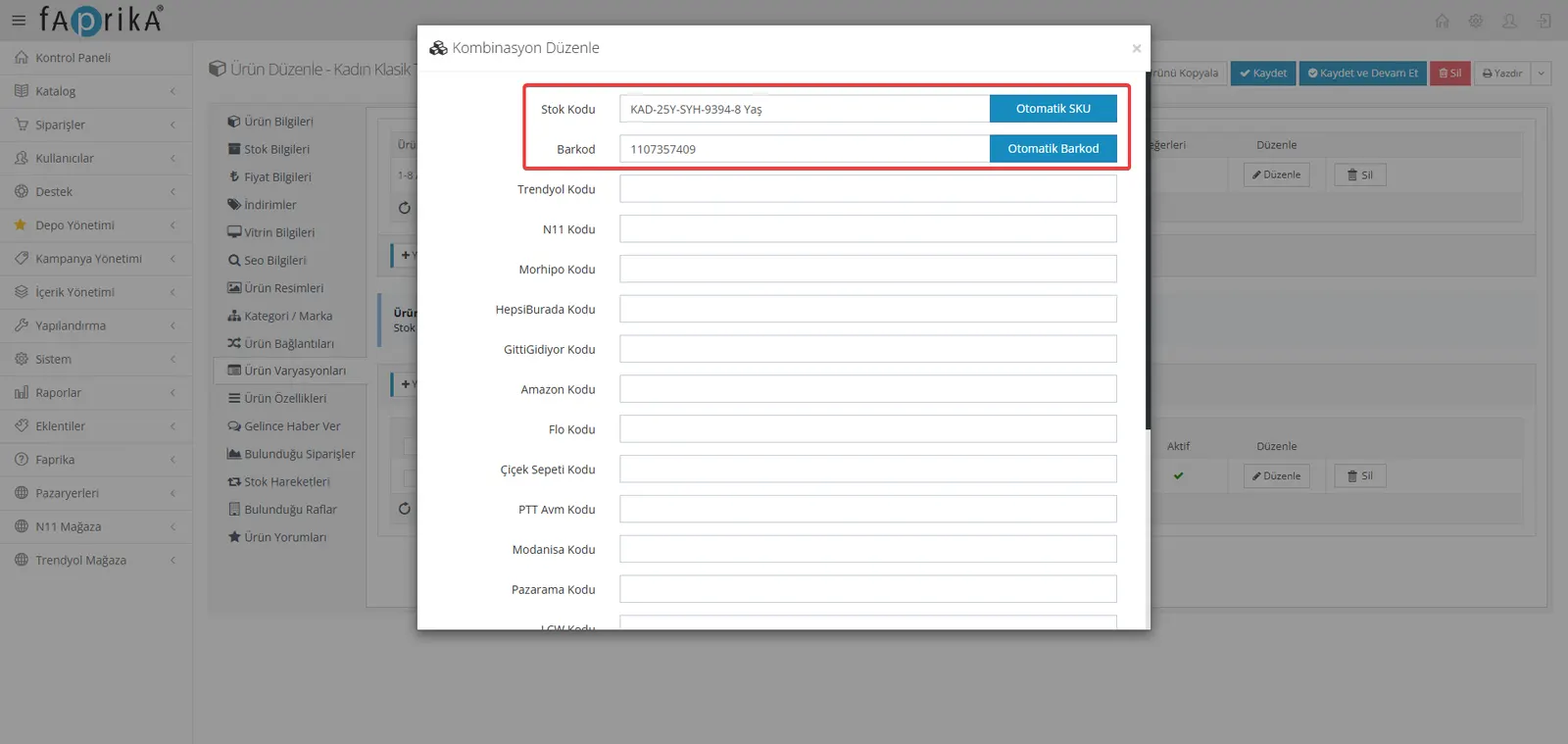
If your product has variants such as size or shoe number, you may need to generate a separate SKU and barcode for each variant. In Faprika's variant management system, each variant has its own SKU and Barcode fields, and these automatic generation buttons also work per variant.
- In the product edit area, go to the Product Variations tab.
- For each variant, click the Edit button and assign unique codes using the "Generate SKU" and "Generate Barcode" buttons.
This feature is a great convenience, especially for businesses that sell products with many variants, such as clothing, shoes and electronics.
Step 6: Save the Product
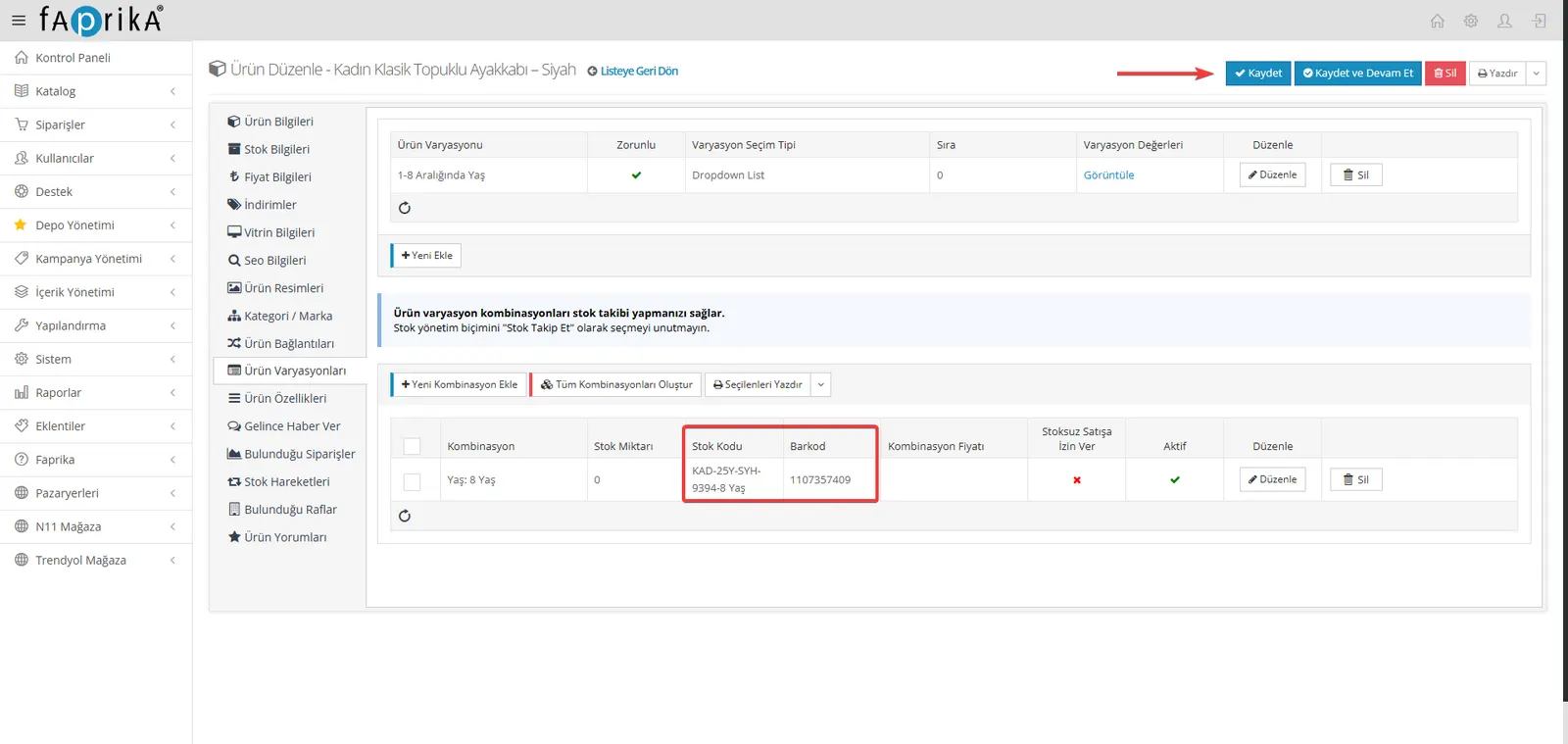
After filling in all product information, including the SKU and Barcode, click the Save button at the bottom of the page to save your changes. Your product will now appear in your inventory with its automatically generated SKU and barcode.
Benefits of Automatic SKU and Barcode Generation
- Time Savings: Eliminates the time you spend thinking up, typing and checking SKU and barcode numbers manually. The difference is especially clear when adding many products.
- Fewer Errors: Minimizes human errors (typos, duplicate numbers, etc.). The system prevents such errors by generating unique codes.
- Higher Efficiency: Speeds up product adding and editing processes, increasing operational efficiency.
- Standardization: Automatic barcode generation usually produces standards-compliant numbers, which makes it easier to integrate your products with different systems.
- Easy Inventory Management: Thanks to unique and well-organized SKUs, inventory tracking, stock counting and reporting become much easier and more accurate.
- Professional Look: Well-organized, standards-compliant product identifiers make your business look more professional.
The automatic SKU and barcode generation buttons added to the product edit area of the Faprika E-Commerce infrastructure are a great innovation for e-commerce businesses: they save time, lower the error rate and greatly simplify inventory management. With this feature, you can manage your products faster and in a more organized way and focus more on your business. Now that you have completed this tutorial, you are ready to use this new feature effectively!