Add-ons/Integrations
Pazarama Integration
The Pazarama integration training helps you integrate seamlessly with the Pazarama marketplace through Faprika's powerful e-commerce infrastructure.
In This Tutorial
Pazarama Marketplace Integration
By transferring your products to the Pazarama marketplace and managing the orders coming from it, you can make your work easier. The Pazarama marketplace integration lets you handle tasks such as shipment tracking, price updates, and stock management from a single place.
This guide explains the basic steps of the Pazarama marketplace integration. Here is what you need to know as you start this process:
Pazarama Store Settings
To start the Pazarama marketplace integration, it is important to configure the Pazarama Store Settings correctly. Here is what you need to know to complete this step:
1. Log In
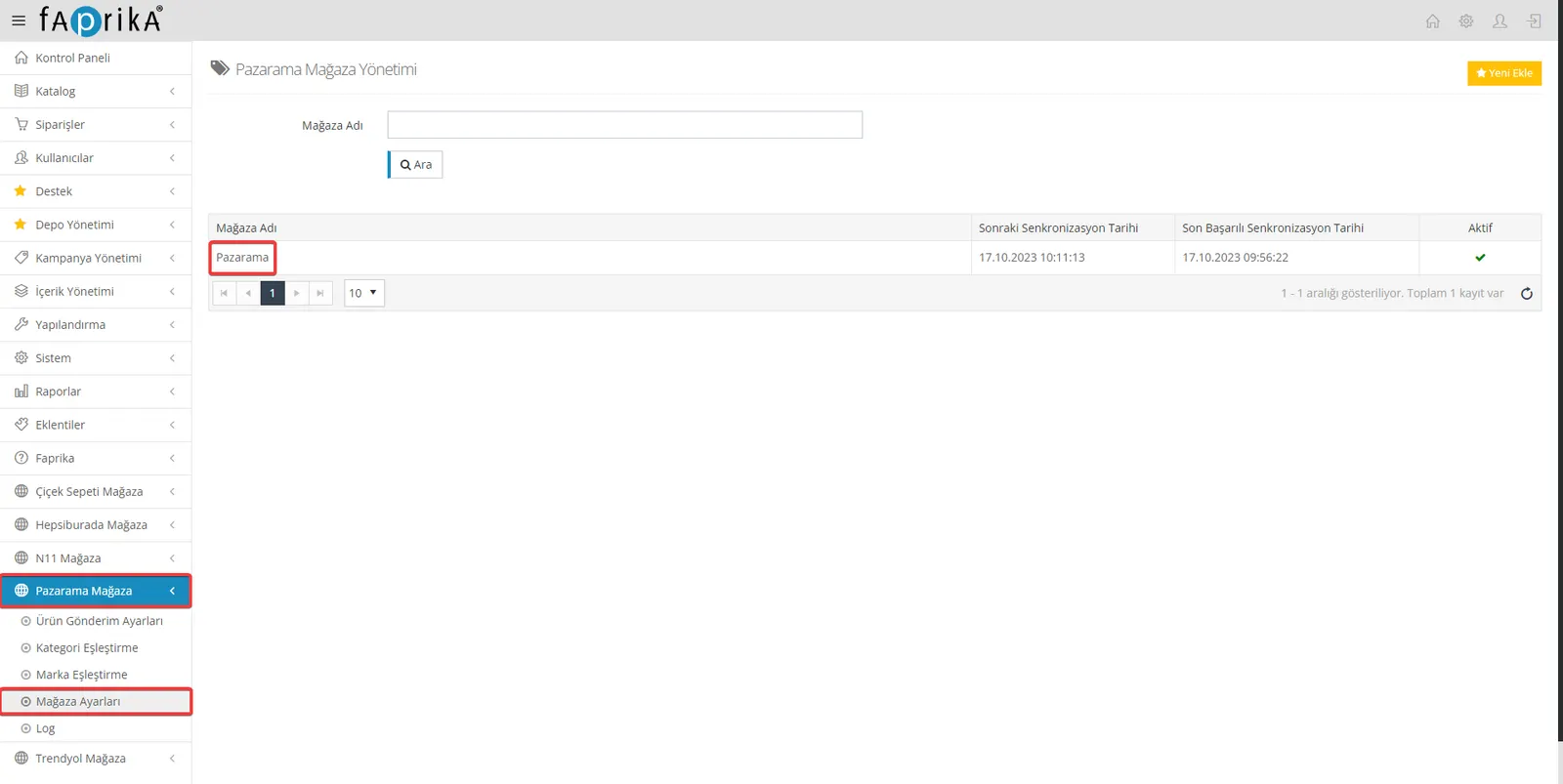
After logging in to your control panel, go to the Pazarama Store >> Store Settings tab.
2. Fill In the Information
In this section you will need to fill in the following information correctly:
- Supplier Number: Enter the Supplier Number you received from the Pazarama marketplace in the relevant field.
- API Username: Enter the API Username you received from the Pazarama marketplace in the relevant field.
- API User Password: Enter the API User Password you received from the Pazarama marketplace in the relevant field.
3. Save
After filling in the information correctly, do not forget to check the "Active" button and save. This will save your configuration.
When you complete these steps, you will have made the basic settings for the Pazarama marketplace integration. To keep going and learn more, review the rest of the guide.
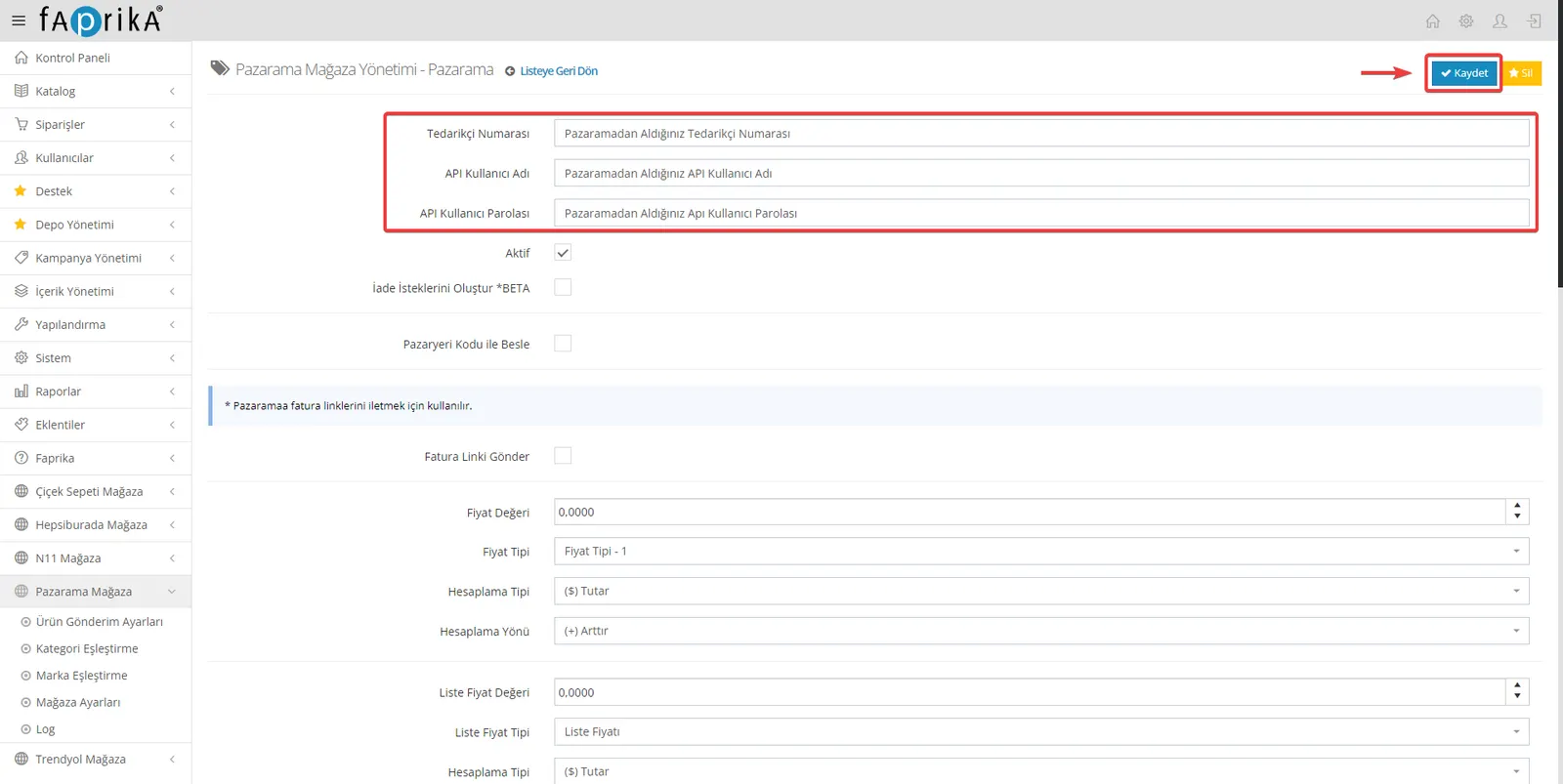
After the page is saved, the fields you need to edit will open. Here is more information on how you can set these fields:
Feed by Marketplace Code
If you want to send your products with codes you have defined specifically for the marketplace, you must activate the "Feed with Marketplace Code" option. When you activate this option, you will need to fill in the "Pazarama Code" field for each product. These codes are the special identifiers you want to use to identify your products when sending them to the marketplace. If you do not check this option, your products will be sent with the value in the "Stock Code" field.
Send Invoice Link
When you want to transfer order invoices through the integration, you will need to activate the "Send Invoice Link" button. This option helps you manage the invoices of marketplace orders automatically. When activated, the invoices will be sent to the marketplace.
After you edit these settings, your Pazarama marketplace integration will be further customized. To keep going and learn the other integration steps, you can follow the rest of the guide.
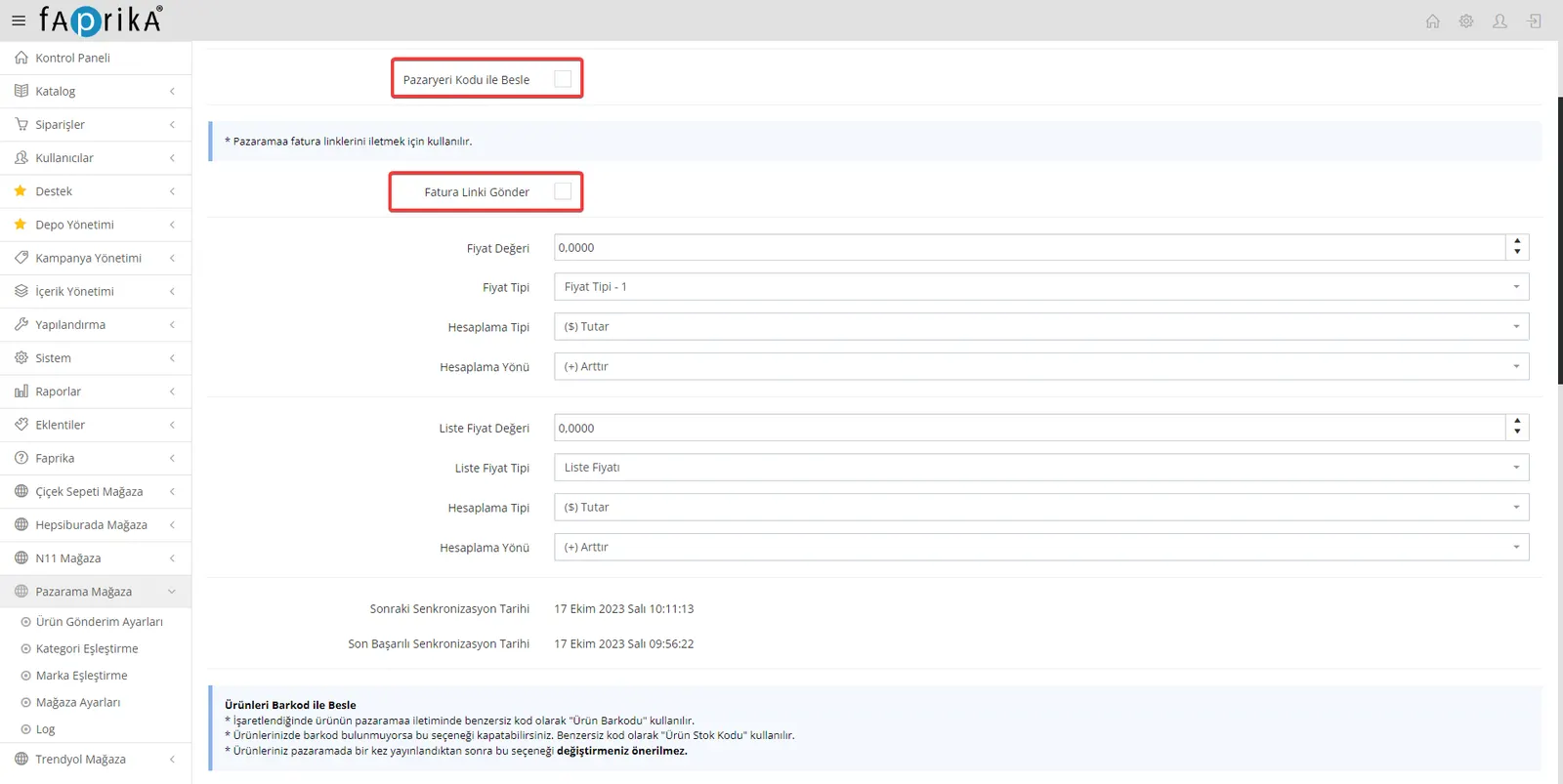
The Price Value lets you make changes to the price type you set when transferring your products to the marketplace. Here is more information on how you can make these settings:
Price Value
First, you will need to enter a specific value in the Price Value field. For example, let's assume this value is 10. This will be a starting value used when transferring your product prices to the marketplace. This value will then be increased or decreased according to the calculation method you choose.
Price Type
The "Price Type" field is where you specify how the prices of the products on your website are transferred. If you have defined a marketplace-specific price type, you should select the correct option here. For example, if you have defined a custom price type for your products and it is "Price Type - 1", you should select that option. If you send your products using the Sales Price, you can send them by selecting the "Sales Price" option.
Calculation Type
When transferring product prices to the marketplace, you can choose how pricing is applied with the "Calculation Type" option. There are two options: Amount and Percentage. If you select Amount, the value you enter in the "Price Value" field is transferred to the marketplace directly. If you select Percentage, the percentage you enter in the "Price Value" field is applied to your product price to change it. For example, if you enter 10%, the price is increased by 10%.
Calculation Direction
When setting product prices, you can choose to increase or decrease with the "Calculation Direction" option. If you select "Increase", the value you specify is added to the product price. For example, if the price is 100 TL and you choose a 10% increase, the price becomes 110 TL. If you select "Decrease", the value you specify is subtracted from the product price. For example, if the price is 100 TL and you choose a 10% decrease, the price becomes 90 TL.
The same settings also apply to the list price value. By making these settings, you can customize your product pricing to suit the marketplace.
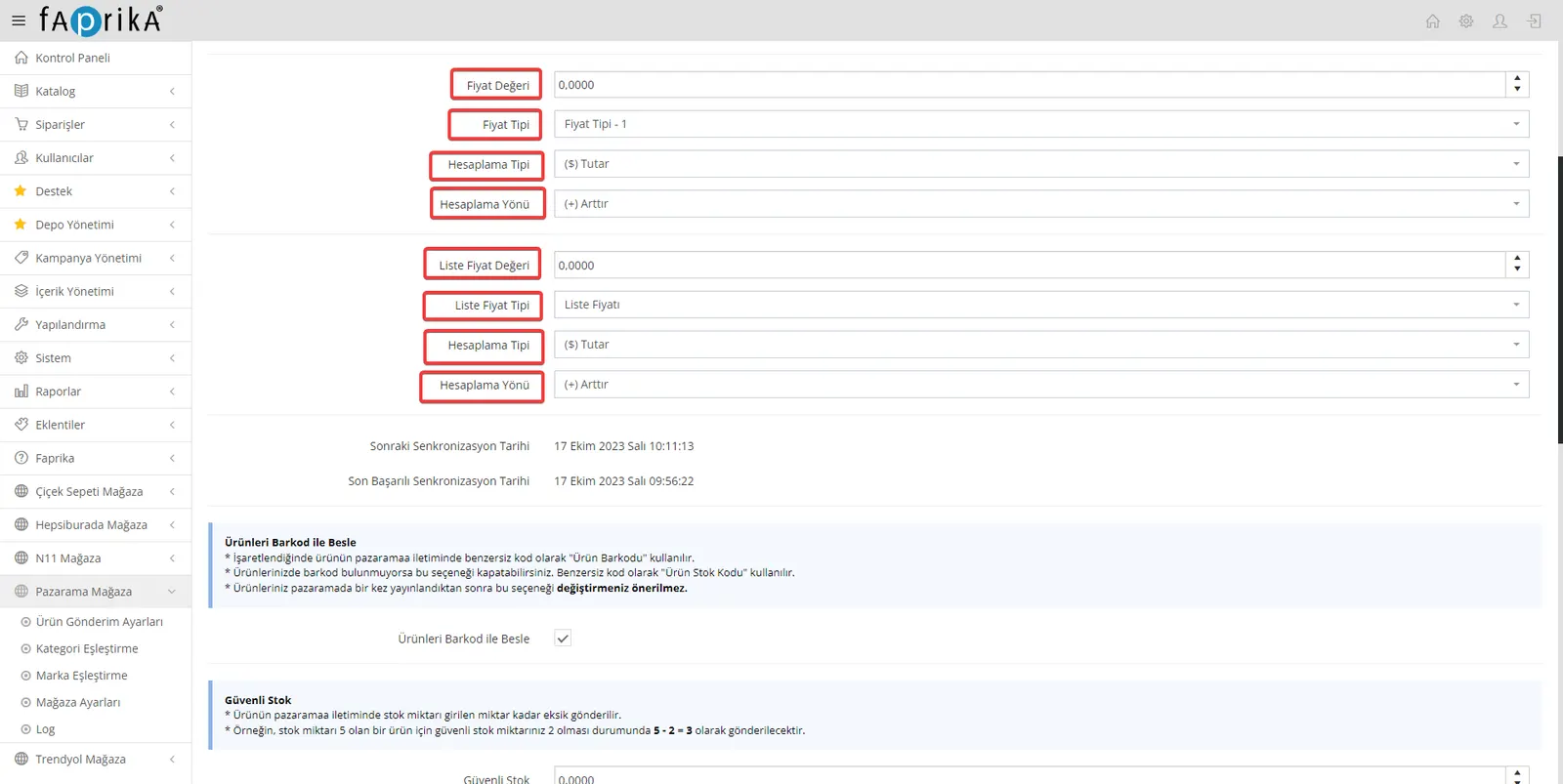
Feed Products by Barcode
When you enable this option, the "Product Barcode" is used as a unique code when transferring your products to the marketplace. If your products have barcodes and this information must be transferred to the marketplace, you should keep this option enabled. If your products have no barcodes, you can turn this option off. In that case, the "Product Stock Code" will be used as the unique code. An important point to note: once your products have been published on Pazarama, we recommend that you do not change this option.
Safe Stock
With this setting, you can have the stock quantity sent to the Pazarama marketplace reduced by the quantity you enter when transferring your products. For example, if a product's stock quantity is 5 and you set your safety stock quantity to 2, the stock quantity sent to Pazarama will be 5 - 2 = 3. This allows you to control your stock management more precisely.
Problematic Order Status
This setting handles the problems detected by the system while Pazarama orders are being processed. If the system detects any problem, it automatically changes the order status to the specific status you have selected. For example, you can create a new order status called "Problematic Orders", use it, and track the relevant orders. Your problem-free orders first enter the system with the "Approved" status. If you change the shipping status to "Shipped", an automatic notification is sent to Pazarama for the relevant order. This notification can serve as a reference used by Pazarama Customer Service and can help prevent customer-initiated cancellations. This way you can manage your order processes more efficiently.
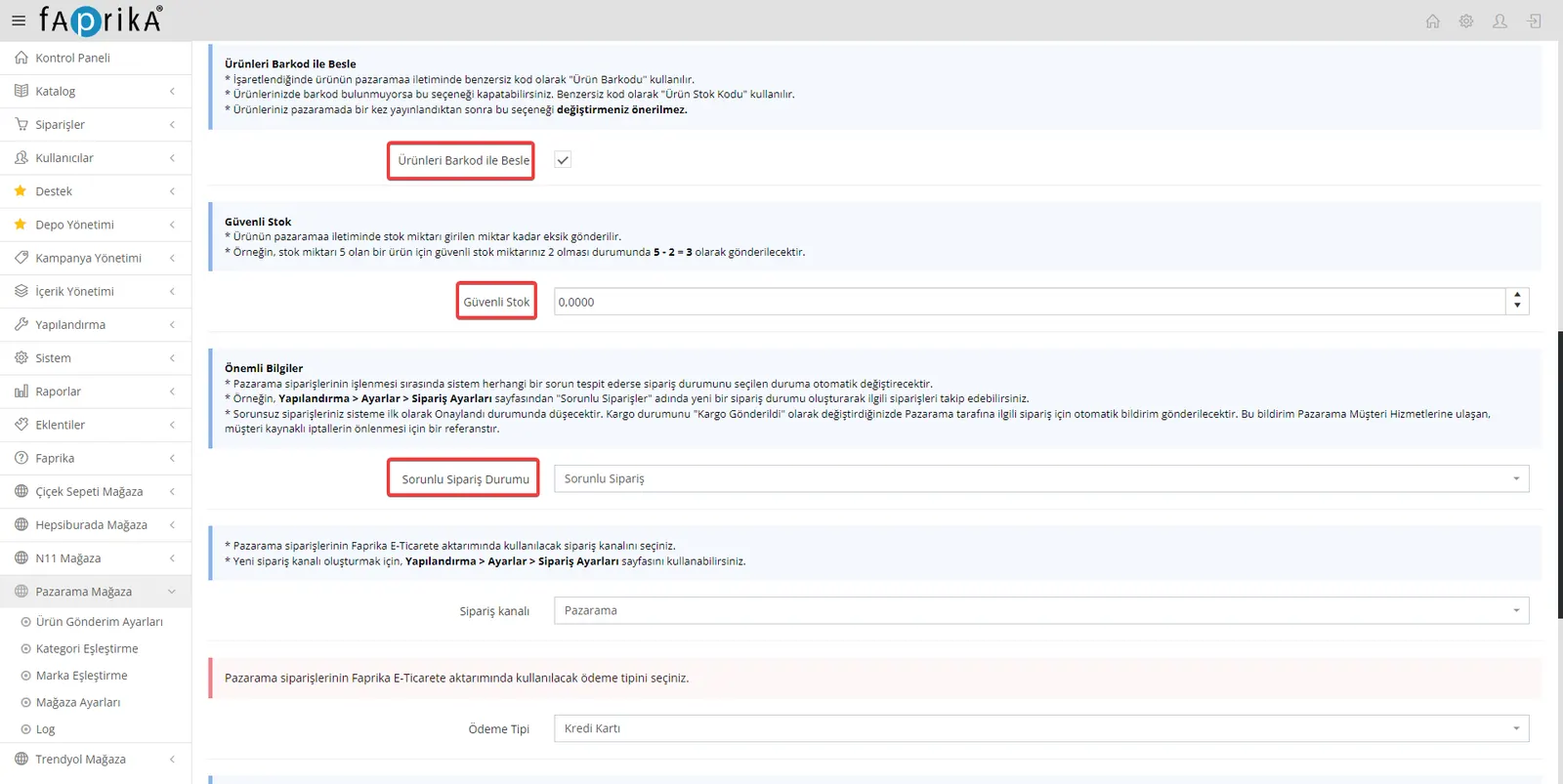
Order Channel
This setting lets you select the order channel to be used when Pazarama orders are transferred to Faprika e-commerce. If you want to create a new order channel, you can use the "Configuration >> Settings >> Order Settings" page. An order channel represents the places or types that orders originate from. By creating different order channels, you can manage and track orders better.
Payment Type
This setting lets you select the payment type to be used when Pazarama orders are transferred to Faprika e-commerce. The payment type represents how customers pay for their orders. For example, payment types can be "Credit Card," "Cash Payment," or "Bank Transfer/EFT." You should select the correct payment type so that Pazarama orders are processed correctly.
User Group
This setting lets you select the user group to be used when Pazarama orders are transferred to Faprika e-commerce. The user group allows you to divide your customers into specific categories or segments. If you wish, you can create a separate user group for the marketplace under "Configuration >> Users >> User Groups" and select that group. This allows you to manage customers according to different segments.
Shipping Carrier
This setting lets you select the shipping company to be used when Pazarama orders are transferred to Faprika e-commerce. By selecting the shipping company through which orders will be shipped, you can pass on the correct shipping information. Do not forget to select the correct shipping company so that customers get accurate shipment tracking.
Pazarama Shipping Company
The shipping companies you use when shipping products must not differ from the shipping company you approved in your Pazarama marketplace agreement. If you do not act in accordance with the agreement requirements between the shipping company you selected and Pazarama, your products may be prevented from going live on Pazarama. Therefore, you should carefully check your marketplace agreement and the shipping company you selected.
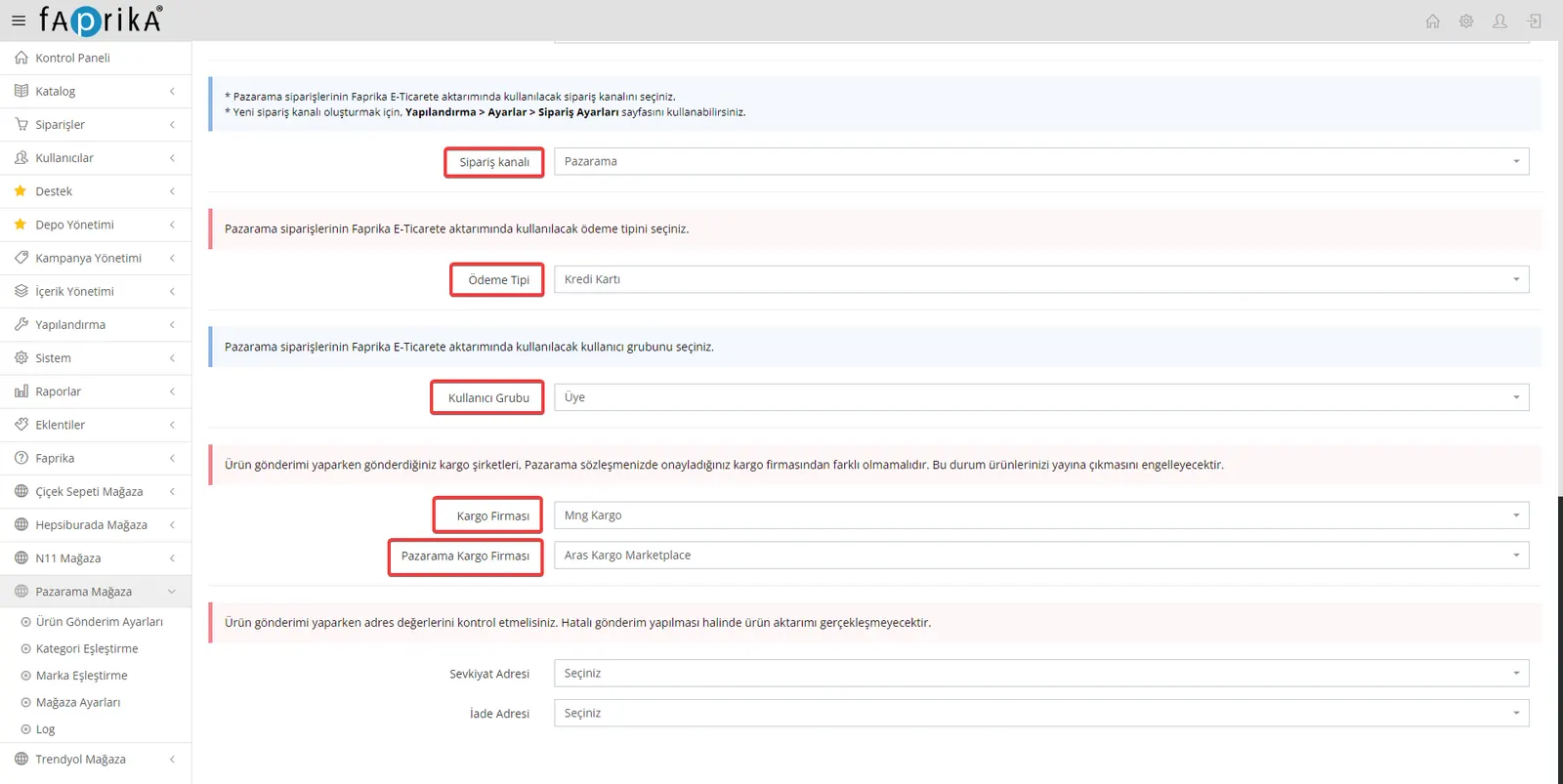
We are moving on to the Pazarama Store >> Brand Matching settings:
Update Pazarama Brands
In this step, you need to match the brands on the Pazarama marketplace with the Faprika e-commerce infrastructure. First, you need to click the button named "Update Pazarama Brands". This action pulls the current brand information from the Pazarama marketplace and makes it ready for matching. Once the process is complete, you will see the "Edit" button at the bottom of the same page.
Brand Matching
When you click the "Edit" button, a page will open where you need to match your brands with the brands on your website. This matching ensures that your brands on the Pazarama marketplace become compatible with your Faprika e-commerce infrastructure. You can follow the instructions to select and match the relevant brands.
Once you complete this process, you will have ensured that your brands are displayed and managed correctly on the Pazarama marketplace. The matching process will help your brands be listed consistently with the products on the marketplace.
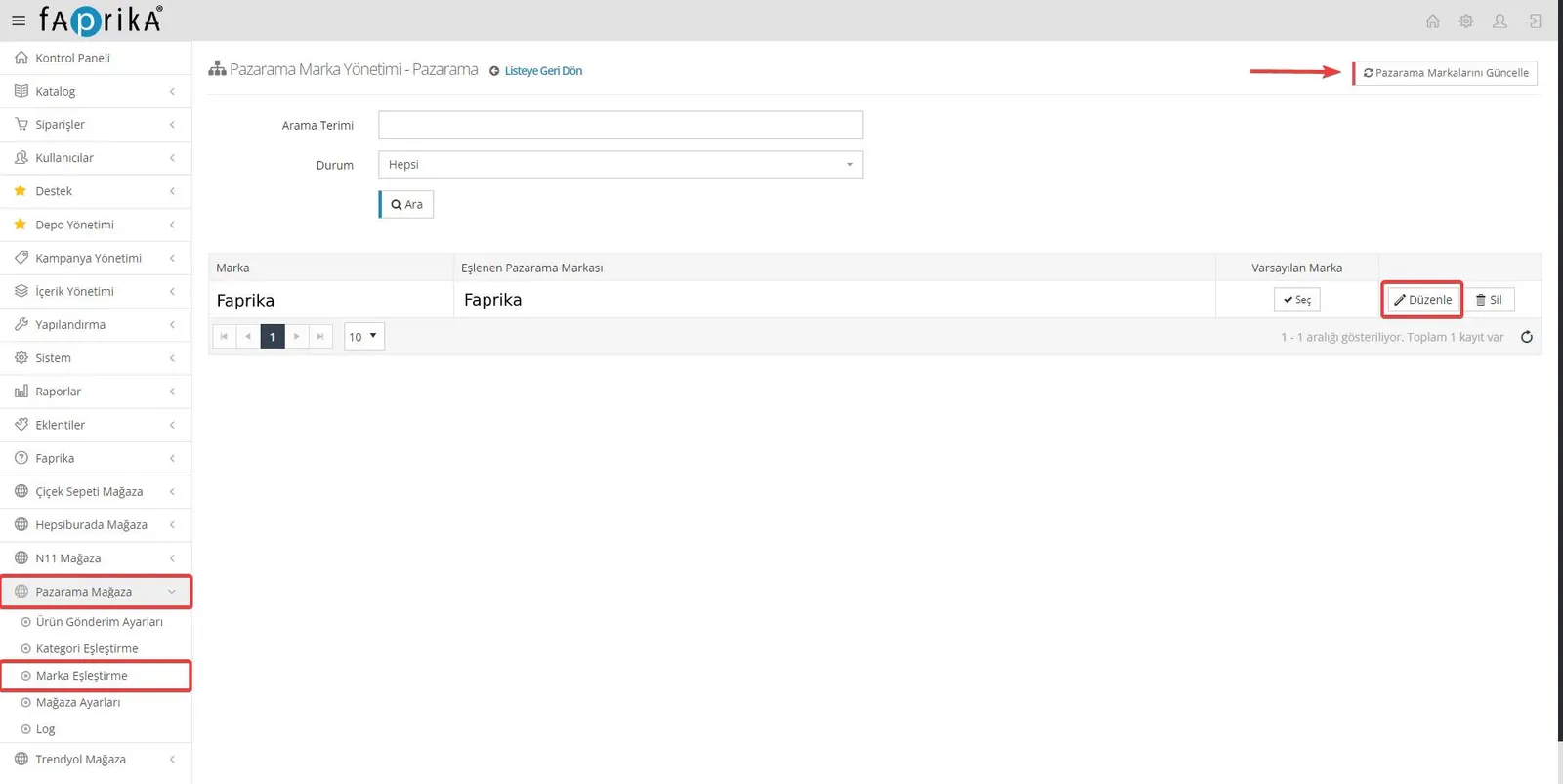
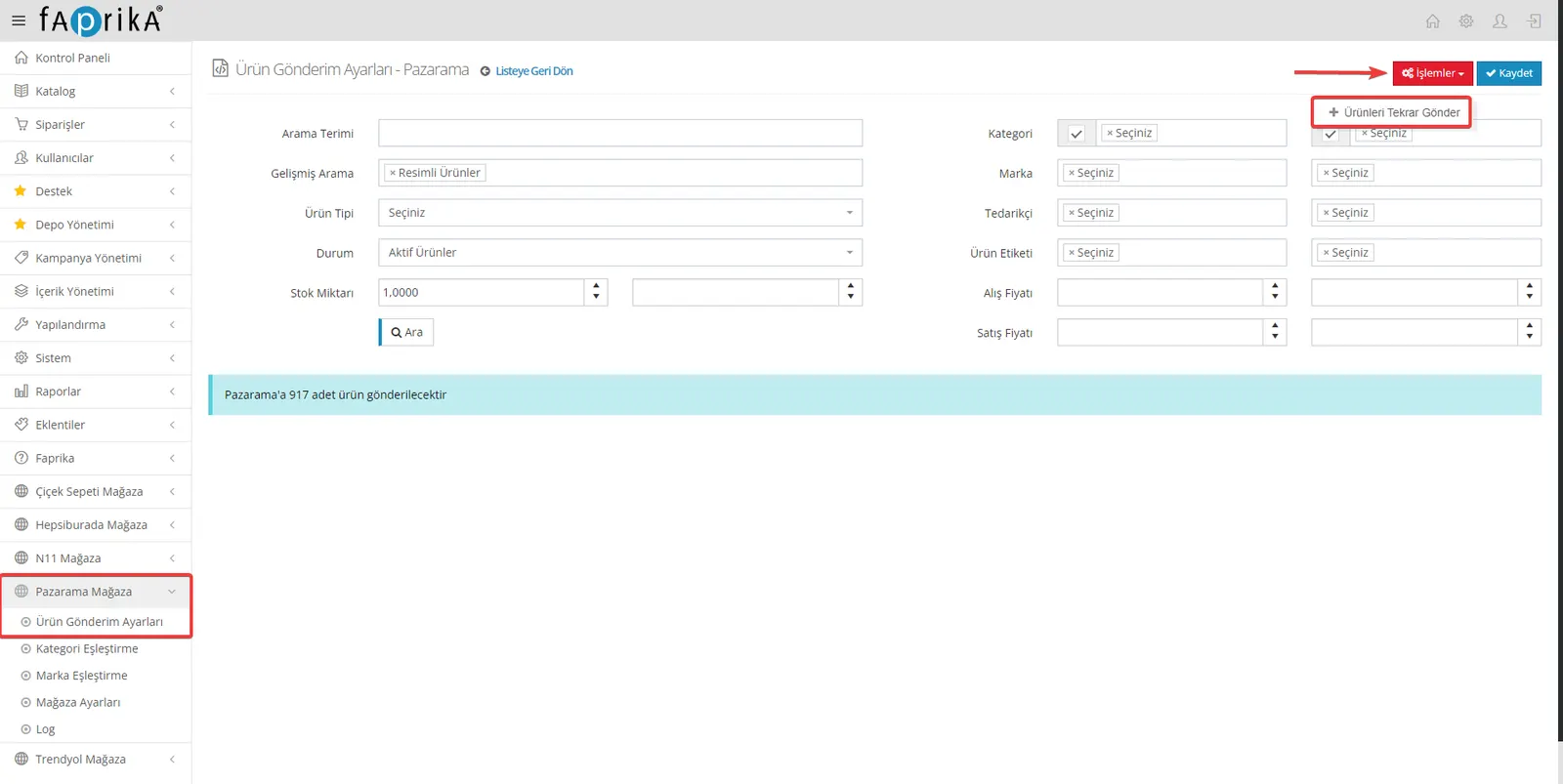
We are moving on to the Pazarama Store >> Product Shipping Settings section:
In this section, you can set which products you want to be transferred from your website to the Pazarama marketplace. Here are the details of how to make these settings:
Filtering Options
- Category Filtering: If you want to send only the products belonging to a specific category to Pazarama, you can select the relevant category. This way, only the products in the category you selected will be sent.
- Tag Filtering: If you want to send products with specific tags to Pazarama, you can select the relevant tags. This helps you customize your products further.
- Other Filtering Options: You can also adjust your product shipping settings with more filtering options. For example, you can filter by criteria such as product type and product status.
Viewing the Number of Products
After completing the filters, you can click the "Search" button to see how many of your products can be sent. This helps you better understand which products will be sent.
Saving the Product Shipping Settings
After completing the filtering, you can save your product shipping settings by clicking the "Save" button in the upper right corner. This determines which products will be sent to the Pazarama marketplace based on the filters you selected.
During product shipping, these filters ensure that only the products that meet your criteria are transferred to Pazarama. This lets you manage your products in a more customized way.
Filters you need to apply when sending products to marketplaces:
- Advanced Search: Products with Images
- Product Type: Regular Products
- Status: Active Products
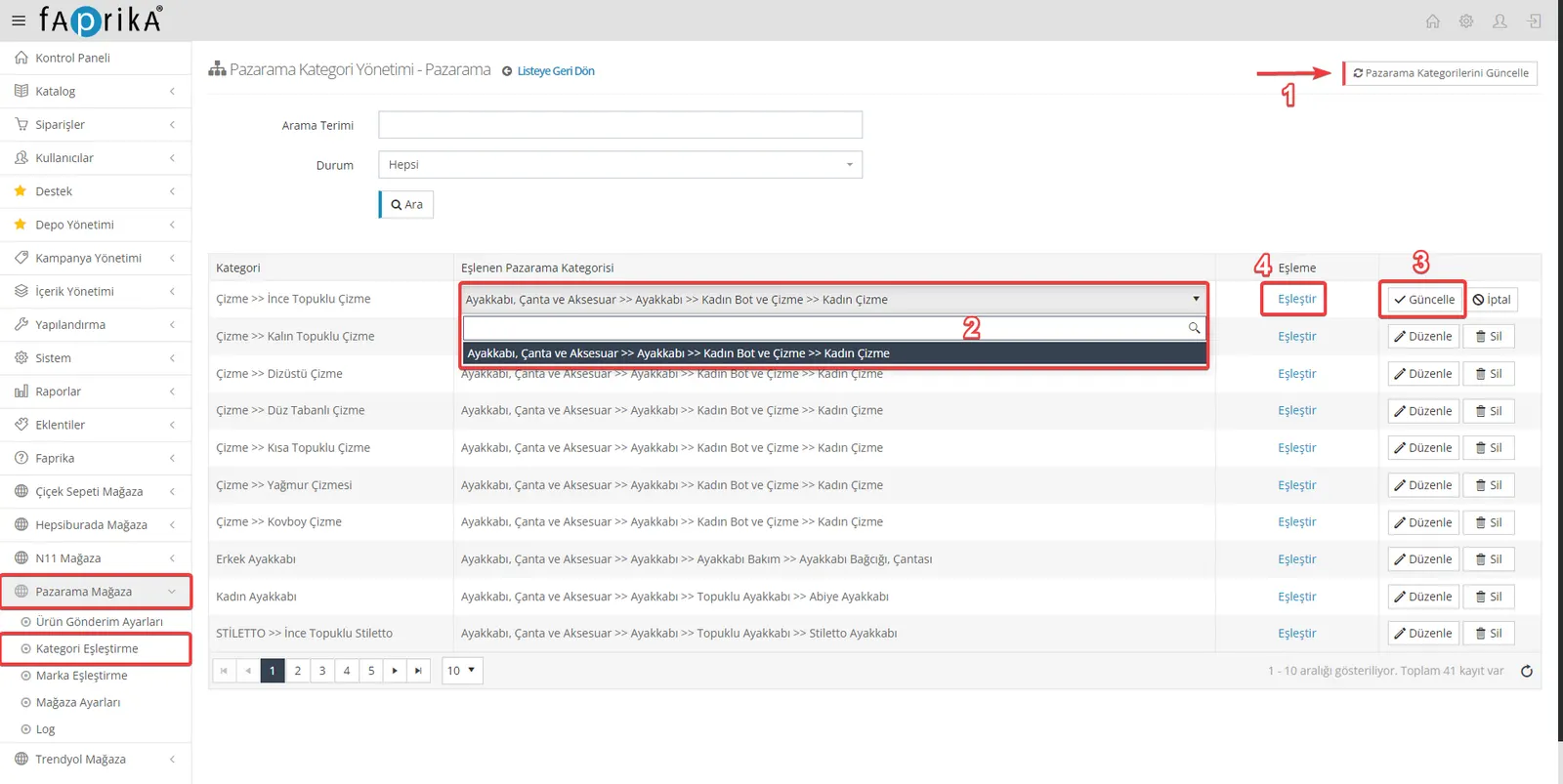
Pazarama Store >> Category Matching is a very important step and ensures your products are assigned to the correct categories and attributes. Below I explain this process step by step:
- In your control panel, go to Pazarama Store >> Category Matching.
- Click the "Update Pazarama Categories" button in the upper right corner. This lets you get the current category information from the Pazarama marketplace.
- When the process is complete, you need to match the categories on your website with the categories on the Pazarama marketplace. To do this, click the "Edit" button.
- A search bar will appear. You need to type which Pazarama category you want to match your category with.
- After selecting the category, save the matching by clicking the "Update" button.
By following these steps, you will have matched your product categories appropriately for the Pazarama marketplace.
Matching categories and attributes correctly will help your products be listed successfully on the Pazarama marketplace.
When you enter the attribute mapping section, you need to update the mapping list by clicking the "Update Mapping List" button in the upper right corner. After this step, you will see required and optional attributes.
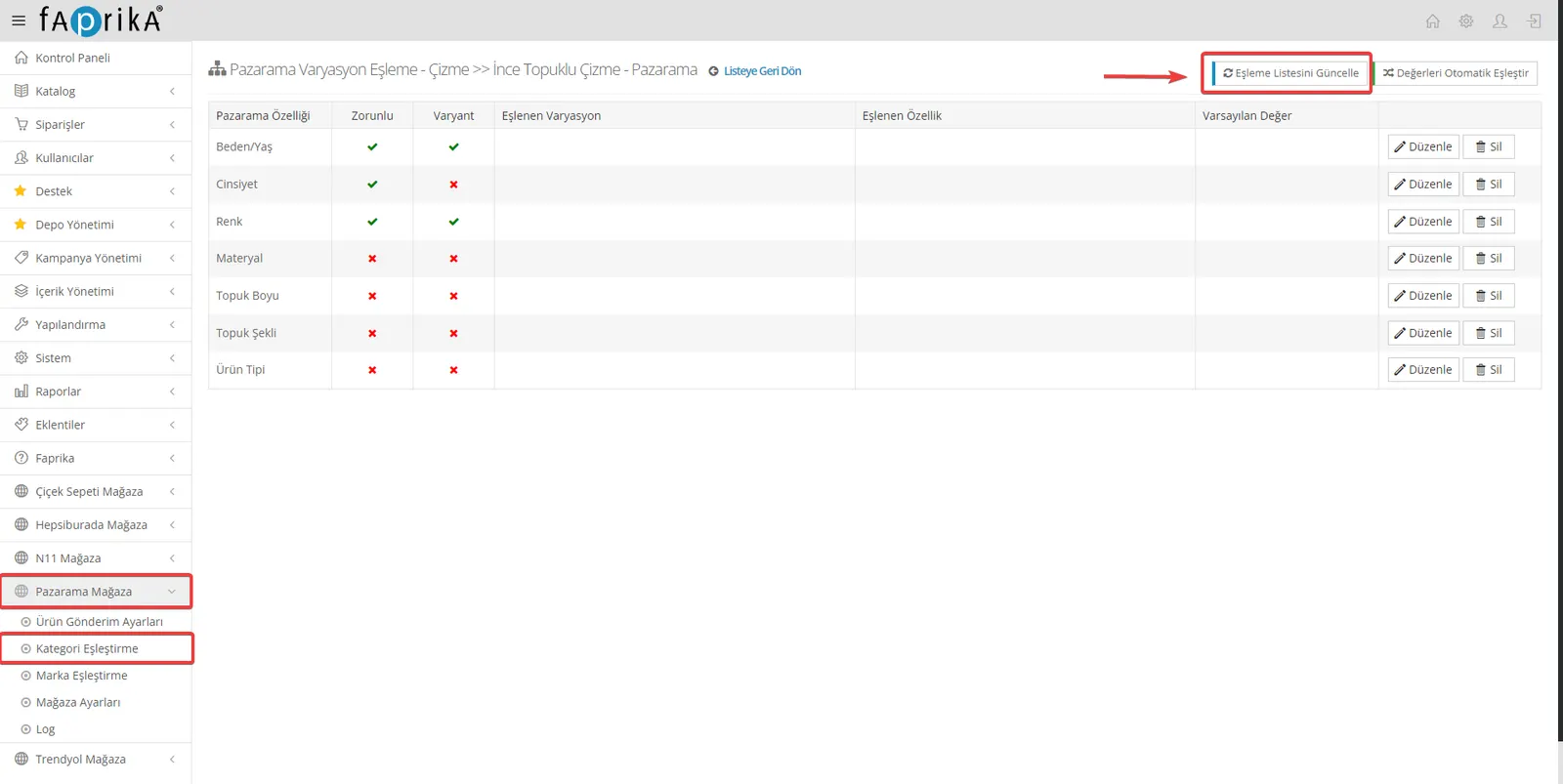
Required attributes are values that your products must have and that you must send in full. For example, attributes in the category such as Size, Gender, and Color may be required.
The other attributes are optional. These attributes are additional data you can use to describe your products in more detail.
After entering the attribute values for your products, you can match these values automatically by clicking the "Auto-Match Values" button in the upper right corner. This helps speed up the process and ensures the data is matched correctly.
By following these steps, you can ensure that your products are matched with attributes appropriately for the Pazarama marketplace
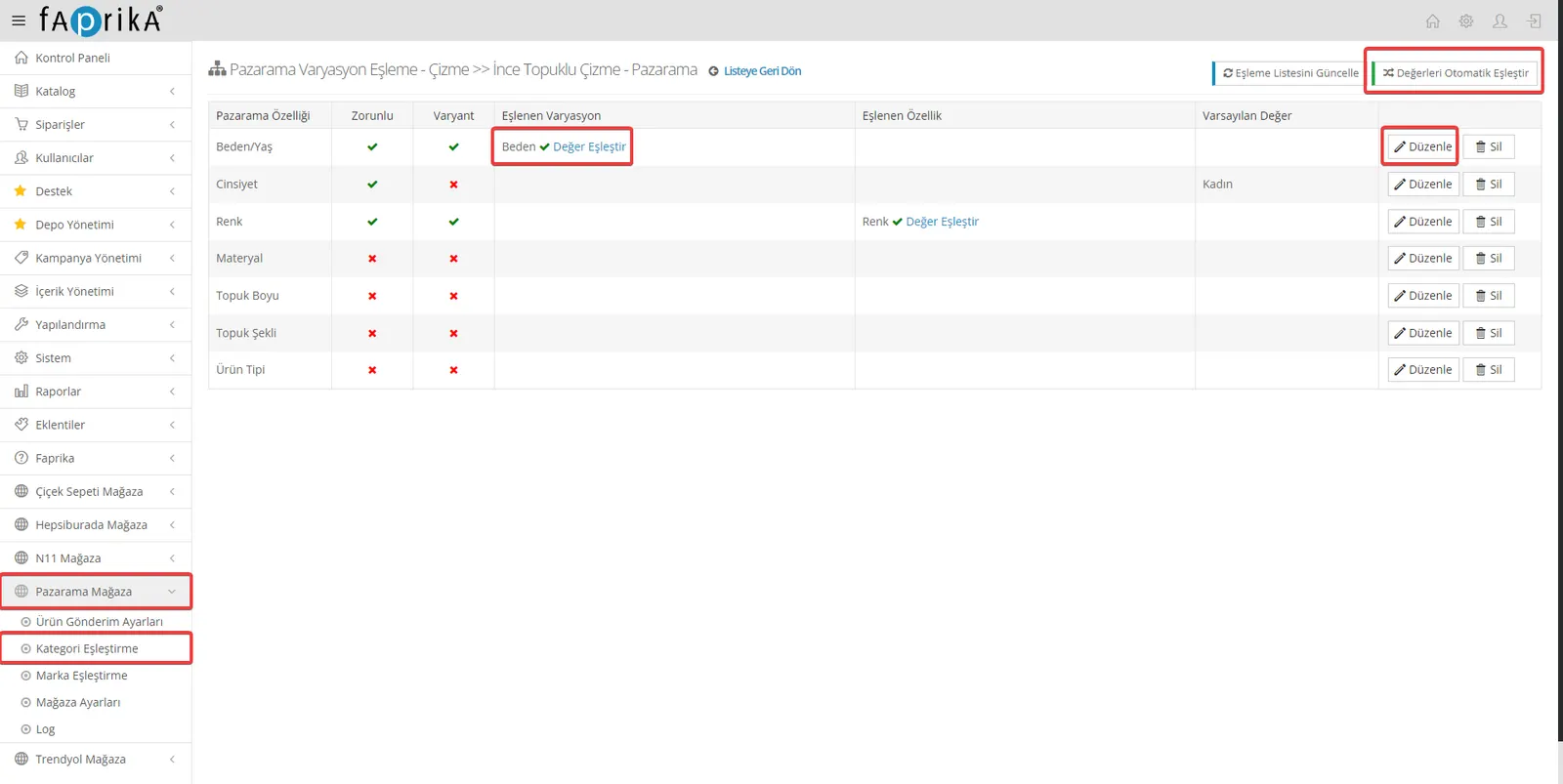
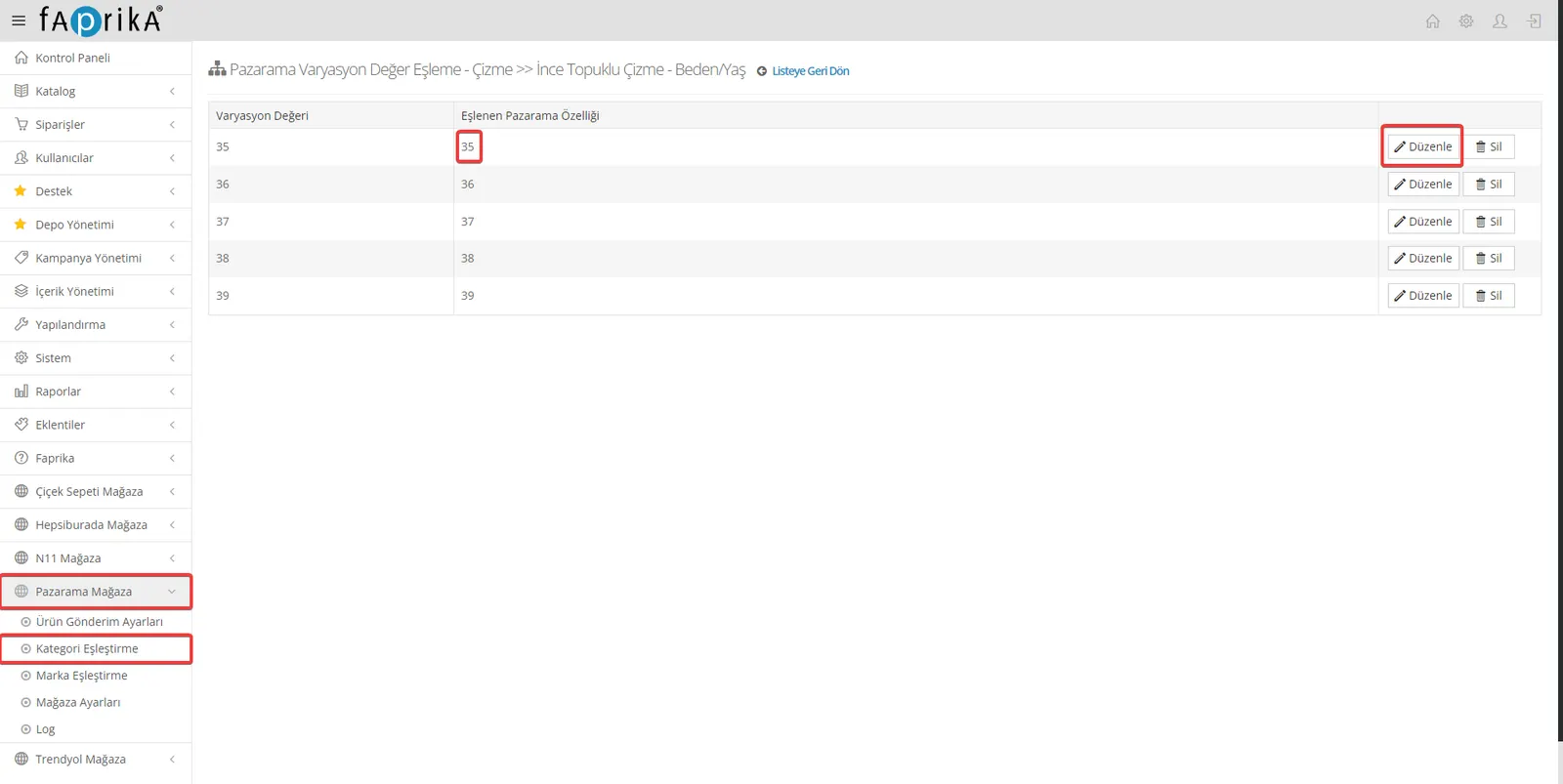
We can use the "Edit" button to make manual edits. For example, let's take the Size variation:
- Click the "Edit" button next to the relevant variation.
- In this step, you need to enter the Size value of the product on your website. For example, you use the size value 35 for this attribute.
- Then specify that you want to match it with the Size value 35 coming from Pazarama.
This way, you can manually edit variations and attribute values and make the appropriate matches. You can apply this process to other attributes and variations as well.
After completing all these steps, we can now transfer products to the Pazarama marketplace.
- Log in to your Pazarama Store control panel.
- Go to the "Product Shipping Settings" section from the menu.
- Click the Operations tab.
- Start the product transfer by clicking the "Resend Products" button.
If you have completed the steps correctly, your products will be approved by Pazarama and put on sale
Pazarama Integration: Open a New Door to Your Business Growth!
Pazarama integration is one of the keys to reaching more customers and growing your business in the digital world. With Faprika's powerful e-commerce infrastructure, you can integrate seamlessly with the Pazarama marketplace. This integration offers unique opportunities to increase your online sales and stay ahead of the competition.
What can you do with Pazarama integration?
- You can easily transfer your products to the Pazarama marketplace.
- You can manage price and stock updates automatically.
- You can process orders quickly and without errors.
- You can increase customer satisfaction and build a loyal customer base.
Open a new door to your business growth with Pazarama integration. It's time to reach more customers and increase your online sales. For detailed information, visit our Pazarama Integration page and discover your business's potential in the digital world.
Faprika is by your side on the road to e-commerce success!