Add-ons/Integrations
LC Waikiki Integration
This detailed guide, prepared for Faprika users, explains the LC Waikiki integration process step by step and shows how to successfully integrate your products with the LC Waikiki marketplace.
LC Waikiki Marketplace Integration
One way to gain a competitive edge in the e-commerce world is to manage integrations with various marketplaces successfully. Faprika's integration module with LC Waikiki is a critical step for increasing your brand's visibility, reaching a wide audience with your products and simplifying your order management processes.
This guide comprehensively explains all the steps Faprika users need to integrate with the LC Waikiki marketplace, from product transfer to stock and price updates, from order management to shipment tracking. This step-by-step roadmap provides the information you need to manage your e-commerce operations more effectively.
Logging In to LC Waikiki Store Settings
- Control Panel: Log in to your Faprika control panel and start the integration process. Your control panel is the central area where you can manage all your integration and store settings.
- Store Settings: Go to the "LC Waikiki Store" tab in your control panel, then to the "Store Settings" section. This is where you will configure your integration with LC Waikiki.
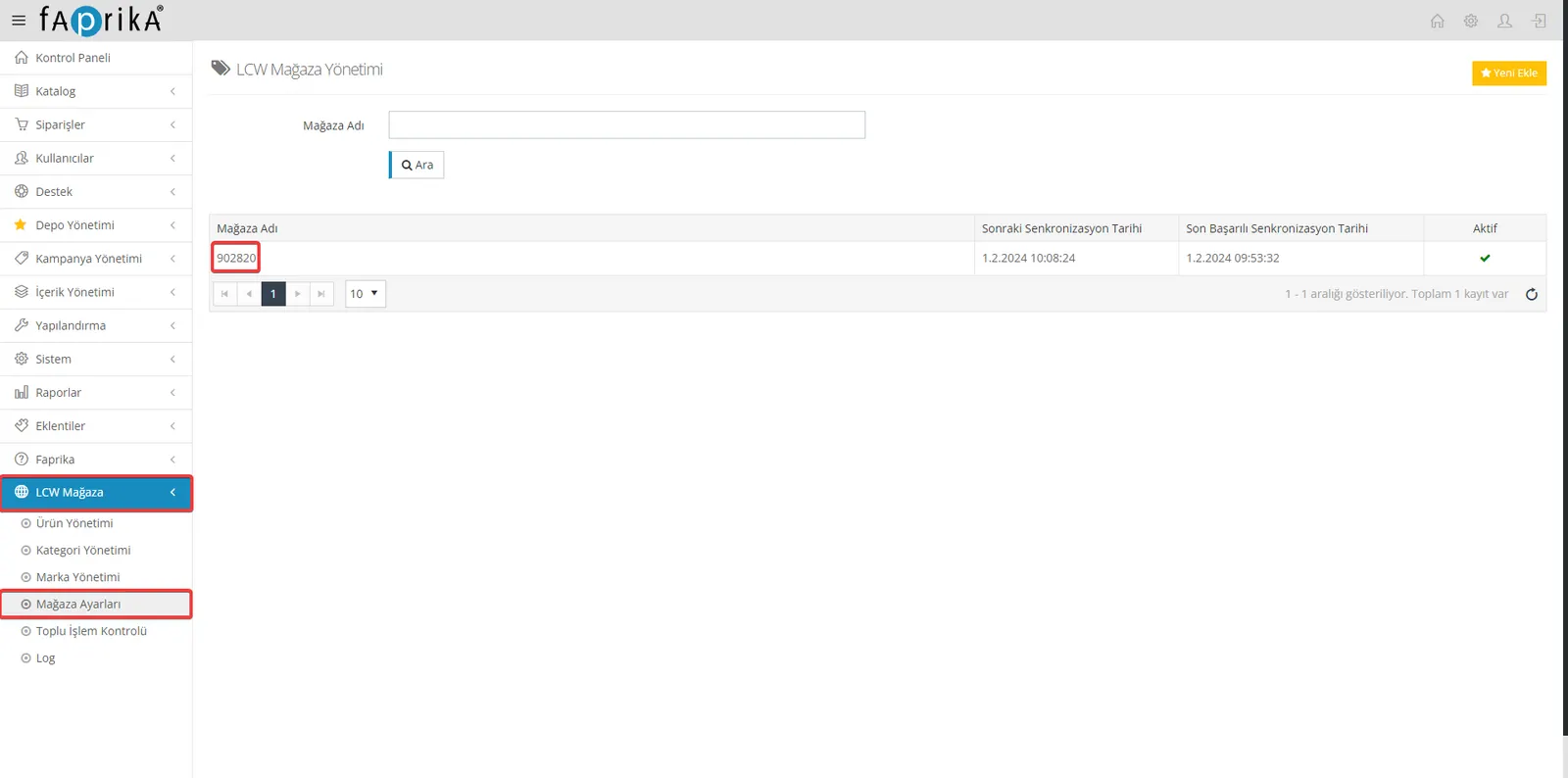
Entering the Required Information
- Supplier Number: Enter the supplier number given to you by LC Waikiki in the relevant field. This number identifies you and your products in the LC Waikiki system.
- API Username and Password: Enter the API access credentials provided to you by LC Waikiki. This information allows Faprika to communicate securely with the LC Waikiki system.
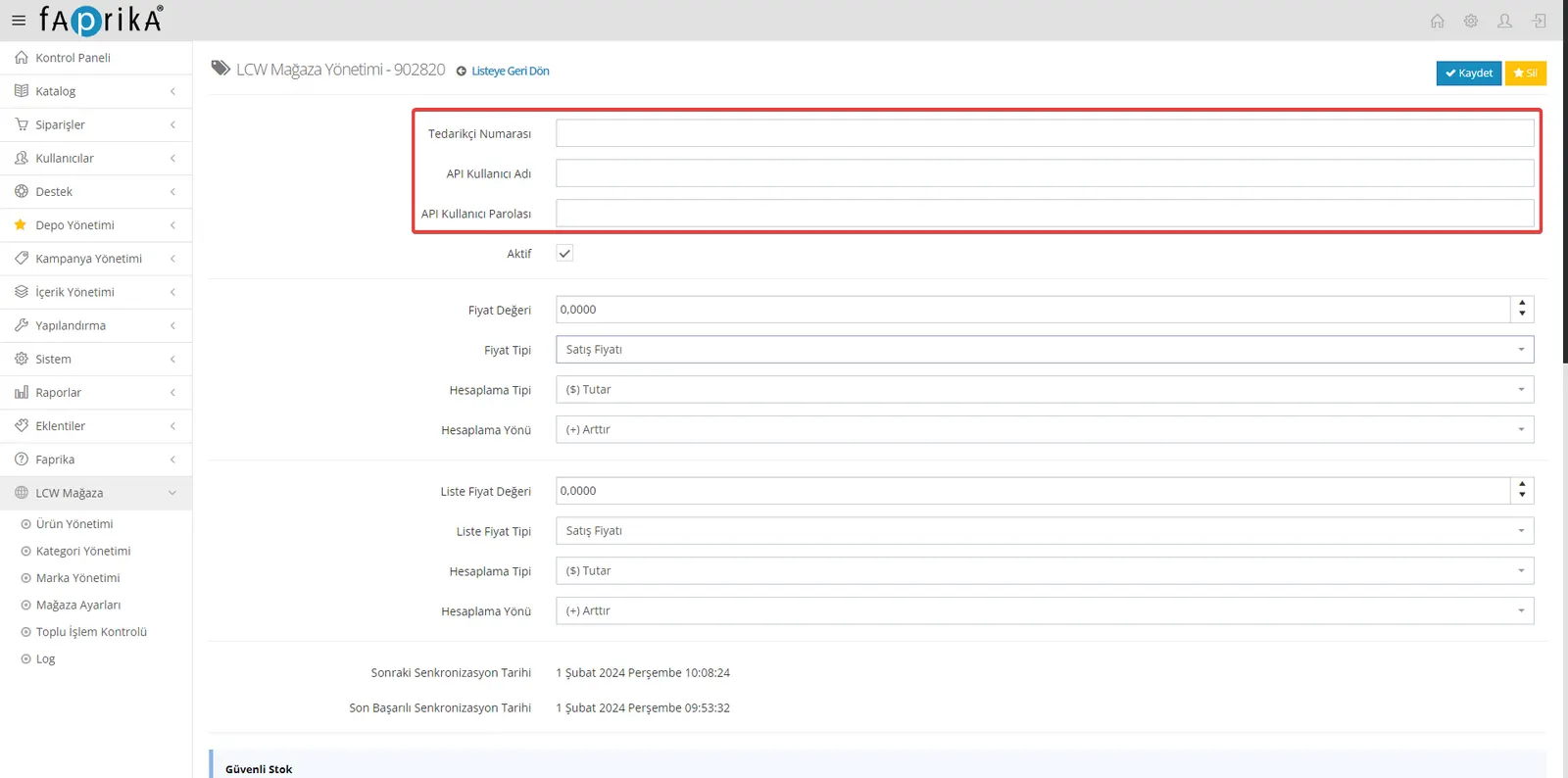
Activating and Saving the Settings
- Active Button: After entering the required information, tick the "Active" button to activate the settings. This step is critical for the integration process to begin.
- Saving: Once all the information has been entered correctly, press the save button to save your configuration. This means the entered information is accepted by the system and the integration is started.
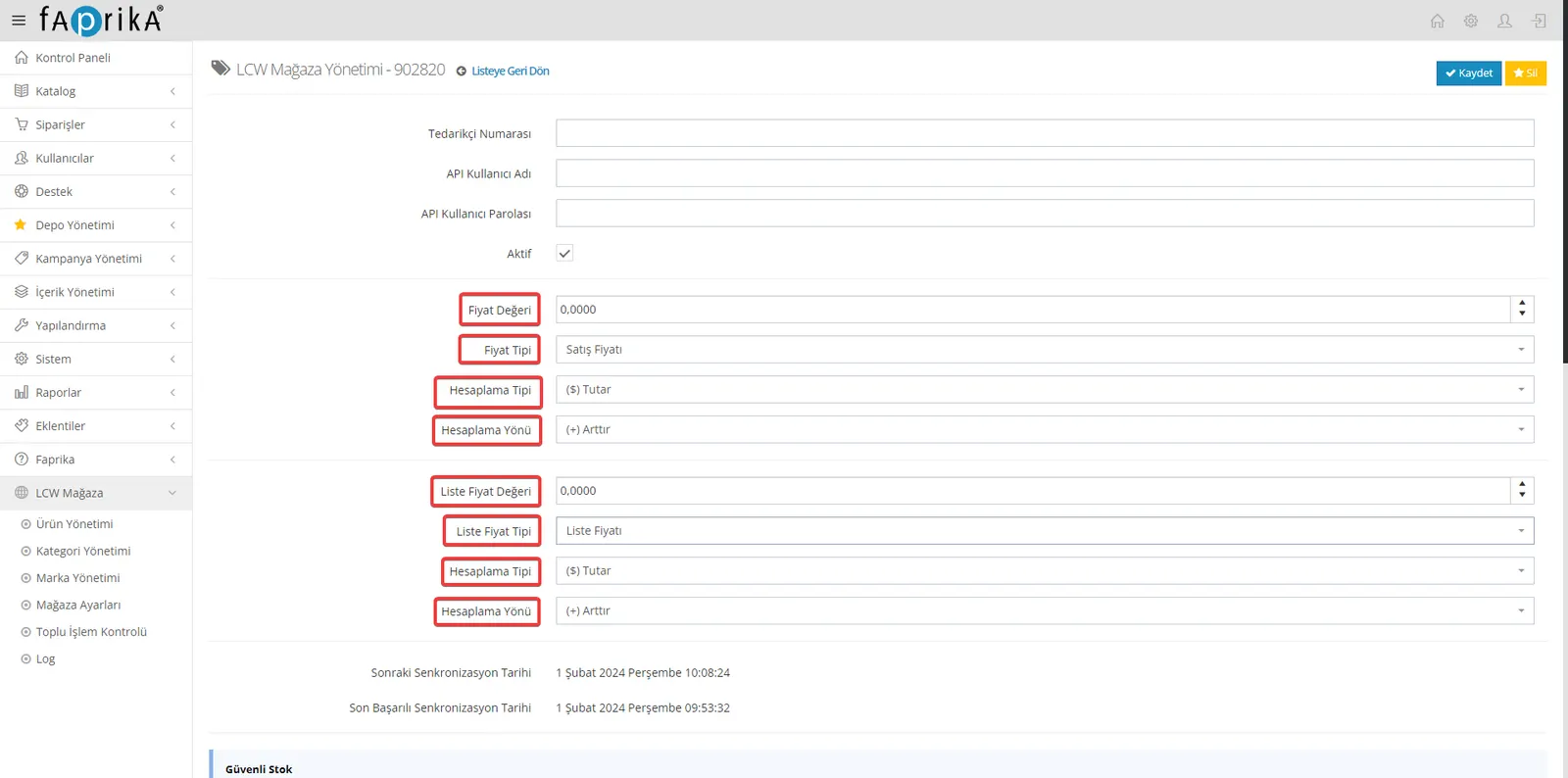
Price Value and Price Type Settings
- Price Value: When transferring your products to the marketplace, you can assign a specific price type value. This value can be increased or decreased depending on how you want your products' prices to appear on the marketplace. For example, if you enter 10 as the price value, the price will be changed as a percentage or an amount, according to the selected calculation direction and type.
- Price Type: By assigning your products a different, marketplace-specific price type, you can offer them on the marketplace at a price different from the sales price on your website. This lets you run special promotions or pricing for the marketplace.
Calculation Type and Direction
- Calculation Type: This is the pricing option with which you can set your product price as an "Amount" or a "Percentage" when transferring it to the marketplace. It is determined by how you want to set your product's price on the marketplace. Filling in the price value field automatically adjusts the pricing according to the selected calculation type.
- Calculation Direction: You can set price values with the "Increase" or "Decrease" option. This lets you adjust your product prices in line with marketplace competition or your promotion strategies.
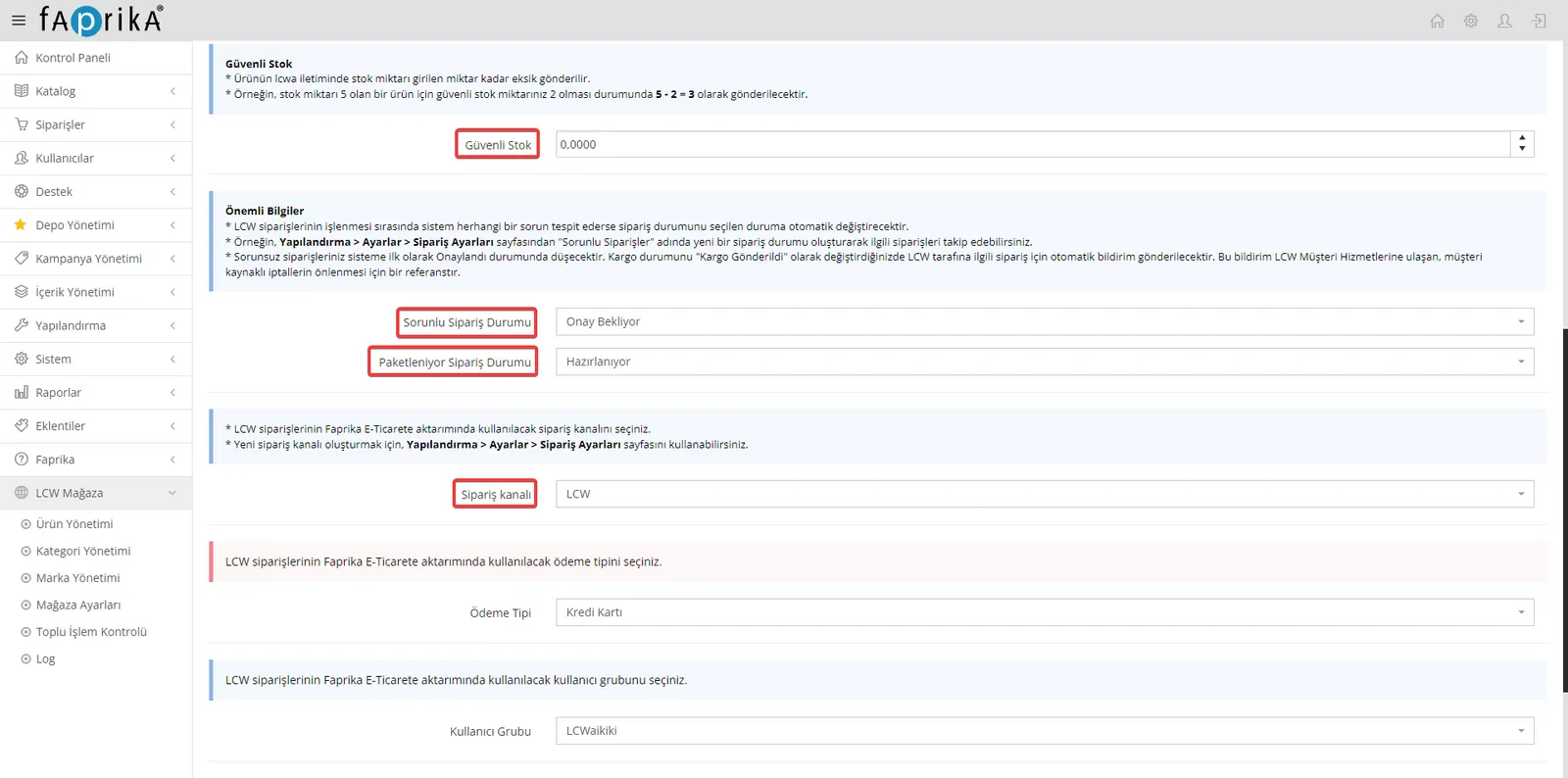
Safe Stock Setting
- Safe Stock: When transferring your products to the LC Waikiki marketplace, you can set a safe stock quantity to make sure stock never falls below a certain amount. For example, for a product with a stock quantity of 5, if you set the safe stock quantity to 2, your actual stock quantity will be transferred to LC Waikiki as 3. This reduces the risk of running out of stock and ensures you can meet customer demand.
Problematic Order Status
- Problematic Orders: If any problem occurs while processing LC Waikiki orders, the order status will be updated automatically. Faprika users can create an order status for problematic orders and track these orders easily. This helps you quickly resolve possible disruptions in the order management process.
Packing Order Status
- Packing Status: For orders marked as being packed on the LC Waikiki marketplace, you need to define a suitable order status in your Faprika panel. This makes it easier to clearly track the processing status of orders and to give customers up-to-date information.
Order Channel Selection
- Order Channel: To ensure that orders received from LC Waikiki are transferred correctly to your Faprika e-commerce platform, you must select a suitable order channel. This ensures orders are processed and managed efficiently. To create a new order channel, you can use the Configuration >> Settings >> Order Settings section.
Payment Type Selection
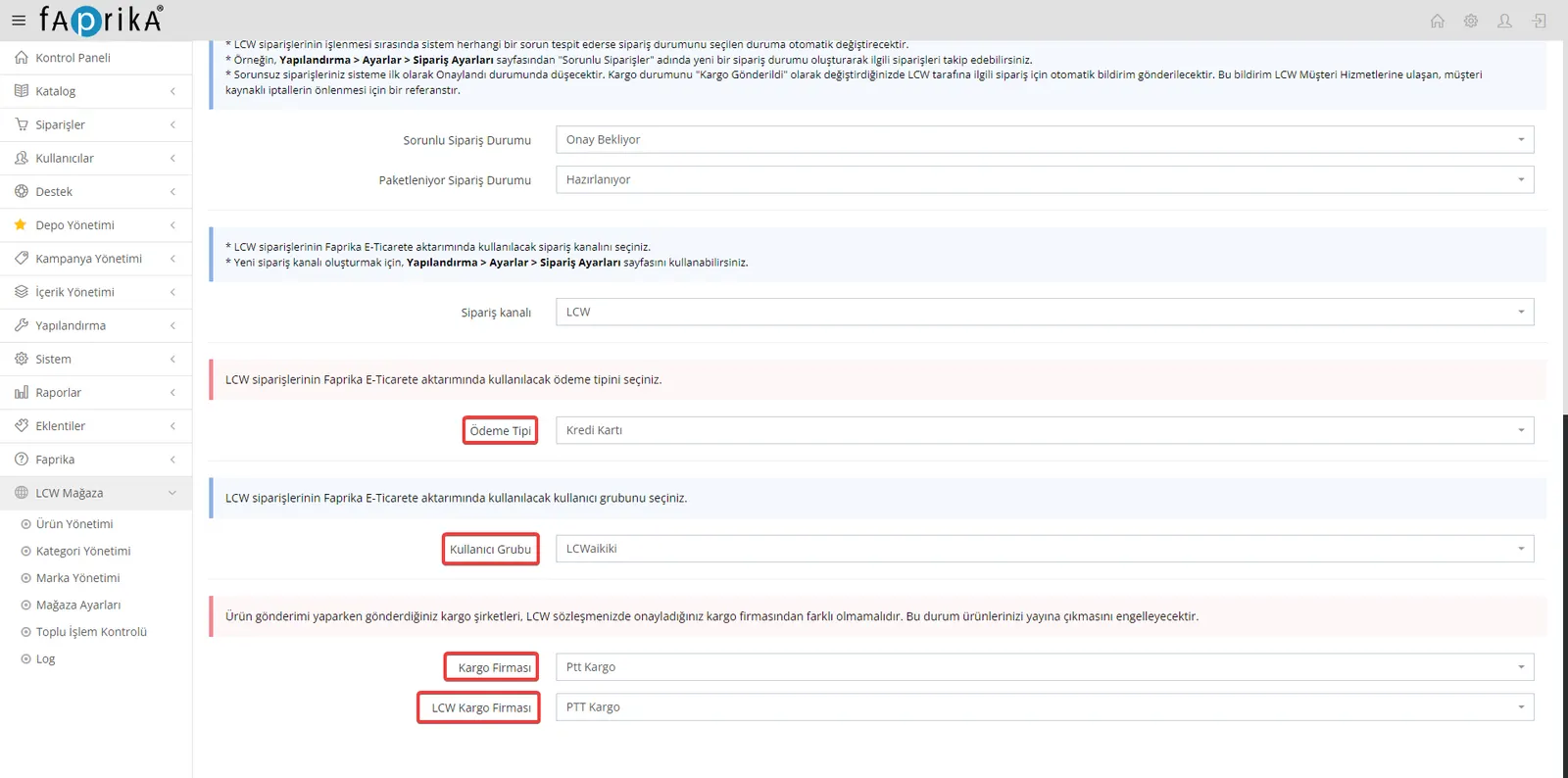
- Payment Type: When LC Waikiki orders are transferred to the Faprika e-commerce platform, it is important to choose which payment type will be used. This choice matters for order processing and financial reporting and ensures transactions are recorded correctly. Faprika users should set their payment methods according to their own workflows and the payment methods accepted by LC Waikiki.
User Group Setup
- User Group: When processing LC Waikiki orders, determining which user group the orders belong to is important for order management and customer relationship management. Faprika users can create special user groups named "Marketplace" to segment orders by different marketplaces. This allows customer service and marketing campaigns to be managed more effectively.
Selecting the LC Waikiki Shipping Company
- Shipping Company: According to the agreement with LC Waikiki, approved shipping companies must be used when shipping products. This is a critical step to ensure orders are delivered on time and without problems. When Faprika users work with the shipping companies preferred by LC Waikiki, it has a positive effect on getting products published and on customer satisfaction.
LC Waikiki Brand Management Steps
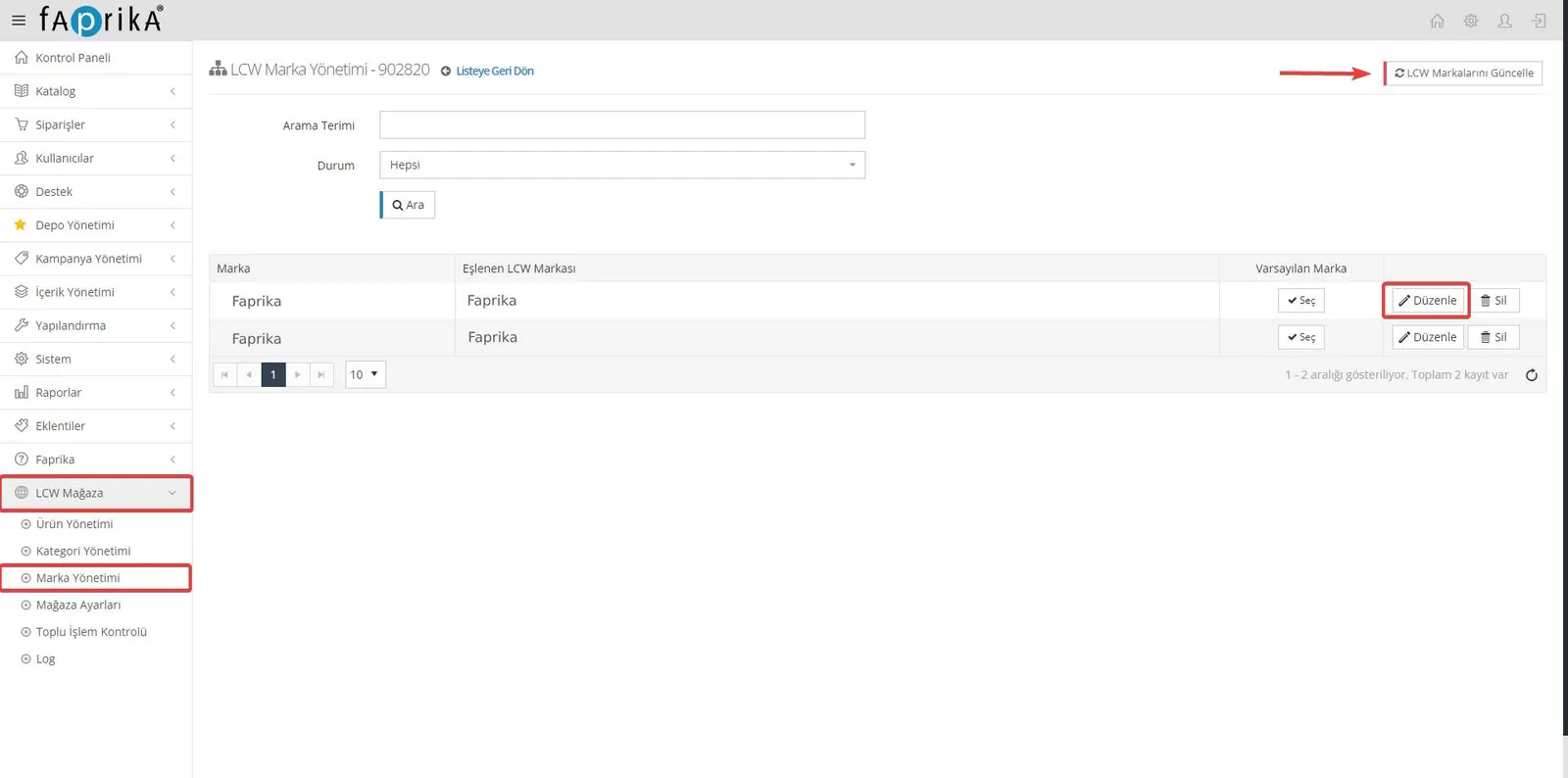
- Accessing Brand Management: In your Faprika control panel, go to the "LC Waikiki Store" tab and then select the "Brand Management" submenu. This is where you will manage your brand mappings with the LC Waikiki marketplace.
- Updating Brands: Click the "Update LC Waikiki Brands" button in the upper right of the page. This transfers the current brand list from the LC Waikiki marketplace to your website. This way, you can match the products on your site with correct and up-to-date brand information.
- Matching Brands: Use the "Edit" button to match the brand you want to use for the products on your website with its counterpart on the LC Waikiki marketplace. This step ensures your products are listed on LC Waikiki under the correct brand name. Matching increases your brand's visibility and recognition on the marketplace.
- Completing the Update: After matching your brands, press the relevant update button to complete the process. This ensures the changes you made are saved to the system and products are transferred to the LC Waikiki marketplace with the correct brand information.
Product Management and Shipping Settings
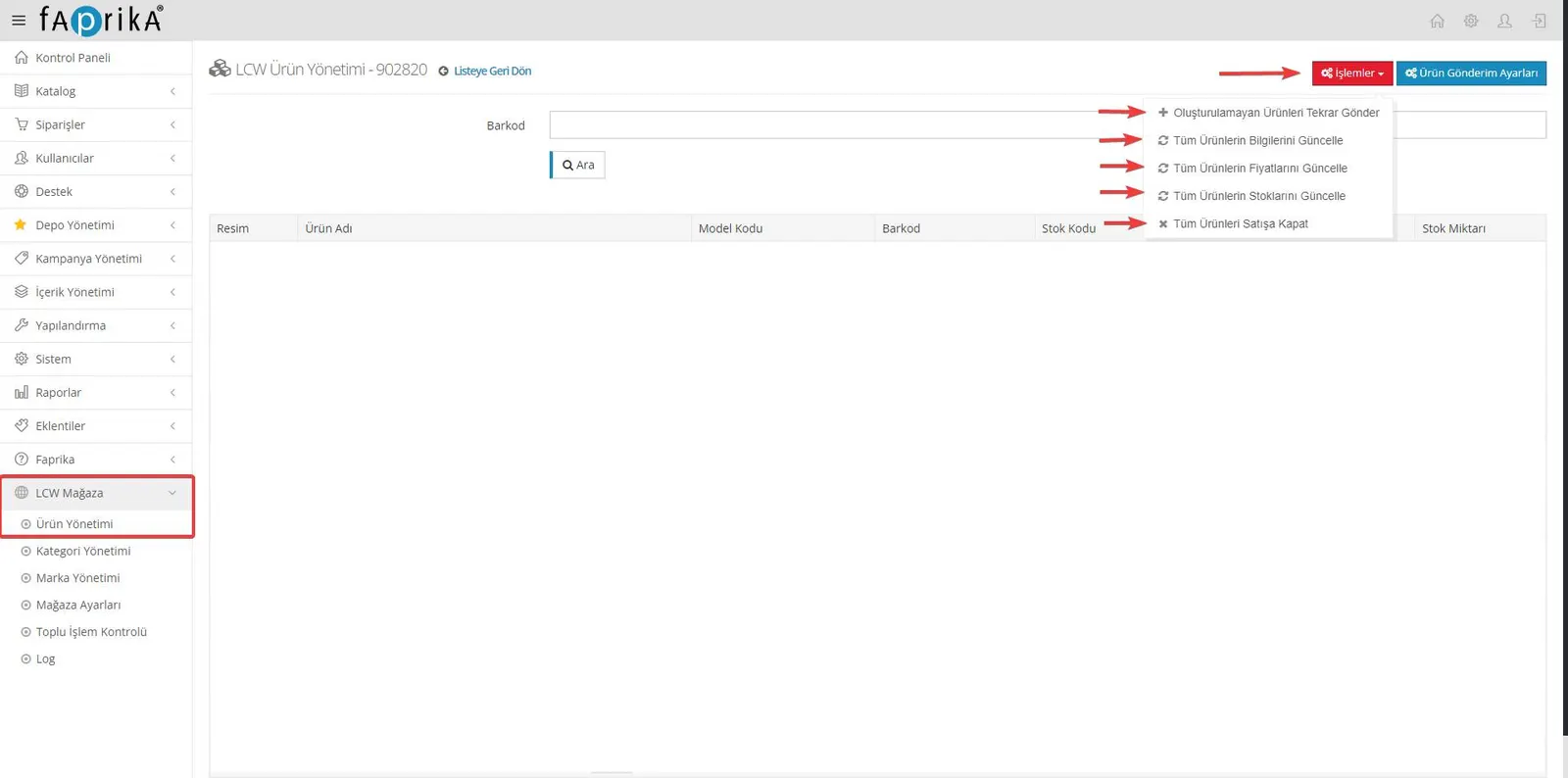
- Accessing the Product Management Page: In your Faprika control panel, go to the "LC Waikiki Store" tab and select the "Product Management" submenu. This page contains the operations related to how your products are managed and sent to the LC Waikiki marketplace.
Operations and Product Sending Settings
- Operations: The "Operations" button lets you start a series of actions for all products in the panel. These operations include creating products, updating stock and prices, and changing the sales status of products. This feature lets you easily manage the status of your products on the marketplace and make quick updates when needed.
Creating and Updating Products
- You can use the "Operations" button to send your products to the LC Waikiki store or to make changes to your existing products. This keeps your product information, stock levels and pricing up to date.
Sales Status Management
- Managing the sales status of your products is especially important when you have a stock problem or want to offer certain products for sale temporarily for promotional purposes. You can easily make these adjustments via the "Operations" button.
Filters for Product Sending
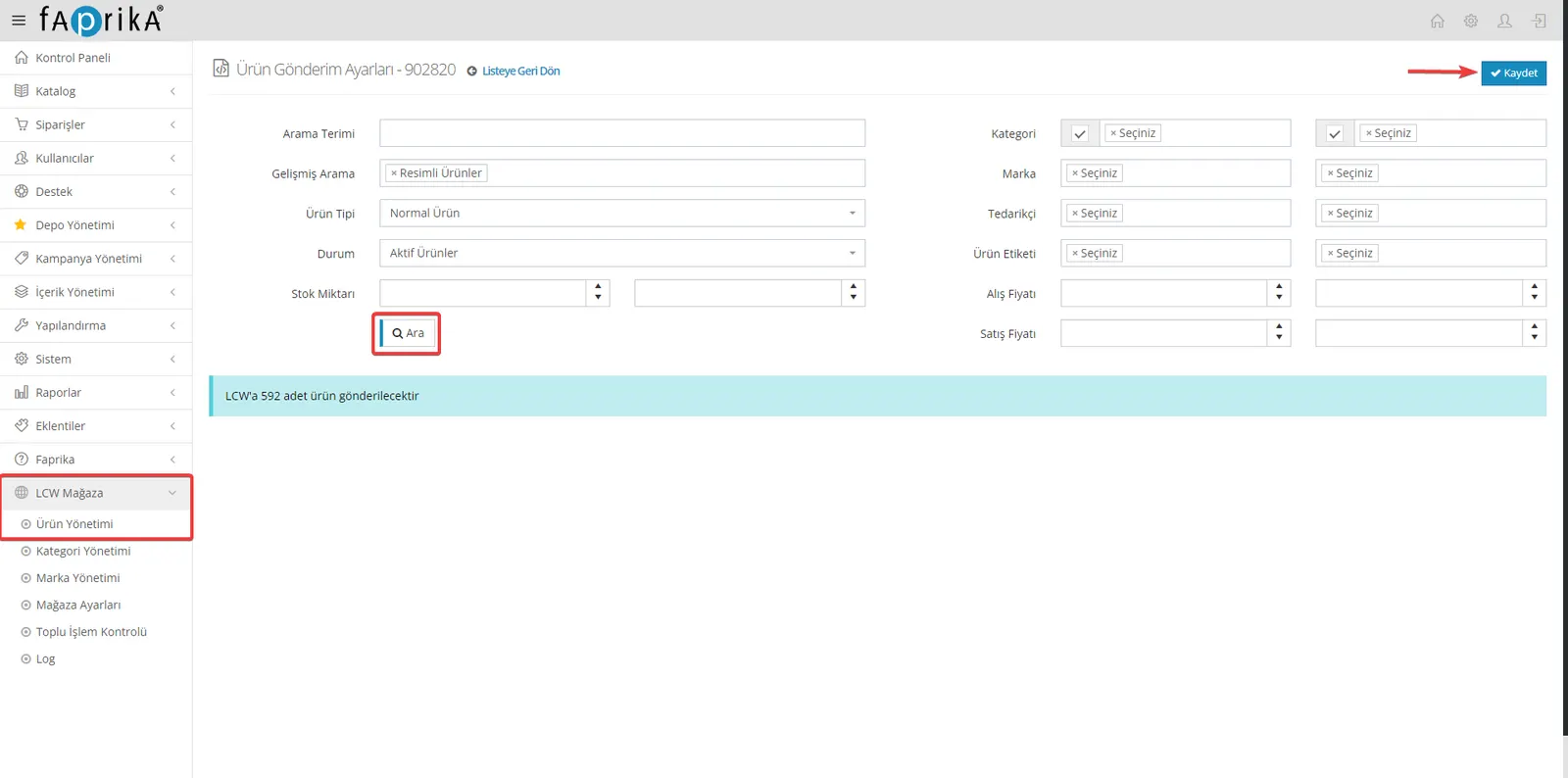
- Advanced Search: When sending products, it is important to select products with images. On the LC Waikiki marketplace, images increase the impact of products on buyers and raise sales potential.
- Product Type: Filtering by "Normal Products" ensures products are sent in line with the right product categories.
- Status: Selecting active products guarantees that only products that are in stock and ready for sale are sent.
Category and Attribute Mappings
Category Mapping
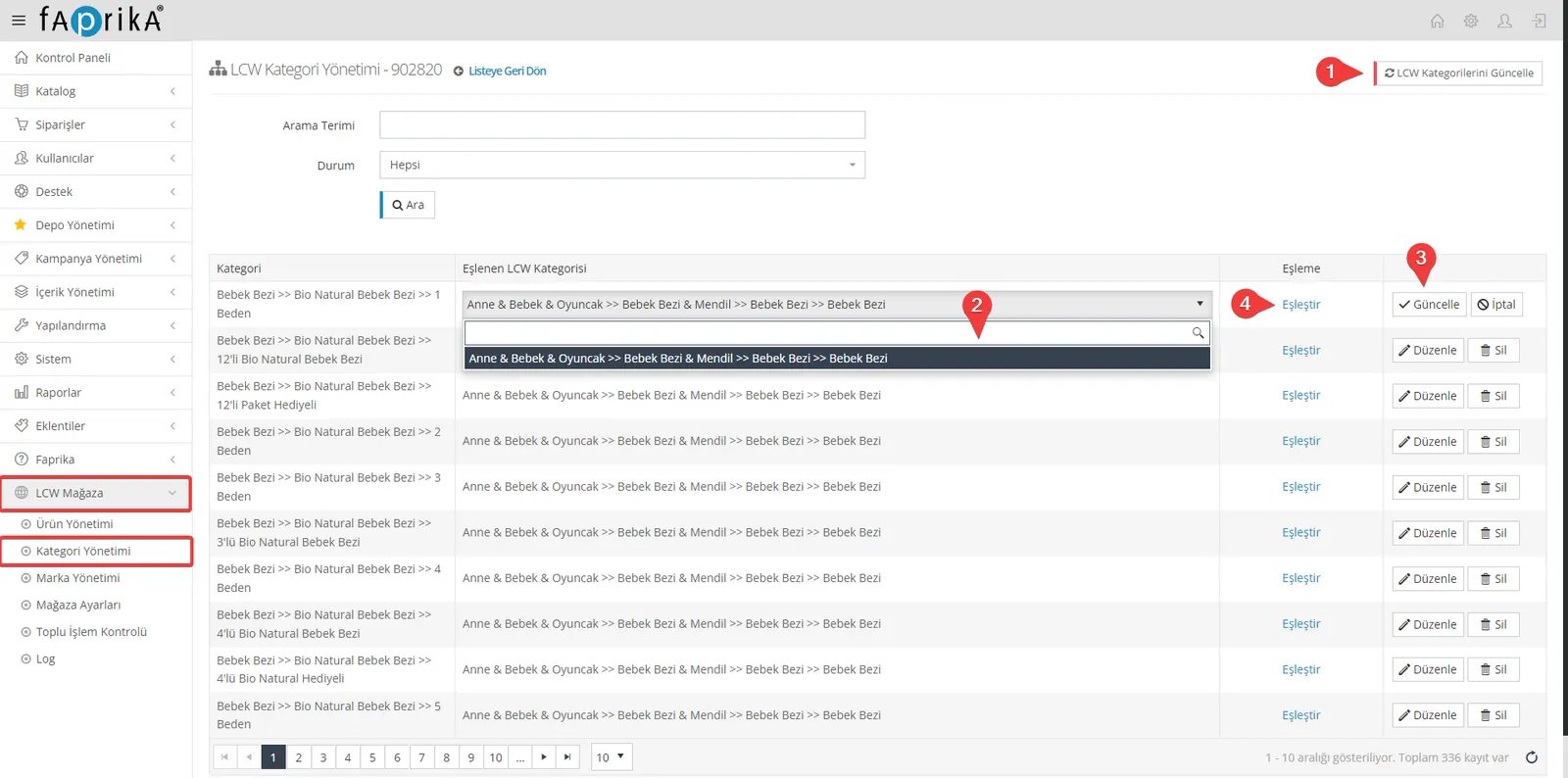
- In your control panel, go to the "LC Waikiki Store >> Category Mapping" section and click the "Update LC Waikiki Categories" button to transfer LC Waikiki's current category list to your site.
- Then, use the "Edit" button next to each category to match the categories on your site with LC Waikiki's categories. This ensures the products on your site are placed in the correct categories on the LC Waikiki marketplace.
- After completing the category mapping, finish the process by clicking the "Update" button.
Attribute Matching
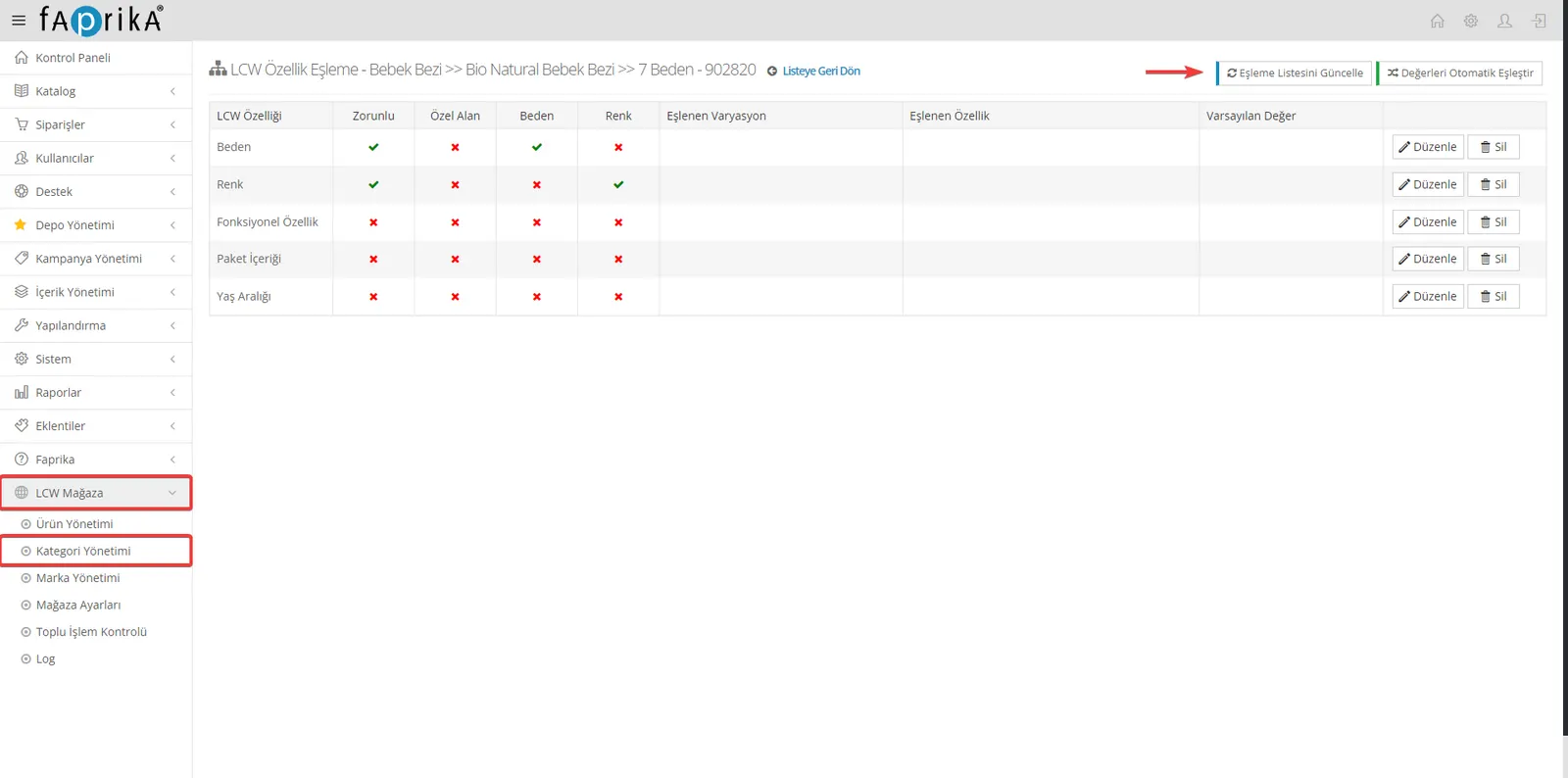
- Once category mapping is complete, product attributes need to be mapped. This ensures the attributes of your products are listed correctly on the LC Waikiki marketplace.
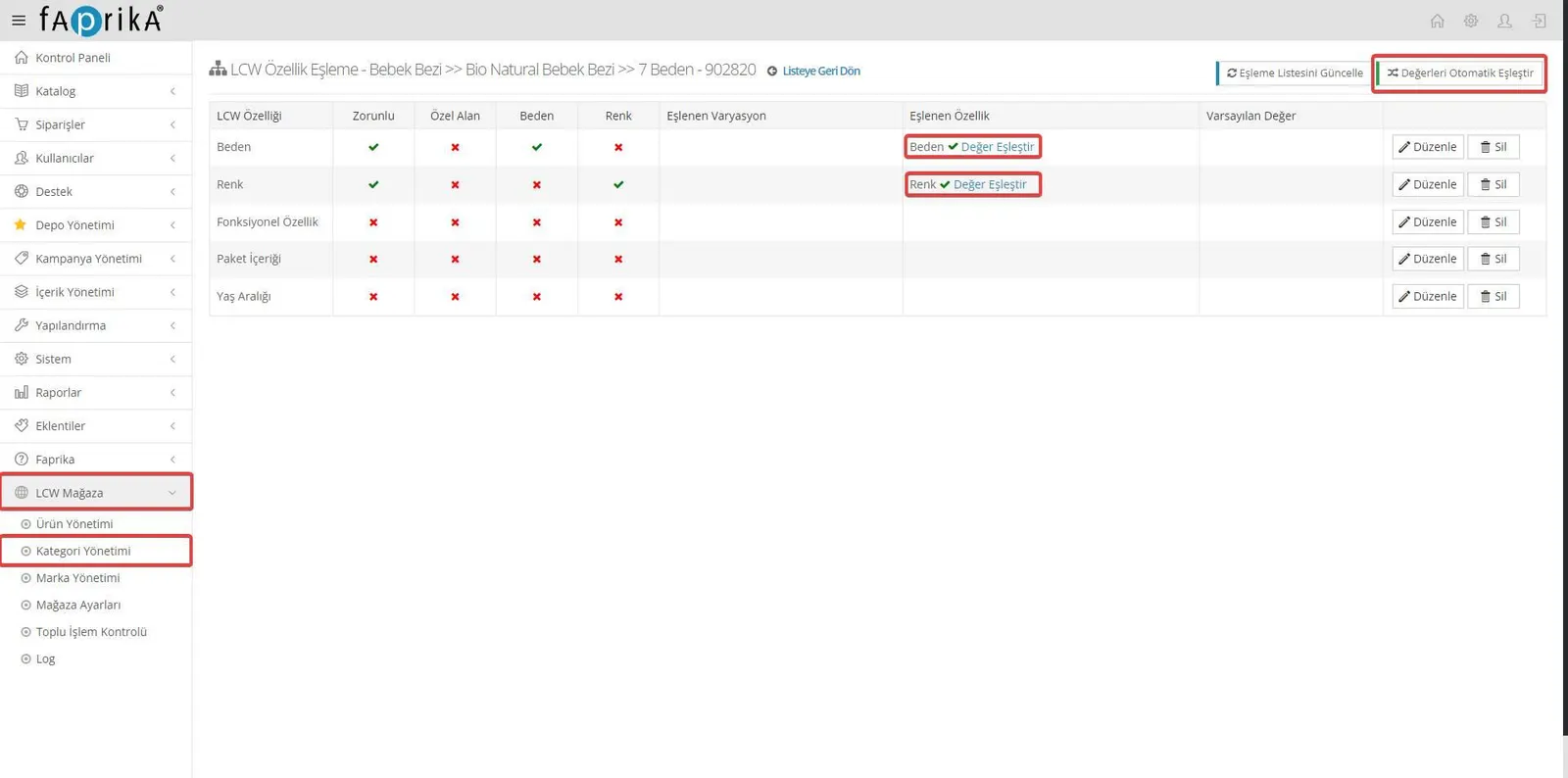
- Attribute mapping is done with the "Match" button, and the mapping list is updated with the "Update Mapping List" button. This step ensures your product attributes are compatible with LC Waikiki's system.
Required and Optional Attributes
- Required Attributes: After the mapping list is updated, the required attribute values must be present on your products. These attributes are the basic information needed for your product to be listed on the LC Waikiki marketplace. For example, for a clothing category, attributes such as "Size" and "Color" may be required.
- Optional Attributes: These are additional details you can add to your products but are not mandatory. Optional attributes can help you describe your product in more detail and make it easier for buyers to find it based on the features they are looking for.
Matching Attribute Values
- Automatic Matching: The "Match Values Automatically" button automatically matches your product attributes with LC Waikiki's category attributes. This speeds up the process and reduces the chance of manual errors.
Manual Editing Process
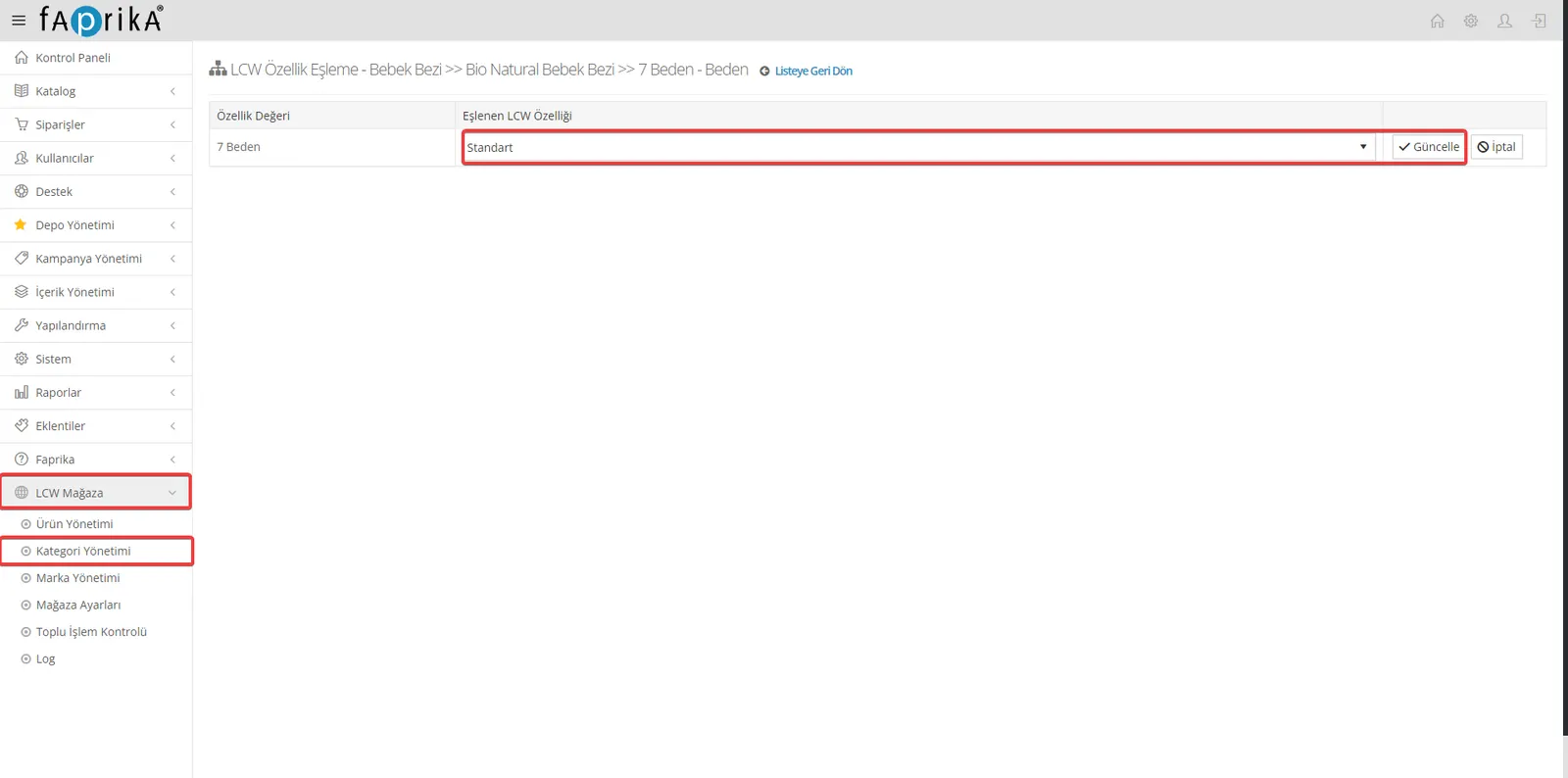
- Accessing the Edit Button: To edit attribute or variation values manually, click the "Edit" button next to the relevant attribute. This step lets you customize attribute values and make the match between the marketplace and your site more accurate.
- Reviewing Variation and Attribute Values: After clicking the "Edit" button, you will see the list of current values for the attribute or variation. This list includes the existing attribute values on the LC Waikiki marketplace and the values you defined on your site.
- Making the Right Match: If you have set a specific value such as "7 Size" for a product on your site and it corresponds to LC Waikiki's "Standard Size" value, match these two values manually. This ensures your product is listed in the right category and with the right attributes.
- Completing the Matching: Once the matching is complete, you may need to click a confirm or update button to save the changes. This ensures that manual edits are updated and saved in the system.
Why Is Manual Editing Important?
Manual editing becomes especially important when your product attributes and variations do not fully match the standards of the marketplace platform. With this method, you can make the specific adjustments needed so potential buyers can find your products correctly. Manual editing improves the accuracy and relevance of your product listings, which can positively affect your conversion rates and customer satisfaction.
Practical Example
- Size and Color Matching: If a product on your website has a specific size value such as "7 Size" and it corresponds to LC Waikiki's "Standard Size" value, you may need to match these two values manually. This ensures your product is listed in the correct size category.
Starting the Product Transfer
- Product Management: In your Faprika control panel, go to "LC Waikiki Store >> Product Management >> Actions". Here you can manage the transfer of your products to the marketplace.
- Resend Products That Could Not Be Created: If there are products that could not be transferred earlier, you can restart their transfer by clicking the "Resend Products That Could Not Be Created" button. Do this only after making sure that all the settings and edits described earlier have been done correctly.
Post-Transfer Processes
- Approval Process: Your products are reviewed by LC Waikiki and go through an approval process. This process evaluates whether your product information complies with LC Waikiki's standards. Once approved, your products are put on sale on the LC Waikiki marketplace.
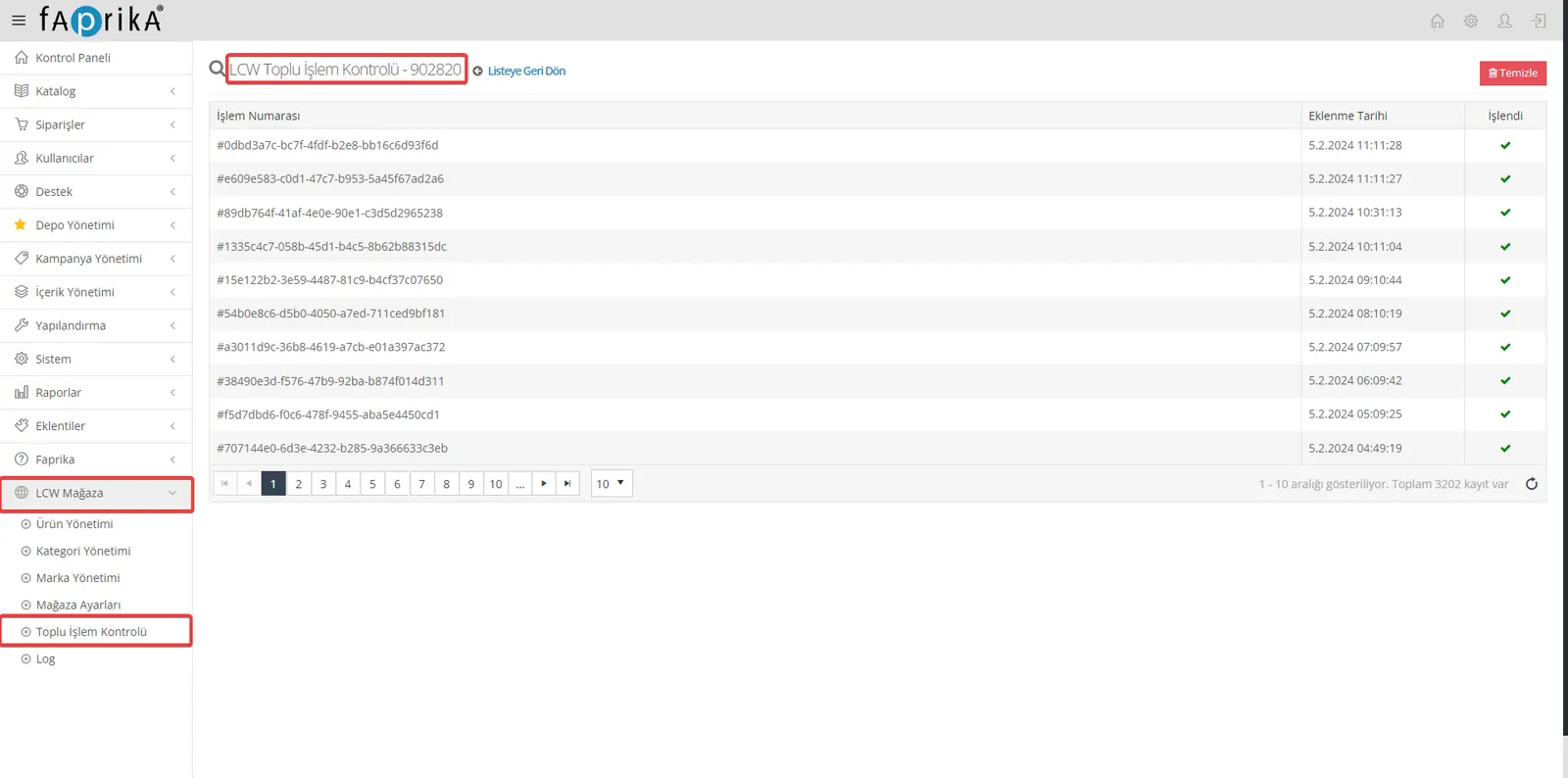
- Bulk Operation Control: The "LC Waikiki Store >> Bulk Operation Control" section provides an overall check of the integration requests sent and the operations performed. In this area you can review the status of bulk operations carried out during the integration process. This section is especially useful for users who transfer large volumes of products, as it offers an overall summary of the integration process and lets you quickly spot any errors.
The LC Waikiki integration gives Faprika users the opportunity to expand their e-commerce strategies and reach a wider audience with their products. This guide explains step by step how to successfully integrate your products with the LC Waikiki marketplace. Every detail, from category and attribute matching to product and price updates, is important to ensure your products are listed correctly on LC Waikiki and reach potential customers.
Completing this process will increase your brand's visibility while maximizing your sales potential. The integration tool provided by Faprika is a valuable resource for every business that wants to succeed in e-commerce. By using this guide while integrating your products with LC Waikiki, you can strengthen your competitive edge in e-commerce and grow your business. Remember, regular optimization and updates are critical to sustaining your success on the marketplace. For more information, explore the LC Waikiki Integration.