Add-ons/Integrations
Google Merchant Center Setup
In This Tutorial
What Is Google Merchant Center?
Google Merchant Center opens the product information of your e-commerce site to Google through web services, so that the products you sell through e-commerce reach shoppers. This way, the products you sell through your e-commerce channel appear higher in Google searches, allowing your customers to shop quickly.
What Are the Advantages of Google Merchant Center?
- It gets your products to your target audience faster.
- It transfers the information of all products on your website to Google in a short time.
- It lets you use Google Shopping ads more effectively.
How Is It Created?
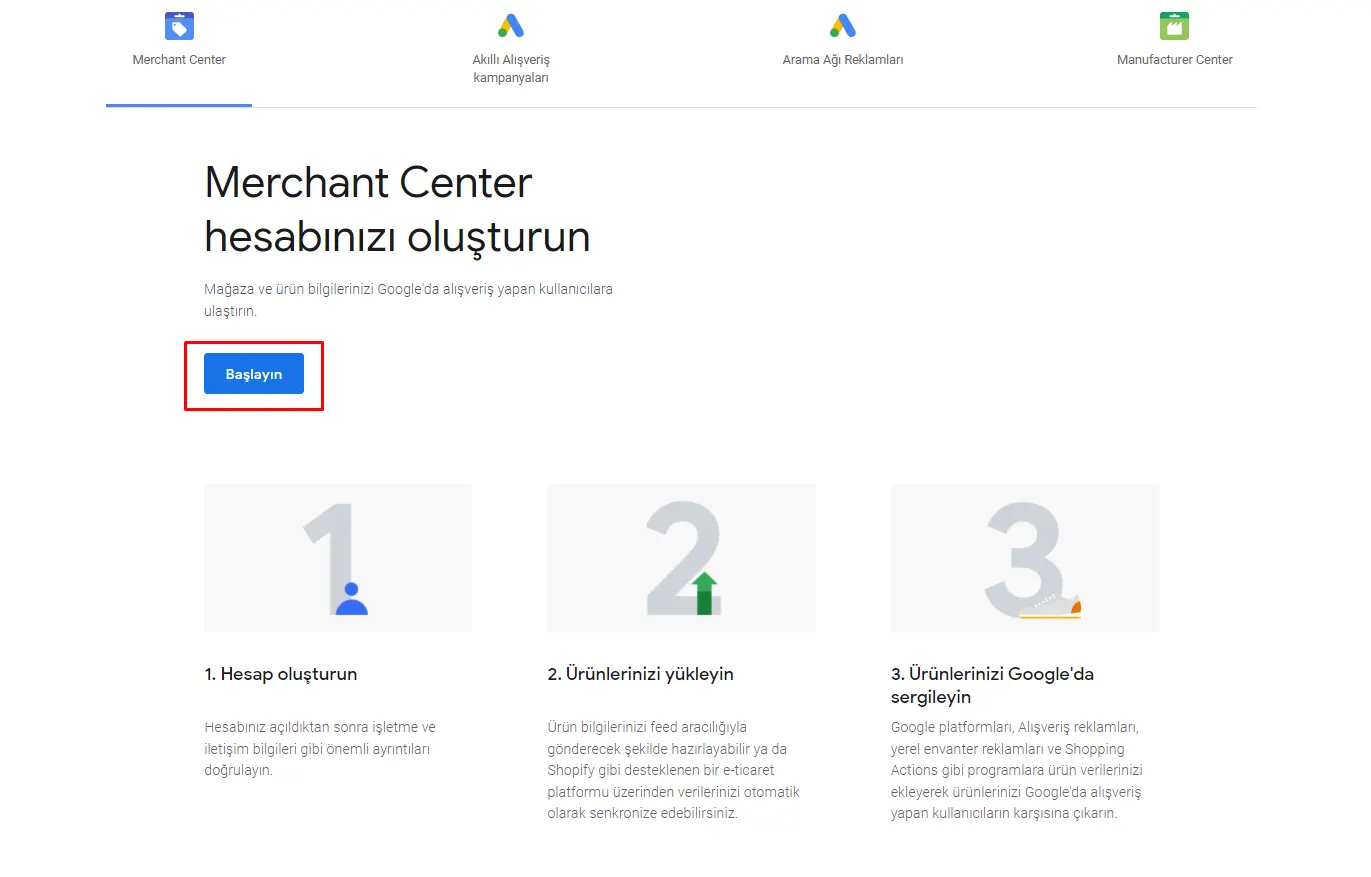
After signing in to Google Merchant Center, click the “Get started” button and sign in.
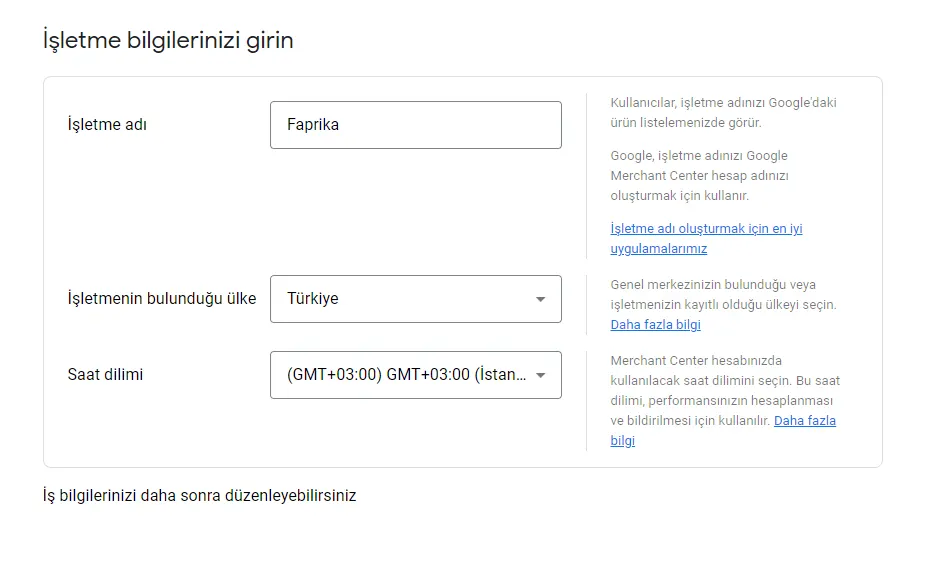
Enter our business information on the screen that appears.
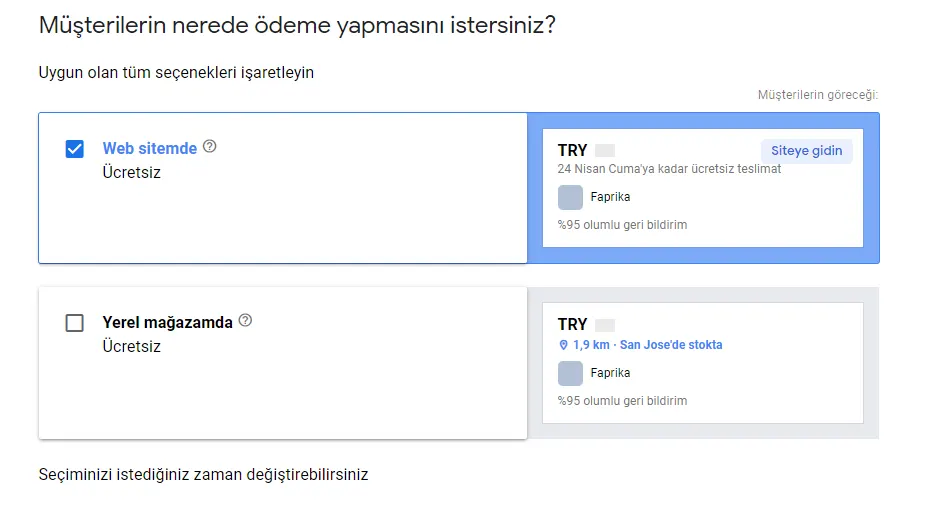
Select where customers will be directed for payment.
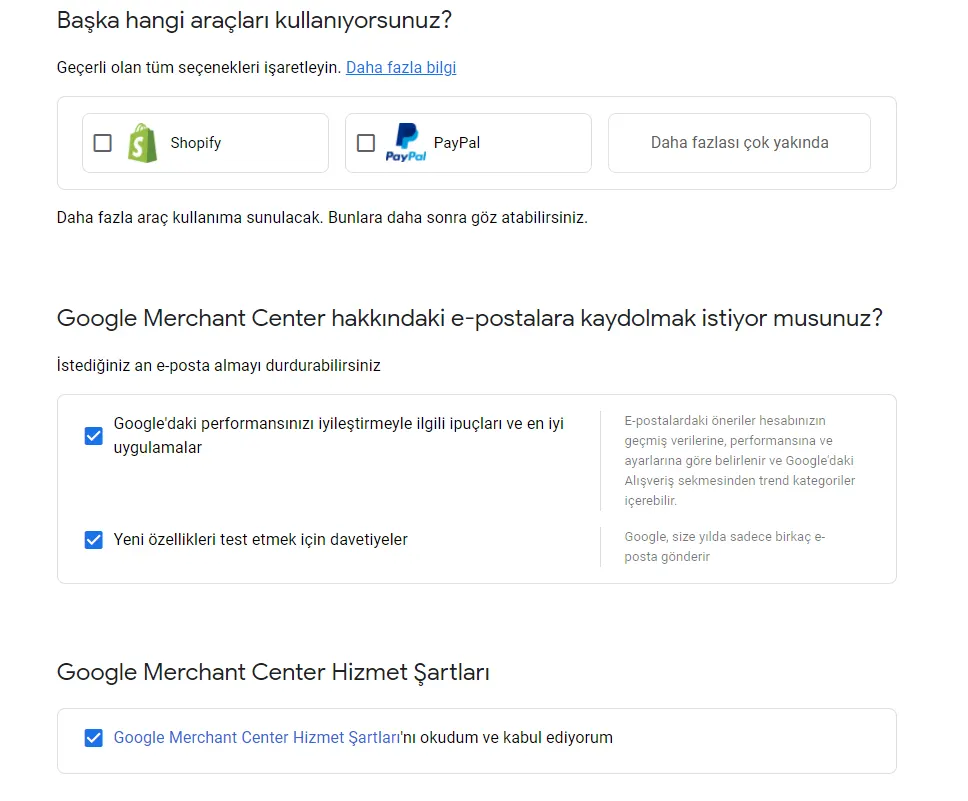
In this section, decide whether you want to receive emails about performance improvements for Google Merchant, and accept Google’s terms of service.
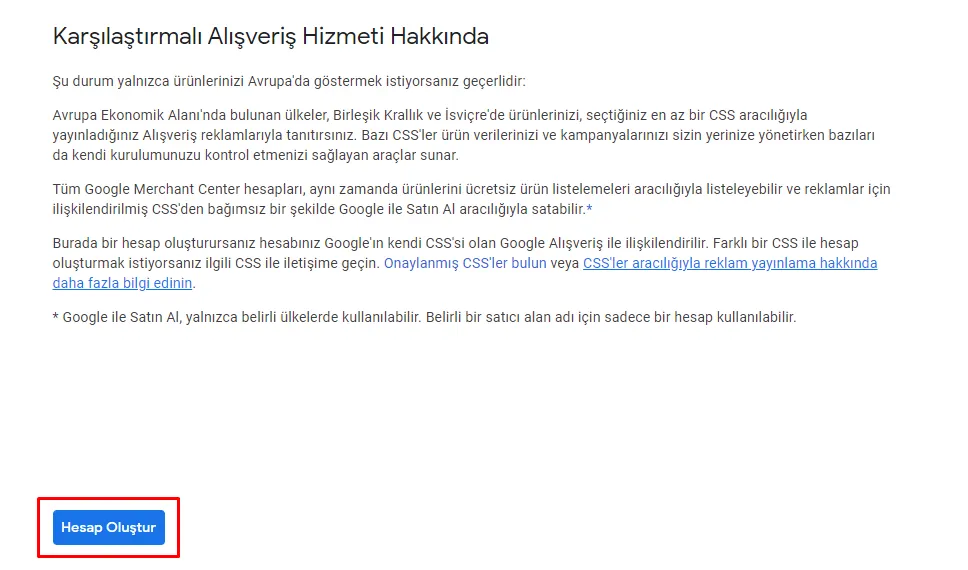
After clicking “Create account”, our Merchant Center account will be created, and we need to complete the remaining steps by clicking “Continue”.
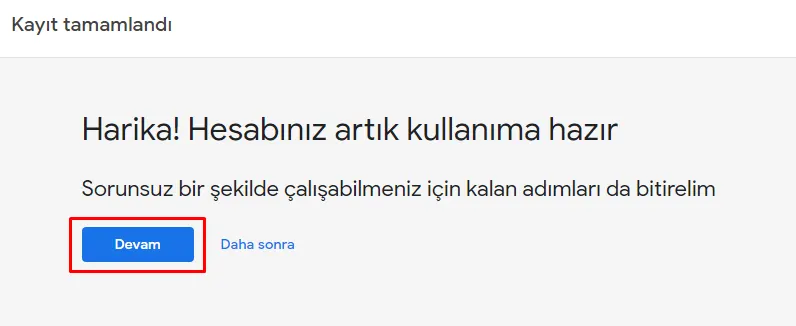
Our account has been created. Let’s continue with domain verification and transferring our products to the Google panel.
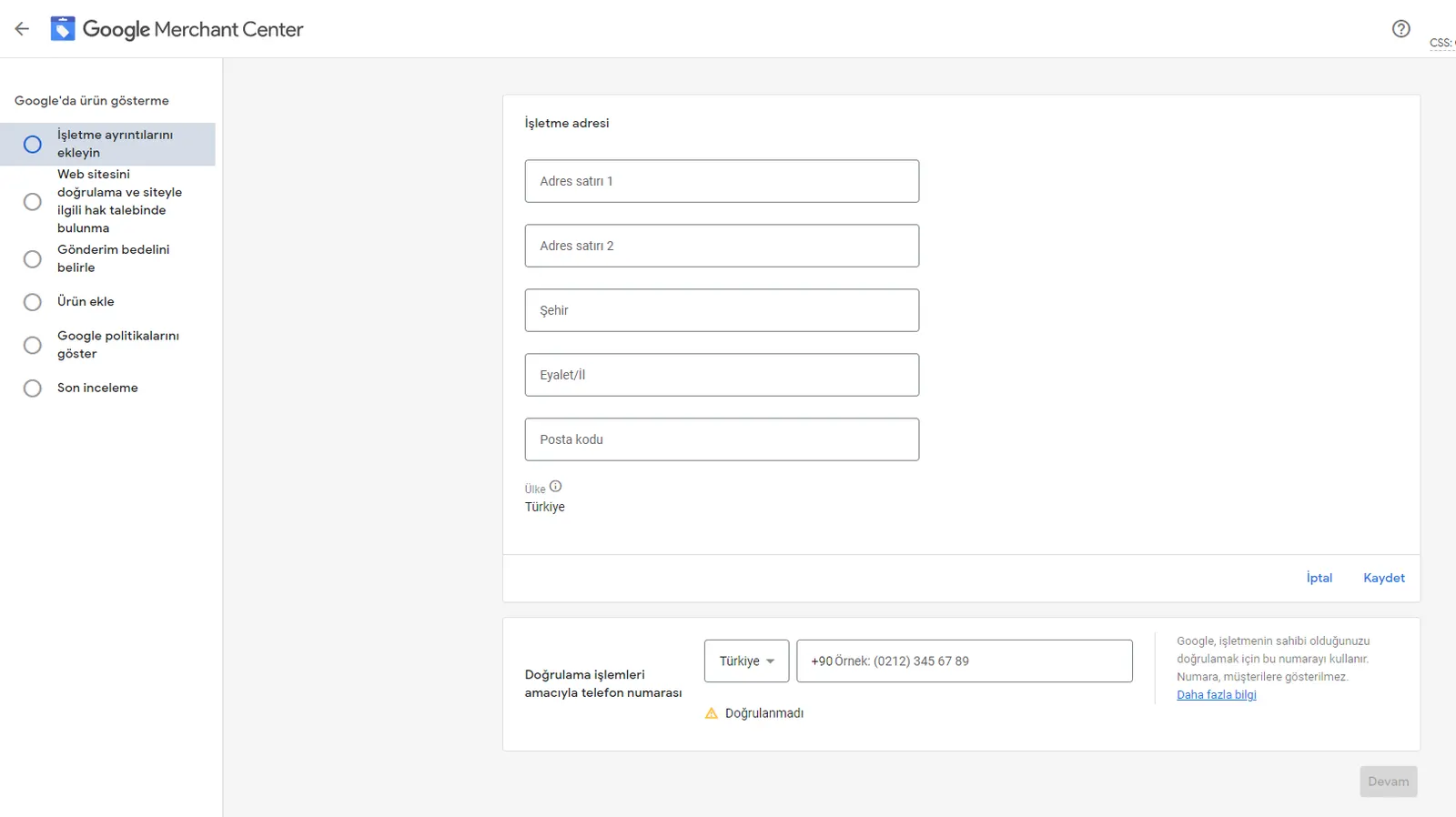
Enter our business address information.
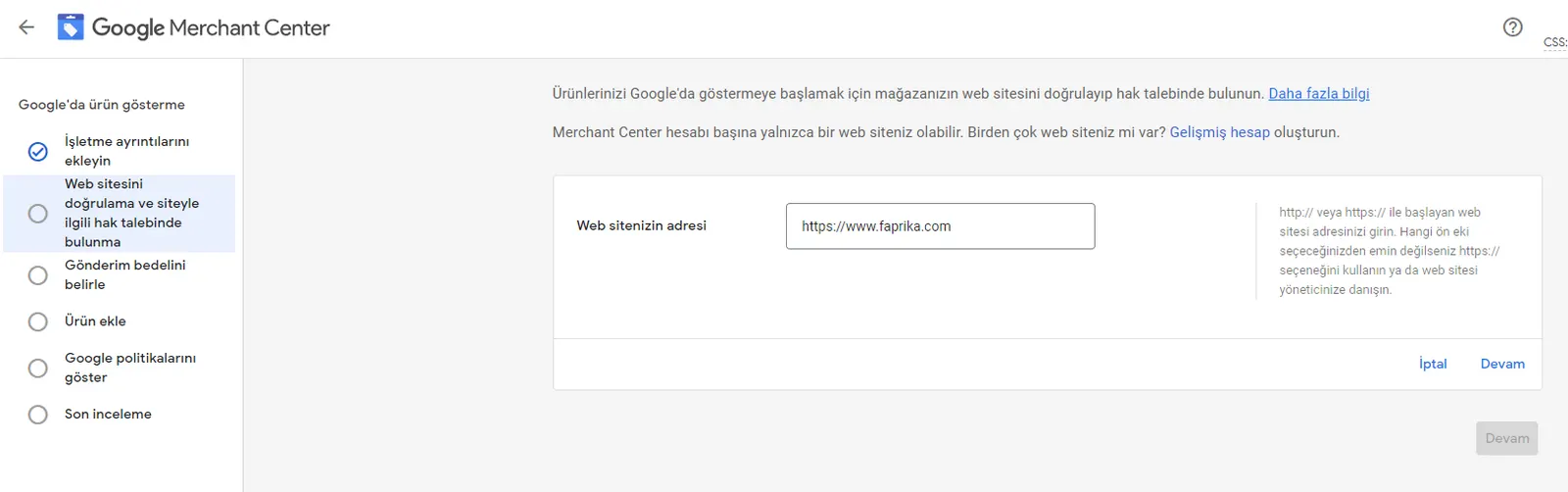
In this section, enter our website address and click “Continue”.
Sign in to the Faprika panel and add the meta verification tag we were given to the “Content Management >> Script Management” area, then click the “Verify website” button.
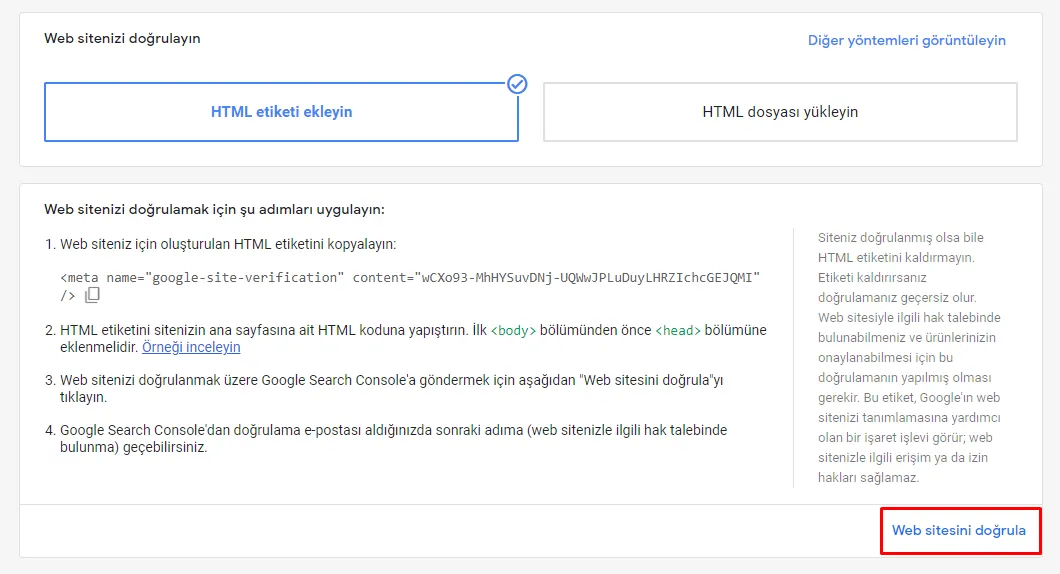
Complete the “Claim your website” step so that our domain is verified by Google.

Select the country or countries we will ship our products to and choose the currency.
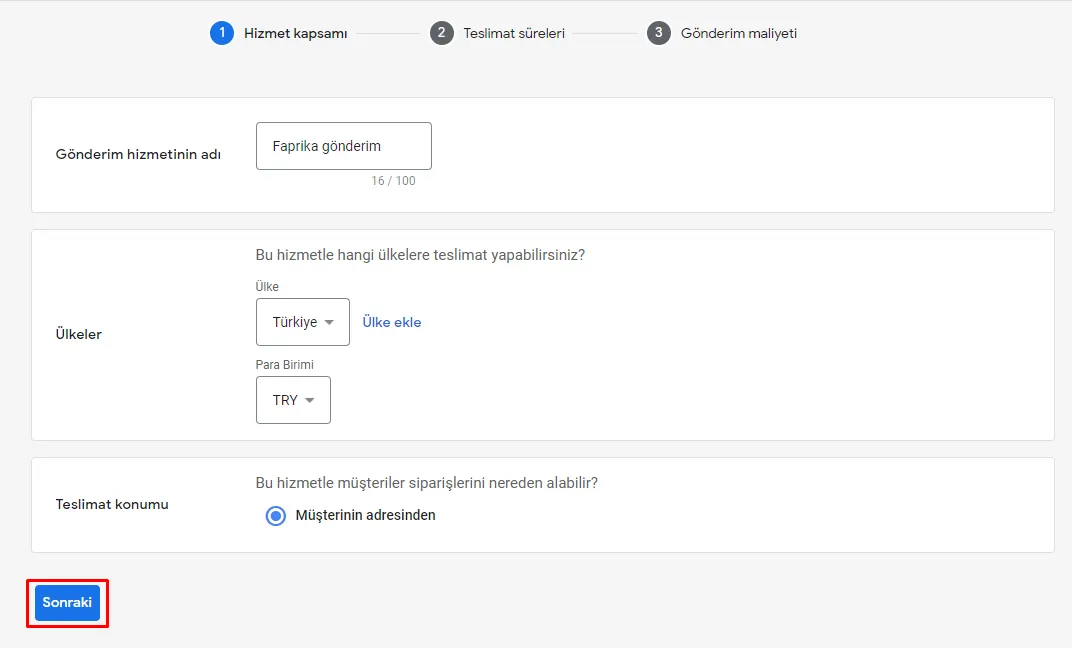
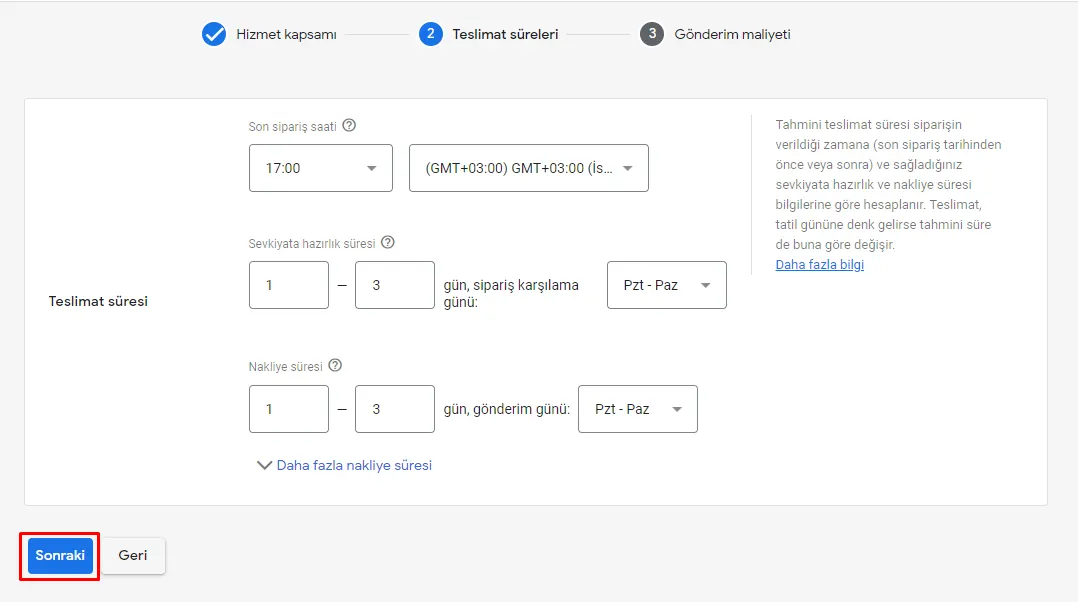
Set the shipping delivery time and the latest order cut-off time.
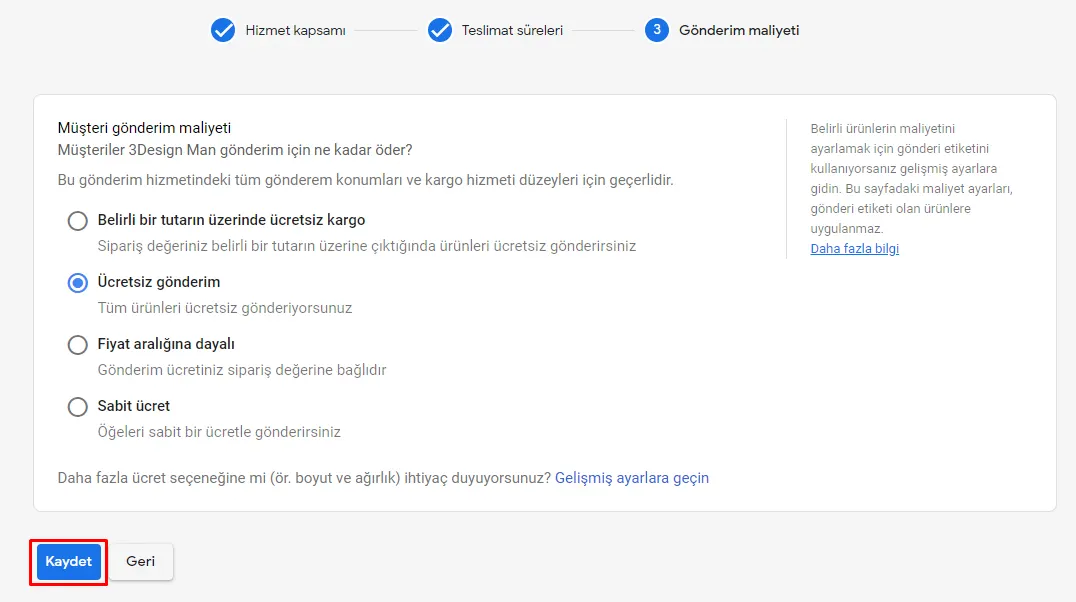
In this section, decide whether shipping fees will be charged on our shipments, then click “Save”.
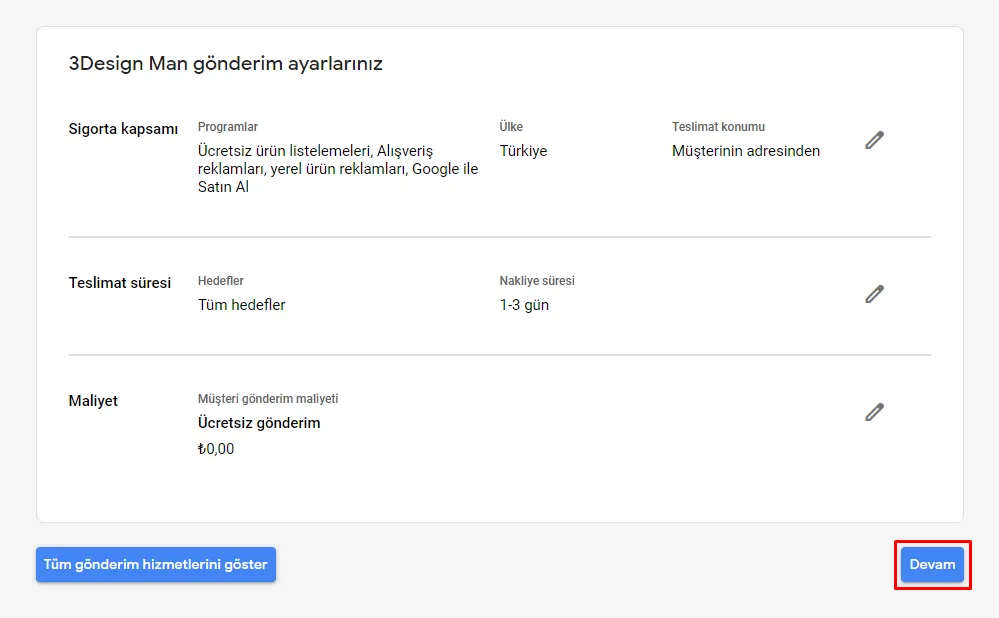
If we entered any wrong information, let’s edit it by clicking the pencil icon on the preview screen, or click “Continue”.
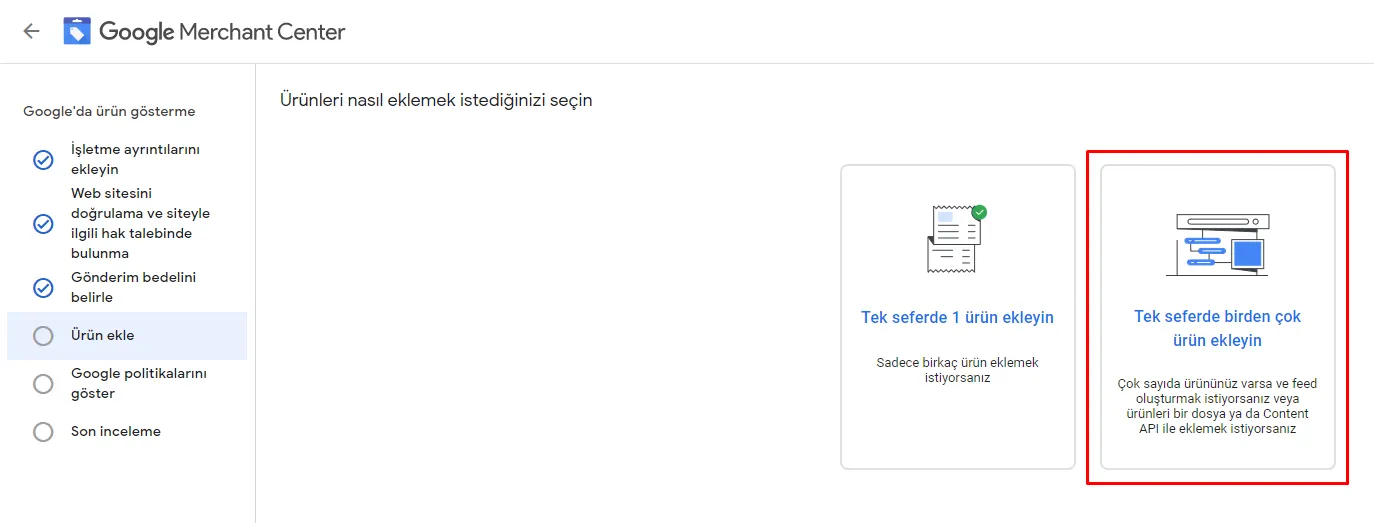
If your site does not have a single type of product, click the “Add multiple products at once” button.
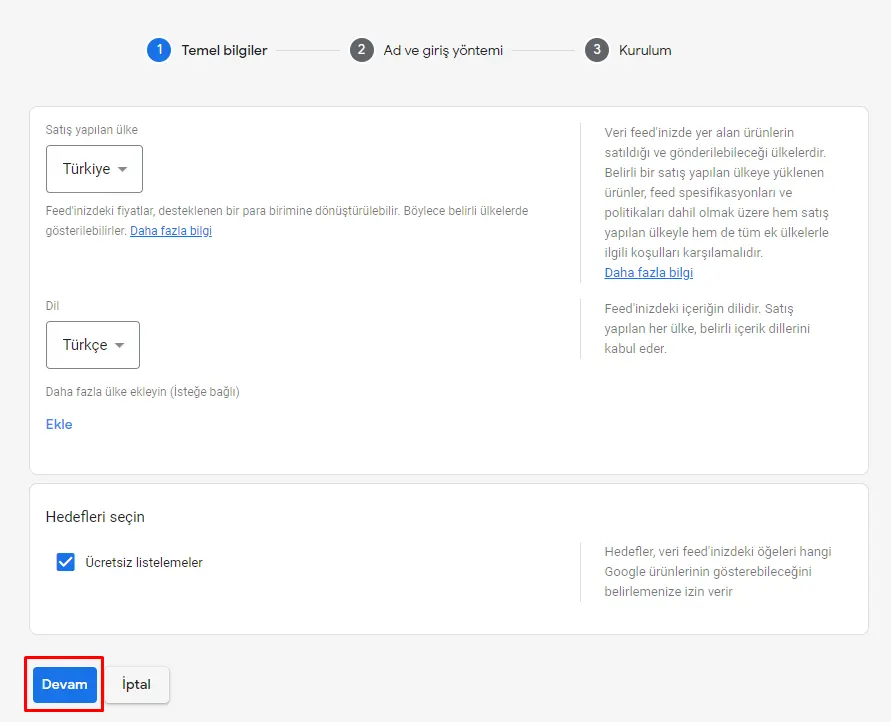
In this section, we need to specify the country and language of sale.
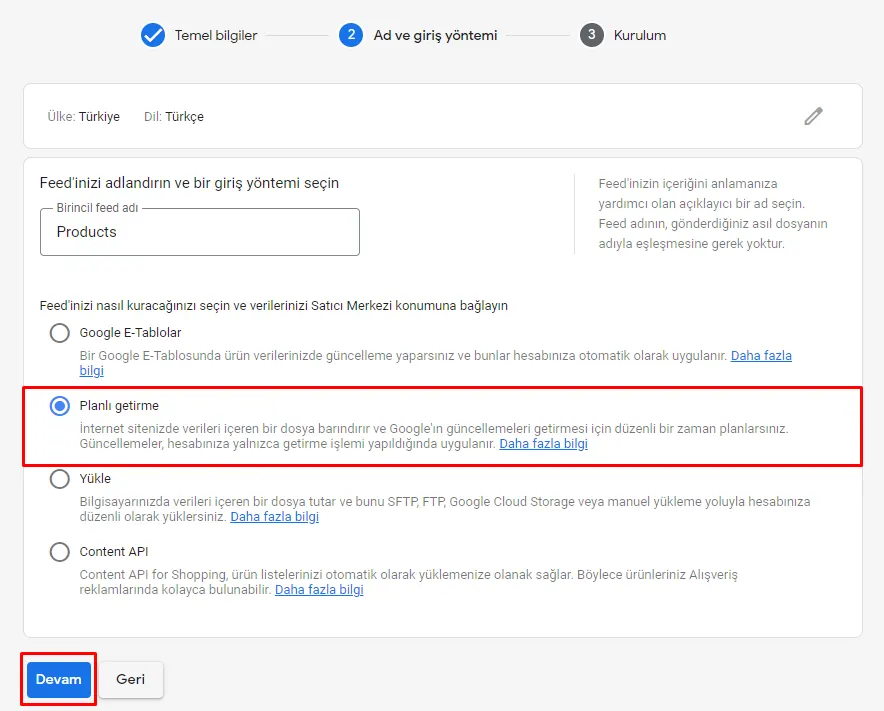
After naming the catalog our products will be uploaded to, continue by clicking “Scheduled fetch”.
Paste the XML link of our products into the “File URL” field and set the time at which we want it to be updated every day.
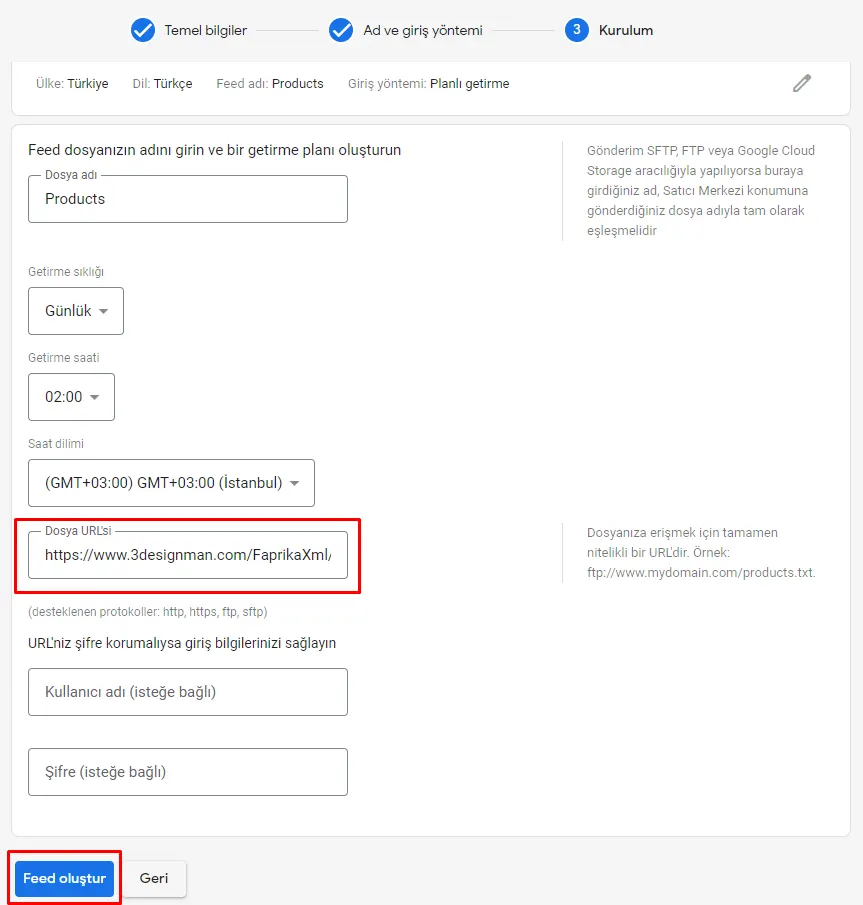
Once these steps are done, our products will be successfully transferred to the Google Merchant Center panel.
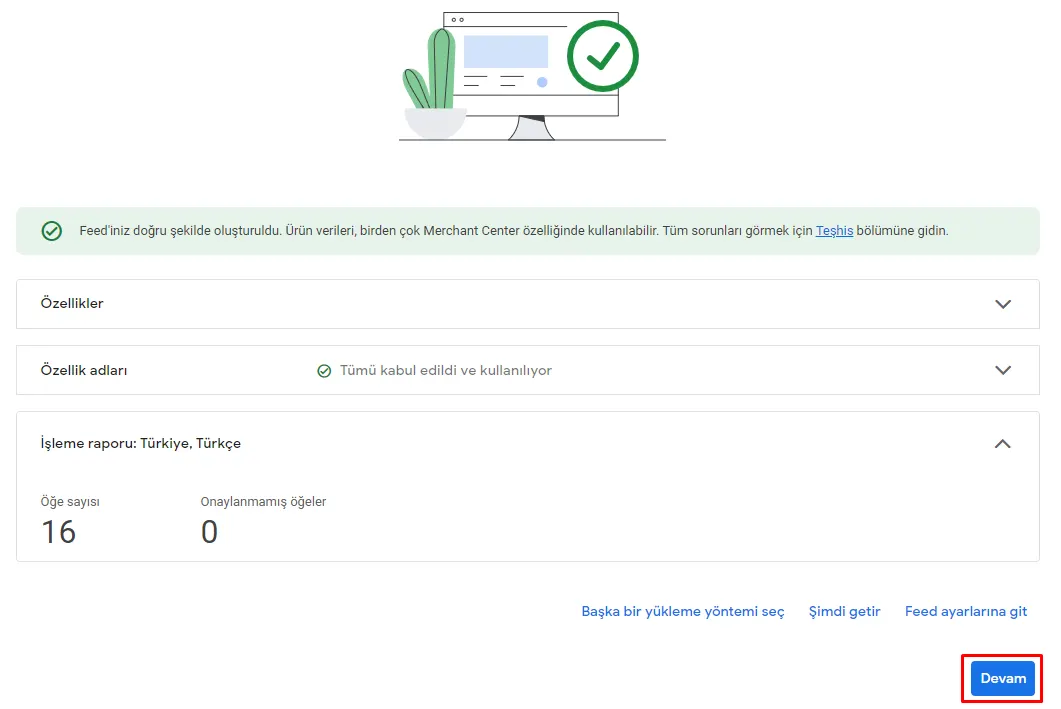
Warning: To create a shopping campaign in Google Ads, you need to link your Google Merchant Center and Ads accounts.