Configuration
Language Resources Management
What Are Language Resources, and Which Areas of the Site Do They Correspond To? They are the text areas you see that belong to your site’s default language (Turkish). Faprika allows us to make changes in these areas. Let’s look at these areas on a few pages. For example, “Call Center”, “Order Tracking”, “Help” and “Contact Us” at the top of the Home Page
What Are Language Resources, and Which Areas of the Site Do They Correspond To?
They are the text areas you see that belong to your site’s default language (Turkish). Faprika allows us to make changes in these areas. Let’s look at these areas on a few pages.
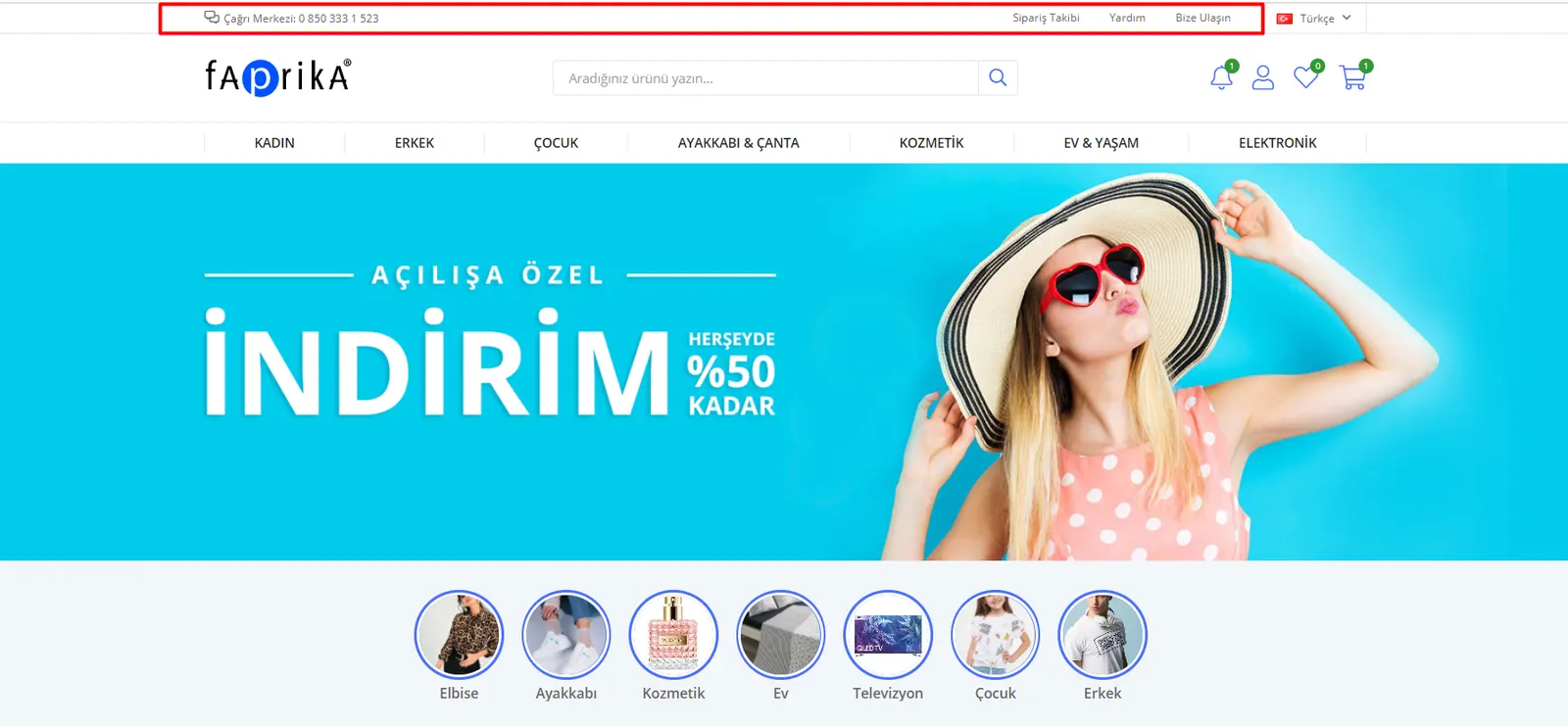
For example, “Call Center”, “Order Tracking”, “Help” and “Contact Us” at the top of the Home Page
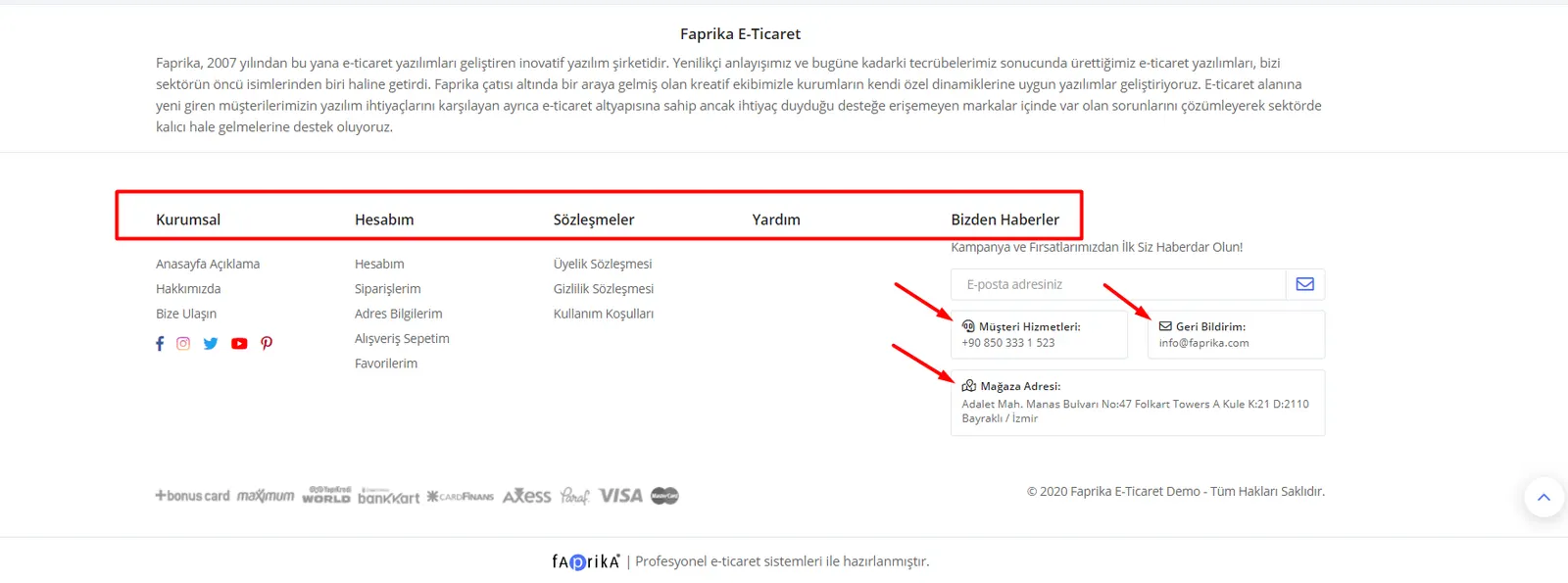
“Corporate”, “My Account”, “Agreements”, “Help”, “News From Us”, “Customer Services”, “Store Address” and “Feedback” in the footer area
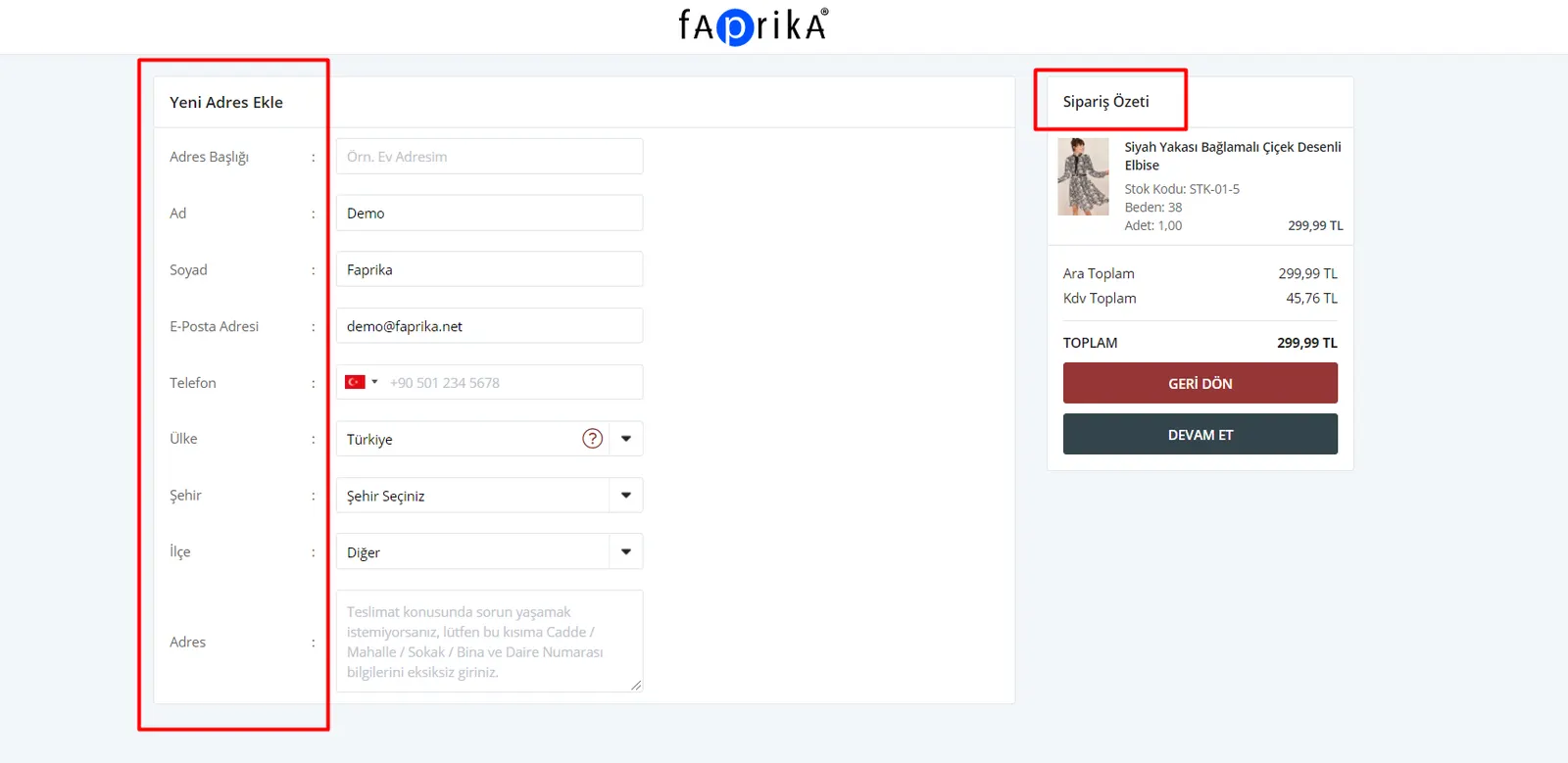
On the order screen, in the Add New Address section, there are fields such as “Add New Address”, “Address Title”, “First Name”, “Last Name”, “Email Address”, “Phone”, “Country”, “City”, “District” and “Address”.
How Do I Edit Language Resources?
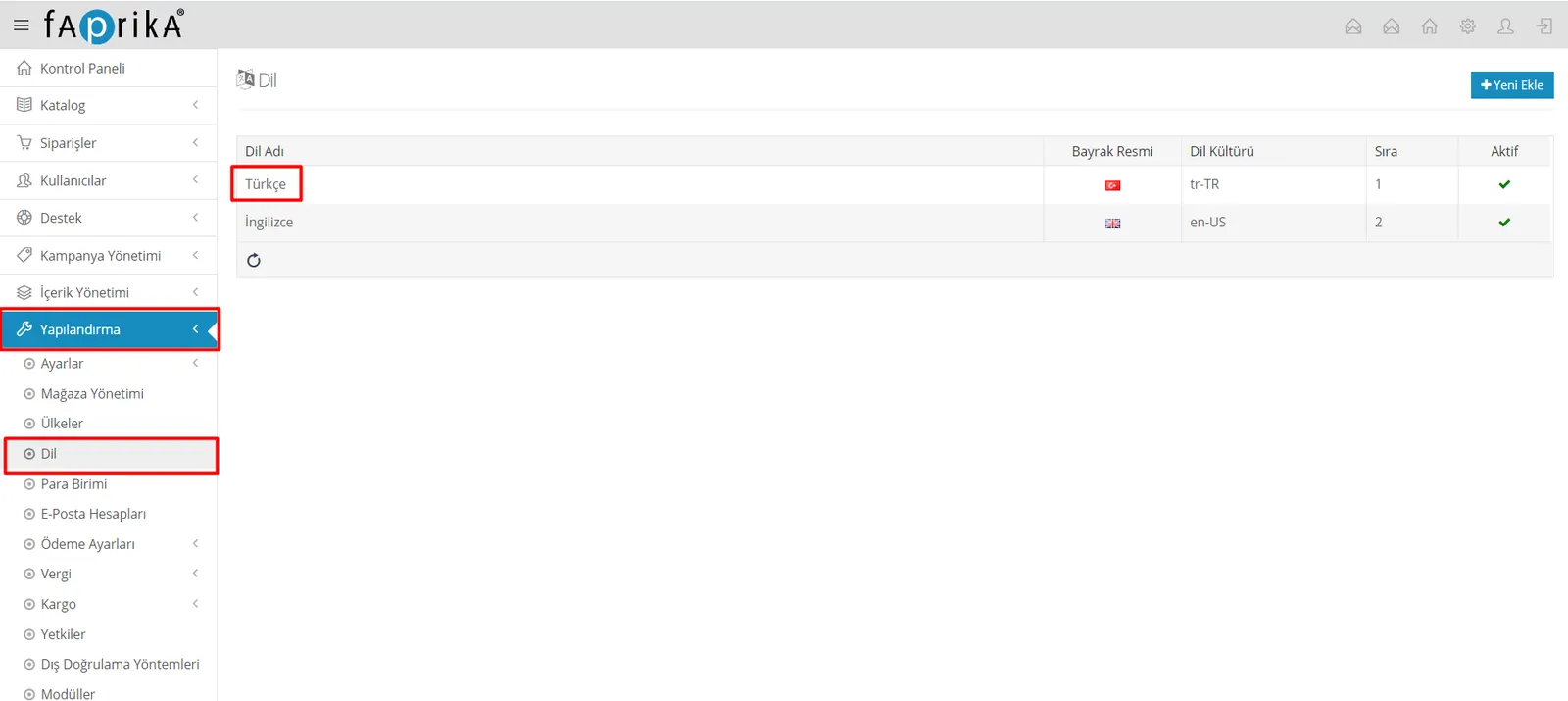
Let’s follow the “Configuration >> Language” steps, assume the language used on your site is Turkish, and open the “Turkish” entry.
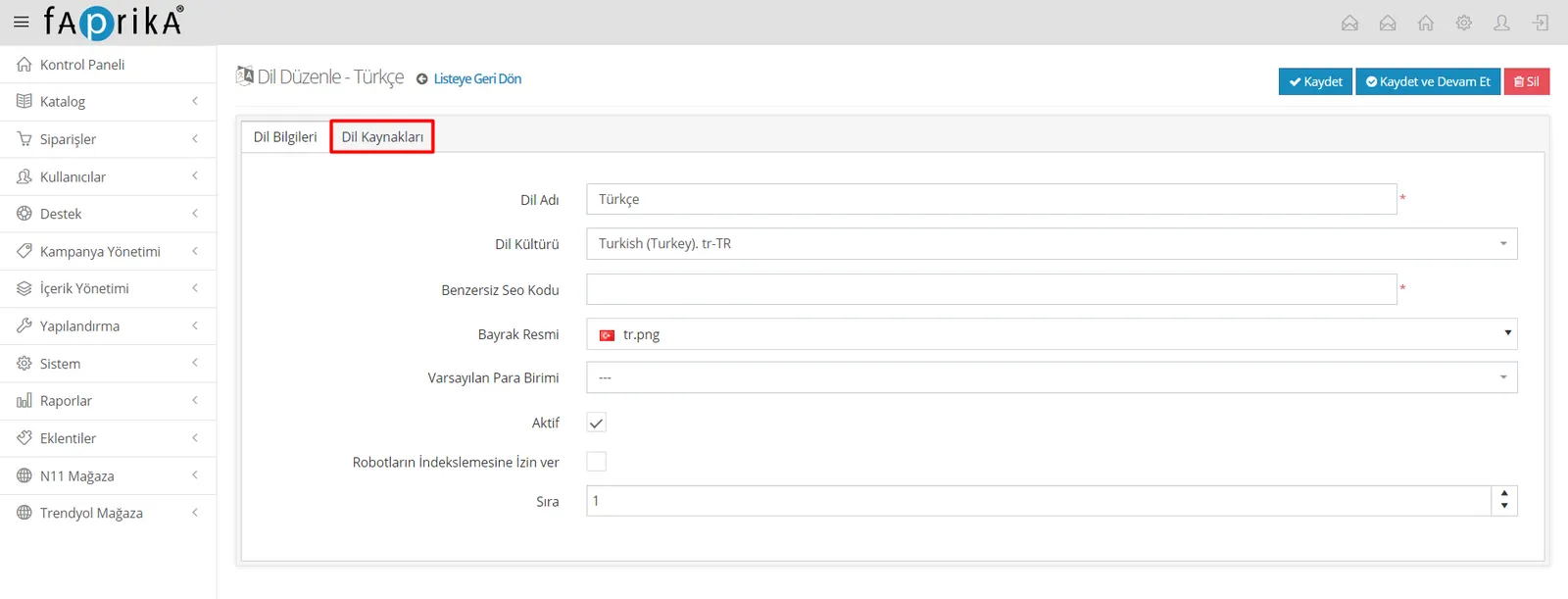
Next, let’s open the “Language Resources” area.
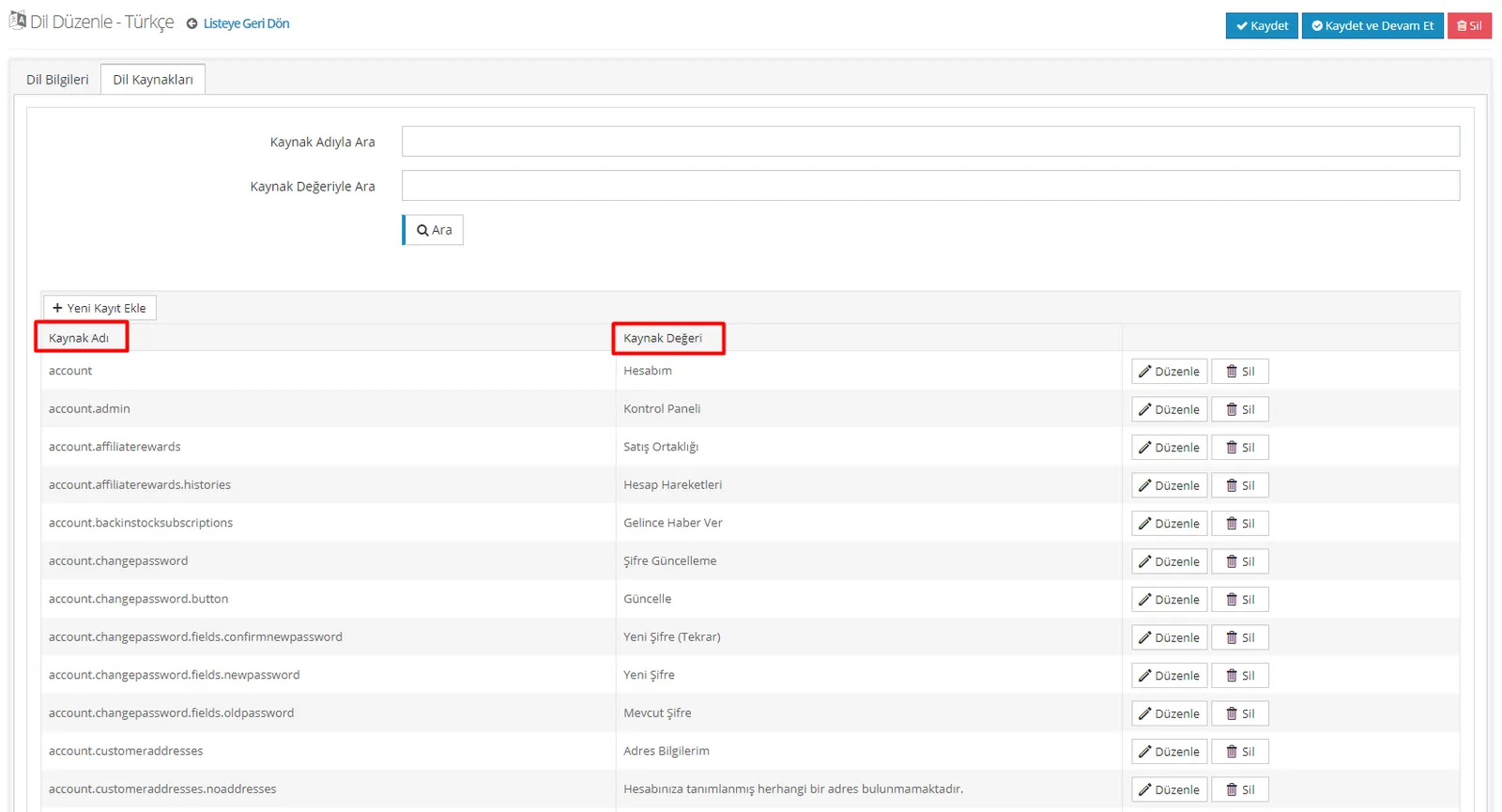
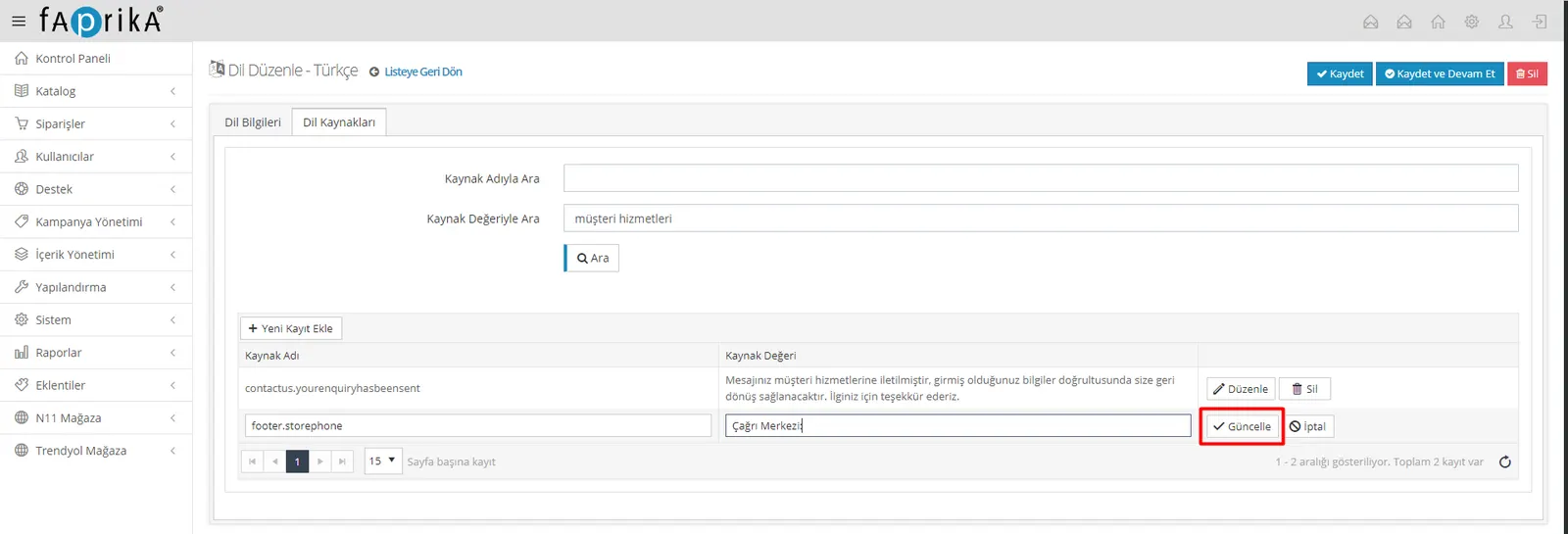
The areas we just examined together are listed on this page in the “Resource Value” column. The “Resource Name” column contains the background codes of these text values. So if we want to change one of these areas, it is enough to search for the relevant text in “Search by Resource Value” and edit it.
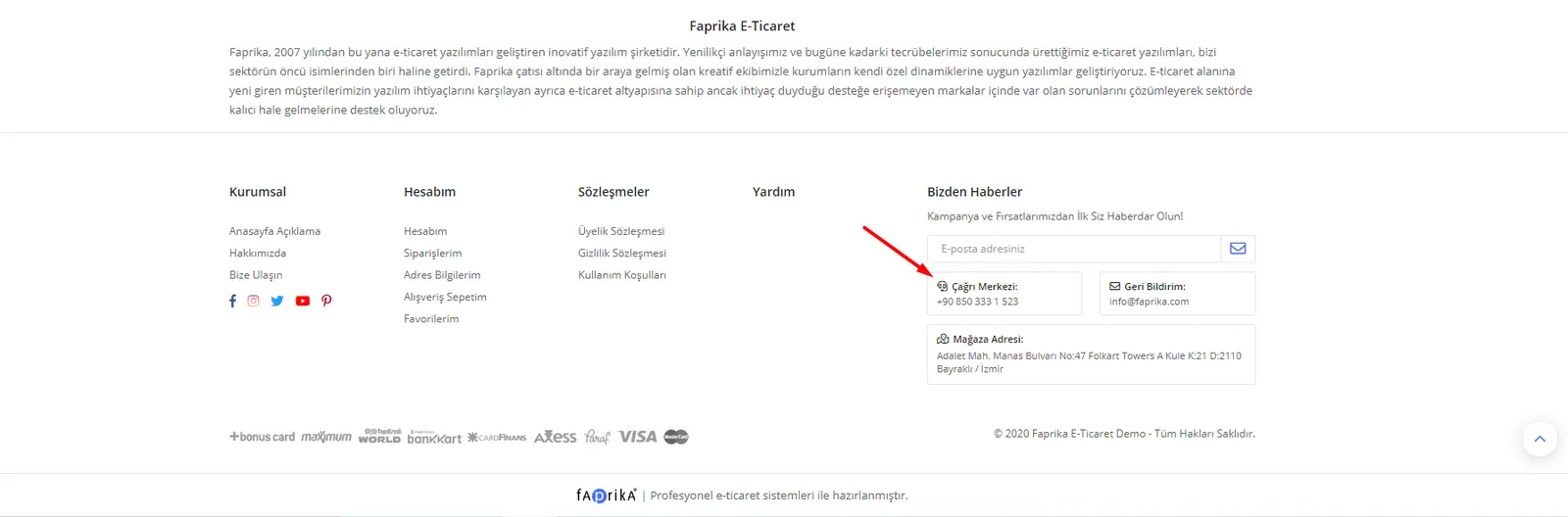
Let’s say we want to change the text “Customer Services” in the Footer area. After typing “Müşteri Hizmetleri” in the “Search by Resource Value” field and searching, let’s click “Edit” and change the name to Call Center.
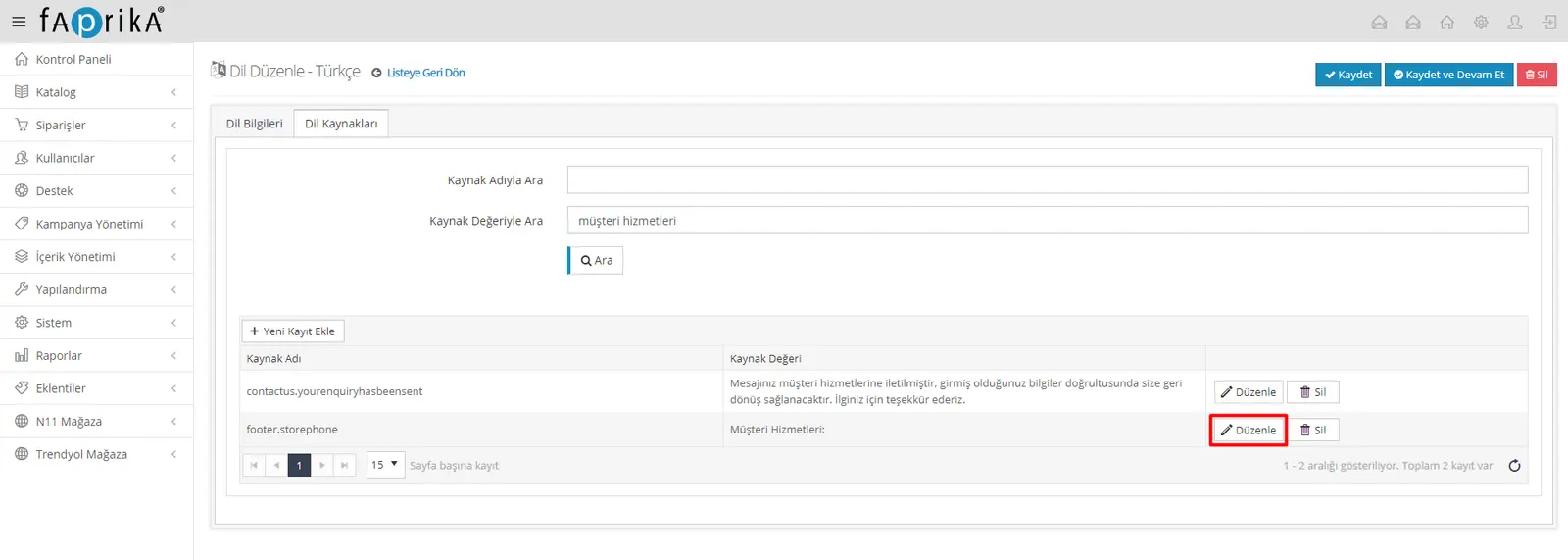
Let’s click “Update” and then press the “Save” button.
Let’s see how the change we made looks on the site.