Add-ons/Integrations
Ozon Integration
Faprika Ozon Integration Guide: Expand your e-commerce and learn how to integrate your products seamlessly into the Ozon marketplace. Increase your sales in the Russian market with step-by-step information on category management, language options and price conversions.
In This Tutorial
Ozon Marketplace Integration
As competition in the e-commerce world grows every day, strengthening your presence on marketplaces and reaching a wider audience with your products becomes more important. Faprika's "Ozon integration" module meets this need by enabling businesses to integrate with the Ozon marketplace easily. The integration process lets you transfer your products to Ozon quickly and effectively, reducing your workload and increasing your sales potential.
This tutorial explains step by step how to configure the Ozon integration from the Faprika Control Panel and how to transfer your products to the Ozon marketplace. Since you need to open a store on Ozon before starting the integration, it also includes basic information about that process. Our tutorial offers detailed information and tips to simplify transferring your products to the Ozon marketplace and help you get the most out of this integration.
If you have not yet opened your store on Ozon, you can easily open and activate it by reading our tutorial articles below in order.
1- How to Create a Seller Account on Ozon Global?
2- How to Activate a Seller Account on Ozon Global?
3 - How to Add a Brand to Ozon?
Seamless Product Transfer to the Ozon Marketplace with Faprika
We detail how to start the integration process with the Ozon marketplace from the Faprika Control Panel and how to configure the relevant store settings.
As the first step of the integration process, you need to open a store on the Ozon marketplace. Opening a store is the basic step required for your products to be listed on Ozon.
After the store is opened, you need to upload your products' brands to the Ozon panel and have them approved. This step ensures that your brands are recognized on the Ozon platform and that your products are listed correctly under the relevant brand.
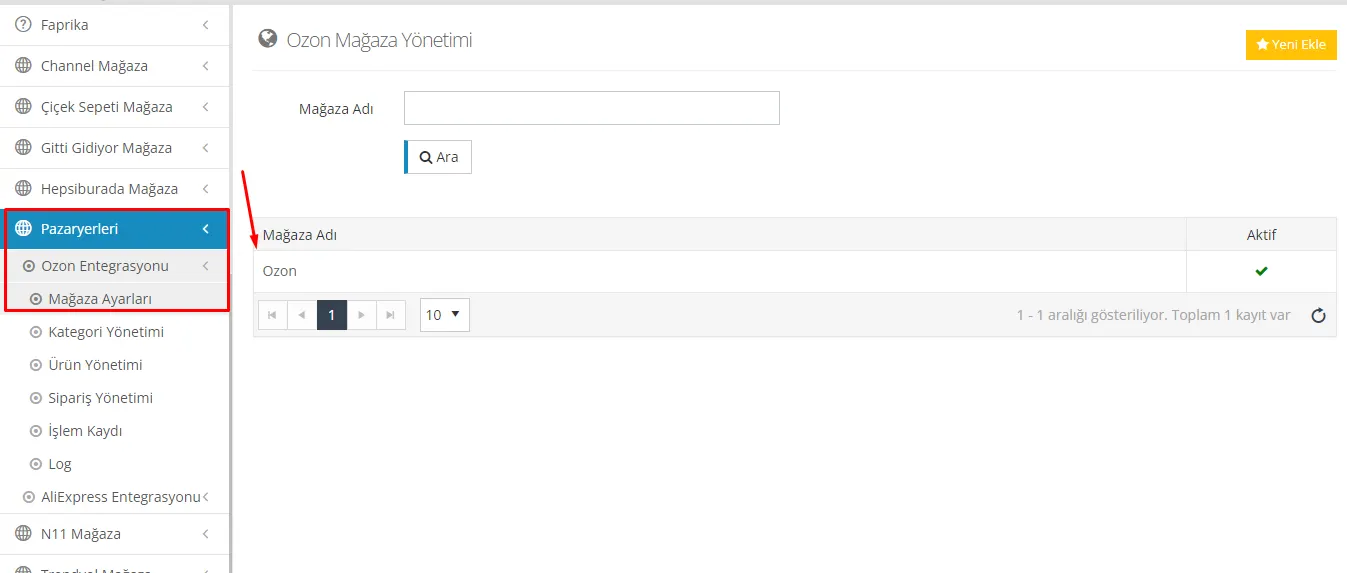
Configuring the store settings is an important part of the integration process. In the Faprika Control Panel, go to the "Store Settings" tab, where you are expected to fill in the requested information.
This information includes the basic details required for the integration, such as the "Client ID" and "API Key" obtained from the Ozon panel.
The "Client ID" must be entered as the API Username, and the "API Key" as the API Password. This information ensures the connection between Faprika and Ozon is established securely and is required for your products to be transferred without problems.

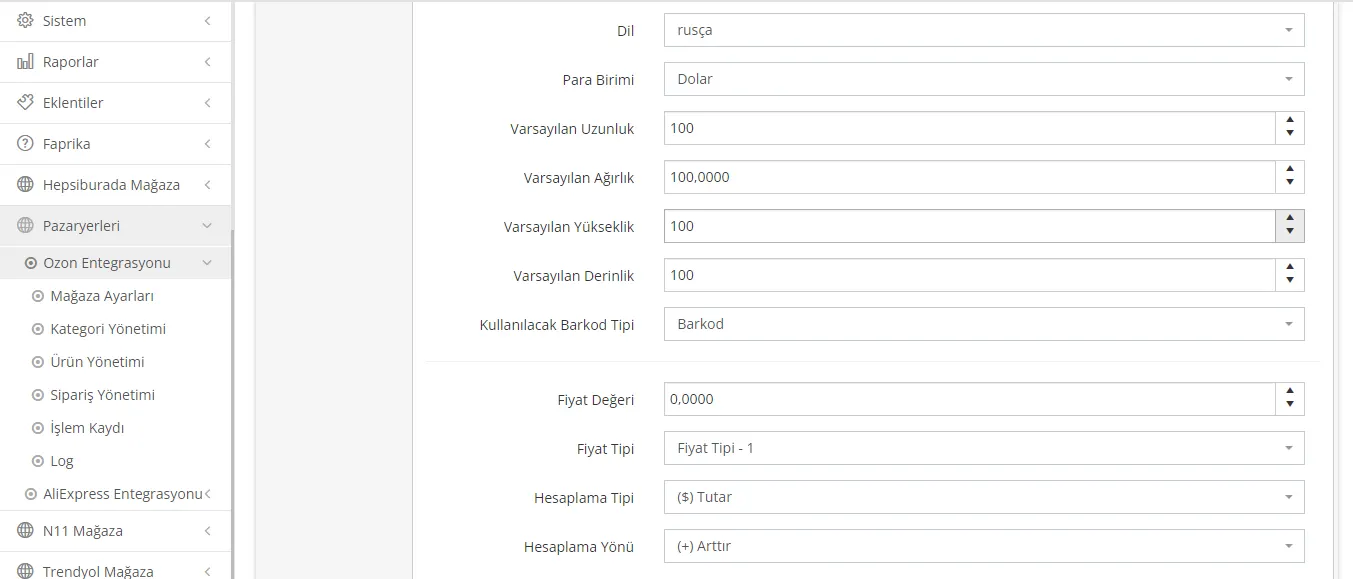
Language Code:
- Add the relevant language code for the language in which you want the system values coming from Ozon.
Language:
- Product information needs to be sent to Ozon in Russian. For this reason, Russian must be selected as the language option.
Currency:
- Select the currency in which you want product prices to be transferred.
Default Length:
- Product length is transferred in mm (millimeters). 100 mm can be entered as the standard value.
Default Weight:
- Product weight is transferred in g (grams). 100 g can be used as the standard.
Default Height:
- Product height is transferred in mm. 100 mm can be used as the standard value.
Default Depth:
- Product depth is transferred in mm. 100 mm can be chosen as the standard value.
Barcode Type to Use:
- Select which barcode type will be used during product transfer.
Price Value:
- Depending on the price type you set when transferring to the marketplace, the price value can be increased or decreased as a percentage or an amount. For example, if you enter 10 as the price value, this value will vary according to the calculation type and direction you select.
Price Type:
- You can send the prices of the products you transfer to the marketplace with a Price Type different from the prices offered on your website. For example, if you have defined a special price type for your products, you should select that price type.
Calculation Type:
- When transferring product prices to the marketplace, you can set pricing with the "Amount" or "Percentage" option. The price value will be calculated according to the calculation type you select.
Calculation Direction:
- You can use the "Increase" or "Decrease" option to raise or lower the price value. When you fill in the Price Value field, the calculation will be made according to your selection.
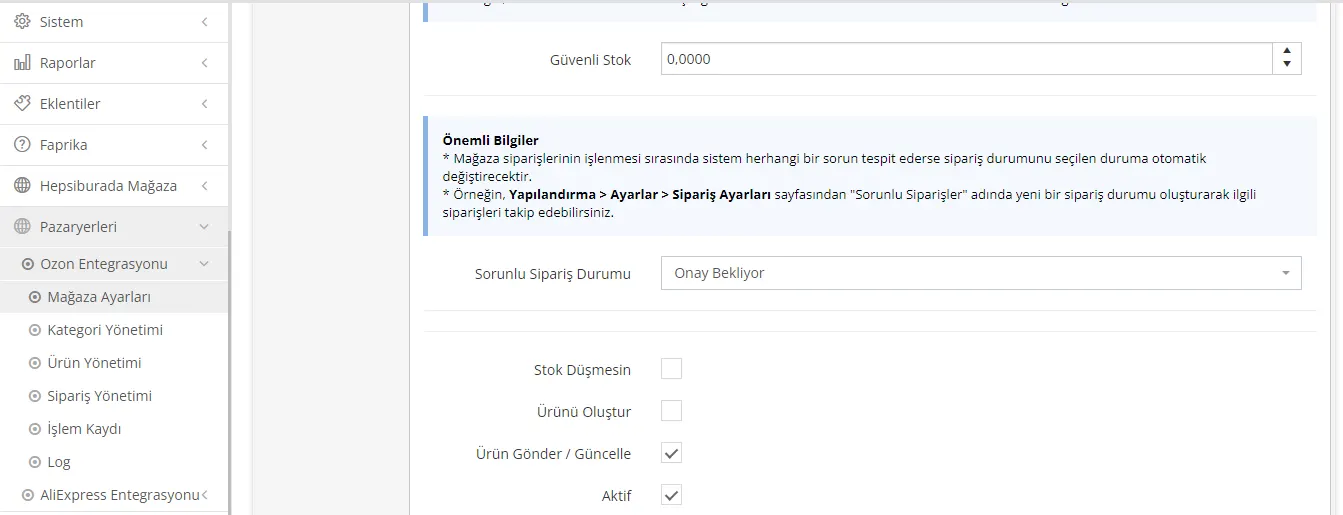
Safety Stock:
- When transferring your products to the Ozon marketplace, stock is sent reduced by the "safety stock" quantity you set. This feature helps reduce the risk of running out of stock. For example, if your stock quantity is 5 and your safety stock quantity is 2, 3 units of the product will actually be transferred to the marketplace (5-2=3).
Problematic Order Status:
- If any problem occurs during order processing, the system automatically moves to the specified "Problematic Order Status". This way, problematic orders can be easily detected and managed. You can enable this function by creating a new order status under "Configuration > Settings > Order Settings".
Send/Update Products and Active Buttons:
- After all store settings are completed, you can use the "Send/Update Products" button to transfer your products to the Ozon marketplace or update existing product information. By using the "Active" button, you also enable your store settings and complete the integration process.
After completing your store settings, you need to follow these steps to transfer your products to Ozon:
Go to the Marketplaces Tab:
- In the Faprika Control Panel, click the "Marketplaces" tab.
Access the Ozon Integration:
- Find and click the "Ozon Integration" option to proceed.
Product Management Page:
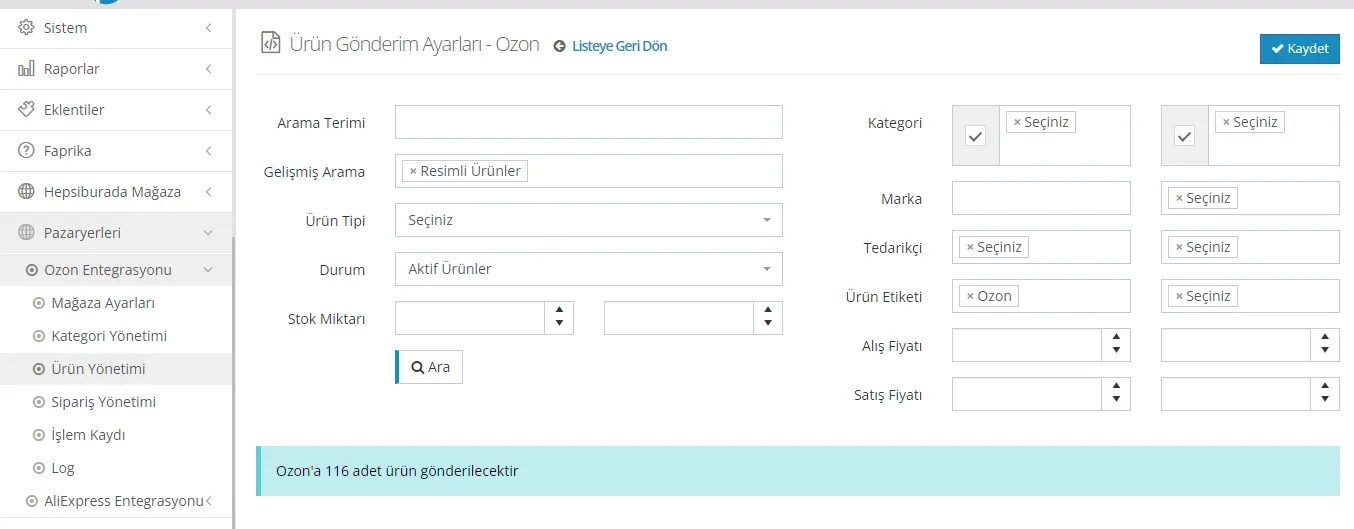
- Select the "Product Management" tab. This page contains the area where you can configure your product sending settings and manage current operations.
Operations and Product Sending Settings:
- The Product Management page contains the "Operations" and "Product Sending Settings" sections. These sections let you determine how and under what conditions you send your products to the Ozon marketplace.
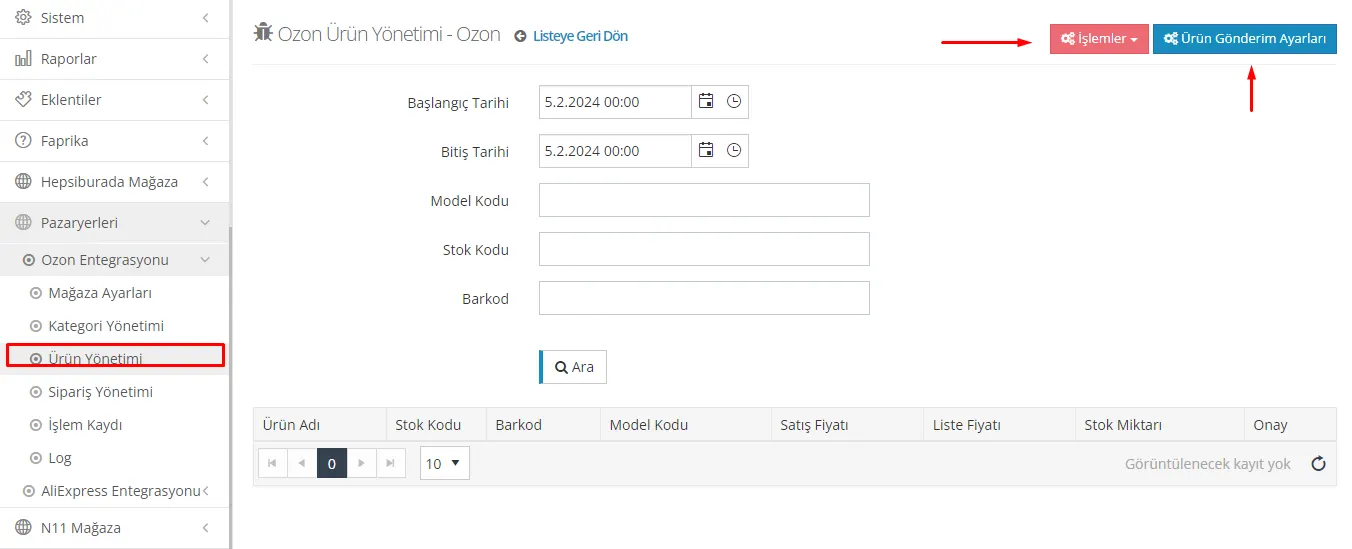
Actions
- Operations Button: A feature that lets you submit a creation request to your Ozon store for all products in the panel. Through this button, you can also request updates for important details such as stock and price information, in addition to product information.
Product Submission Settings
- Filtering: Used to select the products you want to transfer to the Ozon marketplace. By filtering products that belong to certain categories or have specific tags, you can ensure that only the products you want are transferred. Filtering options include criteria such as product type, status and, if applicable, products with images.
- Advanced Search: Lets you filter your products by more specific criteria. For example, you can select only products with images or products of a certain product type.
- Product Type: During filtering, you can select a specific product type such as "Normal Products".
- Status: You can filter only products in a specific status, such as "Active Products".
- Search and Save: After setting your filtering criteria, you can press the "Search" button to view the list of products that match your criteria. After this, you can complete your filtering and sending settings with the "Save" button.
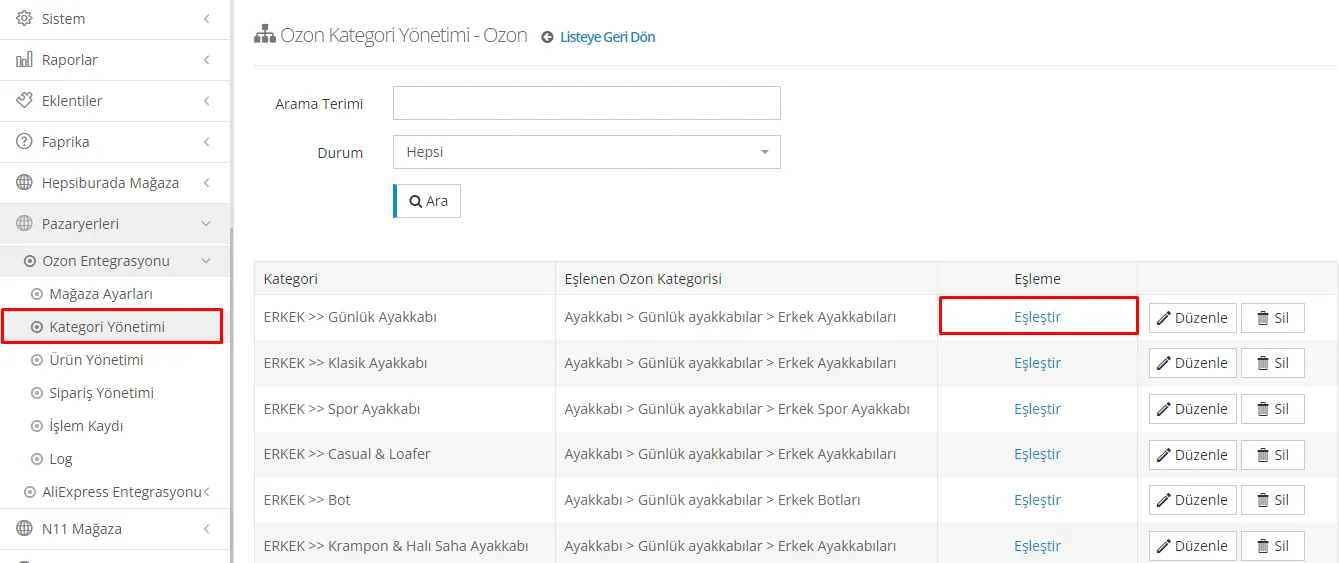
In the process of transferring products to the Ozon marketplace, the "Category Management" and "Attribute Mapping" steps let you classify your products under the correct categories and attributes, helping customers easily find what they are looking for. Here are the steps of this process:
Category Management
- Go to the Marketplaces Tab:
- In the Faprika Control Panel, go to the "Marketplaces" tab and then find the "Ozon Integration" option.
- Access the Category Management Tab:
- Click the "Category Management" tab to access the relevant area.
- Matching Categories:
- To match the categories on your website with Ozon categories, click the "Edit" button next to the category name. From the search bar that opens, select the Ozon category that suits your products.
- Updating the Category:
- After making the category selection, press the "Update" button to complete your category matching.
Attribute Mapping
- Matching Required Attribute Values:
- You need to match the required attribute values of the category you selected. On the category management screen, start this process by clicking the "Match" button.
- Attribute Mapping Process:
- The attribute matching process ensures that your products are listed correctly according to the relevant attribute values on Ozon. This process is important so that customers can easily find products with the attributes they are looking for.
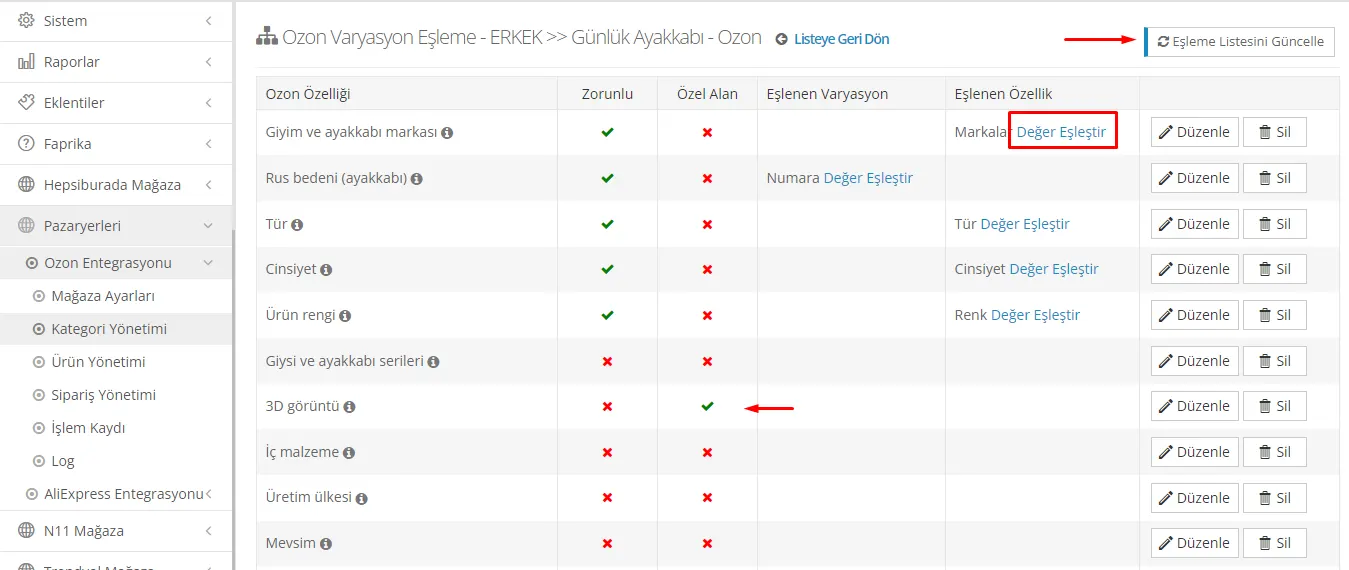
Attribute mapping is an important step for your products to be listed correctly on the Ozon marketplace. Here are the steps you should follow when mapping attributes:
- Updating the Mapping List:
- When you enter the attribute mapping area, update the mapping list by clicking the “Update Mapping List” button in the top right corner of the page. This ensures you work with the most up-to-date attribute and category information.
- Required and Optional Attributes:
- After updating the list, the required and optional attribute information needed for product transfer is listed on the screen. Required attributes are the basic information you need to add to your products (for example, color, gender, brand). These attributes are critically important for your products to be found correctly by customers.
- Defining Required Attributes:
- You can tell that an attribute value is required by the green check mark next to it. Add the required attribute information to your products.
- Attribute Name Mapping:
- When a feature name needs to be mapped, click the “Edit” button next to the relevant feature value. This means you need to map the feature values manually.
- Value Mapping:
- After selecting the appropriate variation value, map the feature values by clicking the “Map Value” button next to the values. This step ensures your products are listed under the correct variations on Ozon.
Variation Mappings
- Value Mapping:
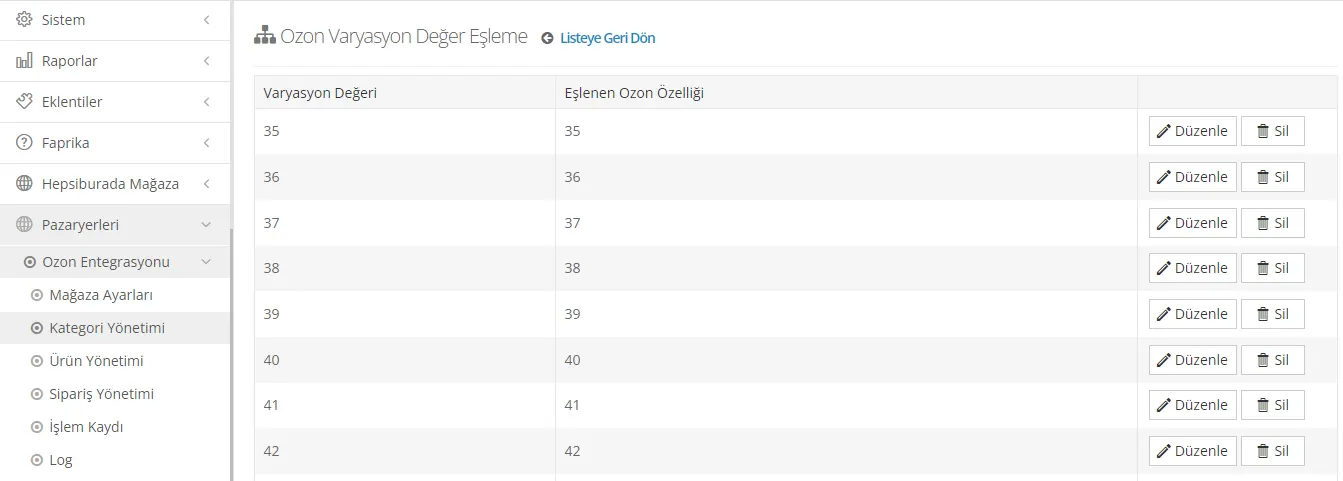
- For special variations such as Russian sizes, click the “Map Value” button. This step is required so that your products are listed with the correct size variations on the Ozon marketplace.
- Mapping Variation Values:
- Map the variation values in the panel to their Russian size equivalents. This helps customers understand the size options in their own measurement system and make the right choice.
Language Mappings
- Product Management:
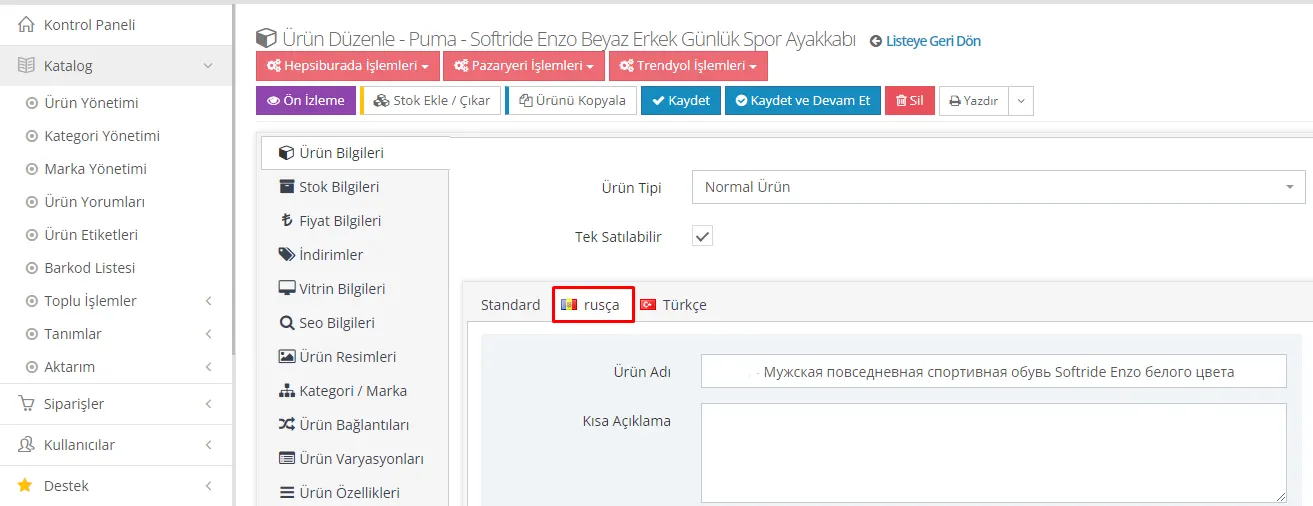
- In the Faprika Control Panel, go to the “Catalog” tab and then “Product Management”. From here, open the product to be integrated.
- Language Options:
- In the product details, select Russian from the language options. This allows your product information to be displayed in Russian on the Ozon marketplace.
- Adding Russian Translations:
- Add Russian translations of key fields such as the product name and description. This helps Russian-speaking customers better understand your products and capture their interest.
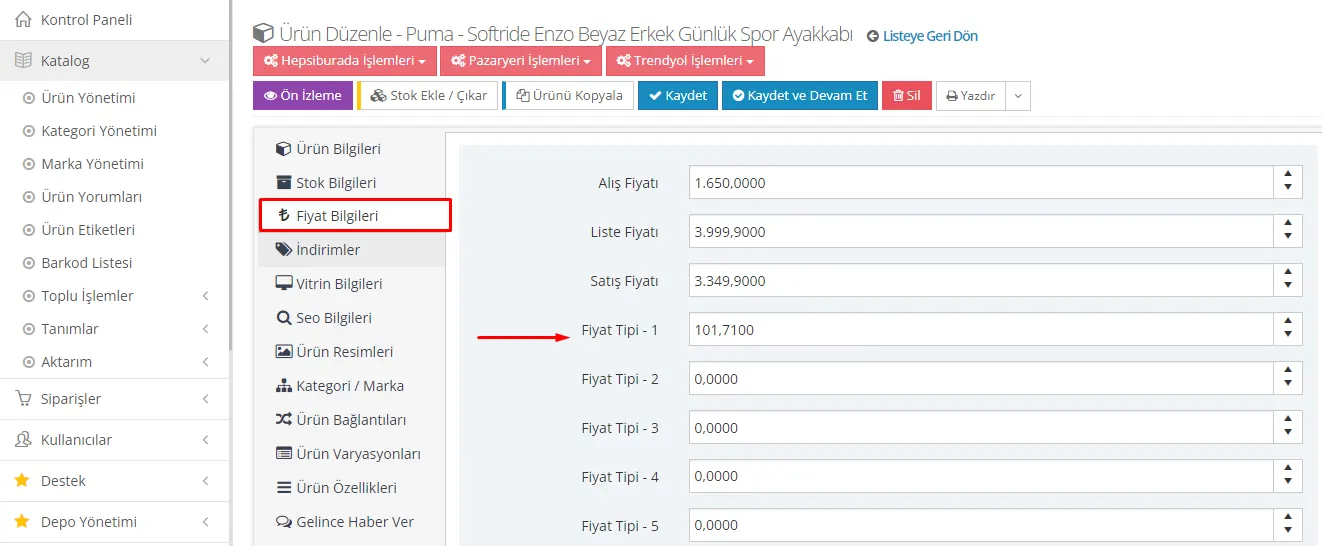
If prices will be sent to Ozon in USD while you sell in TL on your website, here is a short guide:
- Selecting the Price Type: Enter the USD equivalent of your product in the appropriate price type field in the product price information section.
- Currency Conversion: Convert the TL price to USD using the current exchange rate.
- Price Update: Enter the USD price you calculated in the price type field you selected.
- Verification: Check that the pricing is reflected correctly on Ozon.
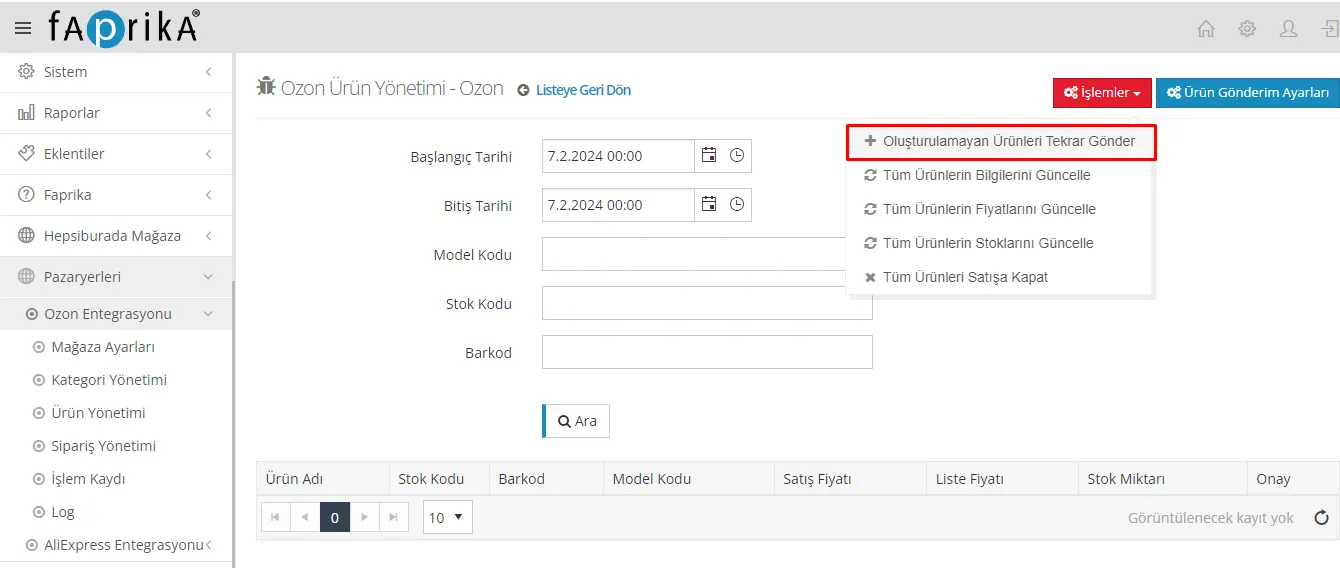
After the price types are entered, complete the final steps to send your products to the Ozon marketplace:
- Going to Product Management: In the Faprika Control Panel, follow the path “Marketplaces > Ozon Integration > Product Management”.
- Actions Button: On the Product Management page, click the “Actions” button.
- Sending the Products: Complete sending your products to Ozon by clicking the “Resend Products That Were Not Created” option.
Integrating Ozon through Faprika offers an excellent opportunity to expand your e-commerce platform and reach your products to a wider audience. The steps covered in this guide, including category management, feature mapping, and language and price type settings, explain in detail how you can successfully integrate your products with the Ozon marketplace. Using the Faprika control panel, sending products to Ozon can be done in just a few steps, and this process ensures that your products are listed correctly in the Russian market and reach potential customers.
This guide has been prepared so that Faprika users can easily understand and carry out the Ozon integration process. By integrating your products effectively with the Ozon marketplace, you can increase your sales and expand your business on an international platform. Remember, with regular updates and the right pricing strategies you can maximize your e-commerce success. The Faprika and Ozon integration is a strong step toward discovering your potential in e-commerce. For details, click here.