Configuration
Address Settings Management
In this tutorial, you will learn how to optimize the "Address Settings" section of your Faprika e-commerce platform. By creating required information fields for your individual and corporate customers, you can make the delivery process smoother.
Address Settings
In the world of e-commerce, collecting correct address information is vital to offering your customers a fast and reliable service. Address information ensures your product is delivered to your customer without problems, which in turn increases customer satisfaction.
However, collecting address information correctly and completely minimizes the problems that both you and your customers may face. Problems such as a product being sent to the wrong address or a delayed delivery can cause financial and reputational damage.
Thanks to the e-commerce infrastructure offered by Faprika, collecting correct address information from your customers is now much easier and more reliable. In this tutorial, we will show you step by step how to use the "Address Settings" section of the Faprika control panel.
If you're ready, let's get started!
Using the control panel of your Faprika e-commerce infrastructure, you can easily set up your store to request more detailed address information from your customers. To do this, first go to the "Configuration" section of the control panel. Then select the "Settings" menu and click the "Address Settings" option there. By selecting the "Invoice Type Active" option in this area, you will have taken a step toward collecting detailed address information from your customers.
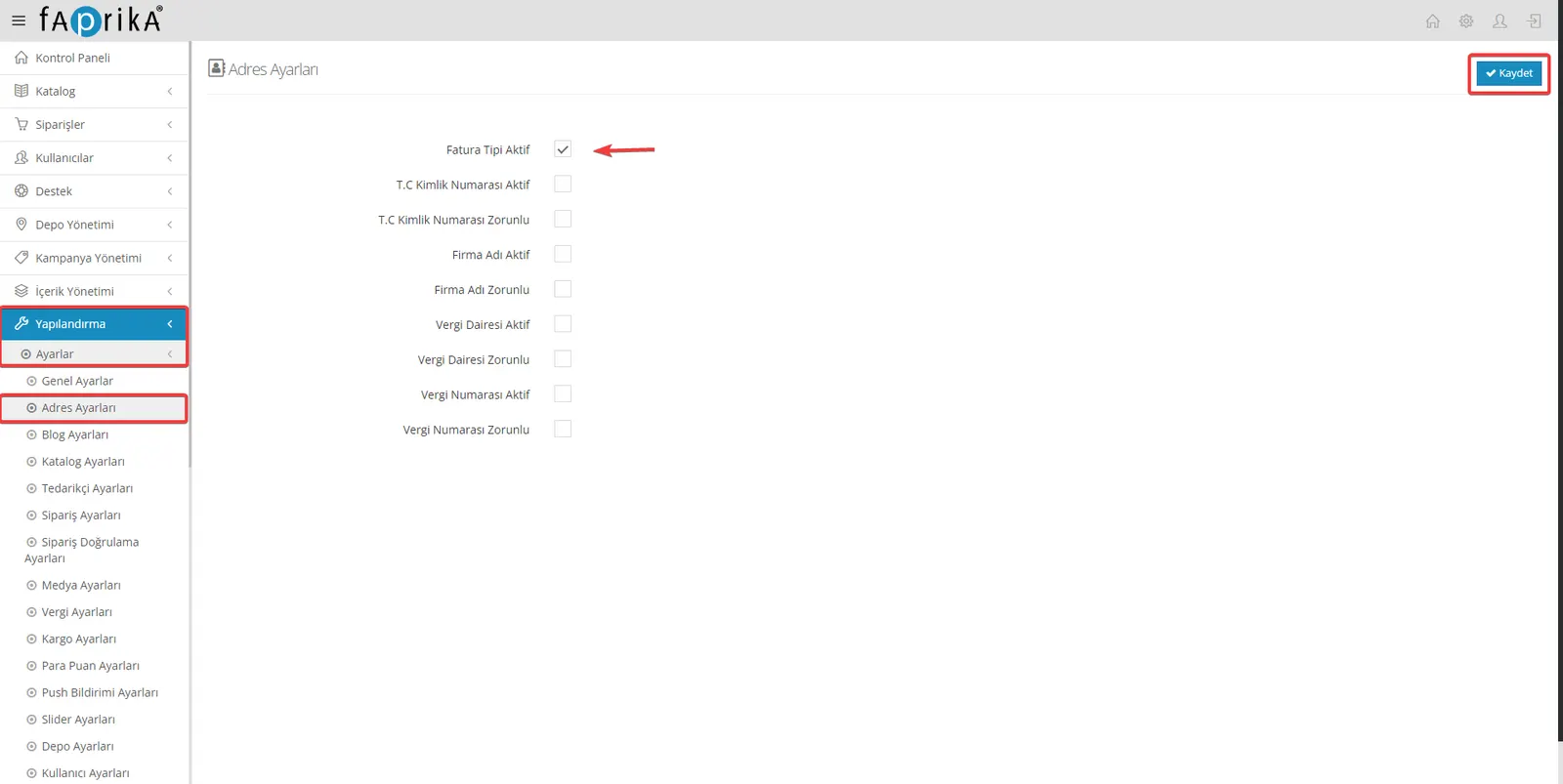
When you enable the "Invoice Type Active" option, you can create detailed address fields for both your individual and corporate customers.
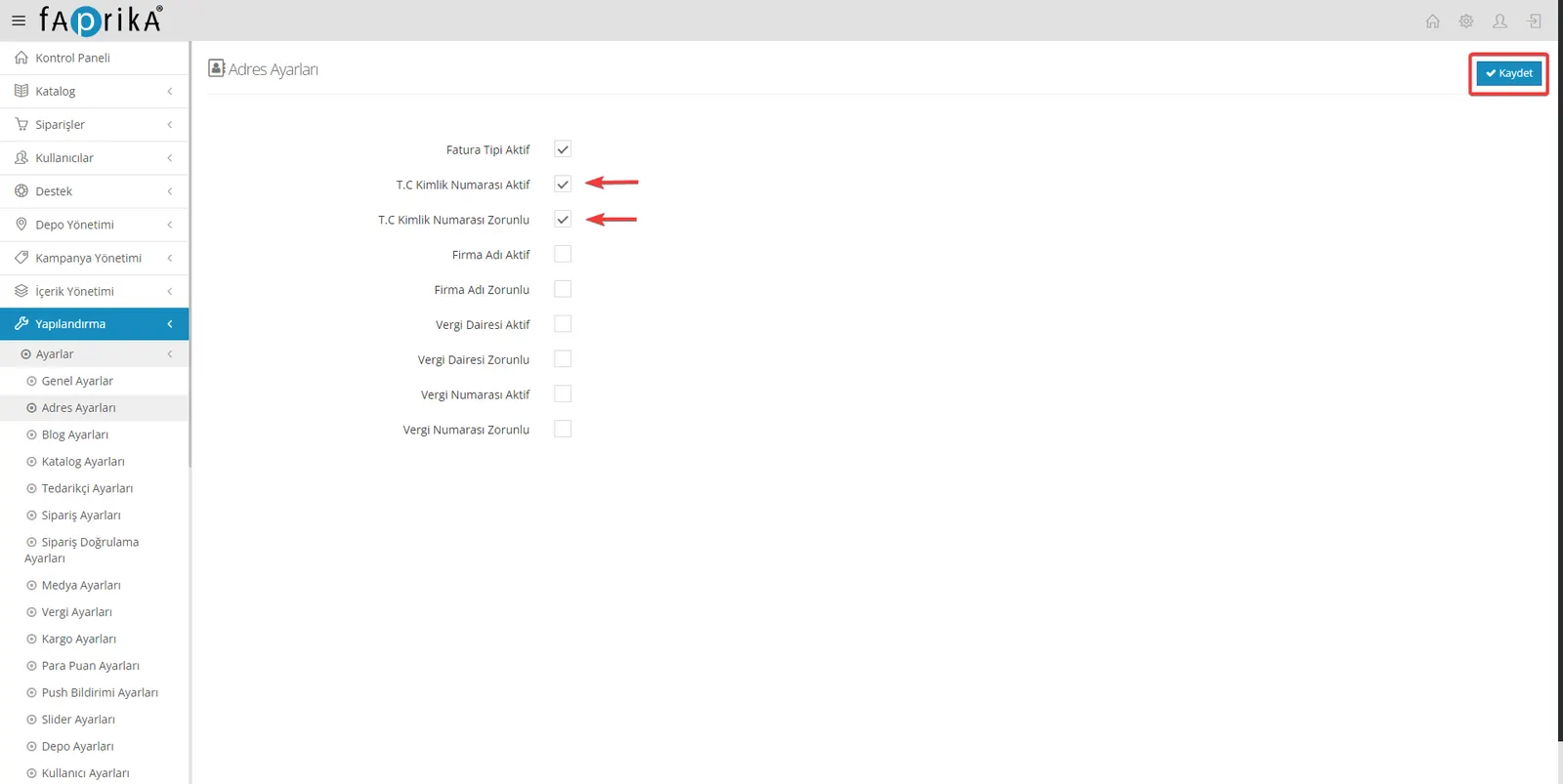
Turkish ID Number Active: You can request Turkish ID number information from customers who choose the individual invoice type.
Turkish ID Number Required: You can make customers enter this information as mandatory.
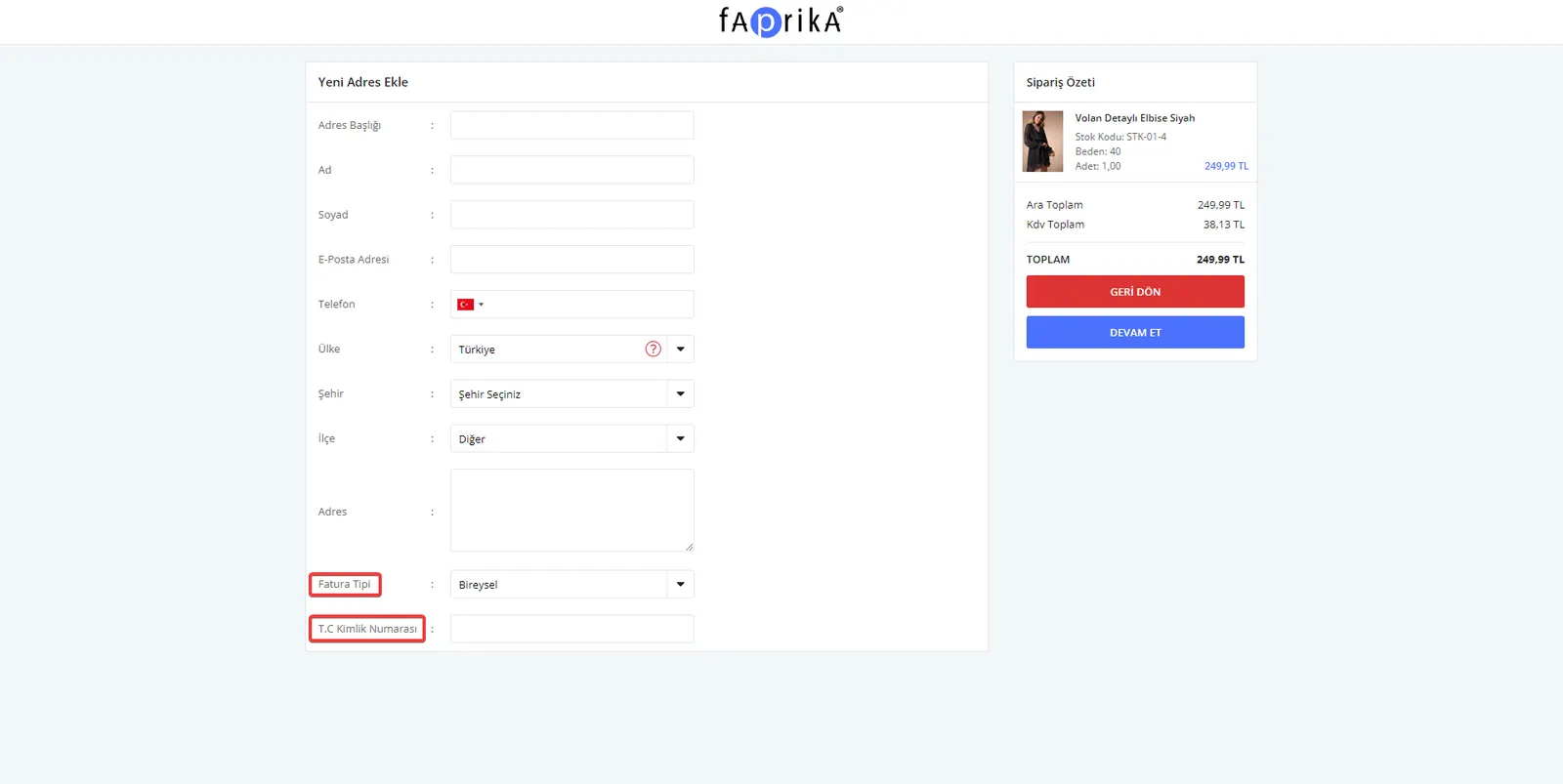
During the address entry step, your customer can enter the Turkish ID number for the invoice type selected as 'Individual'.
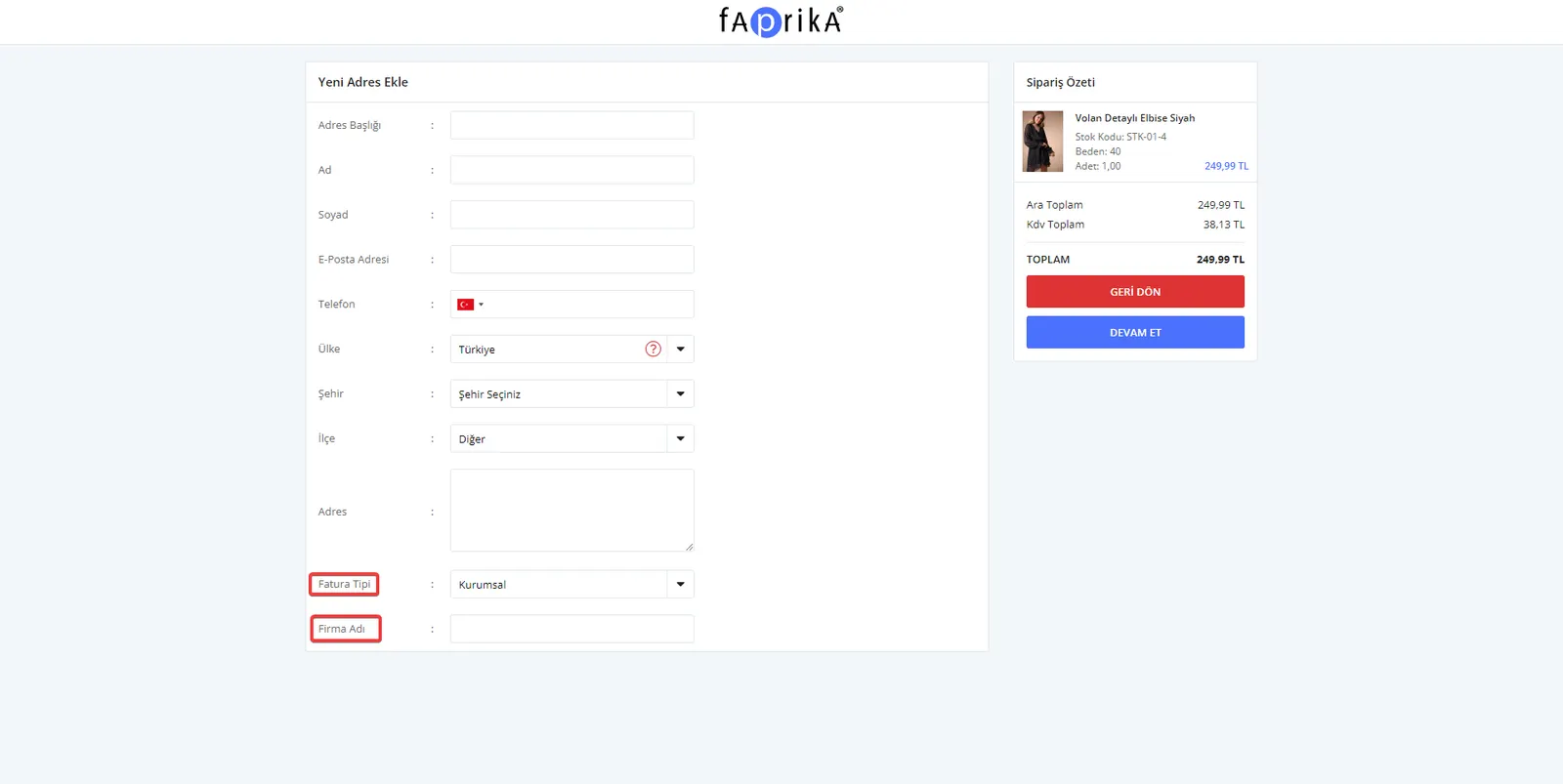
Company Name Active: For the corporate invoice type, you can ask your customers to enter the "Company Name".
Company Name Required: You can make this information field mandatory for your customers.
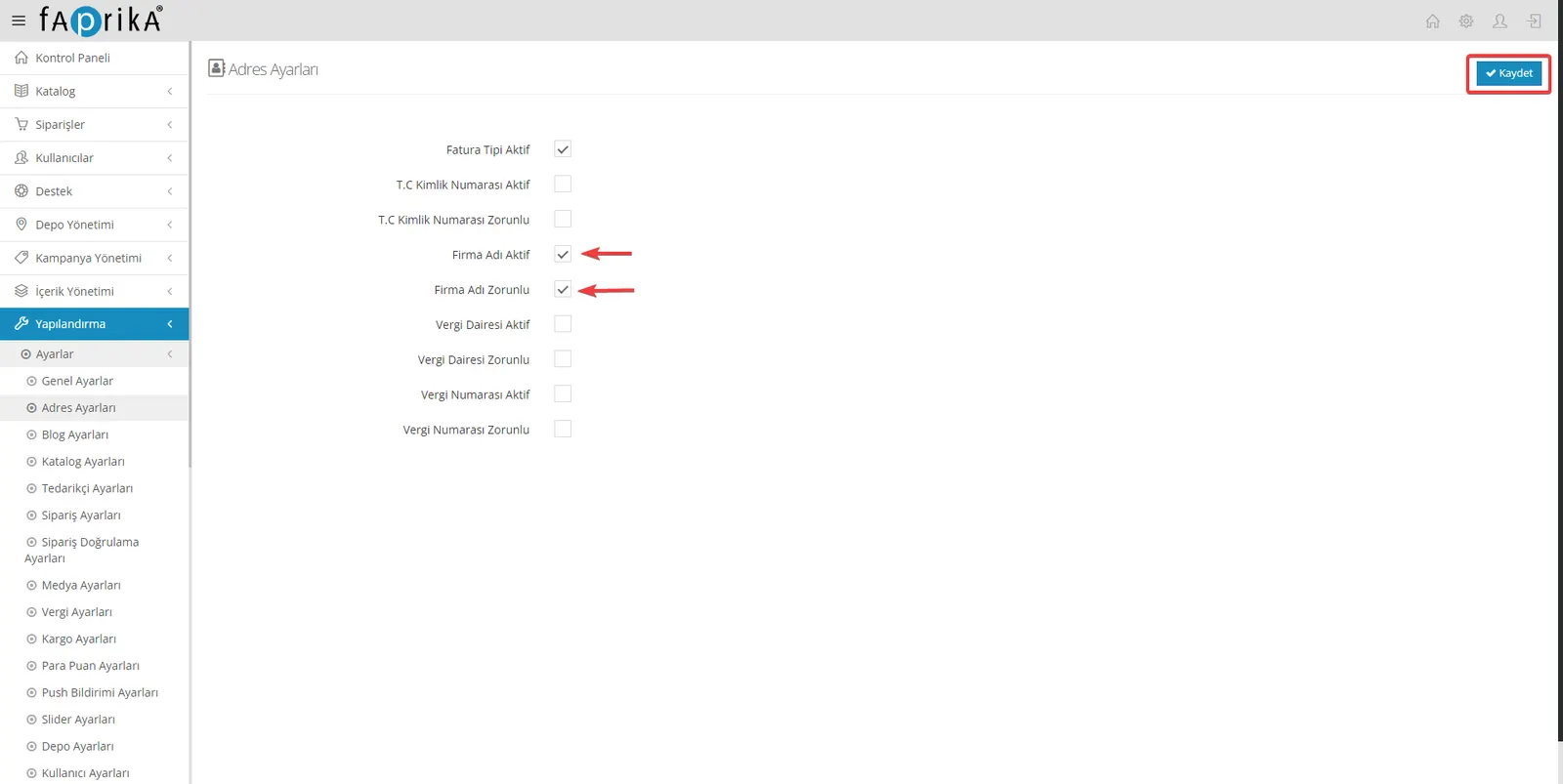
During address entry, your customer can select the 'Corporate' Invoice Type and add the company name.
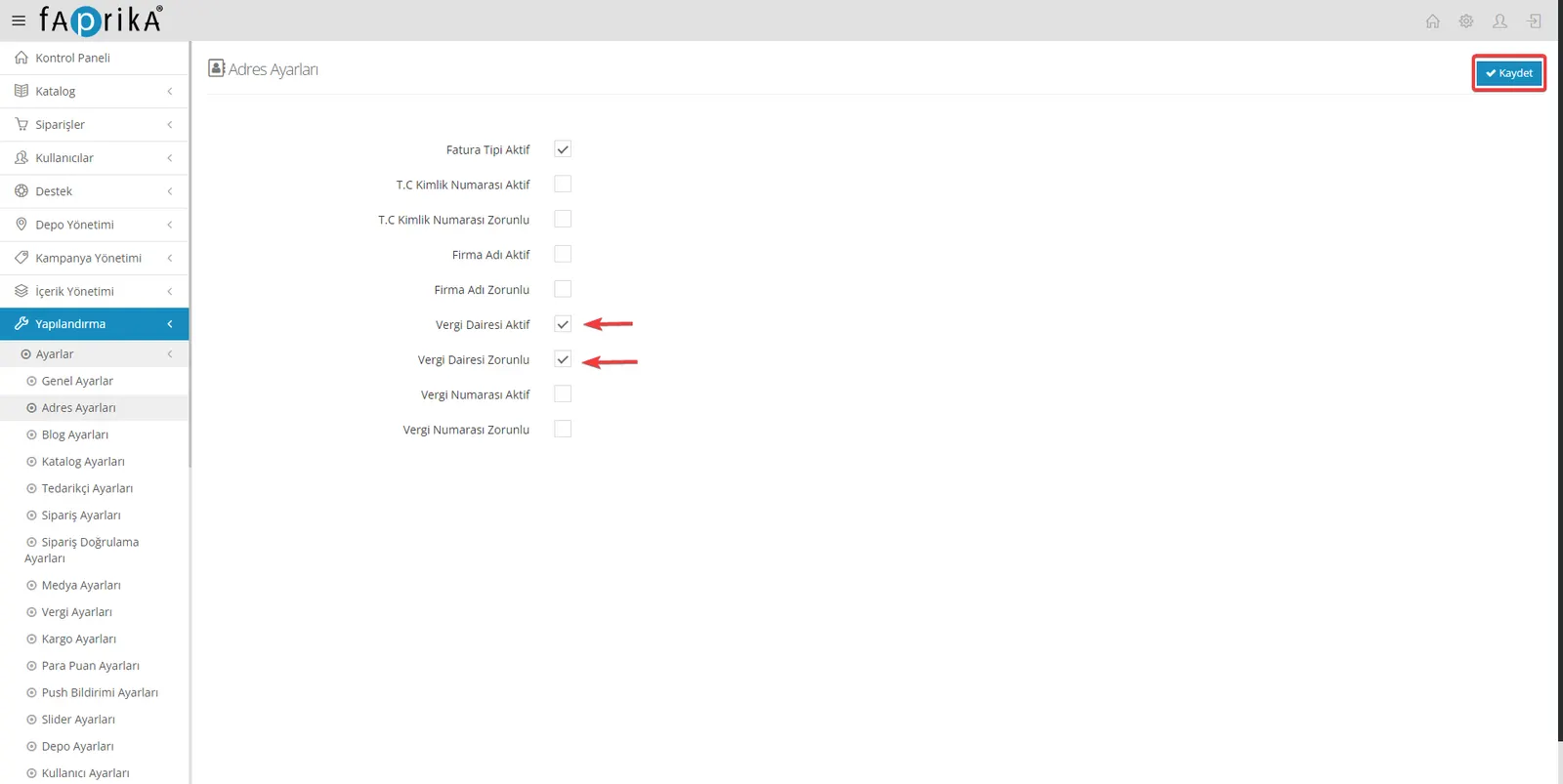
Tax Office Active: You can request Tax Office information from customers who transact with the corporate invoice type.
Tax Office Required: You can make this information mandatory for your customers.
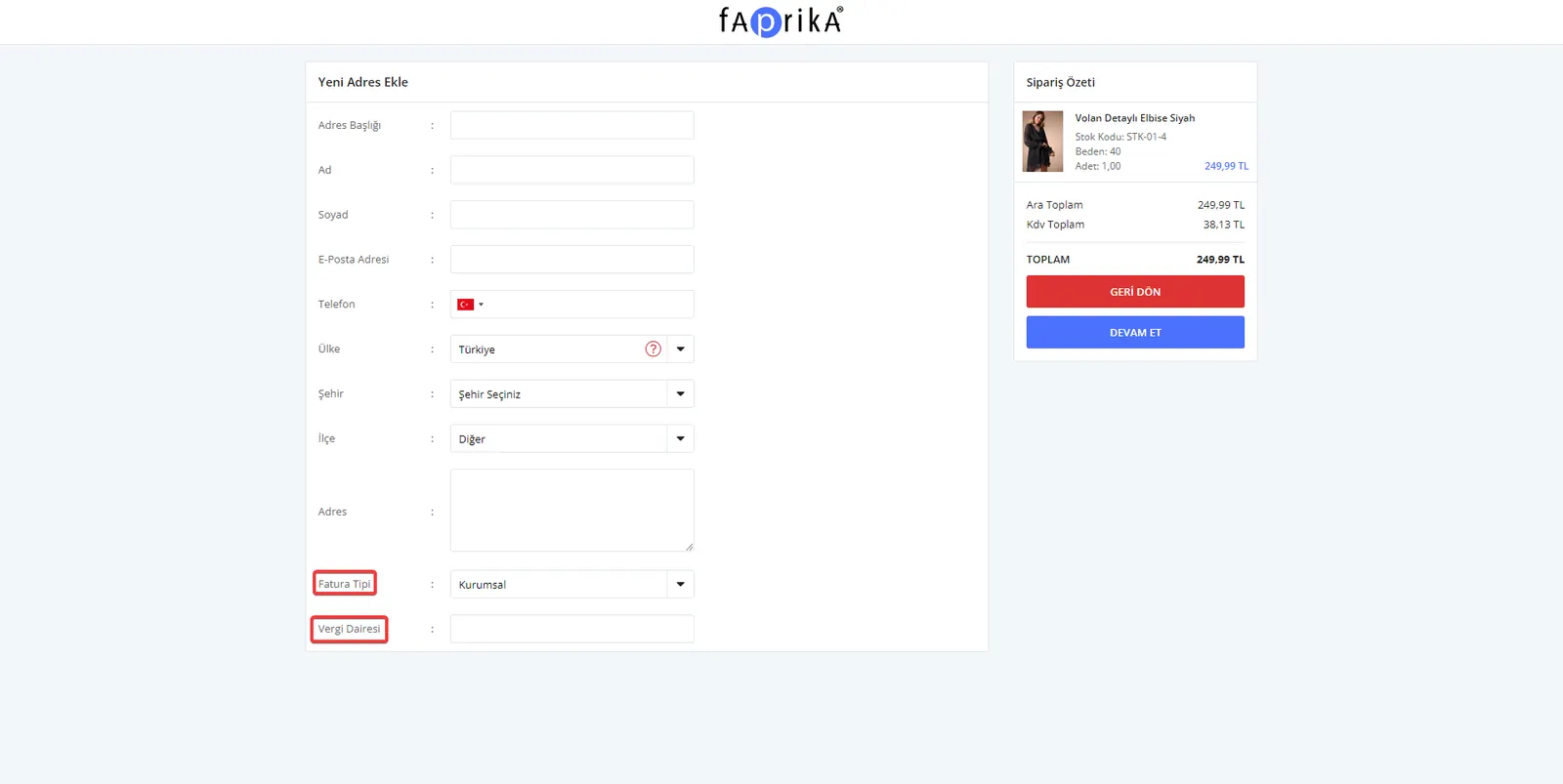
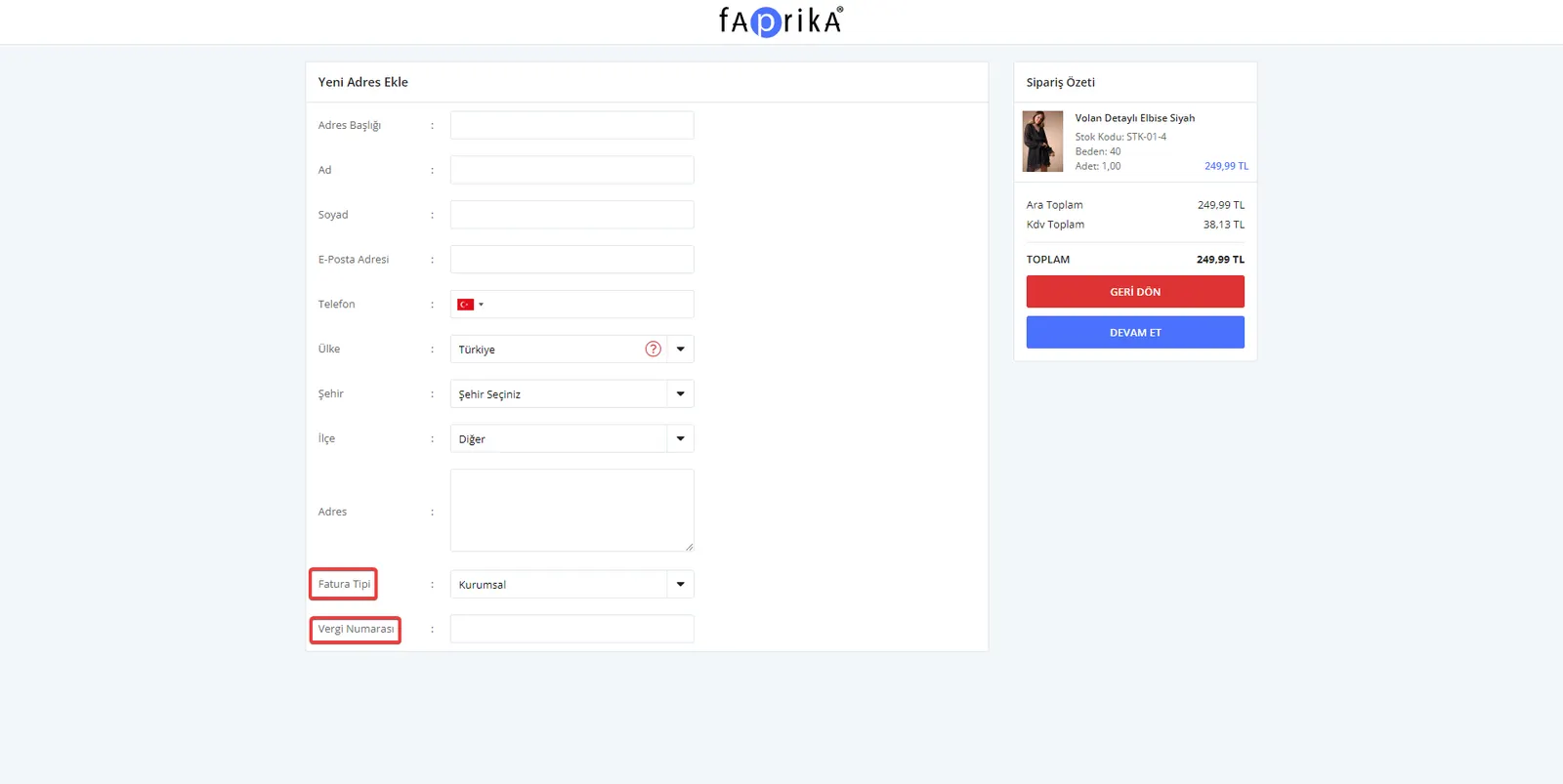
During address entry, your customer can select the 'Corporate' Invoice Type and add the Tax Office information.
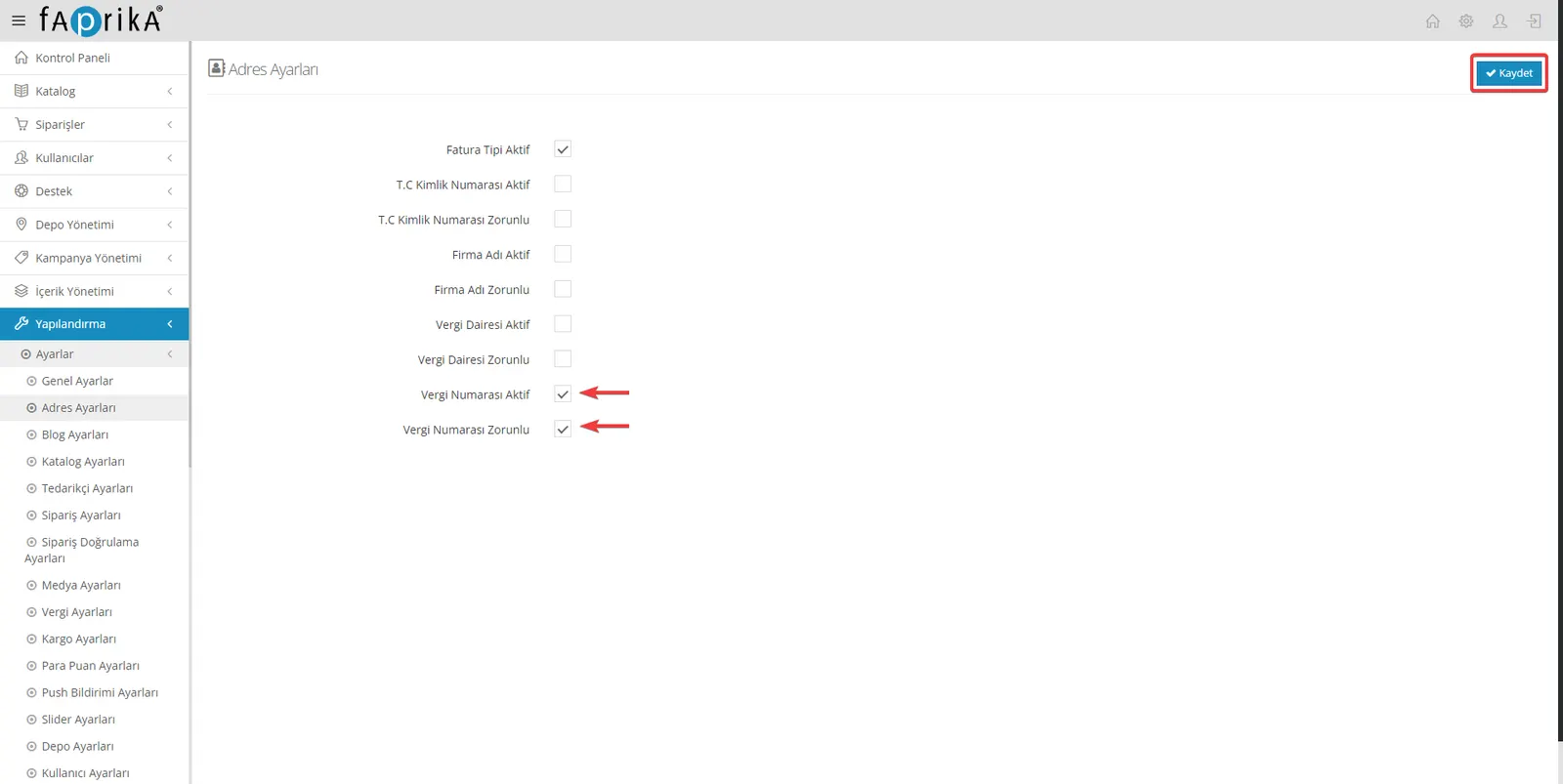
Tax Number Active: You can request tax number information from customers who use the corporate invoice type.
Tax Number Required: You can make this information mandatory for your customers.
During address entry, your customer can select the 'Corporate' Invoice Type and add the Tax Number.
For your products on your e-commerce platform to reach customers quickly and reliably is essential to increasing customer satisfaction. That is why the "Address Settings" feature offered by Faprika helps you collect the right information from your customers while making your work easier.
In this tutorial, you learned how to create different information fields for individual and corporate customers and how to make them mandatory. Now, by collecting correct and complete information from your customers, you can make the shopping process more efficient and trouble-free.
Go to your Faprika control panel right now and adjust these settings in the "Address Settings" section; create a better shopping experience for your customers!