Catalog
Category Management
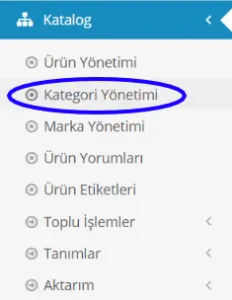
Under the Category Management heading, we will look at Adding a Category, Deleting a Category and Editing a Category. Let’s select CATALOG –> CATEGORY MANAGEMENT.
In This Tutorial
Under Category Management, we will look at adding, deleting and editing categories.
Let's select CATALOG –> CATEGORY MANAGEMENT.
Categories make it easier to group the products on your e-commerce site, so your customers can quickly find the right product options. For example, Men and Women are two separate main categories. Of course, many subcategories will follow these categories:
- Women>> Clothing
- Women>> Clothing>>Dress
- Women>> Clothing>>Sweater
- Women>>Underwear
- Women>>Underwear>>Nightgown
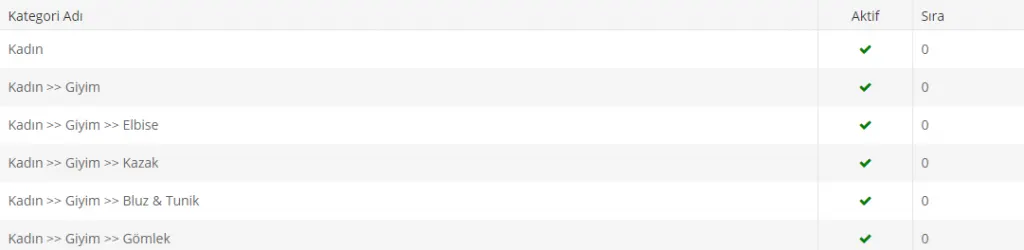
As you can see, a main category is divided into many subcategories. This lets your customers easily reach the products they are looking for through category selection.
Imagine an e-commerce site with no categorization at all. A customer looking for an evening dress would be in the same pool as one looking for cat food… This would make unhappy customers leave your e-commerce site in frustration. That is why products must always be categorized.
So how do we add a category using our panel?
ADDING A CATEGORY
Let's look at adding a category and editing existing categories one by one. When you log in to the panel, you will see a section listing the existing categories and a search field for finding categories.
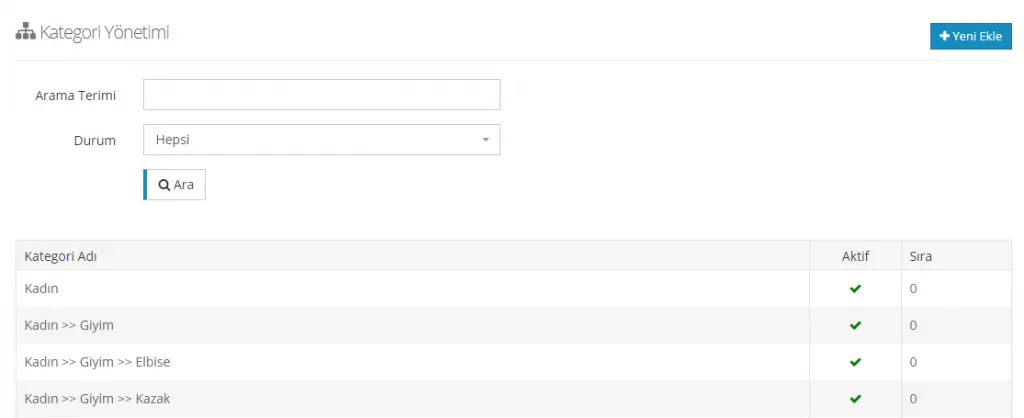
For existing categories to be listed, a category must have been added before. Otherwise no categories will be listed. If nothing has been added before and/or you want to add a new one using different titles, click the ‘Add New’ (

) button in the upper right corner. After you click Add New, the screen below appears:
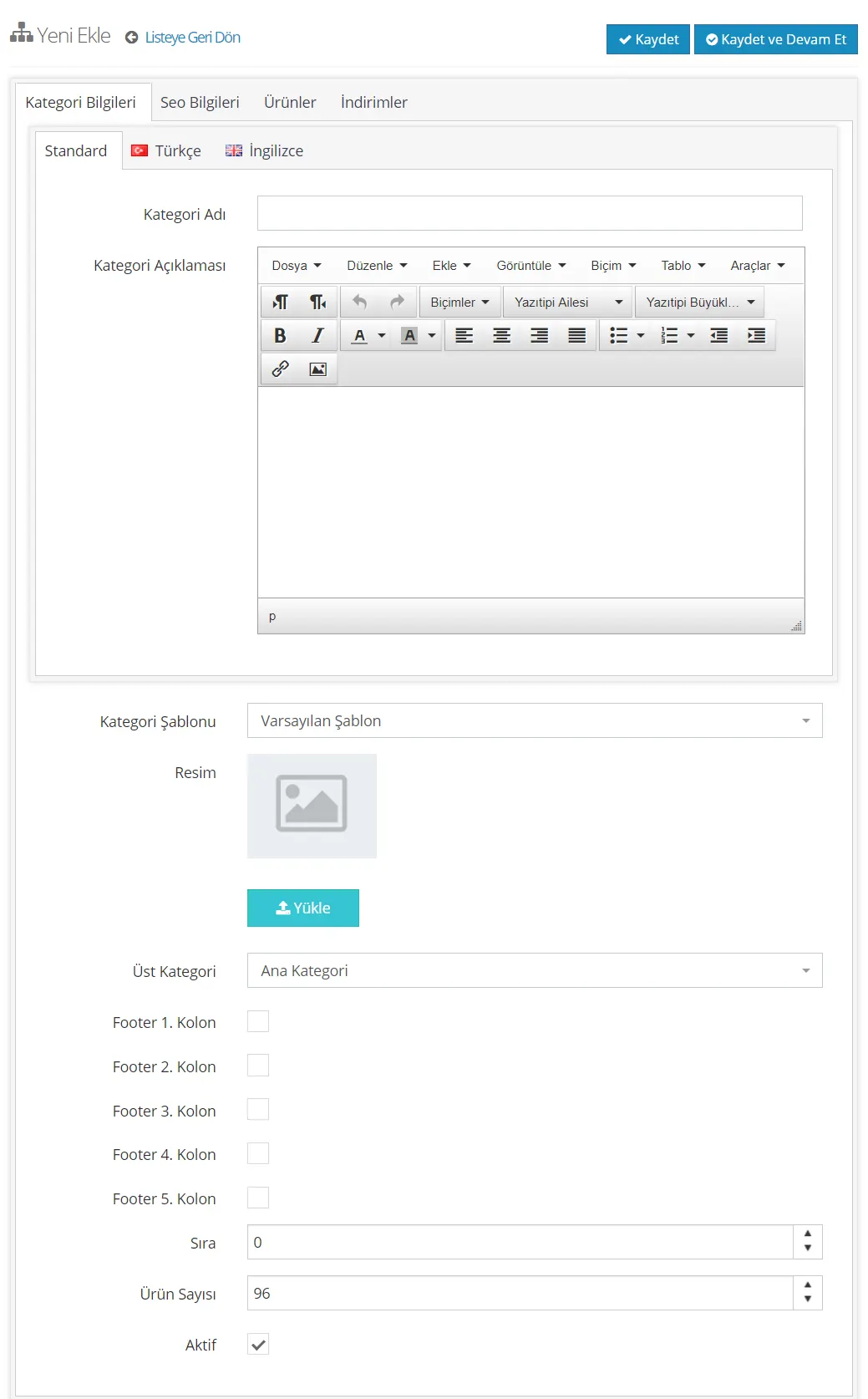
As you can see, the panel is quite detailed. Let's go through all the steps one by one.
First, note that in this panel you can choose between English and Turkish. If you want to define an additional language, you can contact our technical support team.

Category Name
The category name is the category you want to use for grouping products. For example, terms that describe your products, such as Men, Women, Kids, Dress, Sweater or Sportswear, can be defined as category names.

Category Description
The content you enter in the category description field can be displayed at the bottom of the page that opens when the category is clicked. Let's add a description for the Women category, for example:
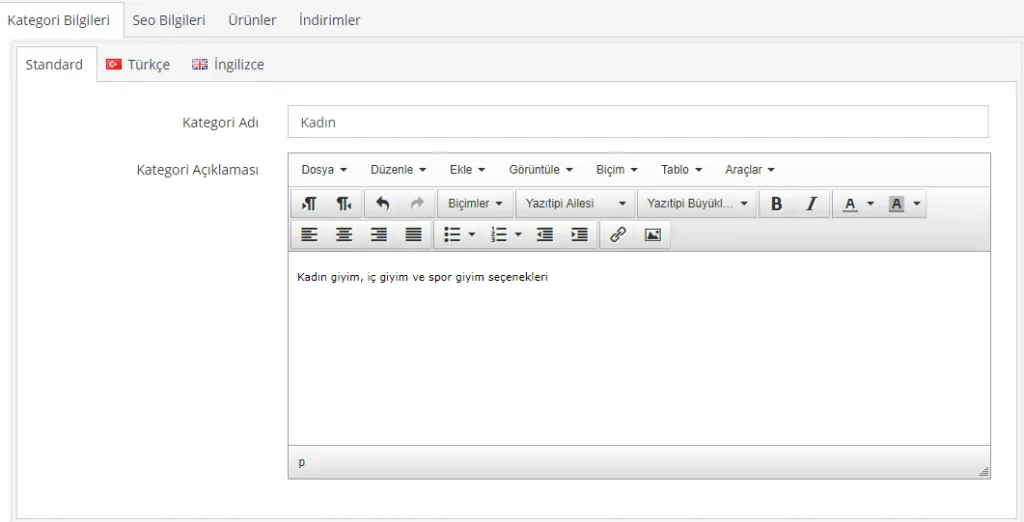
Filling in the category description is optional. However, it is recommended because it helps in Google searches. In this field we can add short information about the category's content. We can also use the area below to choose options such as left-aligned, centered or right-aligned text, and italic or bold writing.
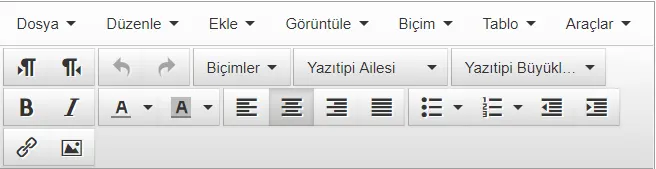
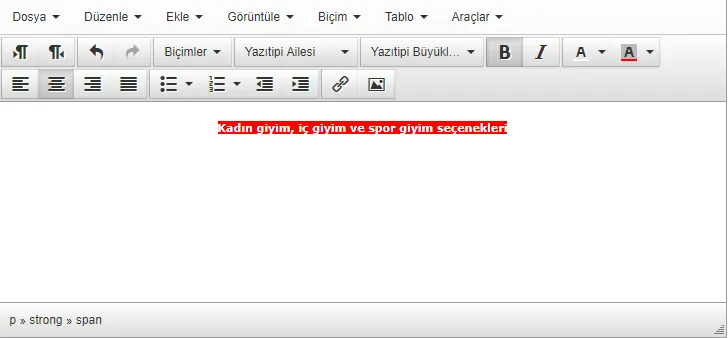
You can make the necessary edits in this area as easily as editing a Word file. For example, let's make the text bold and give it a background color.
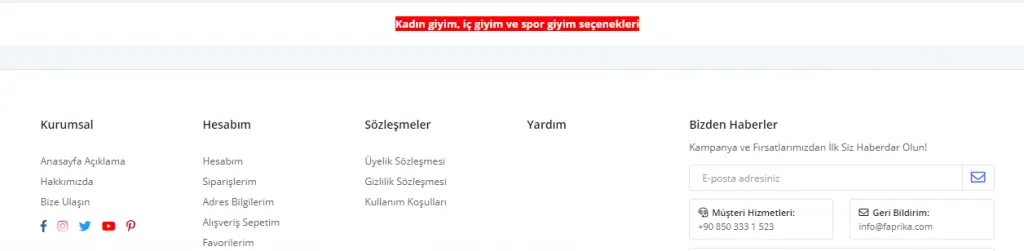
This change will appear on the site above the footer area, as follows:
Category Template
After the description field, let's choose the Category Template and the Image.
In the Category Template field we find three different options:
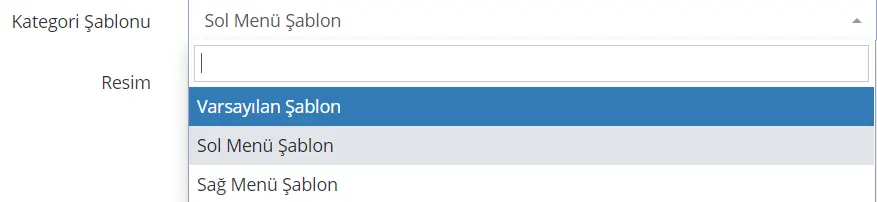
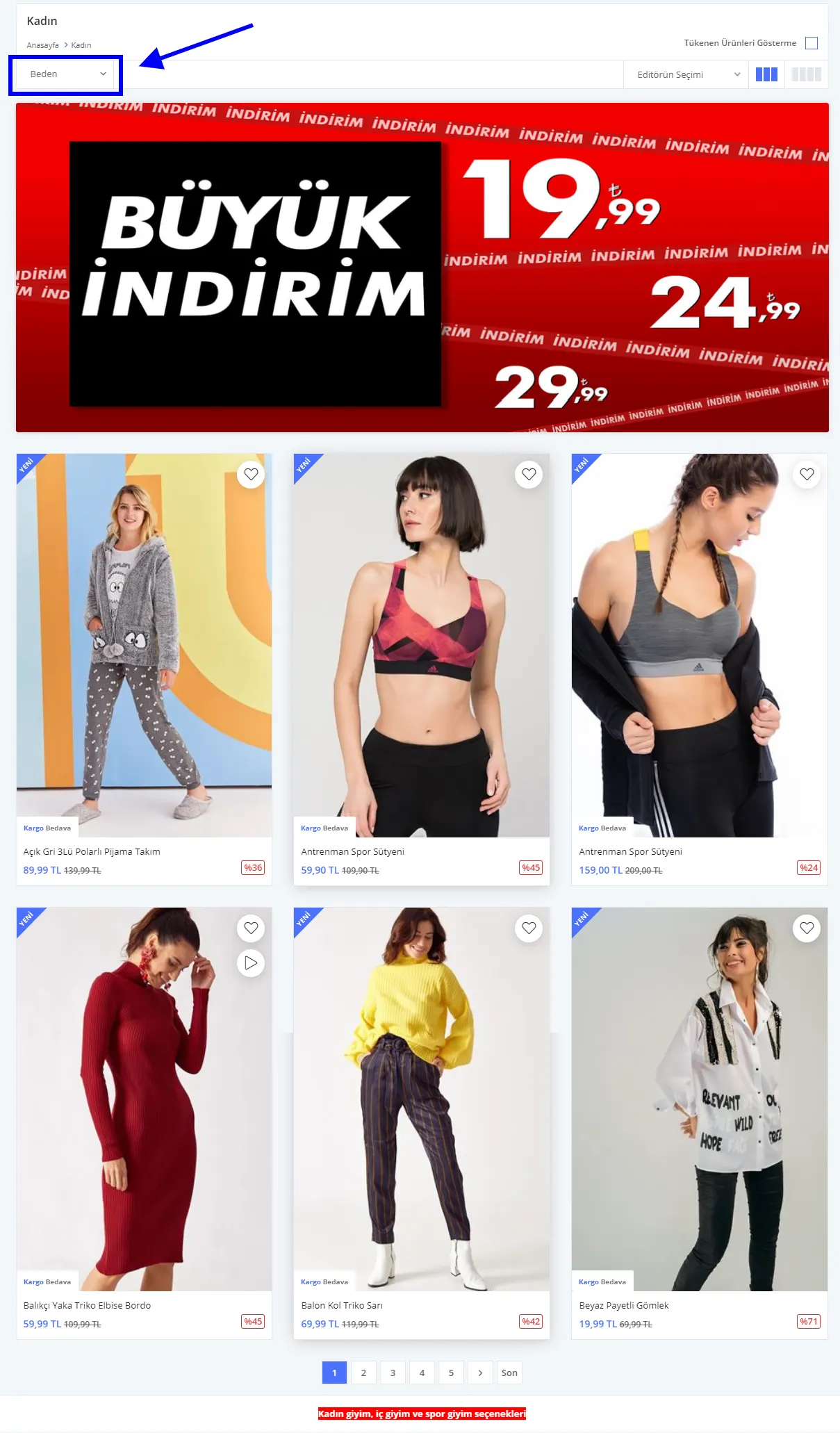
When the Default Template is selected, the related products appear in sequence on your page. The attribute values are shown in the area in the image we shared.
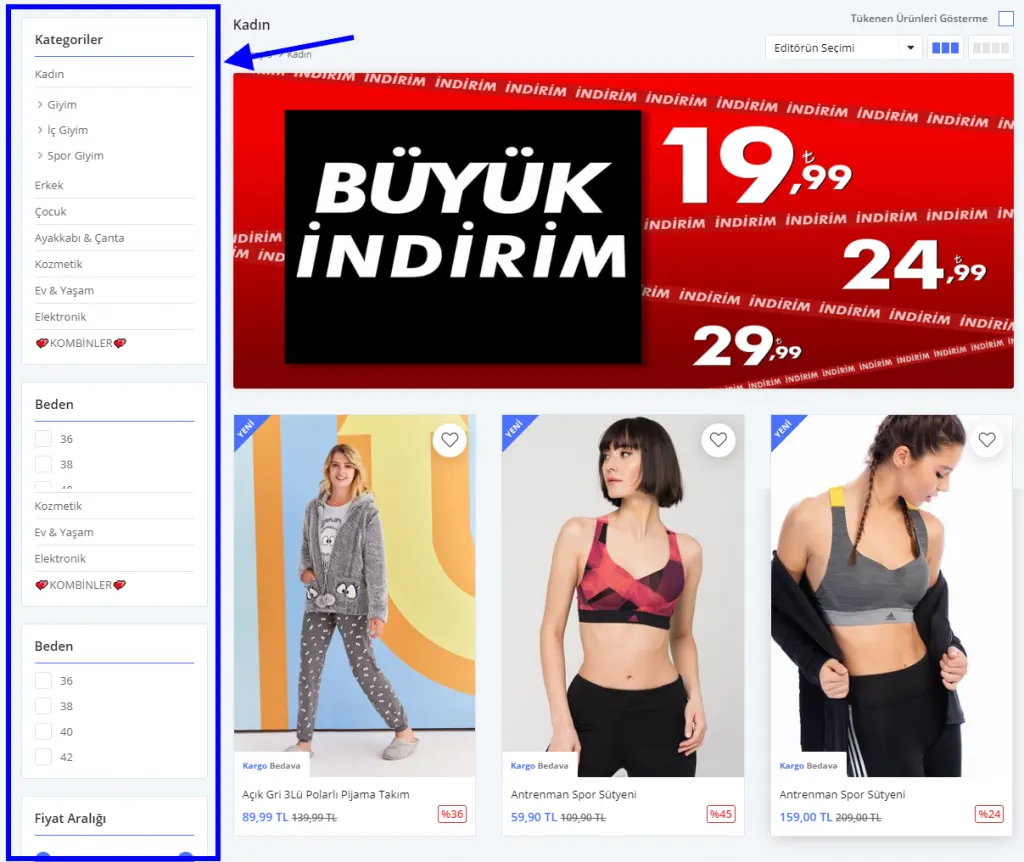
When the Left Menu Template option is chosen, the subcategories and attribute values are displayed on the left side of the page.
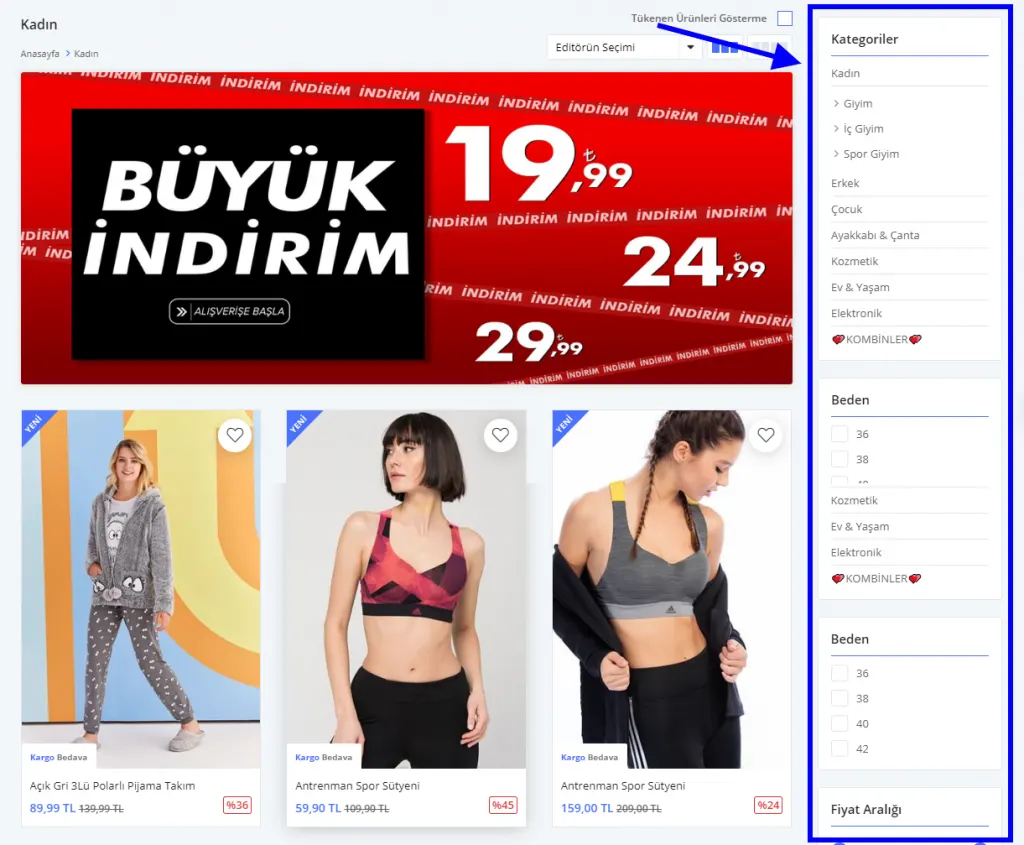
When the Right Menu Template is selected, the subcategories and attribute values are displayed on the right side of the page.
We have chosen the template, and we continue by clicking Save and Continue. This way the system keeps us on the same page while saving the changes. If we click only Save, the system automatically takes us to the main screen with the Category list. So if you will keep working, we recommend choosing Save and Continue (

) when saving the changes.
Adding a Category Image
Let's continue with the Category Image area. You can enrich this area with eye-catching campaigns, calls to action and showcase products related to your category. You can use it to upload banners with effects and colors, brand catalog images and similar visuals.

You can select the image you want to add to the category by clicking the Upload button. Once uploaded, the image appears in the Image area. If you wish, you can remove it with the Delete button. We saw earlier how the added image will look on the category page. Let's look again:
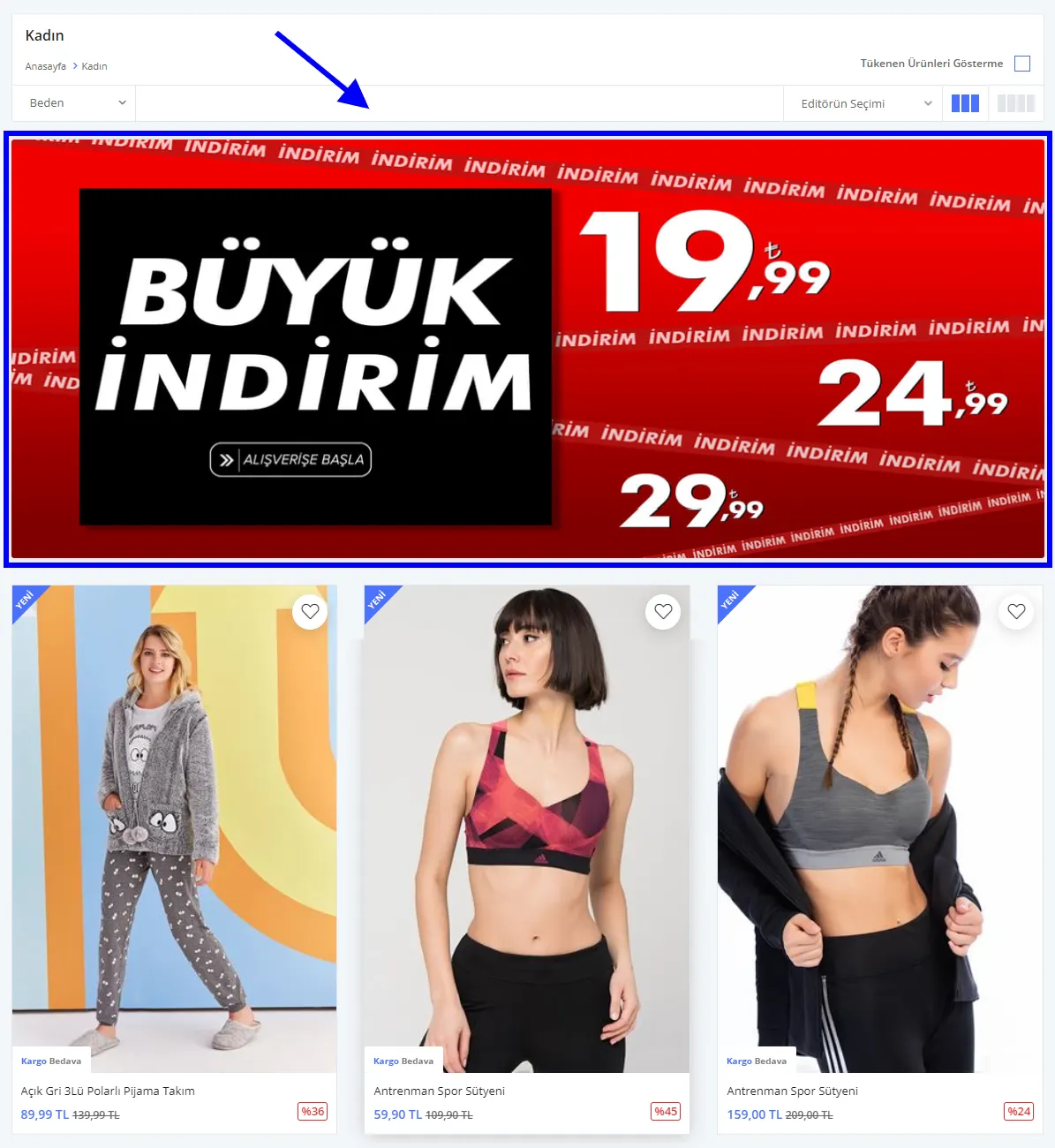
The category image can motivate your customers to act. It is especially recommended for category-based discount campaigns.
After adding the Category Image, another area we can edit is the Parent Category field. Here we can define the category as a Main Category, or as a subcategory of one of the existing categories.
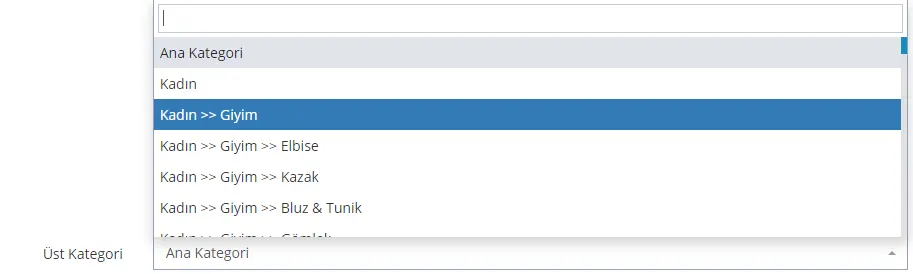
You may want your category to appear in a footer area. This can make it easier for your customers to reach some categories. If you want to make such an arrangement, you need to assign the relevant category to a footer area you select.
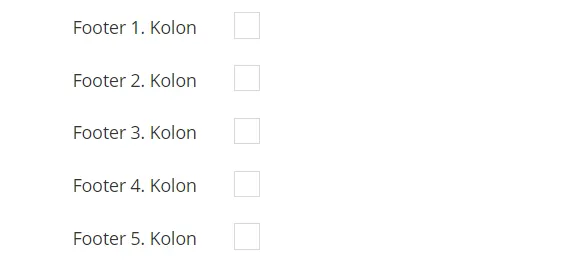
The footer area refers to the CORPORATE, MY ACCOUNT, CONTRACTS and HELP sections at the very bottom of your site.
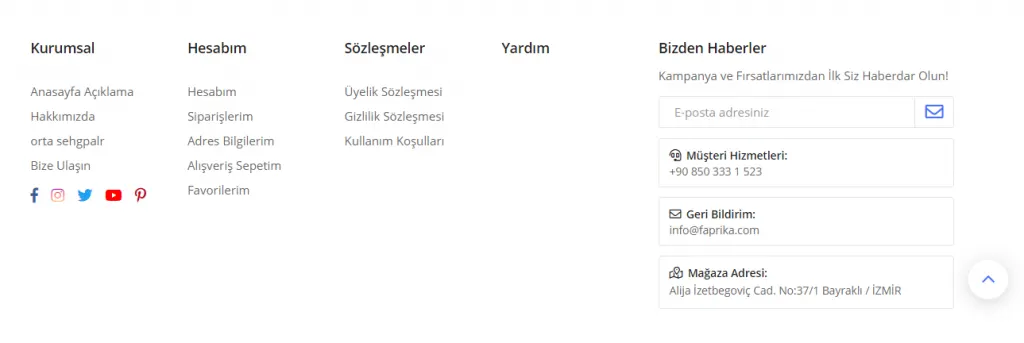
This section is generally a feature our users prefer for showcasing Parent Categories. For example, if the featured category of your online boutique is Evening Wear, you can highlight it by adding the category to the footer area.
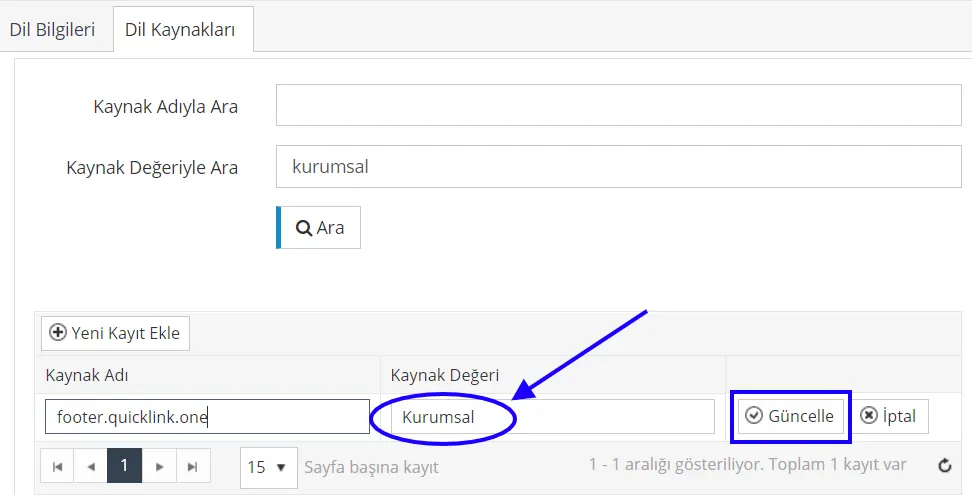
ADDITIONAL INFO: You can change one of the headings CORPORATE, MY ACCOUNT, CONTRACTS, HELP and write CATEGORY instead. To do this, go to CONTROL PANEL > CONFIGURATION > LANGUAGE > TURKISH > LANGUAGE RESOURCES > SEARCH BY RESOURCE VALUE > type the name you want to change and click the SEARCH tab. When the relevant text appears on our page, click EDIT, change the displayed name and click the UPDATE tab; you will see that the operation completed successfully.
Now let's move on to the settings for category order and the number of products in the category…
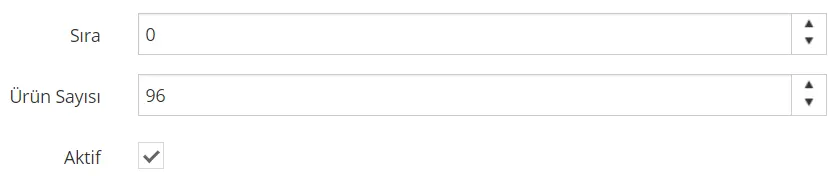
If you set the category order to 0, the created category appears at the very top of the list. You can order categories according to your preference. On the platform, 0 always takes precedence over 1, so keep this priority in mind when you make your settings.
Number of Products
Number of Products determines how many products are displayed on one page when the category is clicked. For example, if you enter 46 in this field for the Women category, you will need to go to the second page to see the 47th product.
For the category to be active, you must tick the checkbox. Then, when you click the Save and Continue button, the Created and Updated date automatically become visible in the system.
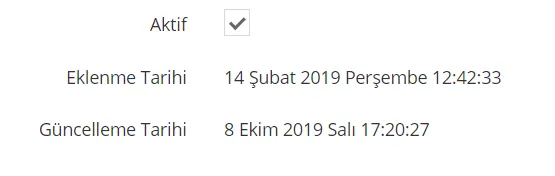
Activating the Category
You can deactivate the category by removing the tick next to the Active button.
Our category is ready, but a few final edits remain.

SEO Settings for the Category
The most important of these settings is undoubtedly SEO. To reach your customers organically, you must fill in the SEO fields.
Let's continue with the Men category as an example. The fields we need to fill in under SEO are as follows:
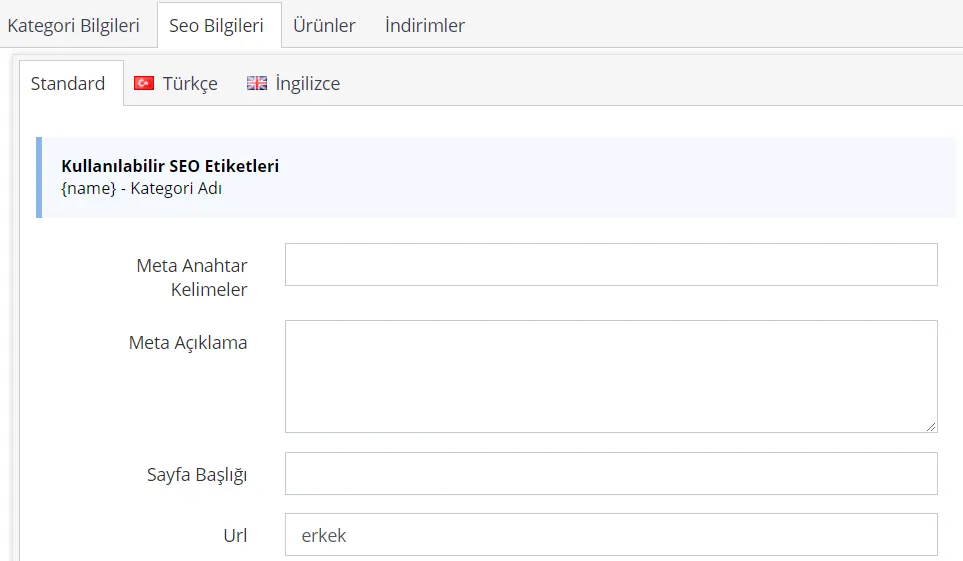
The meta keywords, meta description and page title fields must be filled in manually. The URL field is added automatically by the system.
Meta Keywords
A meaningful sentence containing the keyword should be written. To expand the content and make the product stand out in this field, you can write words describing the product's features, separated by commas. To highlight the product name, we recommend using the {name} content, which can be pulled from the code in the upper left corner.
For the Women's Clothing category, we can use Google to get fast and reliable results.
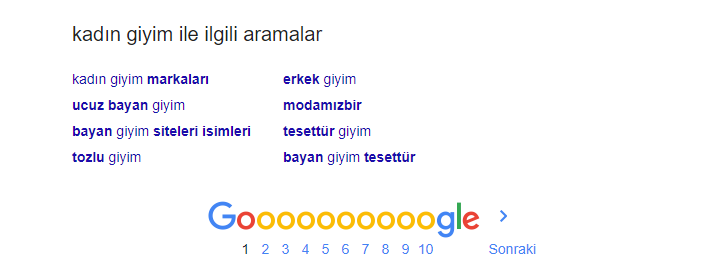
When we search Google for ‘Men's Clothing’, it lists related searches at the bottom of the page. This area gives us very strong information for meta keywords.
So we can set up the SEO area as follows, using this information as support.
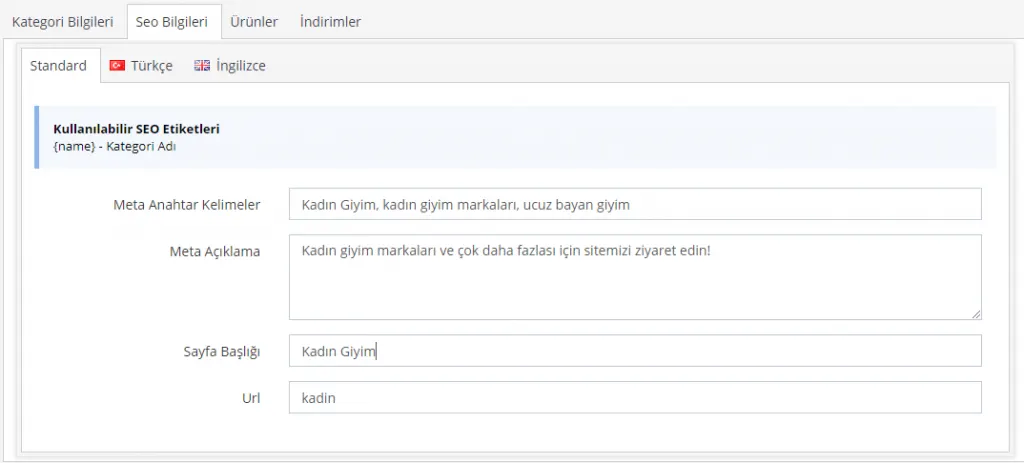
As you can see, we added some of the keywords we found related to our e-commerce site to the meta keywords field. Three keywords are enough. In the meta description field, we similarly used the keywords to write a descriptive and attention-grabbing text. Finally, we defined a page title and completed the SEO settings.
Meta Description
You can write a sentence of 155 characters that best describes the product, or list the product features separated by commas.
Page Title
A suitable page title of 65 characters needs to be set.
The URL field is assigned automatically by the system, so it does not need to be edited. With this in mind, let's continue with the settings.
After editing the SEO information area, let's move on to the Products area. This area lists the products under the category. You can add products to the category from this panel, or assign a category when adding a new product.
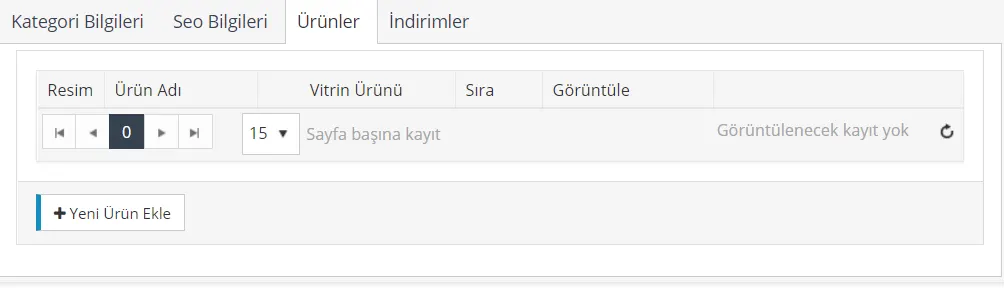
If no product has been assigned to the category, this area will appear empty. However, by clicking the Add New Product button, you can choose among the existing products and assign products to the category. In the panel that opens, you can list products using various search options or select directly from the product list at the bottom of the panel.
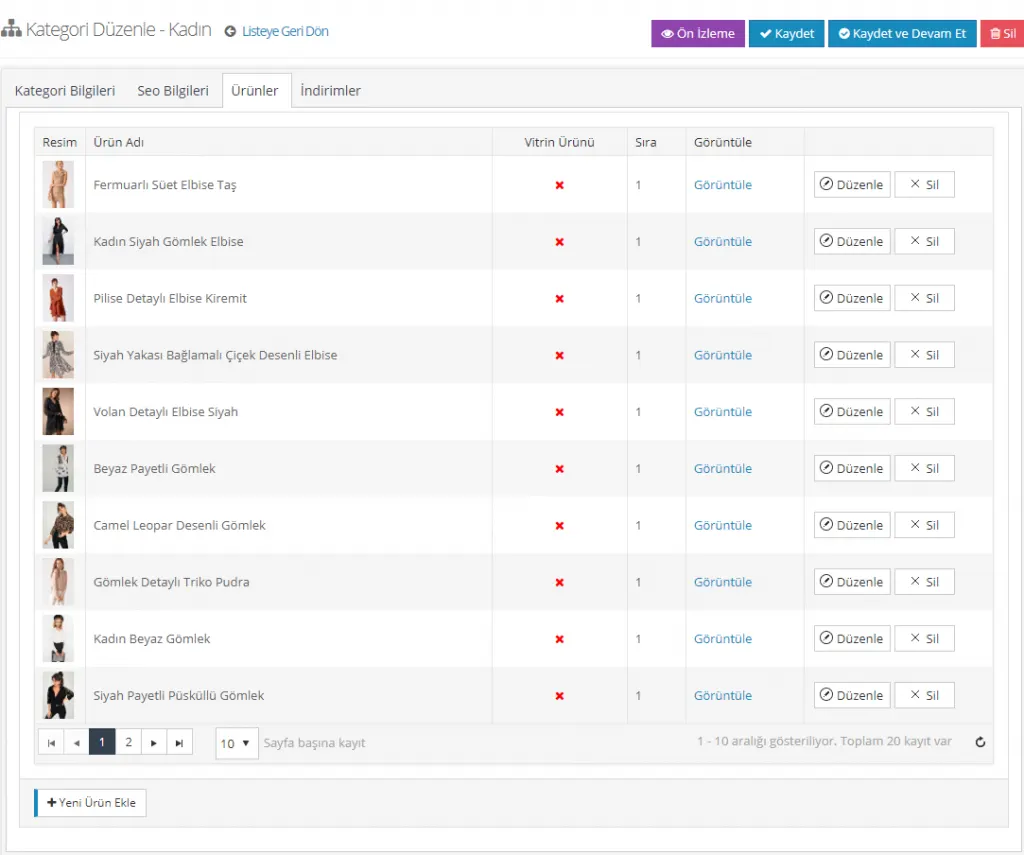
When you click Save, the products are assigned to the relevant category. From this area you can view the products under the category, change their order, make them showcase products, delete them or edit them.
The Discounts area contains the discounts defined for the category. You can edit this area in Campaign Management. If no discount is defined for the category, this area will be empty.

After making all the edits for the category, you can save the changes by clicking Save and Continue, then check them with Preview. When you have finished editing, click Save to return to the category list and add a new category.
DELETING A CATEGORY
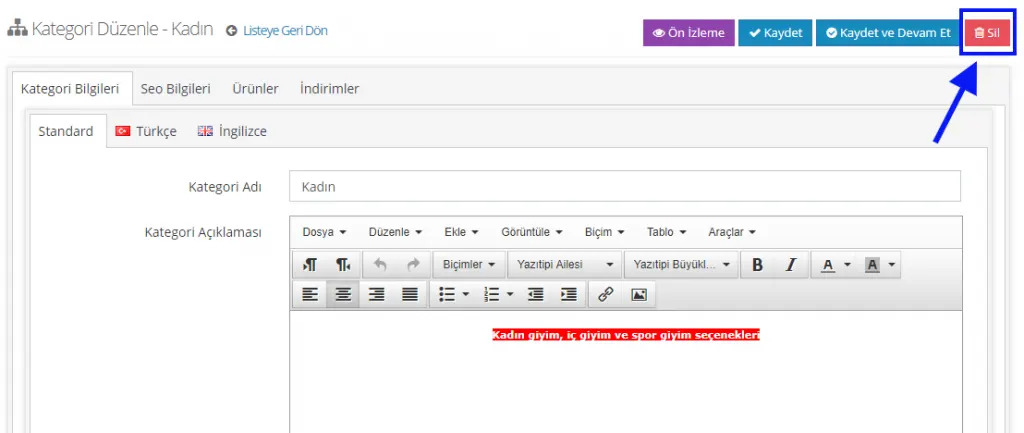
Deleting an added category is quite simple. Go back to the Category Management area and click the category you want to delete among the listed categories. Then delete the category by clicking the Delete button in the upper right corner of the window that opens.
DEACTIVATING A CATEGORY
In some cases you may need to deactivate the category. All you need to do is remove the tick in the Active option of the category in the same panel. When you click Save, the category is deactivated.

ASSIGNING A CATEGORY WHEN ADDING A NEW PRODUCT
You can also easily assign a previously created category when adding a New Product. To do this, click CATALOG >> PRODUCT MANAGEMENT >> ADD NEW PRODUCT. Then click the CATEGORY/BRAND button on the left side of the panel that opens. Through this area, we assign one of the existing categories to the product.
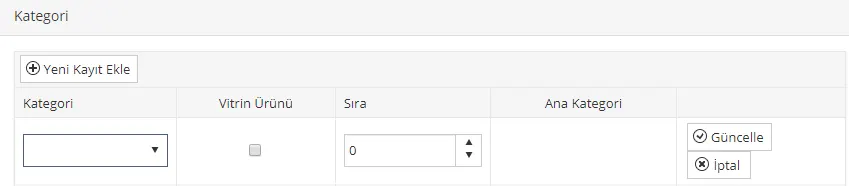
When adding a category, you select the main category and its related subcategories. You can set the product as a showcase product and edit its order. After completing the changes, you need to click the Update button.
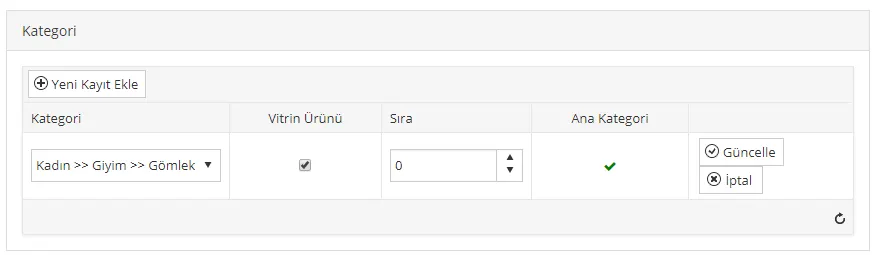
When you mark the product in question as a Showcase Product, it will be displayed in the category we added under the DEAL PRODUCTS heading. Let's look at how the Deal Products area appears on the category page:
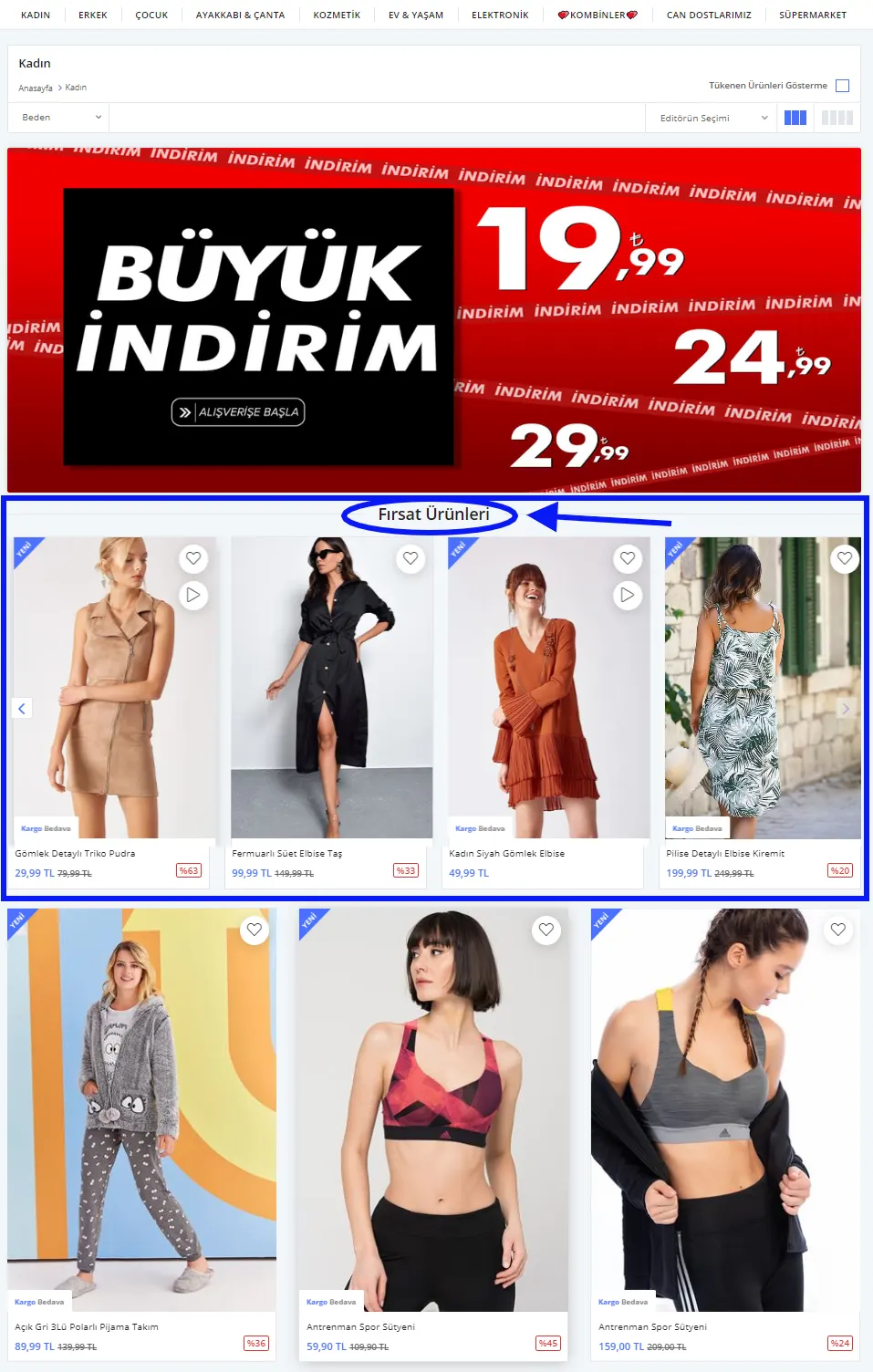
ADDITIONAL INFO: If you are adding a new product and have not defined a stock quantity, or when the stock of the registered product runs out, the product added to the deal area is shown with the ‘Out of stock’ label.
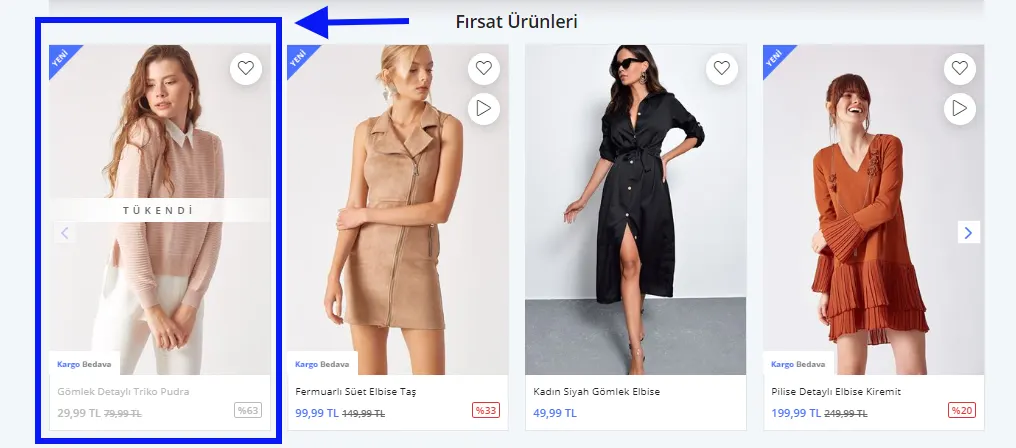
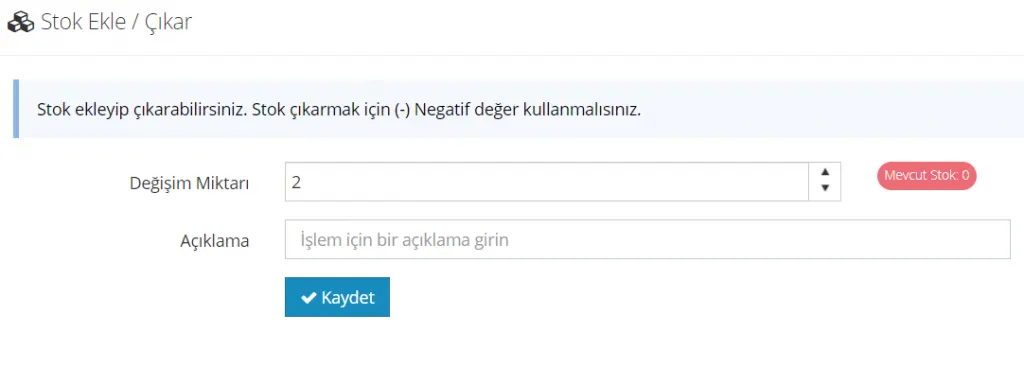
The ‘Out of stock’ label will disappear when you add stock. To do this, click the Add/Remove Stock button in the upper left of the EDIT PRODUCT area and complete the operation by entering the stock increase as the Change Amount. (For more information about Product Stock Management, click here)
ADDITIONAL INFO: You can change the DEAL PRODUCTS heading.
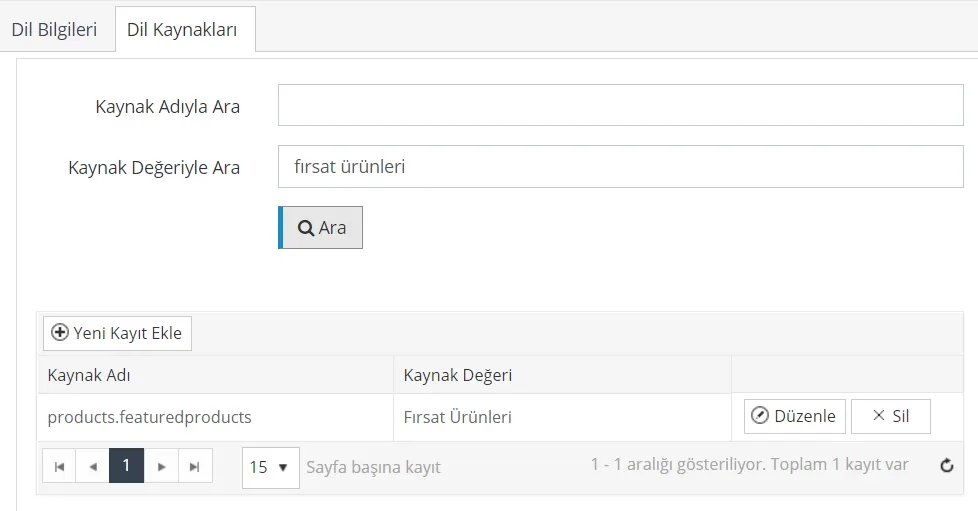
Just go to CONTROL PANEL > CONFIGURATION > LANGUAGE > TURKISH > LANGUAGE RESOURCES > Search by Resource Value > Search, type the content you want and click UPDATE.

We have completed all the edits. We can apply this process in the same way to other main and subcategories.
Save (

) button to complete the category editing and don't forget to do a Preview for the final checks!