Configuration
PayTr Setup
What Is PayTr? It is a virtual POS payment method compatible with all credit cards for orders placed on your site. How Is PayTr Activated? For this process you need to register at www.paytr.com. After creating a PayTr store account, let’s go to the “Notification URL” section under “Settings”.
In This Tutorial
What Is PayTr?
It is a virtual POS payment method compatible with all credit cards for orders placed on your site.
How Is PayTr Activated?
For this process you need to register at www.paytr.com. After creating a PayTr store account, let’s go to the “Notification URL” section under “Settings”.
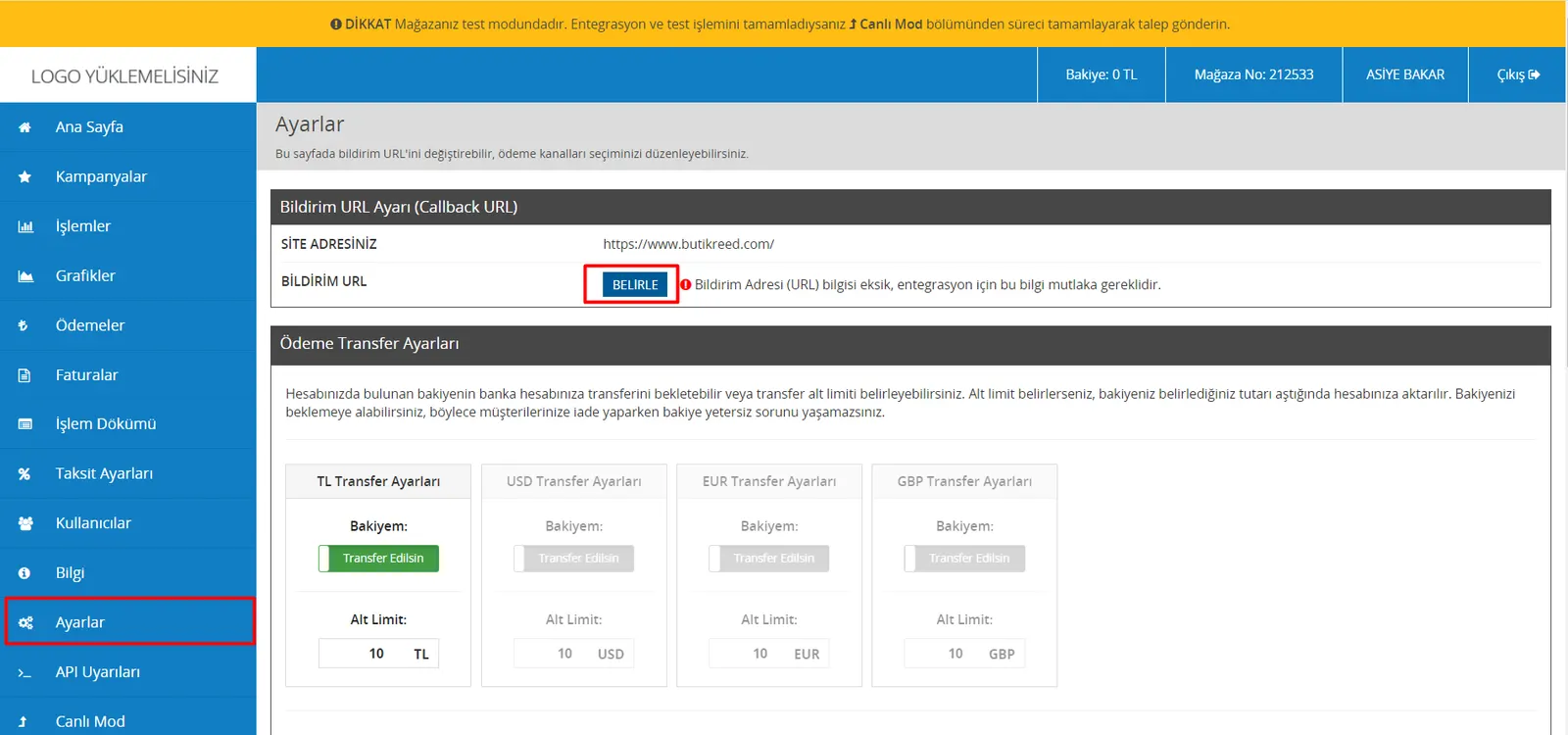
and in this field select “Faprika”, click “Save”, and then confirm the process.
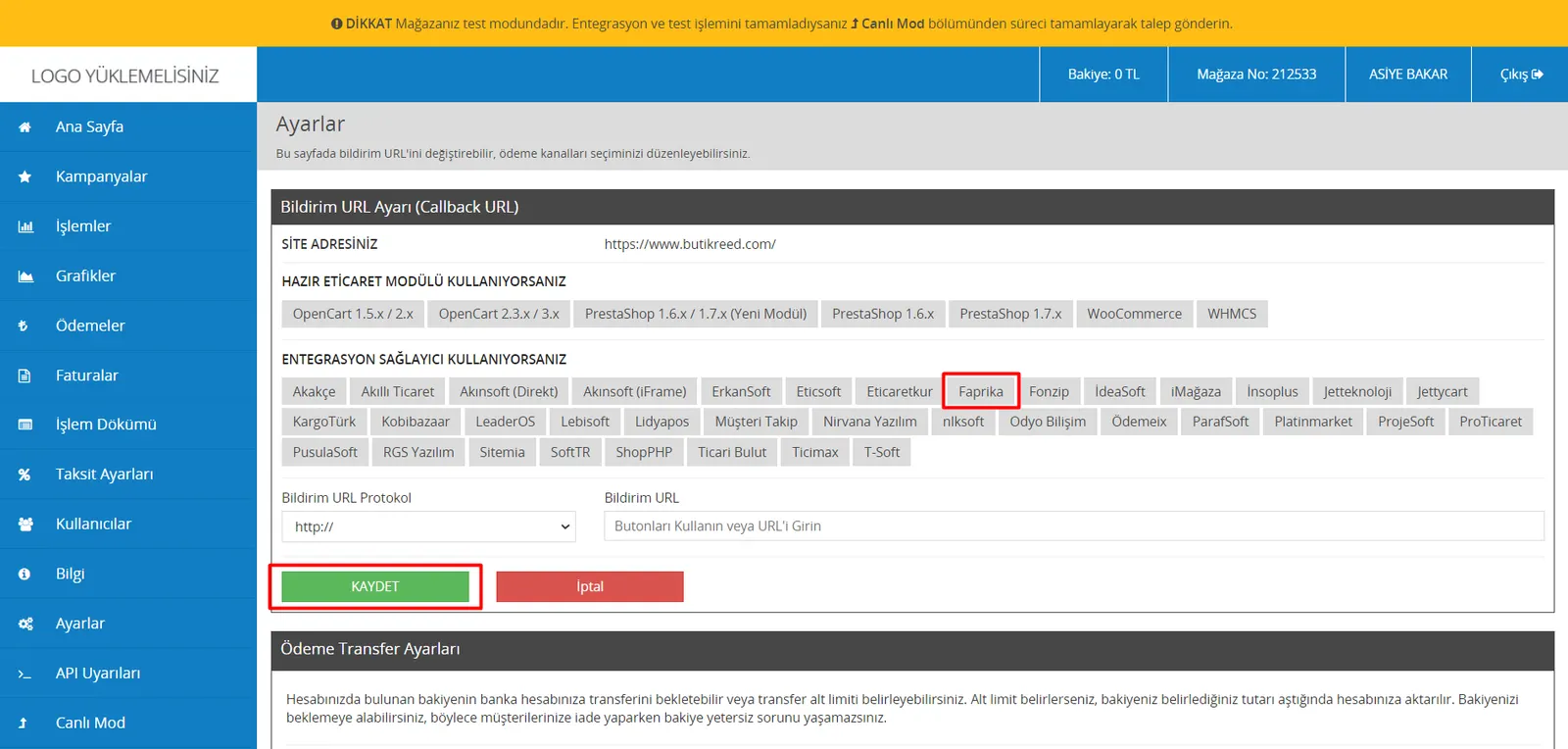
After completing the redirect, let’s go to the “Information” area, leave this page open, log in to the Faprika panel in a new tab, and continue with the integration process.
How Is PayTr Integrated into Faprika?
In the Faprika panel, follow the steps “Configuration >> Payment Settings >> Payment Types”. Click the edit link next to the PayTr payment type.
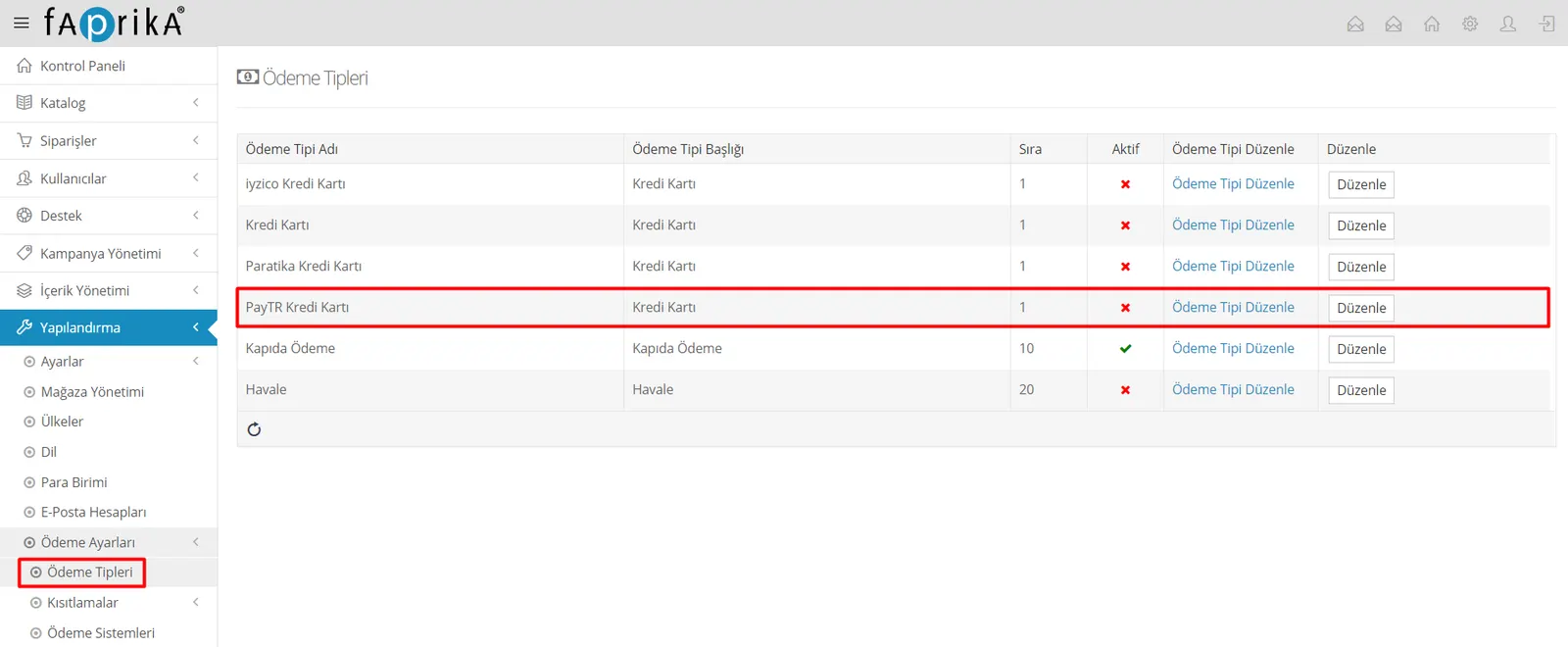
Set it to “Active” and click “Save”.
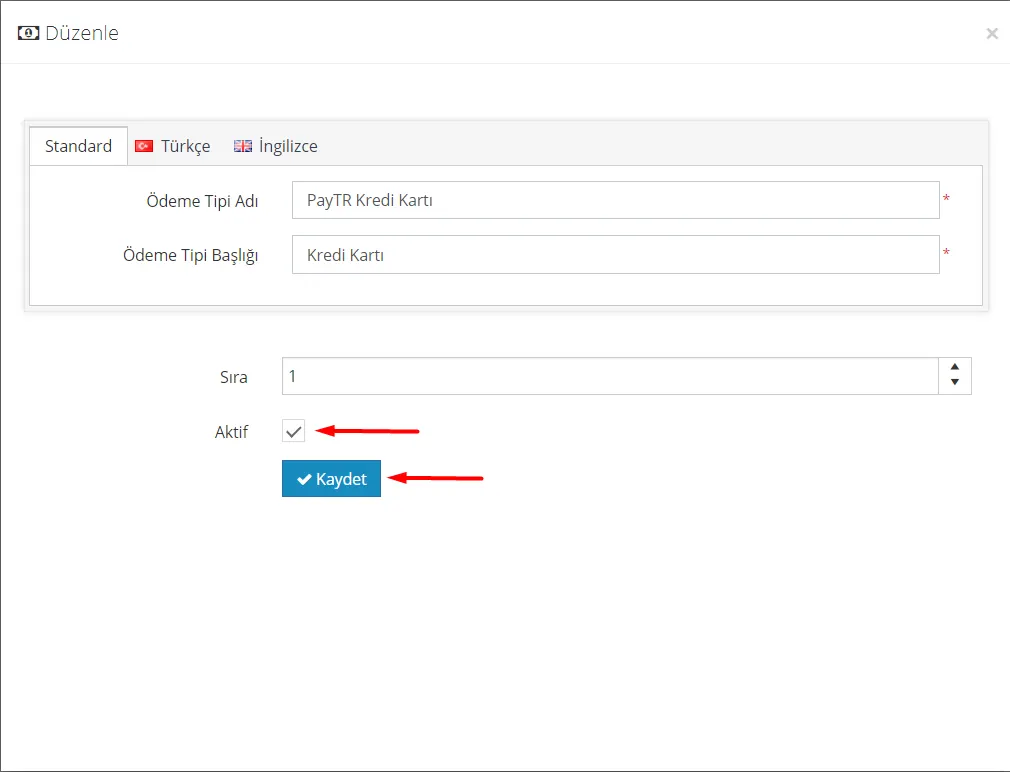
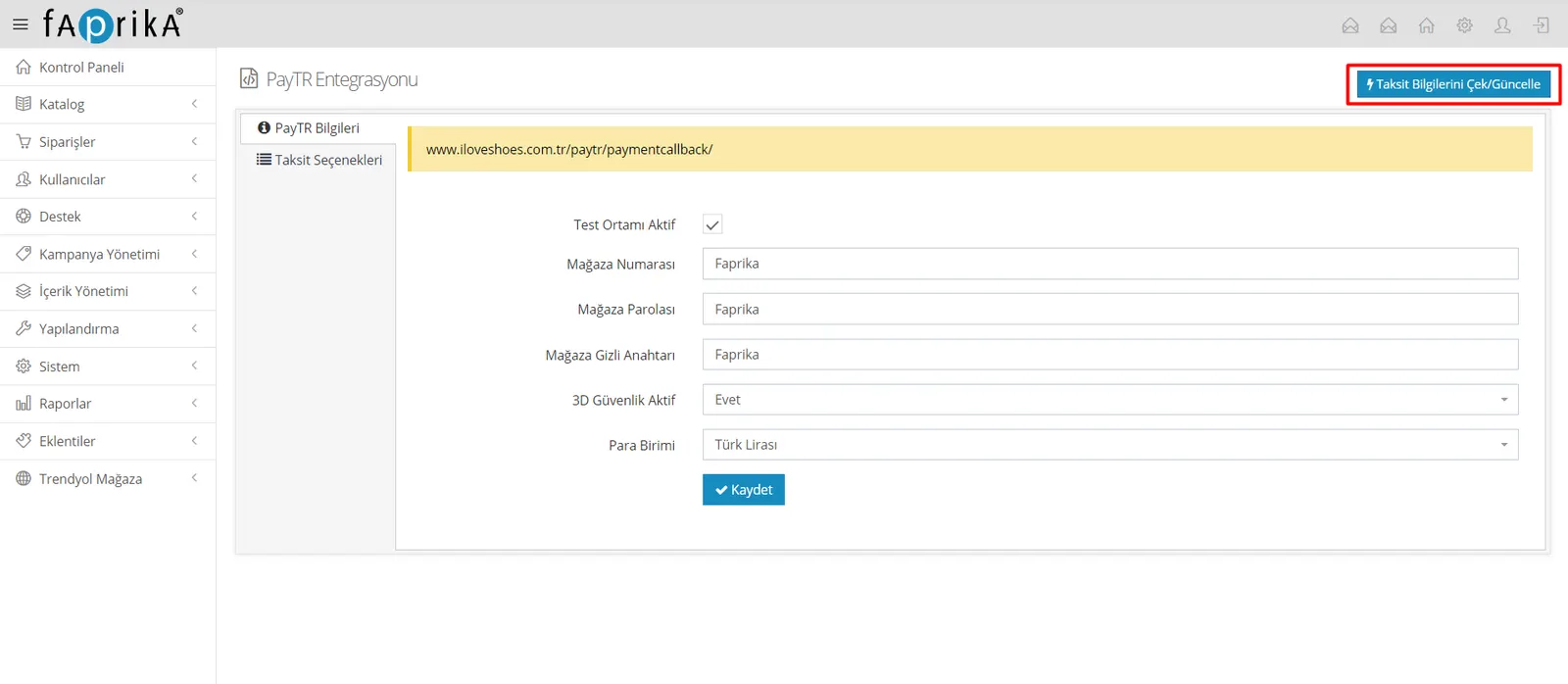
Then enter the “Edit Payment Type” area in the same row again, and save the “API Integration Information” found in the PayTr “Information” area into the Faprika panel by copying and pasting it in order.
Select the store currency, check the “Test Environment Active” option, click “Save”, and then start the “Fetch Installment Information” process.
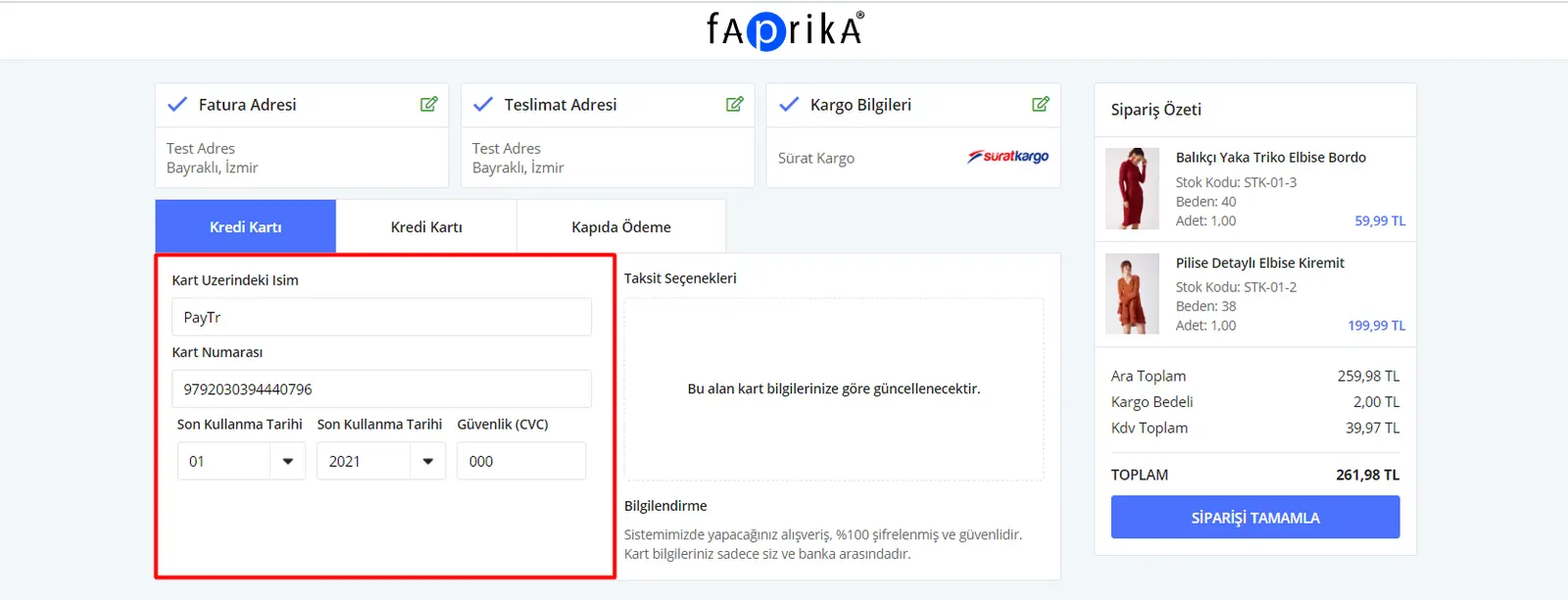
Now let’s create a test order and see together whether the integration works successfully. Add any product from your site to the cart, go to the complete order section, select “Credit Card” as the payment type, enter the card details PayTr has given us for test orders in this area, and complete the order.
Name on Card: PayTr
Card Number: 9792030394440796
Expiry Date: Do not modify this field!
CVC: 000
After the order is created successfully, in the Faprika panel let’s turn off the “Test Environment Active” option and click “Save”.
Finally, the only thing left to do is click the “Switch to Live Mode” button at the very top of the page in the PayTr panel, complete the process, and exit test mode.

After completing these steps, your PayTr virtual POS integration will work successfully.