Order Management
Cancellations and Returns
On this page, you can learn how to set up and manage return processes in the Faprika e-commerce software. The settings and steps needed for customers to create return requests easily are explained in detail. By managing return processes effectively, you can increase customer satisfaction.
In This Tutorial
CANCELLATIONS AND RETURNS
To increase customer satisfaction on your website and run your business in a more organized way, it is very important to manage cancellation and return processes effectively. This guide aims to provide detailed information on how to carry out cancellation and return operations from the Faprika panel.
To carry out cancellation and return operations successfully, you first need to know how to make the required settings and which steps the operations follow. In this guide, we explain step by step, with visual examples, the steps your customers need to cancel or return their orders without any problems.
Here is a detailed guide on how to manage cancellations and returns in the Faprika panel...
Cancellation Processes
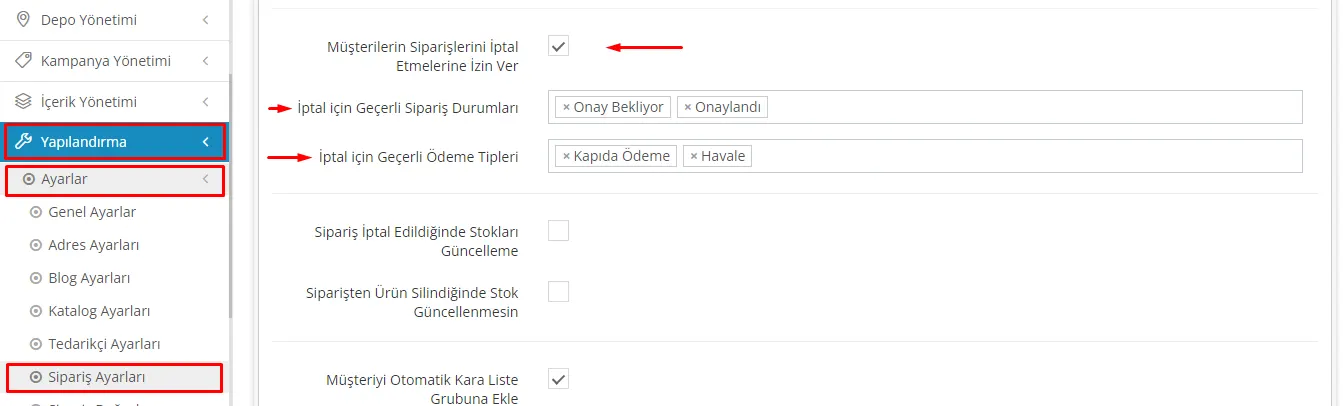
To start order cancellation processes, the first thing you need to do is allow your customers to perform this action. To do so, go to the “Configuration” menu in the Faprika panel and access the "Order Settings" section under "Settings".
Here, you need to enable the option "allow customers to cancel their orders". After enabling this option, you need to define for which order statuses and payment methods cancellation will be valid.
With this step, your customers will be able to cancel their orders themselves in cases that meet the criteria you set when placing them. After completing the detailed settings, you will have given your customers a clearer guide by supporting the process with visuals.
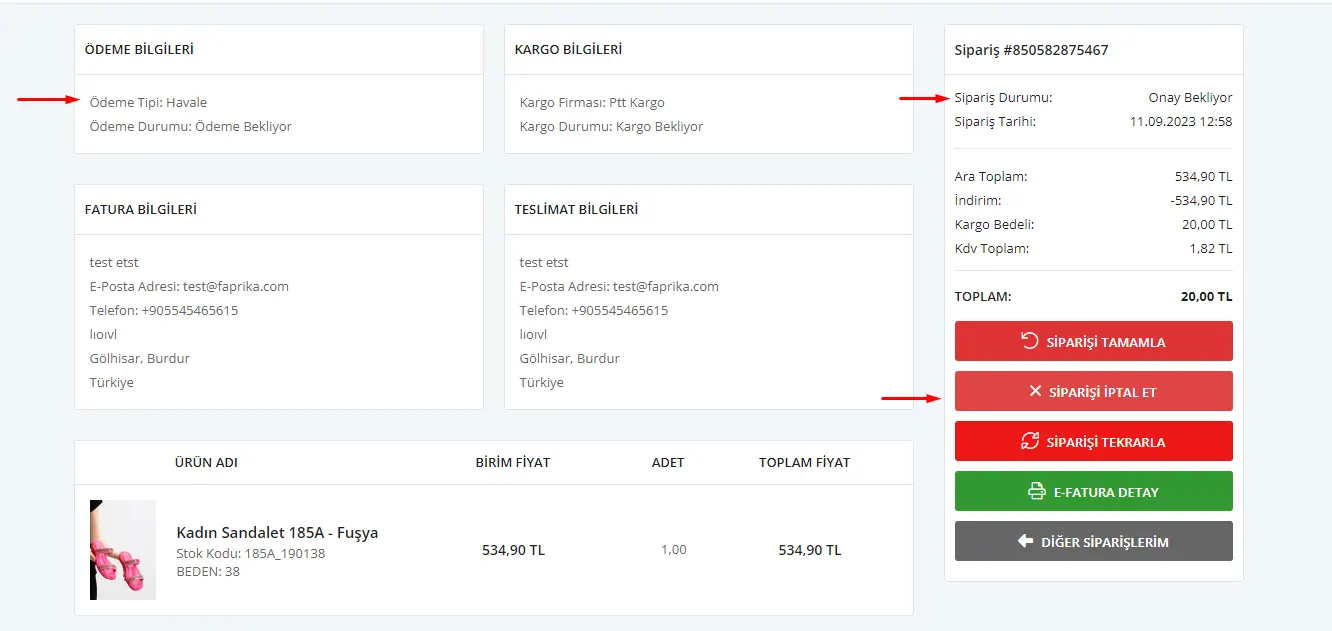
For the cancellation process to be used smoothly by your customers, certain conditions must be met. After enabling cancellation, your customers will only be able to perform an "order cancellation" within the status and payment type combinations you have approved in advance.
For example, as you can see in the image, when a customer places an order by bank transfer and the order status is "awaiting approval" or "approved", the "cancel order" option will appear on the order detail screen.
This detail gives your customers more control while also making things easier for your business. With the visuals, you can convey this process to your customers more clearly.
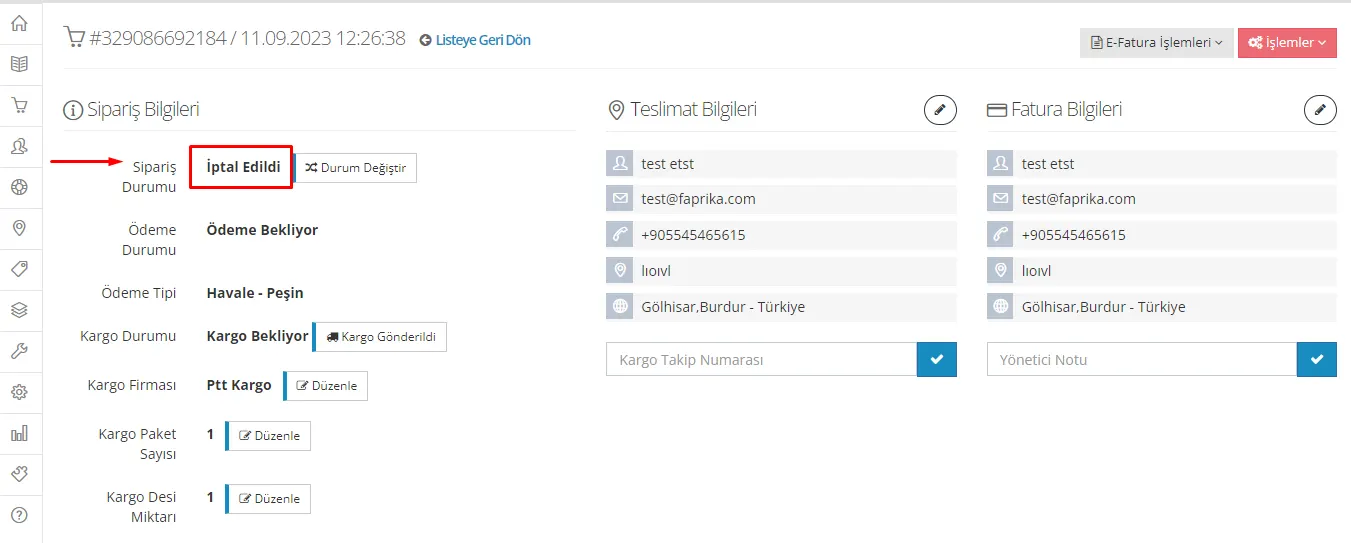
Order cancellation takes place automatically when the 'cancel order' button is clicked. After this, the stock of the relevant product is updated automatically in the control panel. In addition, the order status is updated to 'cancelled' on the 'my orders' page.
Return Processes
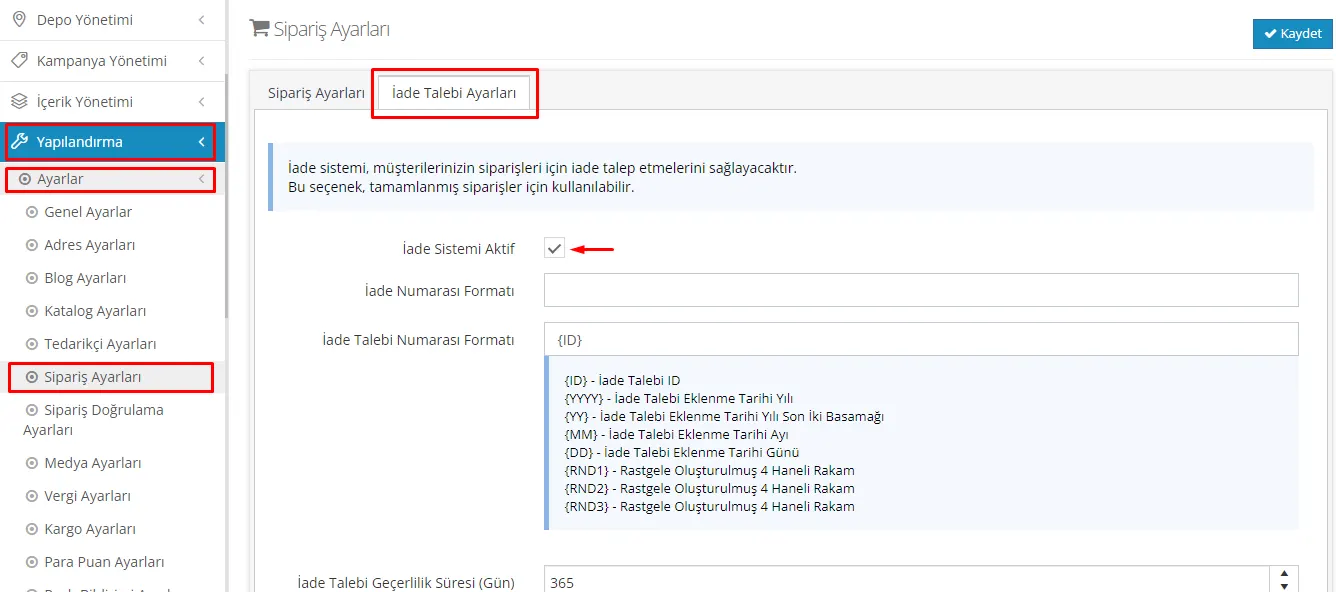
To start return processes, you first need to enable the 'return system active' button in the return request settings. In this area, you can edit the return number format based on certain parameters and update return reasons or add new ones. You can access all these settings under the "return request settings" section via the "Configuration > Settings > Order Settings" tab.
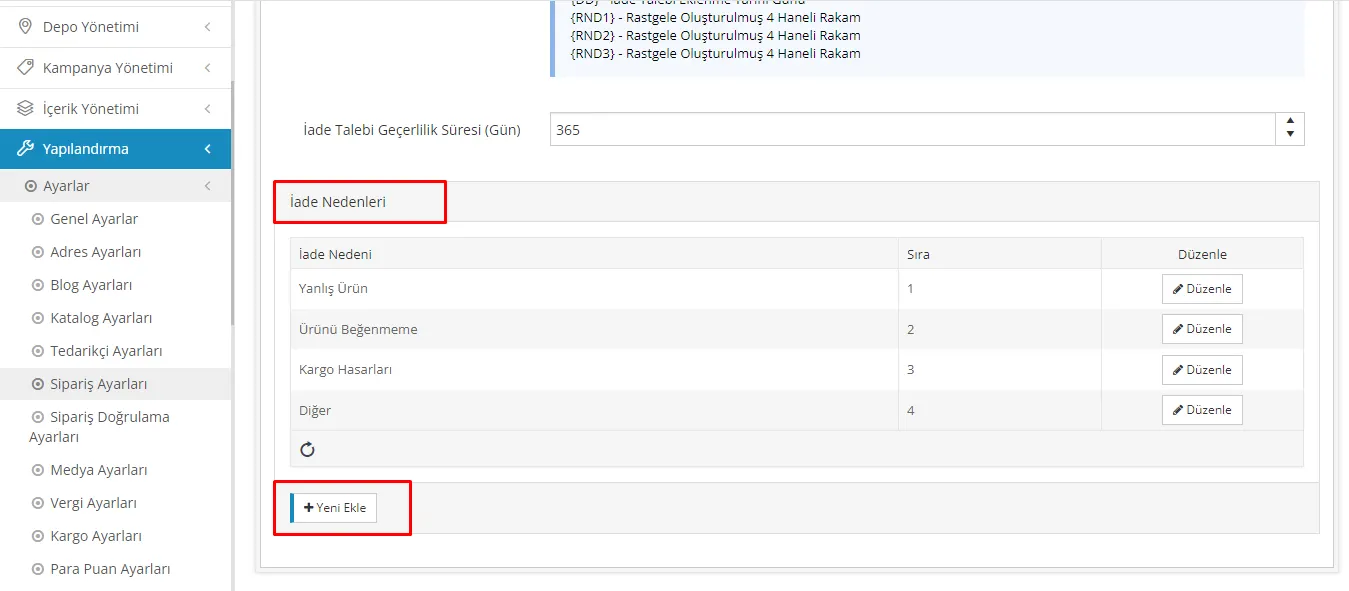
After the return system is activated, customers can create return requests only for delivered orders. Customers must be registered members of the site in order to make a return.
After an order is received, customers can request a return for one or more products for various reasons. This makes the shopping experience safer and more satisfying for buyers, while giving the seller an opportunity to increase customer satisfaction.
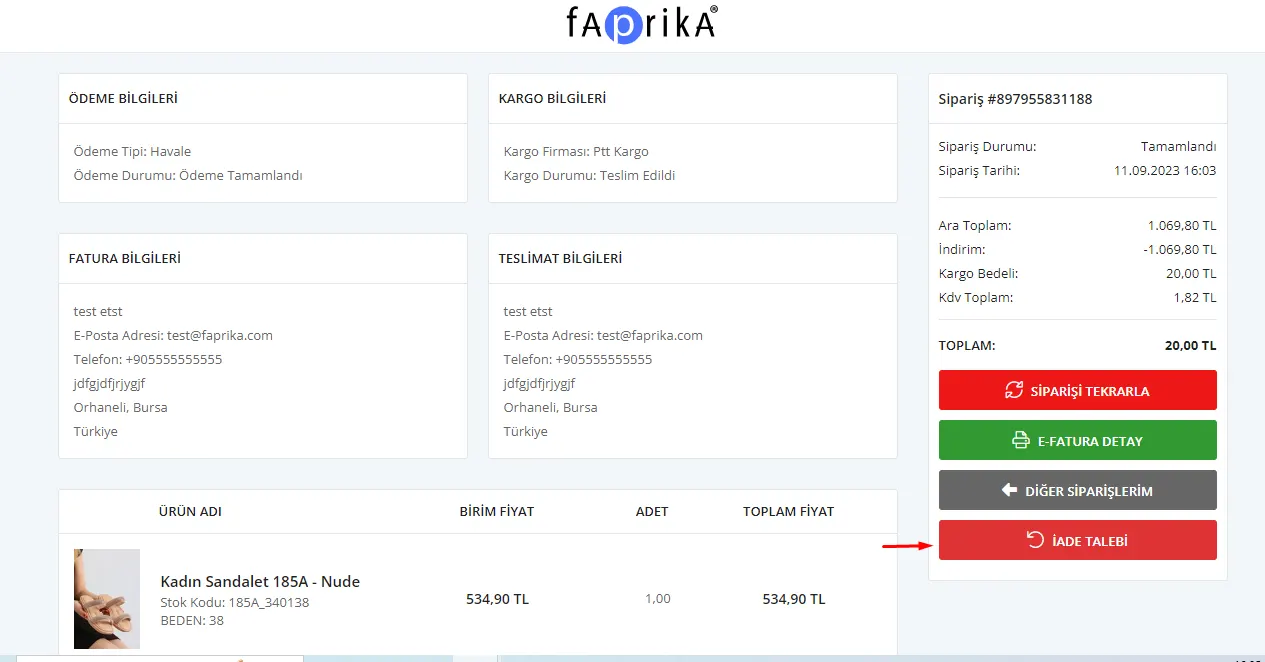
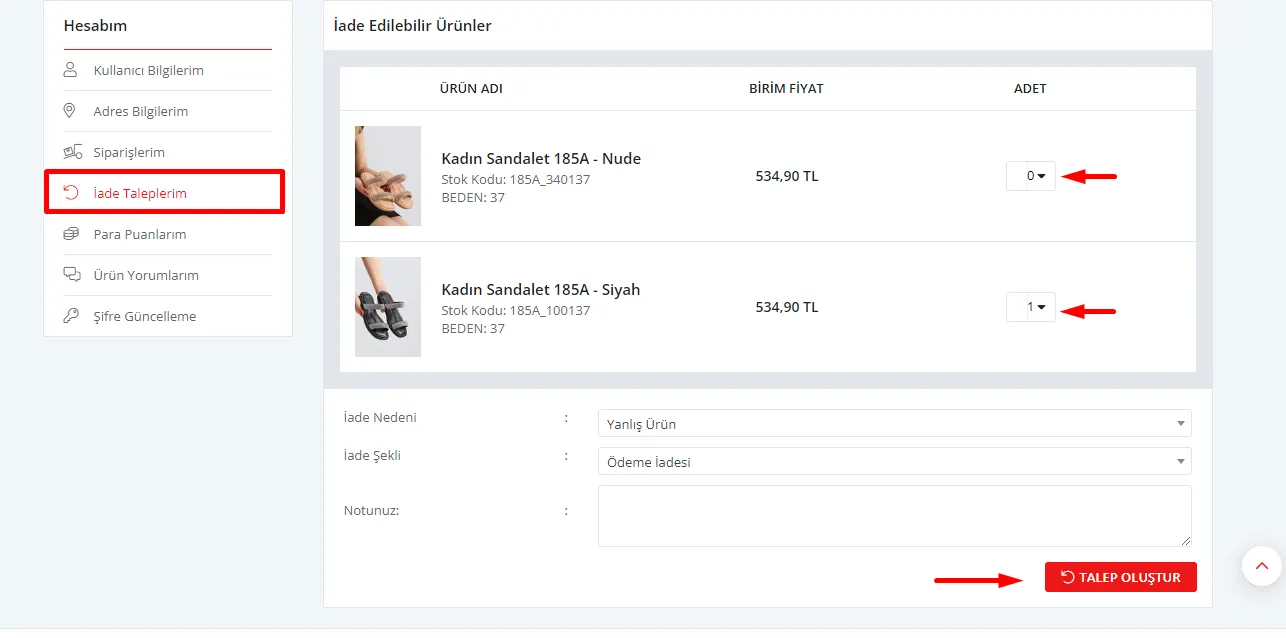
The return request process lets customers return the products they have purchased, and it is quite simple. When the "Return request" button is clicked, a form appears for the customer. The customer can specify on this form the quantities of the products they want to return. For products they do not want to return, they must set the quantity field to "0".
After specifying the return reason and the return method, the customer completes the process by pressing the "create request" button. The return method is generally one of two kinds: "payment refund" and "store points".
With the "store points" return method, no cash payment is made to the customer; instead, the refund amount is credited to the customer's account as store points, and the customer can use these points on the site as they wish.
The "payment refund" option means that the amount paid by the customer is refunded. In this case, the seller is obliged to pay the refund amount back to the customer. This option reassures customers and gives them the chance to recover their financial loss in case of dissatisfaction.
Return requests are listed in detail in the "return requests" tab, which can be reached from the "orders" section of the control panel. Through this section, businesses can manage all return processes and review customers' return requests in detail.
On the listing screen, the following information is available for each return request:
- Return Request Number: A unique number for each request, which makes tracking requests easier.
- Order Number: The number of the order to which the product to be returned belongs.
- Return Date: The date on which the return request was created.
- Request Status: Shows the current status of the request (for example, under review, approved, rejected, etc.).
- Return Method: Indicates the method the customer chose for the return; two options are offered: payment refund or store points.
- Return Reason: Shows the reason for which the customer created the return request.
In addition, to speed up the return process even further, businesses can search by the specified criteria to find specific return requests. The search function lets businesses quickly filter and find return requests using parameters such as a particular order number, date range, or return reason, so that businesses can manage return processes quickly and efficiently while ensuring customer satisfaction.
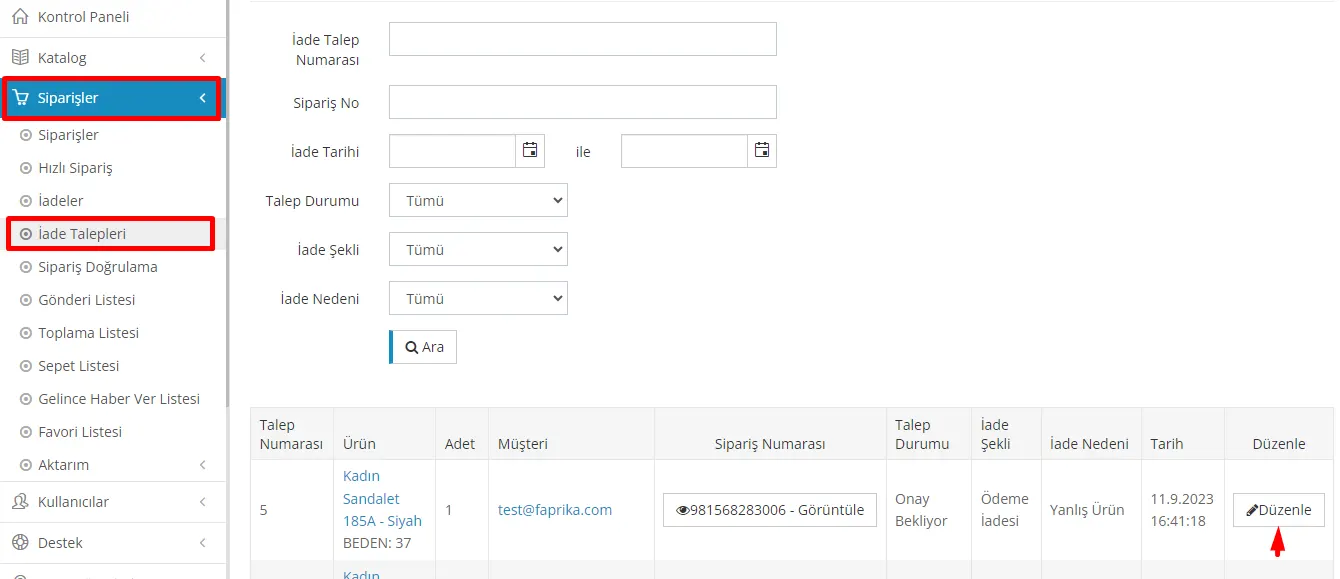
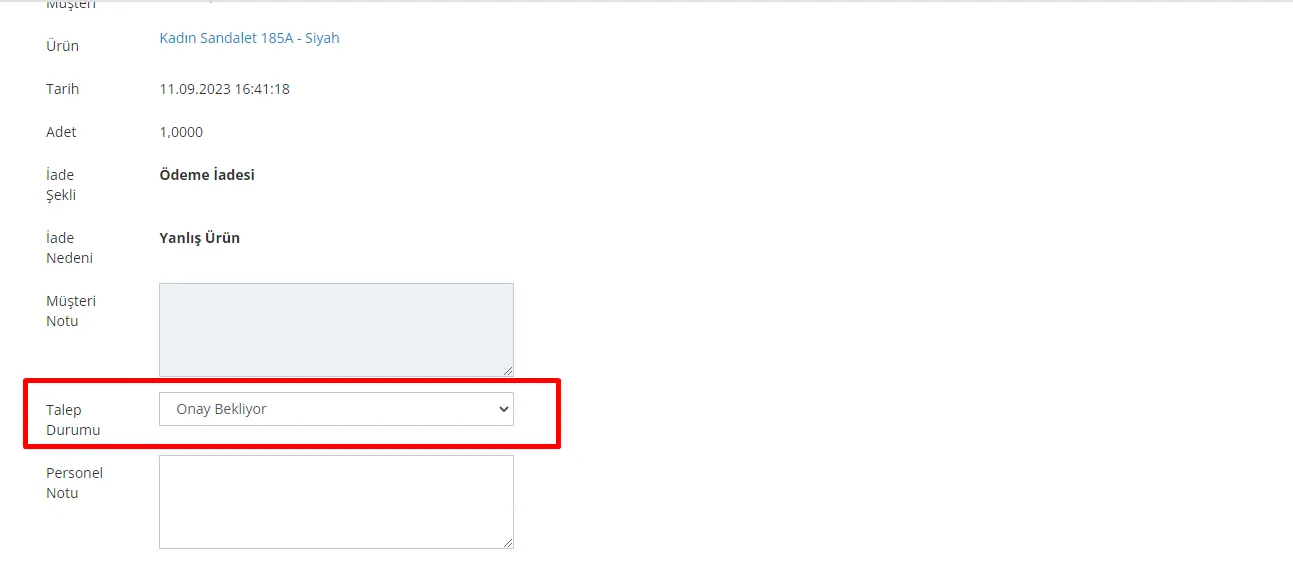
When the "Edit" button is clicked, businesses can update the request status in order to offer customers a more transparent service. This update allows customers to see the status of their requests on the order details screen, which increases customer satisfaction and builds trust.
During the status update, businesses can specify the stage the request is at, for example "under review", "approved" or "rejected". At the same time, businesses can also add notes about the return process in order to give customers more information.
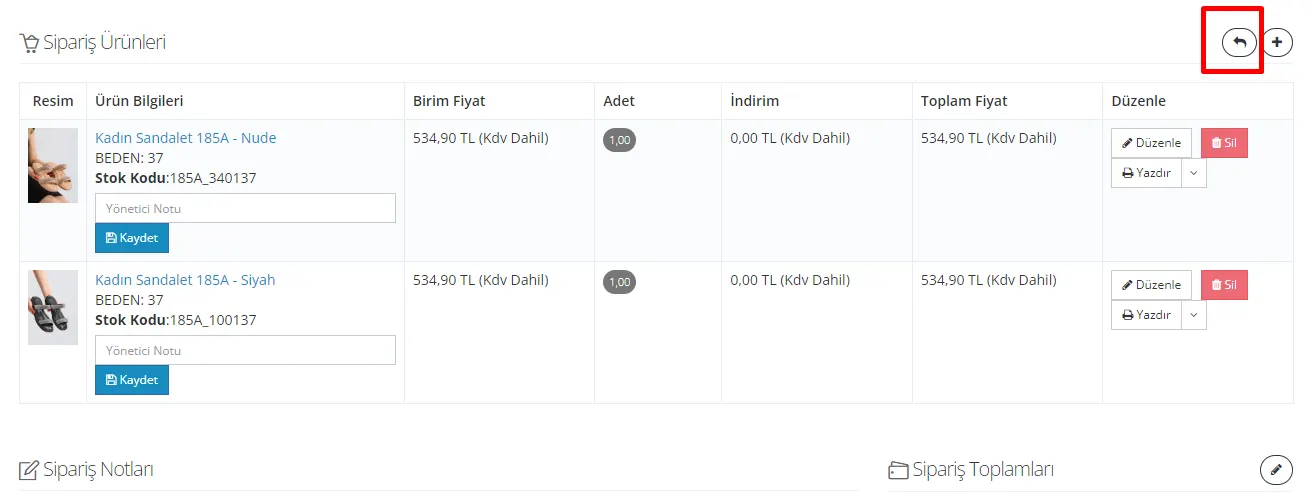
To start a return, go to the orders page and select the order you plan to return. On the detail page of that order, you can start the return by clicking the "arrow" button shown.
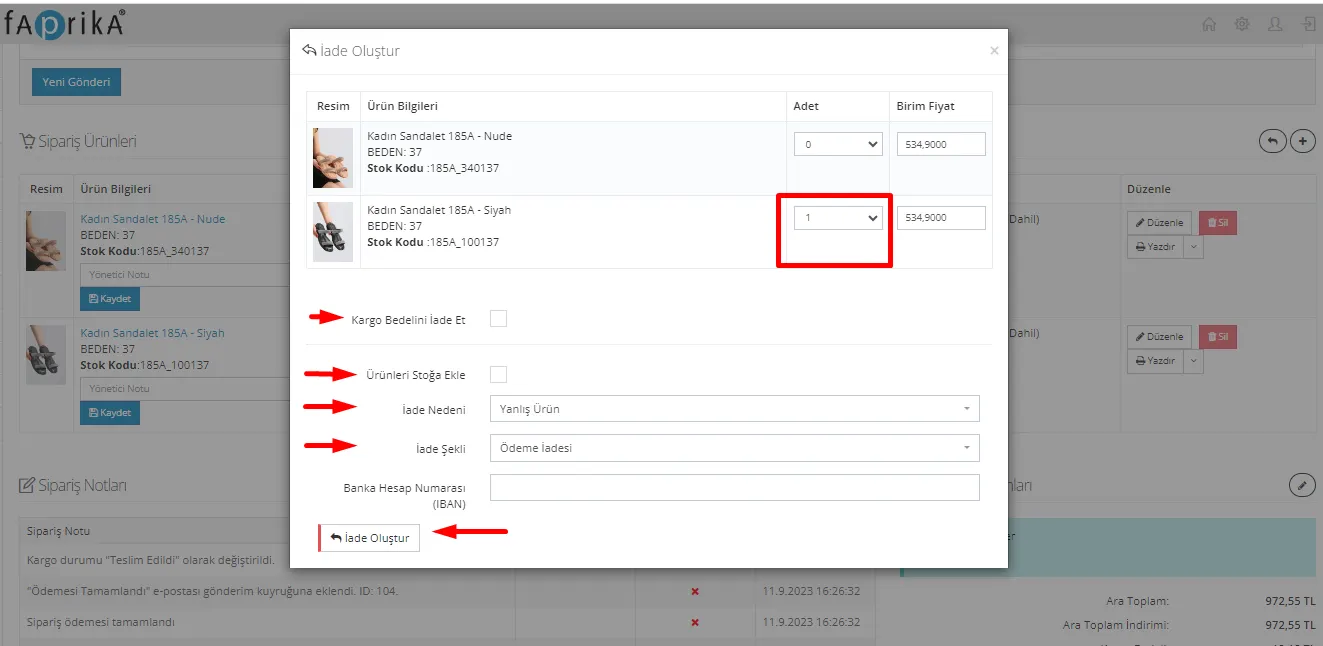
To carry out the return process, you need to do the following on the page that opens:
- Set the quantity of the product for which a return is requested to "1".
- If you want the shipping fee to be refunded, tick the relevant option.
- If you want the product to be added back to stock, tick this option as well.
- After specifying the return reason and return method, complete the process by clicking the "create return" button.
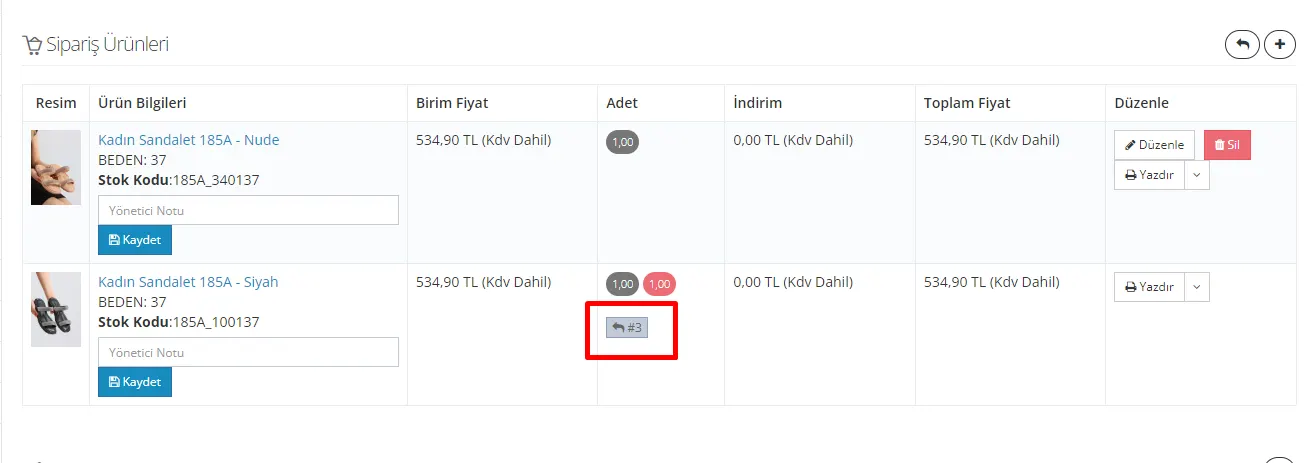
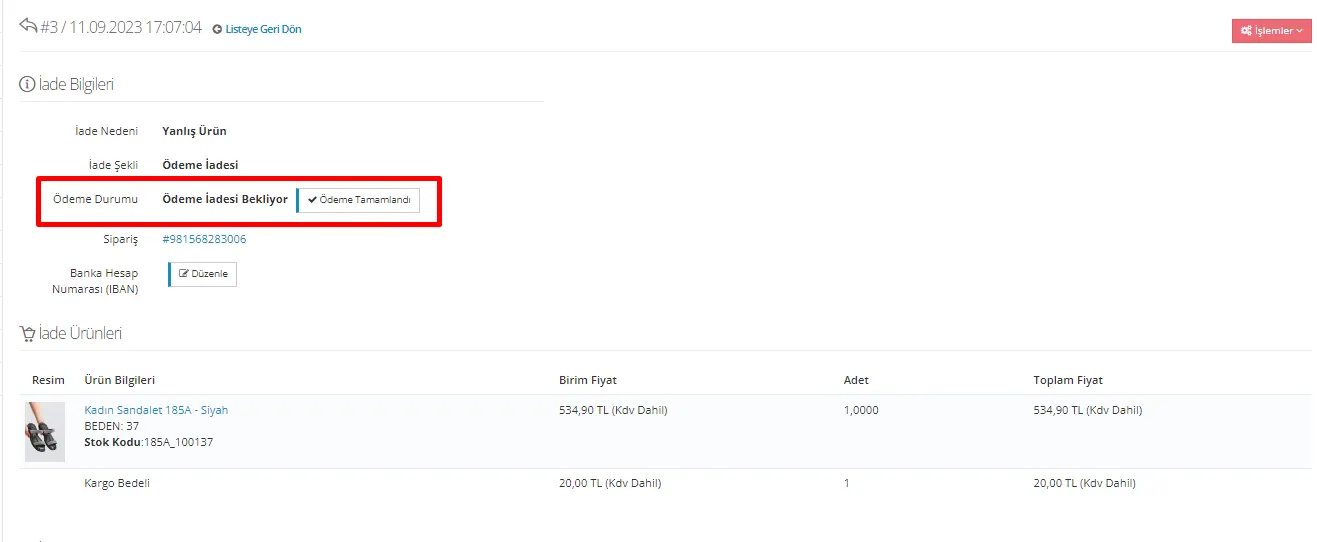
After the return is created, you can update the payment status by clicking the "ID" number shown next to the product. It is important to make the necessary updates in this area once you have completed the return.
Once you have completed the payment and updated the payment status, the return process is successfully concluded.
In summary, return processes have an important place on your e-commerce platform and need to run smoothly to increase customer satisfaction. Thanks to the return processes carried out through the system, an easy and reliable return process is created for your customers, and tracking and managing operations becomes more practical for your business.
In this process, you have learned how to manage your customers' return requests step by step, without any trouble. Running the return process effectively increases customer loyalty and strengthens your business's credibility.
As the Faprika e-commerce platform, we aim to offer solutions for your business's needs. By offering your customers easy and fast solutions in return processes too, you can both increase customer satisfaction and reduce your workload.