Tools/Equipment
How to set up Outlook mail?
This tutorial page, which presents the Microsoft Outlook setup steps in detail, will help you manage your email smoothly and efficiently. Strengthen your communication by making use of all of Outlook's features.
OUTLOOK SETUP
Microsoft Outlook is an email client that millions of professionals choose for their daily email needs. This popular platform lets you organize your emails, manage your calendar and share files. If, as a Faprika E-Commerce Infrastructure user, you plan to set up your email account in Microsoft Outlook, this guide is made for you! This guide explains in detail how you can set up your Faprika email account in Microsoft Outlook step by step.
Launch the Microsoft Outlook application on your computer. If you are using this application for the first time, an information window will appear to guide you.
In the Email Address field, enter the email address created especially for you.
If you prefer to make the more detailed settings yourself, check the "I want to set up my account myself" option under "Advanced options" and continue by clicking the "Connect" button.
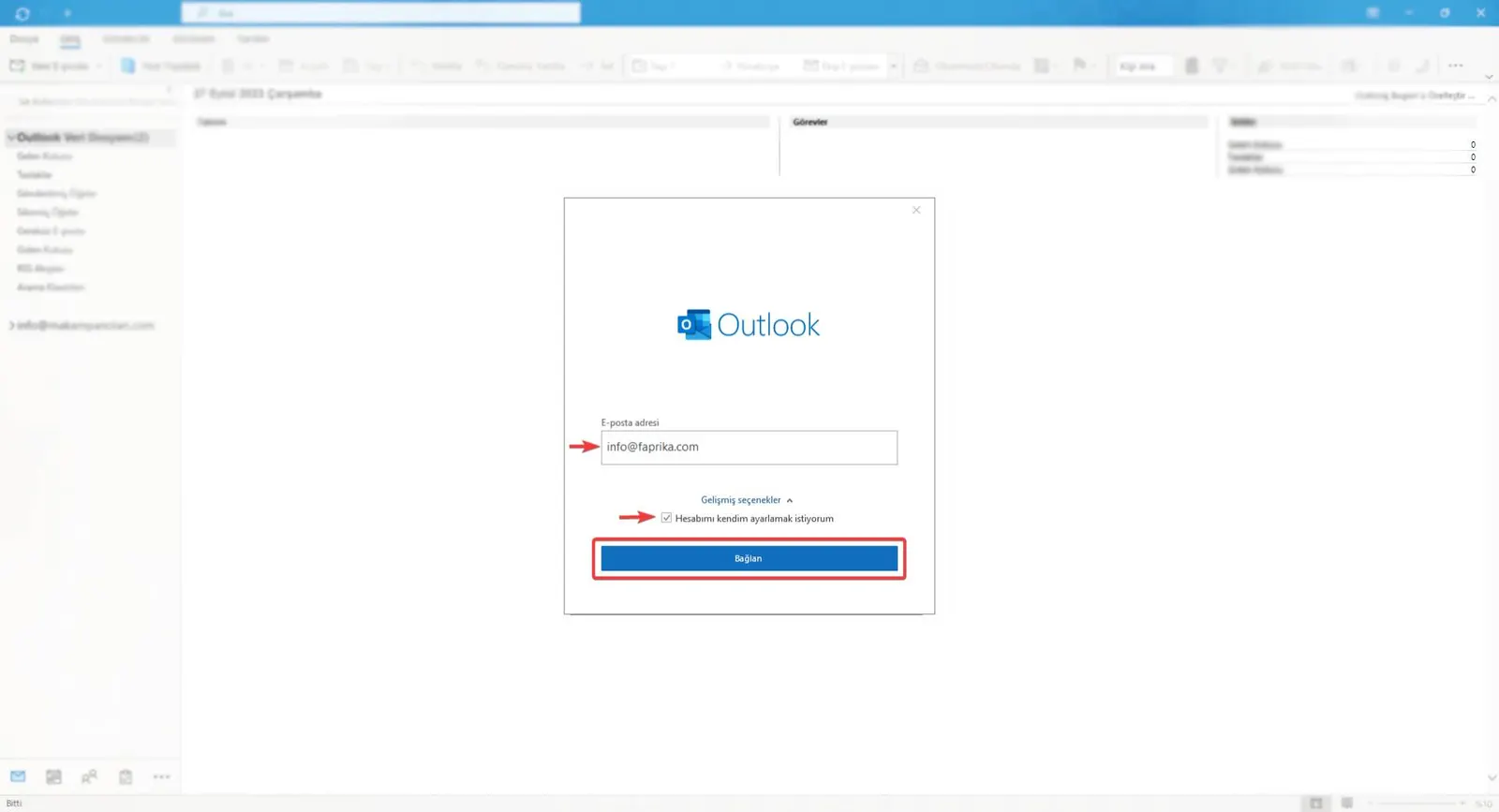
If you have used Microsoft Outlook before, click the "File" tab in the top left corner of the program. In the information window that opens, you will find the "Add Account" option. By clicking this button you can start adding your email account to the program.
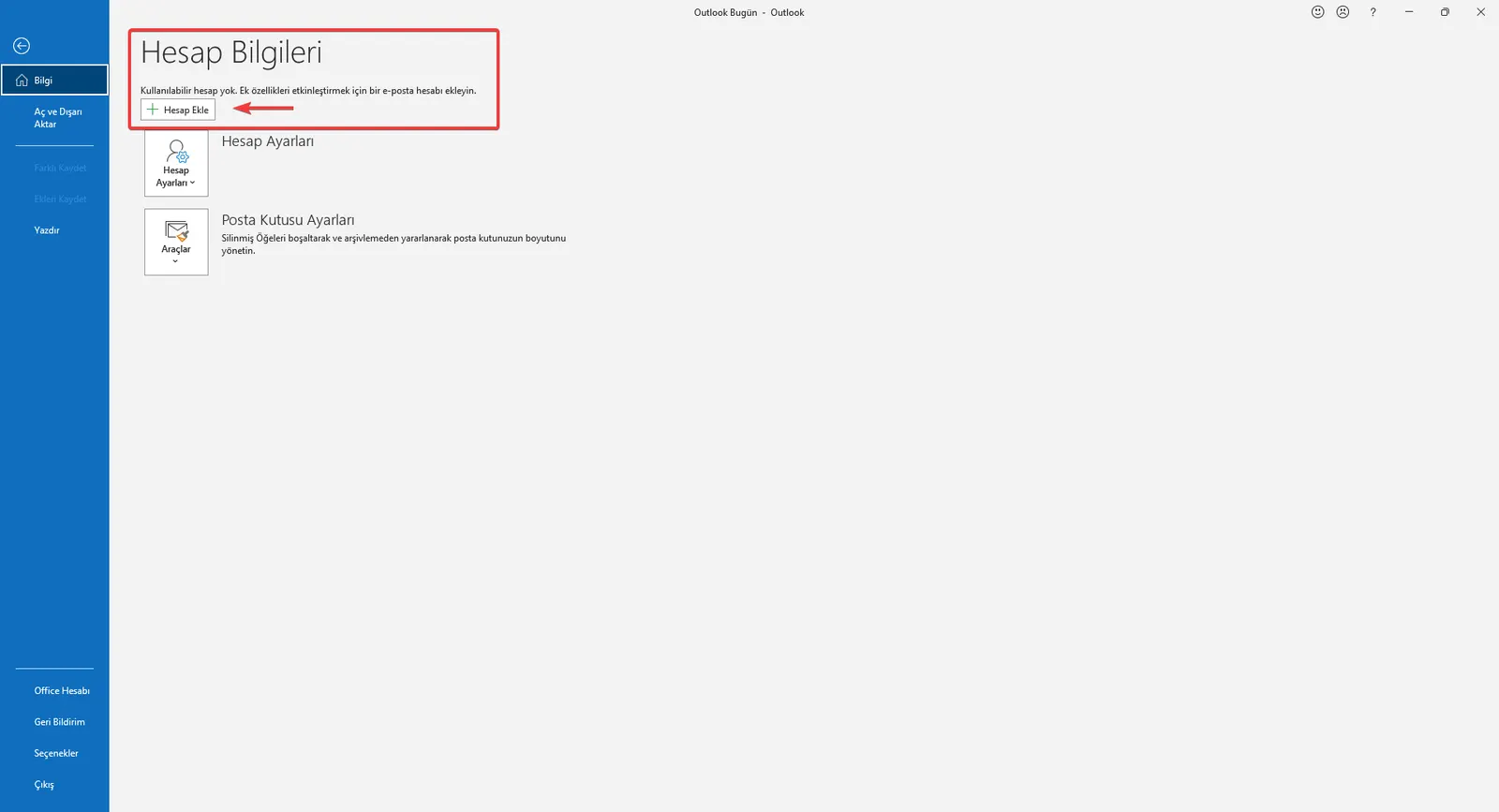
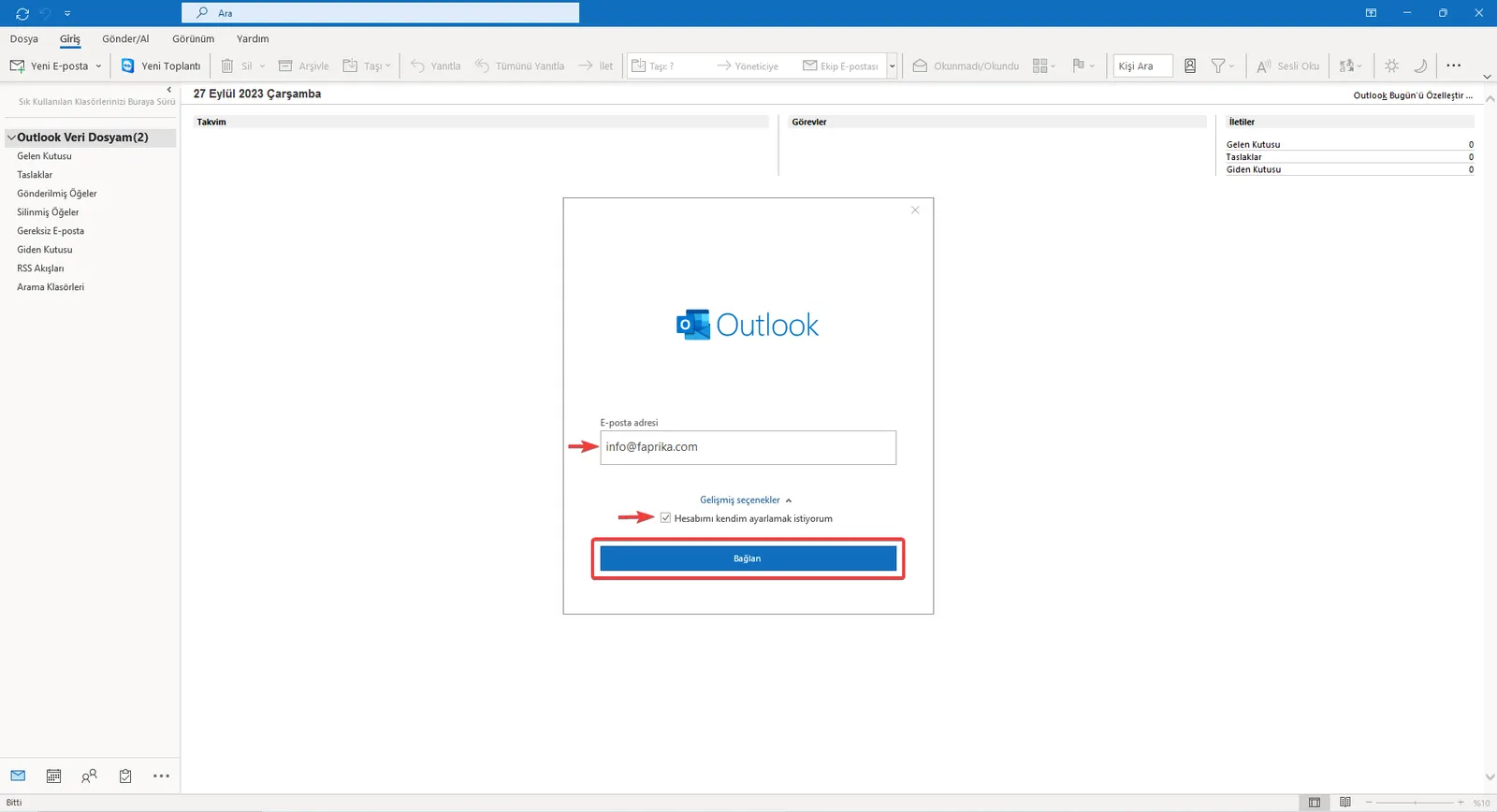
To add your email account, type your email address in the Email Address field. If you want to make more detailed settings manually during setup, check the "I want to set up my account myself" option under the "Advanced options" section. After completing this step, continue the setup process by clicking the "Connect" button.
During setup, the "Advanced Setup" window will appear. In this window, you can continue the setup by selecting the "POP" method among the available options. The "POP" option is a protocol that downloads your emails from the server to your computer and then deletes these emails from the server. This option is ideal for users who want to store their emails locally.
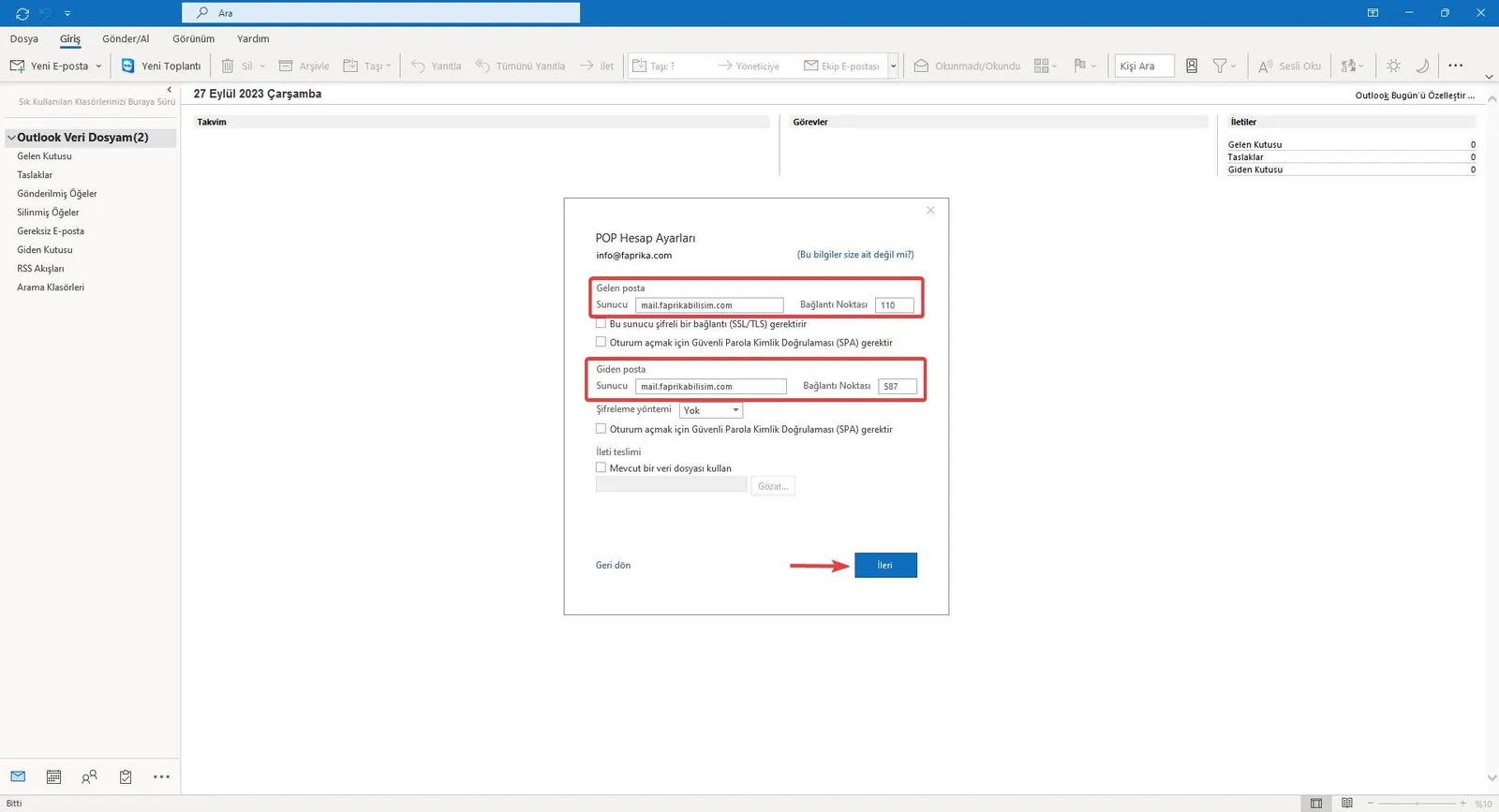
In email setup, the "POP Account Settings" section is where you enter the server details of your email account. Here we will specify which server your incoming and outgoing mail is routed through.
Incoming Mail Settings:
- Server: Enter the incoming mail server address provided by your email provider.
For example: mail.faprikabilisim.com
- Port: Usually set to 110.
Outgoing Mail Settings:
- Server: Again, enter the outgoing mail server address provided by your email provider.
For example: mail.faprikabilisim.com
- Port: Usually set to 587.
After entering this information completely, click the "Next" button to continue with the setup steps. Server details are usually provided by the company you receive your email service from; you can find them in the information email sent to you or on the Faprika support page.
Your email account password secures access to your email account. During setup, you can complete access to your account by entering the password you set or were given for the email address assigned to you. It is important to enter your password correctly and completely at this step. After you enter your password and click the "Connect" button, Microsoft Outlook will try to connect to the email server and, if the information entered is correct, will let you complete the setup. If you do not know or have forgotten your password, you can contact your email service provider and request a reset.
For password operations on your email address obtained from the Faprika Infrastructure, you can get in touch with us via contact .
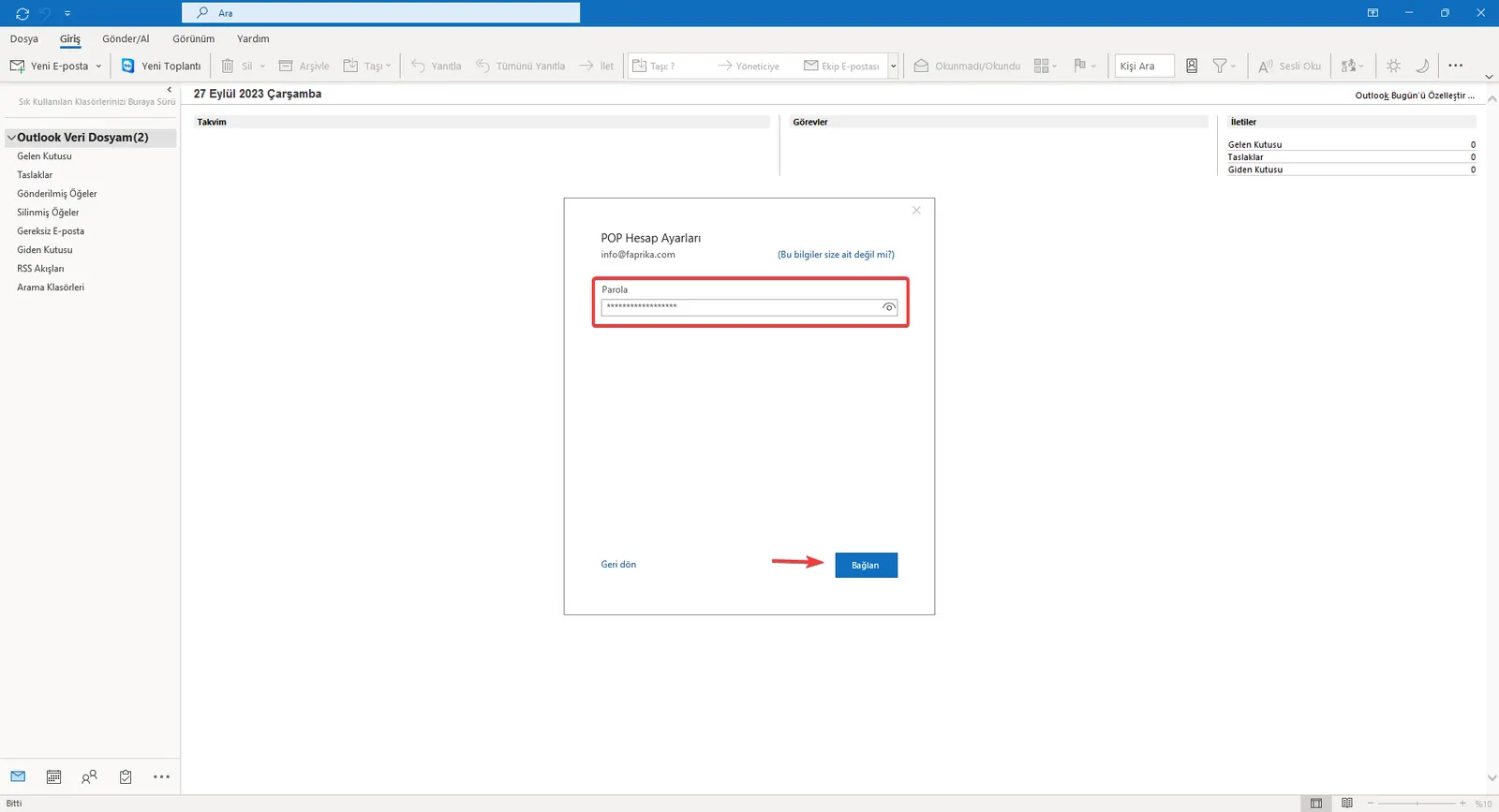
Congratulations! Your email account setup in Microsoft Outlook has been completed successfully. You can now easily check your emails on this platform and send and receive messages. If you experience any problem with your email account, we recommend reviewing the setup steps again. To finish, you can press the "Done" button to close the setup window and start benefiting from all the features Outlook offers.
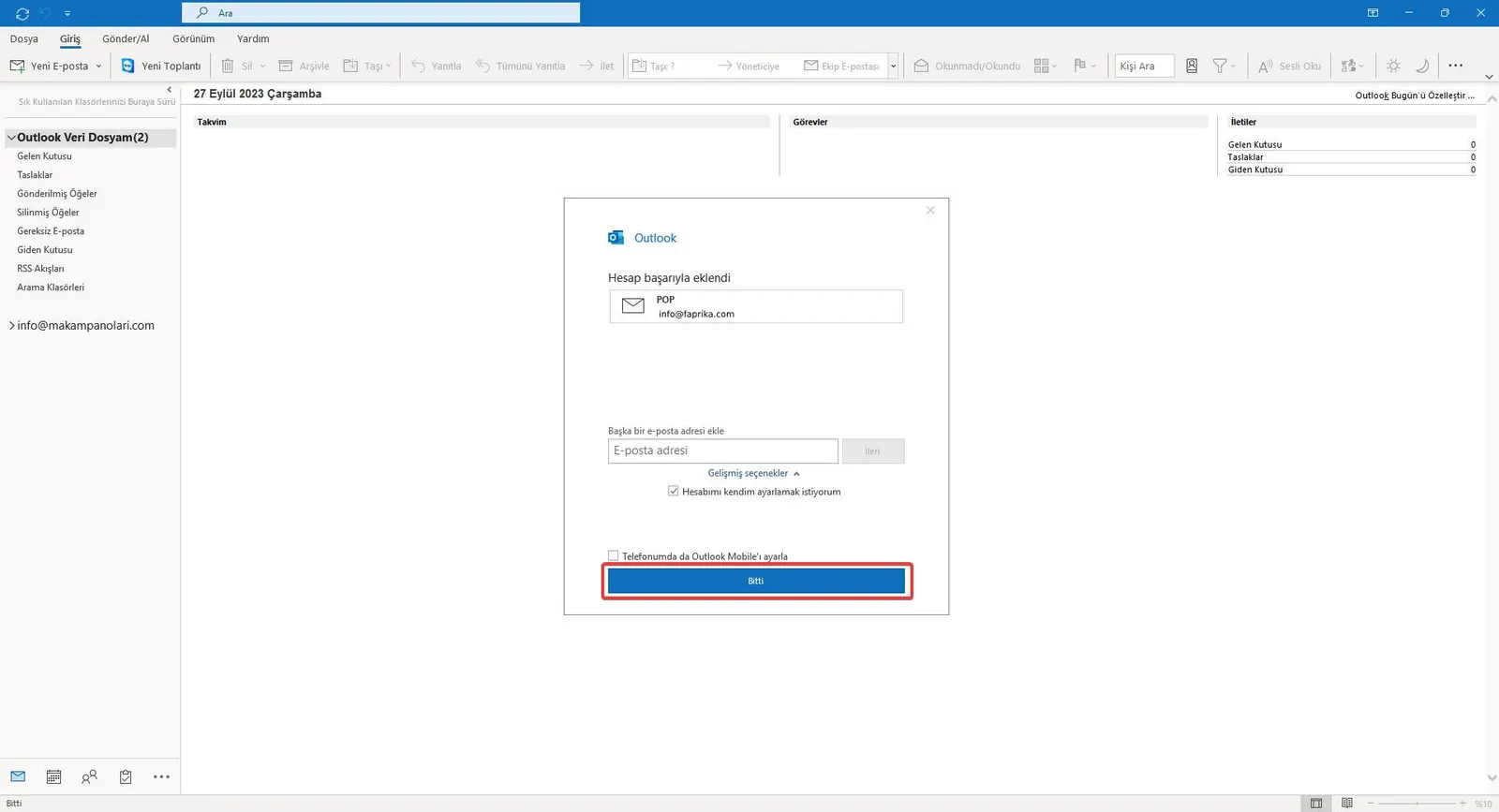
Email management with Outlook is now much easier and more effective. By following our training page, you completed the setup in simple steps. In today's business world, open the doors to effective communication wide through Microsoft Outlook. We are always with you with up-to-date information and training for successful email management!