Configuration
E-Commerce Email Settings Configuration
This page explains in detail the email account configuration process for customers using the Faprika E-Commerce infrastructure. With step-by-step images and explanations, you can learn how to manage your email account effectively. Thanks to the configuration, order and customer notifications are managed automatically.
In This Tutorial
Email Configuration: Why It Matters and How to Do It
One of the keys to success in the e-commerce world is being able to communicate with customers effectively and continuously. For businesses using the Faprika e-commerce infrastructure, email configuration is one of the most critical points of this communication. With a correct email configuration, important customer interactions such as order confirmations, product updates and campaign notifications run smoothly. This guide shows step by step how you can effectively configure your email account for Yandex Mail and Faprika's own email service.
Now, let us look at the details of this process step by step.
Configuring Email with Yandex Mail: The First Step
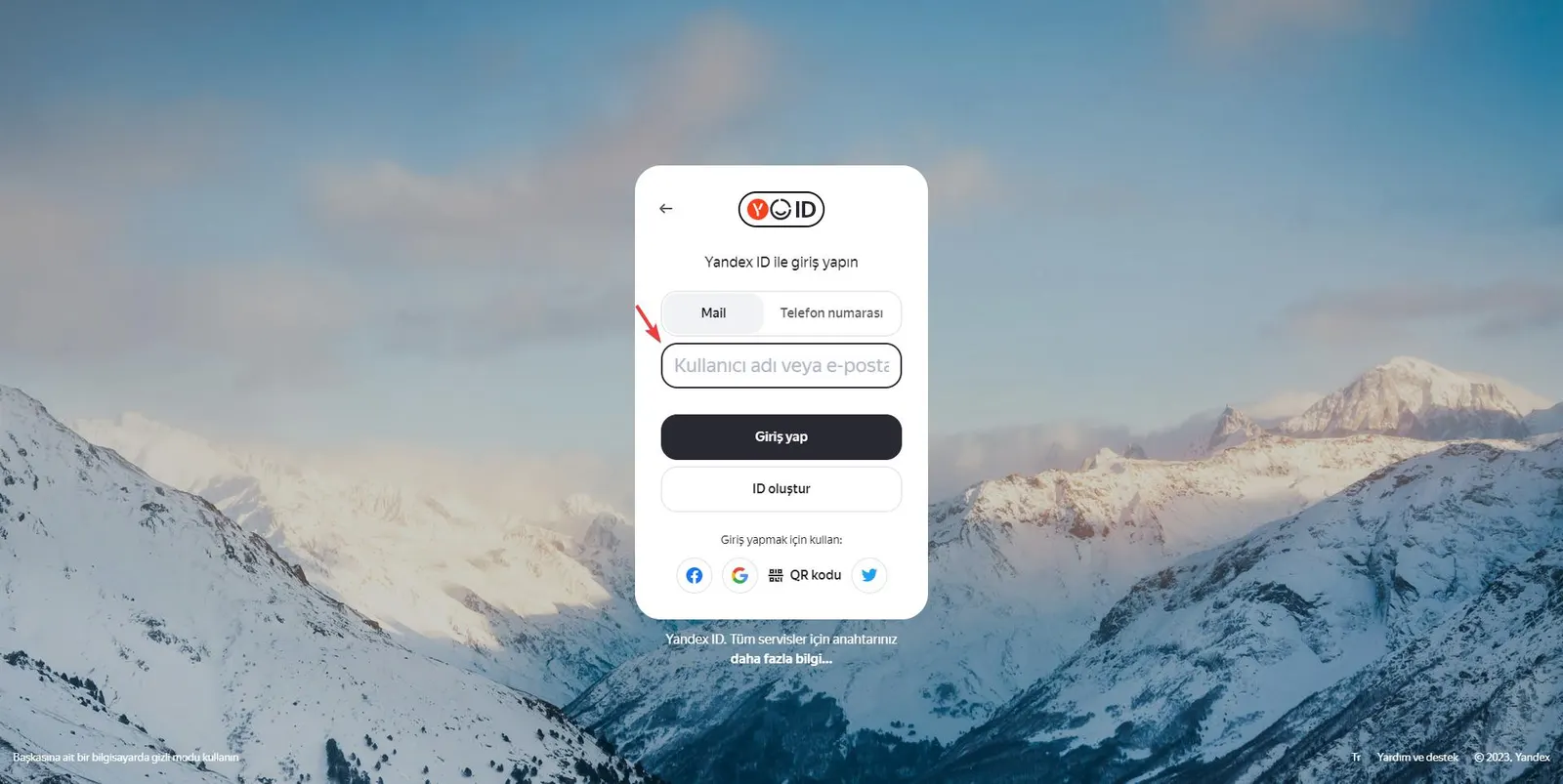
To start with Yandex Mail, a popular option among our email services, first go to mail.yandex.com.tr. Here, you need to log in with the email address and password allocated to you by Faprika.
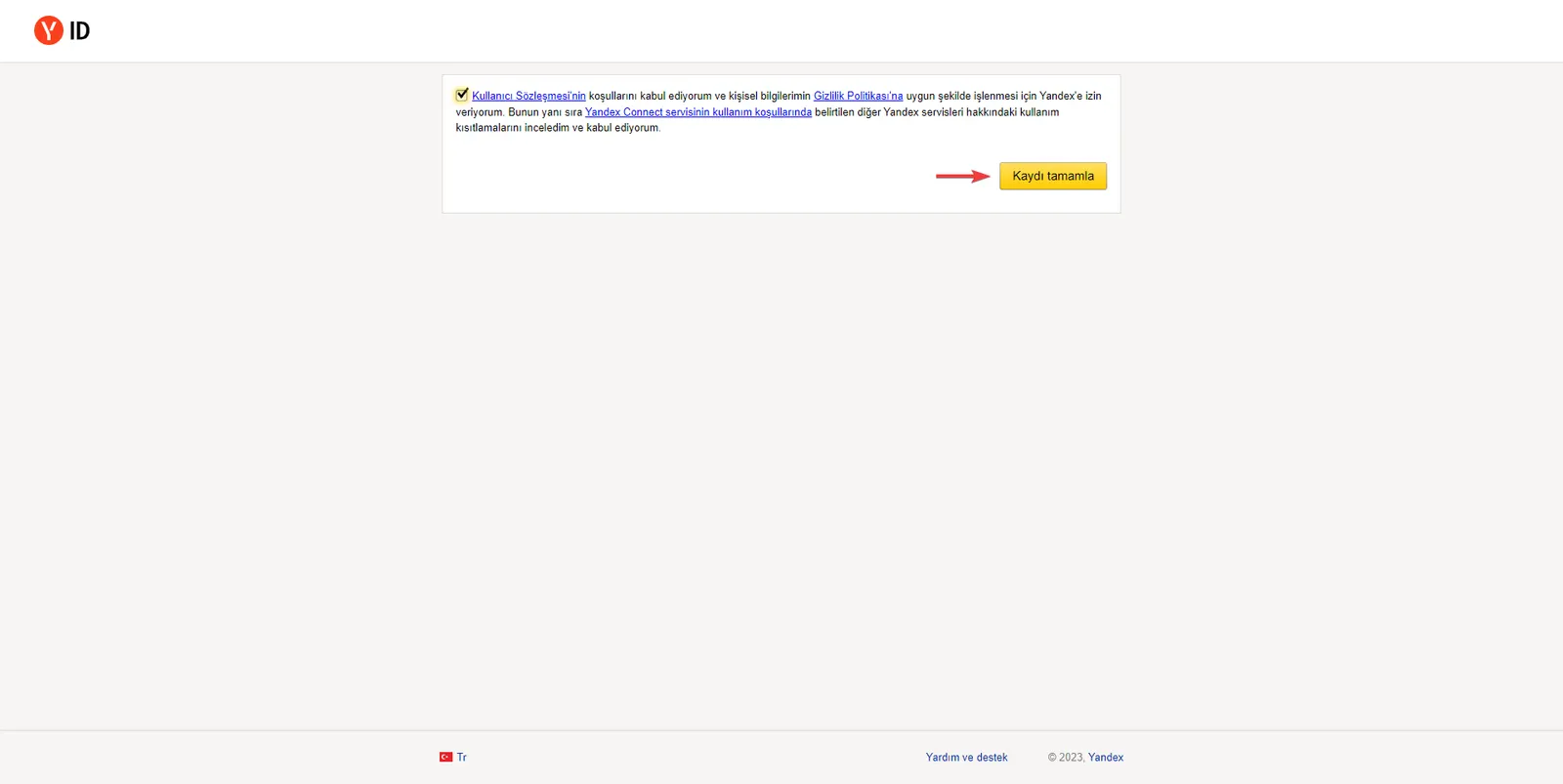
On your first login, a user agreement screen will appear. Complete the process by clicking the "Complete registration" option. If this screen does not appear, it means your email account was already approved earlier.
Email Access with the Faprika Infrastructure
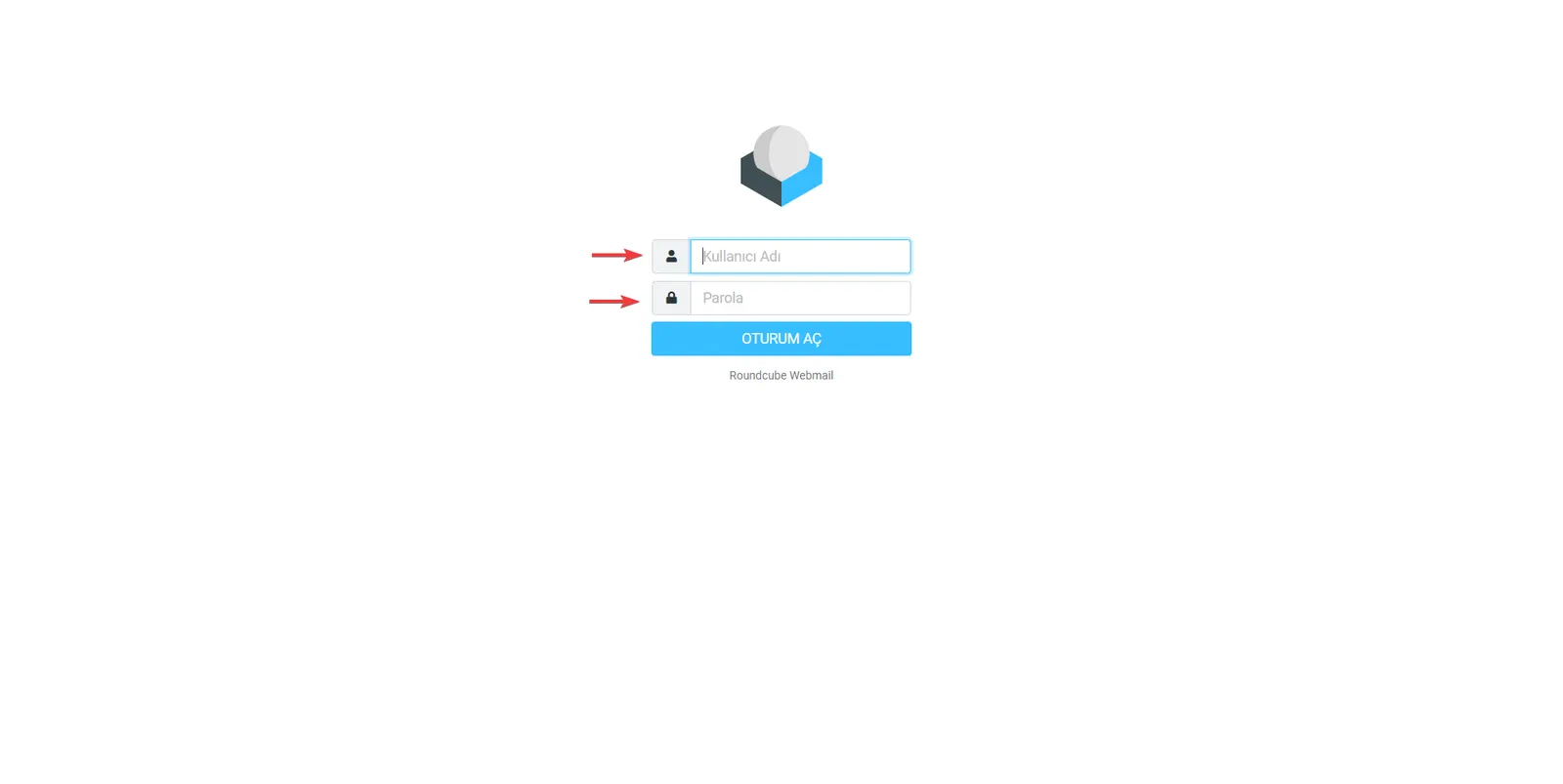
Email access has been made even easier for users of the Faprika E-Commerce infrastructure. If you have combined our email services with the Faprika infrastructure, you can easily reach your emails at mail.faprikabilisim.com. This is an advantage exclusive to our customers using the Faprika infrastructure, and it speeds up your work.
Configuring Email via the Faprika Control Panel
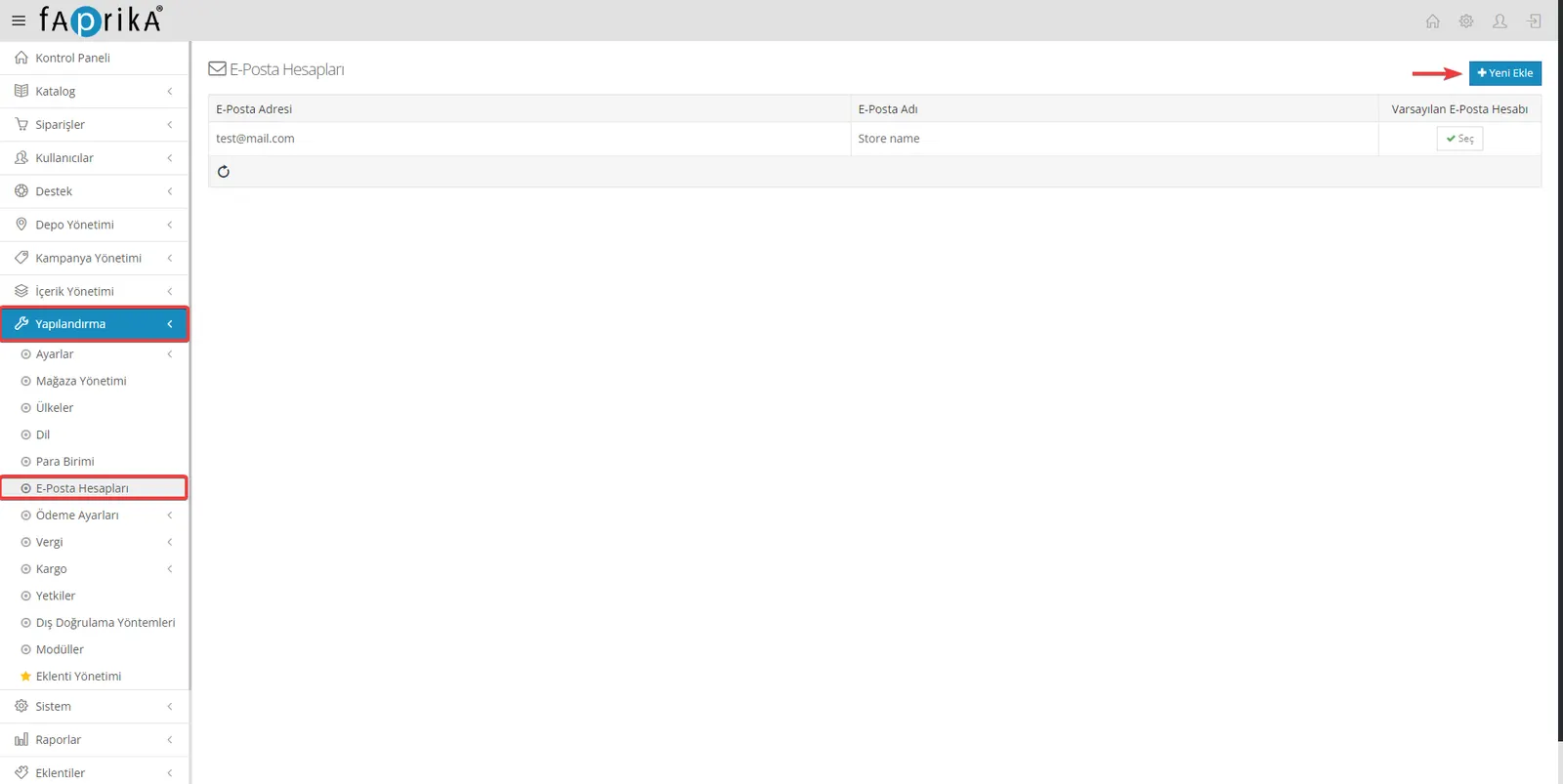
After completing your email registration, your next step is to log in to your Faprika control panel. In the panel, follow the "Configuration >> Email Accounts" tabs. Here, if a test email address has already been created, you can click on it to view the details. If you do not yet have an email account, you can create a new one with the "Add New" button. These steps ensure that your email account is configured correctly.
Configuring the Test Mail Account
When you open the test mail account, you must fill in the fields indicated on the configuration screen according to your site's requirements. This step is critical for sending and receiving email to work smoothly. In the Faprika e-commerce system, entering these parameters correctly automates processes and makes your work considerably easier.
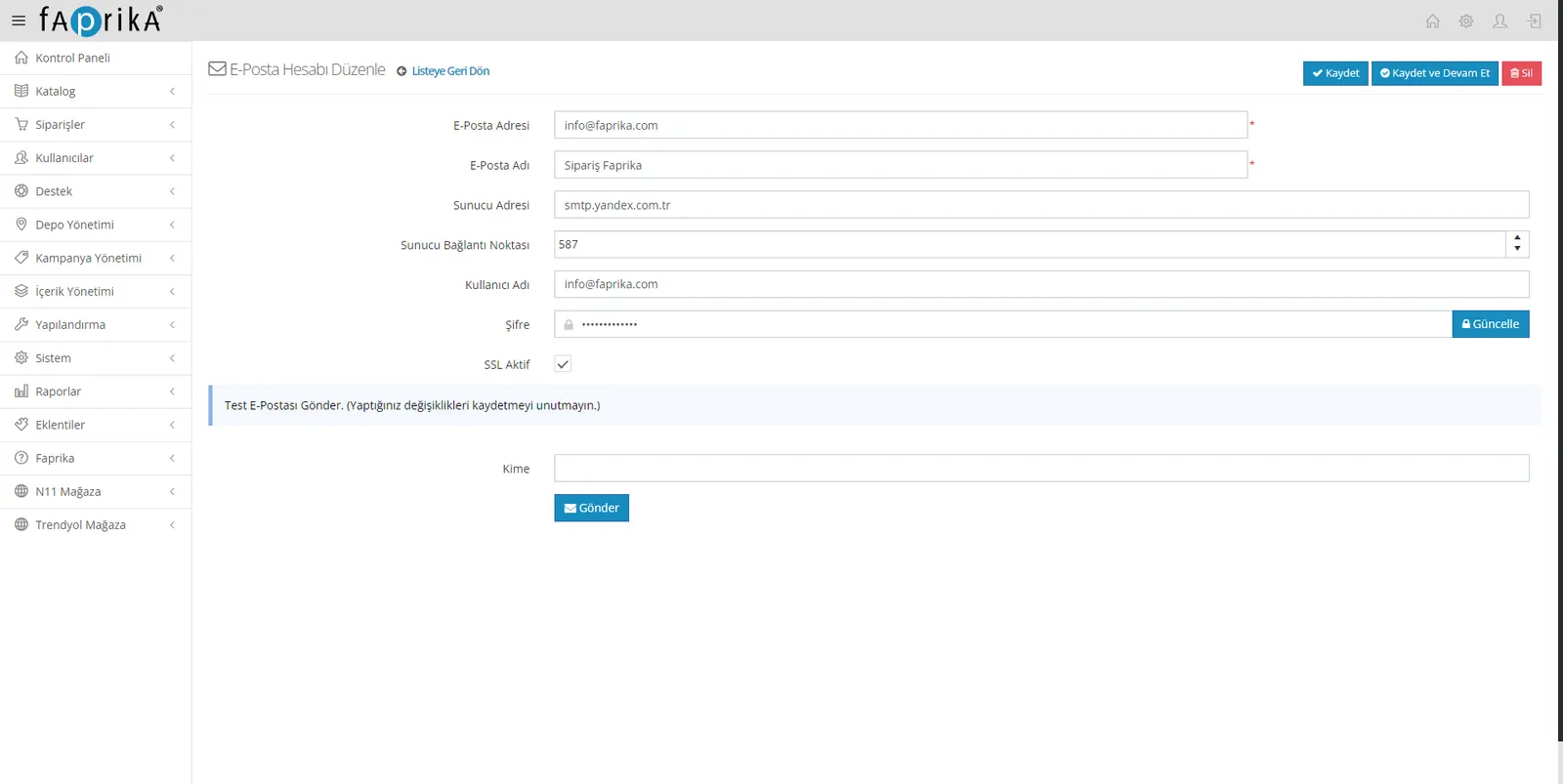
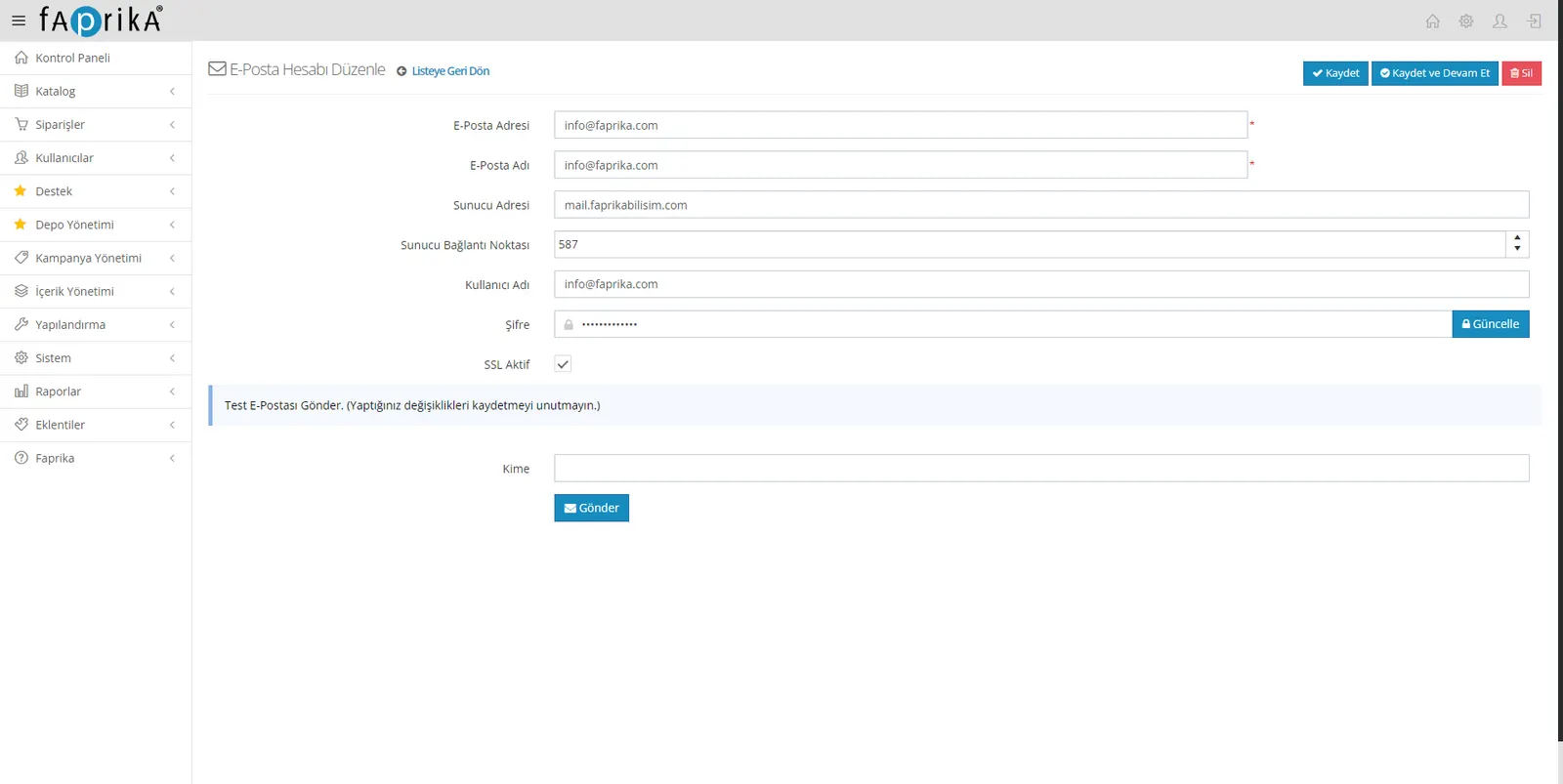
Sending a Test Email
After filling in all required parameters and saving your settings, click "Save and Continue". Then use the "Send Test Email" field to send yourself a test email. This step is very important to confirm that your email configuration works. If the test email is sent successfully, you know your email account is active and working. With the Faprika e-commerce infrastructure, you will be able to use this feature to send customer notifications and order details without errors.
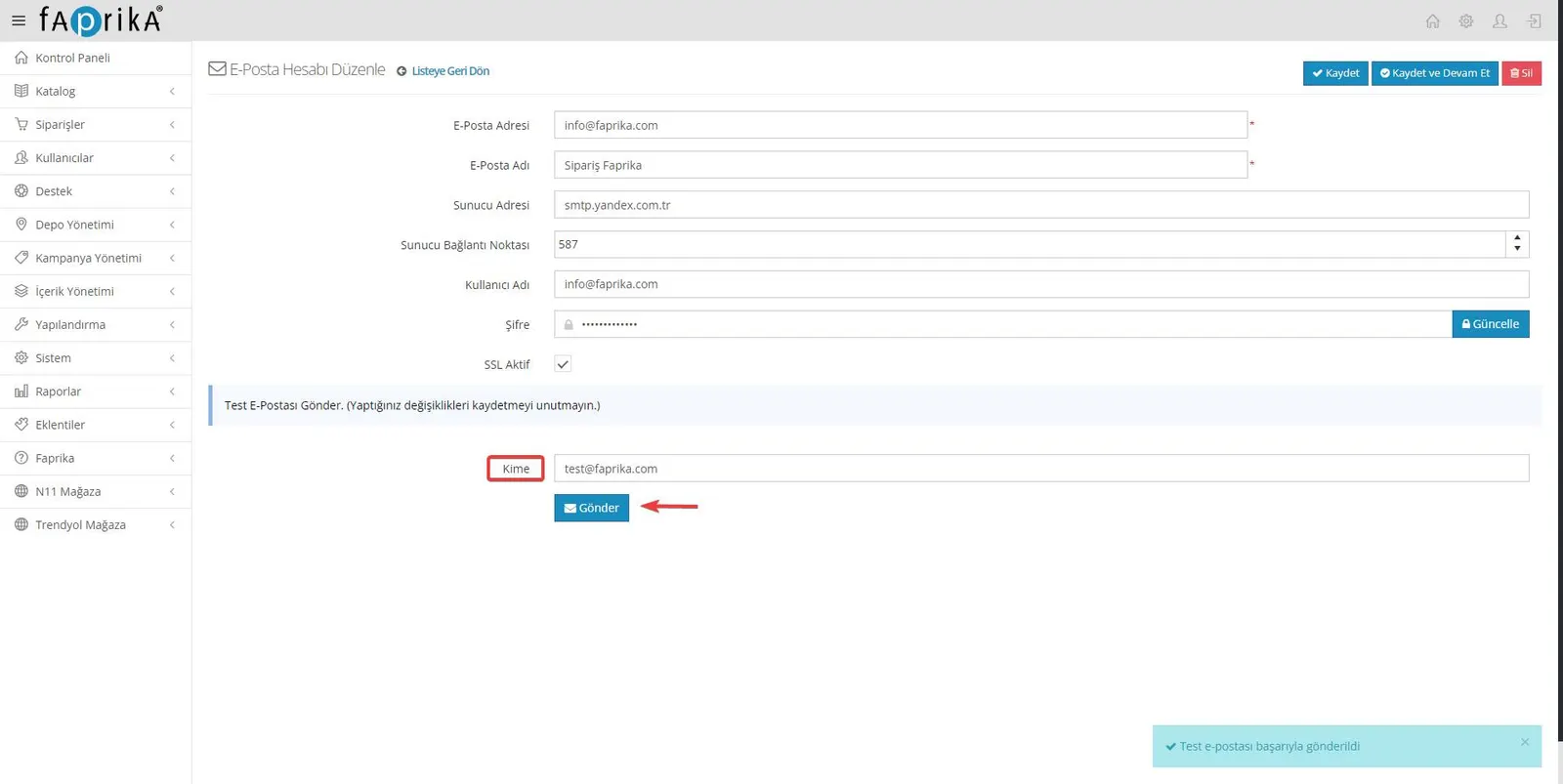
Activating the Send Email Task After Testing
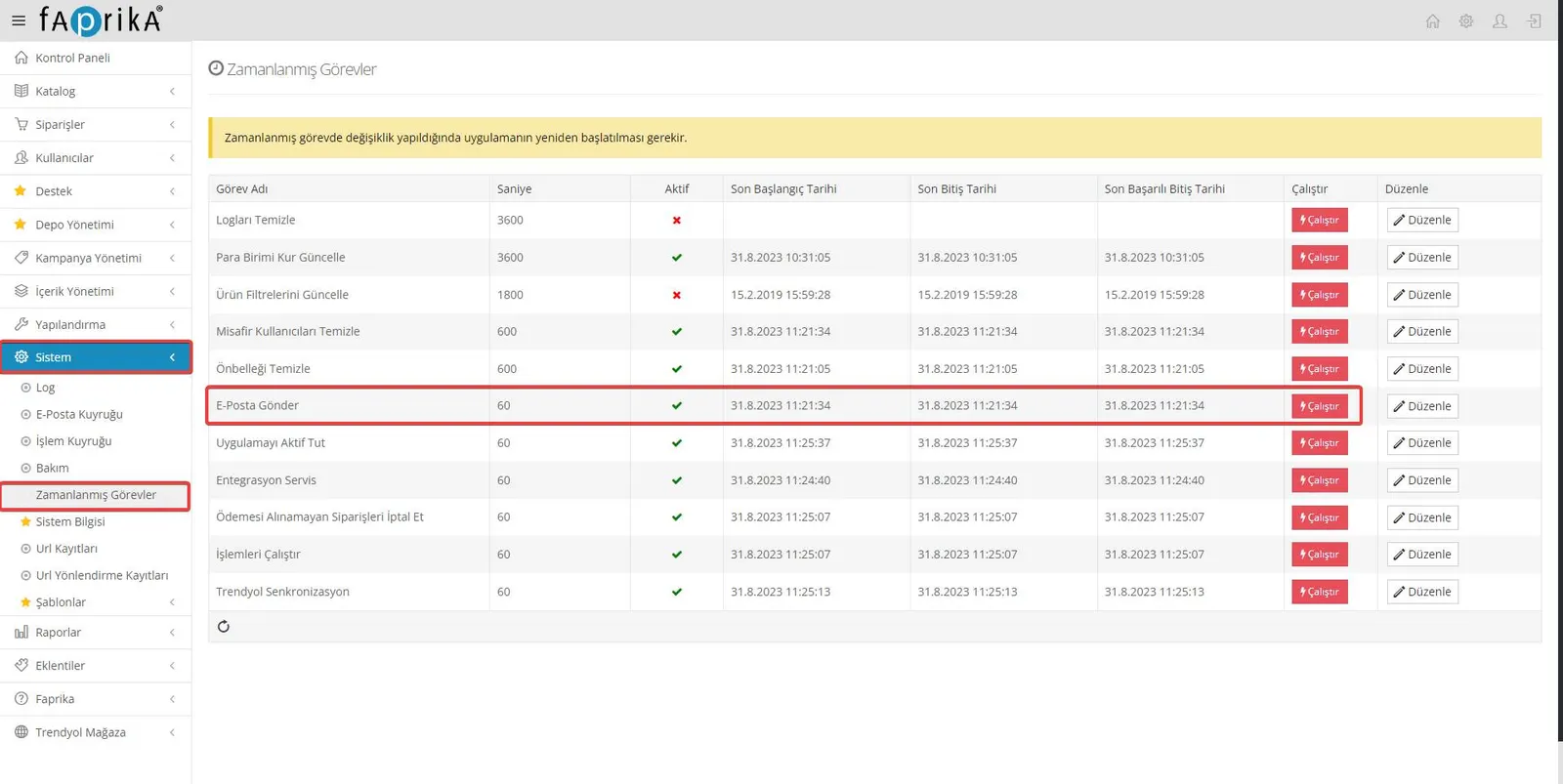
If the test email was sent successfully, the next step is to activate the "Send Email" task.
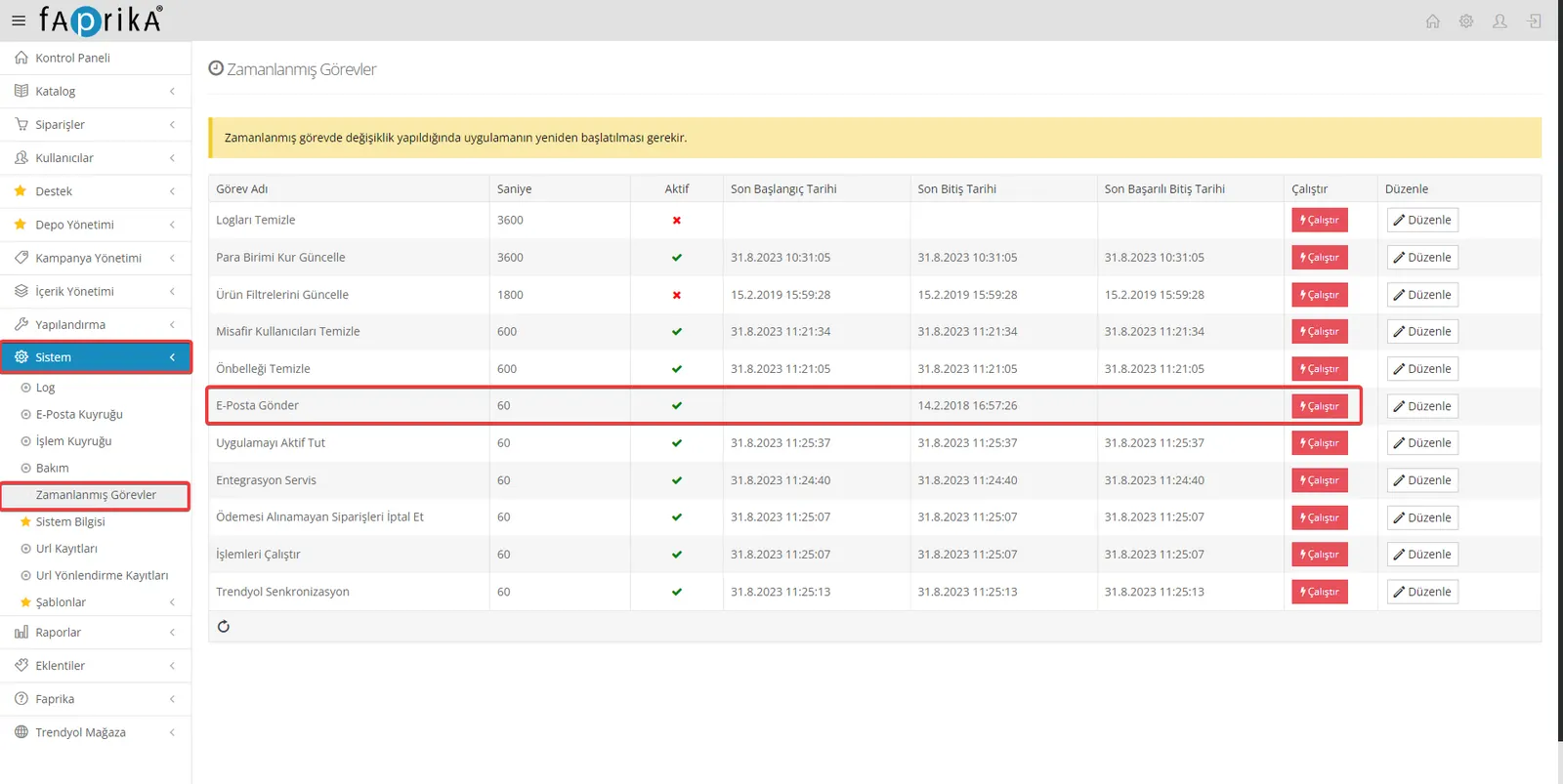
You can do this in the Faprika control panel by going to the "System >> Scheduled Tasks" menu. After activating the "Send Email" task, you can also trigger it manually by clicking "Run Once". This is critical for e-commerce sites that use the Faprika infrastructure, because order updates, product notifications and other automated customer messages are delivered through this task. Activating the Send Email task ensures that automatic email notifications keep working without interruption.
Using Automatic Message Templates
After this step, all active templates in the "Message Templates" section will be sent to your customers automatically according to order status. From order confirmation to shipment, this keeps your customers informed at every stage.
If you want to customize your message templates or learn more, you can access the training material on "Message Templates Management" at Faprika Training Documentation. This resource will be very useful for building effective customer communication with the Faprika infrastructure.
Important Note on Bulk Email Sending
Please remember that the email services provided by Faprika are not suitable for bulk mailings (campaigns, announcements, etc.). For large-scale sending of this kind, it is far more effective and safer to work with a specialized bulk email provider. Faprika can give you detailed information and guidance on this; contact us whenever you have such a need.
This note is an important detail for your business's email sending strategies and should be taken into account.
With this training guide, you have learned how to manage your email accounts effectively using the Faprika infrastructure. By following these steps, you can ensure that many important operations, from customer notifications to order status updates, run smoothly. Remember that email configuration is very important for your business's digital identity. However, if you plan to send bulk emails, please remember to work with specialized providers. The Faprika support team is always with you for any question or additional information you need.