Catalog
Adding a Standard Product
In This Tutorial
Catalog >> Product Management >> Add New
In our Adding a New Product content, we reviewed all the categories and headings in the product entry panel. In this article, we will walk through adding a Standard Product, the most commonly used among the Product Types, using an example. However, to learn what the headings in the panel mean, we recommend that you first read our Adding a New Product article.
Let’s get started right away.
Product Information
Let’s add the iPhone 11 Pro Max 64 GB Midnight Green product to our system.
Product Type: Standard Product
We check the Sold Individually field.
Language Selection came up automatically as Standard.
Let’s fill in the Product Name and Description fields to suit our product.
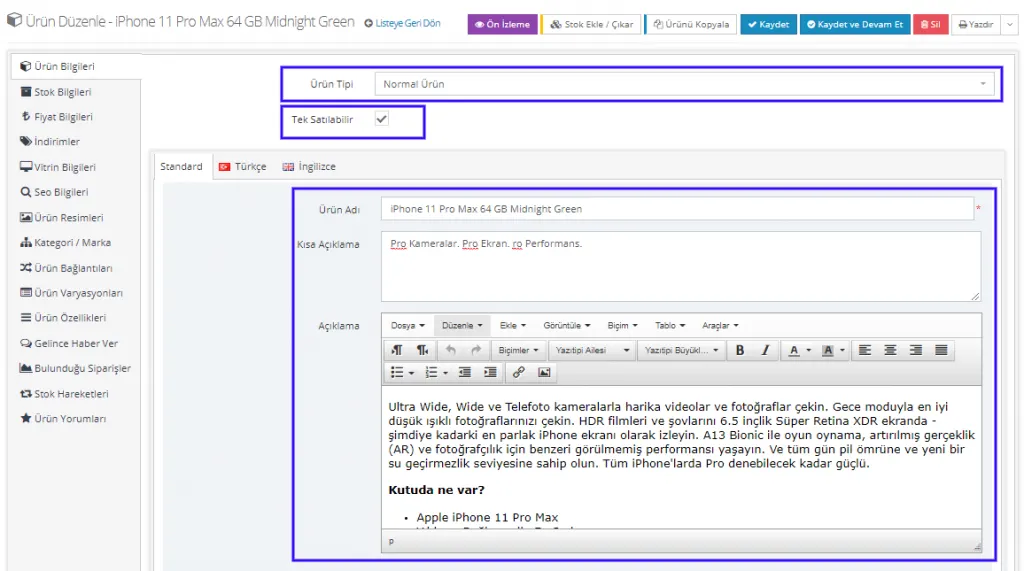
After editing the description fields, let’s continue by editing the other fields.
We recommend that you fill in the Model Code, Stock Code, Barcode, and Warehouse Location Code fields. If you sell products on marketplaces in particular, filling in these fields is ABSOLUTELY very important.

If you want to add a Supplier for the product you are adding to the system, you can select one of the suppliers registered in the system in this field. If you do not want to add one, you can continue by selecting None.

Let’s add a few Product Tags to our product.

In the Search Terms field, let’s enter a few terms based on the user who wants to search for our product.

In the Administrator Note field, we can add any information about the product that only we will see and that we want to note down so we do not forget it.

If the product has a video URL, we can add it in this field. If we check the Autoplay Video Enabled option, the uploaded video plays automatically. If there is no video, you can leave this field blank.
Let’s check the Allow Reviews option to let customers rate the product. Since our product is an electronic device, let’s skip the Show Size Chart field without checking it.

If you want to set an expiry date for your product, you can edit it in this field. In this example, however, we will not define a period. Let’s select Active for the product and continue editing the other fields.

Let’s click the Save and Continue button. Now let’s preview how these edits appear on the Product page.
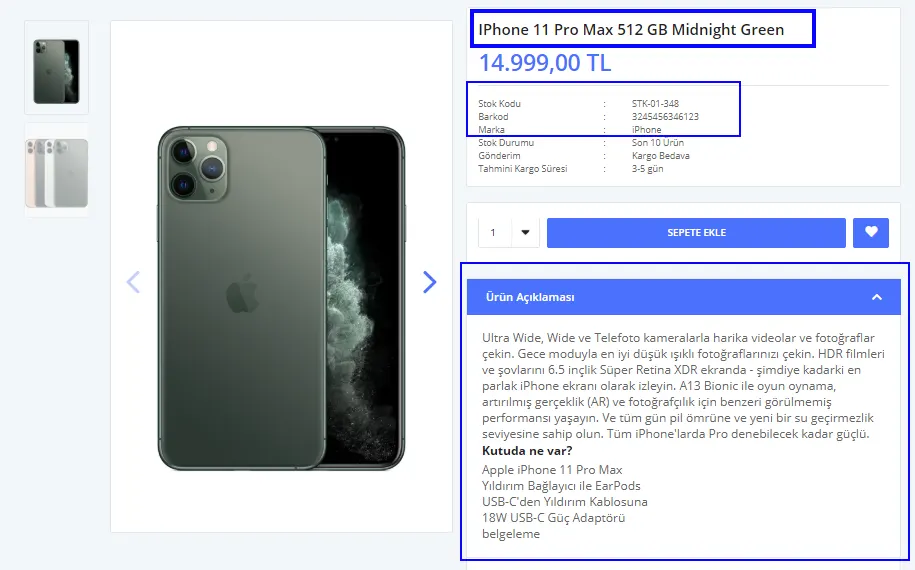
Stock Information
We want the system to track stock for the product. Therefore;
Stock Management Method: Track Stock
Stock Movements: Record Stock Movement
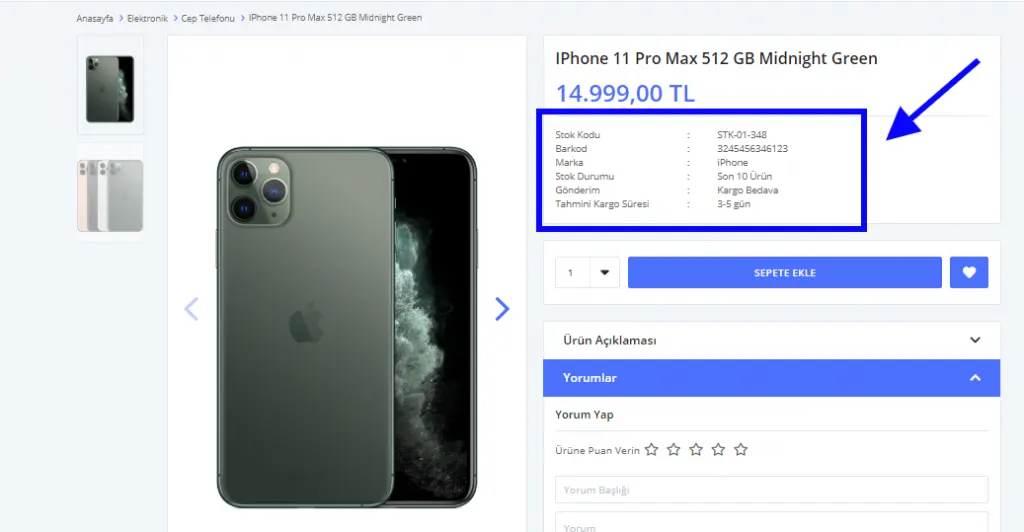
We have selected Show Stock Status and Show Stock Quantity. This way, customers will be able to see the stock status and how many units are in stock. However, if you have a lot of products in stock, you can turn off Show Stock Quantity. While Last 5 Items is eye-catching, showing last 50 items in stock would not be suitable from a marketing strategy standpoint.

If we click Deactivate Product for when stock runs out, customers cannot view the product whose stock has run out. With the Do Nothing option, a Sold Out label appears on the out-of-stock product. Let’s make a selection and continue.
Let’s set it up so the administrator is notified when only the last three units remain. Let’s enter 3 in the Notify Administrator Below Quantity field.
Let’s make the ‘Notify Me When Available’ option Active so customers are notified when the product is restocked.
We can add a minimum and a maximum sales quantity to the product. You can also continue without making any changes.
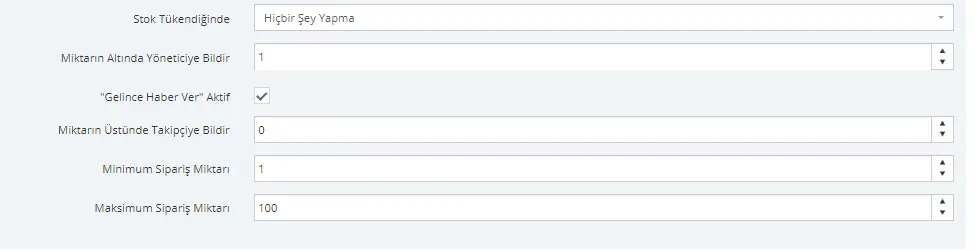
For our product, we can select Free Shipping. We can also set an extra shipping fee. We can inform customers by selecting a Delivery Time. Let’s continue by making selections that suit the product.

Let’s click the Save and Continue button. Now let’s see how the stock edits are reflected on the product page:
Price Information
In the Price Information area, let’s enter the Purchase Price, List Price, and Sale Price. If we want to set different prices for different marketplaces, we can use Price Types. If we do not want different pricing, we can leave these fields blank.
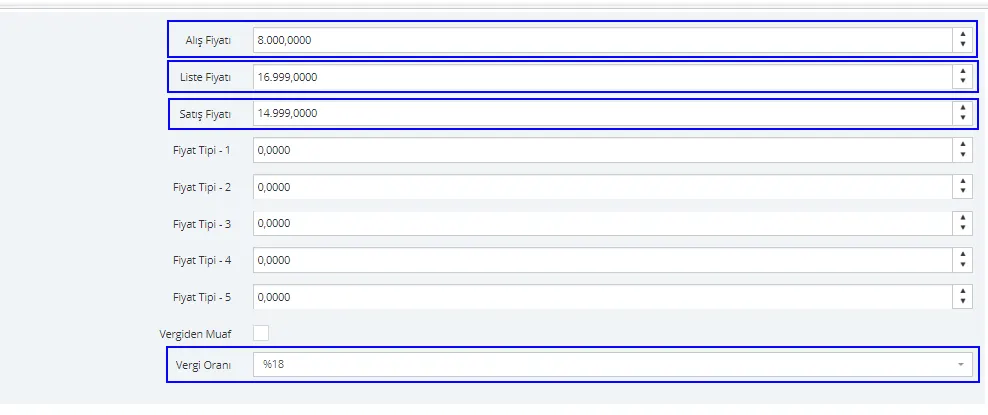
We entered representative purchase and list prices for the product. You can continue by entering real values for your own product. Let’s click the Save and Continue button and look at how these edits are reflected on the product page:
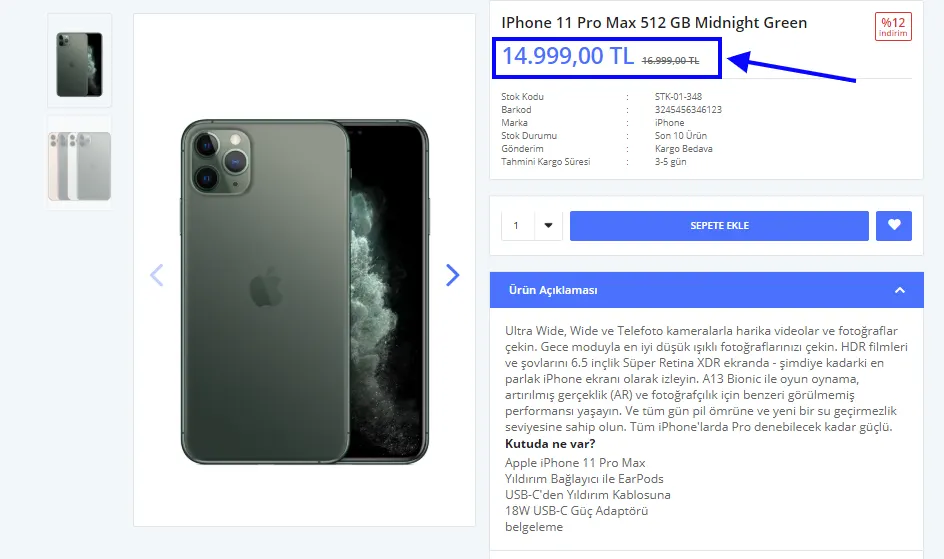
As you can see, the list price appears crossed out. The purchase price, on the other hand, was not shown to the customer.
Discounts
We mentioned that this area contains the discounts defined for products. If we want to assign such a discount to the product, we can check the box right next to it. If we do not want to assign one, we can skip this area.
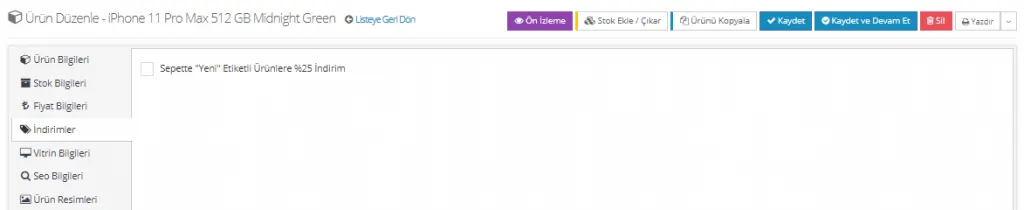
We can also add the discounts we define later to the product under Campaign Management >> Discounts. Alternatively, with the selections we make in the Requirements area, we can create discounts suitable for this product. For details, see: Discounts
Showcase Information
If you want the product you added to appear in one of the showcase areas, you can make a selection. If you do not want to add it, you can leave this field empty.
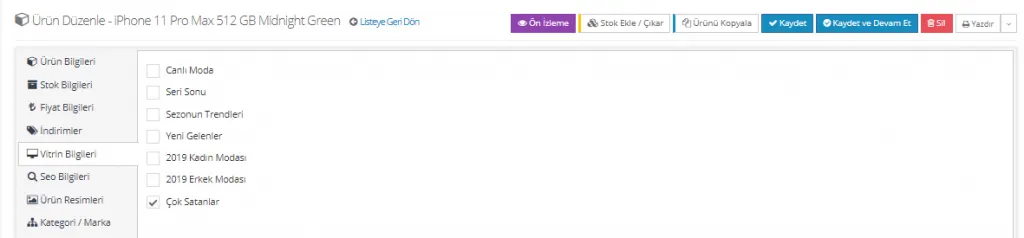
After making your selection, let's click Save and Continue.
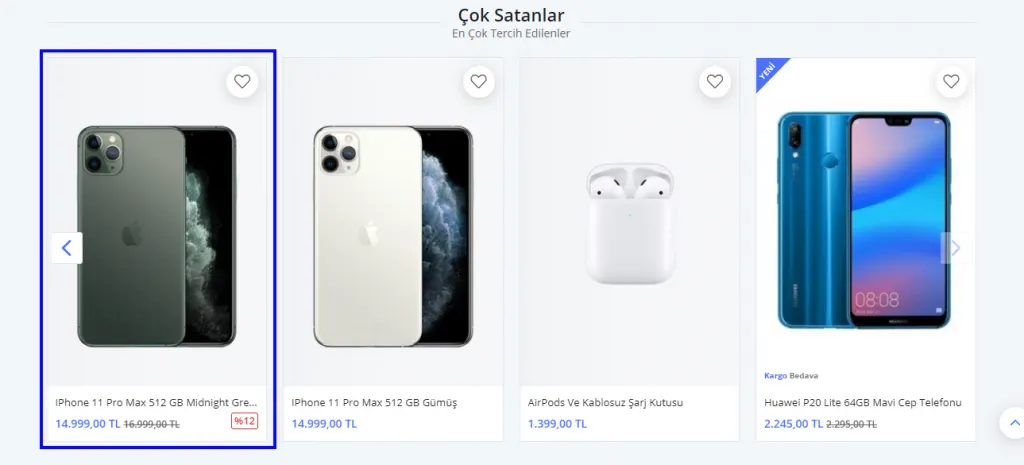
Our product now appears in the Best Sellers showcase on the homepage.
SEO Information
Let's add the SEO information as well to increase our product's organic visitor count.
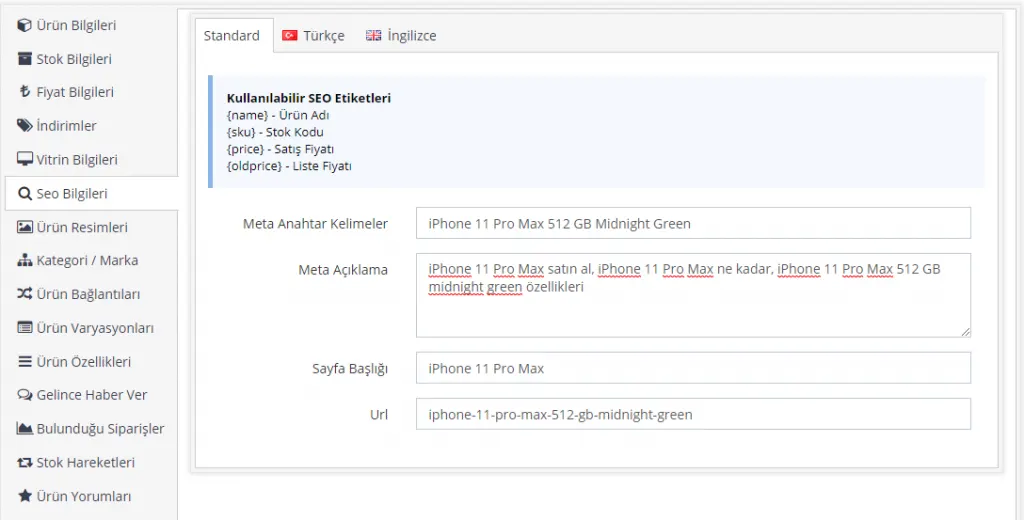
To see what to pay attention to when editing SEO information, refer to: Adding a New Product>> SEO Information
Product Images
In our visuals, we reviewed the product with its images already added, so that the product would be easier to understand. When adding product images from scratch, click the Product Images area in the panel and add the product's images using the Drag and Drop method or by clicking the Upload button.
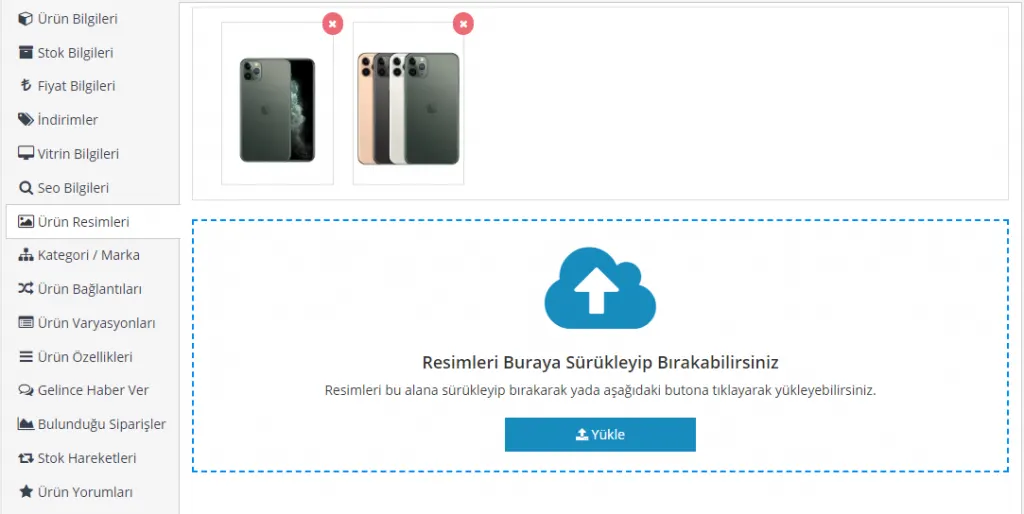
After adding the images, you can continue by clicking the Save and Continue button.
Category / Brand
To add a category and brand to the product, we click the Add New Record button and make a separate selection for the category and for the brand.
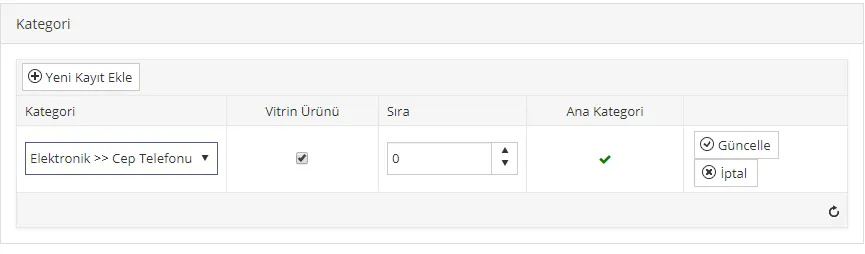
To add a category from this area, the category must have been added to the system beforehand. For more details on this topic, see: Category Management
We follow a similar procedure when adding a brand. Again, if the brand is not registered in the system, we cannot perform this action, so the brand must be added to the system first. For details, see: Brand Management
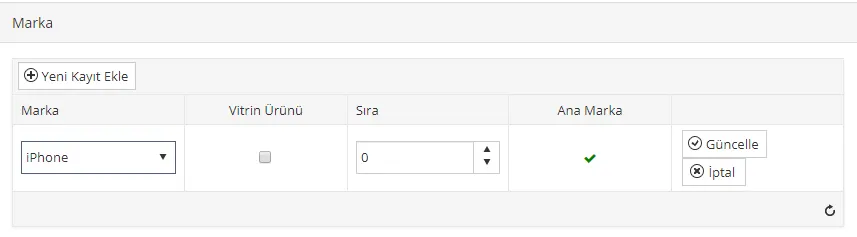
From these fields you can designate your product as a showcase product. This way, the product is displayed in the Featured Products area of the category/brand page. You can set the order, or choose the brand/category as the main brand/category.
After making the edits, let's move to the next step by clicking the Save and Continue button.
Product Links
Product Links is an extremely important area. Through it, you can use Linked Products to connect the different colors of the product you uploaded to it. By adding Similar Products, you can let your customers browse other options from the current panel. You can also define Complementary Products so that your customers can make additional purchases while in the cart.
Linked Products
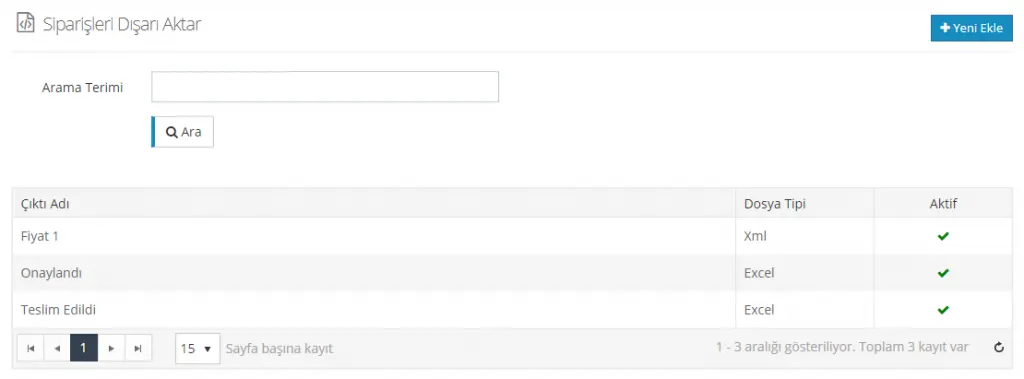
Let's add the different colors by clicking the Add New button. Here too, we remind you that these products must have been added to the system beforehand. If you prefer, you can configure the linking settings after adding all the products. In this example, the different colors were already added to the system, so let's continue:
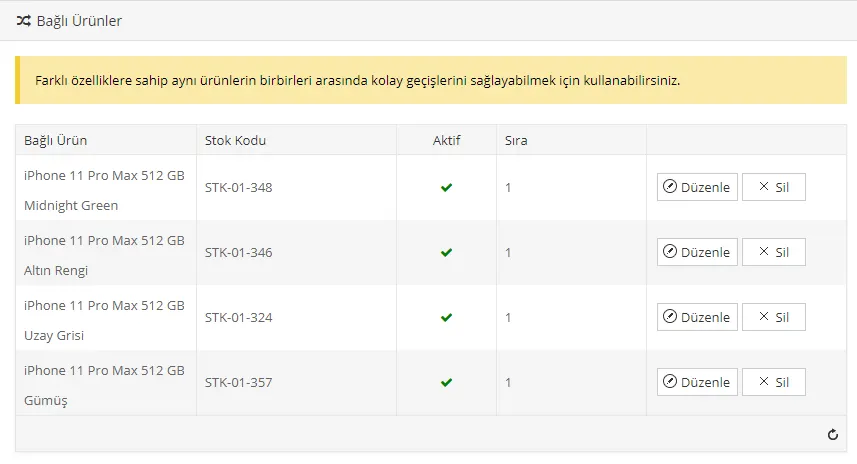
By clicking the Link Added Products to Each Other button, we linked all the products to one another. However, please remember that this action must be repeated for each product.

Now, after this edit, let's take a look at our product page and see how the change is reflected:
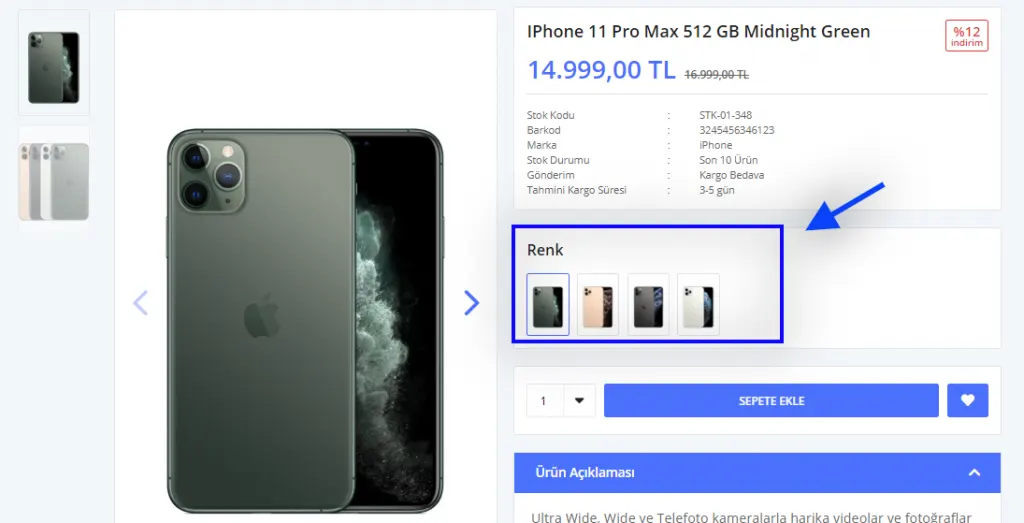
As you can see, we easily linked our products with the same features in different colors from this area. Now your customers will be able to easily browse the other colors while viewing the product.
Similar Products
By adding similar products from the same category or brand to this area, you can help your customers easily reach other alternatives. By clicking the Add New button, you can choose from products previously saved in the system, and later edit this product from the Product Management area by selecting it.
We clicked the Link Added Products to Each Other option. However, please remember that this action must be repeated every time a product is added.
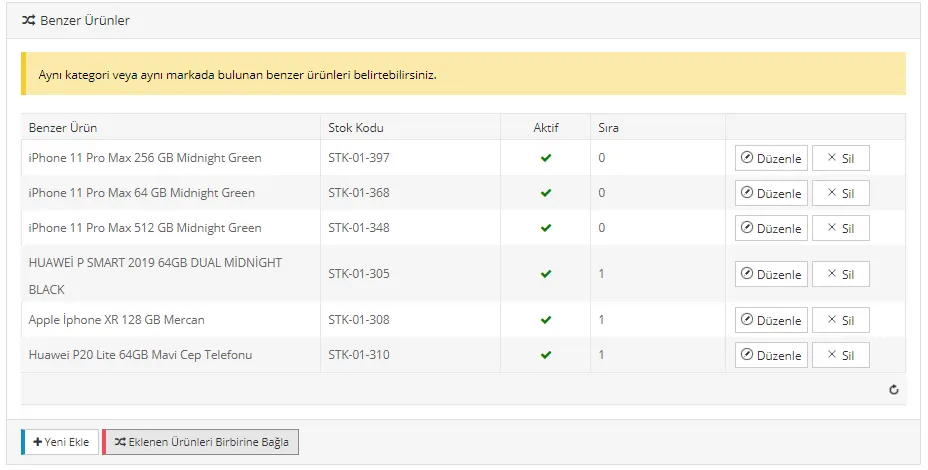
Now let's take a look at how the Similar Products setting is reflected on the product page:
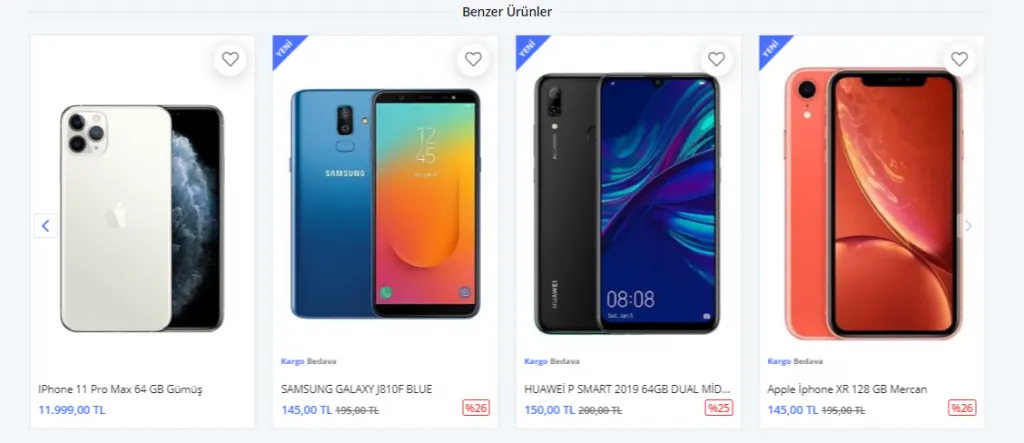
In this area, besides the products we added to the system, products in the brand and category assigned to the product are also shown, since they are assigned by the system.
Complementary Products
Complementary Products appear when your customers add the product to the cart. They suggest extra products the customer may need. This is important because it is the final stage of shopping: it encourages a customer who is ready to buy to purchase more. Of course, it is essential that the products you add here are related to, and even complement, the purchased product. Products that can be bought together increase the likelihood of a sale.
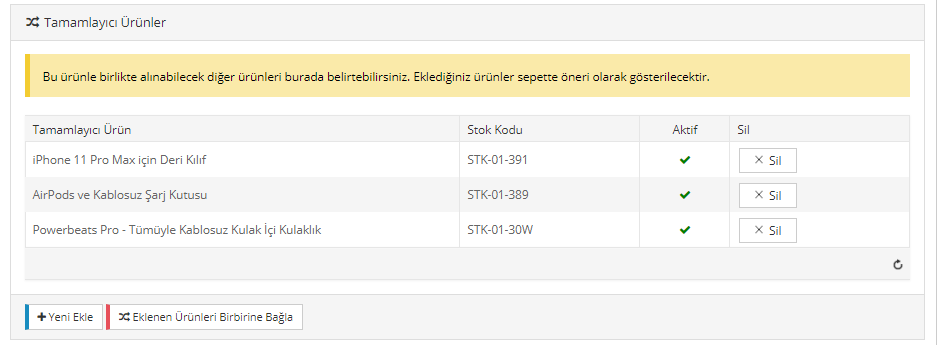
Now let's click the Save and Continue button and see how these products appear in the cart:
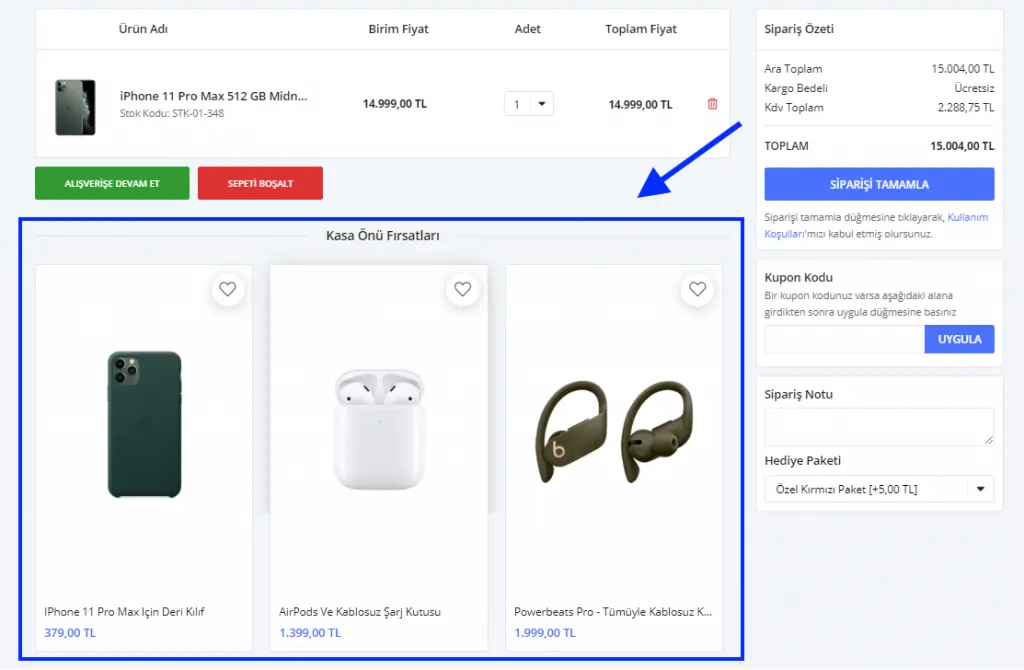
As you can see, the products we added to the Complementary Products area were presented to customers as Checkout Deals. If your customers want to view or buy these products, they can easily select them from this area.
After completing the edits, let's move to a new area by clicking the Save and Continue button.
Product Variations
If your product is a textile item, we can select a size variation in this area to easily track the stock of that product. However, some products have no variations, such as a mobile phone. For this reason, we skip this area and continue editing. For detailed information on product variations, see Adding a New Product: Product Variations
Product Features
This area is set up for result-oriented customers who do not want to spend much time on the shopping site. If you define your product's features clearly, your customers can easily act on these searches.
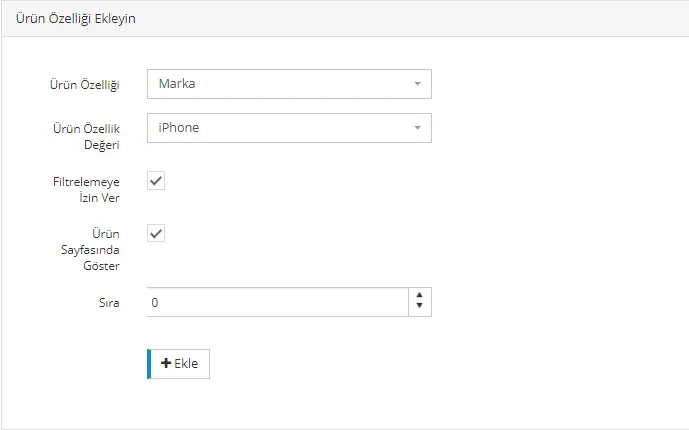
For the product's other features, let's also make selections from the Features area that was defined in the system earlier.
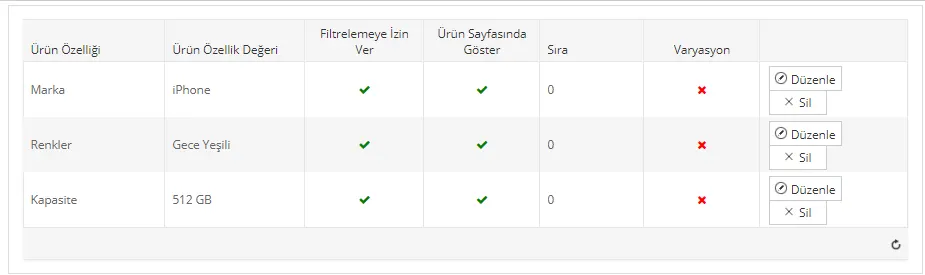
This way, customers who want to filter products on your site will be able to see this product listed directly once they specify the features.
After completing all the edits, we click the Save and Continue button.
Add / Remove Stock
We have edited our product's information. However, if we do not add stock, the product will be displayed as Sold Out. For this reason, we must add stock by clicking the Add / Remove Stock button at the top right of the panel.
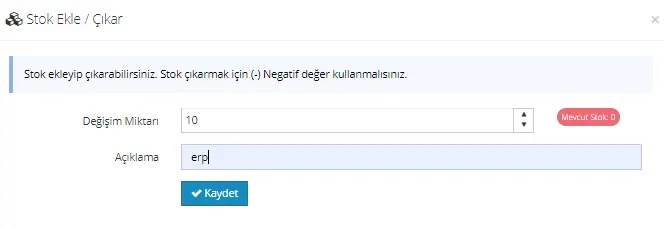
After entering the stock quantity, we complete the process by clicking the Save button.
From this panel, we can now reach the list of customers who are tracking our product with the Notify Me When Available option, the Orders Containing the product, its Stock Movements, and its Product Reviews.
To do this, we need to find our product in Catalog >> Product Management >> Product List.
Now that all the edits are complete, we can click the Save button and return to the Product List page.
It's that simple!
To learn how to add a Serial Product, click here.
To learn how to add a Grouped (Bundle) Product, click here.