Add-ons/Integrations
Hepsiburada Integration
A step-by-step guide to growing in the e-commerce world using the power of Hepsiburada. The easy way to integrate your store with Hepsiburada. Get started now to reach more customers.
Hepsiburada Marketplace Integration
If you want to easily manage your products on marketplaces and reach more customers, you can integrate with your Hepsiburada store through Faprika's integration solutions. In this guide, you will learn how to carry out the Hepsiburada integration step by step.
Before starting the Hepsiburada integration, you need to complete some important steps. Here are some of them:
- Opening a Hepsiburada Account: First, you need to open an account on Hepsiburada. This account forms the foundation of your store.
- Brand Approval: Your brand may need to be approved in line with Hepsiburada's requirements. This increases the credibility of your brand and products.
- Product Preparation: In your control panel, you need to get the details of the products you want to send to Hepsiburada ready. Information such as product descriptions, images, and prices must be complete.
- Selecting Faprika as Your Integrator: On Hepsiburada's own platform, you must select "Faprika" as the company you want to carry out the integration. This is a critical step for the integration to begin.
After completing these steps, you will be ready to start your Hepsiburada integration. In the following sections, we will look at this process in more detail.
To continue with the Hepsiburada integration, after completing the steps on the Hepsiburada page, you need to make some adjustments in your Control Panel. Here are some of these steps:
- Product Edits: To send your products to Hepsiburada, you must first edit them. You need to enter information such as product descriptions, images, and prices completely and accurately.
- Hepsiburada Code: A unique code may need to be entered for each of your products in Hepsiburada's system. This code ensures that your products are uniquely identified on the Hepsiburada platform.
- Product Attributes: You should add important attributes of your products, such as size information. These attributes help place products in the correct categories and variations.
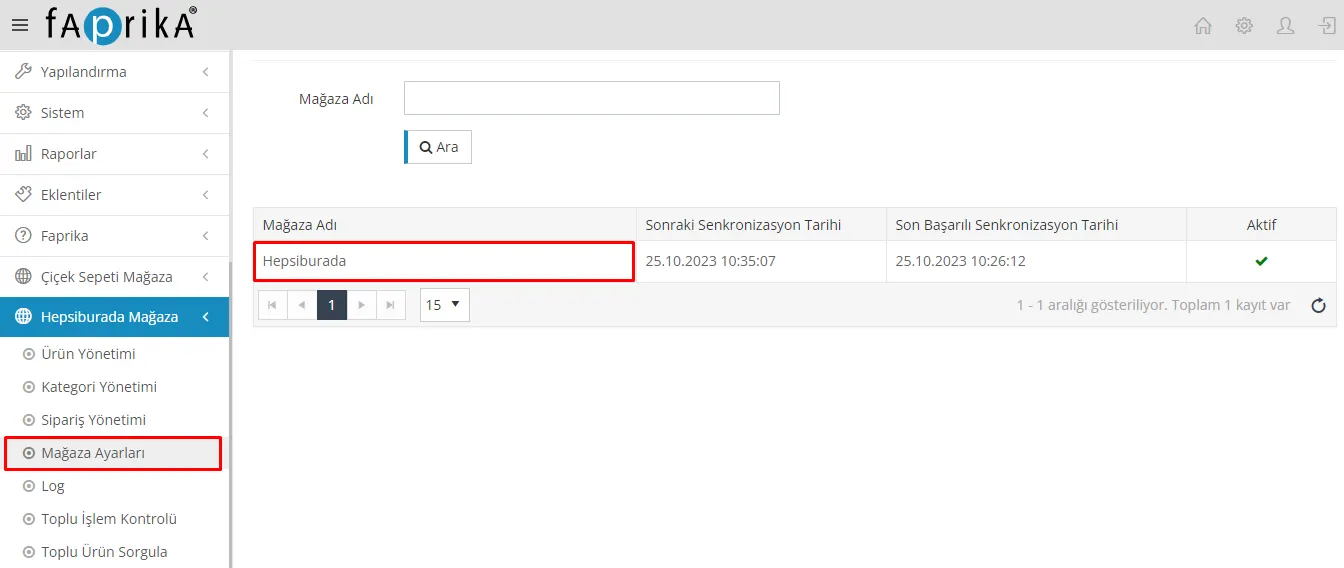
- Store Settings: Go to Hepsiburada Store >> Store Settings and configure the details of your Hepsiburada store. This enables you to communicate with Hepsiburada and is required before you can start your integration.
After completing these steps, you will be ready to start your Hepsiburada integration. In the following steps, we will look at this process in more detail.
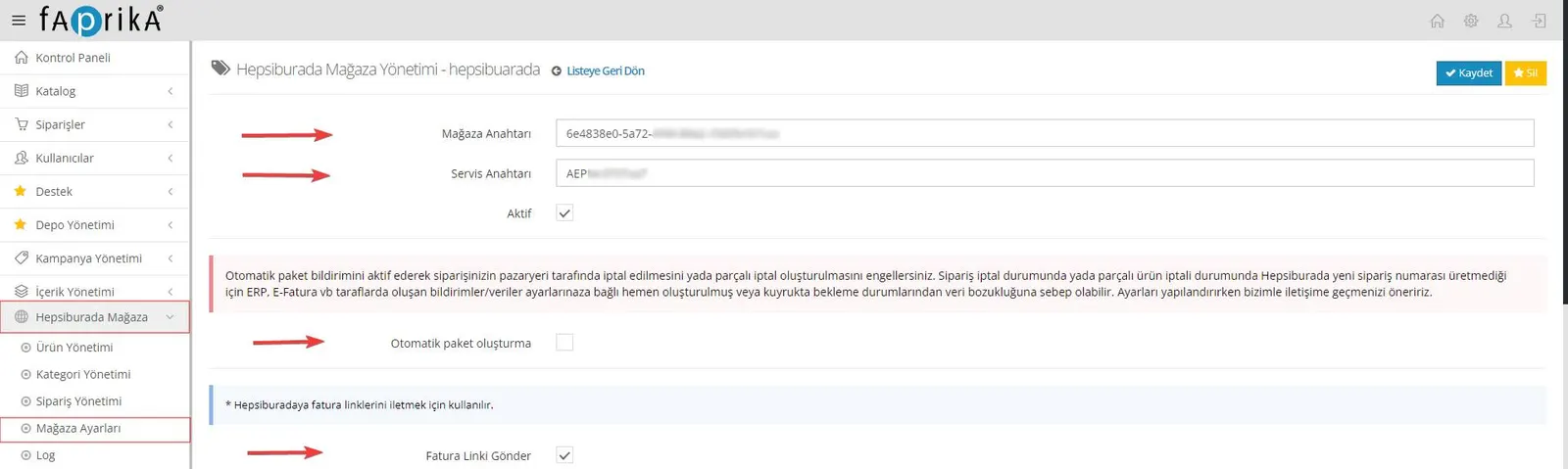
We can summarize the steps you need to take in the Hepsiburada Store Settings section as follows:
Store Key: Enter the "Store ID" you obtained from Integration >> Integrator Information in the Hepsiburada marketplace control panel into the relevant field.
Service Key: Enter the "Service Key" for the Faprika integrator you created in Integration >> Integrator Information in the Hepsiburada marketplace control panel into the specified field.
Active Button: After entering the Store Key, you must save your settings by ticking the "Active" button. This integrates your store with Hepsiburada.
Automatic Package Creation: If you want your orders to be imported automatically into the Faprika panel and made ready for shipment via hepsiburada.com, you should tick the "Automatic Package Creation" option.
Send Invoice Link: If you want to transfer order invoices to Hepsiburada through the integration, you need to enable the "Send Invoice Link" option.
When you complete these settings correctly, your integration with Hepsiburada will run more smoothly. If you have any questions or need help during the integration process, please do not hesitate to get in touch.
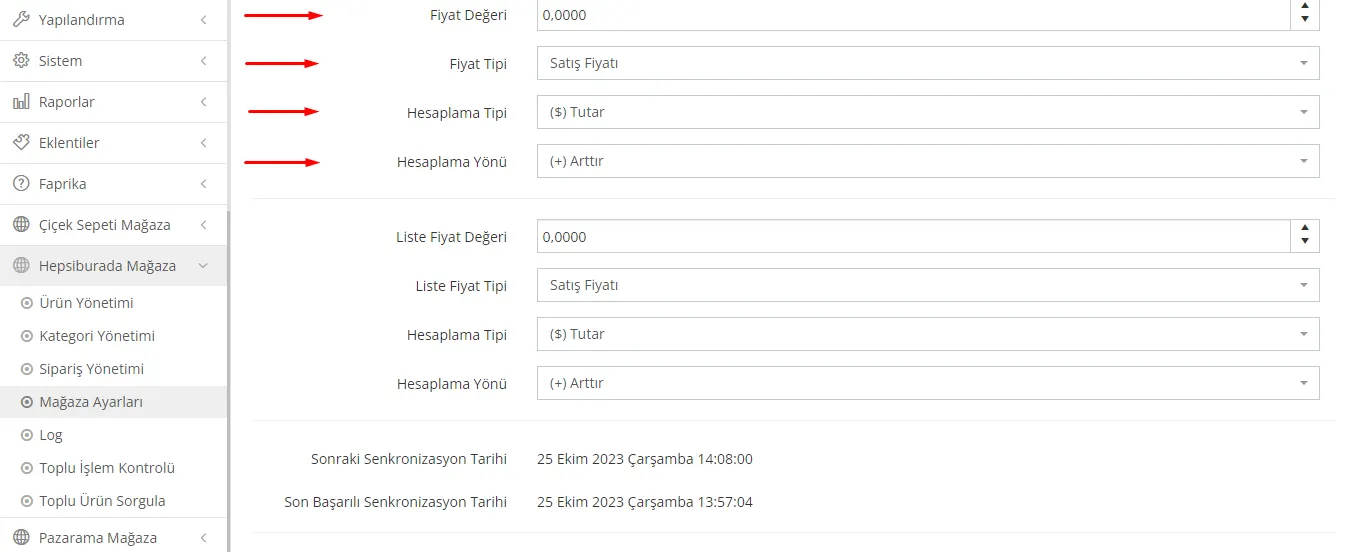
Price Value settings help you determine pricing when transferring your products to the marketplace.
- Price Value: In this field, enter the price value you want to apply when transferring your products to the marketplace. For example, if you enter this value as "10", that amount is added to or subtracted from your product prices, depending on the calculation type and method you have selected.
- Price Type: Here, select the type by which the prices of the products you will transfer to the marketplace are determined. If you send your product prices using a marketplace-specific type, select that type in this field. For example, you should make this selection if you have chosen a special type such as "Price Type - 1". Also, if you will send based on your products' sale price, use the "Sale Price" option to set your prices.
- Calculation Type: When setting your product prices, you can use the calculation type option to choose which kind of calculation you want to make. There are two options: "Amount" or "Percentage". If you select "Amount", the price value you set is added or subtracted as an amount. If you select "Percentage", the percentage rate you set is applied to the product price.
- Calculation Direction: You can use this option to specify whether you want to increase or decrease your product prices. There are two options: "Increase" and "Decrease". If you select "Increase", the price value is added to the product price. If you select "Decrease", the price value is subtracted from the product price.
By configuring these settings correctly, you can adjust your product prices as you wish when transferring them to the marketplace. By following each step carefully, you can ensure your integration works smoothly.
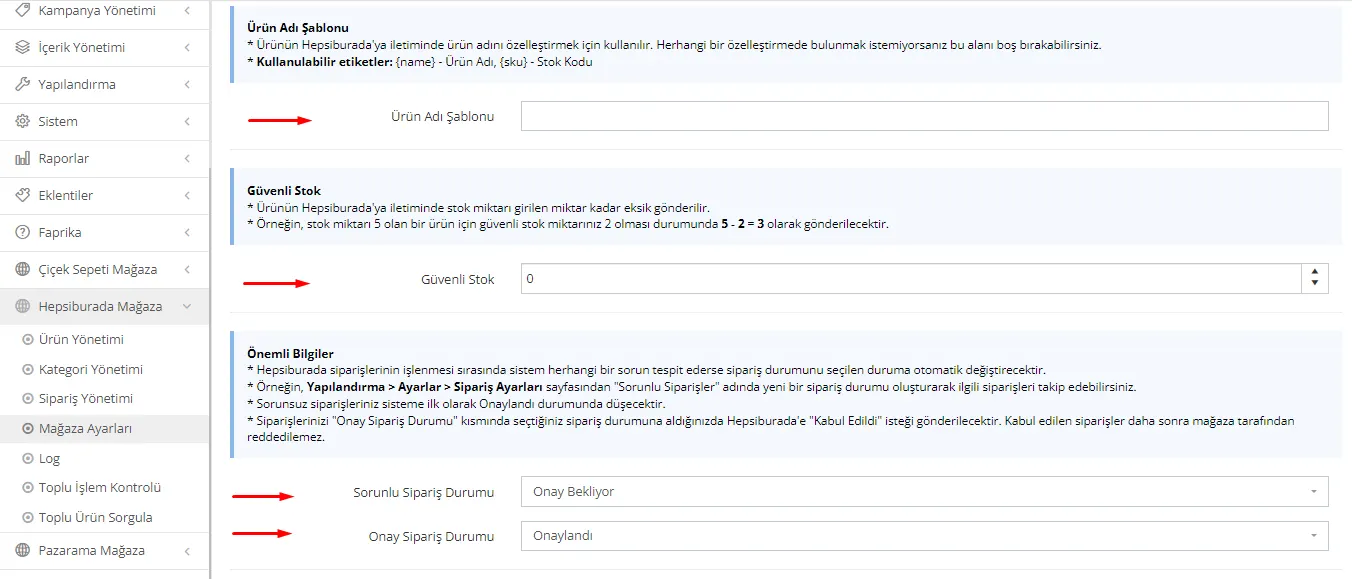
Some additional details and settings are also important when integrating your products with Hepsiburada. Here are explanations of these settings:
- Product Name Template: This field is used to customize the product name when sending your products to Hepsiburada. If you want to create a custom product name template, you can make the relevant edits in this field. However, if you do not need any customization, you can leave this field blank.
- Safe Stock: This setting determines the stock quantity when your products are transferred to the marketplace. The safe stock quantity specifies how many products are sent to the marketplace once your product's stock falls below that level. For example, if you have a product with a stock quantity of 5 and your safe stock quantity is set to 2, then 5 - 2 = 3 products will be sent.
- Problematic Order Status: This setting allows you to automatically change the order status when a problem is detected in the system while processing marketplace orders. It is especially useful for tracking and managing problematic orders. You can configure this setting by creating a new order status named "Problematic Orders" in the Configuration section.
- Approval Order Status: Your trouble-free orders arrive in the system with the "Approved" status. In this case, when your orders reach the order status you selected in "Approval Order Status", an "Accepted" request is automatically sent to Hepsiburada. Accepted orders cannot later be rejected by the store.
By configuring these settings correctly, you can manage stock management and order processing more efficiently when integrating your products with Hepsiburada.
As you take the final steps to integrate your products with Hepsiburada, you also need to configure the following settings properly:
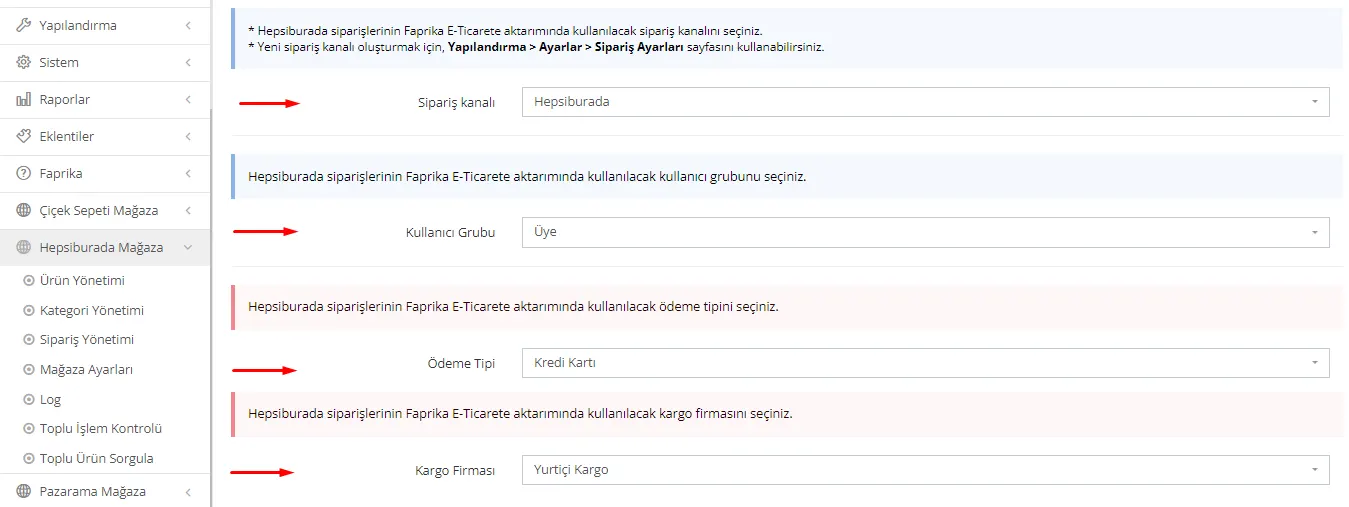
- Order Channel Selection: You need to configure this setting to determine how Hepsiburada orders will be transferred to Faprika E-Commerce. If you want to create a new order channel, you can use the "Configuration" section's "Settings" > "Order Settings" page. On this page, you can specify how you want to receive Hepsiburada orders.
- User Group Selection: You must select which user group will be used when transferring Hepsiburada orders to Faprika E-Commerce. This determines which user groups the orders are assigned to. If you want to create a custom user group, you can create and select a new user group such as "Marketplace" under "Configuration" > "Users" > "User Groups".
- Payment Type Selection: You must select which payment type will be used when transferring Hepsiburada orders to Faprika E-Commerce. This setting determines how payment transactions are managed.
- Shipping Company Selection: You must select which shipping company will be used when transferring Hepsiburada orders to Faprika E-Commerce. This setting determines how orders will be delivered.
By configuring these steps correctly, you can successfully set up important details such as order management, user groups, and payment processing when integrating your products with Hepsiburada.
After successfully completing the Hepsiburada Store settings, you should move to the Hepsiburada store >> product management tab. This section contains important subsections such as "Operations," "Reverse Synchronization," and "Product Sending Settings." Let's go through these sections in detail.
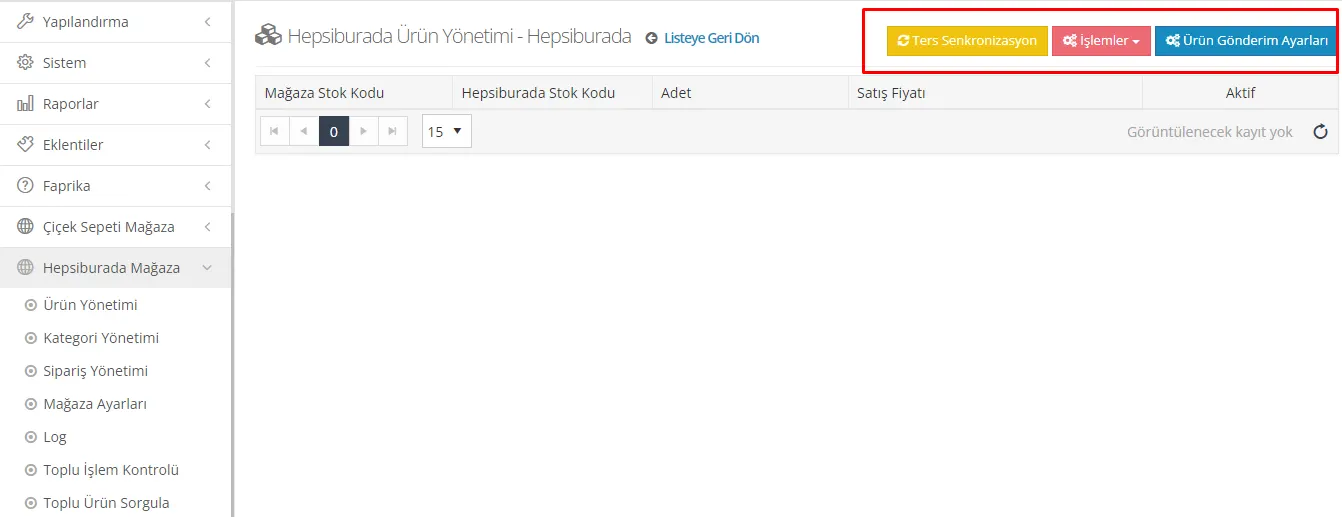
Reverse Synchronization:
The Reverse Synchronization button lets you pull the products on Hepsiburada into your Faprika control panel. This is used to update your existing products or add new ones. This way, you can manage your products in your Faprika control panel.
Operations:
The Operations button lets you manage communication between your Hepsiburada store and your panel. In this section, you can perform a range of operations such as updating product information, adjusting stock quantities, or updating prices. You can also use this section to add new products or edit existing ones.
Product Submission Settings:
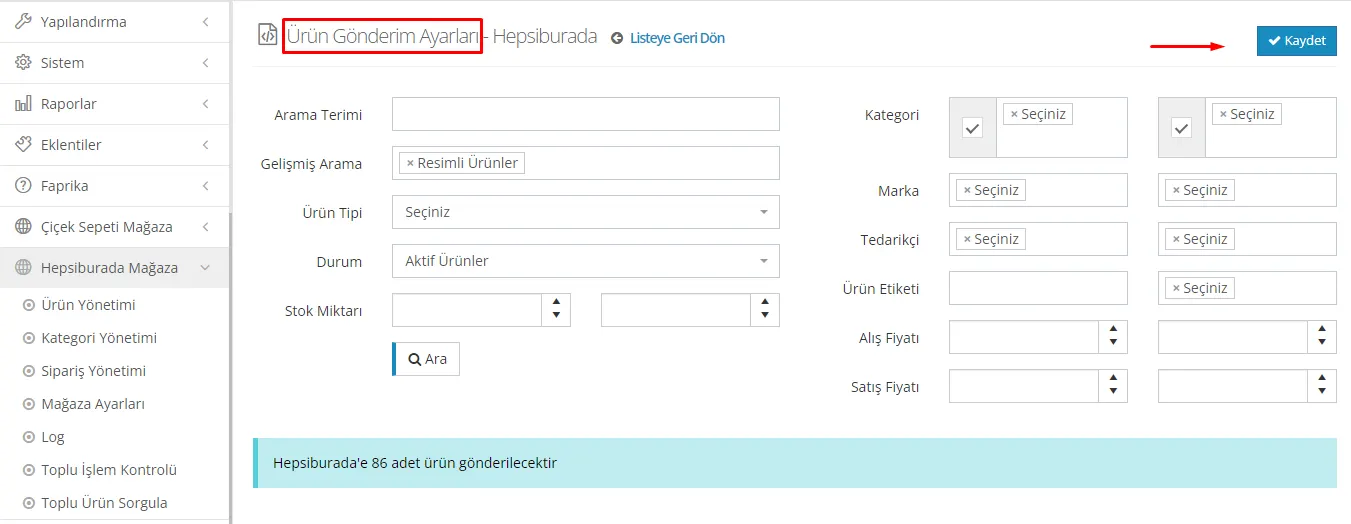
You can use this section to determine which products will be sent to the Hepsiburada marketplace. You can select the products on your website by filtering. For example, if you want to select products with a specific category or tag, you can set the filters in the relevant field. You can customize your sending settings with many different filtering options.
After completing the filtering, you can click the "Search" button to see how many products will be sent. After completing the filtering, you can finish your product sending settings by clicking the "Save" button in the top right corner.
The basic filters you need to apply when sending products to marketplaces are listed below:
- Advanced Search: Products with Images
- Product Type: Normal Products
- Status: Active Products
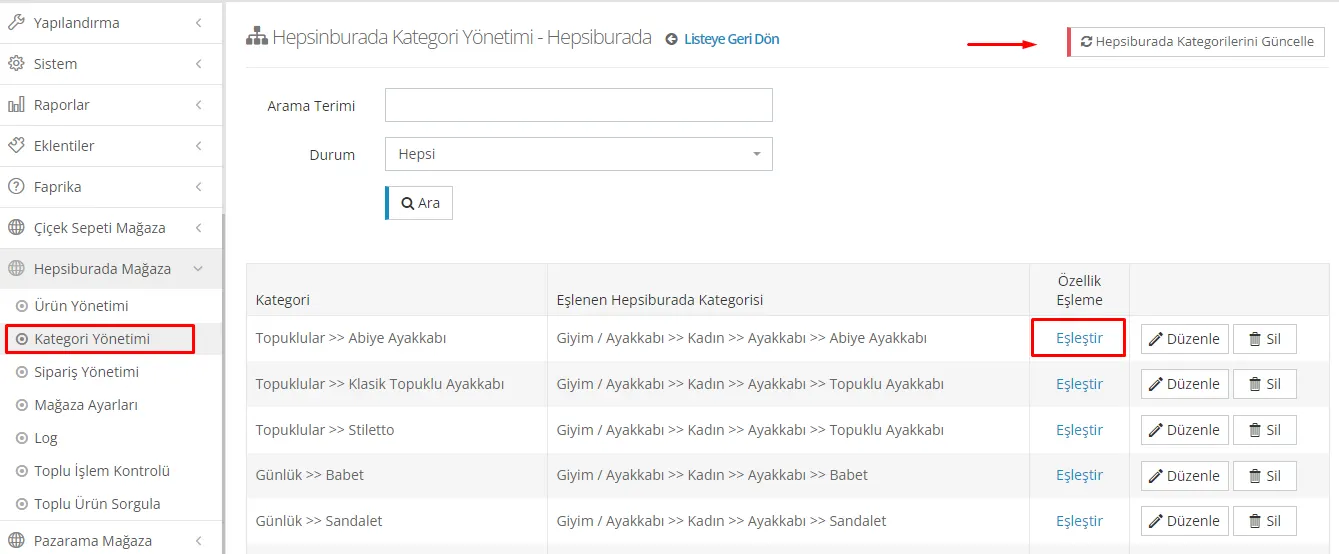
Hepsiburada Store >> Category Management:
To successfully transfer products to the Hepsiburada marketplace, you need to complete category and attribute mappings. The steps of this process are:
Update Hepsiburada Categories:
- In your control panel, go to the Hepsiburada Store >> Category Management section.
- Click the "Update Hepsiburada Categories" button in the top right corner.
Matching Categories:
- Once the process is complete, you will need to match the categories on your website with Hepsiburada categories.
- On the category management page, click the "Edit" button to the right of the relevant category.
- A search bar will appear. Here, type the name of the Hepsiburada category you want to match your category with.
- After selecting the category, click the "Update" button to complete the match. The category on Hepsiburada and the one on your website will now be matched.
Matching Attributes:
- Next, you will need to match the attributes in the category.
- For this step, you can use the "Match" button on the same screen.
When you complete these steps, category and attribute mappings will be done correctly when transferring your products to the Hepsiburada marketplace.
Attribute Mapping and Value Matching:
You can follow the steps below when mapping attributes:
Update the Mapping List:
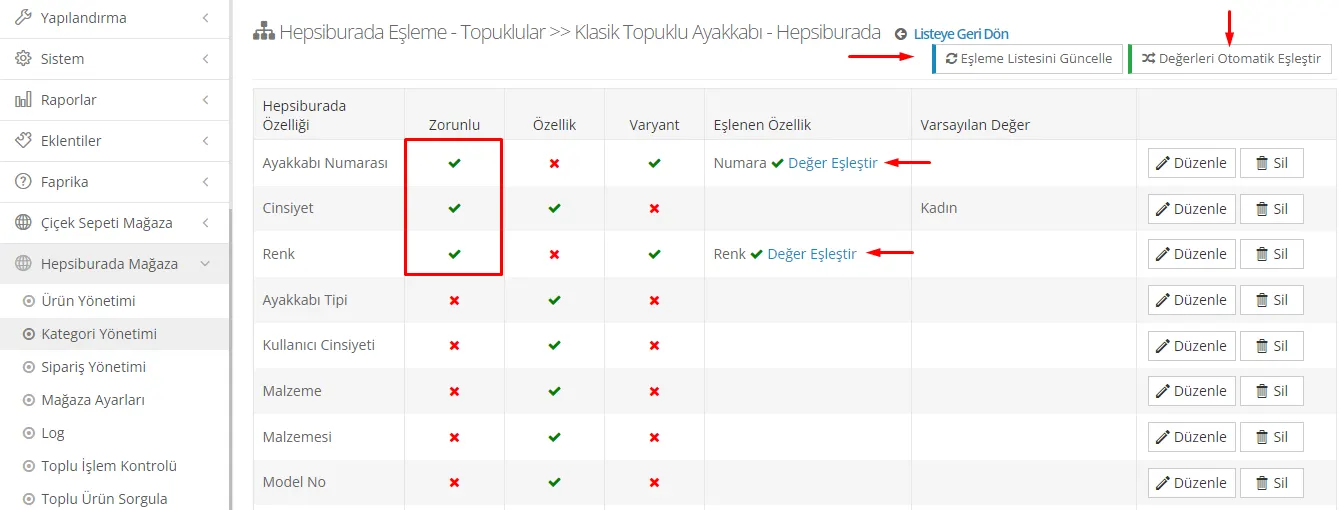
- After entering the attribute mapping area, click the "Update Mapping List" button in the top right corner.
- With this action, you can update your existing mappings.
Required and Optional Attributes:
- Once the mapping list is updated, the required and optional attributes will appear.
- Required attributes represent the values your products must contain. They are marked with a green check mark.
- Optional attributes are data that you can add to your products and send if you wish.
Entering Attribute Values:
- You need to enter the attribute values for your products. For example, attributes such as Shoe Size, Gender, and Color.
- You must include the required attribute values in your products in full.
Automatic Value Matching:
- After entering the attribute values, you can use the "Match Values Automatically" button in the top right corner.
- This action helps you match your attribute values automatically.
By following these steps, you can complete the attribute mapping and value matching process. This way, the transfer of your products to the Hepsiburada marketplace will be accurate and complete.
Manual Attribute Value Matching:
If you do not want to match attribute values automatically and prefer to make manual edits, you can follow the steps below:
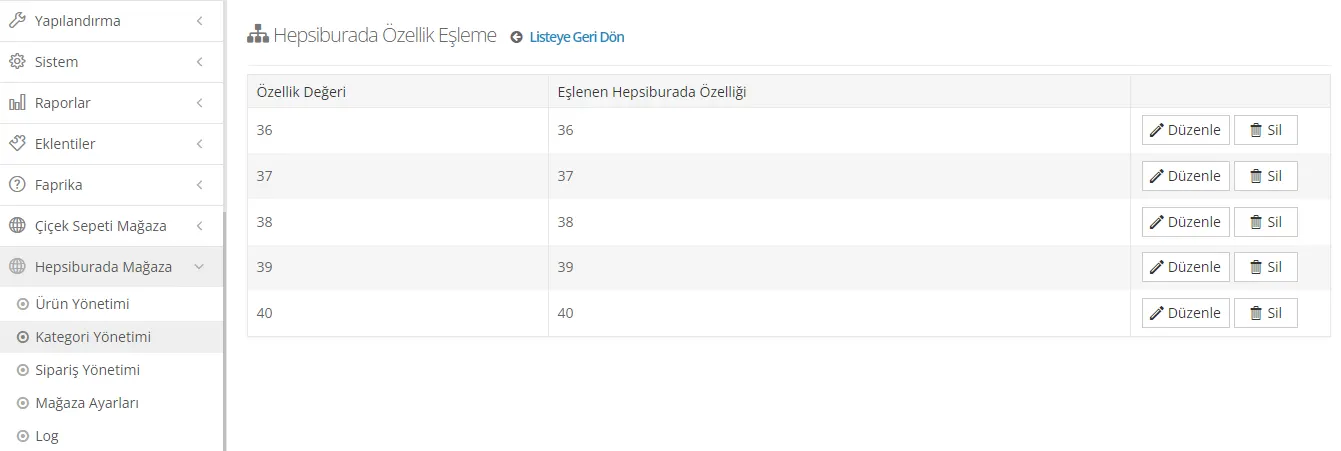
- When you want to match the relevant attribute value, click the "Edit" button. For example, for the "Size" attribute, click the "Match Value" button to view the size values.
- Match the attribute value of your product on your website with the value coming from Hepsiburada. For example, if the Number value of the product on your website is "36", you can match it with the "36 Size" value coming from Hepsiburada.
- In this way, you can complete your edits by matching the attribute values one by one.
By making manual edits, you can match the attribute values of your products as you wish. This way, your transfer to the Hepsiburada marketplace takes place accurately and in a customized manner.
After successfully completing all these steps, you are ready to transfer your products to the Hepsiburada marketplace. In your control panel, go to Hepsiburada Store >> Product Management >> Operations and click the 'Update All Products' button to start the product transfer. If you have completed the steps correctly, the system will successfully transfer your products to the marketplace. Once the transfer is complete, your products will go through an approval process by Hepsiburada and be made available for sale.
This guide explains step by step what you need to do to complete the Hepsiburada integration successfully. You are now ready to use the power of Hepsiburada to reach more customers in the world of e-commerce. For details and the full process, please visit the Faprika Hepsiburada Integration Page. Keep following our site for more e-commerce guides and tips. We wish you success!