Add-ons/Integrations
Modanisa Integration
How do you integrate Modanisa with the Faprika E-Commerce infrastructure? In this comprehensive guide, we explain everything step by step, from product management to category and brand mapping, and payment and shipping processes. A must-read to grow your e-commerce business.
Modanisa Marketplace Integration
Modanisa is one of the leading online marketplaces where you can reach customers across many categories, from modest fashion to accessories, from home decor to cosmetics. If you are thinking of selling your products on this large platform, you are in the right place! In this guide, we will go step by step through how Faprika can integrate seamlessly with Modanisa. Take your business to the next level by learning every detail, from category matching and product management to order processing and shipping.
Before starting the Modanisa integration process, your brand must first be approved on Modanisa and your account must be opened. It is important to make the product details in the Faprika Control Panel compatible with Modanisa. For example, a Modanisa code and fabric information must be entered for each product. This information can be retrieved from Modanisa's own platform.
As a first step, you need to complete the store settings in the Faprika Control Panel. By selecting the Store Settings tab, you can enter the parameters required for integration with Modanisa. After completing your settings, you can send your products to Modanisa and start the sales process.
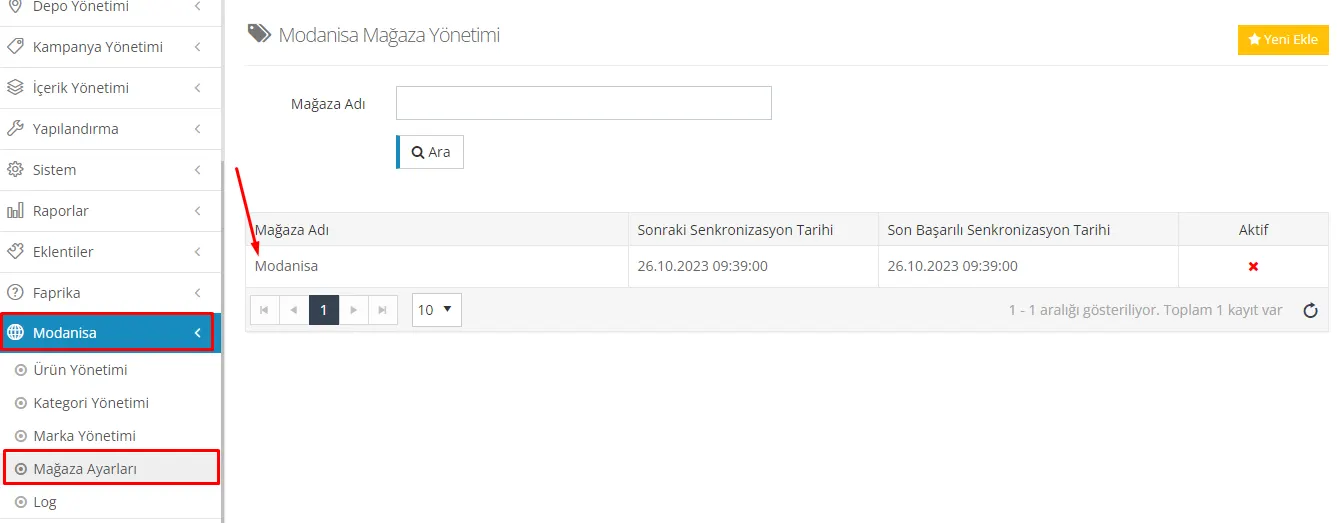
Store Settings Tab
On the page that appears when you open the Store Settings tab, you need to add the integration information obtained from Modanisa. Enter the relevant information you obtained from your Modanisa account in the 'API Username' and 'API Password' fields. After entering the information, check the 'Active' box to complete the registration.
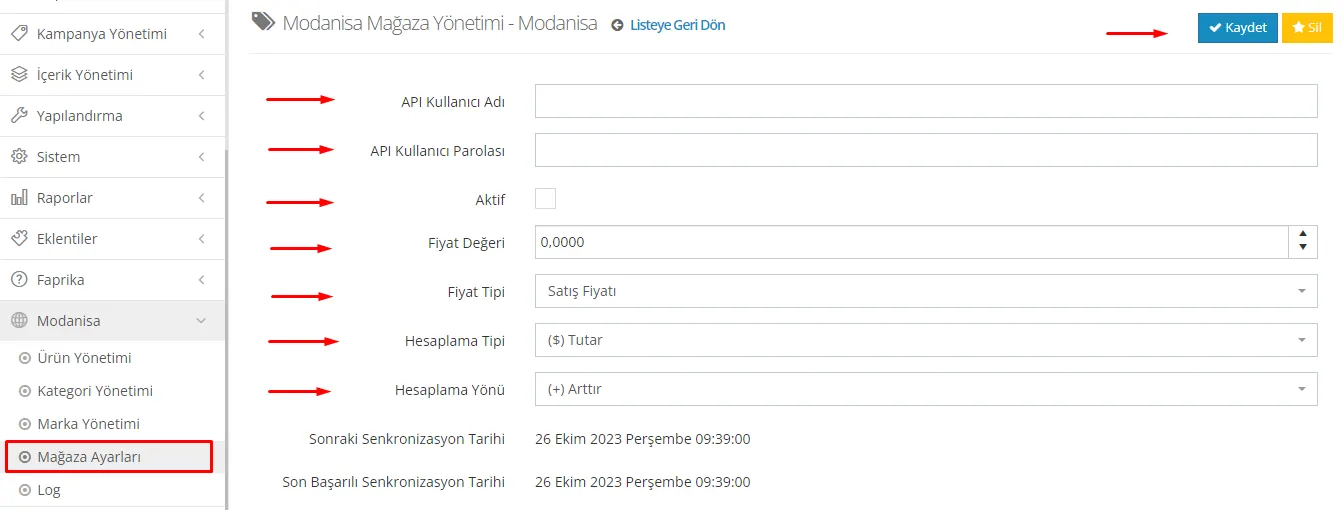
Price Value
In this section, you can specify the price type and value to apply when transferring your products to Modanisa. When you enter, for example, a value of 10 in Price Value, this value will be calculated together with the 'Calculation Type' and 'Calculation Direction' options, and product prices can be increased or decreased accordingly.
Price Type
This is the field where you determine the prices of your products that will be transferred to Modanisa. If you have defined a special Price Type for the marketplace, you should make the appropriate selection in this section. For example, if you have defined a price as Price Type-1, make that selection here.
Calculation Type
In this field, you can choose whether to set pricing as a percentage or an amount when sending your products to Modanisa. The value entered in the 'Price Value' field will be calculated according to this selection.
Calculation Direction
In this section, you can decide whether your product prices should be increased or decreased. Depending on the entry you make in the 'Price Value' field, prices can be increased or decreased. If you set the Price Value to 0, the product price will be transferred directly to Modanisa.
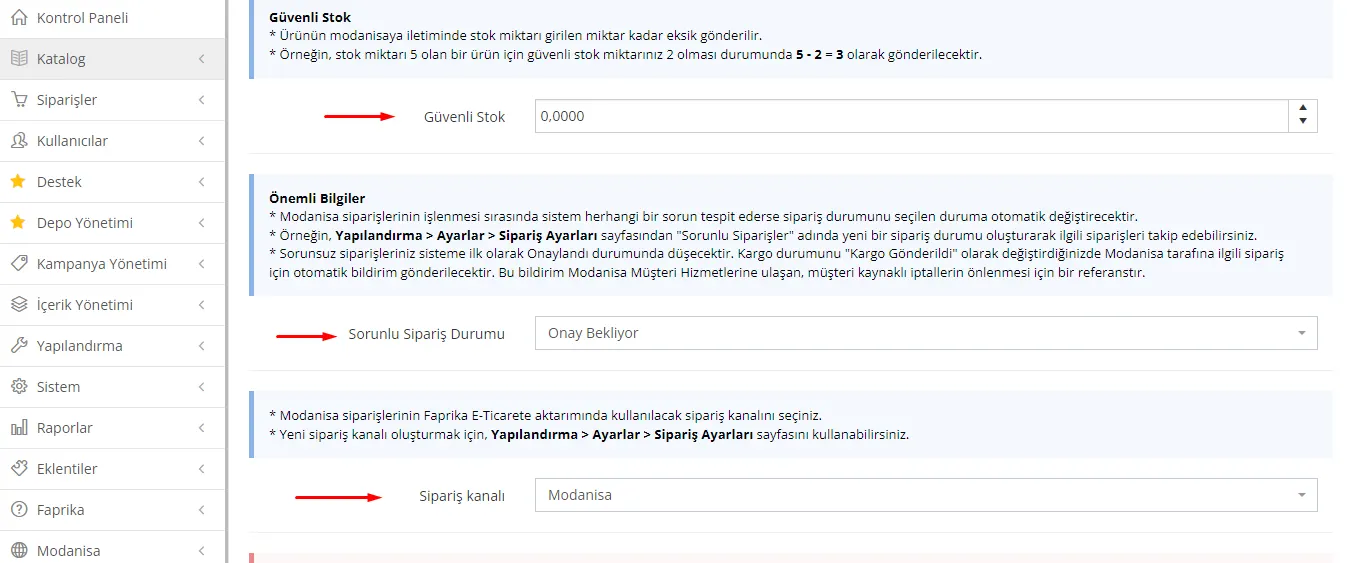
Safe Stock
When transferring your products to the Modanisa marketplace, you can hold back a certain quantity of stock with the 'Safe Stock' feature. For example, if there are 5 products in stock and you set your Safe Stock quantity to 2, the marketplace stock quantity will be sent as 5 - 2 = 3. This way, you can avoid having no products left in the face of sudden demand.
Problematic Order Status
With this setting, you can automatically manage problems that may arise with orders placed on the marketplace. From the Configuration >> Settings >> Order Settings menu, you can create a new order status called “Problematic Orders” and track the problematic orders detected by the system in this status. Orders without problems will be recorded with the “Approved” status when they first enter the system.
Shipping Notification
When you update the shipping status to “Shipment Sent,” an automatic notification is sent to Modanisa. This notification will be an important reference, especially for preventing customer-initiated cancellations.
Order Channel
You need to select the 'Order Channel' option that you will use when orders from Modanisa are transferred to the Faprika E-Commerce system. To create a new order channel, you can use the Configuration >> Settings >> Order Settings menu.
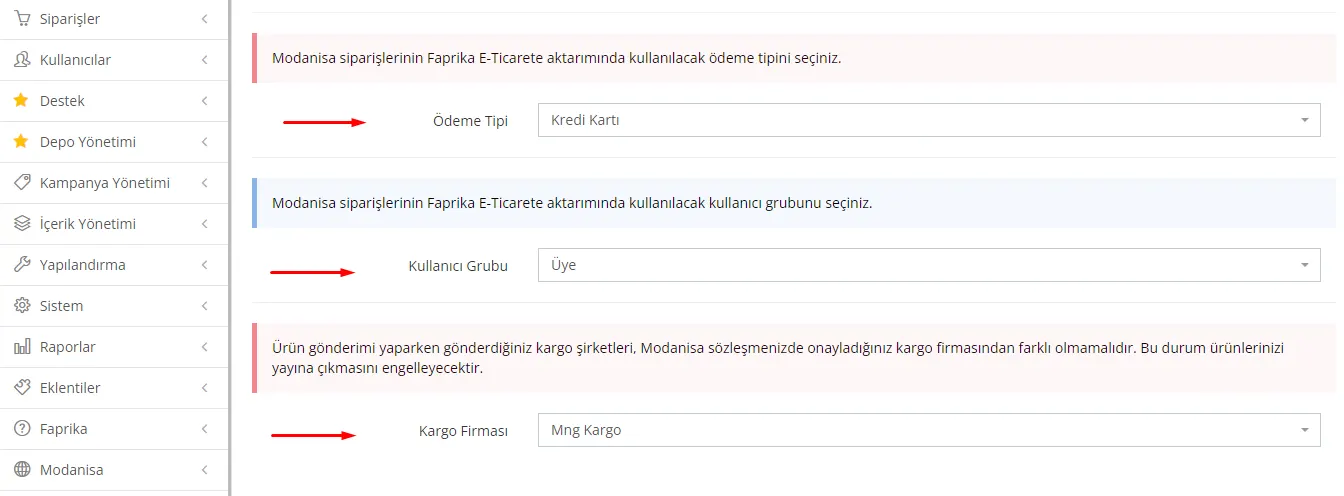
Payment Type
You must select the 'Payment Type' you will use for orders to be transferred from Modanisa to the Faprika E-Commerce system. This option determines how orders are paid, and it is also an important parameter for reporting.
User Group
You can specify the user group to which Modanisa orders will be transferred on the Faprika E-Commerce platform. If the existing user groups are not sufficient for you, you can create a new user group called 'Marketplace' from the Configuration >> Users >> User Groups menu and then select it.
Shipping Carrier
You also need to select the 'Shipping Carrier' option to be used when Modanisa orders are transferred to the Faprika E-Commerce system. This option determines which carrier you will work with and simplifies your logistics processes.
Modanisa >> Product Management When you open the tab, the page that appears lets you easily manage your products and transfer them to the Modanisa marketplace.
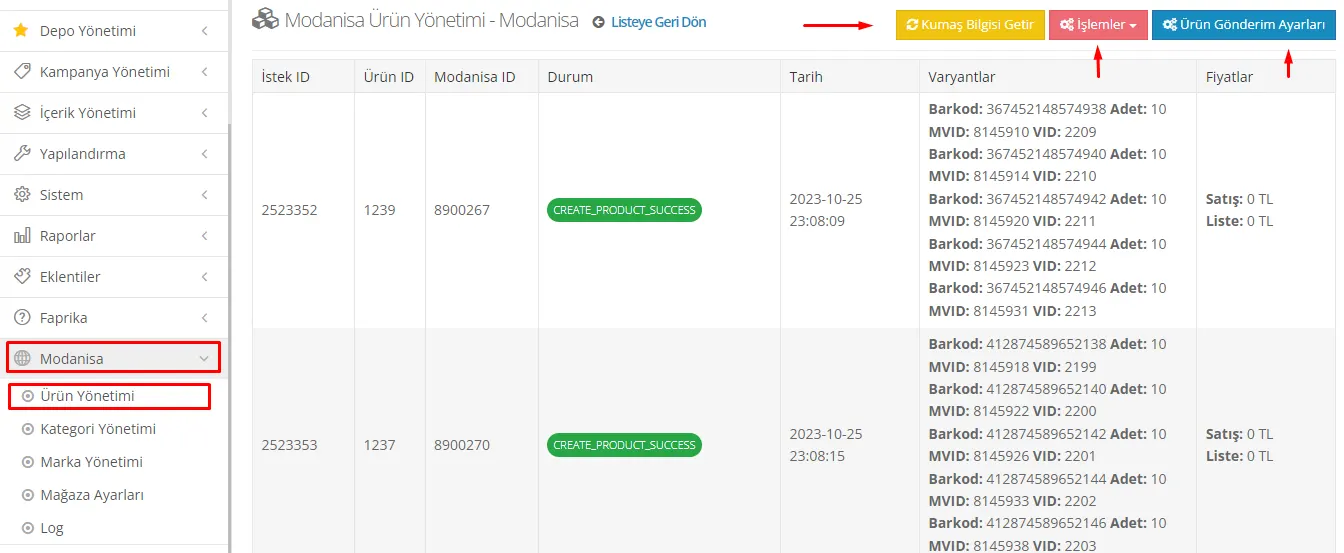
Fetch Fabric Information
The “Fetch Fabric Information” button transfers the latest fabric types from Modanisa to your control panel. These fabric types can then be used in product details. Entering fabric information correctly ensures your products are listed more accurately and effectively on the Modanisa platform.
Actions
With the “Actions” button, you can easily perform operations such as creating, and updating stock and prices for all products in the panel on your Modanisa store. This lets you manage your products more effectively.
Product Submission Settings
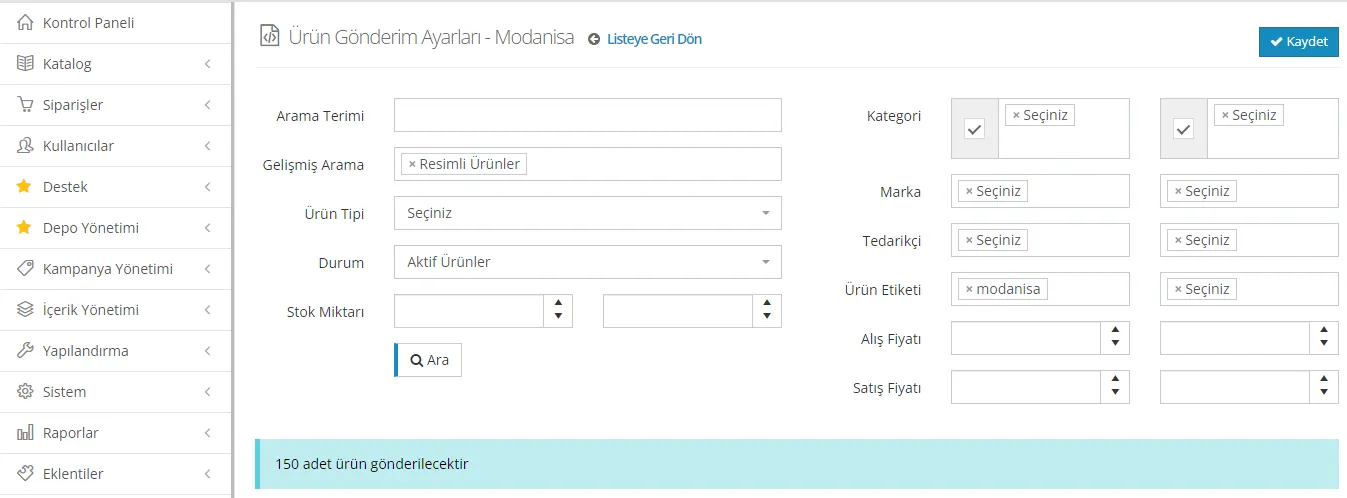
In this section, you can configure in detail which products from your website are sent to the Modanisa marketplace. You can filter and send products in a specific category or with a specific tag. After filtering with the "Search" button, you can see the number of products that can be sent. Once you have finished filtering, confirm your submission settings with the "Save" button in the top right corner.
Filter Options for Product Submission
Advanced Search: Only products with images can be sent.
Product Type: Standard products can be selected.
Status: Only active products can be sent.
Adding Fabric Information
After completing your Product Submission Settings, you need to add fabric information to your products. This is a prominent requirement when sending products to Modanisa.
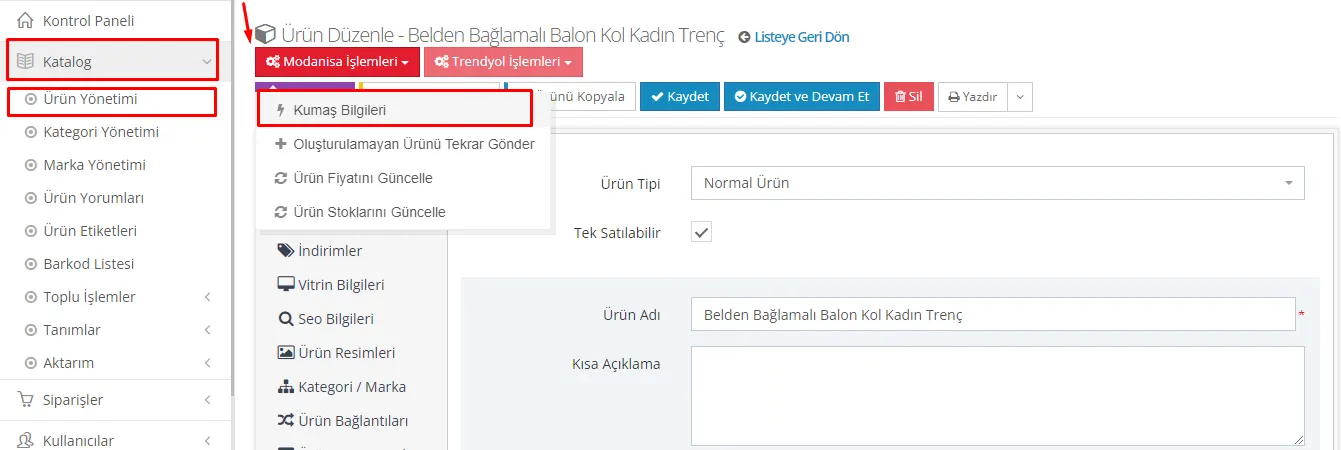
Catalog >> Product Management: From this tab, select the product to be sent to Modanisa.
Modanisa Operations Button: On the product detail page, you will see a button called "Modanisa Operations". This button is an interface for managing the integration with Modanisa.
Fabric Information Tab: When you click the "Modanisa Operations" button, a tab called "Fabric Information" will appear. In this tab, you can fill in details such as the product's fabric type, percentage, and quality.
Entering fabric information completely and accurately ensures that your products are listed correctly on the Modanisa platform and appear higher in search results.
Steps for Adding and Updating Fabric Information
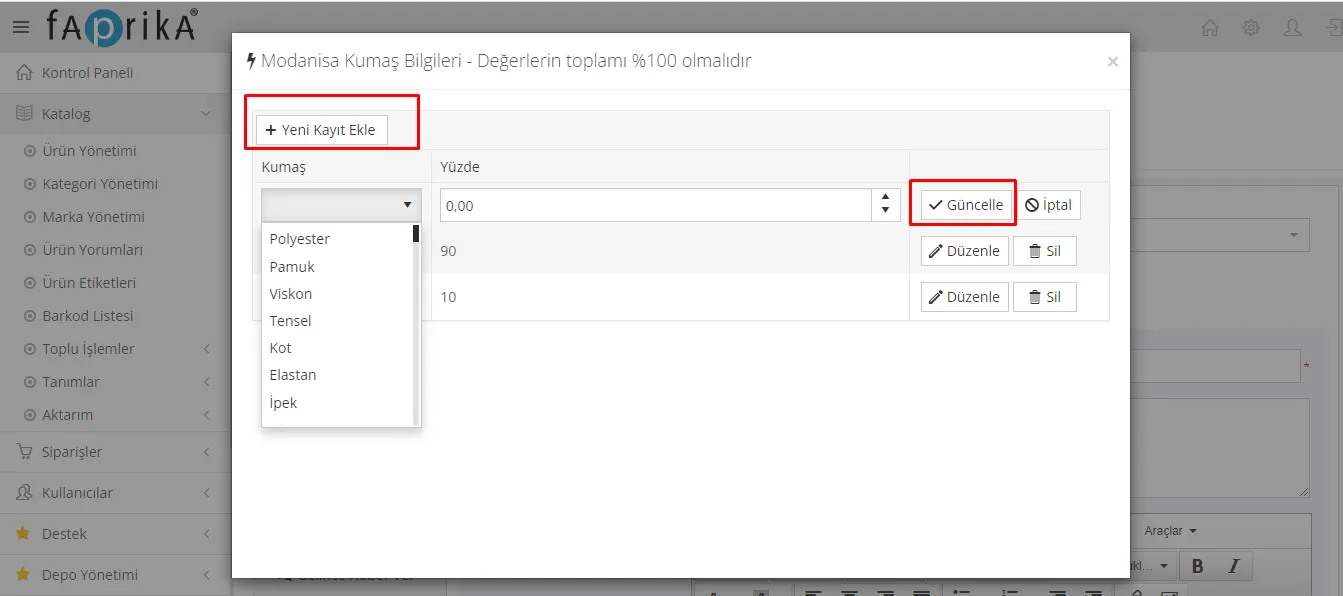
Fabric Information Tab: When this tab opens, you will see the "Add New Record" button in the top right corner.
Add New Record: When you click this button, a list of available fabric types will open. You can select one or more fabric types according to your needs.
Percentage Distribution: Percentage values must be entered for the fabric types you selected. These percentages must add up to 100 in total. For example, if the product is made of 70% cotton and 30% polyester, you must enter these percentages in the relevant fields
Update Button: After completing the percentage distribution and fabric type selections, you must finish the process by clicking the "Update" button on the right side of the tab.
Modanisa Category and Attribute Mapping Steps
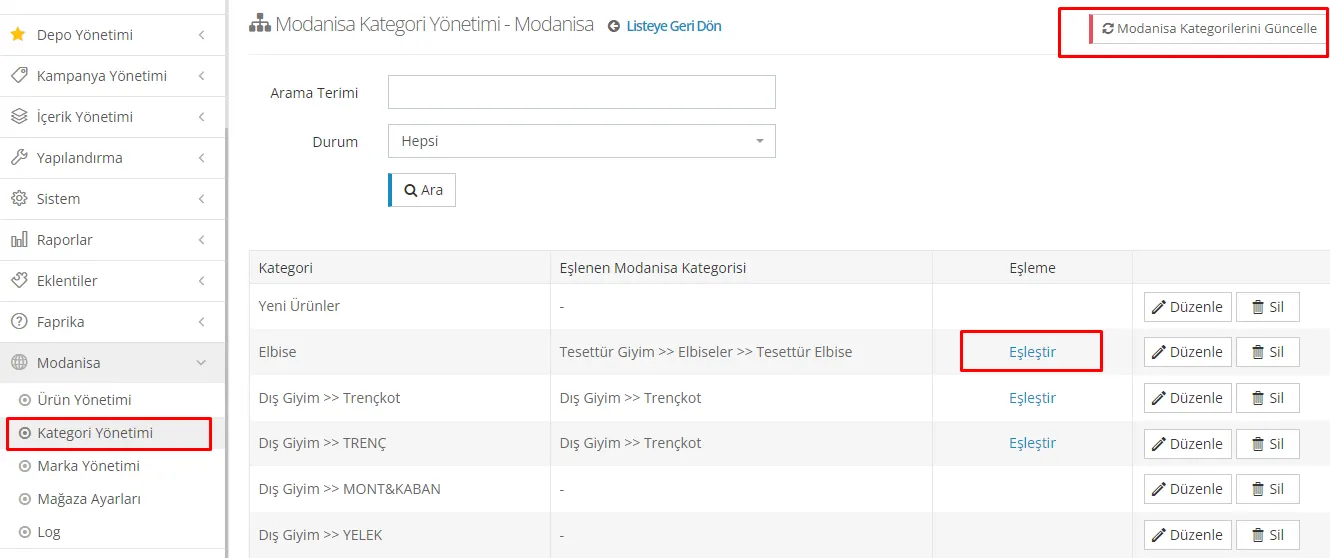
Control Panel: From your control panel, go to Modanisa >> Category Management.
Update Modanisa Categories: When you click this button in the top right corner, the system retrieves Modanisa's current category information.
Category Matching: Once the process is complete, you can start matching the categories on your website with Modanisa categories. When you click the "Edit" button next to a category, a search bar will open. Type the name of the Modanisa category you want to match in the search bar.
Update Category: When the matching is complete, save the category matching by clicking the "Update" button.
Attribute Matching: After the category matching is complete, the attributes in the category must also be matched. To do this, continue with the "Match" button on the same screen.
Attribute Matching and Update Steps
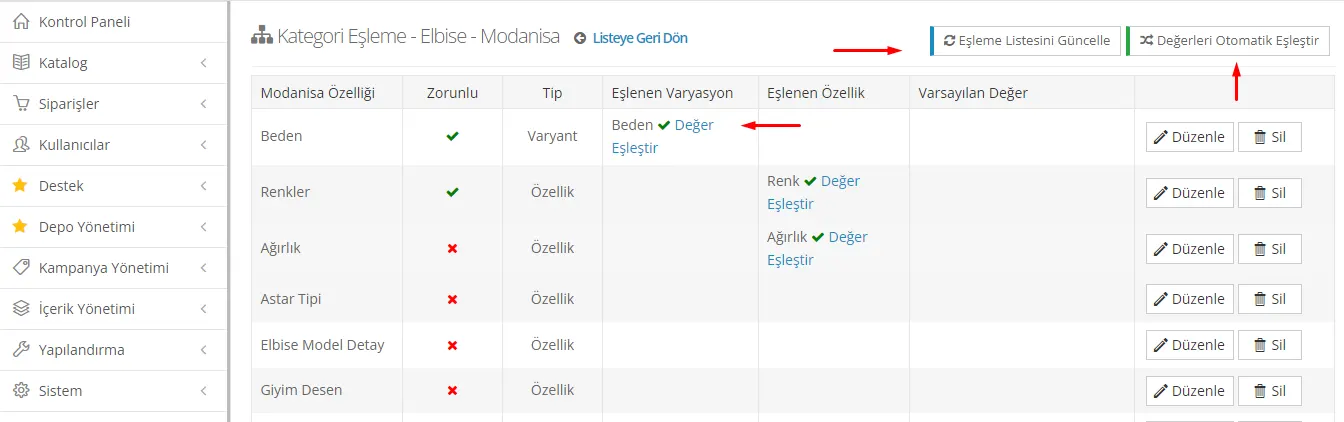
Update the Matching List: On the attribute matching screen, update the matching list with the "Update Matching List" button in the top right corner. This retrieves Modanisa's current list of required and optional attributes.
Required and Optional Attributes: After the update, required and optional attributes are displayed on the screen. Required attributes are usually marked with a green check mark. For example, attributes such as Size and Color may often be required.
Entering Attribute Values: Manually enter the required and optional attribute values for your products. You must add the required ones.
Automatic Matching: After entering all attribute values, the system automatically matches the values you entered to Modanisa's requirements with the "Match Values Automatically" button in the top right.
Manual Variation and Attribute Matching
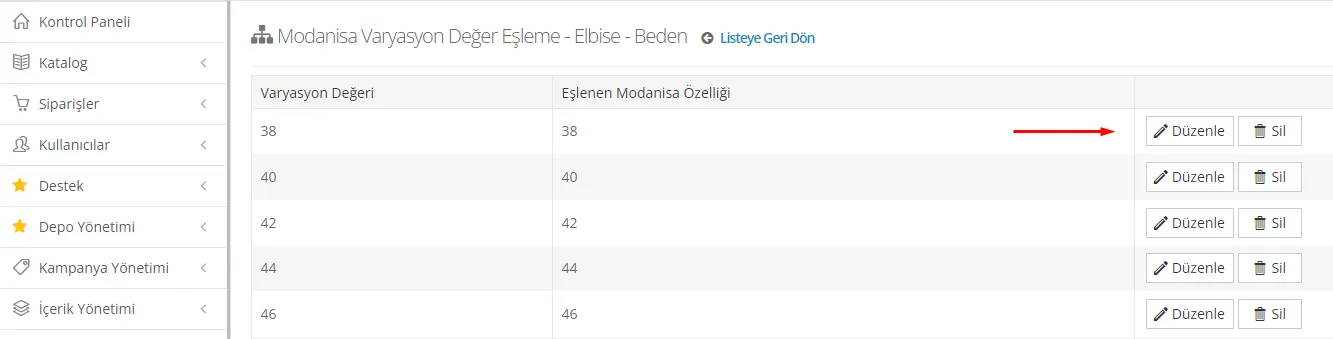
Edit Button: If you want to match variation and attribute values manually, click the "Edit" or "Match Value" button next to the relevant value.
Size Example: For example, if a product's Size value is listed as 38 on your website, click the "Match Value" button next to the "Size" variation.
View Values: After clicking the button, all "Size" values coming from Modanisa are displayed.
Matching: Match the Size 38 value from Modanisa with the Size 38 value on your website. To do this, select the value from Modanisa and specify the value you want to match it with.
Matching Confirmation: After the matching is complete, there is usually a confirmation button such as "Match" or "Update". Complete the matching by clicking this button.
Modanisa Brand Management and Matching Steps
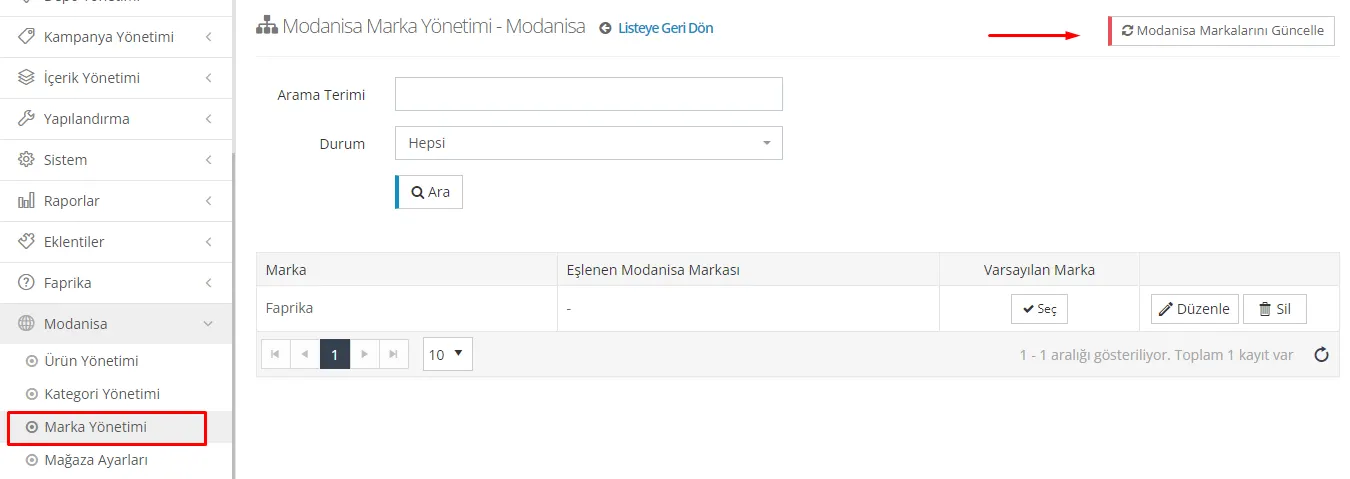
Brand Management Area: Go to the "Brand Management" area in the Modanisa control panel.
Brand Update: Click the "Update Modanisa Brands" button in the top right corner. This will pull the brands listed on Modanisa into the Faprika e-Commerce infrastructure.
Waiting Period: After clicking the button, wait for the process to complete. This usually takes anywhere from a few seconds to a few minutes.
Brand Matching: When the process is complete, the "Edit" button on the same screen becomes clickable. Click the "Edit" button to go to the brand matching screen.
Manual Matching: Using the search bar that appears on the screen, find your brand registered on Modanisa and its counterpart in your Faprika e-Commerce infrastructure. Match the two brands.
Confirmation: After completing the matching, there will usually be an "Update" or "Save" button. Confirm the matching by clicking this button.
Steps After Product Transfer
Starting the Transfer: In your control panel, go to Modanisa >> Product Management >> Operations and click the "Resend Uncreated Products" button. This will send the products you specified in your Faprika e-Commerce infrastructure to the Modanisa marketplace.
Transfer Process: The system transfers your products automatically. You should wait for a certain period to check whether the transfer was successful.
Product Approval: Products will go through an approval process by Modanisa. This process is necessary to evaluate the quality, suitability, and other requirements of your products.
Going on Sale: After the approval process is successfully completed, your products will go on sale on Modanisa.
Tracking: You can track sales and stock status from your control panel and make the necessary updates.
The integration between Modanisa and the Faprika e-Commerce infrastructure lets you take your e-commerce business to the next level. In this comprehensive guide, we covered many important topics, from product management to shipping processes, from payment types to brand and category matching. Remember, the key to success in the world of e-commerce is to automate your processes as much as possible and improve the customer experience. The integration with Modanisa fits seamlessly into your marketplace strategy and makes it easier to grow your business. For more information, Explore the Modanisa Integration Module. Happy selling!