Content Management
How to Set Up a Print Template?
Learn step by step how to set VAT rates for shipping and installment-difference payments. Follow our guide for an e-commerce process that complies with current tax rates.
How to Set Up the Print Template?
The printing and template features offered by Faprika are designed to take your e-commerce business to the next level. Printing the orders created by your customers has never been this easy and flexible. In addition, with customizable print templates, you can tailor each printout to your own needs. Whether it is an invoice, a product printout, or warehouse and shelf information, you can edit and print all these documents in just a few clicks. These features save you and your team time and speed up your order processing. Below you will find details on how to use these great Faprika features.
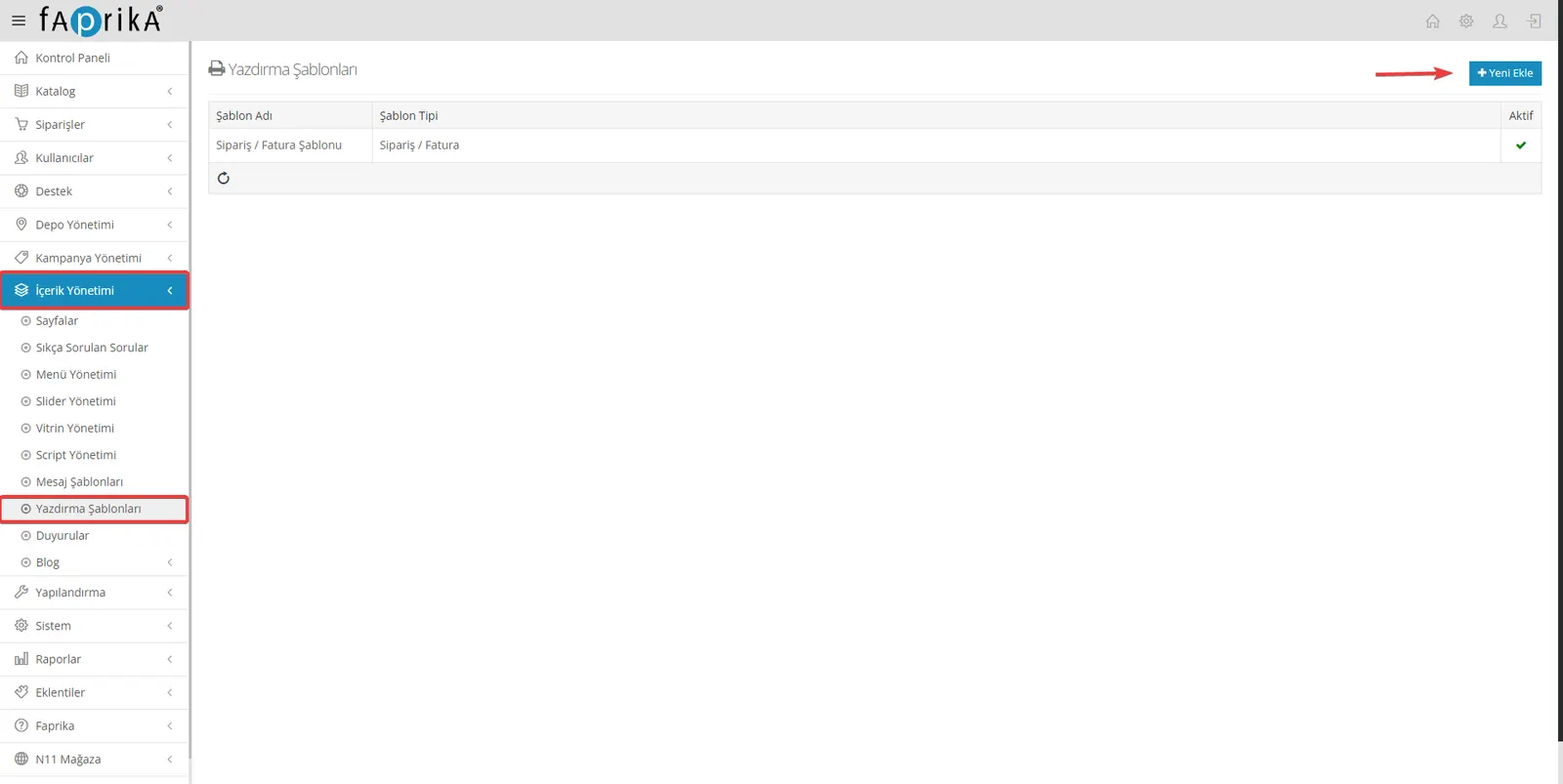
In the print templates section, you can easily manage the customized information you want to add to your printouts. By clicking "Print Templates" in the "Content Management" menu, you can review the templates you created earlier and edit them as needed. You can also make your business processes even more flexible by creating new templates with the "Add New" button.
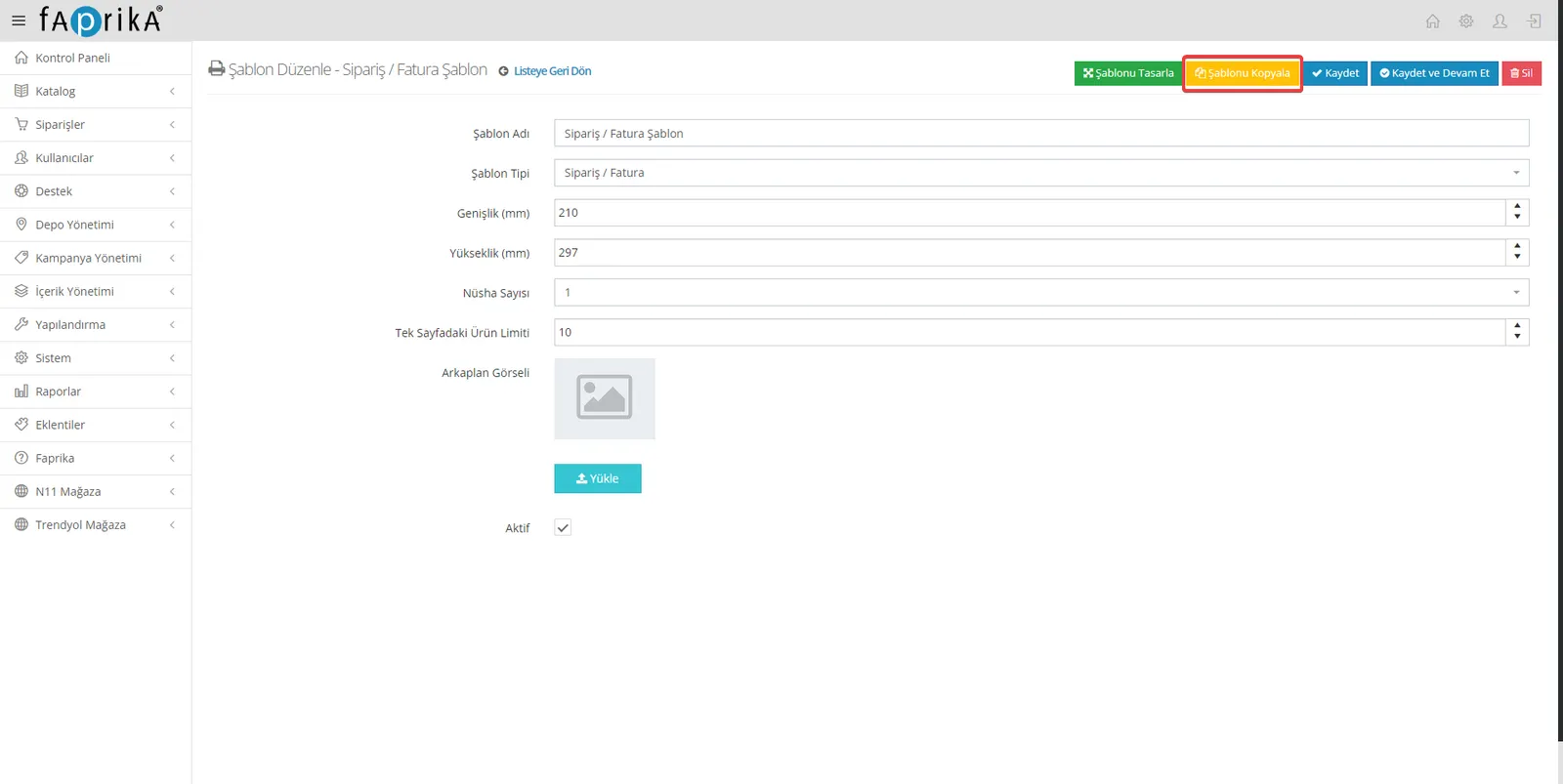
Template Name: In this field, you can easily give your templates a custom name, so you can tell which template was created for which purpose.
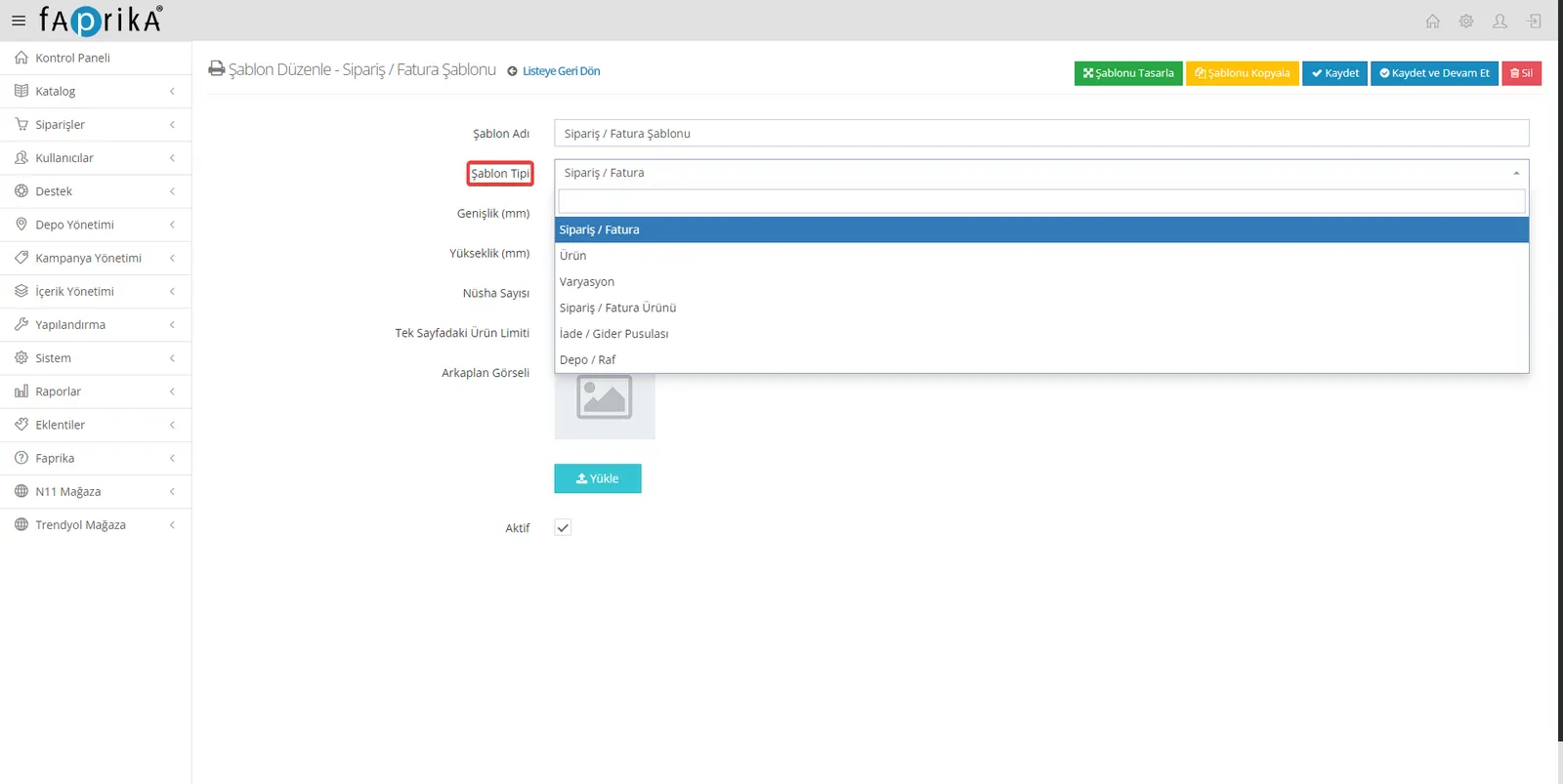
Template Type: You can choose from various template types suited to your different business processes. These include Order/Invoice, Product, Variation, Order/Invoice Product, Return/Expense Note, and Warehouse/Shelf. For example, if you want to see all the details of an order and its invoice in a single template, you can choose the 'Order / Invoice' template type.
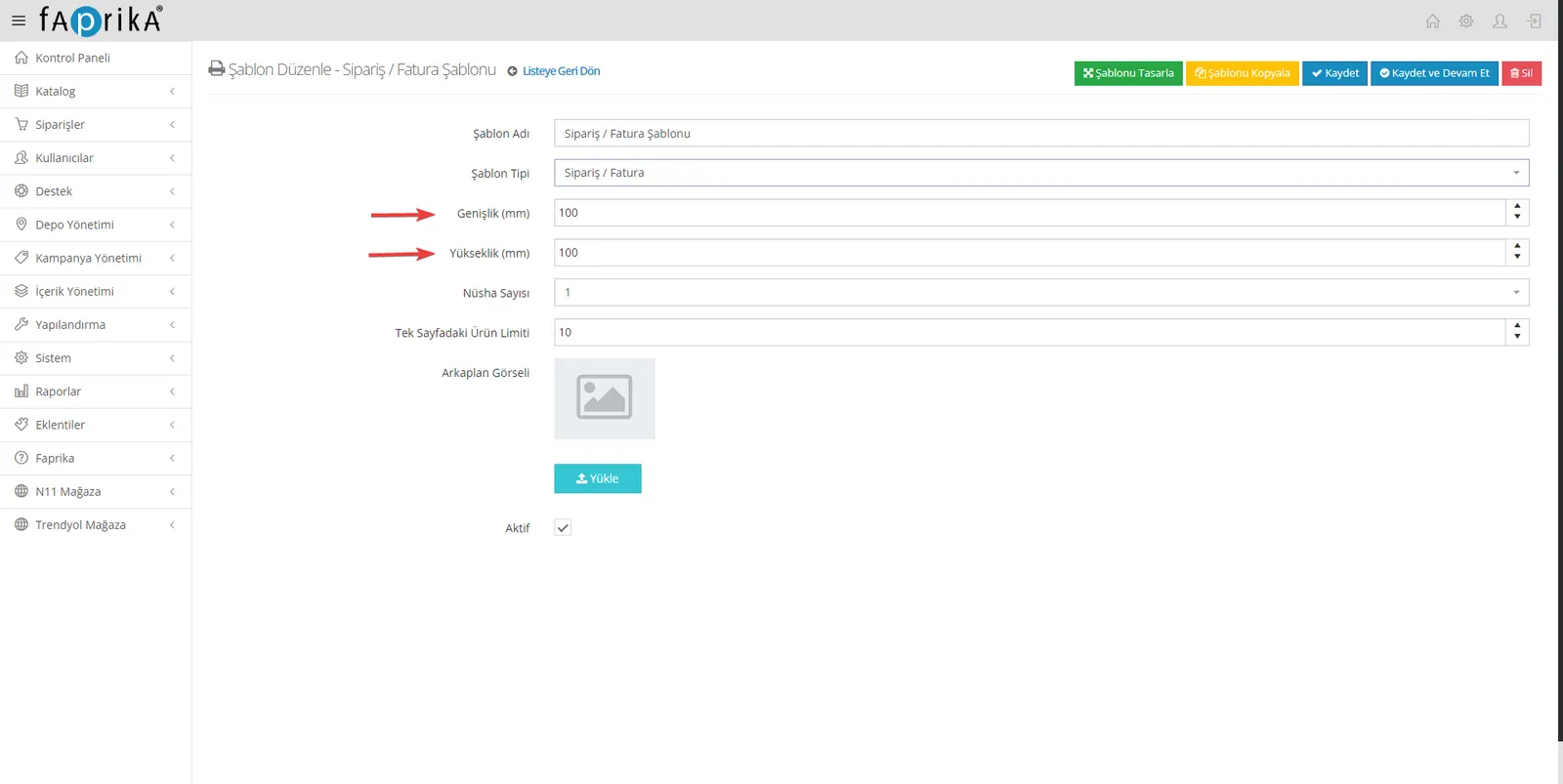
Width and Height (mm): In this field, you can set the dimensions of your printout in millimeters. For example, if you plan to print on A4 paper, you can enter the width and height of A4 paper here.
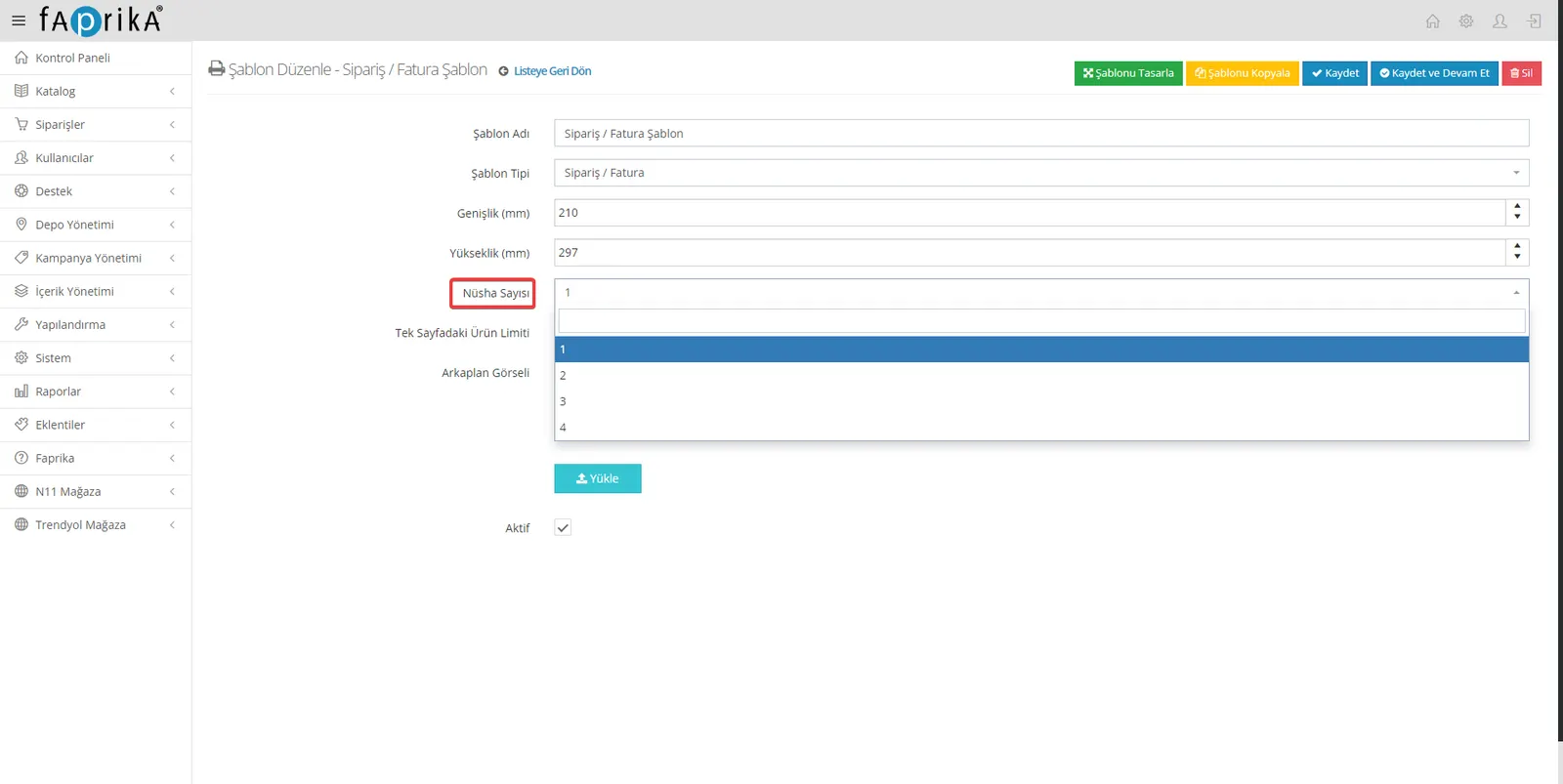
Number of Copies: In this field, you can specify how many copies of the document you want to print, so your operations can be carried out faster and more efficiently.
Copies: You can arrange your copies on the same page or on different pages, as you prefer. This gives you flexibility in how your printout is organized to suit your needs.
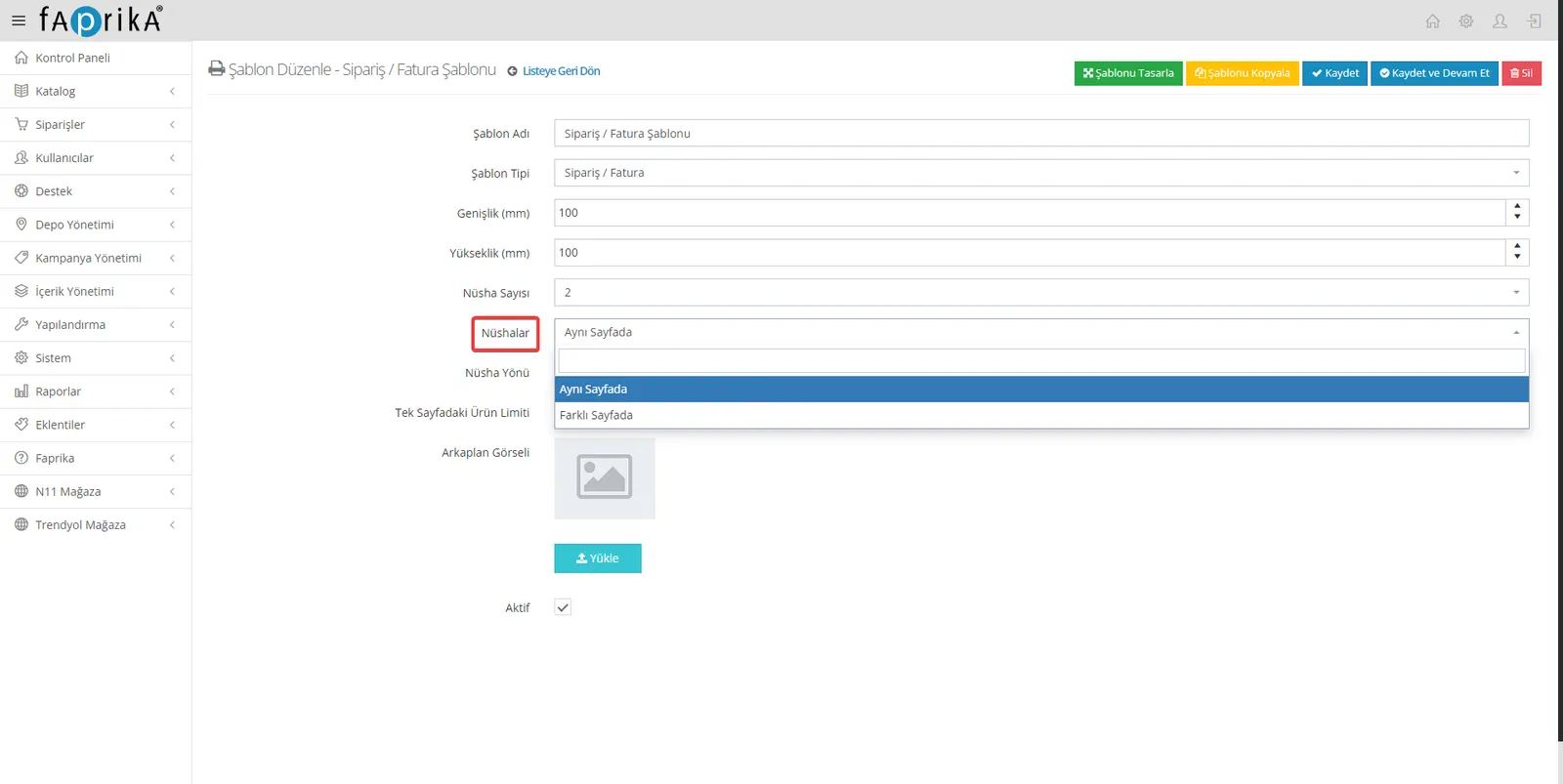
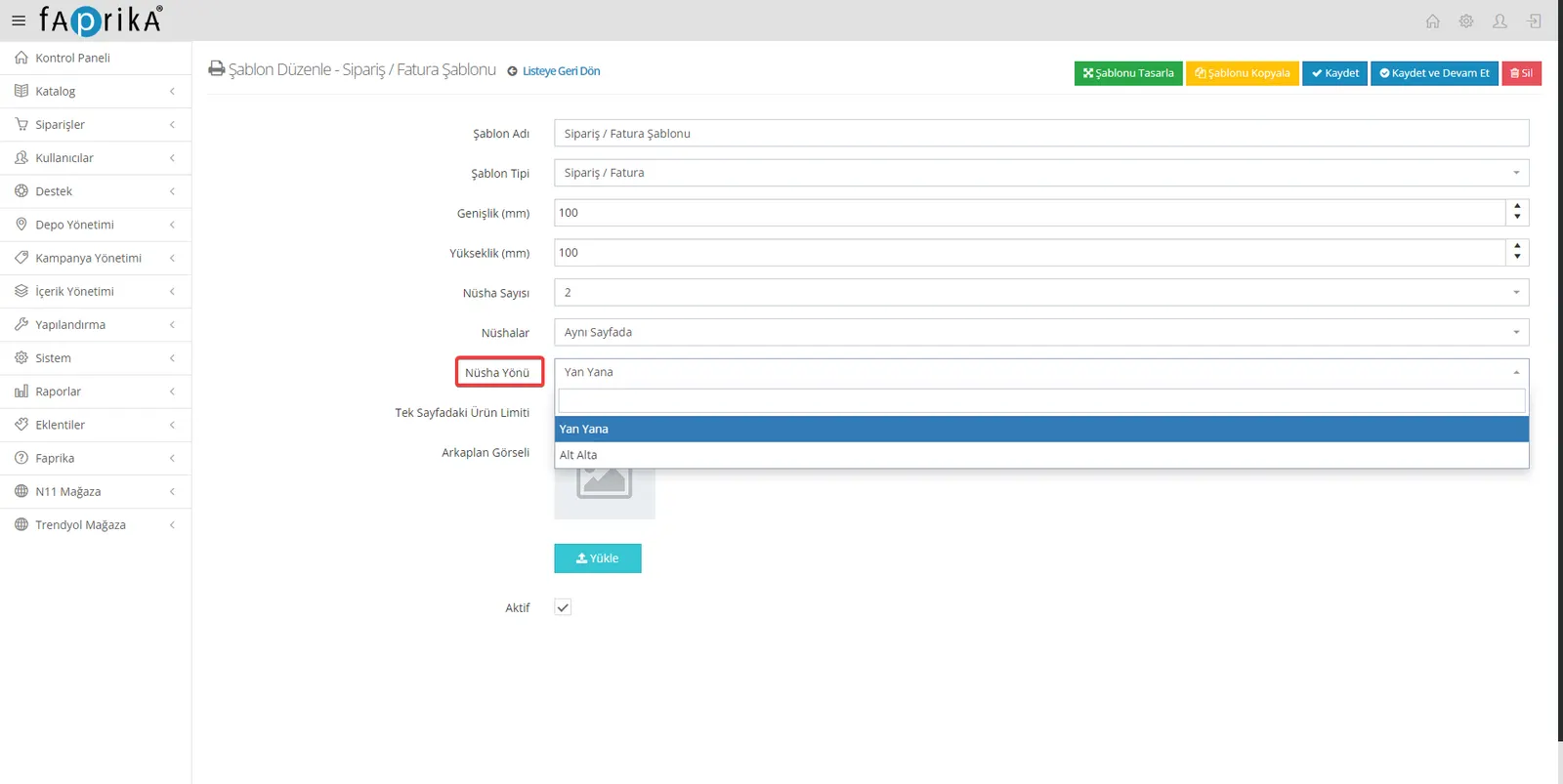
Copy Orientation: To customize the layout of your copies, you can use the 'side by side' or 'one below the other' options, so you can arrange your printouts as needed.
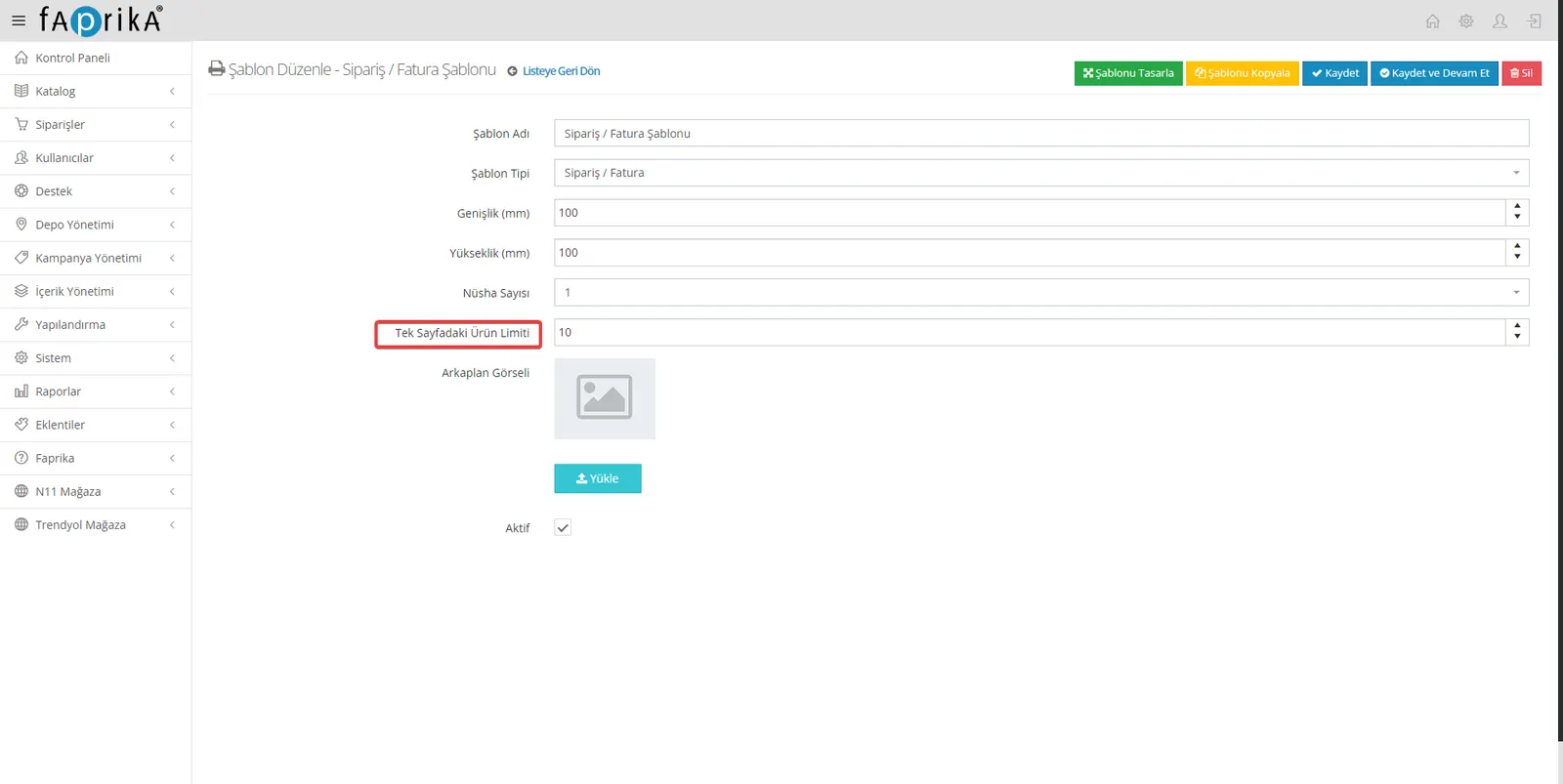
Product Limit per Page: In this field, you can set the maximum number of products shown on one template page. This lets you control how detailed or simple your printouts are.
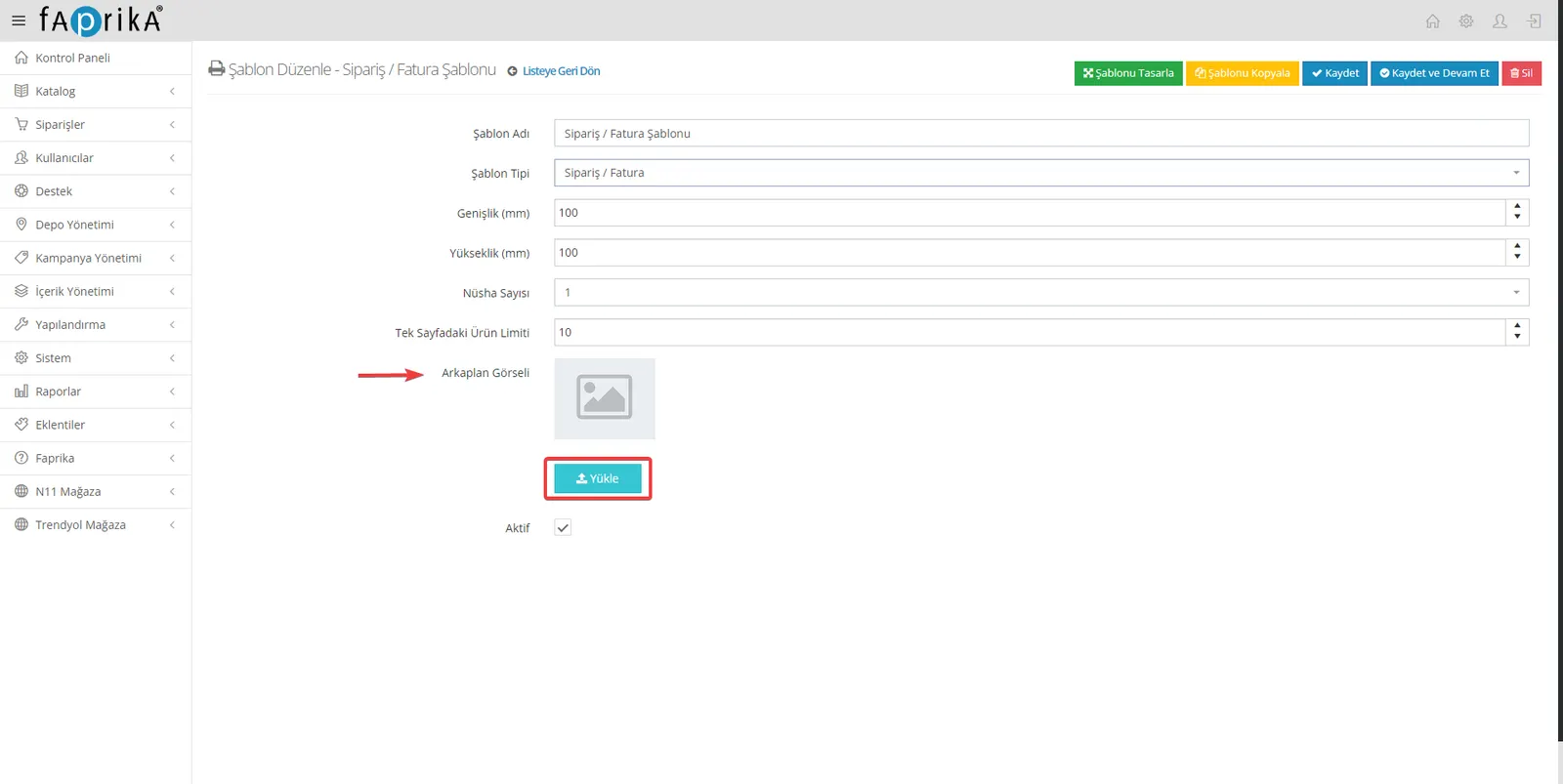
Background Image: This feature is used so that your template can be positioned correctly on the pre-printed form to be printed. The image you place in the background makes it easier for the template you designed to print correctly.
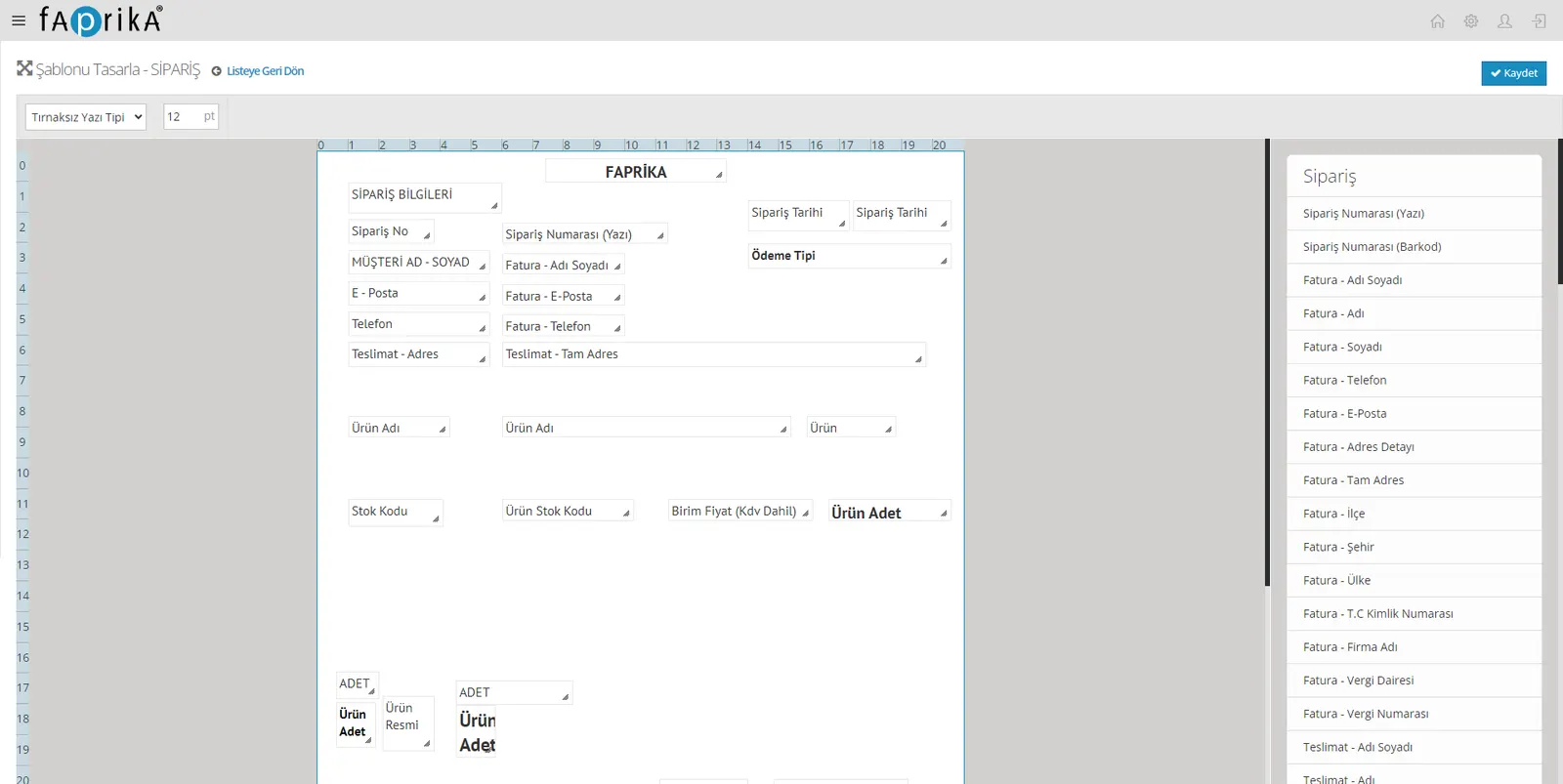
Design the Template: In this area you will find all the elements and parameters you want to add to your template. You can easily include many elements here, from order information to user and store details. You can create your design as you like by dragging and dropping.
Copy the Template: You can copy a template you have created. When adding a new template, you can speed up your workflow by making changes on top of the copied template.
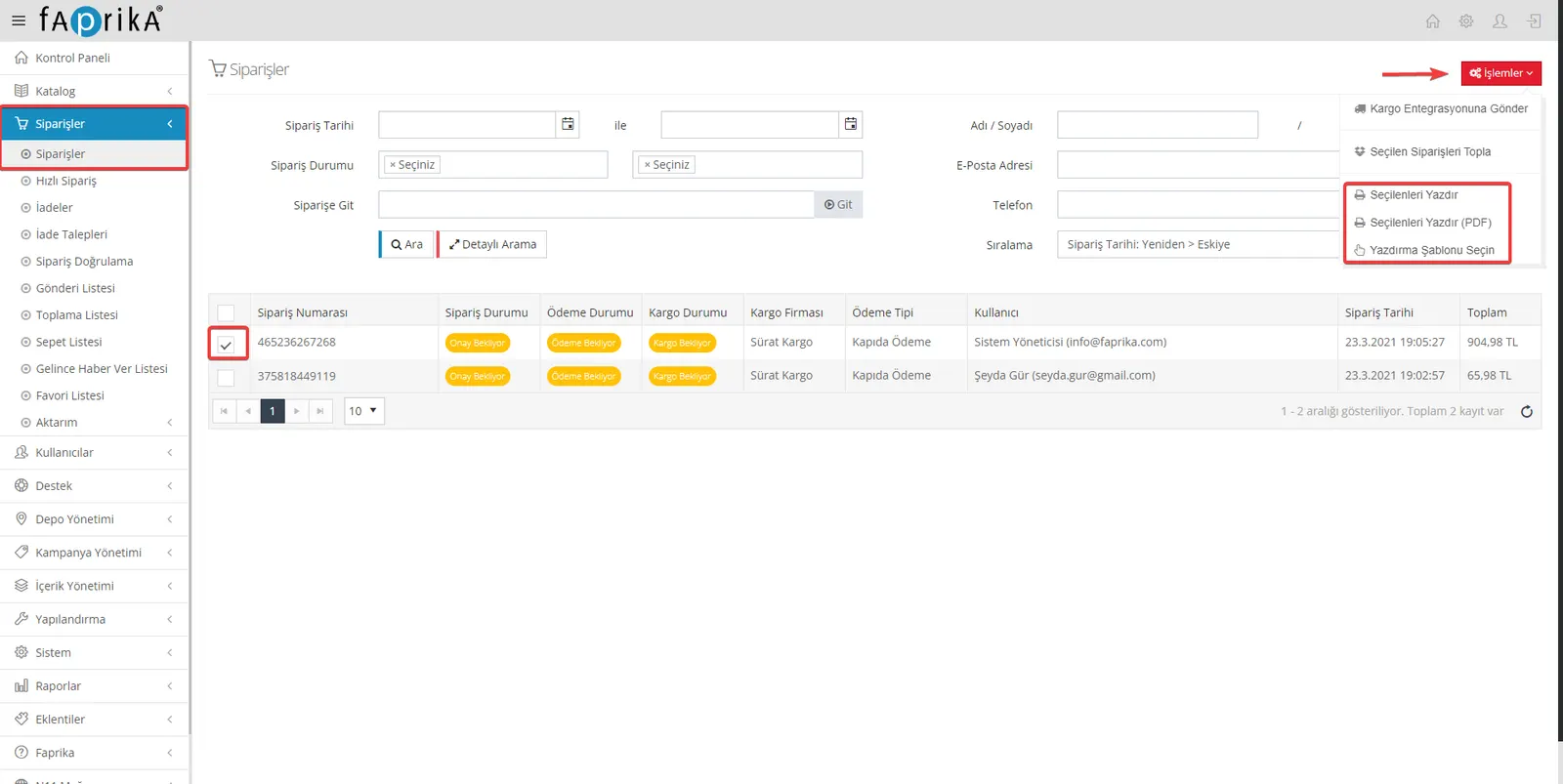
Printing Your Orders: After creating your templates, go to the 'Orders >> Orders' menu to print. If you want to print in bulk, check the boxes to the left of the orders. Then follow the steps 'Actions >> Select Print Template >> Print Selected'. You can select different templates to use during bulk printing.
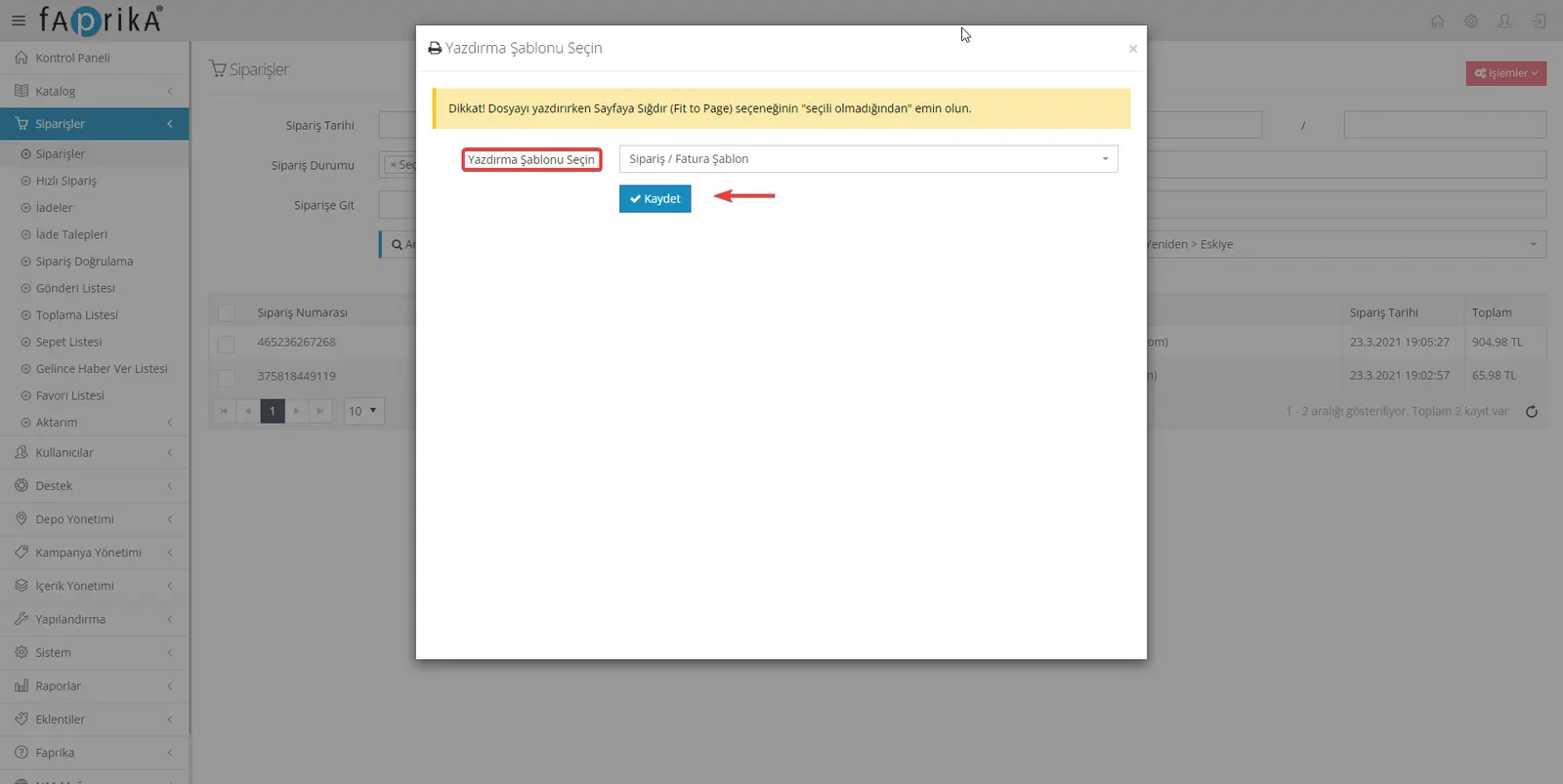
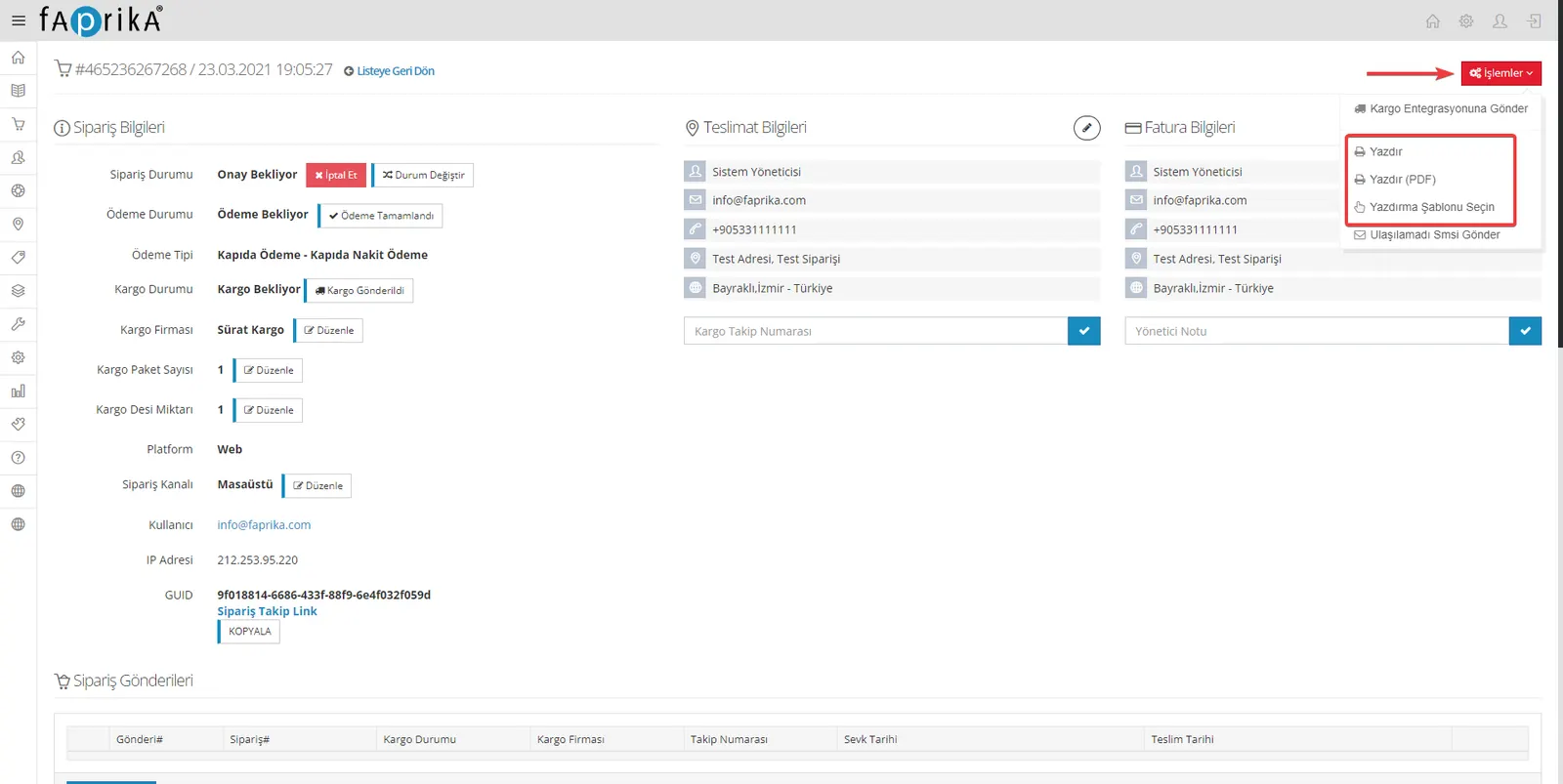
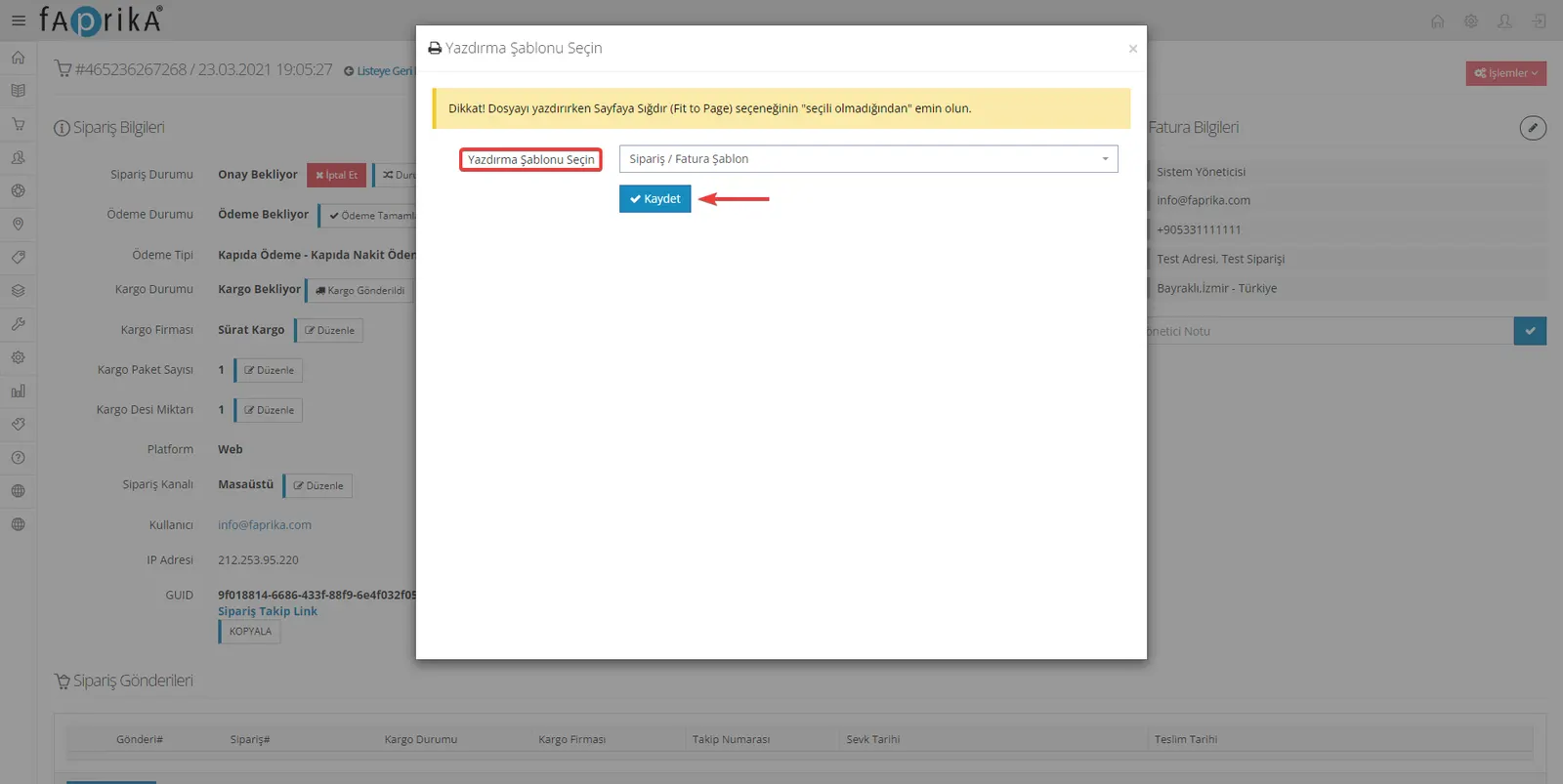
Printing from Order Details: If you want to print a specific order, go to that order's detail page. Choose 'Select Print Template' from the 'Actions' menu and then click the 'Print' button to print.
On this training page, you learned how to use Faprika's flexible and user-friendly print template features effectively. Whether for a single order or bulk orders, you can easily create and edit templates that suit you and print them quickly. Do not hesitate to use all of these features to make your e-commerce operations more efficient and trouble-free.