Catalog
Adding a Grouped Product
A grouped product is used for products that we also call combos. Products sold together under titles such as mother-daughter combo, couple combo, or bag & shoes combo are listed in this area. To add combo products, the products included in the combo must first be added to the system just like a Normal Product. Then these products are sold together under the Grouped Product title.
A grouped product is used for products that we also call combos. Products sold together under titles such as mother-daughter combo, couple combo, or bag & shoes combo are listed in this area. To add combo products, the products included in the combo must first be added to the system just like a Normal Product. Then these products are sold together under the Grouped Product title.
Let’s create a Shoes & Bag combo.
We will use two products for the combo. As mentioned, these products must be added to the system just like a Normal Product. Once the products are in the system, they are turned into a combo. So let’s add the two products to the system.
To review the functions of the headings on the Add Product page, see: Adding a New Product
To recall how we added a normal product, please see: Normal Product
After creating the products, let’s start adding the Grouped Product.
Go to Catalog >> Product Management >> Add New and select Grouped Product as the Product Type.
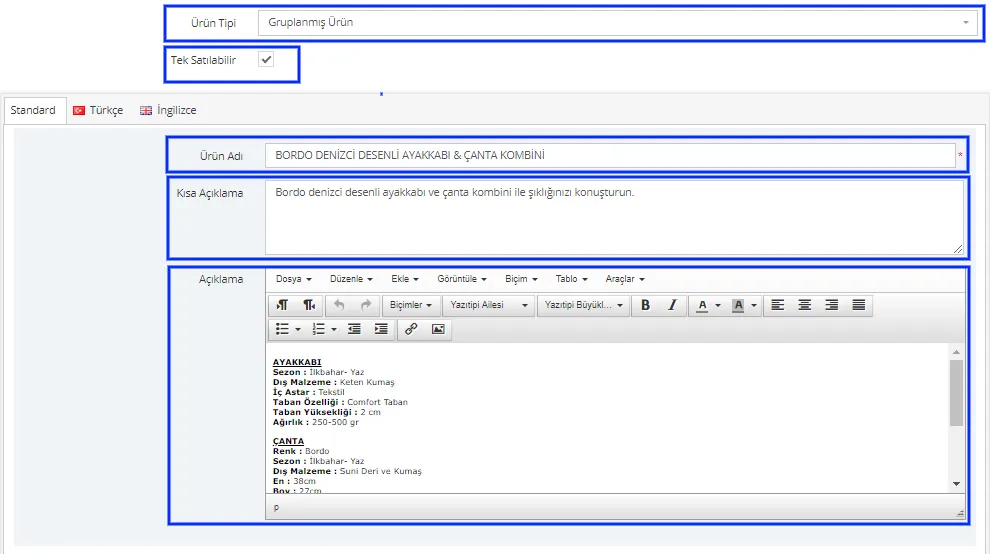
We have opened a brand-new product for the combo and made the edits accordingly.
Now let’s add the product’s other information. The other information fields are the same as the ones we used when adding a Normal Product. However, a new panel opens for this product.
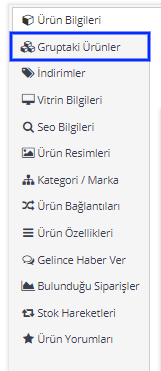
This panel, which we did not see when adding a Normal Product, is used for combo products. We define the combo products from this panel. Let’s add the products that were previously added to the system by clicking the Add New button.
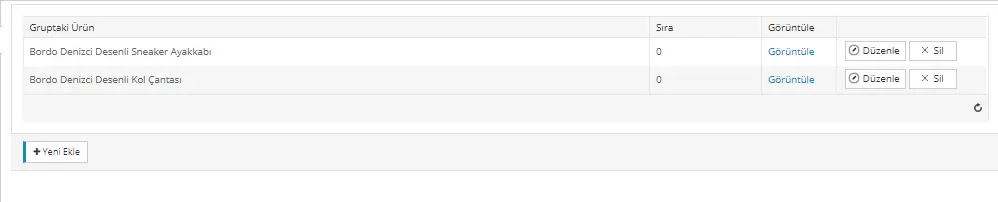
After adding the products, continue editing by clicking the Save and Continue button.
Edit the Discounts, Showcase Information, and SEO Information areas just as we did for the Normal Product.
In the Product Images area, add the images prepared together for our combo products.
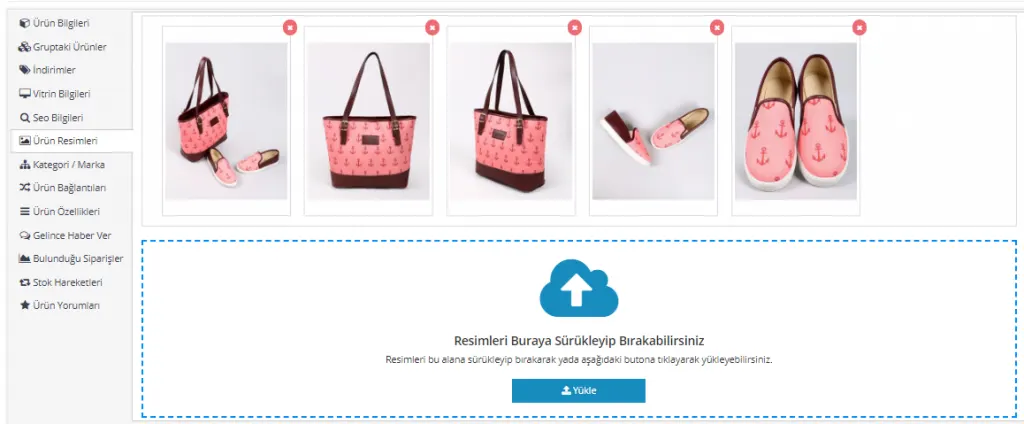
We have added the combo image and the images of the products. Let’s select the Combo category as the category.

After making the edits, we click the Save and Continue button.
Again, we fill in areas such as Product Links and Product Features with the same logic as when adding a Normal Product.
You may have noticed that we did not see the Price Information and Variation Information areas while creating the Grouped Product. This is because we already defined the price and variation information when we entered the products as normal products. The system automatically uses this information for the combo products, so we do not need to enter it again.
Define the stock quantity for the combo from the Add / Remove Stock area.
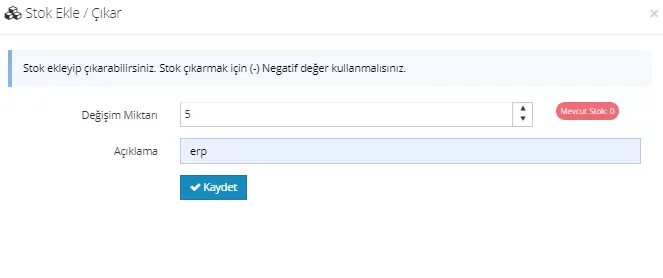
After all the edits, click the Save and Continue button to save the changes, and use Preview to see how our combo product is displayed.
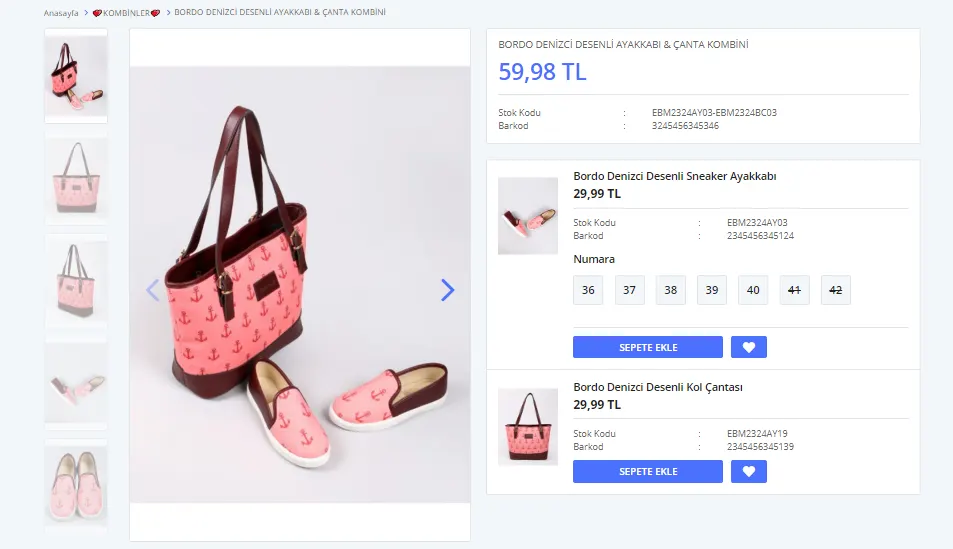
When the combo product is created, the total price of the two products is automatically set as the combo price. Information about the products in the combo is shown in the right area of the product page. You can go to the individual product pages to review these products and buy them one by one; buying them as a combo is also possible.
That is all there is to adding combo products!
To add a Normal Product, please see: Normal Product
To add a Serial Product, please see: Serial Product