Add-ons/Integrations
FLO Integration
This comprehensive guide explains step by step how to set up the integration between the Faprika E-Commerce infrastructure and the Flo marketplace. From product transfer to category and brand mapping, you will find everything you need to manage the whole process effectively.
FLO Marketplace Integration
The Faprika website is a platform that provides e-commerce infrastructure. With Faprika you can set up your own online store, manage your products easily and increase your sales. By integrating with different marketplaces, Faprika lets you reach a wider audience with your products. In this document, we will explain step by step how to use the "FLO Integration" module for the Faprika website.
The FLO Integration module lets you connect the Faprika website with the Flo marketplace. Flo is Türkiye's largest shoe and accessories store. Once you integrate with Flo, you can transfer the products you add in your control panel to your Flo store, update stock and prices automatically, track orders easily and communicate with your customers.
To use the FLO Integration module, you first need to have an account with Flo. Your brand must also be approved and the store settings completed. Then you need to make the required mappings and settings on the category, brand and product management pages of your control panel. After completing these steps, you can send your products to your Flo store and start selling.
In this document, we will explain in detail all the steps you need to take to use the FLO Integration module. We will also provide images and examples to make the processes easier to understand. If you are ready, let's get started!
After opening your Flo store, you need to configure the store settings to complete the integration. To do this, go to Flo Store >> Store Settings in your control panel and activate the Flo store you created.
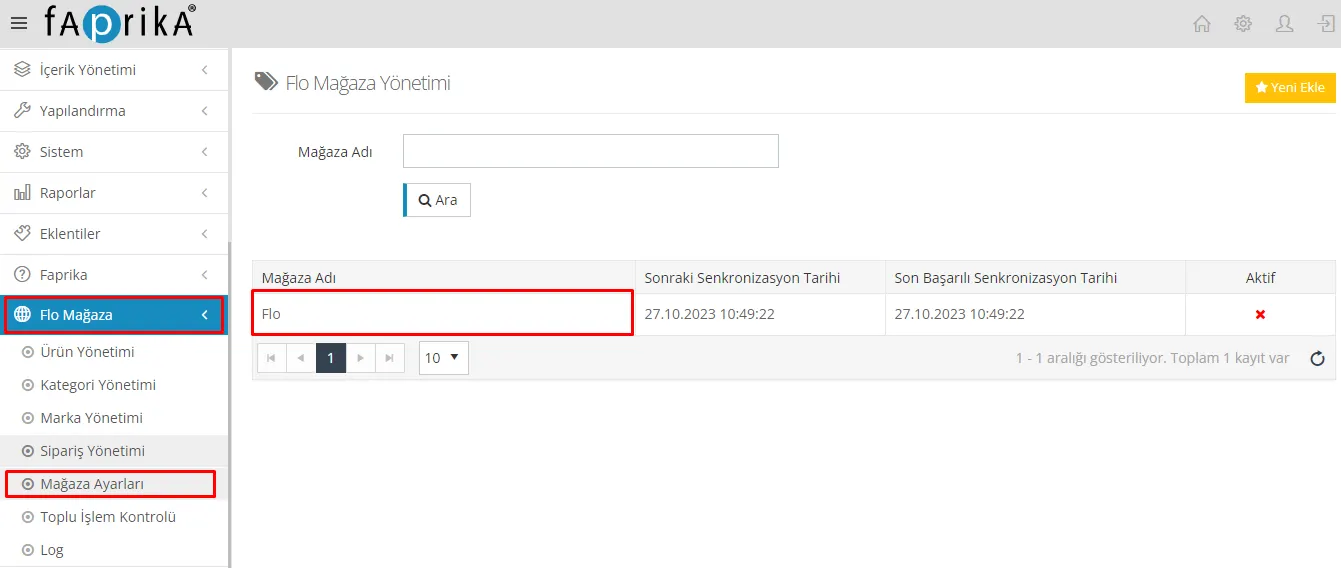
To configure the store settings, follow the steps below:
• Open the store settings tab. In this tab, you will enter the information required to integrate with Flo. You can get this information from the Flo marketplace.
• In the Supplier Number field, enter the Supplier Number you received from the Flo marketplace. This is an ID number that establishes your connection with Flo.
• In the API Username field, enter the API Username you received from the Flo marketplace. This is the username you will use to communicate with Flo.
• In the API User Password field, enter the API User Password you received from the Flo marketplace. This is the password you will use to communicate with Flo.
• After entering the API information, check the active box. This way, you will have activated your Flo store.
• Complete the store settings by clicking the Save button.
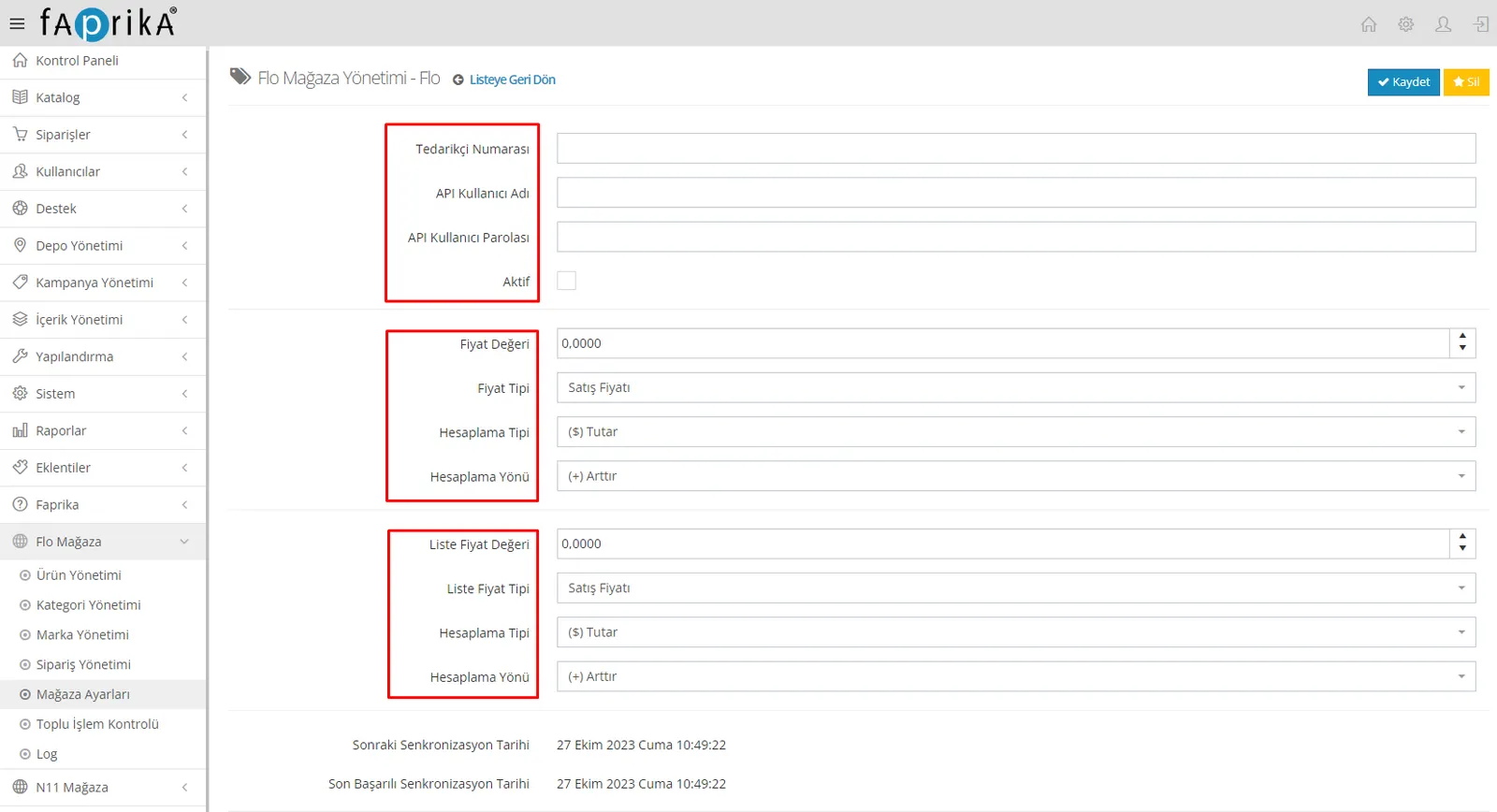
Price Value: When sending products to the marketplace, you can transfer different price values based on the price type you set. For example, a Price Value of 10 can be increased or decreased as a percentage or an amount on top of the price type, depending on the calculation direction and calculation type.
Price Type: In this field, the prices of the products you offer on your website are transferred to the marketplace. By selecting a Price Type, you can enter marketplace-specific prices. For example, if you entered a specific price in the Price Type - 1 field, you should select that option here. If you plan to send your products at the sale price, you should select the "Sale Price" option.
Calculation Type: When sending your product prices to the marketplace, you can choose "Amount" or "Percentage" as the calculation type. When you fill in the Price Value field accordingly, prices are calculated automatically. If you leave the Price Value field at 0, the products' sale price is transferred directly to the marketplace without any calculation.
Calculation Direction: During your pricing operations, you can choose either "Increase" or "Decrease". When you fill in the Price Value field, the calculation is performed according to your choice. If you set the Price Value to 0, product prices will be transferred directly to the marketplace without any calculation.
These rules and parameters apply in the same way to list prices as well.
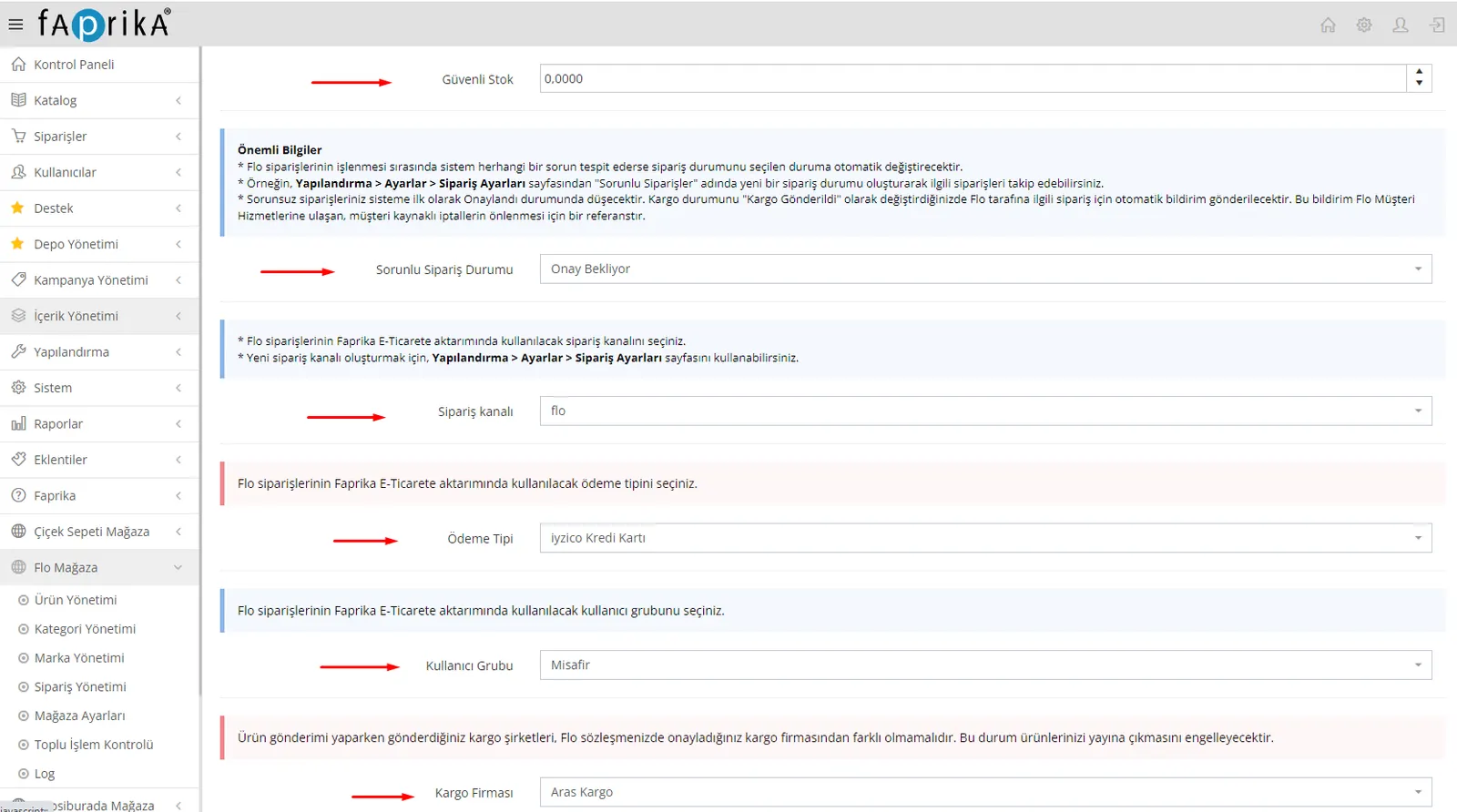
Safe Stock: When your products are sent to the marketplace, the stock quantity is reduced by the "Safe Stock" quantity you specify. For example, for a product with a stock of 5 units and a safe stock of 2 units, the quantity sent will be "5 - 2 = 3".
Problem Order Status: When a problem is detected during marketplace order processing, the status you select is applied automatically. You can create an order status named "Problem Orders" under Configuration > Settings > Order Settings and easily track the related orders. Problem-free orders first enter the system with the "Approved" status. When you update them to "Shipped", the marketplace receives an automatic notification. This serves as a reference to prevent customer-initiated cancellations.
Order Channel: To transfer Flo orders to the Faprika E-Commerce platform, you need to select a suitable order channel. If you want to create a new channel, you can do so under Configuration > Settings > Order Settings.
Payment Type: You need to specify which payment method will be used when Flo orders are integrated into the Faprika E-Commerce system.
User Group: When transferring Flo orders to the Faprika E-Commerce system, you must select which user group will be used. If you wish, you can create a custom user group such as “Marketplace” under Configuration > Users > User Groups and select it.
Shipping Carrier: You must specify which carrier will be used when Flo orders are transferred to the Faprika E-Commerce platform.
Flo Store >> Product Management:
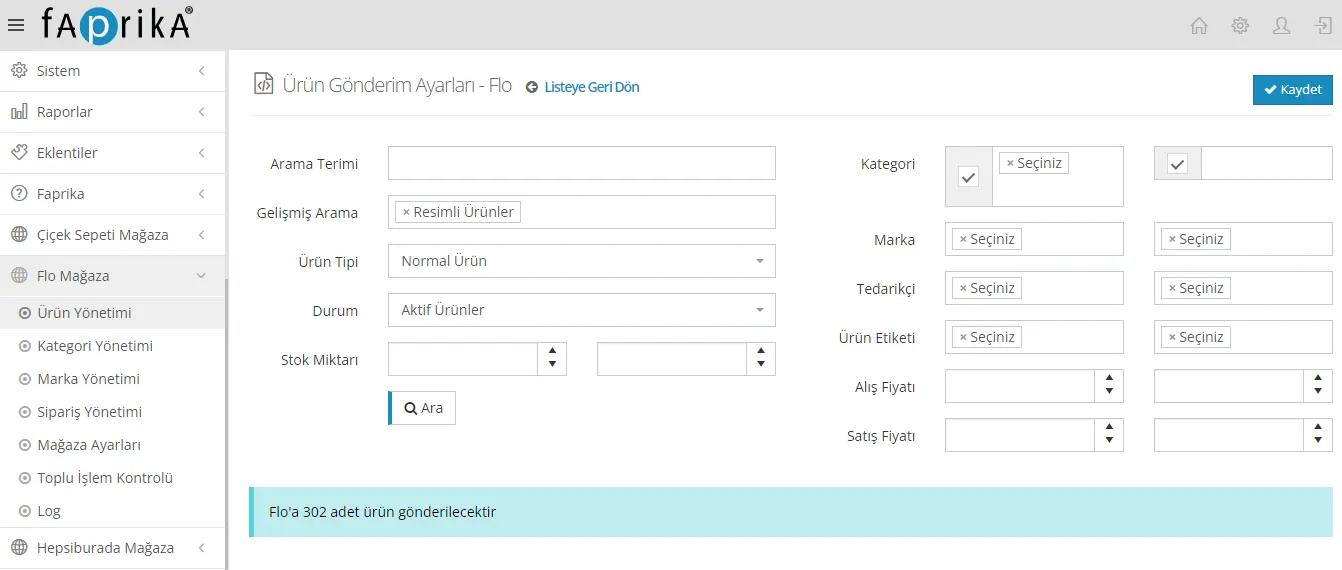
Once the store settings are complete, go to the Flo Store > Product Management tab and configure the product submission settings. On this tab you will find sections such as “Actions”, “Reverse Synchronization” and “Product Submission Settings”.
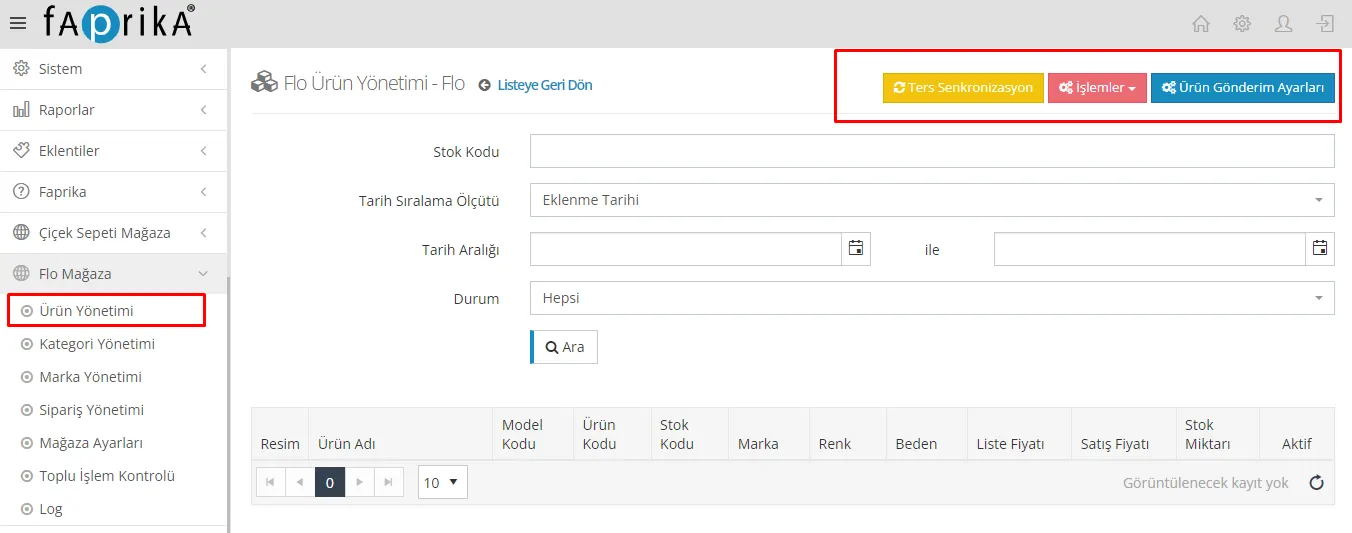
Reverse Synchronization: With this feature, you can import the products in Flo into the Flo Store > Product Management page.
Actions: The Actions button simplifies create and update requests for all the products you have uploaded to your Flo store. With this button you can update product information, stock status and prices.
Product Submission Settings:
You can filter in detail which products will be sent to the Flo marketplace. For example, you can select only the products that belong to certain categories or tags. The “Search” button shows how many products the filter will send, and the “Save” button saves these settings.
Product Filters to Be Sent to Marketplaces:
- Advanced Search: Products with Images
- Product Type: Normal Products
- Status: Active Products
Adding Product Dimensional Weight (Desi):
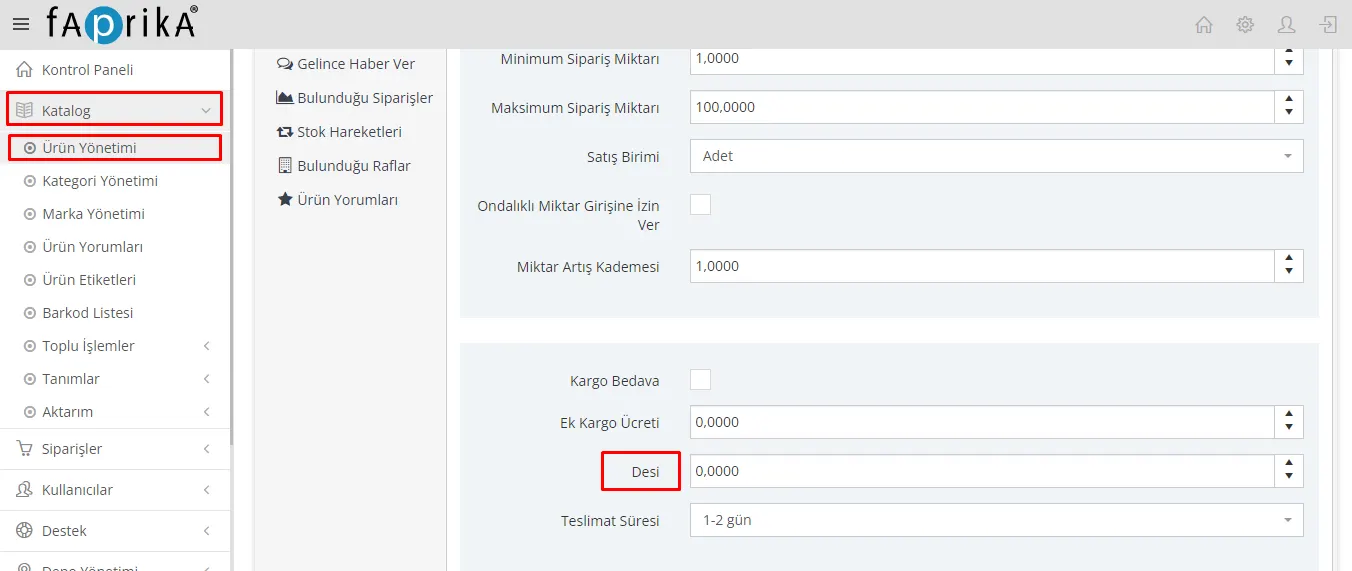
Adding the desi (dimensional weight) information when transferring products to the Flo Store is a critical step. Desi information is important for the transport and shipping processes of products.
How to Add Desi Information:
- Go to the Control Panel.
- Click the Product Management section.
- Open the Stock Information tab.
- Fill in the “Desi” field.
Flo Store Category Management:
Before transferring your products to the Flo marketplace, you need to complete the category and attribute mappings. Here are the details of how to complete this process:
Steps:
- Accessing the Control Panel: Log in to your control panel.
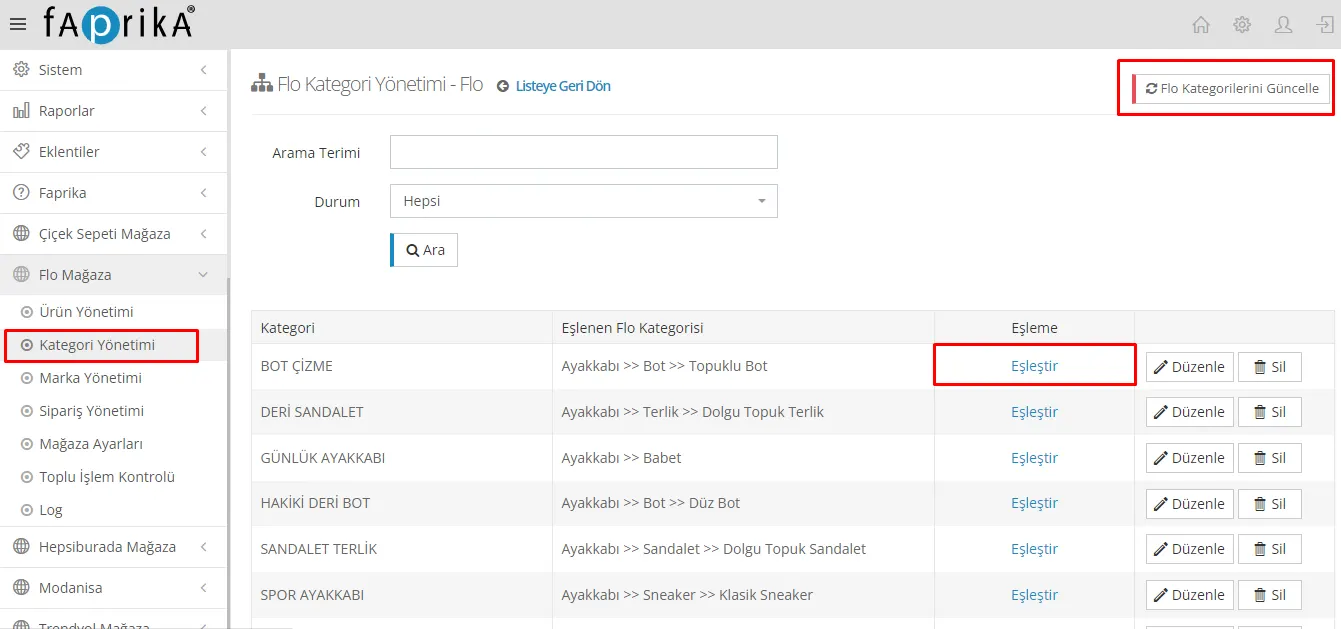
- Category Management: Go to the “Flo Store >> Category Management” section.
- Update Flo Categories: Click the “Update Flo Categories” button in the upper right corner.
- Category Mapping: When the process is complete, you need to map your website’s categories to Flo’s categories. To do this, click the “Edit” button next to each category.
- Search Bar: After you click the Edit button, a search bar will appear. Type the name of the category you want to map.
- Category Update: After selecting the mapping, click the “Update” button.
Attribute Mapping:
- Attribute Mapping Button: After your category mapping is complete, continue with the “Map” button on the same screen.
- Attribute Selection: Select the Flo attributes that match your category.
Attribute Mapping and Update Process:
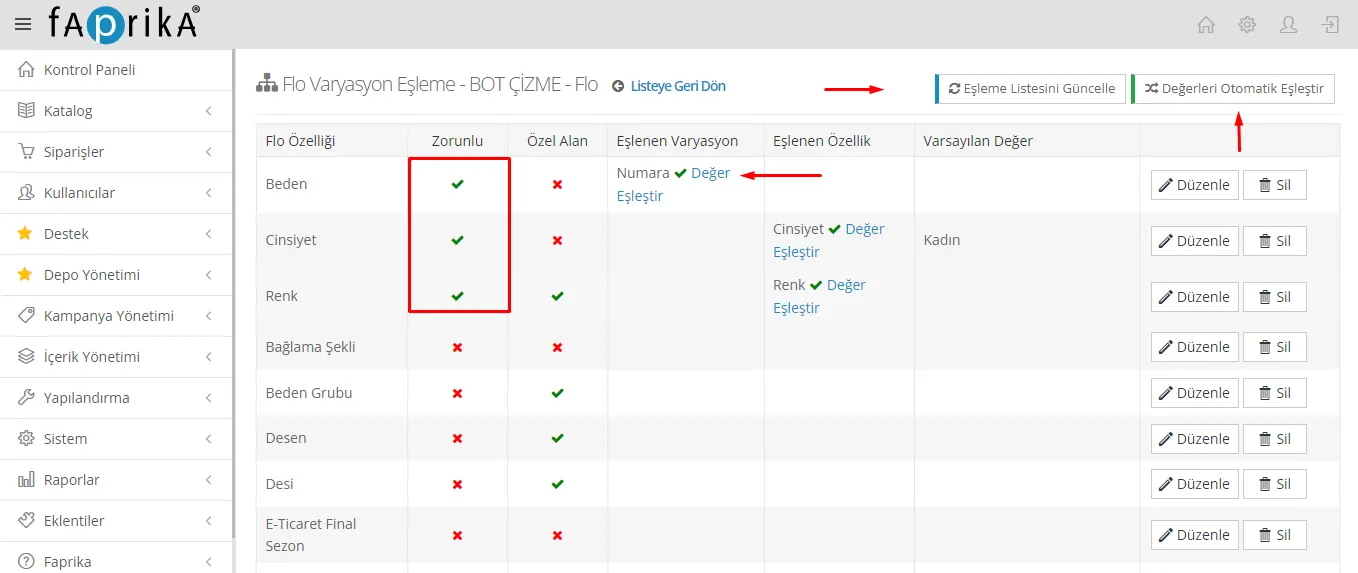
- Update the Mapping List: When you enter the attribute mapping page, update the current mapping list with the “Update Mapping List” button in the upper right corner.
- Required and Optional Attributes: After updating the list, required and optional attributes will appear. For example, attributes such as Size, Gender and Color will usually be required. Required attributes are usually marked with a green check mark.
- Entering Attribute Values: Be sure to enter the values for the attributes that are required for your products. You can add the optional ones to your product information.
- Automatic Mapping: After entering all required and optional values, you can map these attributes automatically with the “Auto-Map Values” button in the upper right corner.
By following these steps, you will have successfully mapped your required and optional attributes. Thanks to the auto-map button, this process can be completed even more easily and quickly.
Manual Variation and Attribute Mapping:
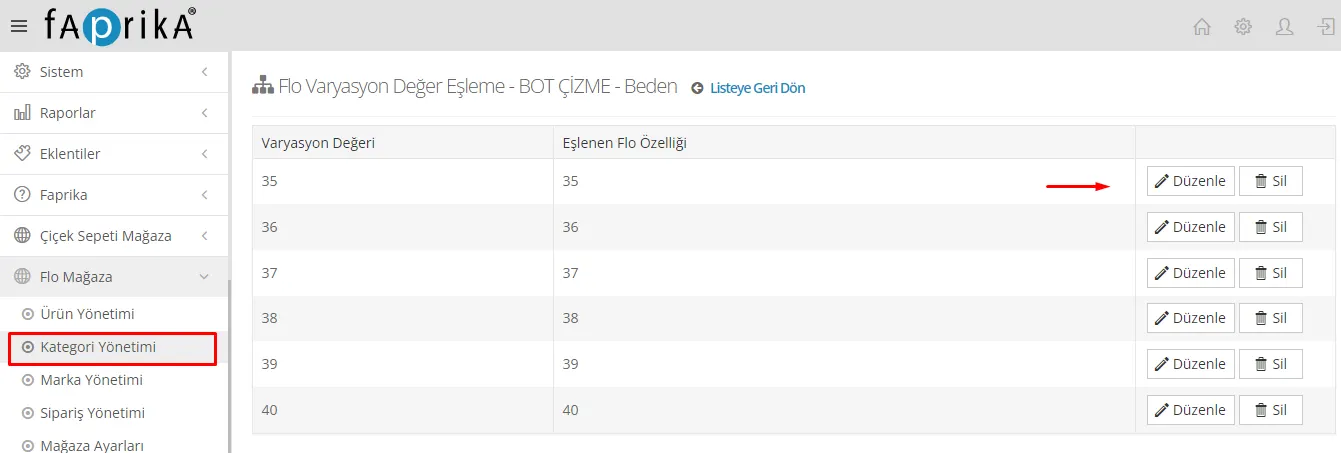
- Map Value Button: For example, if you want to map the Size variation manually, click the “Map Value” or “Edit” button next to the relevant value.
- Mapping Page: When you click the button, a mapping page will appear. Here you can view the values on your website and the values coming from Flo.
- Performing the Mapping: Complete the mapping by selecting the same Size value from Flo (for example 35) as the one on your website. This is usually done with a dropdown menu or a similar option.
- Confirming the Mapping: After completing the mapping, confirm it, usually with a “Save” or “Update” button.
By following these steps, you can complete your mappings for product variations and attributes manually.
Steps for Brand Mapping:
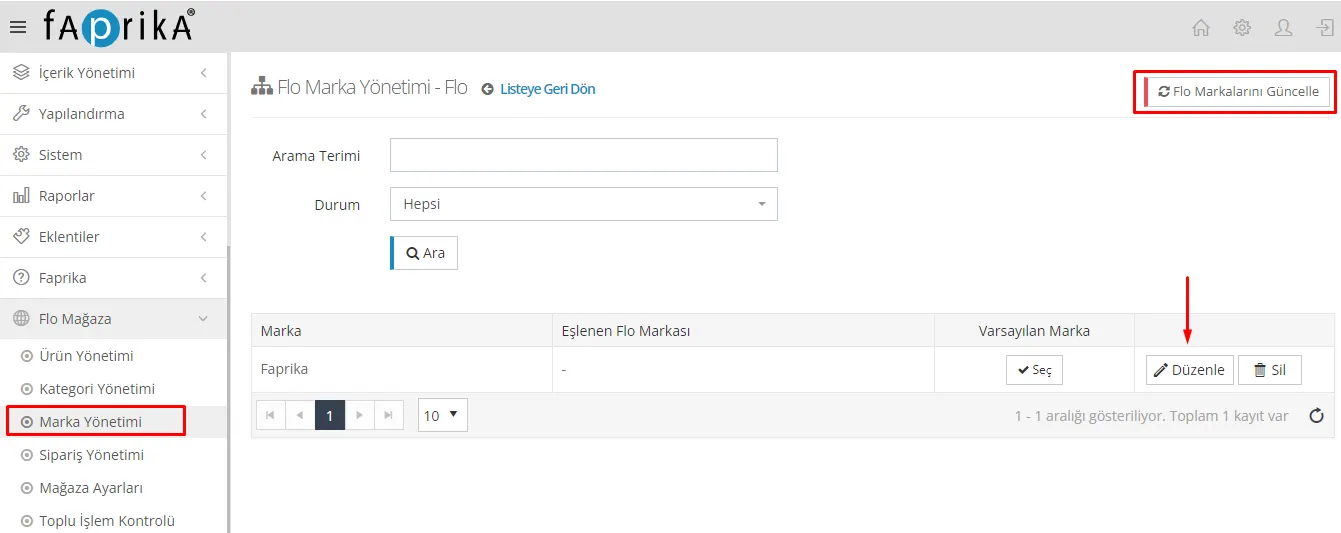
- Update Flo Brands: First, go to the “Flo Store >> Brand Management” page. Click the “Update Flo Brands” button in the upper right corner. This will pull the brand information available in Flo into your Faprika E-Commerce infrastructure.
- Waiting Period: After clicking the “Update Flo Brands” button, wait for the process to finish. This may vary depending on the number of brands and the speed of your system.
- Brand Mapping: When the process is complete, the brands in the Faprika infrastructure and the brands available in Flo will be listed together. In the list that appears, click the “Edit” button next to the brand you want to map.
- Performing the Mapping: In the window or tab that opens, you can match the brand coming from Flo with the corresponding brand in your Faprika infrastructure. There will usually be a dropdown menu or a search box.
- Confirming the Mapping: When the mapping is complete, confirm it, usually with a “Save” or “Update” button.
Through these steps, you will have mapped your brands between Flo and your Faprika infrastructure. This allows you to transfer your products to the Flo marketplace more effectively.
After completing all these preparations, you can proceed to the product transfer. Here is what you need to do for the transfer:
Product Transfer:
- Logging In to the Control Panel: Go to the control panel of the Faprika infrastructure.
- Accessing Product Management: Follow the “Flo Store >> Product Management” path.
- Actions: Click the “Actions” tab or button.
- Resend Products That Were Not Created: Here you will see the “Resend Products That Were Not Created” button; click it.
What Happens Next?
- Product Transfer: When you do this, the system will automatically start transferring products to the Flo marketplace.
- Transfer Check: After the transfer starts, you can usually follow its status through a status bar or a notification.
- Approval Process: Your products will go through an approval process by Flo. If there are no problems, your products will be listed on the Flo marketplace and put on sale.
If there is any problem, the system will usually show you an error message. In that case, it will help to review the settings and mappings mentioned earlier.
In this way, you will have successfully completed the product transfer from the Faprika E-Commerce infrastructure to the Flo marketplace.
Thanks to the Faprika E-Commerce infrastructure and the Flo marketplace integration, you can transfer your products to the marketplace easily and efficiently. The steps we have covered in detail in this guide explain not only product transfer but also important processes such as brand and category mapping. This integration, which will bring great convenience and advantage to your e-commerce journey, will increase your sales potential and reduce your workload. If you follow this guide step by step, you will be able to list your products on the Flo marketplace quickly and efficiently. Remember, with the right integration and mappings, success in e-commerce is inevitable. For more information, Explore the Flo Integration Module