Tools/Equipment
How Do I Clear the DNS Cache?
If you cannot reach your website or cannot see its current version, you may be experiencing a DNS problem. Typically, when you move your site from a sub-domain to your actual domain name, after a period of downtime your site may open on other computers or mobile devices but not on your own computer, or it may still redirect you to the sub-domain.
If you cannot reach your website or cannot see its current version, you may be experiencing a DNS problem.
Typically, when you move your site from a sub-domain to your actual domain name, after a period of downtime your site may open on other computers or mobile devices but not on your own computer, or it may still redirect you to the sub-domain.
Websites whose DNS address has changed or expired may not open at all, or even if they open, you may not be able to see their current version. To solve this problem, you need to clear the DNS cache. After the DNS cleanup, your computer’s DNS memory will be erased and you will get a new IP address.
Click the Start tab on your computer and open the Run tab, or use the Windows + R keys as a shortcut. In the window that opens, type “cmd” and click OK.
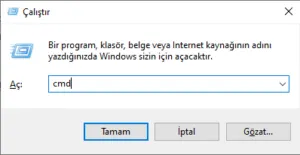
After clicking OK, enter the commands listed below one by one in the command (DOS) window that appears. It is safer to copy and paste them to perform the operation.
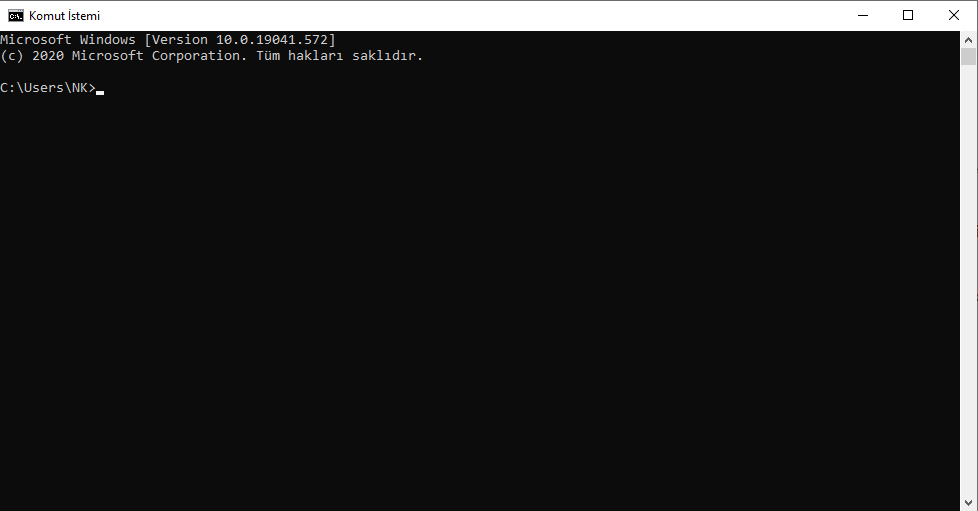
- ipconfig /flushdns
- ipconfig /release
- ipconfig /renew
- exit
After entering the commands in order, you will have successfully cleared the DNS cache. You can check again by closing and reopening your browser.