Tools/Equipment
How to Set Up Gmail?
In this guide, you will learn step by step how to integrate the email account provided by Faprika e-commerce infrastructure services with Gmail. Thanks to your Faprika mail account, which you can easily add to your Gmail account, you can take your business's email management to the next level.
How to Add a Mail Account to Your Gmail Mailbox?
Gmail is one of the world's most popular services for email management. So how can you add and manage a different email account in your Gmail mailbox? In this guide, we provide a step-by-step walkthrough of how you can use the email accounts provided by Faprika E-Commerce seamlessly in your Gmail mailbox.
This way, you can easily use the email service you get from Faprika e-commerce infrastructure in Gmail; send messages through Gmail and check your incoming emails from Gmail. By adding your different email accounts to your Gmail account, enjoy the convenience of managing all your email traffic from a single platform.
Let's get started!
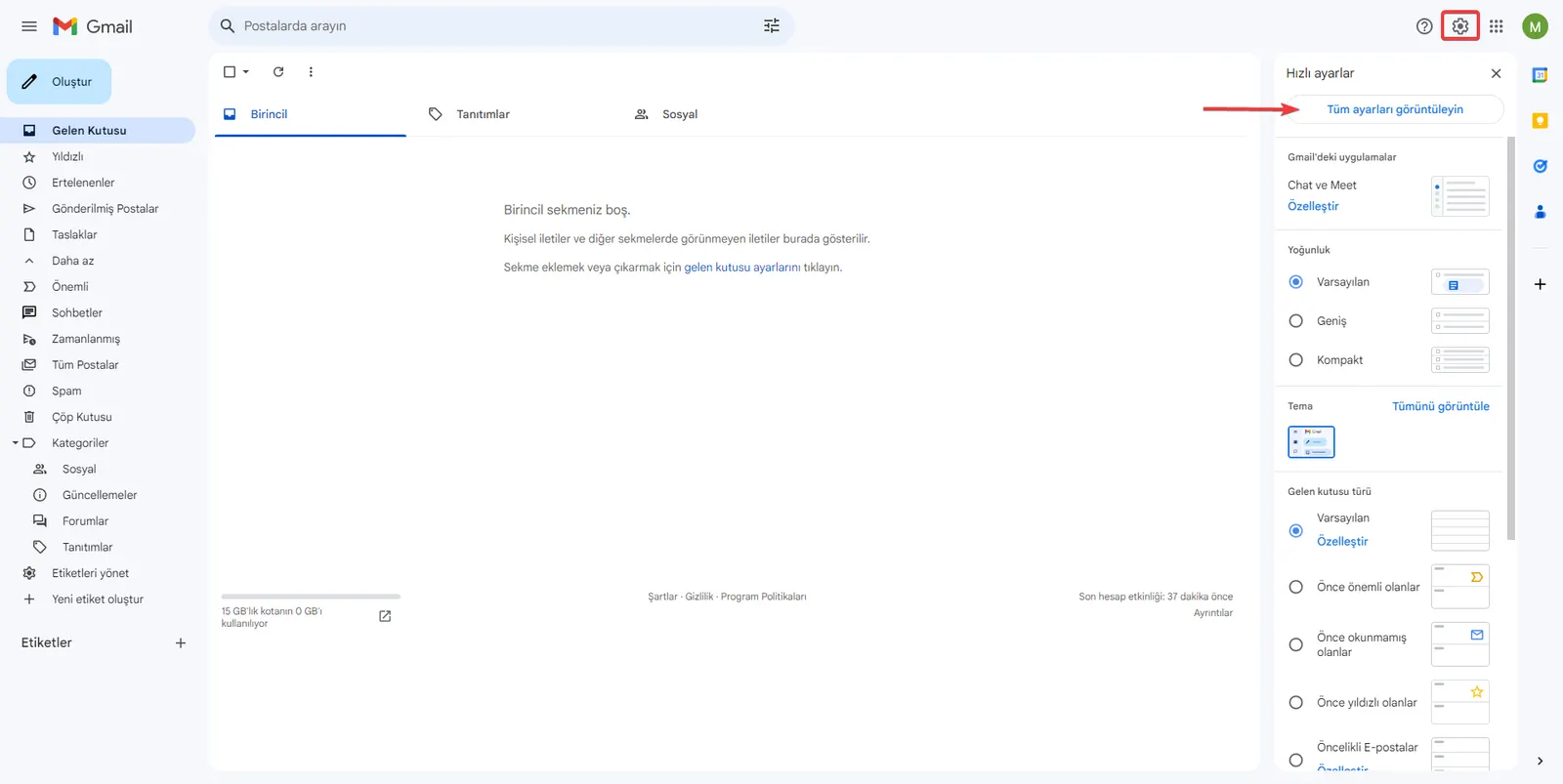
To set up Gmail, first access your existing Gmail account via "gmail.com". After signing in to your account, find and click the "Settings" button on the main screen that appears. Continue by selecting the "See all settings" option in the menu that opens. This stage is the first step in starting to integrate your email account with Gmail.
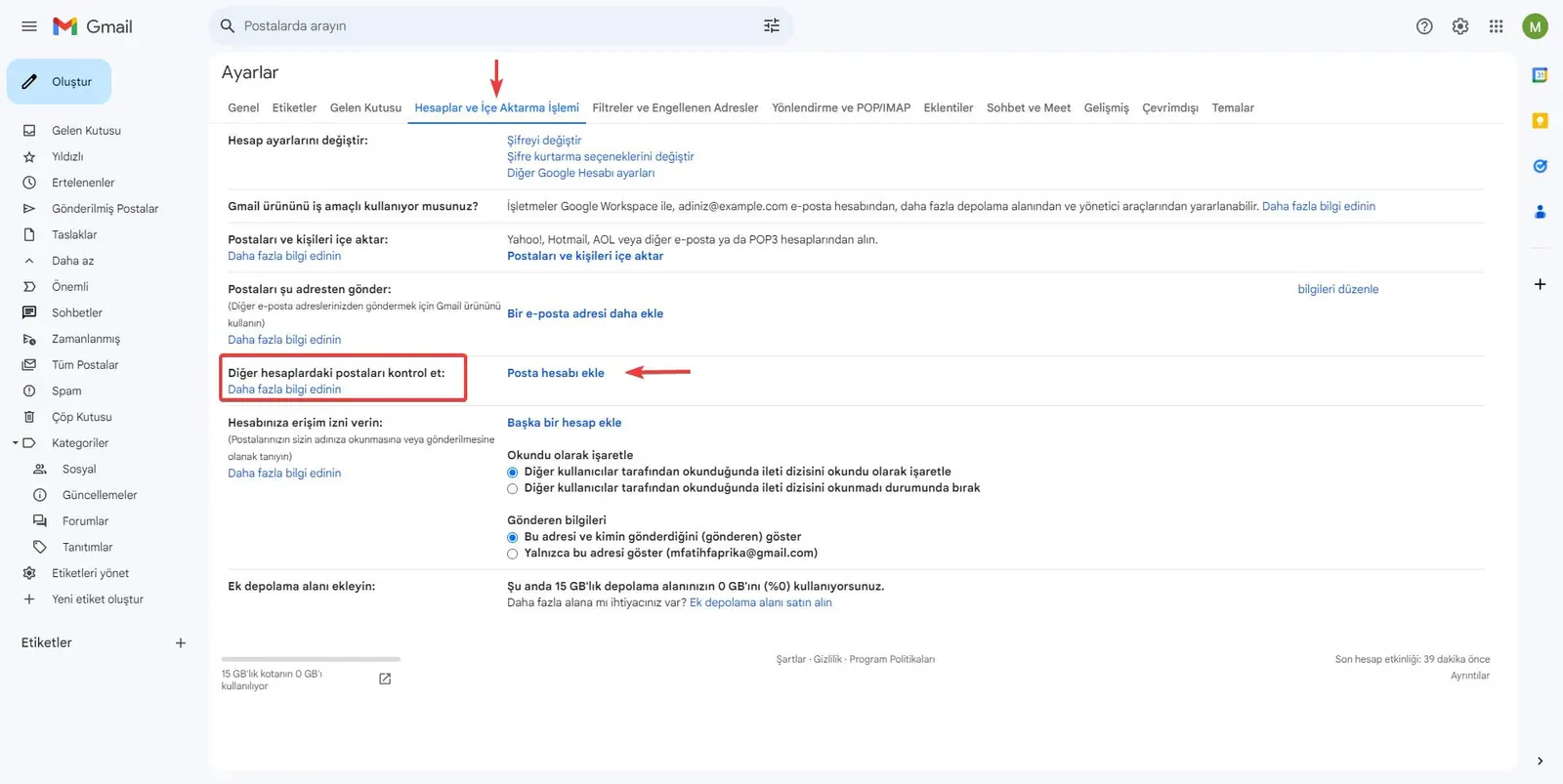
From the "Settings" menu you are taken to the "Accounts and Import" section. In this section you will see the heading "Check mail from other accounts". Click the "Add a mail account" button next to this heading to add the email account you obtained from the Faprika e-commerce infrastructure service. This brings you one step closer to managing your other email accounts through your Gmail account.
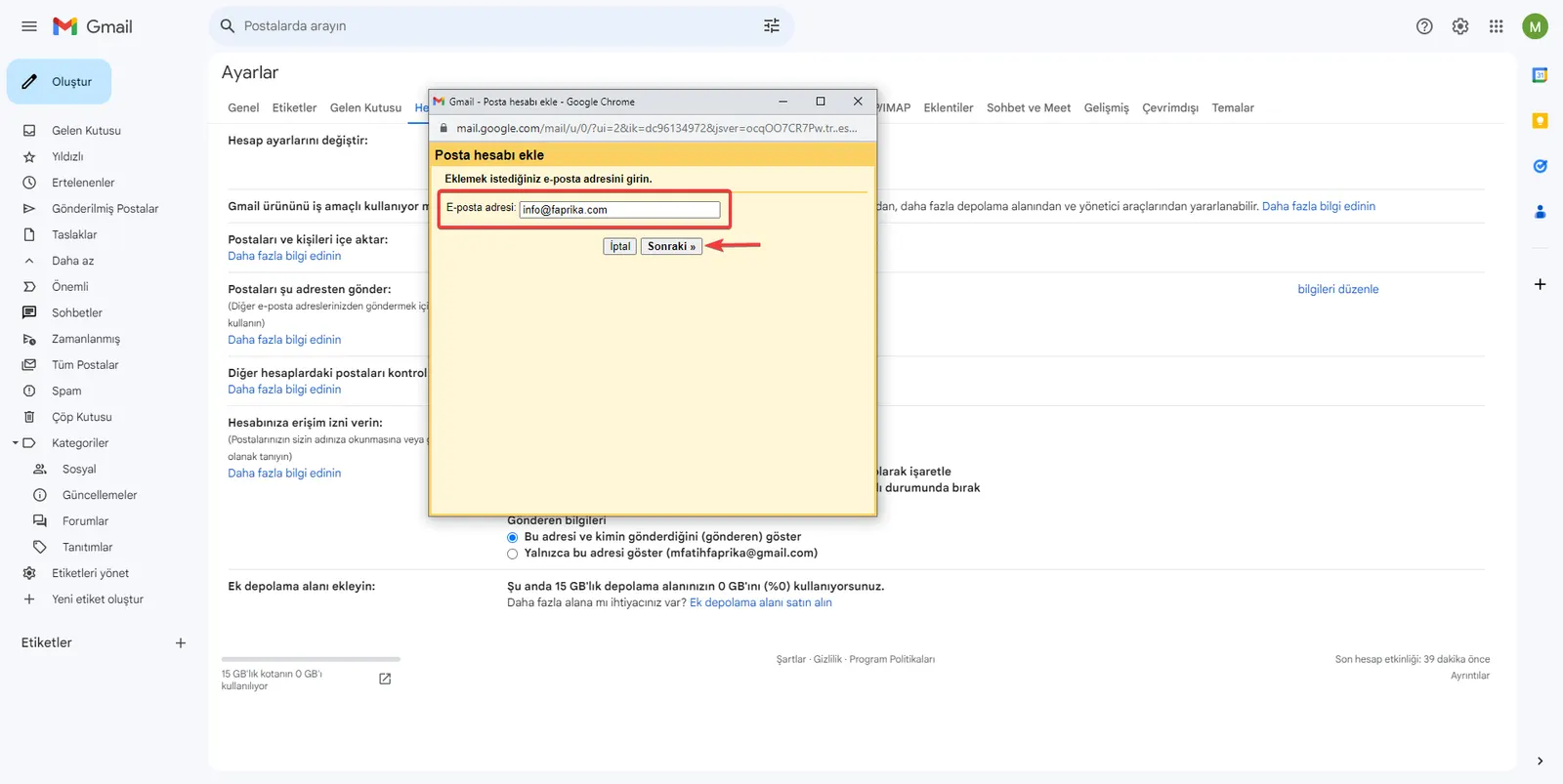
Add a Mail Account: You will arrive at the "Add a mail account" section. Here, enter your email address to add the email account obtained from Faprika E-Commerce infrastructure services. After entering your email address correctly, continue by clicking the "Next" button. This lets you move on to the next stage of the process of integrating your email account with Gmail.
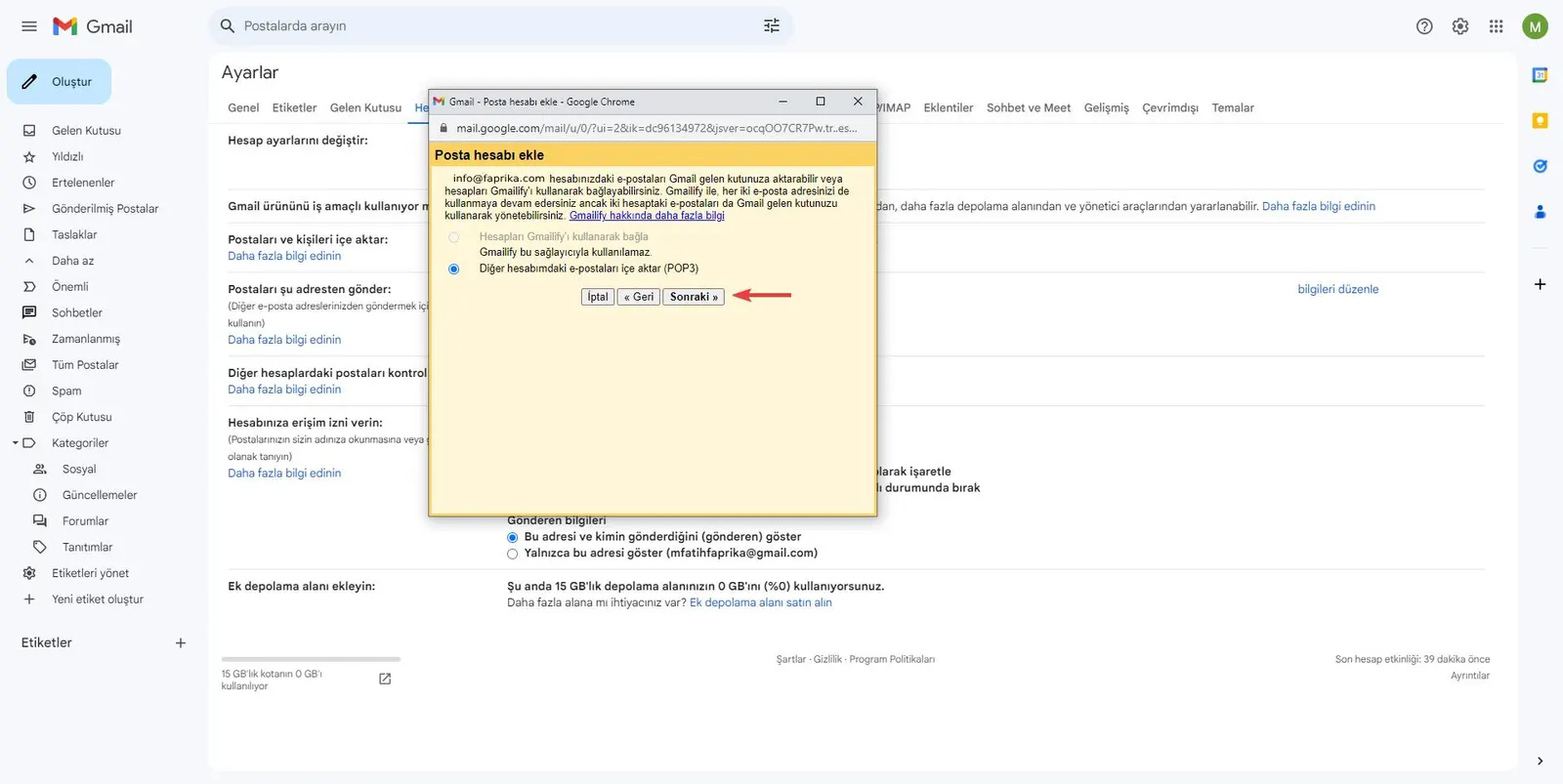
By selecting the "Import emails from my other account (POP3)" option, you can have your emails transferred to your Gmail account. After selecting this option, continue the setup process by clicking the "Next" button.
After entering our details, let's continue by clicking the Add Account button.
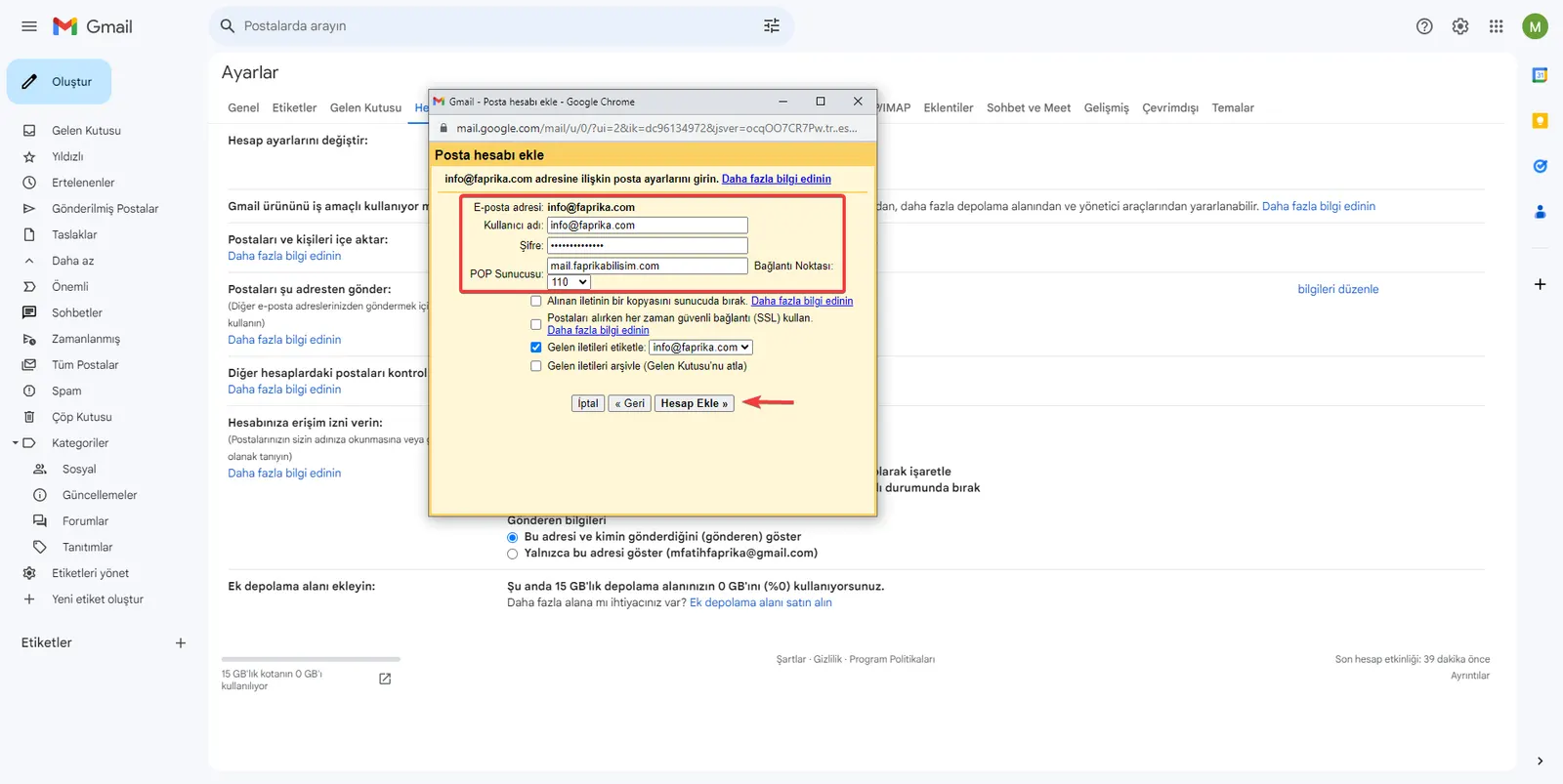
With the email account you obtained from Faprika E-Commerce Infrastructure Services, you can now comfortably view your emails through Gmail. However, you need to adjust a few settings for this. As a first step, follow the steps below so that you can send mail on the Gmail platform.
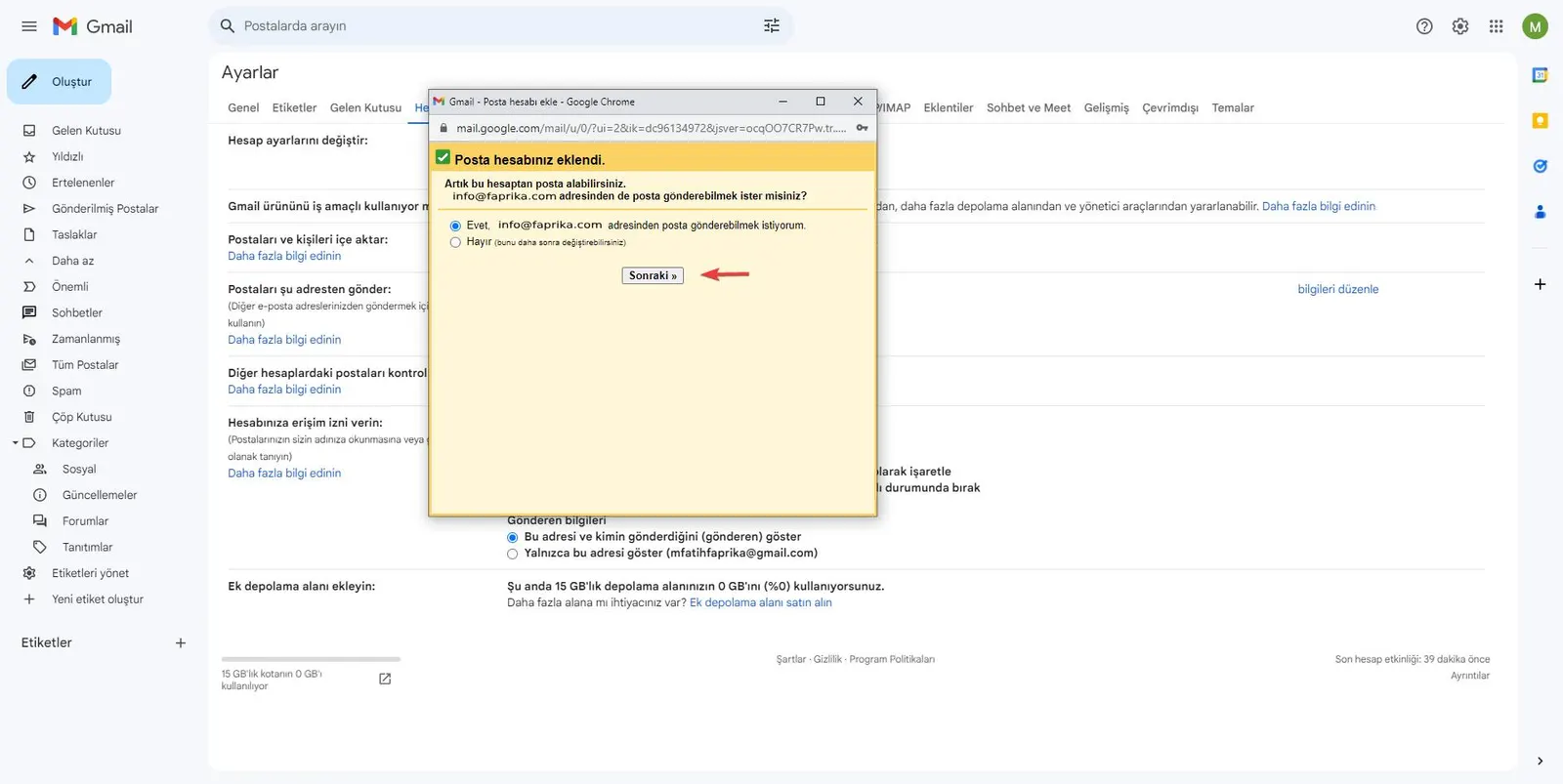
On the screen you are viewing, select the "Yes, I want to be able to send mail as" option and continue by clicking the "Next" button.
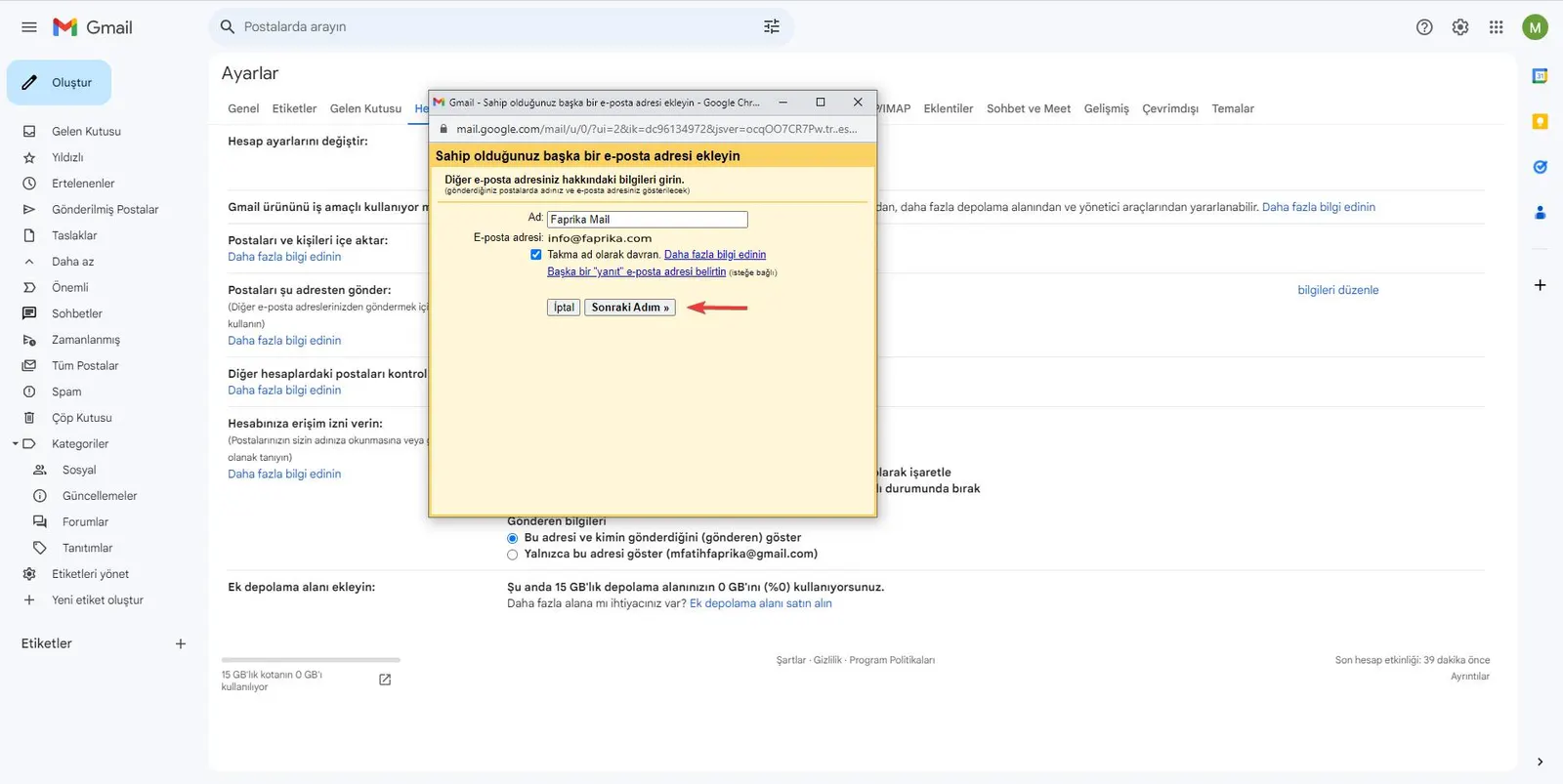
You can choose a name you want to appear in the mails you send via Gmail. Enter this name in the "Name" field. Then, the email address you are using will automatically appear in the "Email address" field. After completing these steps, select the "Treat as an alias" option and continue by pressing the "Next Step" button.
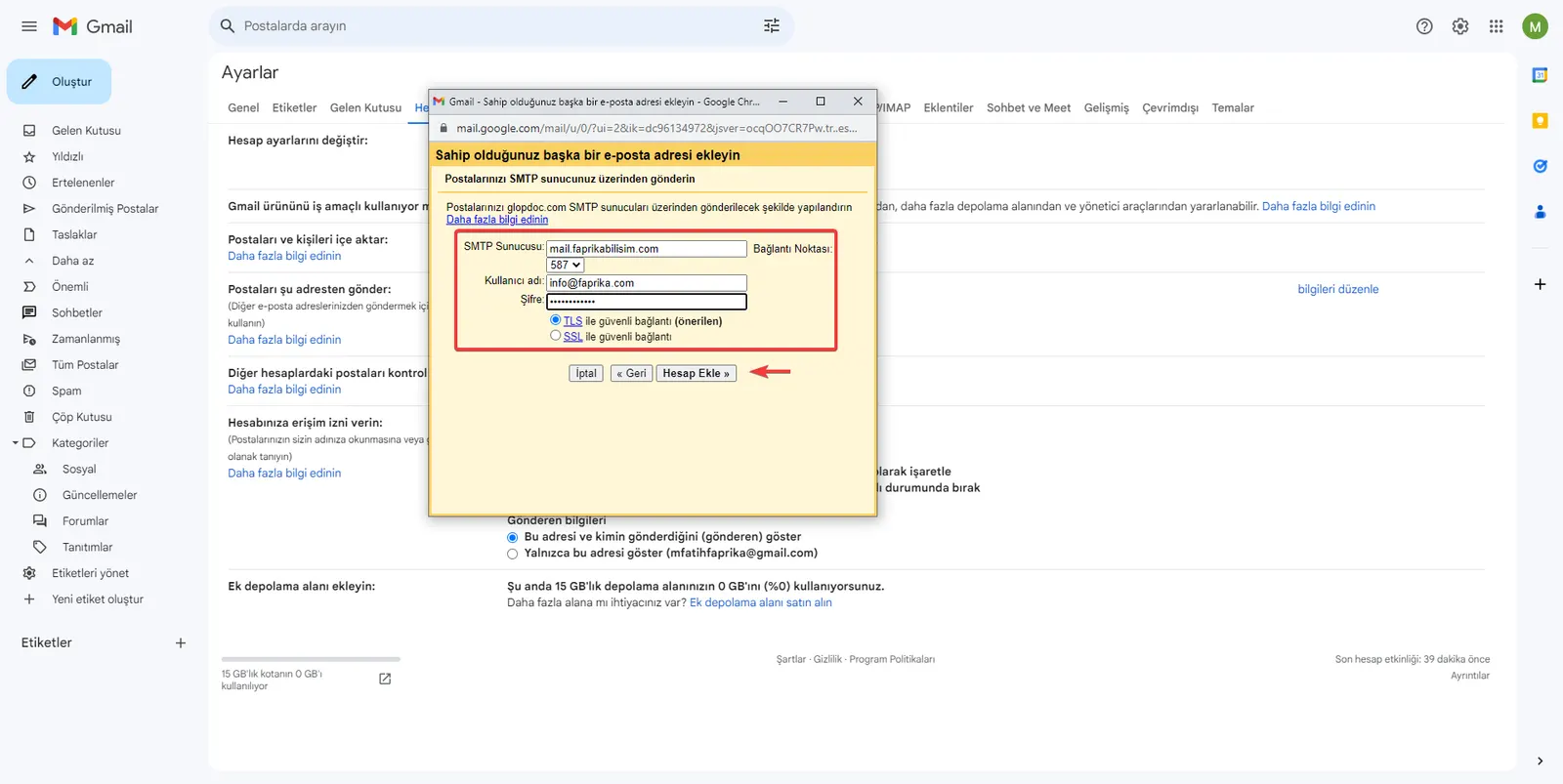
Let's click the Add Account button with the Secured connection using TLS (recommended) option.
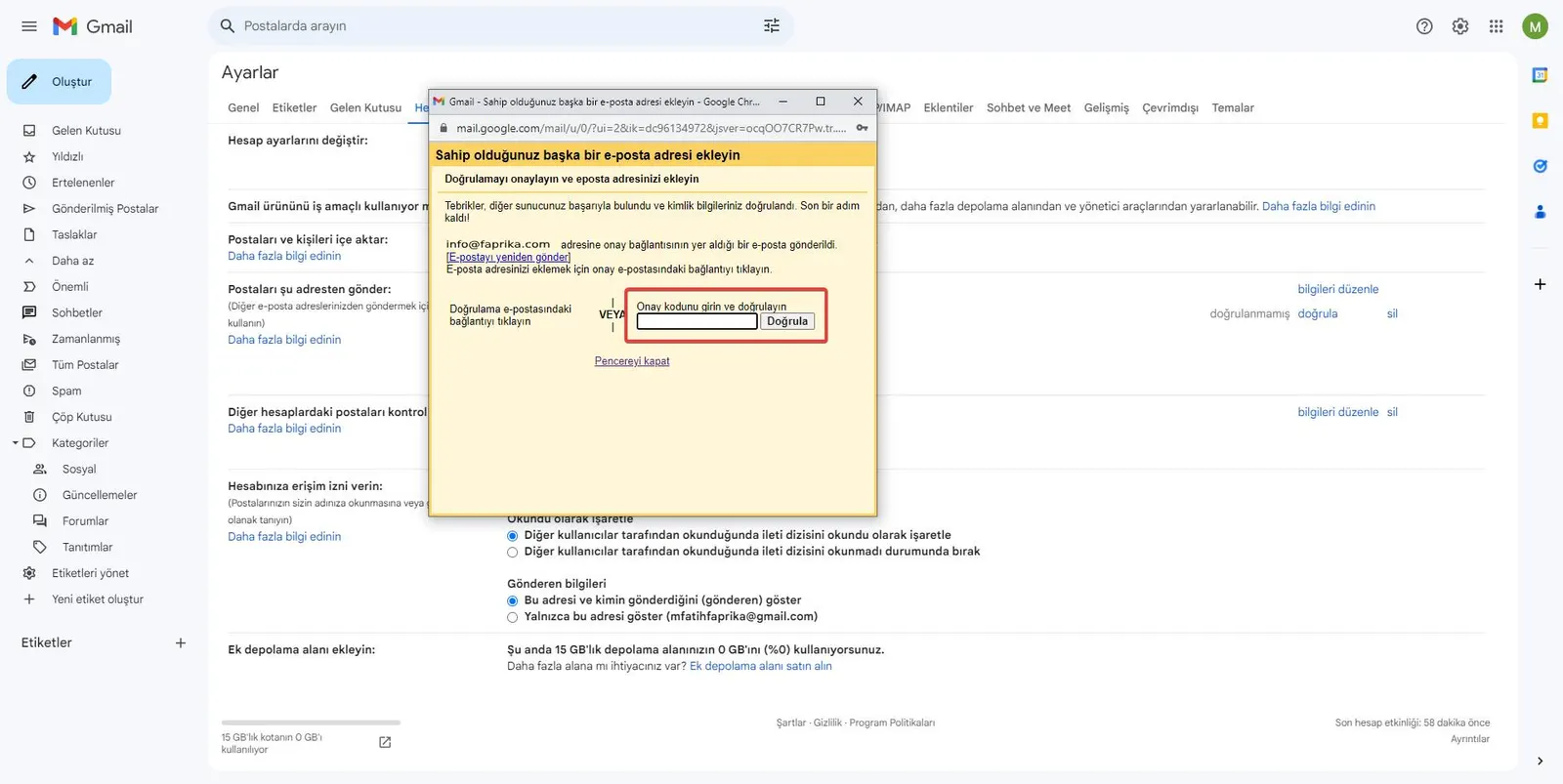
Finally, sign in to your email account at 'mail.faprikabilisim.com'. A confirmation code will be sent to you shortly. Take this code and enter it in the appropriate field in the window that opens in Gmail. After entering the code, complete the setup process by clicking the "Verify" button.
You have completed the steps successfully, and you will now be able to manage the email account you obtained from the Faprika e-commerce infrastructure service through Gmail. You can now easily manage both sent and received emails from a single platform. If this guide was useful to you, you can visit our Support Page to explore other Faprika guides. We wish you productive work!