Order Management
Payment Status Operations
Managing payment processes effectively is critical to your e-commerce success. With the solutions Faprika offers, you can easily monitor and control payment statuses such as 'Payment Pending', 'Payment Completed' and 'Payment Failed'. All options for automating or manually updating payment and shipping processes are at your fingertips.
In This Tutorial
The Faprika control panel is a comprehensive tool for managing the payment operations of your e-commerce business. You can easily view payment statuses for incoming orders and update them manually when needed.
Payment transactions are automatically synchronized with specific payment systems and are generally shown in three different statuses:
- Payment Pending
- Payment Completed
- Payment Failed
This guide covers the details of these payment statuses, automatic assignments and manual updates step by step. Thanks to its visual aids, you can easily learn everything about payment status operations.
Payment Pending
In the e-commerce process, when customers choose payment methods such as cash on delivery or bank transfer, the order's payment status in the Faprika control panel is automatically set to "Payment Pending". This indicates that the payment has not yet been completed, but the order has been received successfully.
In this case, there are a few important steps business owners should pay attention to. First, you can update the payment status by going to the order details. Here are the details of this process:
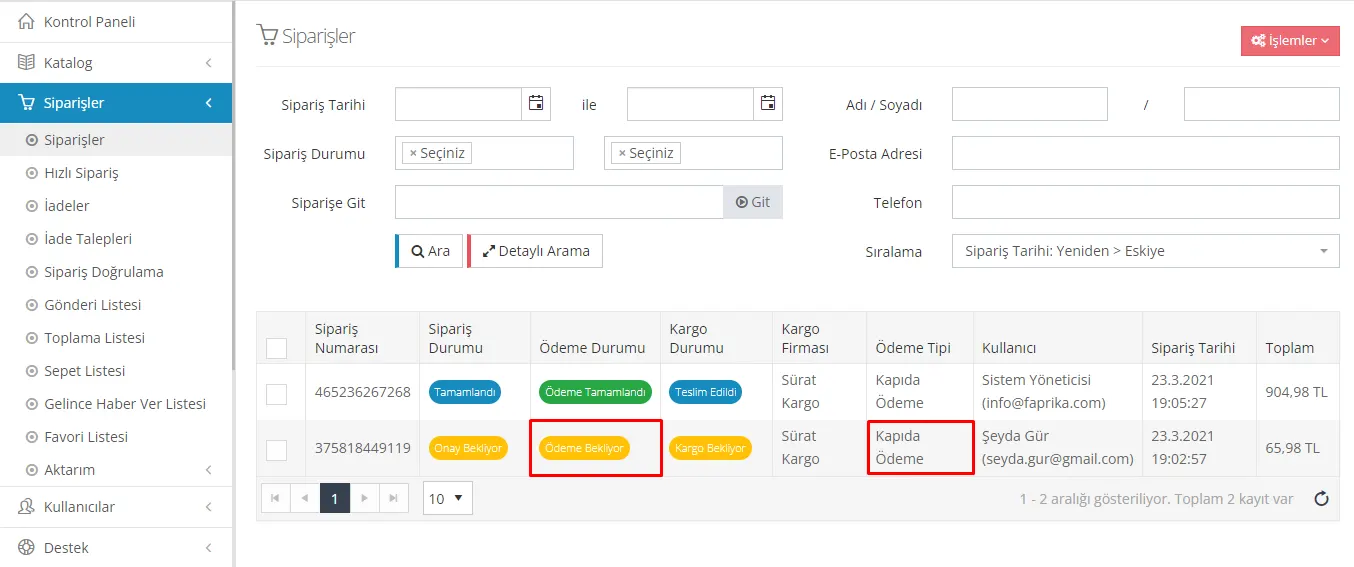
Orders shown as “Payment Pending” can be manually changed by business owners to “Payment Completed” from the control panel. This is especially important for payment methods that require manual confirmation, such as bank transfer.
For example, when a customer places an order using the bank transfer payment method, the "Payment Pending" status appears first. After the customer completes the payment, the business owner needs to confirm it manually and update the order status to "Payment Completed". This moves the order process forward and provides the customer with a safe shopping experience.
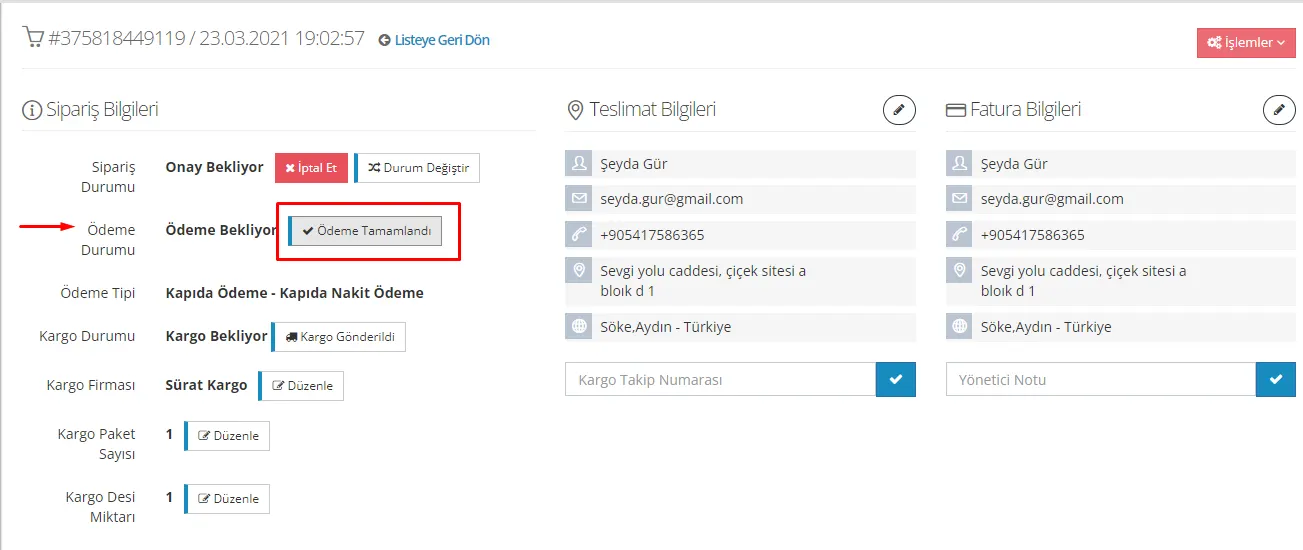
In the Faprika control panel, it is possible to set an automatic cancellation time for orders in the "Payment Pending" status. This feature helps businesses make their order management process more efficient. Here is how you can use this feature:
- Go to the Control Panel.
- From the "Configuration" menu, click the "Settings" option.
- Then open the "Order Settings" section.
- Click the "Cancel Orders Without Payment" button.
- In the area that opens, set the time after which you want the order to be cancelled automatically as 'X' minutes.
This functionality automatically cancels orders whose payment is not completed within the time you set, thus reducing the burden of manual follow-up. It also allows different settings for different payment methods and order platforms, offering a structure that can be customized to businesses' needs.
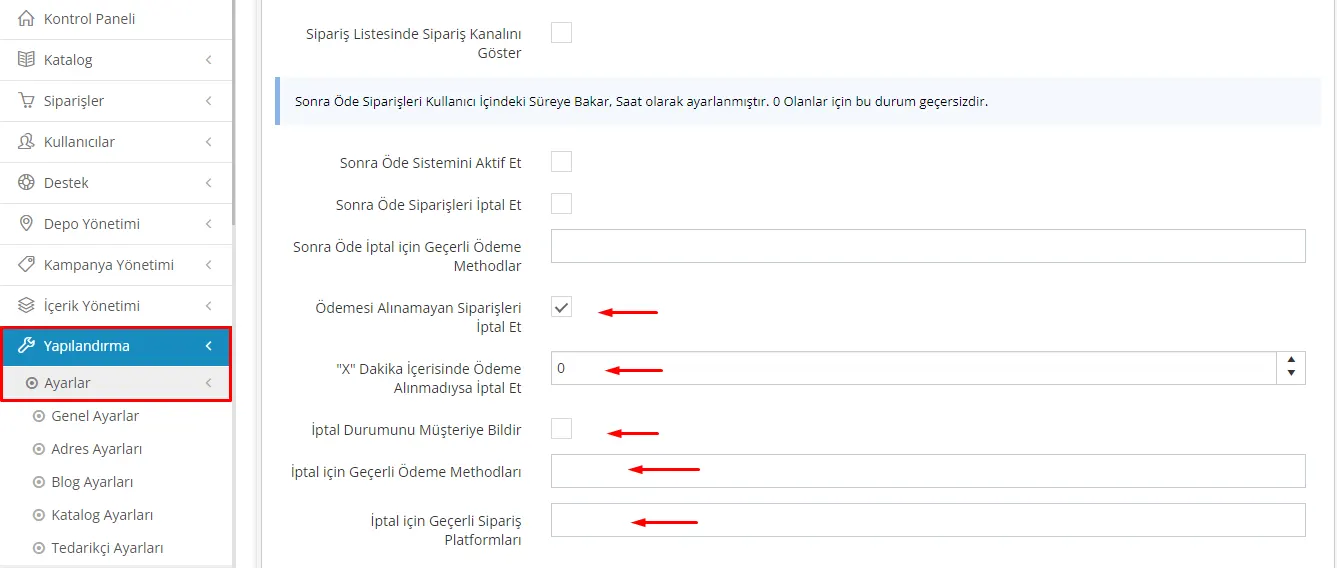
Orders placed with the “Cash on Delivery” method are automatically set to “Payment Completed” by the system immediately after the shipping status is updated to “Delivered”. This is a great convenience for businesses because they do not need to make a manual update.
Thanks to this automatic payment update feature offered by Faprika, e-commerce businesses can manage their order tracking processes more efficiently. Customers can also quickly access up-to-date and accurate information about the payment status of their orders.
Payment Completed
All successful orders paid by credit card on your e-commerce site automatically receive the "Payment Completed" status in the control panel. This saves businesses time and moves the order process forward faster.
As mentioned earlier, the payment status of orders in the "Payment Pending" status can also be updated manually to "Payment Completed". This is especially useful for customers who use manual payment methods such as bank transfer.
When certain payment methods such as "Cash on Delivery" are used, the order automatically changes to the "Payment Completed" status after its shipping status is updated to "Delivered".
If a shipping integration is used, the shipping status is updated automatically. However, if a manual shipping process is followed, you need to update this status manually from the control panel.
Thanks to Faprika's automatic payment status updates and shipping integrations, payment processes become much easier for both businesses and customers.
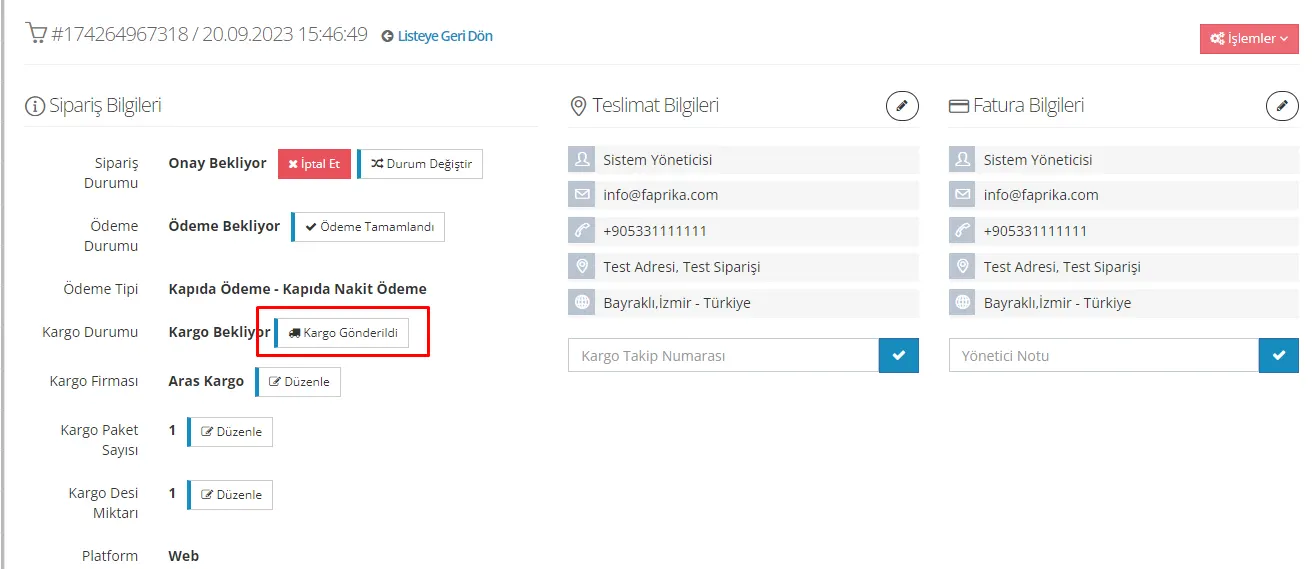
Payment Failed
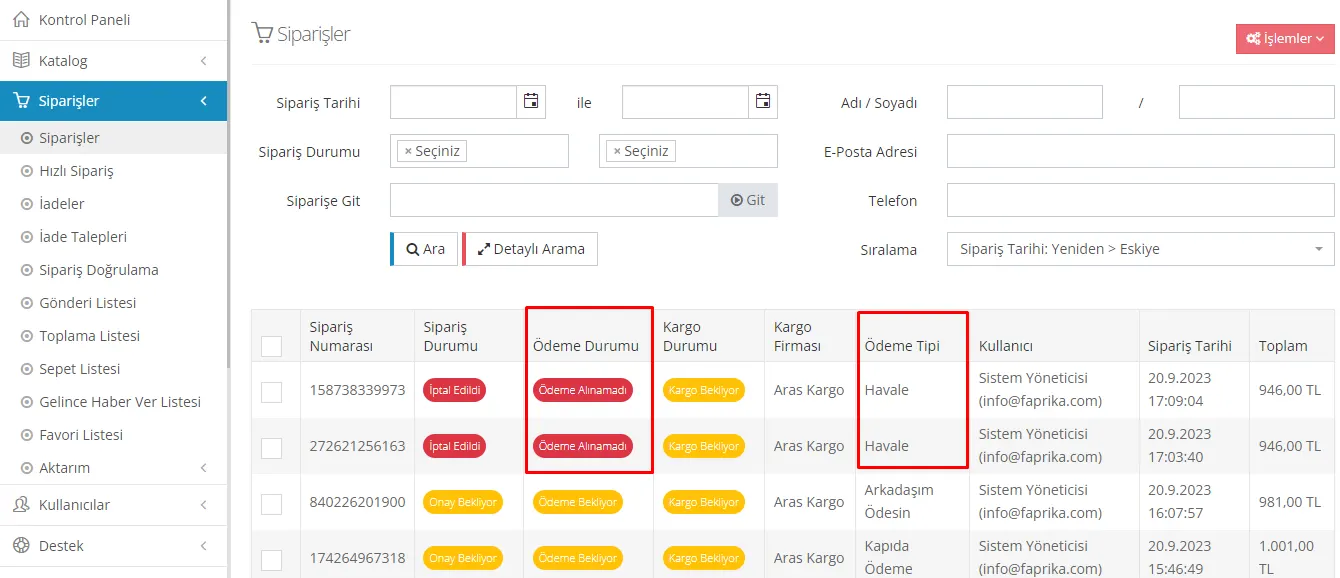
The "Payment Failed" status usually occurs when a problem is experienced while paying by credit card. For example, if the 3D Secure process failed or the credit card is closed to online shopping, orders are marked as "Payment Failed" in this case.
Also, as stated before, if the "Cancel Orders Without Payment" button is active and payment has not been received within a certain time, the system automatically updates the order status to "Cancelled". This can be especially useful for manual payment methods such as bank transfer. If the order is not completed within the specified time, the payment status is automatically updated to "Payment Failed".
Faprika's e-commerce infrastructure allows you to manage every stage of payment processes effectively. Understanding different payment statuses such as "Payment Pending," "Payment Completed" and "Payment Failed" and integrating them into your own workflow is critical to increasing customer satisfaction and improving your business's operational efficiency. Thanks to Faprika's flexible and user-friendly control panel, you can easily monitor payment and shipping processes, make manual updates when needed, or fully automate the process. Managing payment processes efficiently is essential for a successful e-commerce operation, and Faprika offers you maximum convenience and control in this regard.