Tools/Equipment
How to Set Up Chrome Remote Desktop?
Easily access your computer from home or anywhere with Chrome Remote Desktop! In this detailed guide you will find everything you need on downloading, setup, connection, security settings and troubleshooting. Discover the power of remote connection!
How to Set Up Chrome Remote Desktop?
The Chrome Remote Desktop application is a great tool for meeting your remote access needs. Especially today, when working from home is on the rise, it lets you reach your computer from a different location. So, how can you install this application through Chrome? In this article, we will cover in detail the steps for establishing a remote connection with the Chrome browser. We will also touch on important topics such as Chrome extensions and security settings, and offer tips for a smooth experience. Here you can find all the information needed to download and start using Chrome Remote Desktop. If you are ready, let’s step into the world of remote connection!
What Is Chrome Remote Desktop?
Chrome Remote Desktop is a highly effective tool that simplifies establishing remote connections. With this application, users can access the desktop of a different device over an internet connection. First of all, this service developed by Google offers a very practical option for both personal and business use.
Key Features
- Remote Access: Users can remotely access their computers at home or elsewhere to manage their files and applications.
- Cross-Platform Support: The application runs on both Windows and Mac operating systems. This allows work to proceed smoothly across different devices.
- Ease of Use: Thanks to its user-friendly interface, establishing a remote connection becomes very simple. This makes it accessible even to users with no technical knowledge.
- Secure Connections: Connections made through the Chrome browser are secured with encryption methods. This ensures the protection of personal data.
How Does It Work?
To use Chrome Remote Desktop, you basically need to follow these steps:
- Download Steps: First, you need to know how to download Chrome and then download the relevant extension. To use the application, it must be selected from among the Chrome extensions.
- Establishing the Connection: After the application is installed, the necessary settings must be made to connect to the computer you want to access remotely.
Target Audience
- Home Users: Especially people who work from home can continue their work by remotely accessing their computers at the workplace.
- Businesses: Companies can increase their efficiency by offering their employees remote access.
- Support Specialists: People providing technical support can offer faster solutions by remotely connecting to customers’ computers.
In conclusion, Chrome Remote Desktop is a reliable and practical remote connection solution developed for the needs of modern working life. In this period when remote work is becoming widespread, the use of such tools is steadily increasing.
How to Download Chrome Remote Desktop?
Chrome Remote Desktop is a service that lets users access their computers remotely. To use this application, you first need to complete a few steps in the Chrome browser. Here is a step-by-step guide to downloading and installing Chrome Remote Desktop:
1. Open Your Chrome Browser
- Start by opening the Chrome browser installed on your computer. If you still don’t have the Chrome browser, you can download it by researching how to download Chrome or by visiting the official Google page.
2. Go to the Chrome Web Store
- To download the Chrome Remote Desktop application, go to the Chrome Web Store address from your Chrome browser.
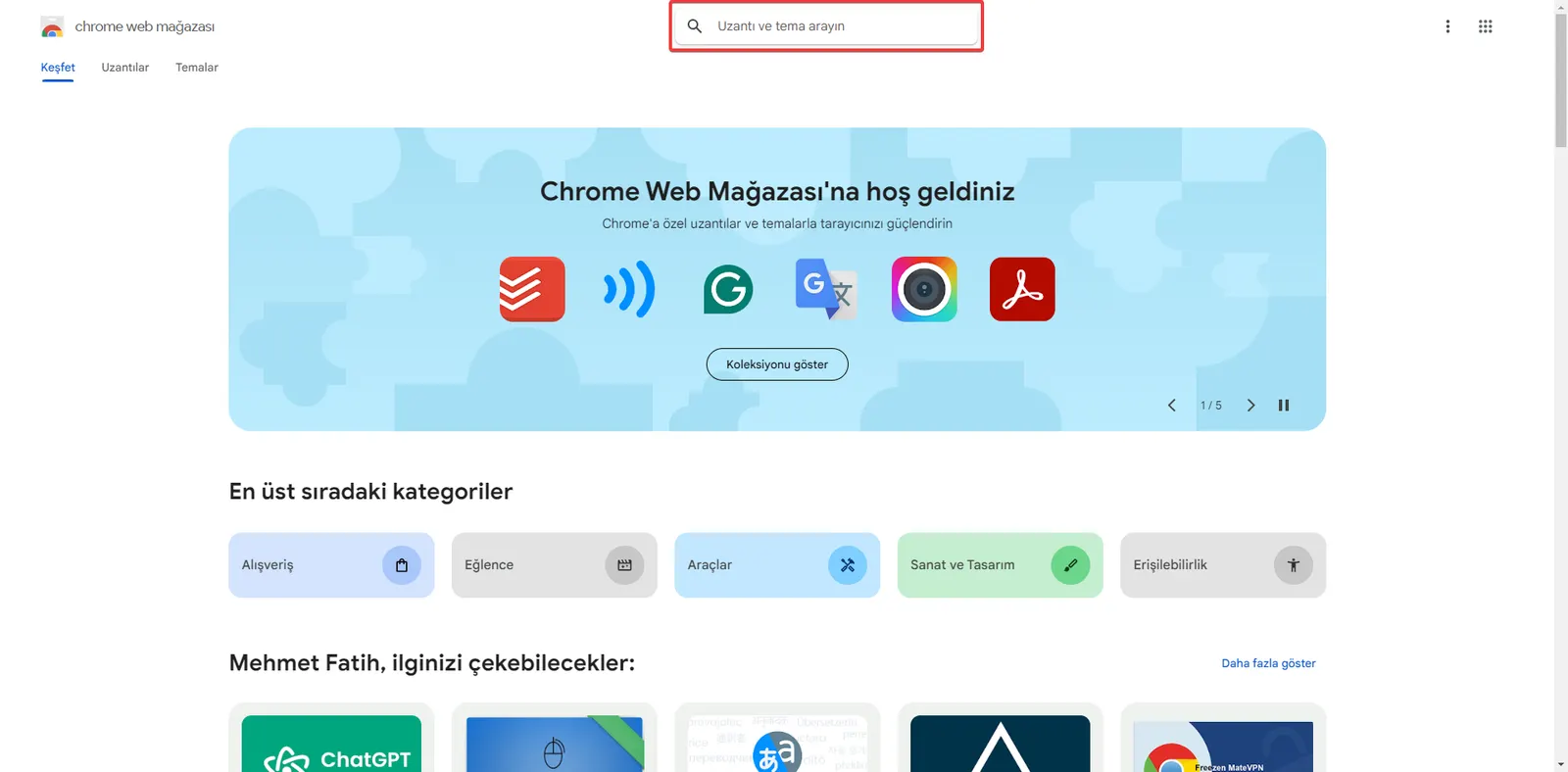
3. Use the Search Field
- On the page that opens, type “Chrome Remote Desktop” in the search bar and press Enter. This step will help you find the application easily.
4. Install the Extension
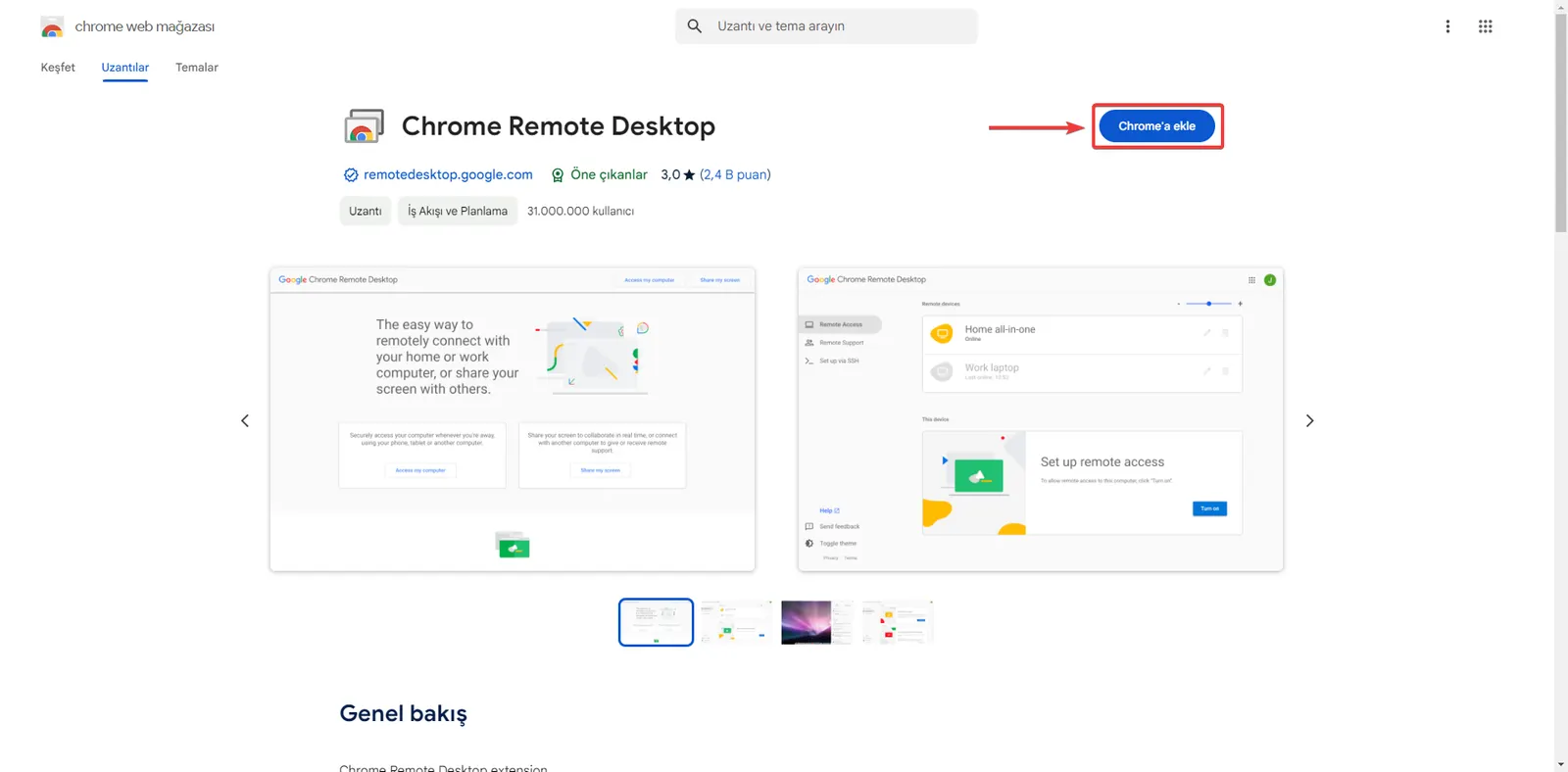
- After finding the Chrome Remote Desktop application in the search results, click it to go to the application page. Here, press the “Add to Chrome” button to start the automatic download of the application.
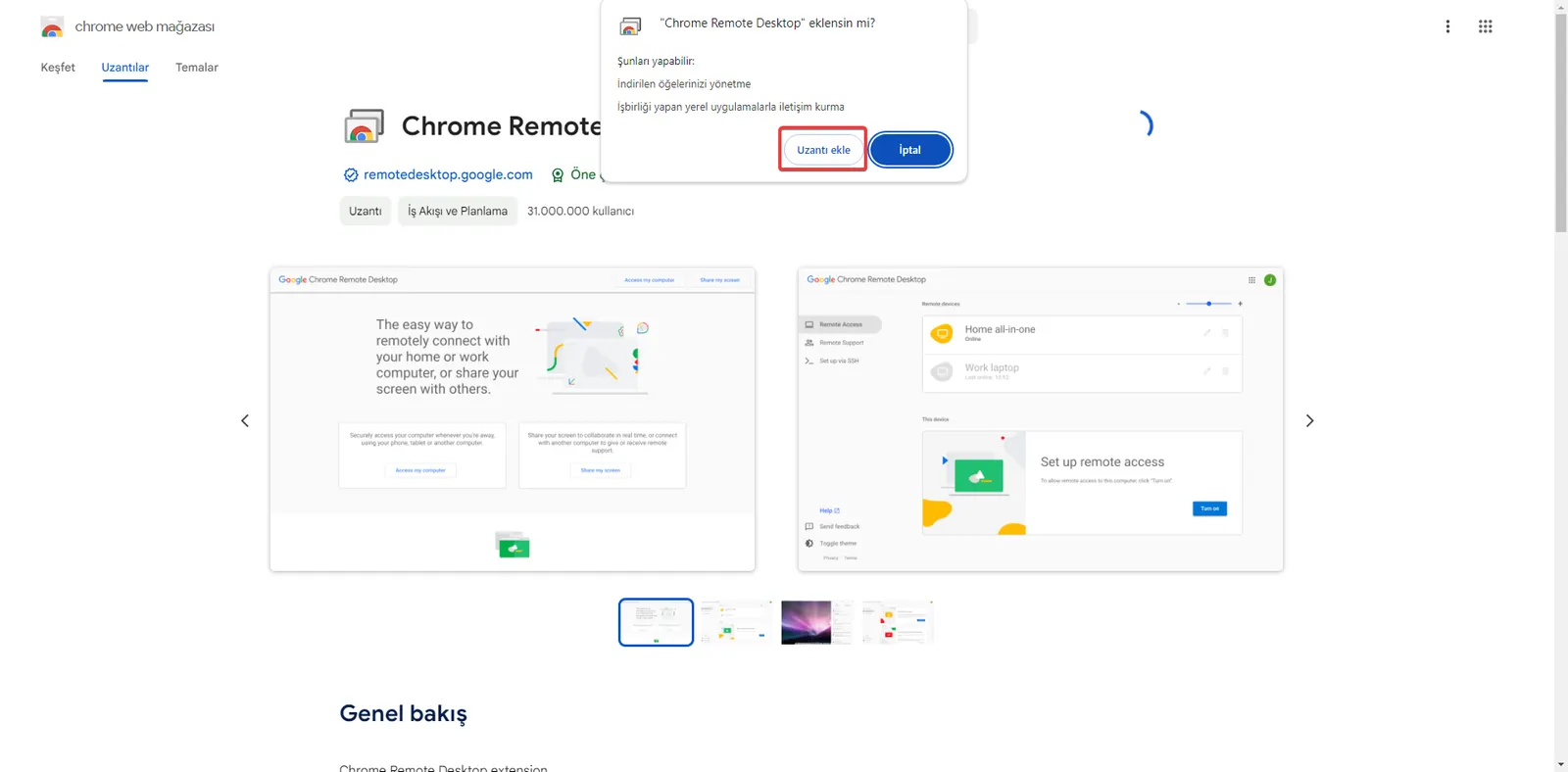
- In the tab that opens, click the “Add extension” button and complete the installation of the extension.
5. Download the Application
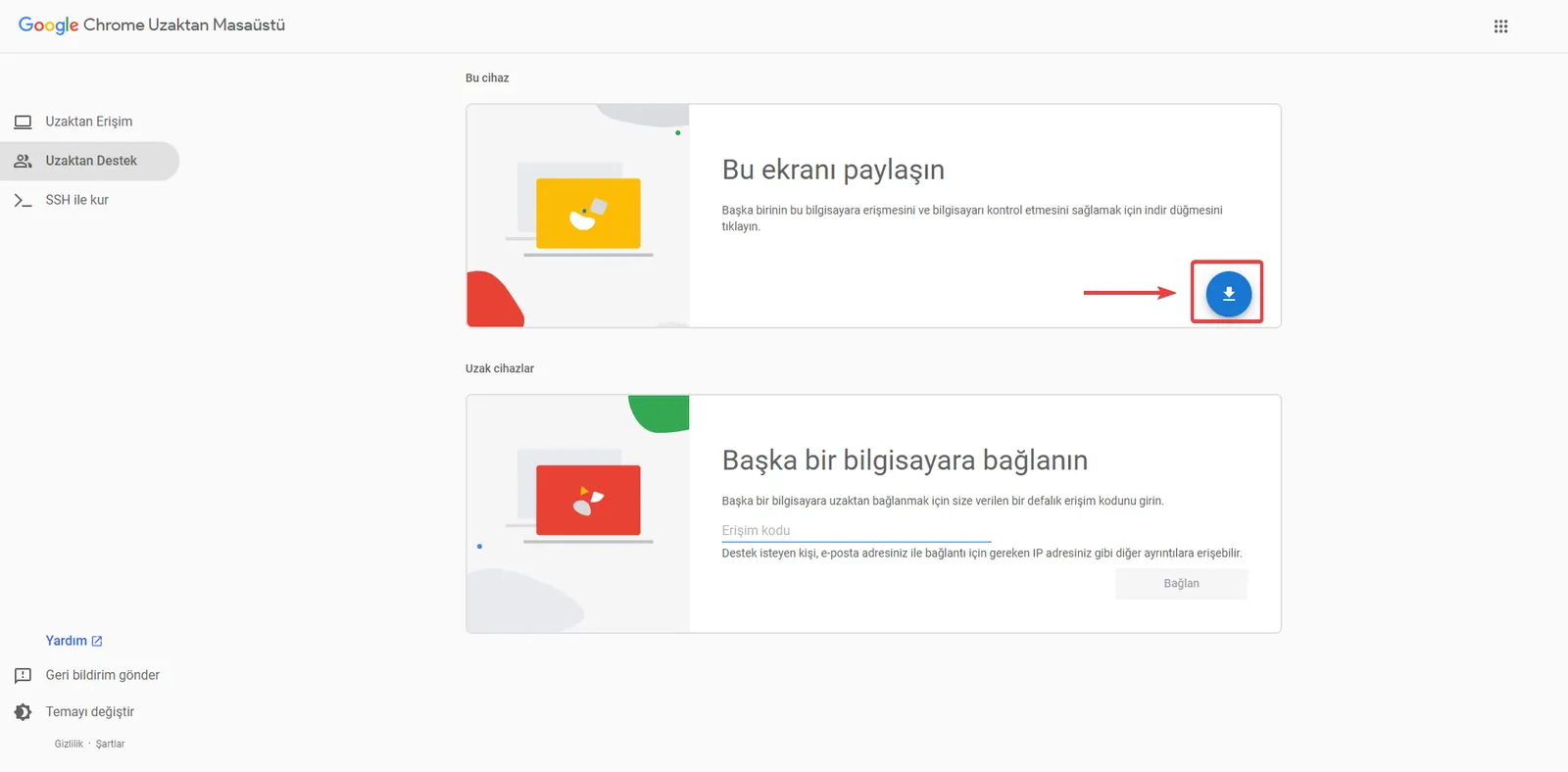
- After the application is installed, access the Chrome Remote Desktop extension by going to the extensions menu at the top of your Chrome browser. Or go directly to the Chrome Remote Desktop address. Download the application by clicking the download button in the Share this screen section.
6. Install the Application
- Press the Accept and Install button to install the application.
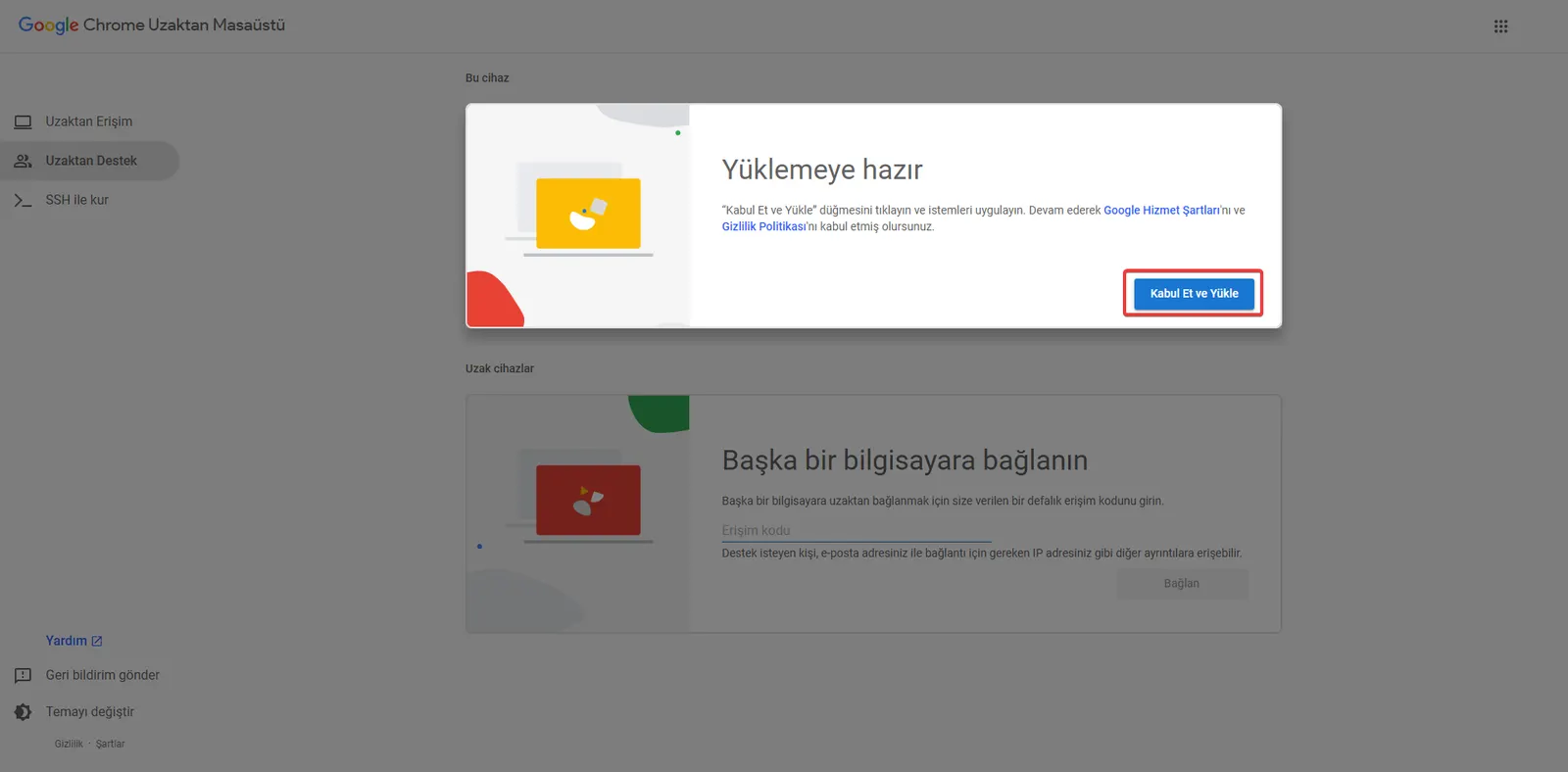
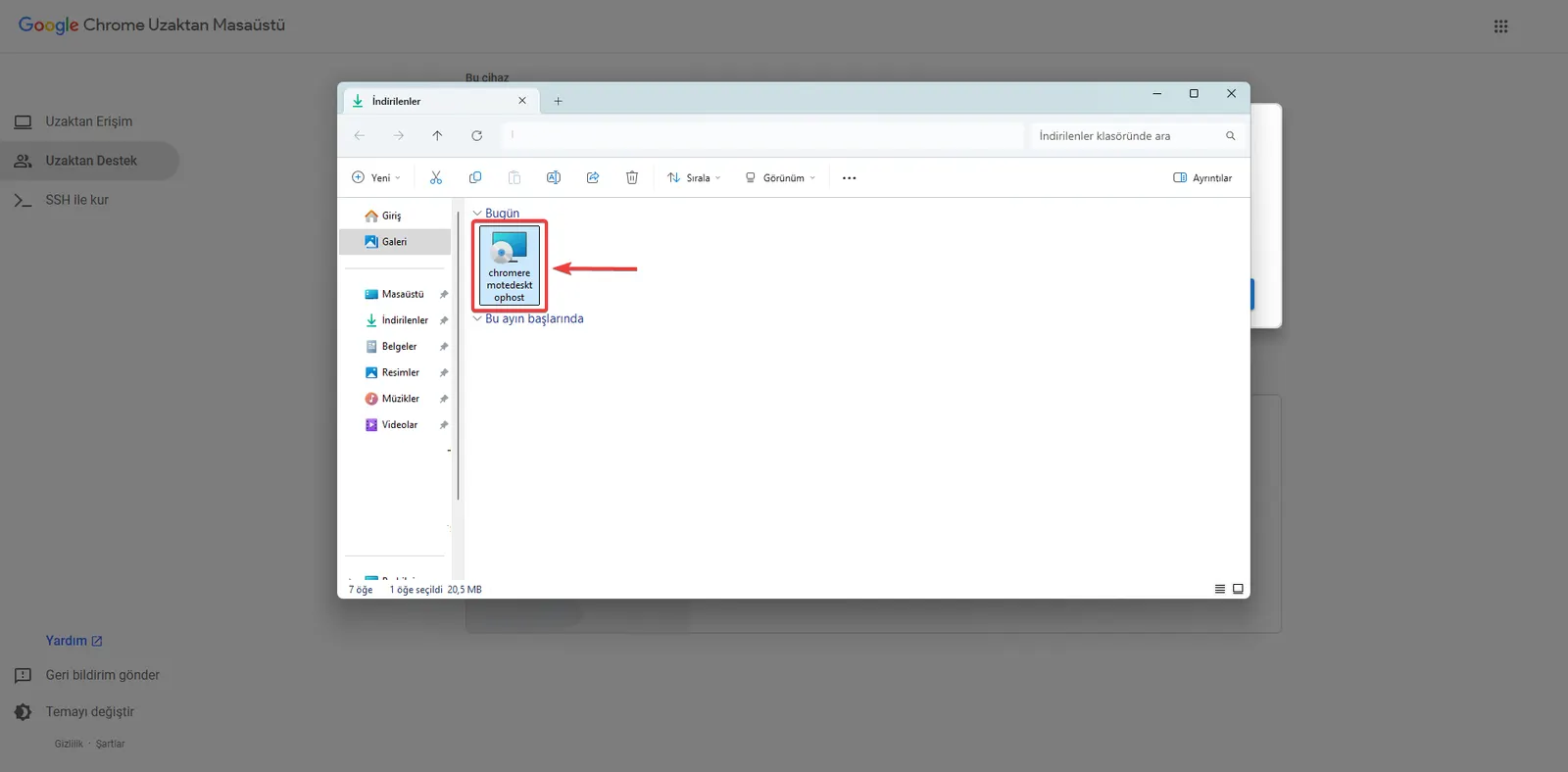
- Your computer will automatically go to the Downloads folder. Install the application named “chromeremotedesktophost” on your computer.
7. Generate a Code
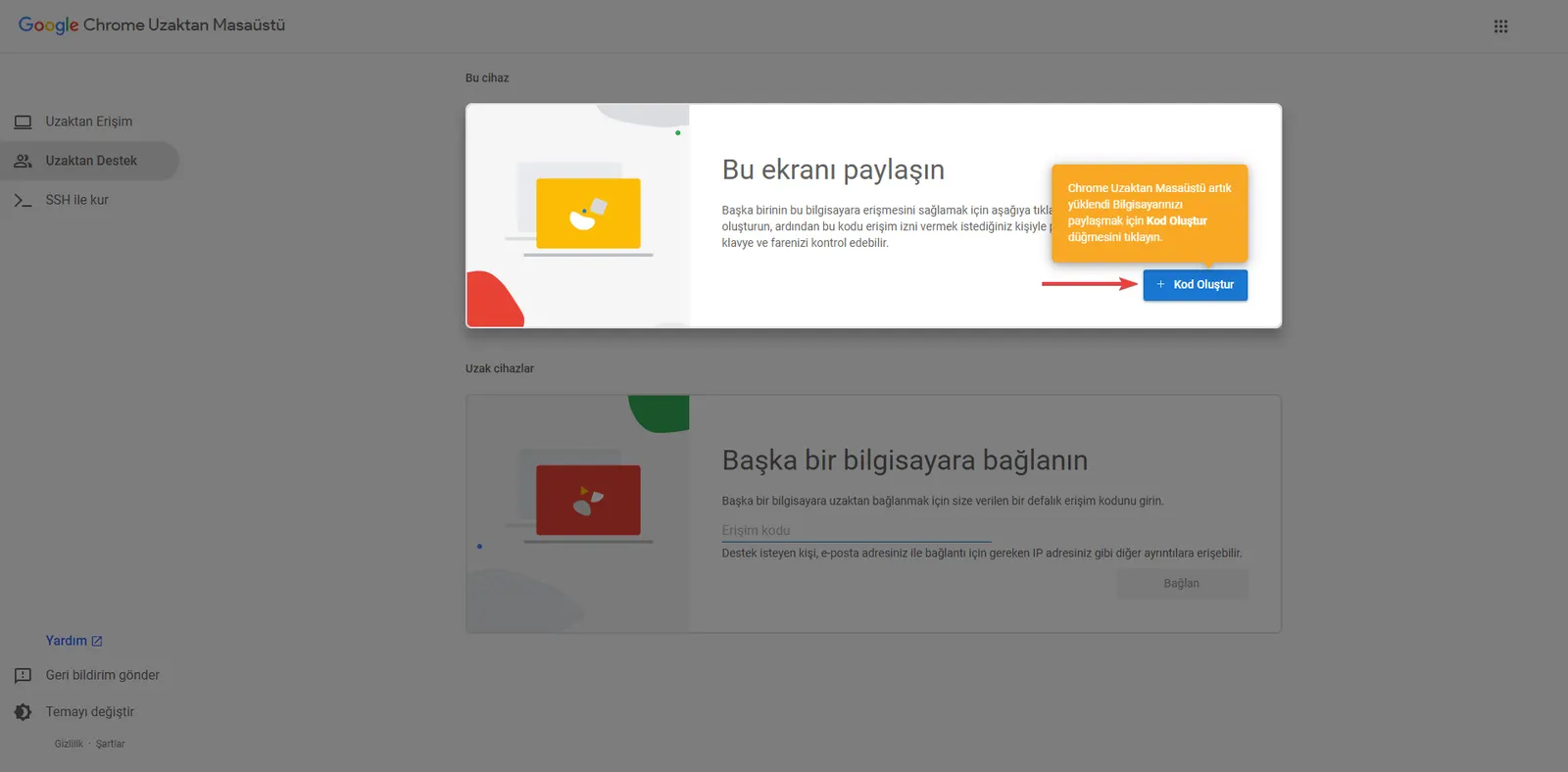
- Go to the Chrome Remote Desktop address and click the “Generate Code” button. To allow a remote connection from another computer that has Chrome Remote Desktop installed, you can send the generated code to the other party.
By following these steps, you can easily download and install the Chrome Remote Desktop application. Offering remote connection, this application will help you manage your daily tasks and special assignments more efficiently.