Tools/Equipment
How to Set Up Mail on an Apple iPhone?
Setting up your mail account on your iPhone is now much easier! Complete the mail setup quickly and smoothly with our illustrated step-by-step guide. As the Faprika support team, we are always by your side.
For many people, email is an essential part of getting daily work done. By adding your email account to your mobile device, you can reach your mail anywhere, anytime and reply quickly.
As Faprika, we have prepared a guide that shows step by step how easily you can set up a mail account on your iPhone. With visuals, you can learn in a simple and clear way how to add your mail account to your iPhone. Let’s go through the steps together!
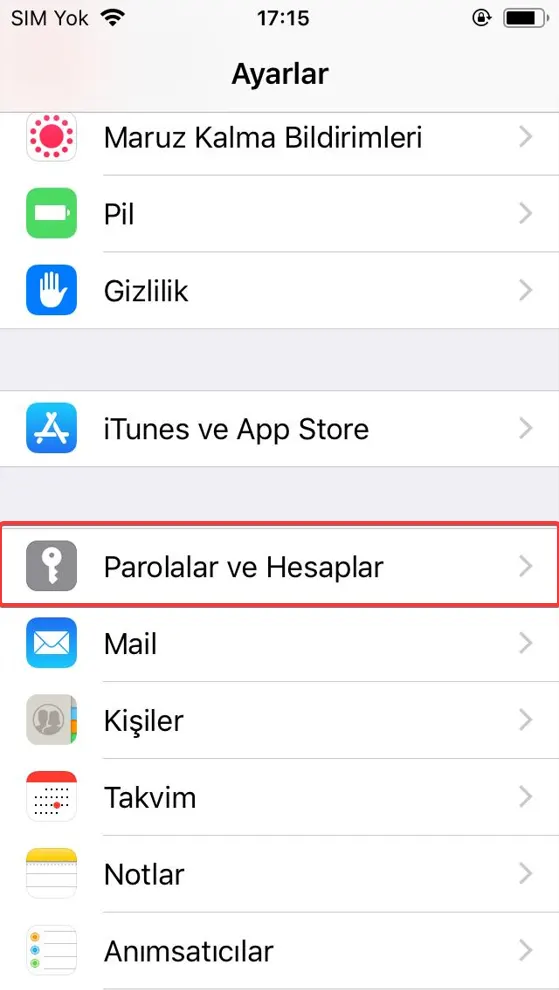
Your first step is to open the “Settings” menu on your iPhone. This menu is usually represented by a gray gear icon on your phone’s home screen. After opening “Settings”, you will see a series of options. Find the “Passwords & Accounts” section among them and tap it. This section lets you manage your email accounts and other accounts. To start adding your email account to your phone, you need to enter here.
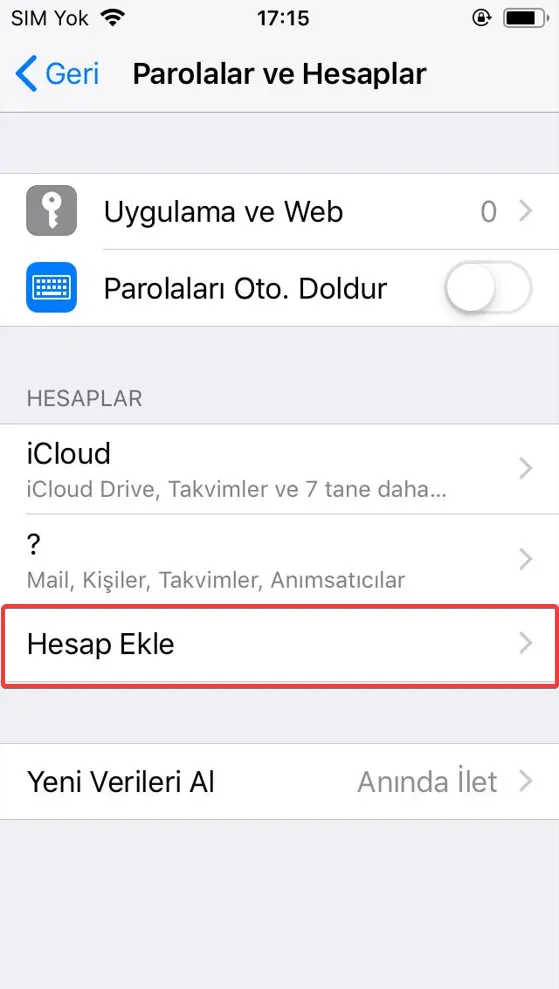
In the next step of the “Passwords & Accounts” section, you will see a number of account types. Here you will find the “Add Account” option that you will use to add your email account to your iPhone. When you see this option, tap it. After tapping, you will see a new screen listing several email providers. You can continue the process from there.
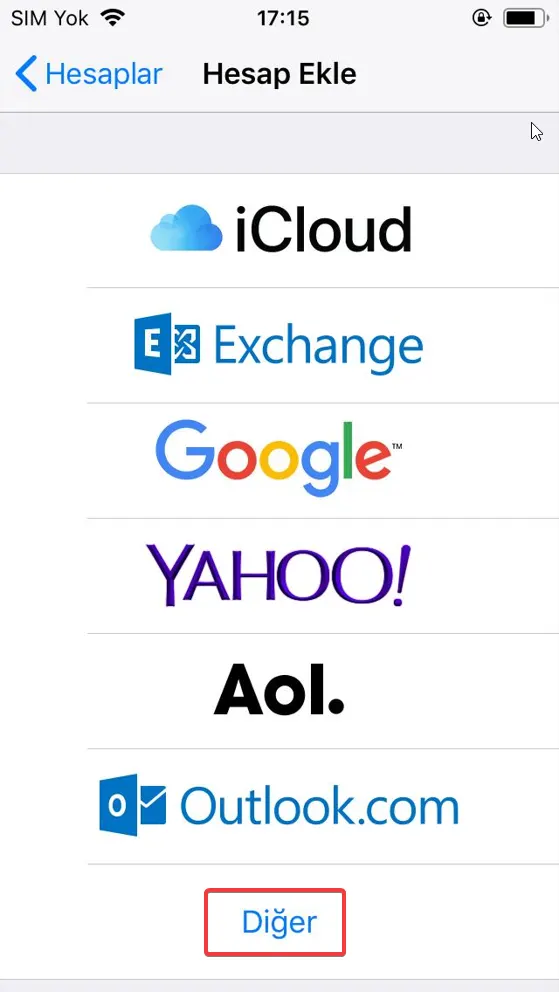
On your screen you will see a section listing a number of popular email service providers. However, if you use a custom email service provided by Faprika, you will not use one of these popular options. So choose the “Other” option at the bottom of the list. After selecting “Other”, a screen will open where you enter the details of your email account manually.
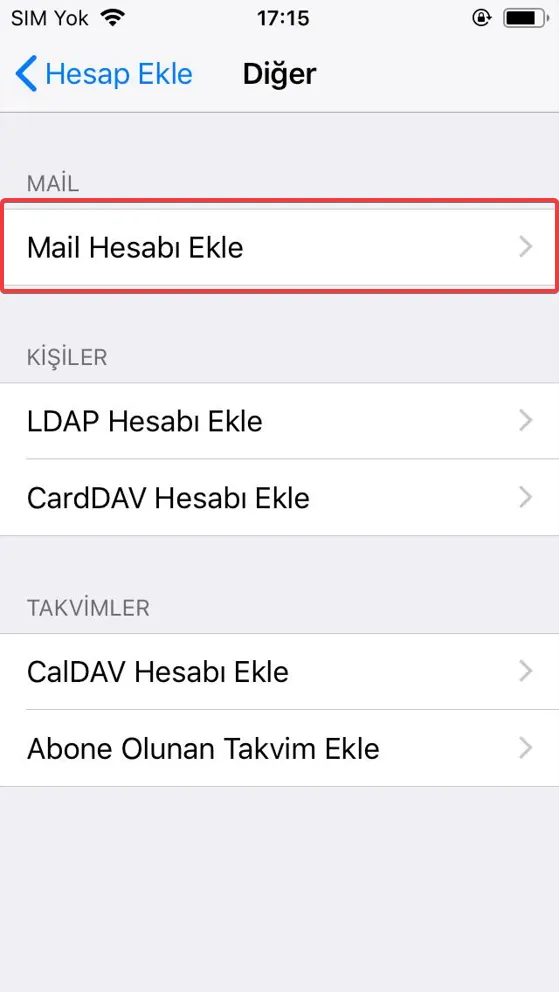
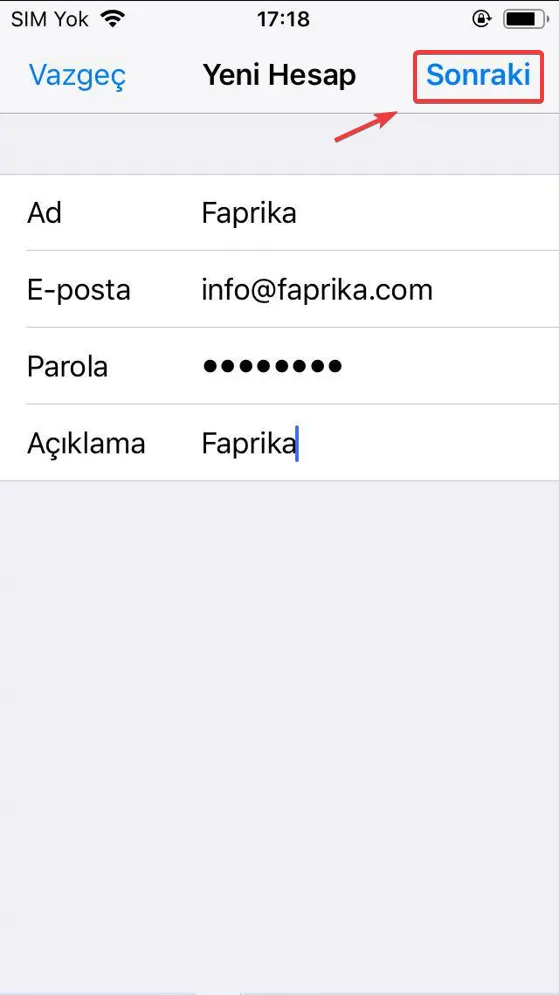
After selecting “Other”, the “Add Mail Account” option will appear. Tap it to continue. This is where you enter the basic details of your email account. Here you are asked to enter the email address provided by Faprika and the other required information. After entering the correct details, you can continue with the setup.
After entering your details completely and correctly, tap “Next” in the top right corner of the screen to move on to the next stage of the setup. At this stage, the area where you configure the server settings of your email account will appear. By proceeding step by step, you can successfully set up your email account on your iPhone.
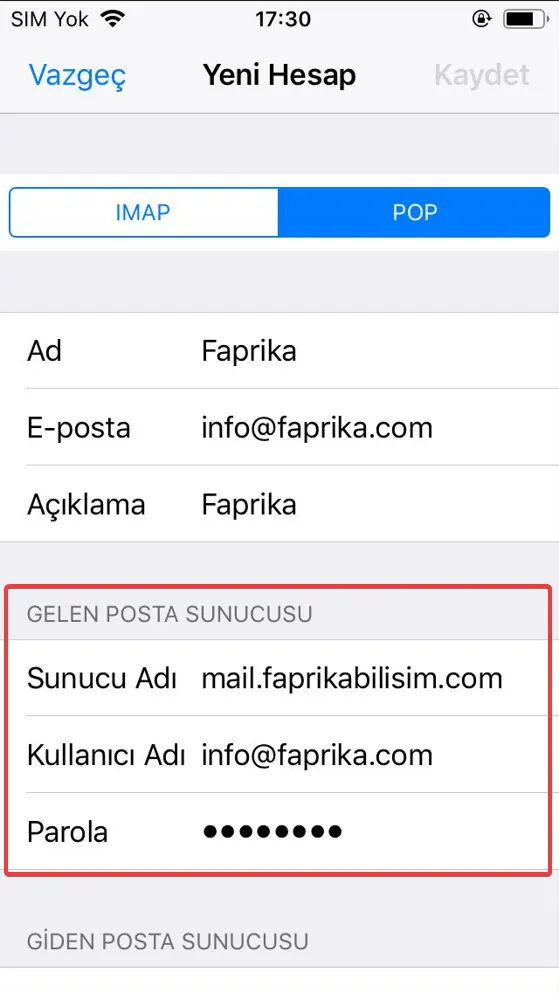
On the screen that appears, select the “POP” option and start filling in the “Incoming Mail Server” details. To ensure the email setup goes smoothly, make sure you have also entered correctly the username and password allocated specifically for your email account.
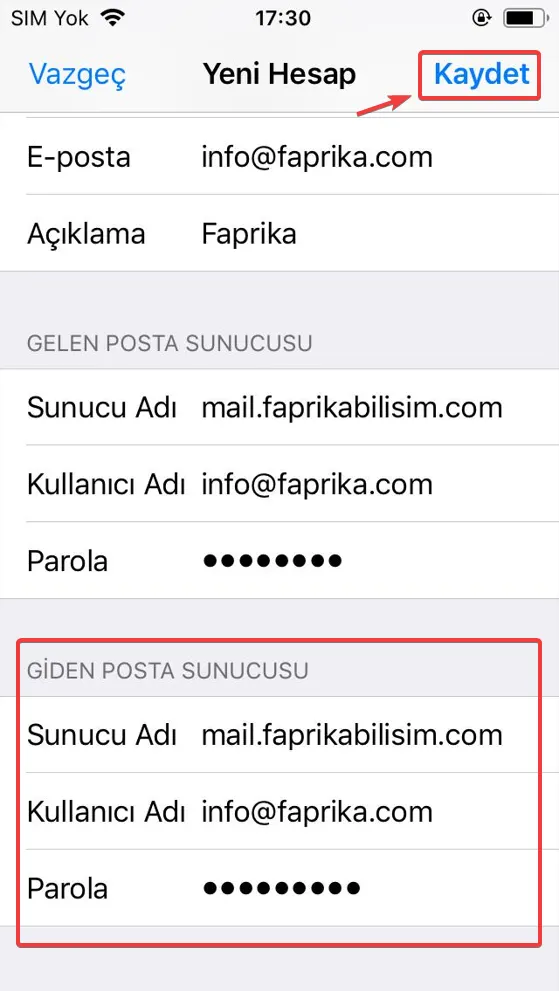
When you reach the “Outgoing Mail Server” section, you will need the same details. Fill in the required fields using the information provided by your email service provider. This information is usually the same as the “Incoming Mail Server” details, but in some cases it may differ.
After entering the details, press the “Save” button to complete this section.
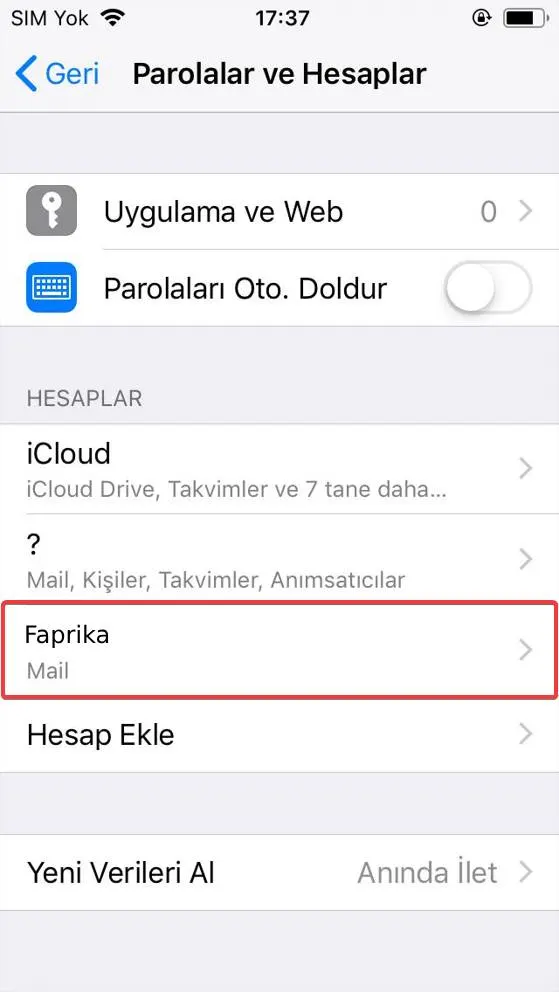
As you move through the “Passwords & Accounts” menu, you will see the “Mail” option for moving on to the next step of the setup. By tapping it, you will be able to adjust your mail account settings in more depth.
The “SMTP” option under “Outgoing Mail Server” leads to the settings section that controls how your emails are sent. SMTP is short for Simple Mail Transfer Protocol and is a protocol used for sending email.
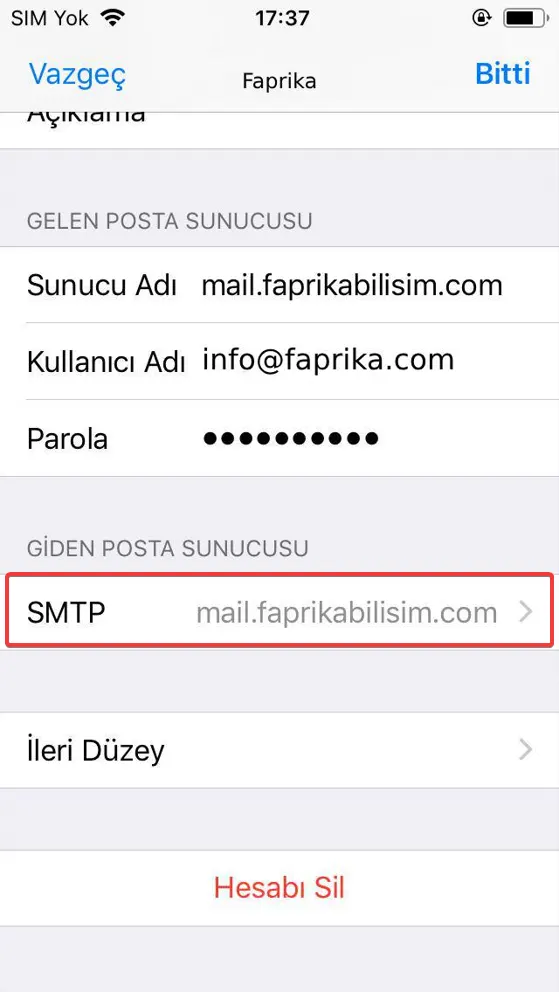
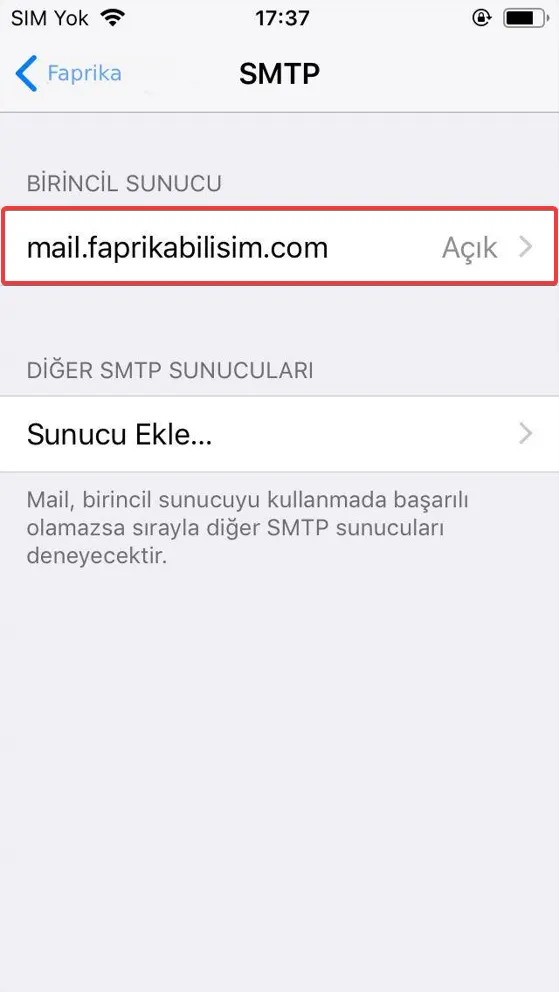
You can start configuring your email sending settings by clicking the “Primary Server” option in the “SMTP” menu.
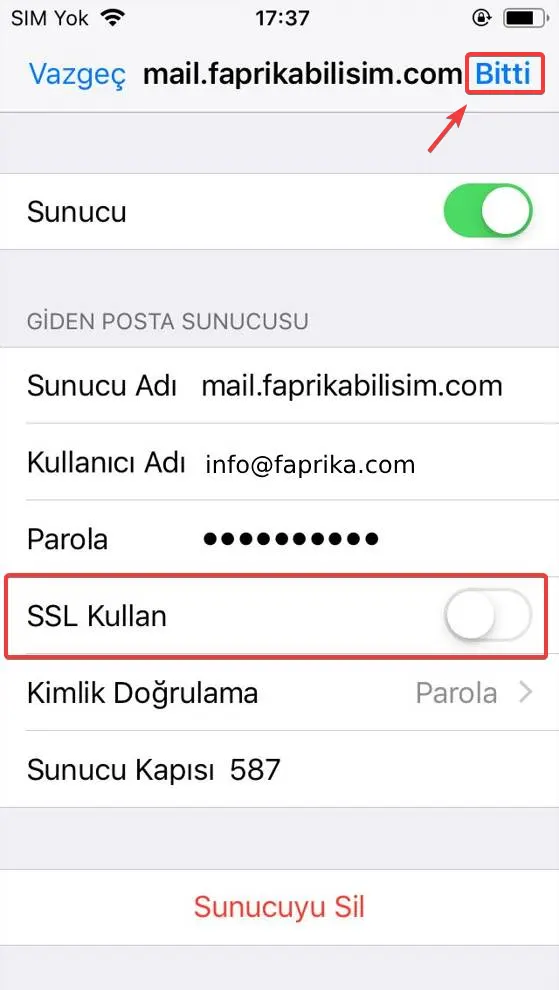
On the screen that appears, turn off the “Use SSL” option and click the “Done” button in the top right corner to complete this step.
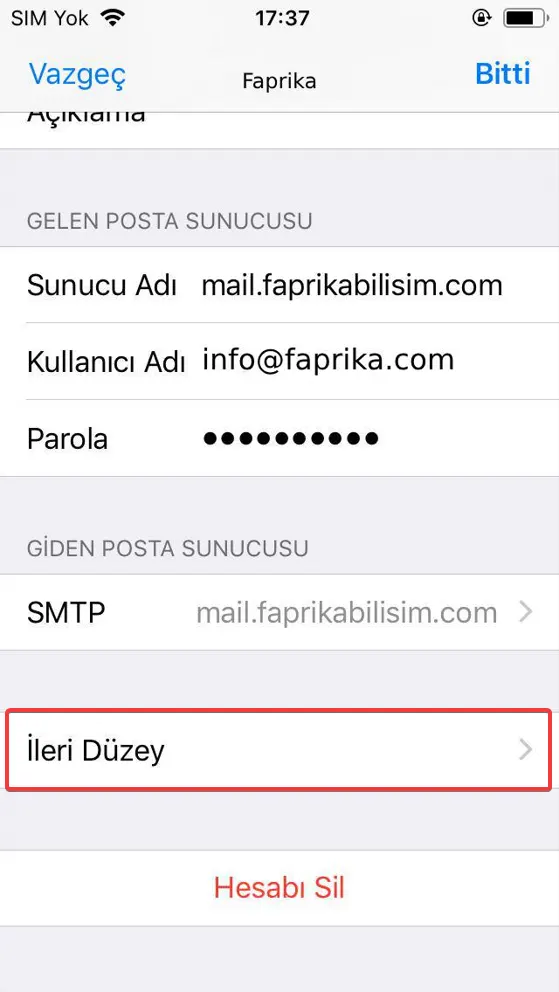
On the screen that appears, let’s tap the “Advanced” option.
In the Incoming Mail Settings section, disable the “Use SSL” option and set the “Server Port” to “110”.
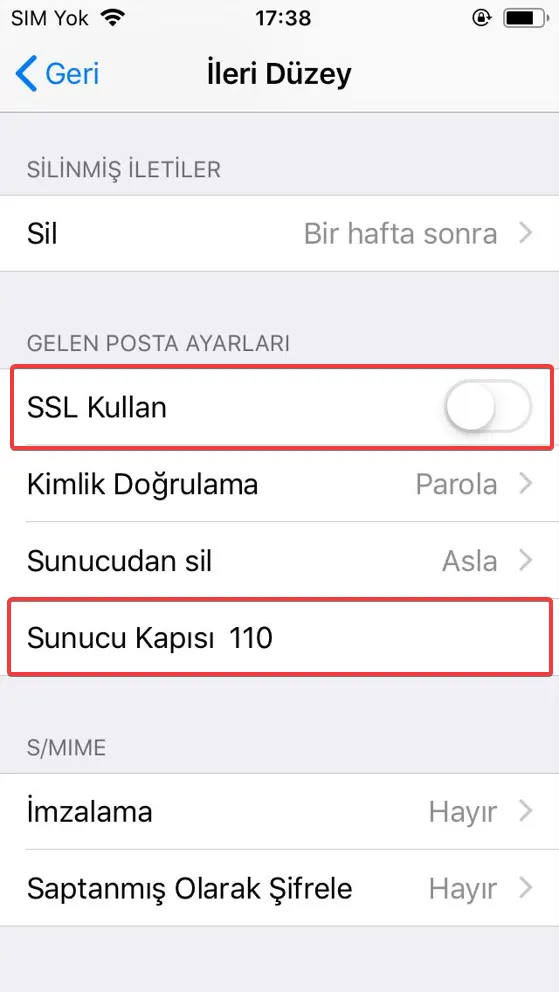
Finally, by updating the “Server Port” setting to “110”, you complete the mail setup. You can then start using your Faprika mail account on your iPhone without any problems.
By carefully following the steps above, you can easily complete the setup. If you run into any problem during setup or would like more support, the Faprika support team is always by your side.
For more information about iPhone mail setup and other topics related to the world of e-commerce, you can visit our Blog and Support pages. At Faprika, we are here to provide all the support and solutions you need in your e-commerce journey.