Catalog
Buy the Whole Outfit
Make your customers' shopping experience easier with Faprika's 'Buy the Whole Outfit' feature. Speed up shopping by bringing outfit products together and add the products you want to your cart. Offer your customers a more appealing and practical shopping experience. Here are the advantages 'Buy the Whole Outfit' offers!
Buy the Whole Outfit: Easily Add Complementary Products!
One way to enrich the customer experience and increase your sales in e-commerce is to make complementary products more accessible. This is where Faprika's "Buy the Whole Outfit" feature comes in. It lets your customers, while buying a product, easily add other products that go perfectly with it at the same time.
Thanks to the Buy the Whole Outfit feature, your customers can add complementary products that suit their needs to their cart with a single click. This both increases customer satisfaction and optimizes your sales.
Now let's learn step by step how you can use this feature.
To use the Buy the Whole Outfit feature, the first step is to go to the Catalog >> Product Management page and open the details of the product you want to create the outfit for. You can follow the steps below to make the best use of this feature:
- Go to the Catalog Page: Thanks to Faprika's user-friendly interface, to start the process, first log in to your admin panel and go to the "Catalog" section.
- Select the Product: Select the main product you want to create an outfit for and open its details. This is where you determine the main product for the outfit.
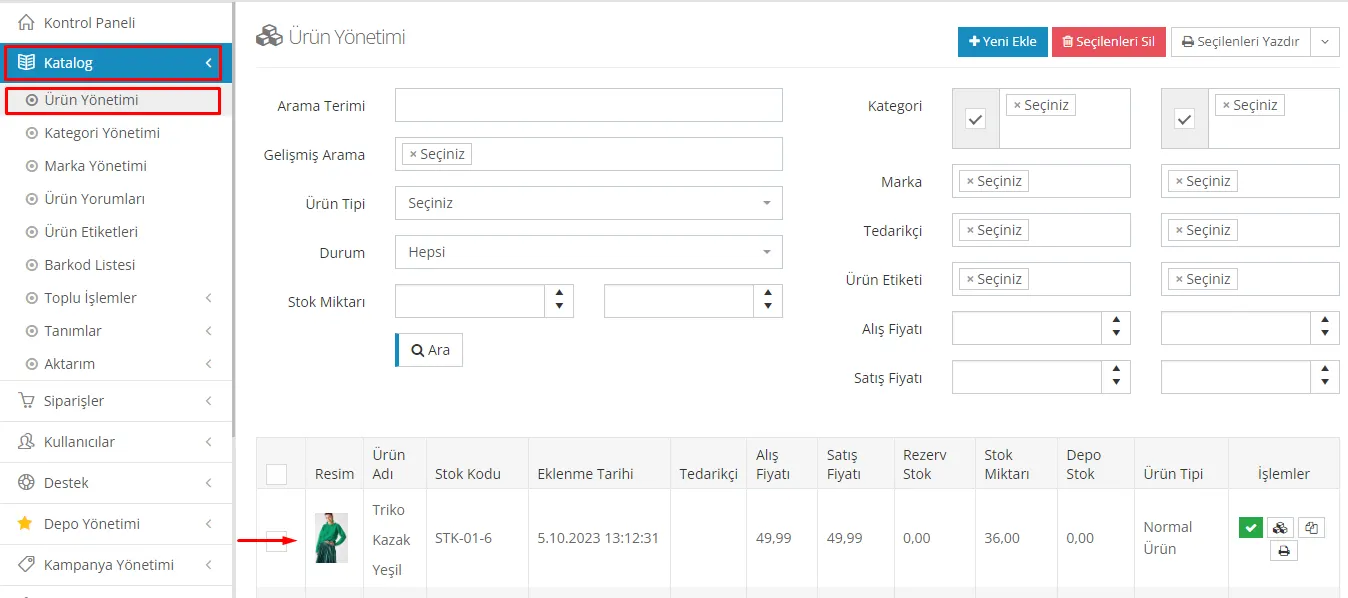
After selecting the main product for the outfit, the next step is to go to the "Product Links" tab to add outfit products to this main product. You can follow the steps below for a more detailed explanation of this step:
- Select the Main Product: After opening your main product, you should have accessed the product's details.
- Go to the Product Links Tab: Find and click the "Product Links" tab among the tabs below your product details.
- Go to the "Outfit Products" Heading: Look for the "Outfit Products" heading under this tab and click this option to continue.
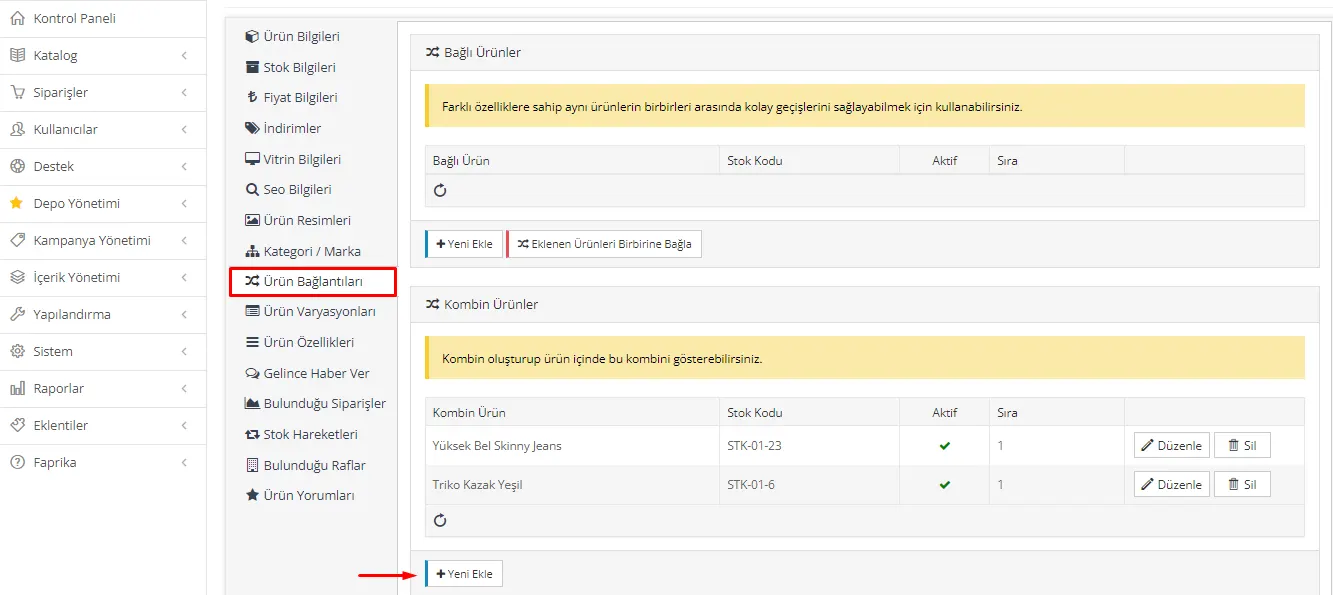
Great, now we continue with the steps needed to create the outfit. Here is what you need to do to complete these steps:
- Press the "Add New" Button: After switching to the "Outfit Products" tab, there should be an "Add New" or similar button or option. Clicking this option should open a window or interface for adding the products that will be part of the outfit.
- Select the Products: In the window that opens, you should select the products you want to include in the outfit. Tick the boxes next to the products to select them. With this step, you will have linked your outfit products to the main product.
- Click Save: After selecting the products, there is usually a "Save" or "Confirm" button to complete the process. Save the outfit by clicking this button.
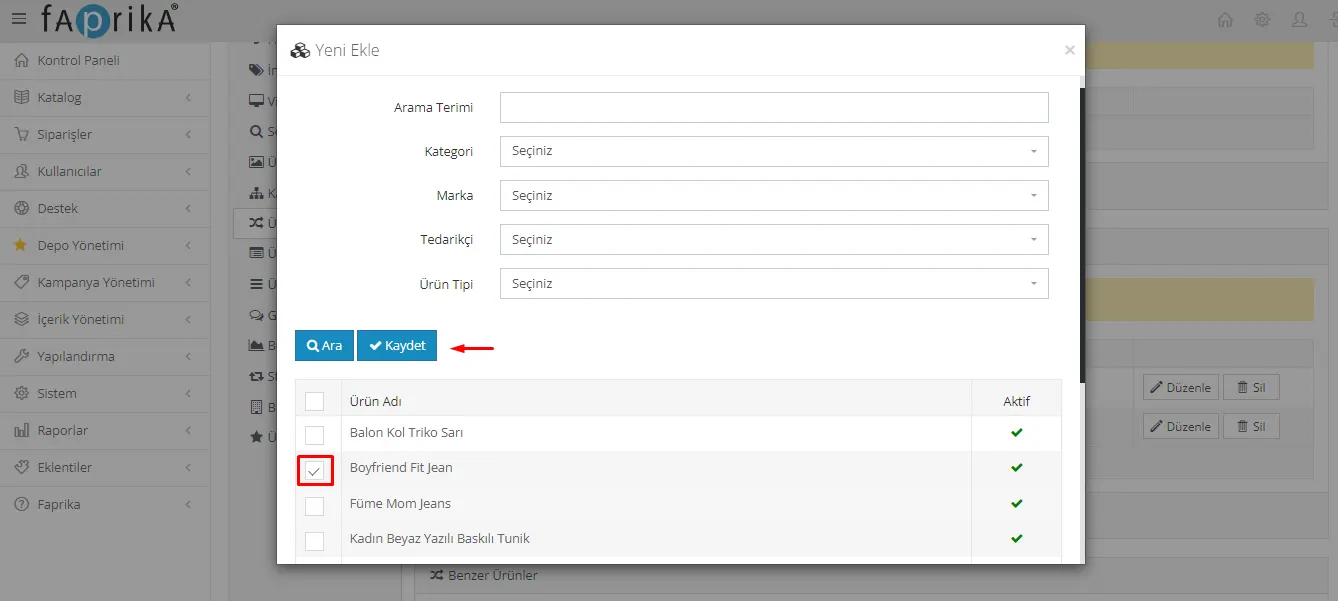
Great, you have successfully created your outfit products and can now check how these outfits look. Here is what you need to do in this step:
- Open the Product on Your Site: Find the outfit product you created on your site and open its page.
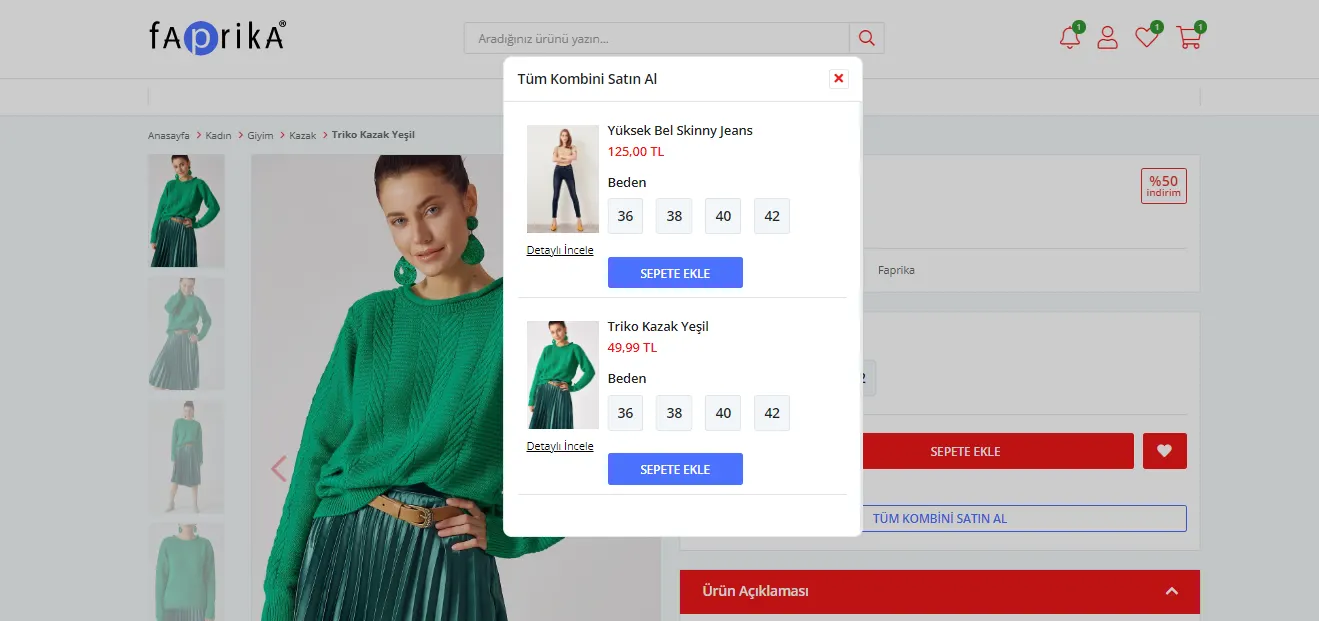
- Check How the Outfit Product Looks: When you open the product page, check how the outfit product looks. You should usually see a "Buy the Whole Outfit" or similar button or option below or next to the main product.
- Add the Outfit Product to the Cart: When you click the "Buy the Whole Outfit" button, all products in the outfit should be added to the cart together. This allows customers to buy the whole outfit in a single transaction.
- Detailed Review: For customers who want to add only some or all of the products in the outfit to the cart, there is usually a "Review in Detail" or similar option. By clicking this option, they can examine the details of the products in the outfit.
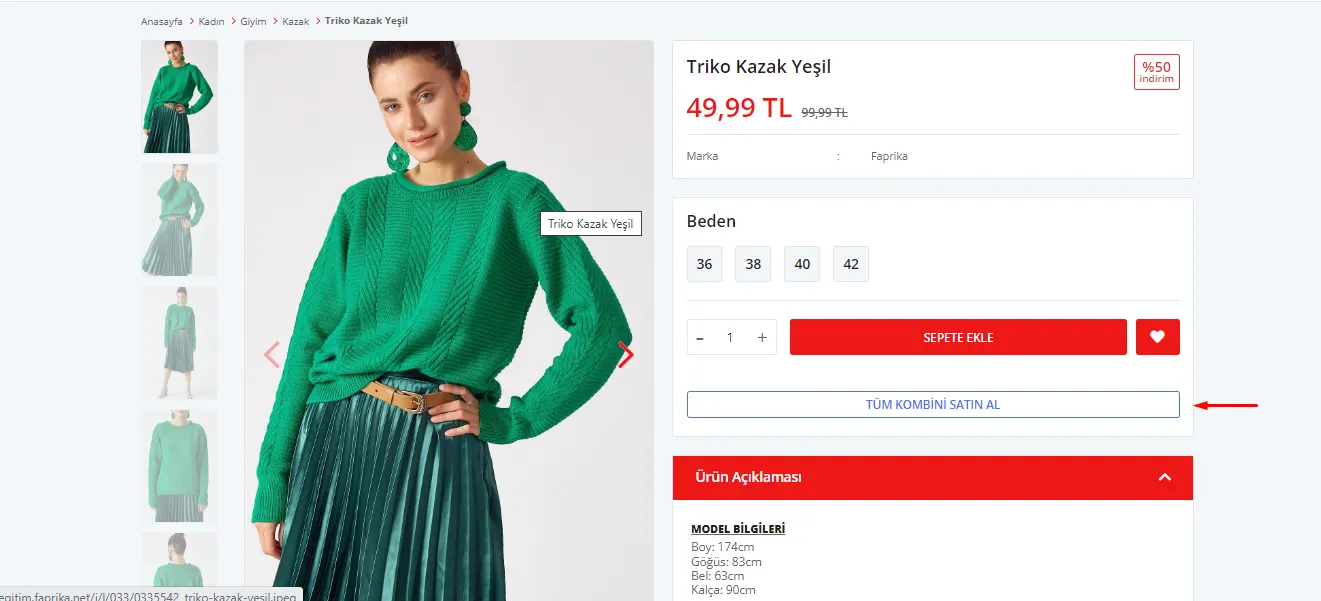
With this convenience we offer our customers when buying outfit products, we make their shopping experience special. When they click the "Buy the Whole Outfit" button, the list of all products in the outfit opens. From here, our customers can select the products they want and add them to their cart. This option is also available for those who want to select only the main product. This flexibility gives our customers the freedom to shop the way they want.
We offer a special experience to customers who want to see every detail of our products. When they click the 'Review in Detail' button, they are directed to the product detail page of each product in the outfit. This way, they can examine the descriptions, features and images of each product separately. Our customers have all the information they need to make the best decision about our products.
At Faprika, we aim to offer your customers the best shopping experience. The 'Buy the Whole Outfit' feature makes your shopping faster and more efficient while increasing your chance to examine your products in detail. By offering more options, your customers can easily put together the products they want and create the best outfit. Adding products that suit their needs to their cart has never been this easy. Enjoy your customers' shopping experience with Faprika!