Tools/Equipment
How to set up Android mail?
Learn how to set up the email account opened specially for you by Faprika E-Commerce Infrastructure Services on your Android device. This guide is supported with step-by-step visuals and prepared so that users of every level can follow it easily. Now enjoy sending and receiving your emails securely from your Android device.
Enjoy managing your work anytime, anywhere by integrating the private email account allocated to you by Faprika E-Commerce Infrastructure Services into your Android devices. Setting up mail on your Android device is quite simple; this guide will accompany you through every stage of the process.
Step by step, thanks to the visual aids provided to you, you can easily set up your email account and comfortably manage your emails on your Android device. Here we go!
To start using your Faprika email account on your Android device, you can follow the steps below in order:
- Go to your device's "Settings" menu and tap the "Accounts and Sync" option.
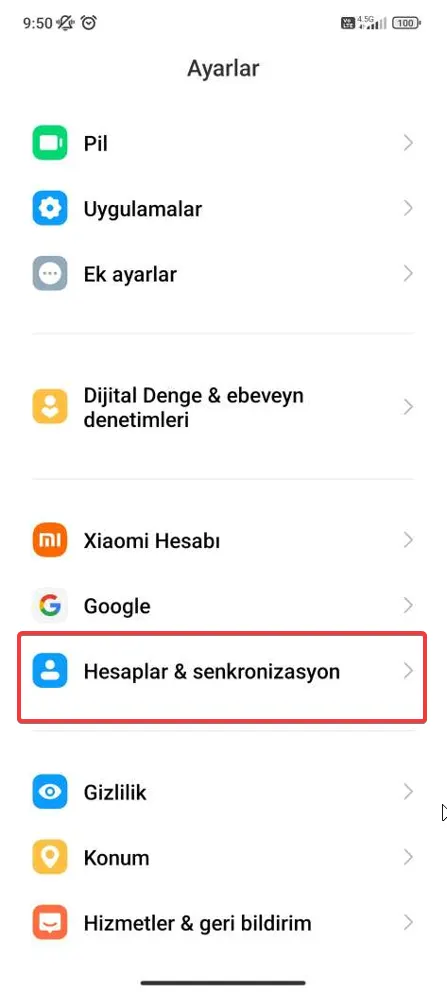
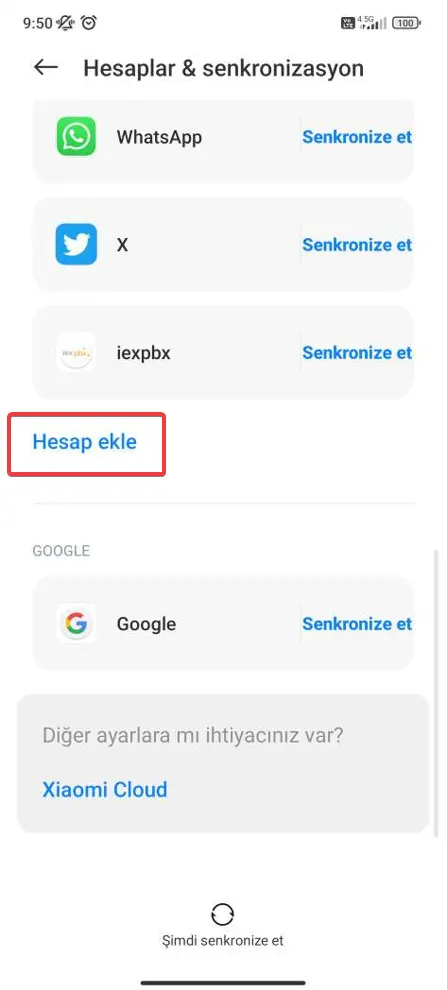
- In the "Settings" menu, find the "Add account" option and tap it.
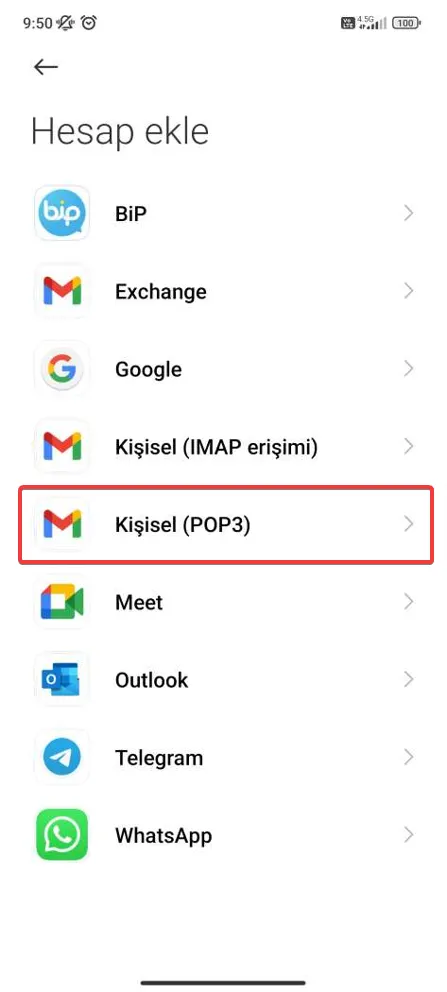
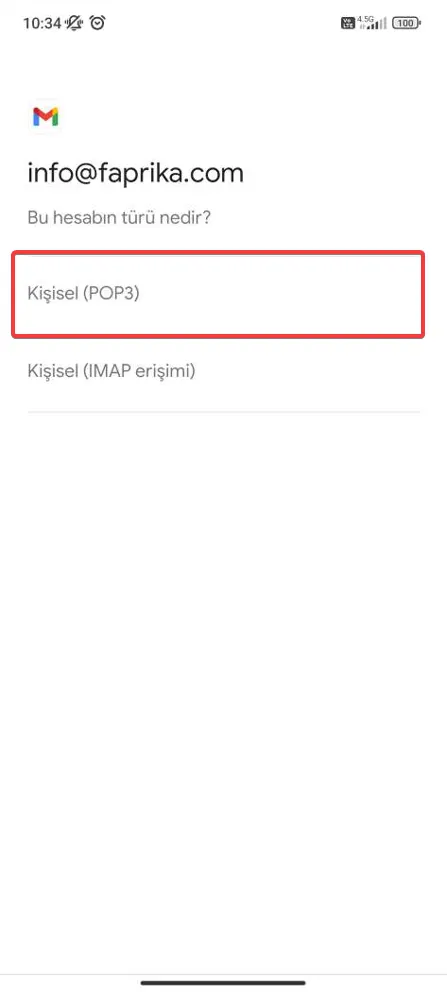
- Select the type of account you want to add; 'Personal (POP3)' or, optionally, 'IMAP'.
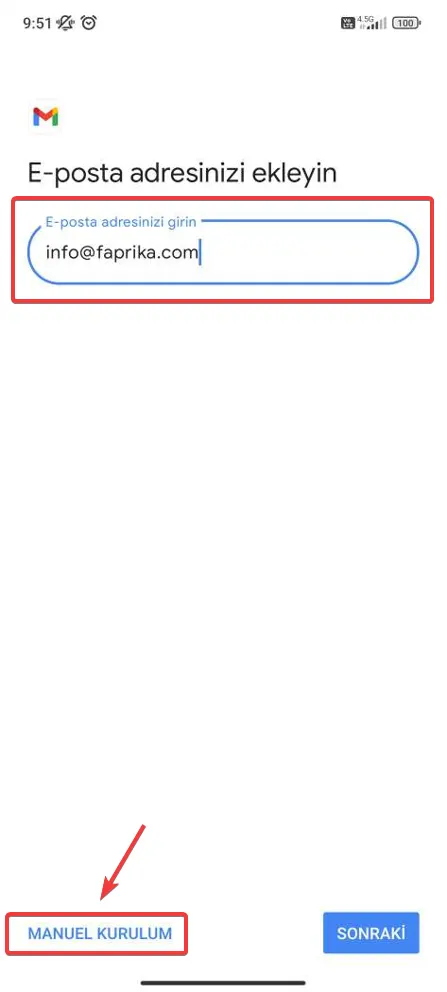
- Enter your email address provided under Faprika E-Commerce Infrastructure Services and tap “Manual Setup”.
- Let’s continue with the Personal (POP3) option.
Note: If you have previously set up an account using the IMAP option and want to keep using it, you can choose IMAP at this step.
- Enter the password of your dedicated email address.
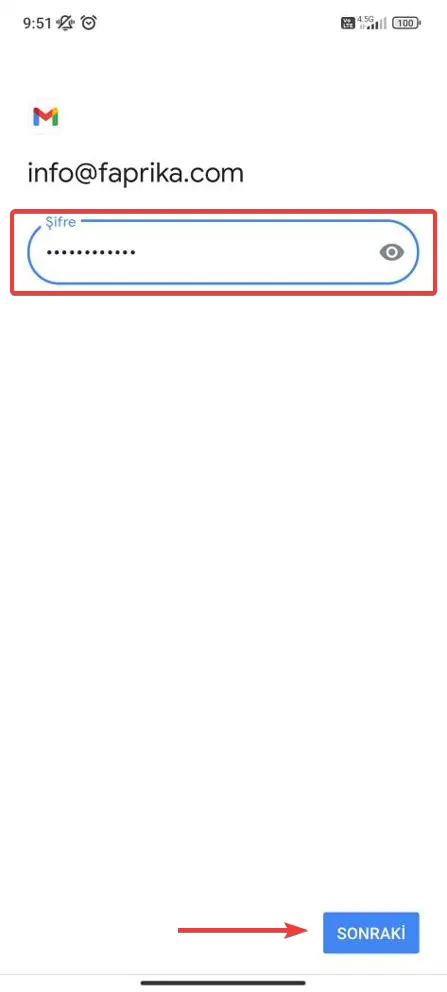
Enter your details and click the “Next” button to continue.
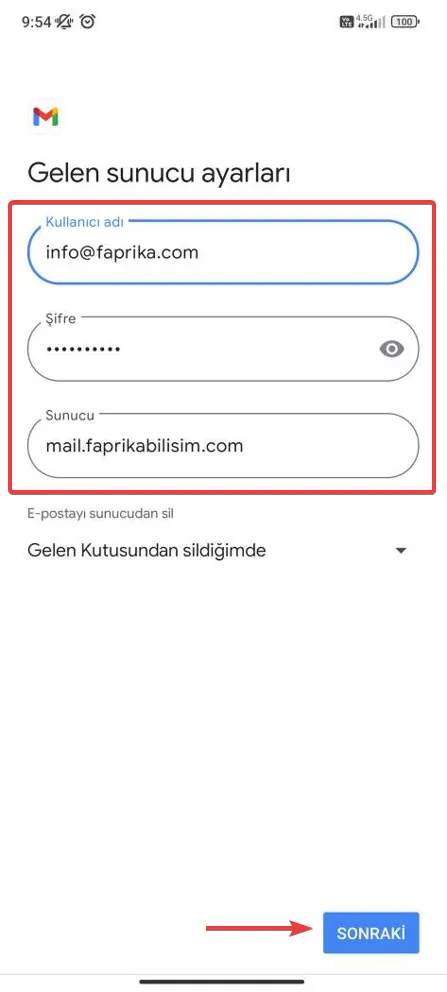
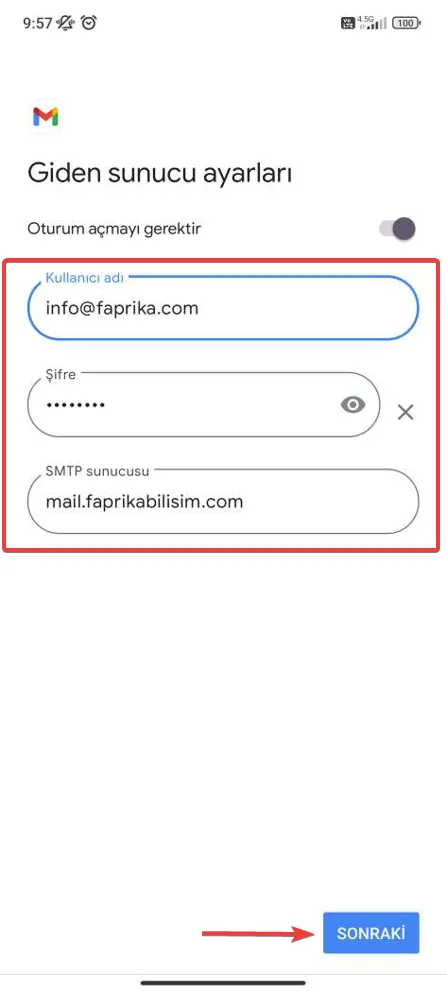
- On the screen that appears for sending mail from our Android device, let’s enter our details in the fields.
Enter your details and click the “Next” button to continue.
- Set your synchronization frequency according to your own usage habits. The frequency you choose can directly affect your device’s battery life; frequent synchronization may shorten it. After making your choice, click “Continue” to proceed.
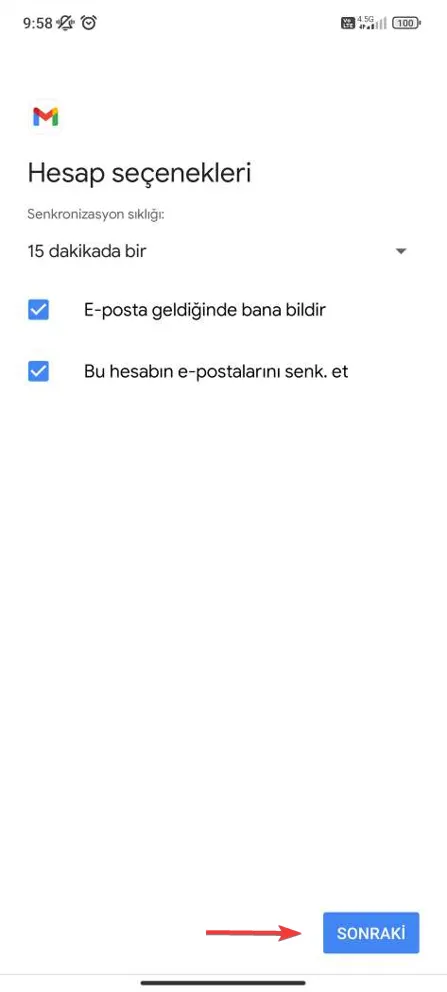
We have now reached the final step. Here you can set the name of your email account and the name that will appear on the emails you send. After filling in the relevant fields, click the “Next” button to complete the setup of your email account on your Android device.
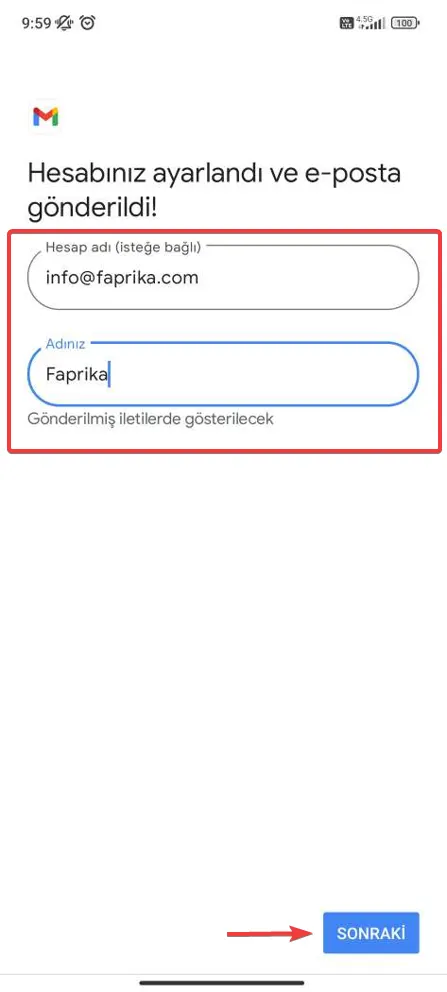
Congratulations! You can now use the email account created for you by Faprika E-Commerce Infrastructure Services on your Android device without any problems. If you have completed the steps above in full, you can send and receive email quickly and securely from your Android device. Remember, you can contact the Faprika support team if you run into any issue at any stage. We wish you success with your email setup!